Managing tasks effectively is the backbone of productivity. Whether you are leading a team or working individually, keeping track of what needs to be done, by whom, and when can get overwhelming. This is where a Task Management Documentation Checklist in Excel becomes your best ally.
In this blog post, we will explore everything you need to know about this ready-to-use Excel template—its features, benefits, structure, and best practices. You will also learn how to customize it for your own workflow and how it helps in streamlining daily operations.
click to buy Now Task Management Documentation Checklist in Excel
What Is a Task Management Documentation Checklist in Excel?
A Task Management Documentation Checklist in Excel is a structured tool designed to help you document, assign, and track tasks efficiently. It is an easy-to-use, customizable template that allows you to create checklists, assign responsibilities, monitor deadlines, and evaluate progress—all inside Microsoft Excel.
Unlike complex project management software, this template offers a simple yet powerful solution without any additional costs. It is especially useful for small businesses, teams, or individuals who want to stay organized and meet deadlines consistently.
Structure of the Template
This Excel template includes two main worksheets that simplify task management:
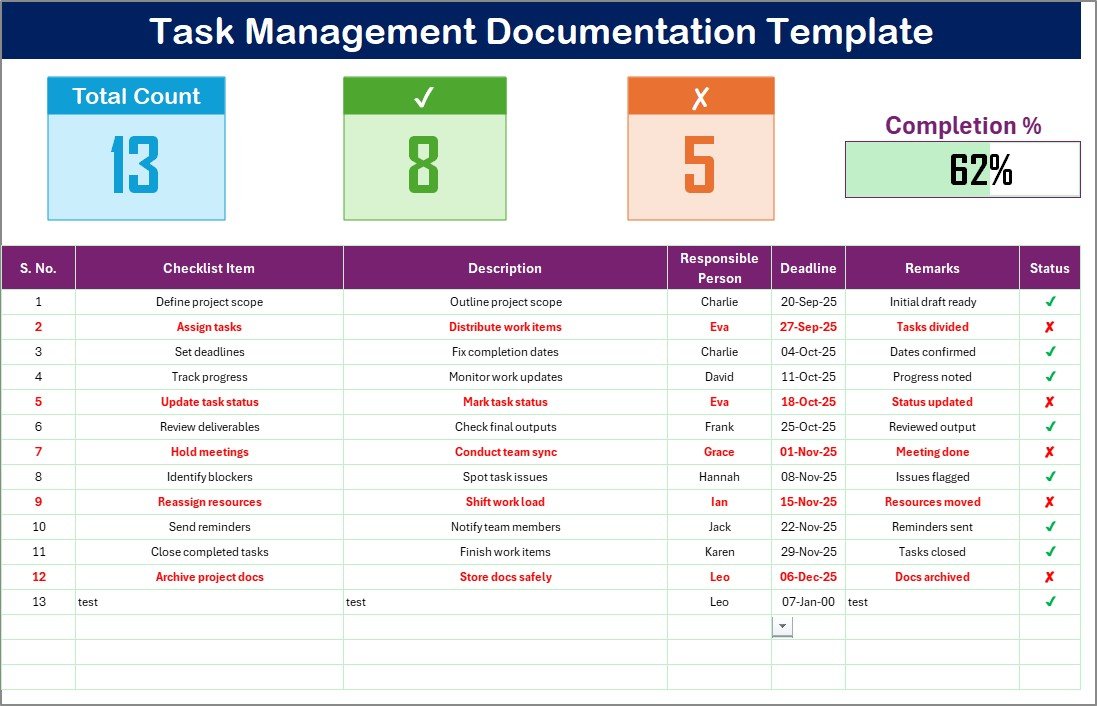
- Task Management Documentation Checklist Sheet
This is the primary sheet where you capture and manage all task-related information.
Top Section Features:
- Total Count: Displays the total number of tasks.
- Completed Count: Shows how many tasks are marked as ✔ (done).
- Pending Count: Tracks unfinished tasks.
- Progress Bar: Provides a visual representation of task completion in percentage.
Checklist Table Columns:
- Serial No. – Unique number for each task.
- Checklist Item – The name of the task.
- Description – A short explanation of the task.
- Responsible Person – The individual assigned to complete the task.
- Deadline – The due date for the task.
- Remarks – Additional notes or comments.
- Status – Mark tasks with ✔ (completed) or ✘ (pending).
click to buy Now Task Management Documentation Checklist in Excel
- List Sheet Tab
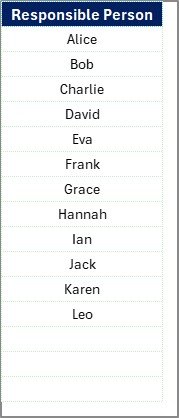
This sheet stores the unique list of Responsible Persons. It is used to create a drop-down menu in the main checklist, making task assignment easier and reducing manual errors.
Why Use a Task Management Checklist in Excel?
Using an Excel-based checklist for task management brings multiple advantages:
- Simplicity: No need for complicated software or training.
- Customization: Easily adapt the template for personal or team use.
- Clarity: Keep all task-related data in one place.
- Accessibility: Works on any system with Excel installed.
- Automation: Built-in formulas automatically update counts and progress.
click to buy Now Task Management Documentation Checklist in Excel
Advantages of Task Management Documentation Checklist in Excel
Here are the key advantages that make this template essential:
- Improves Accountability – Each task is assigned to a specific person with clear deadlines.
- Saves Time – Instead of juggling multiple tools, everything stays in Excel.
- Enhances Collaboration – Team members can update their task status in real time.
- Supports Progress Tracking – The progress bar provides instant insights.
- Easy to Scale – Add more rows and tasks without restrictions.
How to Use the Task Management Documentation Checklist in Excel?
Using this checklist is simple and straightforward:
- Open the Template in Excel.
- Enter Tasks in the checklist table with details like description, responsible person, and deadline.
- Assign Tasks using the drop-down menu linked to the List sheet.
- Track Status by updating the Status column with ✔ (done) or ✘ (pending).
- Monitor Progress using the progress bar and counts at the top.
- Review and Update regularly to stay on track.
Best Practices for the Task Management Documentation Checklist
To maximize the benefits of this Excel template, follow these best practices:
- Keep Descriptions Short: Avoid long explanations; use clear and concise text.
- Set Realistic Deadlines: Ensure deadlines are achievable to maintain morale.
- Update Daily: Make it a habit to update the checklist at the end of each workday.
- Use Conditional Formatting: Highlight overdue tasks in red to draw attention.
- Review Weekly: Conduct weekly reviews to track overall progress.
- Encourage Team Updates: Let each responsible person update their tasks to share accountability.
Opportunities for Improvement
While this Excel checklist is highly effective, here are some ways to improve it:
- Add Automation: Use Excel macros or VBA to auto-send reminders.
- Integrate Charts: Create graphs to visualize task distribution and completion rates.
- Color-Coded Priorities: Assign priority levels (High, Medium, Low) with colors.
- Export Reports: Generate PDF summaries for weekly or monthly reviews.
click to buy Now Task Management Documentation Checklist in Excel
Who Can Benefit from This Checklist?
This template is versatile and can be used across industries and roles:
- Project Managers – To track tasks across multiple projects.
- HR Teams – To manage recruitment, onboarding, and compliance tasks.
- Finance Teams – To ensure timely completion of reporting and audits.
- Educators – To manage lesson plans, assignments, and deadlines.
- Freelancers – To track deliverables and client deadlines.
- Small Businesses – To streamline operations without investing in costly tools.
Conclusion
The Task Management Documentation Checklist in Excel is a simple yet powerful solution for anyone seeking a structured way to manage tasks. With built-in features like progress tracking, status updates, and responsible-person assignment, it ensures nothing slips through the cracks.
By following the best practices shared in this article, you can maximize its effectiveness and achieve greater efficiency in your work or team operations.
Frequently Asked Questions (FAQs)
- What is a Task Management Documentation Checklist in Excel?
It is a pre-built Excel template that helps you document, assign, and track tasks with features like progress tracking and responsible-person assignment.
- Can I customize the template?
Yes, you can add more rows, change column headers, apply conditional formatting, or even add new features like charts and macros.
- Do I need advanced Excel skills to use it?
No. The template is beginner-friendly. Basic knowledge of Excel is enough to use and update it.
- Can this checklist handle large projects?
Yes, you can scale the template by adding more rows or dividing tasks by projects. For extremely large projects, you can also create multiple sheets.
- How often should I update the checklist?
For best results, update it daily or at least weekly to keep the task progress accurate.
- Is this template free to use?
Yes, if you build it yourself. However, ready-to-use professionally designed templates are available for purchase on marketplaces like NextGenTemplates.com.
Visit our YouTube channel to learn step-by-step video tutorials
Watch the step-by-step video tutorial:
click to buy Now Task Management Documentation Checklist in Excel