Managing office parking is one of those quiet operational headaches that gets noisy fast — limited stalls, hybrid schedules, visitor permits, and renewal cycles all colliding in someone’s email inbox. The Office Parking Permit Request Tracker in Excel turns that chaos into a single, login-protected workbook with a VBA Data Entry form, a slicer-driven dashboard, and a User Management sheet — all for a one-time $6.99.
This post walks through every sheet in the tracker, compares it to the Google Sheets equivalent and paid parking-management SaaS, and shows three real-world scenarios where the workbook saves hours per month.
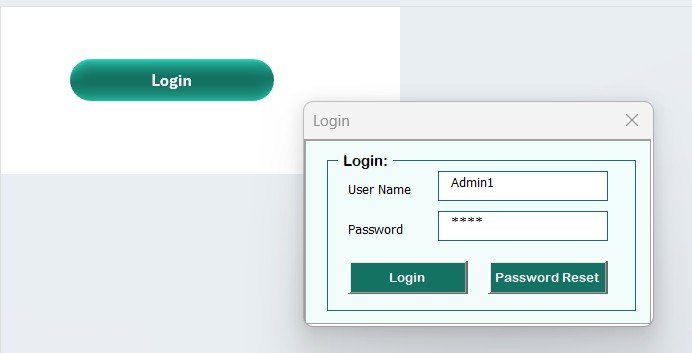
Office Parking Permit Request Tracker in Excel — Login Form
Introduction to the Office Parking Permit Request Tracker in Excel
The Office Parking Permit Request Tracker in Excel is a complete parking-permit workflow built inside a single .xlsm workbook. It logs new permit requests, tracks approvals and rejections, manages renewals, and visualises trends — without sending you to a paid SaaS dashboard or stitching together email threads.
The workbook contains 8 worksheets — Login Form, Home Page, Dashboard, Data Sheet, List Sheet, Support Sheet, Settings Sheet, and User Management Sheet — wired together through VBA. New records flow into the dashboard automatically. The Add / Update / Delete buttons launch a UserForm, so users never edit the data table by hand. According to Microsoft’s official documentation on Excel UserForms, this is the recommended pattern for capturing structured data in workbooks.
Key Features of the Office Parking Permit Request Tracker in Excel
1. 8 integrated worksheets — every sheet has a purpose: login, navigation, analytics, data, dropdowns, pivots, settings, users. No floating sheets, no clutter.
2. VBA-powered Data Entry form — Add, Update, and Delete buttons on the Data Sheet open the same UserForm. Add inserts a new permit request; Update prefills the form from the selected Permit ID; Delete confirms before removing the row.
3. Login-protected access with role management — the User Management sheet stores usernames, passwords, and access roles. The login form validates against this sheet before opening the workbook.
4. Slicer-driven dashboard — 4 slicers (Department, Permit Type, Status, Vehicle Type) and 5 charts auto-refresh the moment you submit a new request through the form.
5. Dropdown-driven entry — every combo box on the form pulls its values from the List Sheet. Add a new Department or Permit Type in one row, and it appears in the form immediately.
6. Hidden Support Sheet with pivot tables that drive the dashboard charts. End users never touch it; you can hide it entirely.
7. Settings Sheet for branding and workflow notes — organisation name, logo path, contact details, and approval-workflow guidance live here.
8. Excel 2016 / 2019 / 2021 / Microsoft 365 on Windows — VBA macros are required, so Mac users should use the Google Sheets equivalent.
Sheets Explanation
Here is a sheet-by-sheet walkthrough so you can see how each piece fits together.
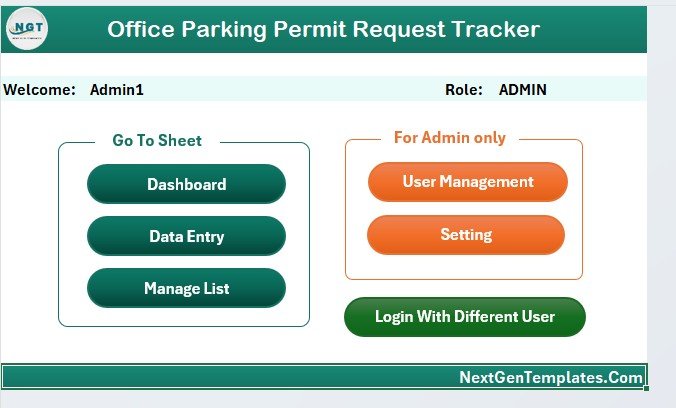
Home Page — central navigation hub
Login Form (Sheet 1) — the entry-point password screen. Validates against the User Management sheet before the workbook opens.
Home Page (Sheet 2) — central navigation. One-click buttons take users straight to the Dashboard, Data Sheet, List Sheet, Settings, or User Management.
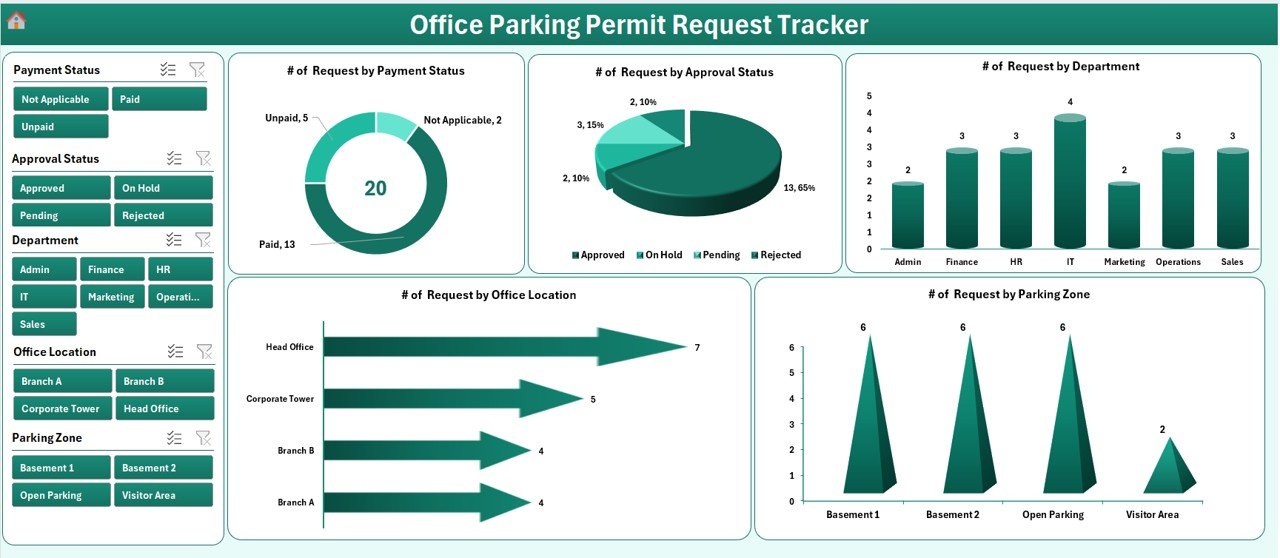
Dashboard — 4 slicers, 5 charts, KPIs
Dashboard (Sheet 3) — KPI summary plus 4 slicers (Department, Permit Type, Status, Vehicle Type) and 5 charts. The charts visualise request volume over time, approval rate, permit-type mix, status distribution, and a department-wise breakdown. Slicers cross-filter every chart at once.
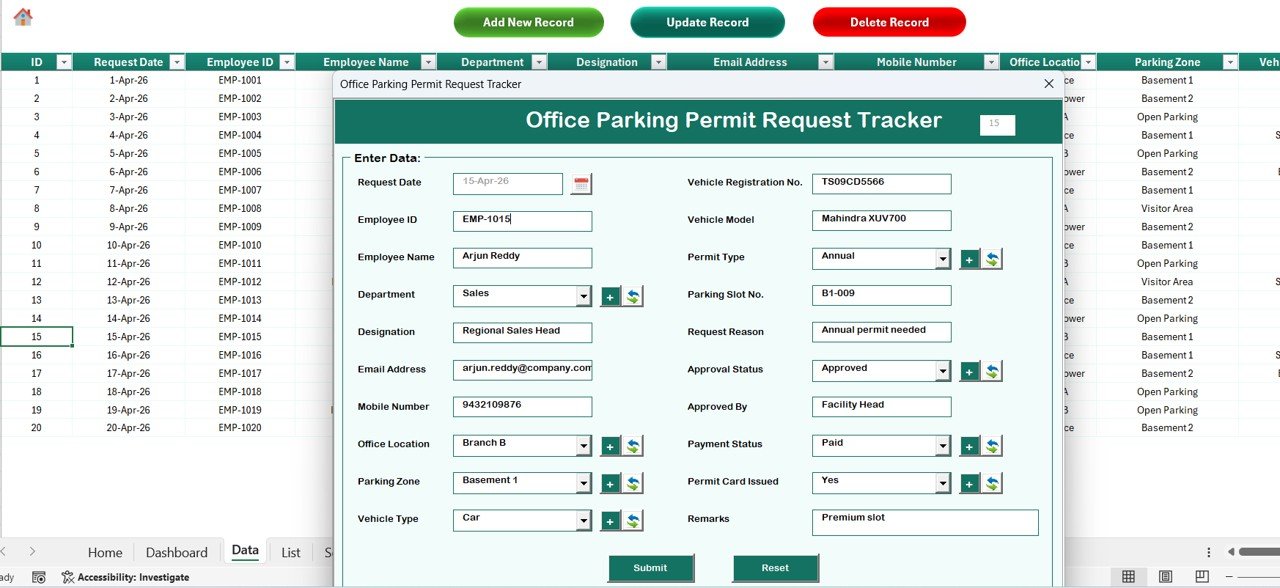
Data Sheet — Add / Update / Delete buttons drive the VBA UserForm
Data Sheet (Sheet 4) — the master record table. Three buttons at the top — Add New Record, Update Record, Delete Record — launch the VBA Data Entry form. Click any Permit ID and click Update Record to edit; click Delete Record to remove with a confirmation prompt.
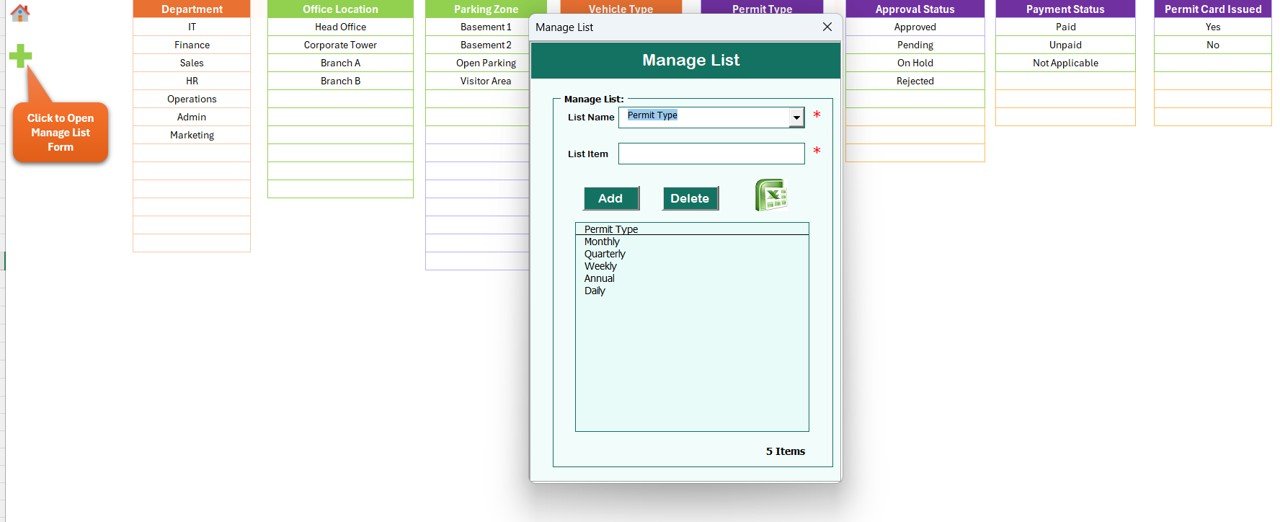
VBA Data Entry Form — used for Add, Update, and Delete operations
List Sheet (Sheet 5) — single source of truth for every dropdown value. Edit Departments, Permit Types, Status values, and Vehicle Types here, and the form picks up the changes automatically.
List Sheet — feeds every combo box in the form
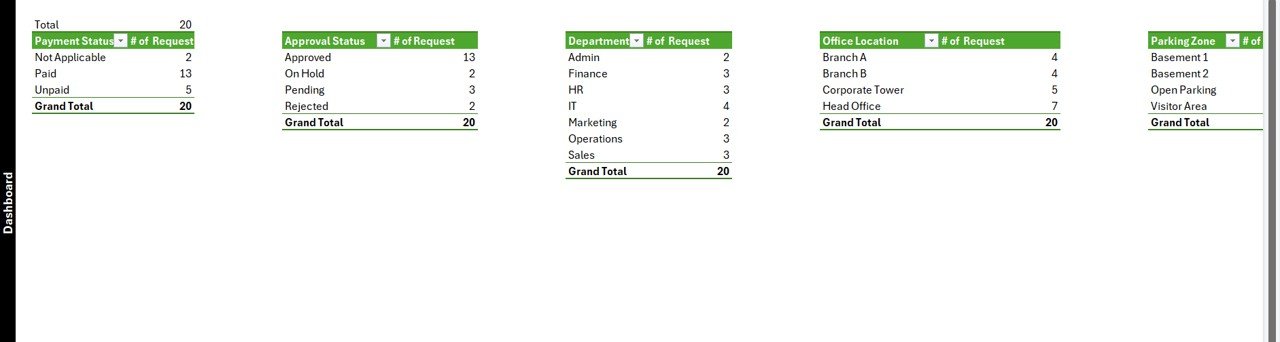
Support Sheet (Sheet 6) — hidden pivot tables behind the dashboard charts. Right-click the tab and Hide it before sharing the workbook with end users.
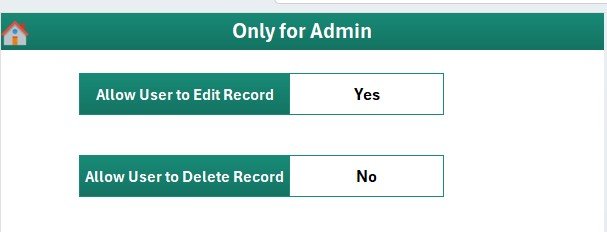
Settings Sheet — branding and workflow configuration
Settings Sheet (Sheet 7) — organisation logo path, company name, contact details, and approval-workflow notes. Personalise the workbook in under 2 minutes.
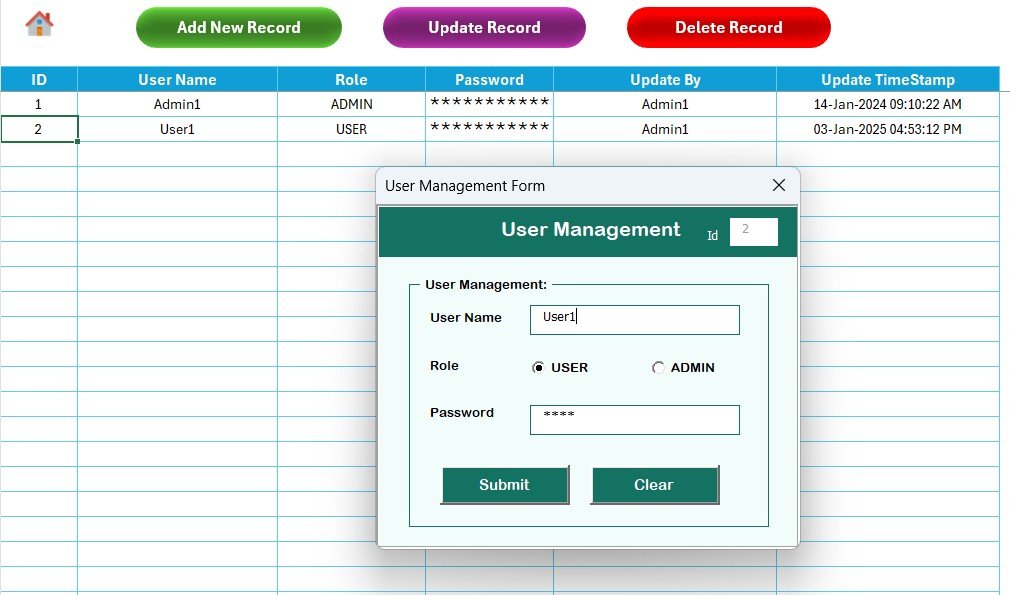
User Management Sheet — usernames, passwords, and roles
User Management Sheet (Sheet 8) — define users, passwords, and roles. Add or remove users without touching VBA code; the Login Form reads this sheet on every open.
Office Parking Permit Request Tracker vs. Google Sheets vs. Paid SaaS — Feature Comparison
| Feature | Office Parking Permit Request Tracker in Excel | Google Sheets equivalent | Paid SaaS (Wayleadr / ParkOffice) |
|---|---|---|---|
| Cost | $6.99 one-time ✅ | $6.99 one-time | $3–$8 per stall per month |
| Platform | Excel offline (no internet required) ✅ | Browser-only (Google account) | Cloud SaaS — vendor lock-in |
| Setup time | Under 10 minutes ✅ | Under 10 minutes | 2–6 weeks vendor onboarding |
| VBA Add/Update/Delete UserForm | Yes — built-in ✅ | Apps Script form simulation | Yes (web form) |
| Login + role-based access | Yes — User Management sheet ✅ | Sheet protection only | Yes (SSO / SOC 2) |
| Slicer-driven dashboard | 4 slicers, 5 auto-refresh charts ✅ | Pivot filter views | Pre-built dashboards |
| Customisable fields | Fully editable VBA source ✅ | Fully editable | Vendor-controlled |
| Year-1 cost at 50 stalls | $6.99 ✅ | $6.99 | $1,800 – $4,800 |
| Mobile access | Excel mobile (read mostly) | Yes (browser + app) ✅ | Yes (native app) |
For office managers who want a slicer-driven parking permit workflow without paying $1,800–$4,800 per year, the Office Parking Permit Request Tracker in Excel sits in the sweet spot — VBA login, Add/Update/Delete UserForm, and an interactive dashboard for the price of a single SaaS day pass.
Who Should Use This Template
Perfect for:
- Office managers and admin teams at companies with 20–500 employees
- Facilities coordinators tracking permit issuance, renewals, and visitor parking
- HR / Operations leads who want a login-protected request log without SaaS fees
- Coworking spaces allocating limited stalls fairly across tenants
- Property managers handling permit applications across multiple buildings
Not a fit if:
- You need SOC 2, SSO, or audit logs across 1,000+ stalls
- You require licence-plate recognition or gate-barrier integration
- You’re a Mac-only team — VBA UserForms need Windows Excel
- You want a phone-first experience for permit holders to apply on mobile
Real-World Use Cases
Aanya runs admin at a 120-person tech company in Bengaluru. Their building has 45 reserved stalls and 200+ employees alternating between on-site and hybrid days. She uses the Office Parking Permit Request Tracker in Excel to log every permit request, approve or reject through the Status field, and present a monthly stalls-utilisation chart to the facilities manager. Annual savings vs. the $4,000/year parking SaaS the leadership team had been considering: roughly $3,990.
Marco manages a coworking space in Lisbon with 80 members and 18 underground stalls. He uses the tracker to allocate weekly permits fairly, slice by member tier, and renew permits monthly through the Update Record button. The dashboard lets him show landlord reports proving stall utilisation in under 30 seconds, and the User Management sheet means his weekend-shift colleague can log permit changes without touching the master sheet.
Priya is the HR-Ops lead at a 60-person creative agency in Mumbai. She uses the User Management sheet to give the front-desk team read-only access while keeping edit rights with herself. The slicer-driven dashboard helps her reply to permit-renewal queries on Slack with screenshots in under a minute — no more digging through email threads to find the latest status.
Advantages of the Office Parking Permit Request Tracker in Excel
🔹 One-time $6.99 vs. $1,800–$4,800/year SaaS — break-even on the first month for any team using paid parking software.
🔹 Offline-first — works without internet, ideal for site offices with patchy connectivity.
🔹 Full code ownership — VBA source is unprotected and editable, so you can extend it for your specific approval workflow.
🔹 Built-in approval workflow via the Status field — Pending, Approved, Rejected, Renewed values flow straight into the dashboard.
🔹 Audit-friendly — every entry has a Permit ID, requester, vehicle, dates, and status that can be exported to CSV for finance or audit reviews.
Opportunities for Improvement
To stay honest: the tracker is a workbook, not a SaaS. Three areas where it intentionally stops short:
🔹 No real-time multi-user editing — Excel’s co-authoring works for the data table, but VBA UserForms aren’t reliable in shared workbooks. For real-time editing, use the Google Sheets version.
🔹 No mobile-first applicant experience — permit holders can’t apply via a phone form. The admin team enters requests on their behalf. If you need self-service mobile applications, pair the workbook with a Microsoft Form or Google Form that feeds into the Data Sheet.
🔹 No automated email notifications out of the box — approvals don’t email the requester automatically. You can extend the VBA to use Outlook automation, but that’s a customisation, not a default.
Best Practices
🔹 Set up users first. Configure the User Management sheet before sharing the workbook. Use strong passwords and assign roles based on real responsibilities.
🔹 Edit the List Sheet, not the form. When you need a new Department or Permit Type, add it to the List Sheet — never edit the UserForm directly unless adding a brand-new field.
🔹 Hide the Support Sheet. Right-click the tab, Hide. End users only need to see the front-end pages; the pivot tables work fine when hidden.
🔹 Export to CSV monthly for backup. The .xlsm format protects your code, but a CSV snapshot of the Data Sheet gives you a rollback point if a user makes a bad edit.
🔹 Use the Status field consistently. The dashboard charts assume four values — Pending, Approved, Rejected, Renewed. Add new statuses to the List Sheet, but train users to stick to the standard set.
Explore Relevant Templates
🔹 Also available as: Office Parking Permit Request Tracker in Google Sheets — same architecture, browser-based, mobile-friendly.
🔹 Equipment Borrowing Request Tracker in Excel — same VBA login + UserForm + slicer dashboard pattern, applied to equipment requests.
🔹 Resource Booking Tracker in Excel — sister template for booking meeting rooms, desks, and shared assets.
🔹 Training Material Request Tracker in Excel — track training-material requests with the same login-protected workflow.
🔹 Browse all Excel Tracker Templates on NextGenTemplates.
Frequently Asked Questions
What sheets are included in the Office Parking Permit Request Tracker in Excel?
The Office Parking Permit Request Tracker in Excel includes 8 sheets — Login Form, Home Page, Dashboard, Data Sheet, List Sheet, Support Sheet, Settings Sheet, and User Management Sheet — all wired together through VBA so adding a record updates the dashboard automatically.
How does the VBA Data Entry form work in this tracker?
Three buttons on the Data Sheet — Add, Update, Delete — open the same UserForm. Add inserts a new permit request; Update prefills the form when you click an existing Permit ID; Delete confirms before removing the row. No manual editing on the sheet itself.
How long does setup take for the Office Parking Permit Request Tracker?
Setup of the Office Parking Permit Request Tracker in Excel takes under 10 minutes — open the file, enable macros, edit the List Sheet dropdowns, configure users on the User Management sheet, and personalise the Settings sheet. The Dashboard works without any further configuration.
How does this compare to paid parking-management SaaS like Wayleadr or ParkOffice?
Paid parking-management SaaS typically costs $3–$8 per stall per month — about $1,800 to $4,800 per year for 50 stalls. The Office Parking Permit Request Tracker in Excel is $6.99 one-time with no recurring fees, no per-user pricing, and full ownership of your code and data.
Does the Office Parking Permit Request Tracker work on Mac?
The Office Parking Permit Request Tracker uses VBA UserForms which render reliably only in Excel for Windows (2016, 2019, 2021, Microsoft 365). Mac Excel does not fully support UserForm controls, so we recommend Windows. The Google Sheets equivalent works on any device.
Can I customise the dropdown values and form fields?
Yes. All combo-box values come from the List Sheet, so adding a new Department, Permit Type, Vehicle Type, or Status takes one row. For new fields, edit the UserForm in the VBA editor — full source code is included and unprotected.
Is the Office Parking Permit Request Tracker a one-time purchase?
Yes. The Office Parking Permit Request Tracker in Excel is $6.99 one-time, instant download, no subscription, no per-user fees, and lifetime access. You also get free updates whenever the template is revised.
About the Author
Built by PK — Microsoft Certified Professional with 15+ years of Excel, Google Sheets, and Power BI experience. Founder of NextGenTemplates, reaching 300K+ subscribers across YouTube channels. Every template is hand-built and tested before release.
Conclusion
The Office Parking Permit Request Tracker in Excel gives you a login-protected permit workflow, a slicer-driven dashboard, and a VBA Data Entry form — all in a single $6.99 workbook that replaces $1,800–$4,800 per year of parking-management SaaS at a 50-stall office. It is built for office managers, facilities coordinators, and admin teams who want analytical visibility without a subscription or onboarding call.
👉 Click here to Purchase the Office Parking Permit Request Tracker in Excel
✅ Instant download · One-time payment · No subscription
For step-by-step walkthroughs and more Excel/VBA templates, visit Youtube.com/@PK-AnExcelExpert.
📅 Last updated: April 2026