Managing financial activities becomes challenging when deadlines, reporting schedules, audits, reviews, and recurring tasks spread across different sheets. Many professionals struggle to stay organized, especially when multiple events overlap in a month or a year. A Financial Scheduling Calendar in Excel solves this problem. It brings every event, due date, and task into one simple and interactive system. Because of this, you can plan your work better, track deadlines easily, and avoid missing important financial activities.
In this guide, you will learn everything about the Financial Scheduling Calendar in Excel, including its worksheets, features, advantages, best practices, and FAQs. You will also understand how this ready-to-use template can improve your planning process and help you save time.
Click to buy Financial Scheduling Calendar in Excel
What Is a Financial Scheduling Calendar in Excel?
A Financial Scheduling Calendar in Excel is a digital planning tool that helps finance teams schedule, track, and manage events or tasks throughout the year. It offers an Annual View, Monthly View, Daily View, and a dedicated Events database. Because of its easy navigation and automation features, you can track all tasks without switching between multiple files.
This calendar works as a centralized hub for financial operations. You can schedule audits, tax deadlines, budget reviews, invoice checks, compliance tasks, meetings, and general events. You can also highlight weekends or important days, change calendar themes, and add/update/delete events with a single click.
Why Do You Need a Financial Scheduling Calendar?
Financial teams deal with multiple recurring tasks such as:
- Monthly closing activities
- Budget preparation
- Year-end review
- Vendor payment processing
- Compliance checks
- Audit schedules
- Tax deadlines
When all this information stays unorganized, it leads to missed deadlines, errors, and inefficiency. The Financial Scheduling Calendar in Excel simplifies the entire process. It gives you an instant overview of daily, monthly, and yearly financial events. As a result, you stay prepared, focused, and productive.
Key Features of the Financial Scheduling Calendar in Excel
The template includes five powerful worksheets, each designed to help you manage financial events smoothly.
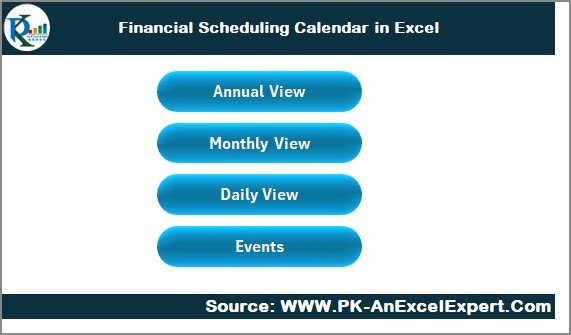
Home Sheet Tab – Navigation Made Easy
The Home sheet works as an index page. It contains four buttons that allow you to jump directly to any required view:
- Annual View
- Monthly View
- Daily View
- Events
This simple navigation saves time and ensures smooth workflow without scrolling through multiple sheets.
Click to buy Financial Scheduling Calendar in Excel
Annual View Sheet – Track the Entire Year at Once
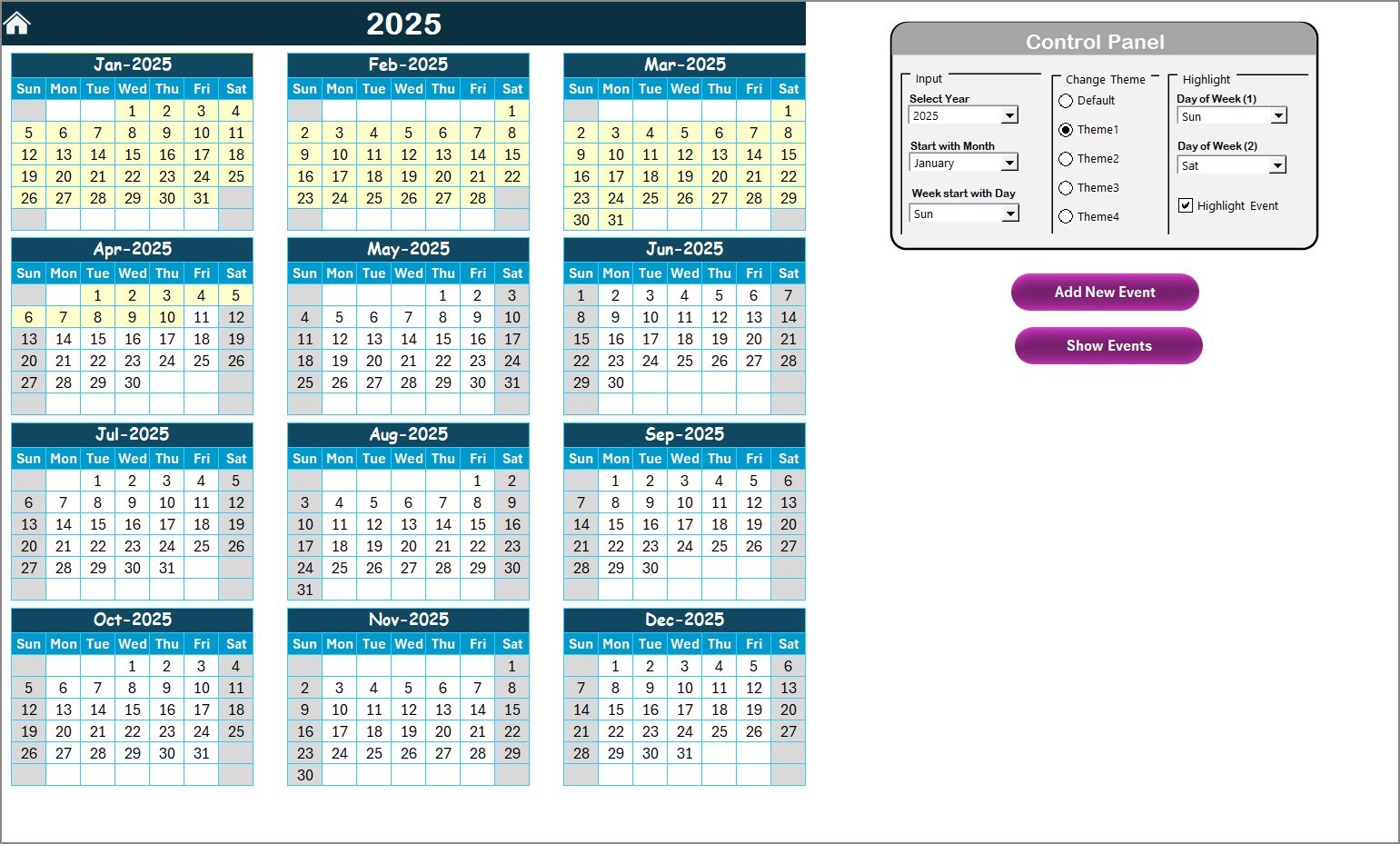
The Annual View shows all 12 months of the selected year in one single screen. This helps finance teams plan long-term activities such as audits, budgets, year-end reviews, and compliance tasks.
Control Panel Features
The Annual View includes a powerful control panel with three major groups:
Input Group
You can select:
- Year
- Starting month of the calendar
- Starting day of the week
This flexibility allows the calendar to match your local working pattern.
Change Theme Group
You can choose from five color themes and instantly apply your preferred look to the entire workbook.
Highlight Group
You can:
- Highlight two selected weekdays (e.g., Saturday and Sunday)
- Highlight all events in yellow
This is very helpful when you want to distinguish working days, weekends, or repeated tasks.
Add New Event Button
Click on any date and press this button to open the event form. Enter the details, submit the form, and the event gets added instantly.
Show Event Button
Click this button to quickly view all events scheduled for the selected date.
Click to buy Financial Scheduling Calendar in Excel
Monthly View Sheet – A Detailed Month Planner
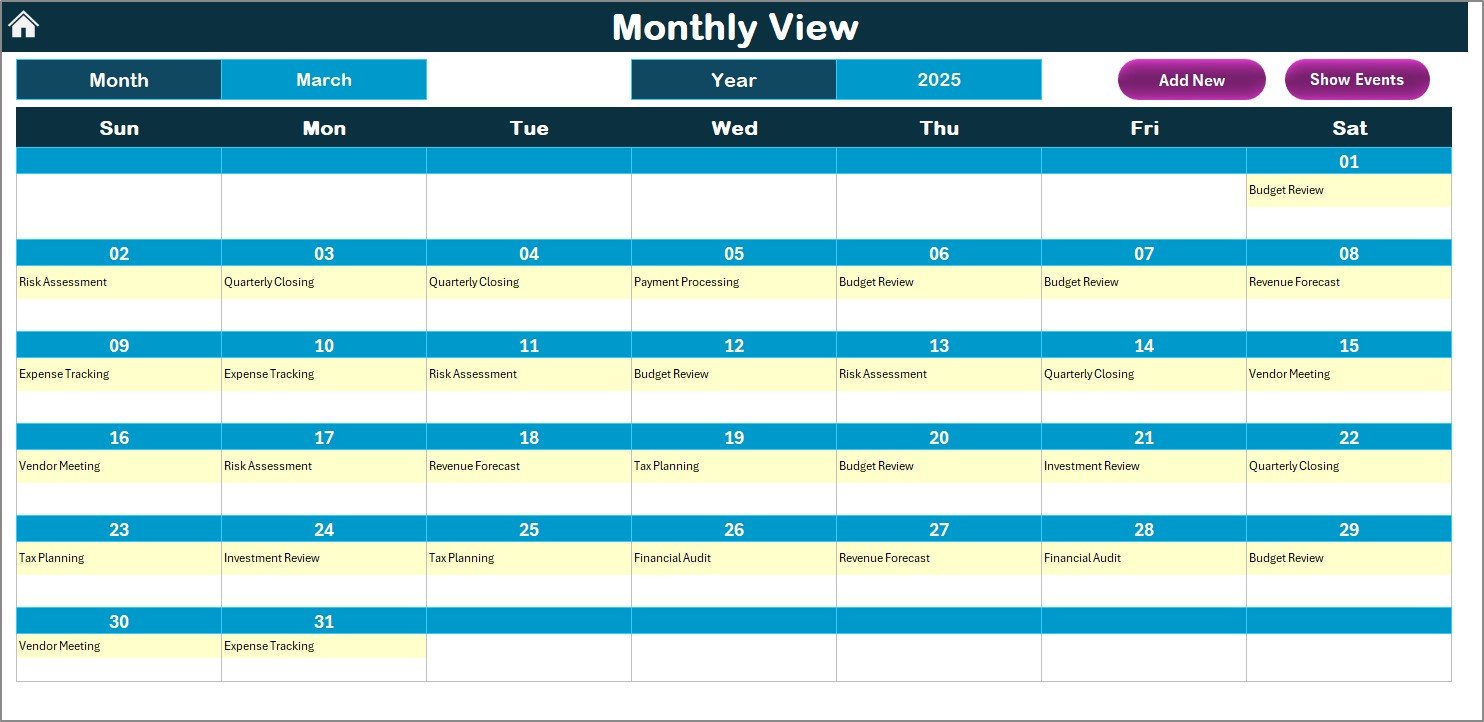
The Monthly View shows the selected month’s calendar with its events. You can select the Month and Year from the top. The calendar displays:
- One event directly on the date
- “More than 1…” when multiple events are available
Buttons on the Monthly View
- Add New Event: Adds an event for a selected date.
- Show Event: Shows the list of scheduled events for that day.
This page is perfect for handling accounts closing, monthly reviews, or financial meetings.
Click to buy Financial Scheduling Calendar in Excel
Daily View Sheet – See Events by Date Range
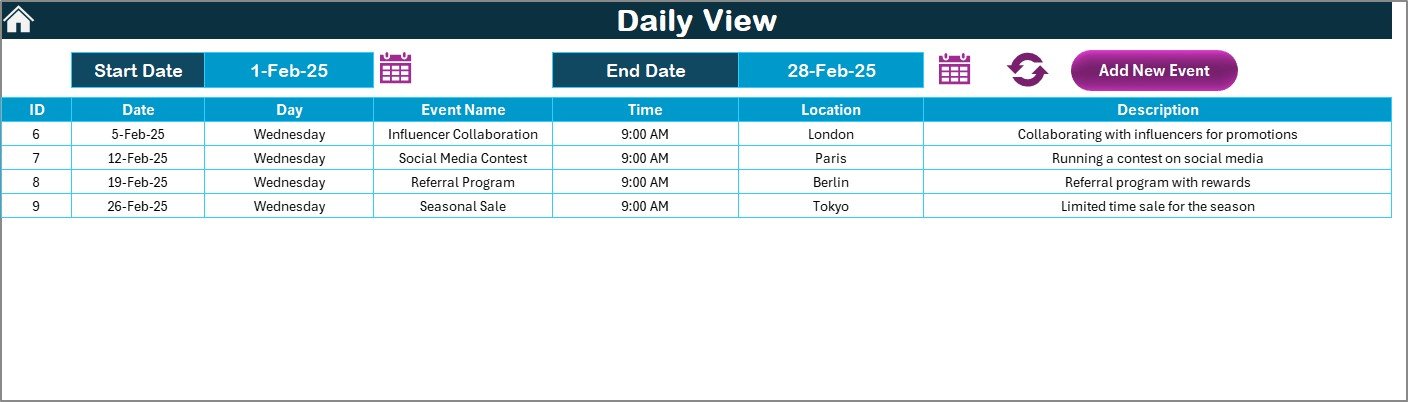
The Daily View helps you check events across a date range. This is useful for tracking weekly tasks or planning short-term financial activities.
Key Features
- Select start date and end date
- Use calendar icons to choose dates
- Click Refresh to update the view
- Add new events using the Add New Event button
The Daily View works best for monitoring deadlines, follow-ups, and daily audits.
Events Sheet – The Backend Database
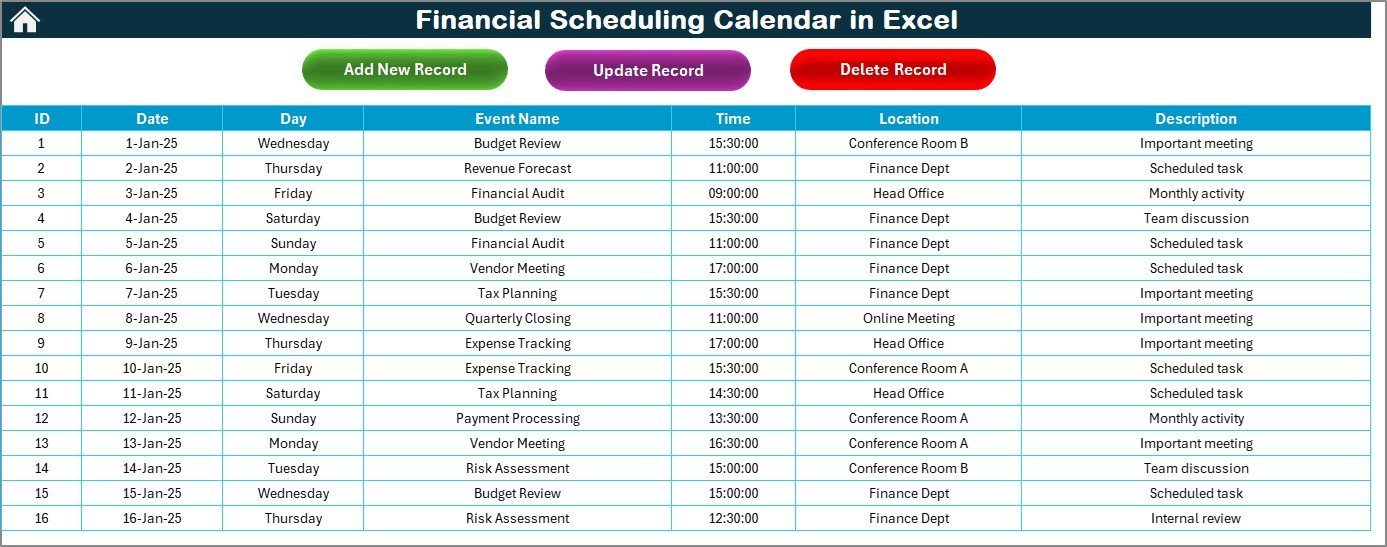
The Events sheet stores all events in a structured format. It acts as a database for tracking and editing records.
Columns in the Events Sheet
- ID – Auto-generated
- Date – Date of the event
- Day – Day name
- Event Name – Type of activity
- Time – When the event takes place
- Location – Event location
- Description – A short explanation
Buttons on the Events Sheet
Add New Record
Opens the form to add event details.
Update Existing Record
Select an event ID → Click the button → Update details → Submit.
Delete Record
Select the ID → Click Delete → The event is removed.
How Does the Financial Scheduling Calendar Improve Productivity?
Managing financial tasks becomes easier because:
- You get all events in one file.
- You avoid double-entry and miscommunication.
- You track activities by year, month, or day.
- You improve accuracy and meet deadlines.
- You save time with automated buttons.
- You avoid missing key financial dates.
The system supports daily planning and long-term financial forecasting. As a result, your productivity increases and your workflow becomes smooth.
Advantages of Using a Financial Scheduling Calendar in Excel
Centralized Planning
You track all financial tasks in one place, which reduces confusion.
Real-Time Visibility
You see daily, monthly, and yearly events instantly without switching files.
Automation Saves Time
Buttons for adding, showing, updating, and deleting events make planning faster.
Easy Customization
You can change themes, highlight weekends, and select starting months.
Error-Free Tracking
Structured event storage reduces the chance of missing deadlines.
User-Friendly Interface
The simple layout helps even non-technical users manage schedules.
Ideal for Finance Teams
Perfect for month-end, quarter-end, and year-end activities.
Best Practices for Using the Financial Scheduling Calendar in Excel
Follow these tips for smoother planning:
- Update the Calendar Daily
Enter events as soon as you plan them. This keeps the file accurate.
- Review the Annual View Weekly
It helps you prepare for large upcoming events.
- Use Color Themes for Categorization
Assign different themes to financial periods for clarity.
- Keep Event Descriptions Short
This helps the calendar look clean and readable.
- Highlight Weekends and Holidays
This improves planning and avoids scheduling errors.
- Refresh the Daily View Often
Always review the day range after adding new events.
- Back Up the File Regularly
Maintain at least one backup copy to avoid data loss.
How to Use This Calendar for Finance Team Activities
You can use this calendar for:
- Internal financial reviews
- Vendor payment cycles
- Invoice verification
- Tax filing deadlines
- Audit meetings
- Regulatory compliance tasks
- Budget preparation
- Investment planning
- Payroll activities
Because the system offers multiple views, finance teams can monitor everything in one place.
Conclusion
The Financial Scheduling Calendar in Excel is a complete planning tool for finance teams. It helps you organize events, track deadlines, schedule important activities, and manage financial operations smoothly. With features like Annual, Monthly, and Daily views, automated buttons, color themes, and a structured event database, it becomes one of the most powerful Excel-based financial planners.
You save time, reduce errors, and plan your schedule with confidence.
Frequently Asked Questions (FAQs)
- What is the use of the Financial Scheduling Calendar in Excel?
It helps you plan, track, and manage financial activities across the year using annual, monthly, and daily views.
- Can I add multiple events on the same date?
Yes. The Monthly View shows one event and displays “more than 1…” if additional events exist.
- Can I change the theme of the calendar?
Yes. You can choose from five different color themes.
- Is the event form automated?
Yes. You can add, update, or delete events using simple buttons.
- Can I highlight weekends or holidays?
Yes. The Highlight group allows you to select any two weekdays.
- Does the Daily View show events for a date range?
Yes. You can select a start and end date to view all events within that period.
- Do I need advanced Excel skills to use this calendar?
No. The system is user-friendly and designed for all finance professionals.
Visit our YouTube channel to learn step-by-step video tutorials
Watch the step-by-step video tutorial:
Click to buy Financial Scheduling Calendar in Excel