Introduction
Leave and Vacation Tracker Calendar in Excel is a comprehensive, ready-to-use Excel template designed to simplify leave management and vacation tracking for individuals and organizations. This intuitive calendar allows you to efficiently plan and monitor leaves, events, and holidays with various views and customization options.
Key Features of Leave and Vacation Tracker Calendar in Excel
- Multiple dashboard pages for Annual, Monthly, and Daily views.
- Easy event management with Add, Update, and Delete functionalities.
- Customizable themes and highlight options for important days.
- User-friendly control panel for quick adjustments.
- Database sheet to track and maintain event details effectively.
Dashboard Pages Explanation
1. Home Sheet Tab
This is the starting point and index sheet that contains navigation buttons to quickly jump to other dashboard pages.
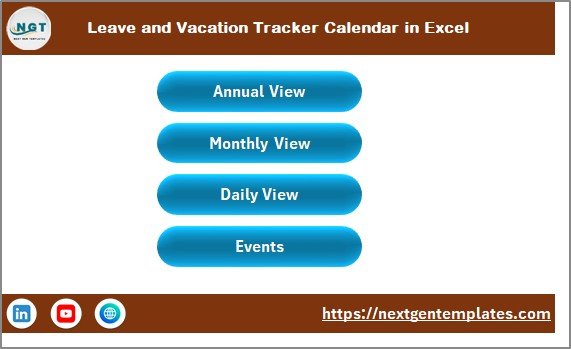 Leave and Vacation Tracker Calendar in Excel
- Annual View button
- Monthly View button
- Daily View button
- Events button
2. Annual View Sheet Tab
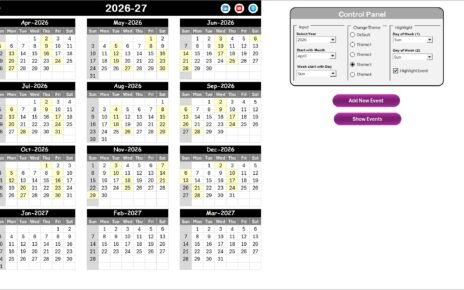
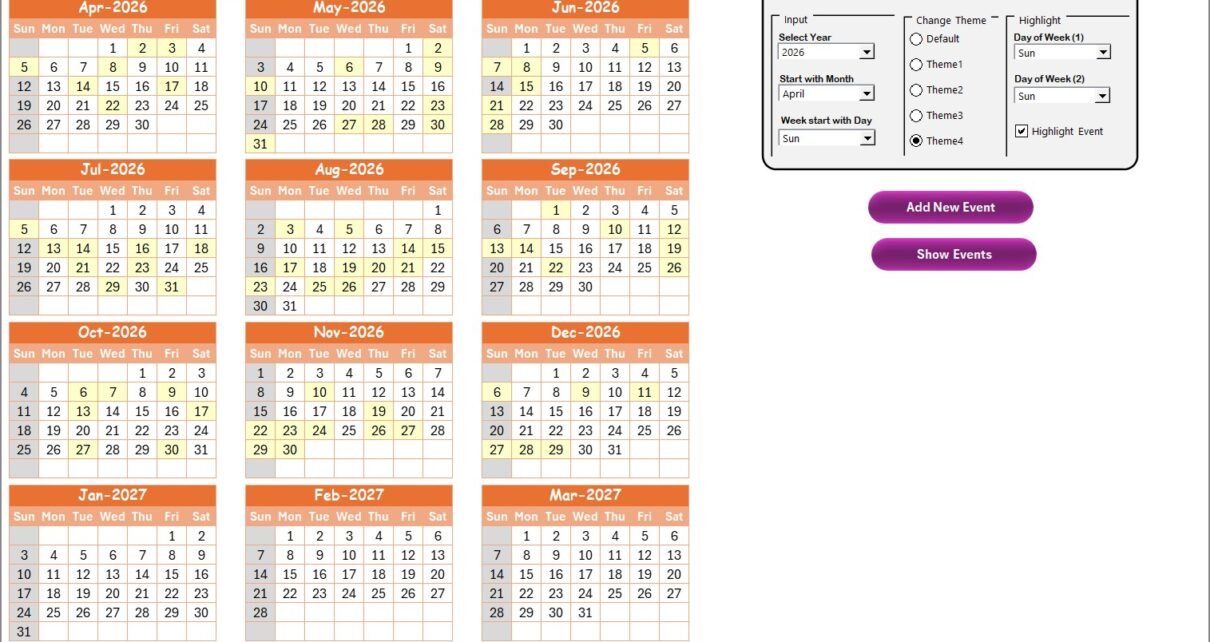
This sheet displays a full-year calendar with 12 months view. Users can change year, start month, and starting day of the week. The control panel equipped here enhances customization and event tracking.
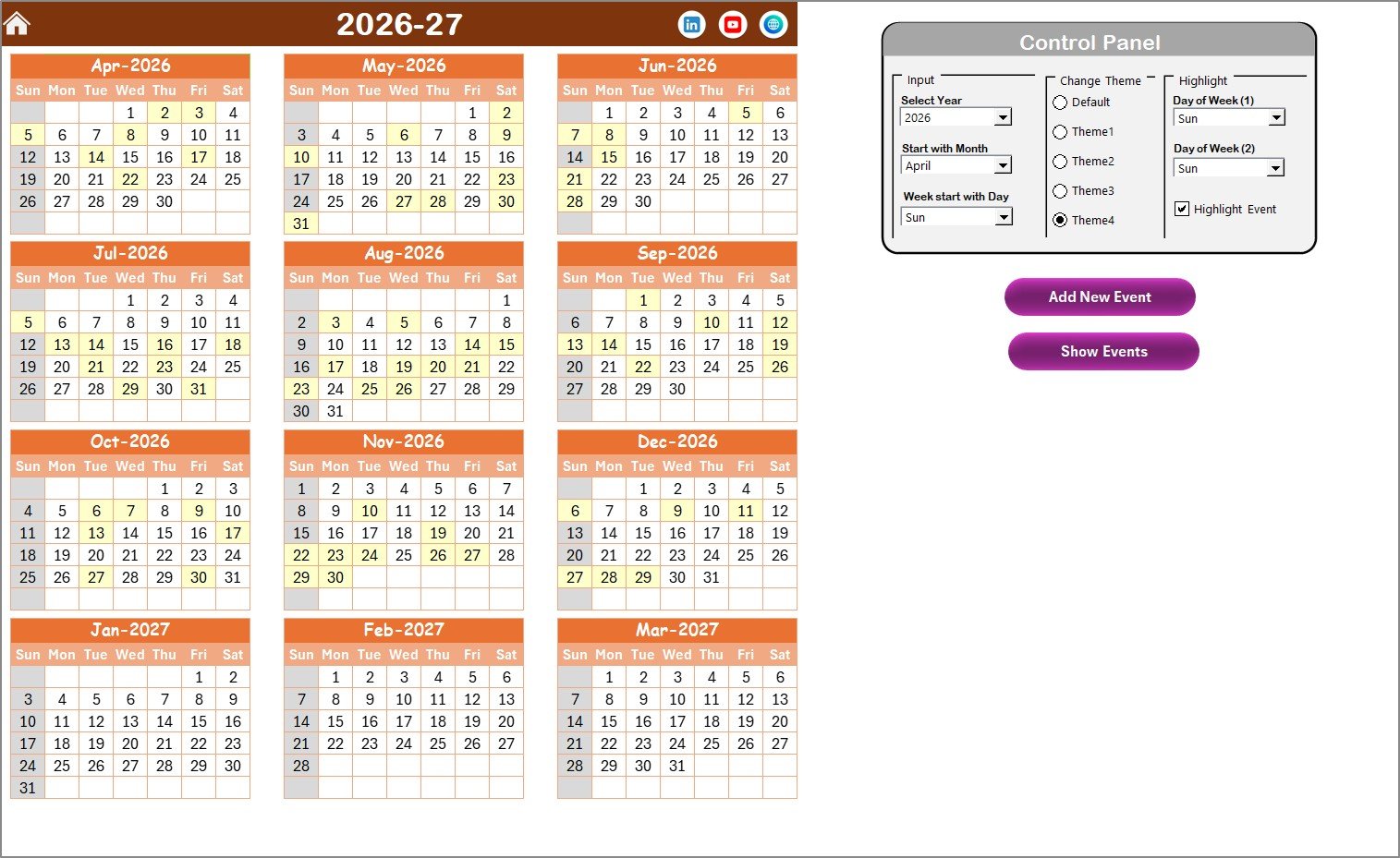 Annual View Sheet tab
Control Panel Features:
- Input Group: Select year, starting month, and starting weekday to update the calendar automatically.
- Change Theme Group: Choose from 5 color themes to apply across the workbook.
- Highlight Group: Highlight specific days of the week (e.g., Saturday and Sunday) and events in yellow.
Buttons:
- Add New Event: Click after selecting a date to open a form and add event details.
- Show Event: View events scheduled for the selected date.
3. Monthly View Sheet Tab
The Monthly View provides a calendar for the chosen month and year, displaying events with a count if multiple occur on the same date.
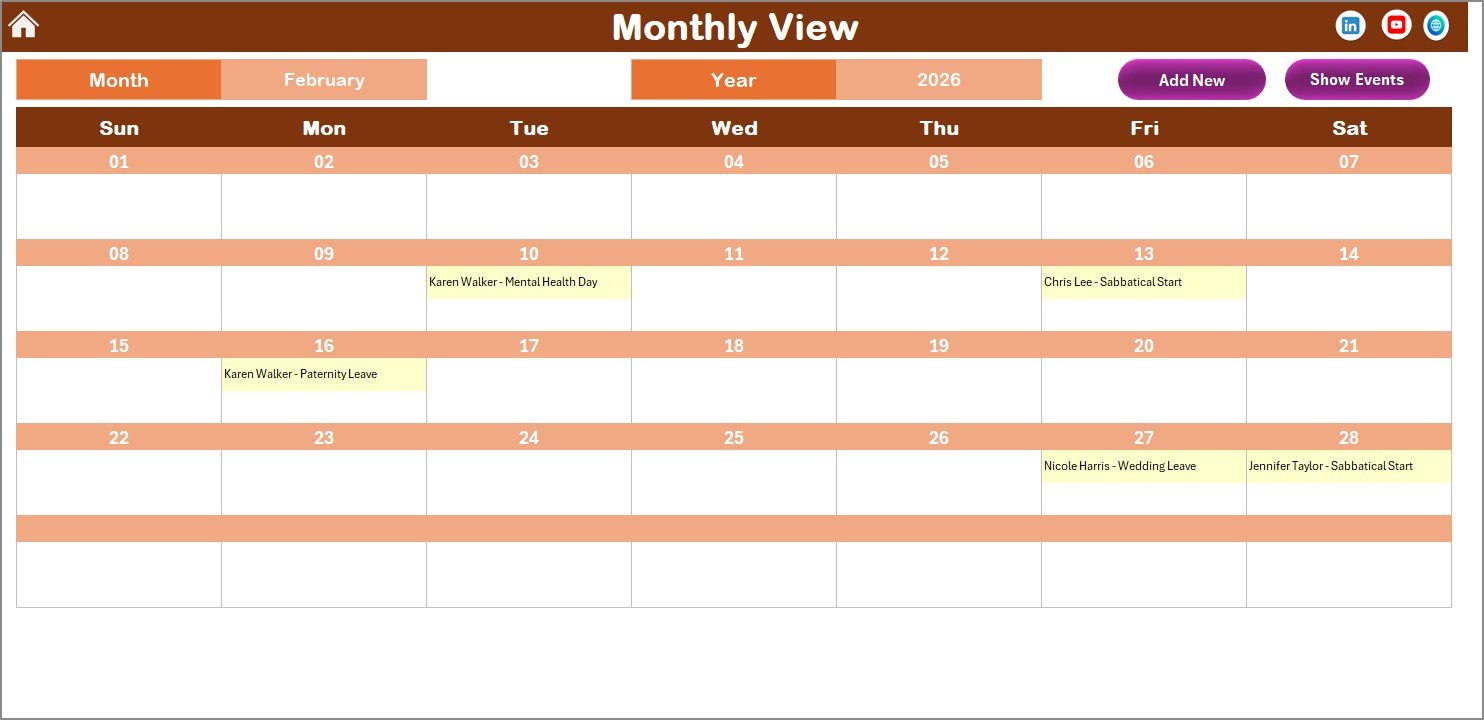 Monthly View Sheet tab
Top Buttons:
- Add New Event: Add events on selected dates via the form.
- Show Event: View event list for the selected date.
4. Daily View Sheet Tab
This sheet lists all events in detail for a specified date range. Users can set a Start date and End date using calendar icons, then refresh to get updated data.
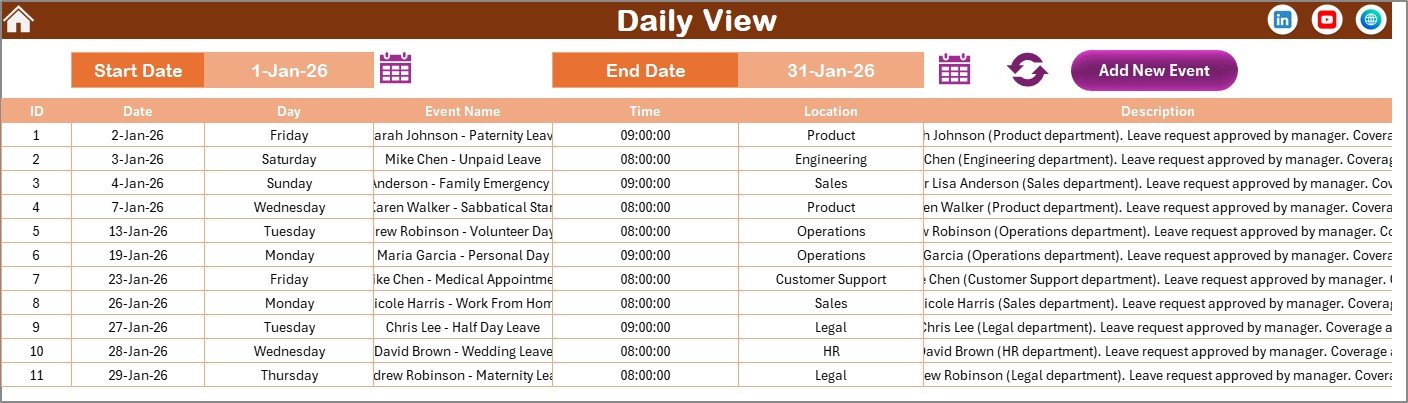 Daily View Sheet tab
- Add New Event button: Opens form for quick event entry.
5. Events Sheet Tab
This is the database sheet where all event details are stored and managed.
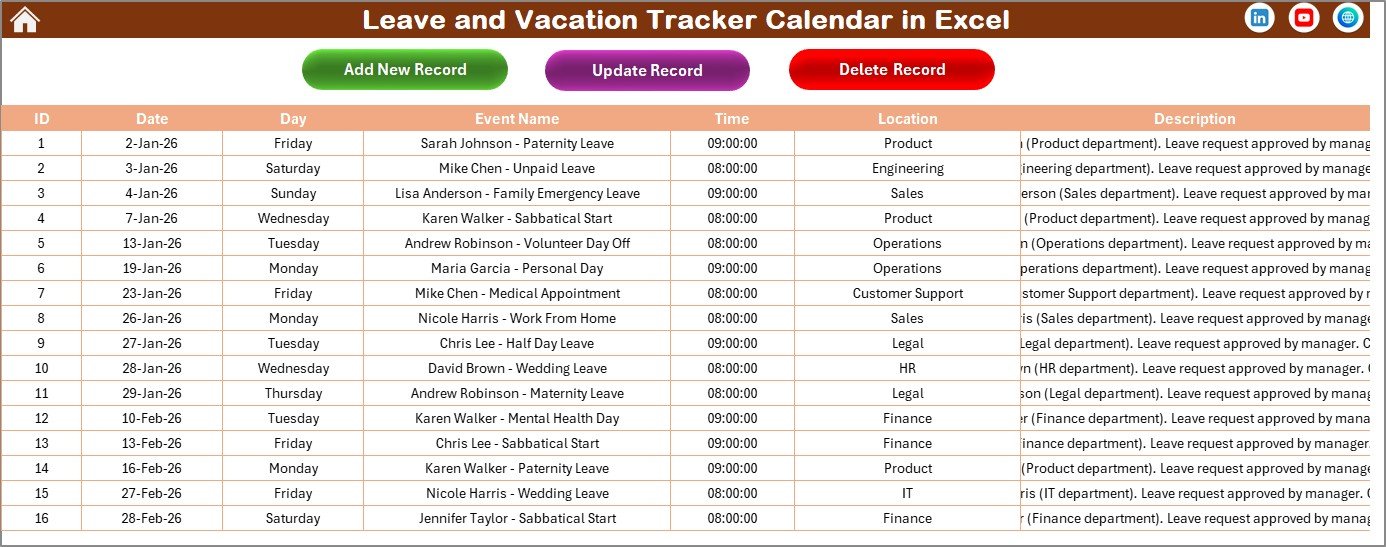 Events Sheet tab
Event Information Fields:
- ID: Auto-generated unique number.
- Date: Date of the event.
- Day: Day name (Sunday, Monday, etc.).
- Event Name: Title of the event.
- Time: Time of the event.
- Location: Venue or place of the event.
- Description: Short notes about the event.
Top Buttons:
- Add New Record: Opens form to add event details.
- Update Existing Record: Select ID, edit info, and update record.
- Delete Record: Remove event by selecting its ID.
Advantages of Leave and Vacation Tracker Calendar in Excel
- Centralized management and easy navigation between views.
- Customization to fit company policies and preferences.
- Automated date and theme updates save time and reduce errors.
- Simple event creation and editing ensure data accuracy.
- Visual highlights improve calendar readability.
Opportunities for Improvement
- Adding automated notifications or reminders for upcoming events.
- Integration with Outlook or Google Calendar for synchronization.
- Mobile-friendly version for easy access on the go.
- Interactive filtering and searching of events.
Best Practices
- Regularly update the events database to maintain accuracy.
- Use consistent naming conventions for event names and descriptions.
- Leverage theme and highlight features to emphasize critical dates.
- Back up your Excel workbook frequently to avoid data loss.
FAQs
Can I customize the calendar start day?
Yes, the Annual View Sheet offers an option to change the starting day of the week based on your preference.
How do I add multiple events on the same day?
Use the Add New Event button in any view. The Monthly View will show ‘more than 1’ if multiple events exist on the same date.
Is it possible to change the calendar color themes?
Absolutely. The Change Theme Group in the Annual View control panel lets you pick from five color options applied workbook-wide.
Does the calendar auto-update for leap years and varying month lengths?
Yes, selecting the year and month in the control panel adjusts the calendar accurately, including leap years.
Conclusion
Implementing the Leave and Vacation Tracker Calendar in Excel enables streamlined leave management with versatile views, quick event tracking, and easy customization. This Excel template saves time, improves planning accuracy, and boosts productivity for HR departments and individual users alike.
For further insights, tips, and tutorial videos, check out some useful resources from Microsoft on Excel help and support.
Visit our YouTube channel to watch the demo: Youtube.com/@NextGenTemplates