The Medicine Stock Data Entry System in Excel tracks 7 fields per medicine — Medicine Name, Category, Quantity, Expiry Date, Supplier, Price, and Stock Status — with 3 live KPI cards that refresh automatically on every new entry. A separate VBA module (supplied as a .bas file) powers Add, Update, Delete, and Reset buttons, so a pharmacy or clinic can manage stock records without any formula knowledge. According to Microsoft, Excel is used by over 750 million people worldwide, making it the most accessible tool for small-scale medicine inventory tracking.
Independent pharmacies and clinic dispensaries lose money every year to expired stock and stock-outs that go unnoticed in scattered spreadsheets. The Medicine Stock Data Entry System in Excel solves that with a single structured form, dropdown-validated fields, an Expiry Date column, and a Stock Status flag — import the VBA module, assign 4 buttons, and the system is live in under 10 minutes. No monthly SaaS subscription, no per-user fees, and no internet connection required.
Key Features of the Medicine Stock Data Entry System in Excel
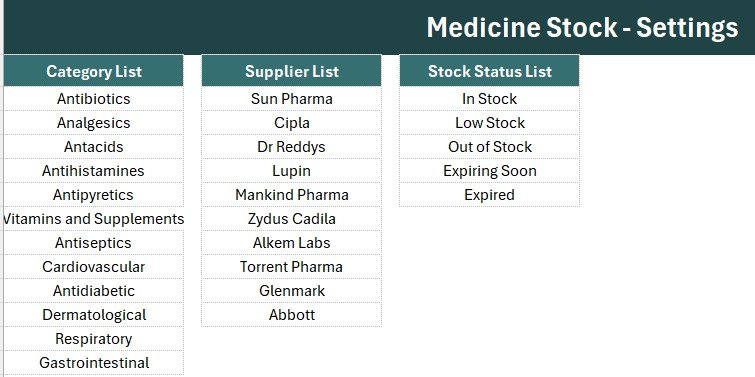
The system captures 7 core fields per medicine through one structured form. Category, Supplier, and Stock Status are dropdown-validated, pulling from editable lists on the Setting sheet — 12 built-in medicine categories, 10 default suppliers, and 5 stock statuses cover most pharmacy and clinic scenarios. Changing or adding your own values takes seconds.
- 3 live KPI cards: Total Items (COUNTA of all records), Low Stock (COUNTIF where Stock Status = Low Stock), and Expiring Soon (COUNTIF where Stock Status = Expiring Soon) — all updating the moment a new medicine is added.
- Dedicated expiry tracking: An Expiry Date field on every record plus a Stock Status dropdown with Expiring Soon and Expired options so near-expiry medicines never slip through.
- VBA-powered buttons: Add Record, Update Record, Delete Record, and Reset Form macros supplied as a pre-written .bas file — no coding needed.
- Auto-numbered S.No and timestamp: Rows number themselves with a live formula, and an Entry TimeStamp column logs the date and time of every Add or Update automatically.
- Professional design: Dark teal heading bar, gold divider line, gray dashboard panel, and Aptos Narrow font throughout — ready for management or audit reports.
- One-time purchase: Download once, use forever. No cloud account, no per-user fees, no subscription renewal.
Template Structure Explanation
Data Entry Sheet
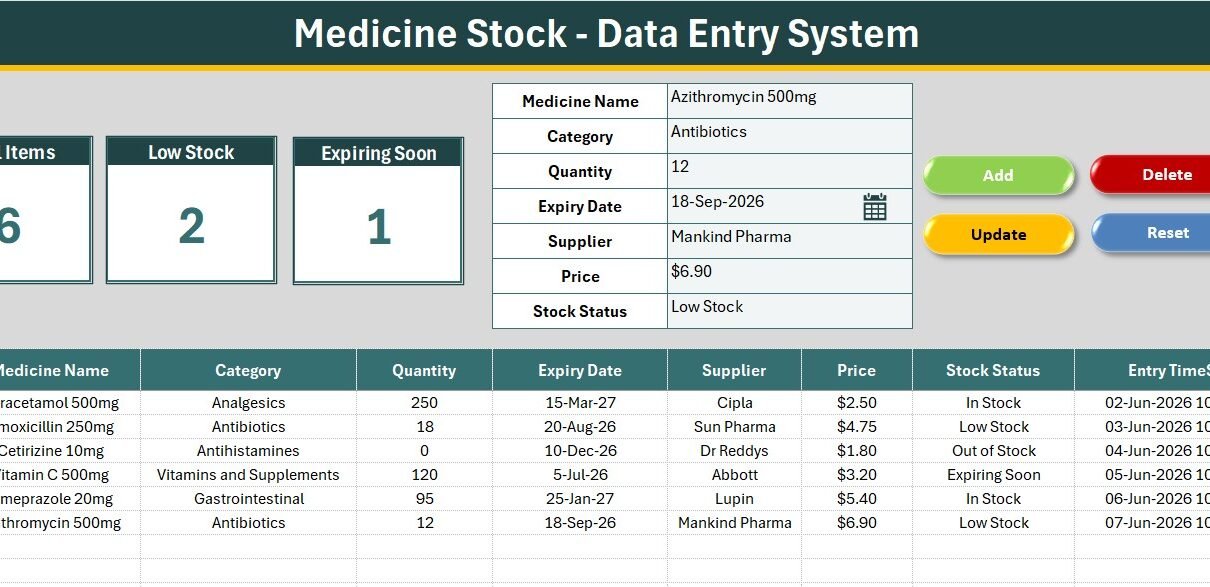
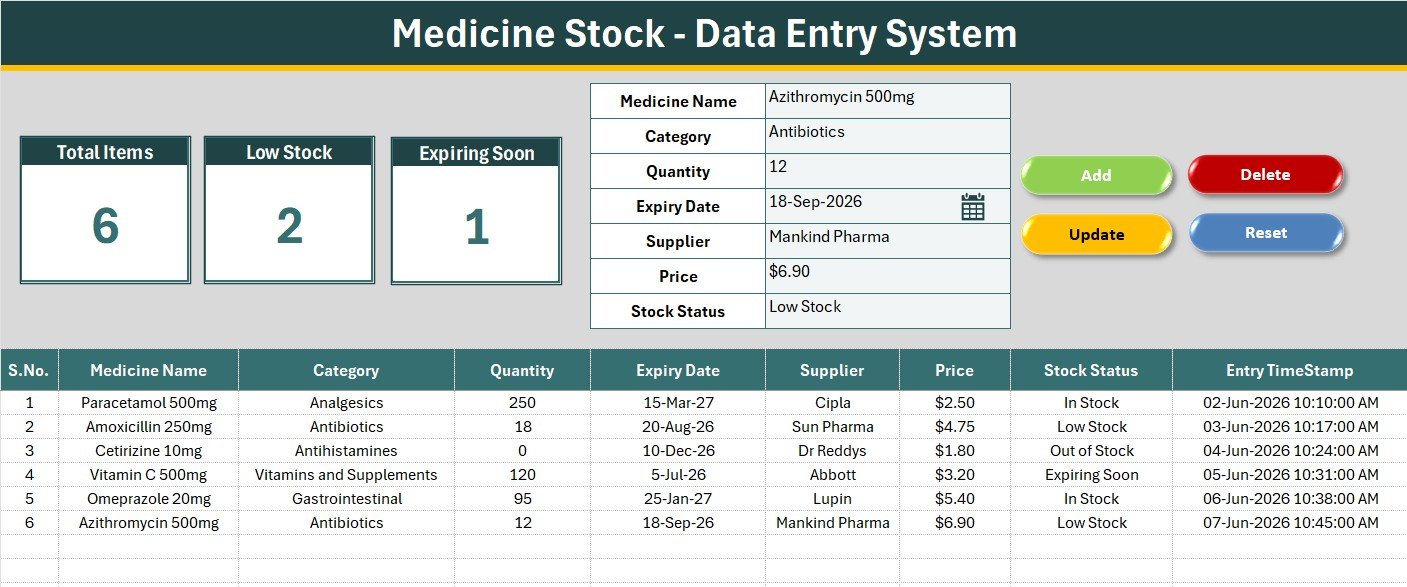
The main sheet opens with a gray dashboard panel at the top. The input form sits inside this panel with bold labels and dropdown arrows on the Category, Supplier, and Stock Status fields. Below the form, four flat-coloured button cells (green Add, red Delete, gold Update, dark-blue Reset) mark where Form-Control buttons are assigned after VBA import. The records table starts at row 15, with auto-S.No in column A, all 7 data fields next, and Entry TimeStamp in the final column.
KPI Dashboard Cards
Three white cards with teal-toned borders display the live KPI values. Total Items shows how many medicine records exist, Low Stock flags items marked Low Stock, and Expiring Soon counts medicines approaching their expiry date. All three update instantly when the records table changes. The Setting sheet carries a duplicate set of the same cards so you can copy them as linked images into external stock reports.
Setting Sheet and Records Table
The Setting sheet stores the Category, Supplier, and Stock Status source lists. Editing the lists here instantly updates the dropdown validation on the Data Entry form — no formula edits required. The records table uses hair grid lines, a theme-coloured header row, currency formatting on the Price column, and date formatting on Expiry Date. Data starts at row 15, leaving room for clean print layouts above.
Medicine Stock Data Entry System in Excel vs. Google Sheets Inventory vs. Zoho Inventory — Feature Comparison
| Feature | Medicine Stock Data Entry System in Excel | Google Sheets Inventory (DIY) | Zoho Inventory |
|---|---|---|---|
| Cost | $5.99 one-time | Free (hours of setup) | $39–$99 / month |
| Platform | Microsoft Excel (offline) | Browser only | Cloud SaaS |
| Setup time | Under 10 minutes | 2–4 hours DIY | 1–2 days |
| VBA-powered form buttons | Pre-built | Requires scripting | Not applicable |
| Expiry & Stock Status tracking | Built-in fields | Manual columns | Batch & expiry (paid tier) |
| Live KPI cards | 3 cards | Manual formula work | Dashboard (paid) |
| Works offline | Fully offline | Needs internet | Cloud only |
| Year-1 cost (1 user) | $5.99 total | $0 (build time cost) | $468–$1,188 |
| No subscription | One-time purchase | Yes | Monthly billing |
For pharmacies and clinics that live in Excel and want a structured medicine stock form with expiry tracking — without a monthly SaaS bill — the Medicine Stock Data Entry System in Excel sits in the sweet spot.
Who Should Use This Template
Perfect for:
- Independent pharmacy and chemist shop owners managing 100–5,000 medicine lines in Microsoft Excel
- Clinic and small hospital dispensary staff logging drug quantities, suppliers, and expiry dates
- Medical wholesalers and distributors who add, update, and delete stock records daily
- Excel users who want a ready-to-use medicine inventory form instead of building one from scratch
- Freelancers and consultants creating stock tools for small healthcare clients
Not a fit if:
- You need real-time multi-store cloud sync or barcode/batch scanning integration
- You require billing, GST invoicing, or automated SMS/email expiry alerts in a single tool
- Your primary platform is Mac — the VBA macro buttons require Windows Excel for full functionality
Real-World Use Cases
Anil runs an independent pharmacy with 600+ medicine lines. He opens the Medicine Stock Data Entry System in Excel every morning, adds newly received medicines via the Add button with their expiry dates, and checks the Expiring Soon KPI card every Monday to pull near-expiry stock for return or discount — all without paying $39/month for cloud pharmacy software.
Dr. Meera manages the in-house dispensary at a small clinic. She marks low items as Low Stock and watches the Low Stock KPI before placing her weekly distributor order. The auto-timestamp logs every change, giving her a simple audit trail without any extra effort, and the Reset button clears the form between entries in one click.
Sandeep handles a medical wholesale counter. He sorts the records table by Supplier and Category to spot which lines are running down, updates quantities as orders ship using the Update button, and relies on the three KPI cards to keep an eye on totals — no formula knowledge required.
Advantages of the Medicine Stock Data Entry System in Excel
- Zero monthly cost: A single $5.99 payment replaces recurring SaaS subscriptions that cost $39–$99/month.
- Expiry-aware: A dedicated Expiry Date field and Expiring Soon KPI help reduce write-offs from expired medicines.
- Offline-first: Works entirely within Microsoft Excel with no internet dependency — useful for counters with patchy connectivity.
- No coding required: VBA macros are pre-written; users only import the .bas file and assign buttons.
- Report-ready design: KPI cards can be pasted as linked pictures into PowerPoint or Word stock reports.
Opportunities for Improvement
- No automated expiry alerts: The Expiring Soon status is set manually. A formula comparing Expiry Date against today’s date, or an email/SMS alert, would speed up high-volume pharmacies.
- No batch-number tracking: The system tracks one row per medicine. Pharmacies that need batch-wise expiry can add a Batch column to the records table.
- No real-time multi-user access: Excel files are not designed for simultaneous editing. For teams of 3+ users entering data concurrently, a Google Sheets or web-app version would serve better.
- Mac VBA limitation: Macro buttons do not fire on Mac Excel; the records table and KPI cards still work but require manual data entry.
Best Practices
- Update the Category, Supplier, and Stock Status lists on the Setting sheet before entering your first medicine — it prevents inconsistent free-text entries.
- Set the Stock Status to Expiring Soon for any medicine within your chosen window (for example, 90 days to expiry) so the KPI card stays meaningful.
- Use the Reset button after every entry to clear the form and avoid re-submitting the same medicine twice.
- Back up the .xlsm file weekly to a shared drive or cloud folder — Excel files are not version-controlled by default.
- Sort the records table by Expiry Date periodically to plan returns and reorders ahead of time.
Explore Relevant Templates
If you found this template useful, explore the full data entry system series and related stock tools on NextGenTemplates:
- Product Inventory Data Entry System in Excel — general product stock entry with VBA buttons and KPI cards
- Product Expiration Date Calendar in Excel — visualise medicine and product expiry dates on annual, monthly, and daily calendar views
- Hospital Management System V1.0 — a full Excel system with patient records, billing, and medicine inventory modules
- Patient Appointment Data Entry System in Excel — log patient visits and appointment status with dropdown validation
You can also read our guide to the Product Inventory Data Entry System in Excel or explore the VBA Management Systems Mega Pack for larger multi-module tools. Browse all Inventory Management Templates and VBA Tools in Excel on NextGenTemplates. For official guidance on Excel features, see Microsoft Excel Support.
Frequently Asked Questions
What does the Medicine Stock Data Entry System in Excel track?
The Medicine Stock Data Entry System in Excel tracks 7 fields per medicine: Medicine Name, Category, Quantity, Expiry Date, Supplier, Price, and Stock Status. Three live KPI cards summarise Total Items, Low Stock, and Expiring Soon counts. Every record is stored in a structured table with an auto S.No and Entry TimeStamp.
Do I need VBA or coding skills to use this template?
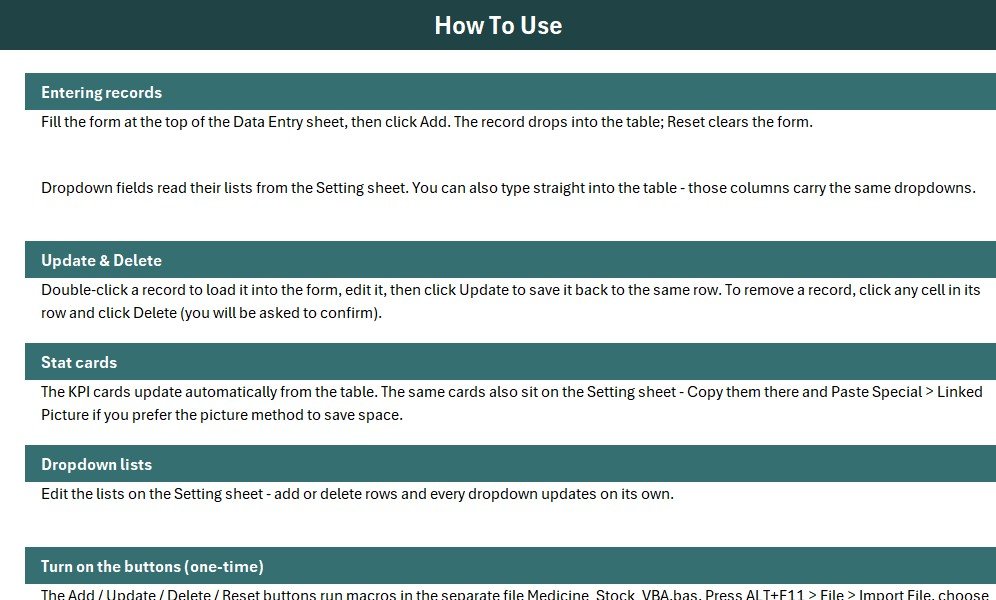
No coding skills are required. The VBA module is pre-written and supplied as a .bas file. Press ALT+F11 in Excel, go to File then Import File, select the .bas file, draw 4 buttons, and save as .xlsm. The full process is documented on the Instructions sheet and takes under 10 minutes.
How does the system track medicine expiry?
The Medicine Stock Data Entry System in Excel includes a dedicated Expiry Date field for every medicine and a Stock Status dropdown with Expiring Soon and Expired options. The Expiring Soon KPI card counts flagged items automatically, helping you spot near-expiry medicines before they become a loss.
Can I customise the medicine categories and supplier names?
Yes. The Category, Supplier, and Stock Status lists live on the Setting sheet. Type your own values into those lists and the dropdown validation on the Data Entry form updates immediately. No formula edits are needed.
How does this compare to Zoho Inventory or pharmacy software?
The Medicine Stock Data Entry System in Excel costs $5.99 once with no monthly fees, no cloud account, and no per-user charges. Zoho Inventory starts at $39 per month. For a single pharmacy or clinic comfortable in Excel, this template is a cost-effective, offline-first alternative for core stock tracking.
How many medicines can the records table hold?
The records table supports over one million rows (Excel’s native row limit). For typical pharmacy use with up to 5,000 medicine lines, performance remains fast even on older hardware.
About the Author
Built by PK — Microsoft Certified Professional with 15+ years of Excel, Google Sheets, and Power BI experience. Founder of NextGenTemplates, reaching 300K+ subscribers across YouTube channels. Every template is hand-built and tested before release.
Conclusion
The Medicine Stock Data Entry System in Excel gives pharmacy owners and clinic staff a structured, VBA-powered stock form with built-in expiry tracking — without the complexity or cost of cloud-based pharmacy software. Three live KPI cards, dropdown-validated fields, and a professionally designed layout make medicine stock management faster and more reliable from day one.
🛒 Click here to Purchase the Medicine Stock Data Entry System in Excel
✅ Instant download · One-time payment · No subscription
🎥 Watch step-by-step tutorials on Youtube.com/@PK-AnExcelExpert
📅 Last updated: June 2026