Managing monthly tasks, audits, reviews, and follow-ups becomes easy when you use a structured system. Many teams struggle with missed deadlines, unclear responsibilities, and inconsistent review cycles because they rely on handwritten notes or scattered spreadsheets. To solve this challenge, a Monthly Review Tracking Checklist in Excel offers a smart and organized solution.
This article explains everything you need to know about this checklist template—how it works, its key features, advantages, best practices, and frequently asked questions. You will learn how this tool creates a smooth monthly review process and helps you stay on track.
Click to buy Monthly Review Tracking Checklist in Excel
What Is a Monthly Review Tracking Checklist in Excel?
A Monthly Review Tracking Checklist in Excel is a ready-to-use template that helps you capture, monitor, and review all monthly tasks in a simple and structured way. It creates a centralized place where you track review items, responsible persons, deadlines, and completion status. Because the checklist is built in Excel, you get complete flexibility to edit, customize, and automate it without needing any advanced tools.
This checklist template includes smart features like:
- Auto-count of total tasks
- Completed and pending task count
- Progress bar
- Status icons (✔ or ✘)
- Drop-down list for responsible persons
The template works for any team—administration, finance, HR, operations, procurement, project management, and more.
Why Do You Need a Monthly Review Tracking Checklist in Excel?
Many businesses run monthly reviews but lack a formal process. As a result, tasks get delayed, responsibilities become unclear, and managers cannot track progress properly. A structured checklist solves these problems.
You need this template when:
- Tasks repeat every month
- You want to assign accountability
- You want to avoid missed deadlines
- You want a transparent and review-ready report
- You want a simple tool without expensive software
Since the checklist runs in Excel, it is cost-free, adaptable, and easy for anyone to use.
Key Features of the Monthly Review Tracking Checklist in Excel
This ready-to-use Excel checklist includes two main worksheets:
Monthly Review Tracking Checklist (Main Sheet)
This is the central working area where you manage the complete checklist.
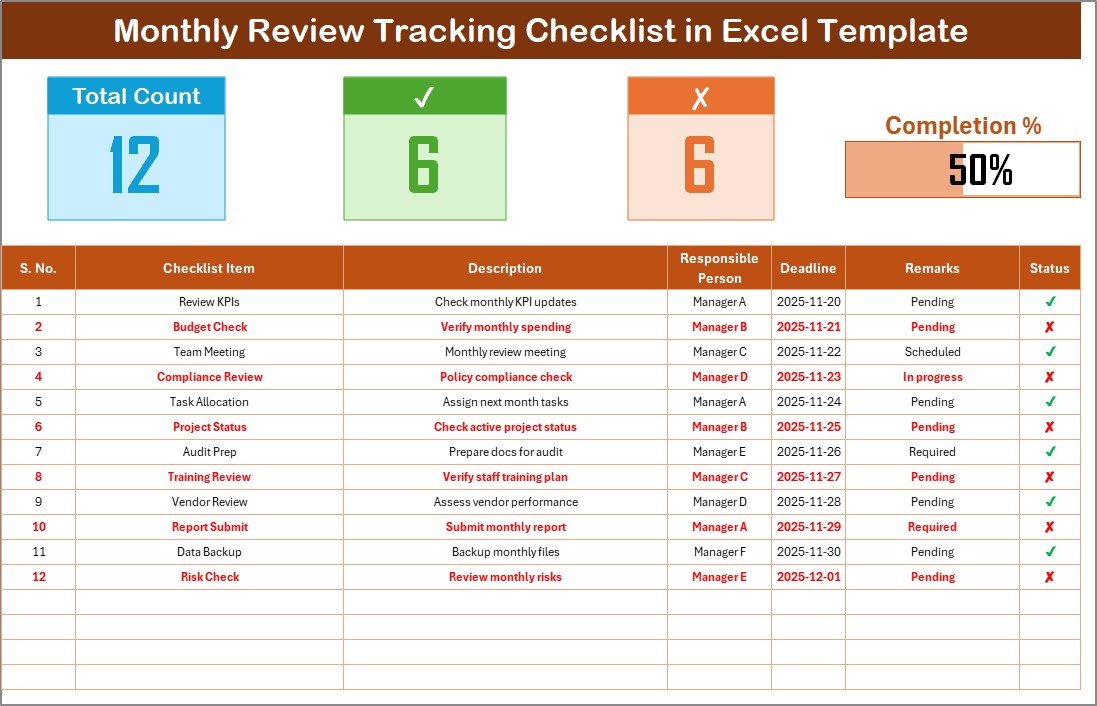
Top Section Overview
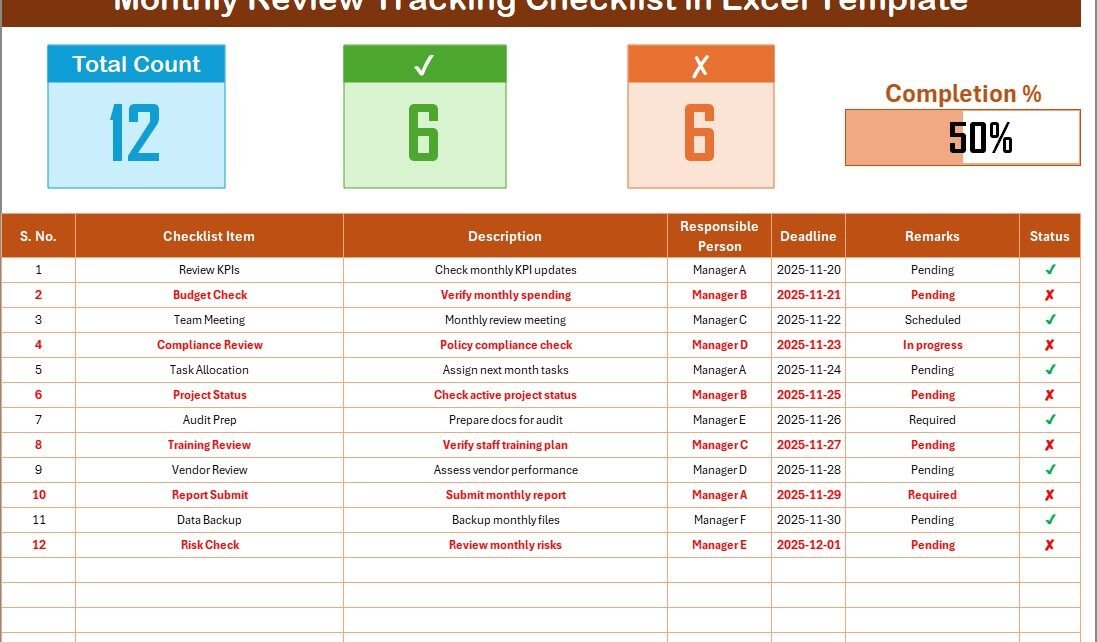
The top panel gives you a quick summary of the monthly progress:
- Total Count – The number of checklist items
- Completed Count – Tasks finished
- Pending Count – Tasks still incomplete
- Progress Bar – A visual indicator showing how much work you have completed
This section helps you understand your monthly progress at a glance.
Checklist Table Structure
The main table includes the following columns:
Here’s how each column helps:
- Serial No. – Unique number for each item
- Checklist Item – The name of the task
- Description – A short explanation
- Responsible Person – The name of the person handling the task
- Deadline – The last date for the task
- Remarks – Notes or observations
- Status – Mark ✔ for completed or ✘ for pending
Because the status is updated manually, you get full control over how you track each item.
Click to buy Monthly Review Tracking Checklist in Excel
List Sheet Tab
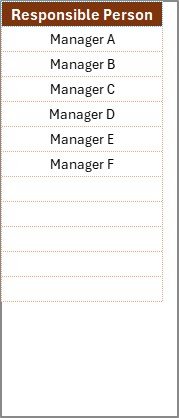
This sheet stores the unique list of responsible persons.
This list helps you create a drop-down in the main checklist table, so you select names instead of typing them repeatedly.
This improves accuracy and reduces spelling mistakes.
Click to buy Monthly Review Tracking Checklist in Excel
How Does the Monthly Review Tracking Checklist Work?
The checklist works in a simple and smooth manner:
- Enter your review tasks in the checklist table
- Assign the responsible persons
- Set deadlines
- Update the status as ✔ or ✘
- The top section updates the counts automatically
- Use the progress bar to view completion levels
- Review progress at the end of each month
- Carry forward pending tasks into the next month
The workflow takes just a few minutes to update and creates complete visibility.
What Should You Include in a Monthly Review Tracking Checklist?
A complete checklist covers all important areas of your monthly operations. You can include items such as:
Administrative Tasks
- File backups
- Office maintenance review
- Document updates
Finance Tasks
- Monthly budget review
- Invoice approval
- Expense summary verification
HR Tasks
- Attendance report check
- Payroll preparation
- Training session planning
Procurement Tasks
- Vendor performance review
- Purchase order follow-ups
- Inventory verification
Operations Tasks
- Monthly KPI review
- Equipment inspection
- Workflow status check
Project Management Tasks
- Project milestone review
- Pending issue updates
- Resource planning
With Excel, you can modify or expand the checklist anytime.
Advantages of the Monthly Review Tracking Checklist in Excel
Using this checklist brings several useful benefits:
- Improves Task Accountability
- Every task has a responsible person, so you always know who is handling what. This avoids confusion and drives ownership.
- Ensures On-Time Completion
- Since deadlines are highlighted in the checklist, you never lose track of important dates. This helps you complete tasks on time.
- Enhances Transparency
- Everyone sees the current status clearly. Teams and managers understand which tasks are pending and where attention is required.
- Simplifies Monthly Review Meetings
- The checklist becomes your quick review document. You do not need separate reports or manual summaries.
- Saves Time and Effort
- You update the status and the Excel sheet calculates progress automatically. This reduces manual work and improves accuracy.
- Works for Any Department
- The checklist template is flexible and fits every business function—from admin and finance to operations and HR.
- Offers Visual Progress Tracking
The progress bar gives you an instant visual summary of how much work you have completed.
How to Customize Your Monthly Review Tracking Checklist in Excel
You can easily customize the template based on your needs. Below are some ideas:
Add Color Coding
- Green for completed tasks
- Red for overdue tasks
- Yellow for tasks due soon
Color coding helps you quickly understand your status.
Add Conditional Formatting
You can highlight:
- Deadlines approaching
- Pending tasks
- High-priority tasks
This adds more clarity and helps avoid missed work.
Add Extra Columns
You may include:
- Task priority (High, Medium, Low)
- Review frequency
- Related document links
Use Filters and Sorting
Filters help you sort tasks by:
- Deadline
- Responsible person
- Status
This improves your review process.
Create Monthly Templates
You can duplicate the sheet every month to maintain a clean history.
Best Practices for the Monthly Review Tracking Checklist
Follow these best practices to get the best results from your checklist:
- Review the Checklist at the Start of the Month
Begin the month by reviewing all tasks and updating deadlines if required.
- Assign Clear Responsibility
Always choose a single responsible person for each task to avoid confusion.
- Update the Status Regularly
You should update the sheet weekly or daily. Frequent updates improve accuracy.
- Use Short and Clear Descriptions
Compact text makes the checklist easy to read and quick to review.
- Highlight High-Priority Tasks
Use bold text or color coding to mark urgent items.
- Add a Review Section for Management
You may add a comment box where managers can write notes after the monthly review.
- Carry Forward Pending Tasks
Do not ignore incomplete tasks. Move them into the next month’s checklist.
- Keep the Drop-Down List Updated
Add new names as team members join or roles shift.
- Use the Template Consistently
Consistency ensures accurate tracking and reliable monthly review summaries.
How This Checklist Improves Your Monthly Efficiency
A checklist increases team efficiency by:
- Reducing confusion
- Creating a structured workflow
- Improving communication
- Enhancing task visibility
- Ensuring every monthly function is reviewed
Managers use it as a performance tracking tool, while team members use it as a personal organizer. Because of this, the checklist becomes useful for everyone.
Who Can Use the Monthly Review Tracking Checklist in Excel?
This tool is helpful for:
- Small businesses
- Startups
- Corporate teams
- HR departments
- Finance teams
- Admin staff
- Project management offices
- Schools and educational institutions
- Freelancers
- Consultants
Anyone who handles monthly tasks can benefit from this checklist.
How to Use This Template Effectively (Step-by-Step)
Follow this step-by-step process:
- Start by listing your monthly activities
- Add descriptions for clarity
- Choose responsible persons from the drop-down
- Enter deadlines
- Add remarks if needed
- Update the status weekly
- Monitor progress using the cards on the top
- Complete pending tasks before review meetings
- Save each month as a new sheet for record-keeping
These simple steps help you maintain a professional and organized workflow.
Tips to Improve Monthly Review Meetings Using This Checklist
You can use several methods to make your review meetings better:
- Share the checklist with the team before the meeting
- Highlight overdue tasks
- Discuss challenges and delays
- Assign new deadlines
- Document new items coming from the discussion
This makes your monthly review sessions smoother and more productive.
Conclusion
A Monthly Review Tracking Checklist in Excel is one of the simplest yet most powerful tools to organize and track monthly tasks. It helps you assign responsibilities, review progress, and ensure timely completion. With features like status icons, auto-count cards, drop-down lists, and a progress bar, the template brings clarity and control to your monthly workflow.
When you use this checklist consistently, you improve transparency, avoid missed deadlines, and make your review meetings more productive. Because it works in Excel, it stays flexible, customizable, and easy to use for any business or team.
Frequently Asked Questions (FAQs)
- What is the purpose of a Monthly Review Tracking Checklist?
The checklist helps you track monthly tasks, assign responsibilities, monitor progress, and maintain a structured workflow.
- Can I customize this Excel checklist?
Yes, you can edit columns, add color coding, insert formulas, or modify layouts based on your needs.
- Do I need advanced Excel skills to use this template?
No, the checklist is simple and user-friendly. Basic Excel knowledge is enough.
- Can multiple team members use this checklist?
Yes, if you share it through a shared drive or cloud storage, multiple users can update it.
- How often should I update the checklist?
You should update it weekly or even daily to maintain accurate progress tracking.
- Can I add new tasks anytime?
Yes, the checklist is flexible. You can add or remove tasks whenever needed.
- Does this checklist help in monthly reporting?
Yes, it acts as a ready-to-use summary for your monthly review meetings.
Visit our YouTube channel to learn step-by-step video tutorials
Watch the step-by-step video tutorial:
Click to buy Monthly Review Tracking Checklist in Excel