Managing office documents becomes a huge challenge as organizations grow. Files spread across folders, teams lose track of versions, and no one knows which files are active, archived, or expired. When this happens, teams struggle, deadlines slip, and compliance issues appear. Because of this, an Office Document Management Dashboard in Excel becomes a powerful tool that brings order, clarity, and speed to your daily work.
In this complete guide, you will learn what this dashboard does, how it helps different teams, and why it makes document tracking easier than ever. You will also explore its features, advantages, best practices, and answers to the most common questions.
Click to buy Office Document Management Dashboard in Excel
What Is an Office Document Management Dashboard in Excel?
An Office Document Management Dashboard in Excel is a ready-to-use file-tracking system that helps you organize, monitor, and update all office documents in one place. You can track document status, owners, file size, departments, categories, and monthly trends without opening multiple folders.
This dashboard gives you visual clarity through cards, charts, slicers, and pivot-based insights. It improves decision-making, supports compliance, and reduces time wasted searching for files.
Because the dashboard uses Excel, every team can use it without learning a new tool.
Why Do Businesses Need Document Management in Excel?
Most companies rely heavily on digital documents—policies, contracts, invoices, proposals, reports, notes, and more. However, these files quickly multiply and become hard to track.
You need a document management dashboard when:
- Teams cannot find the latest version of a file
- You want to track expired or archived documents
- You need to know who owns each file
- You want instant insights without manual counting
- You want to track trends and changes every month
Therefore, this dashboard helps you work faster, minimize confusion, and improve team performance.
How Does the Document Management Dashboard Work?
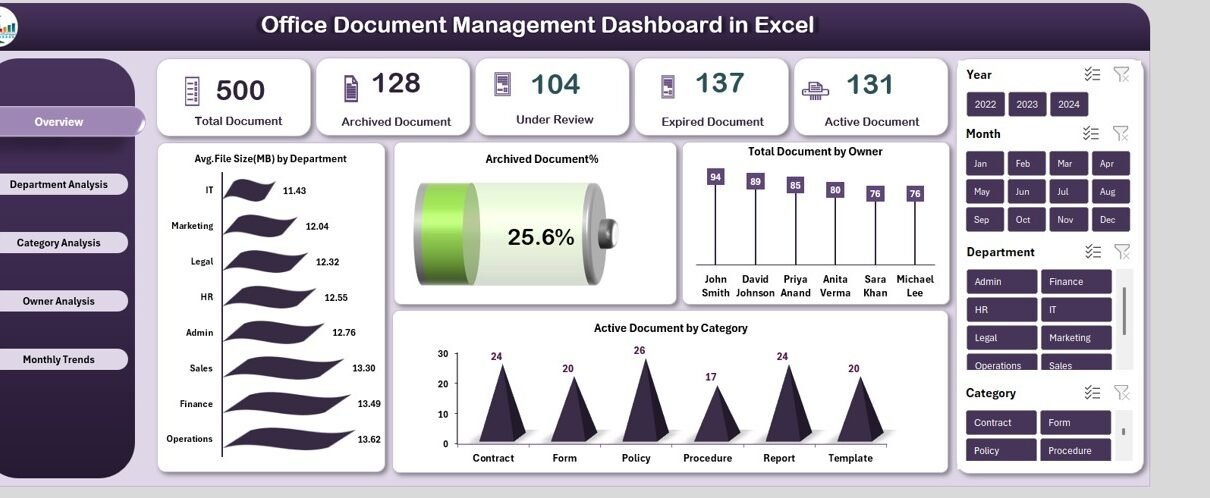
The dashboard pulls all document data into a single database sheet and displays insights across five major analytics pages:
- Overview Page
- Department Analysis
- Category Analysis
- Owner Analysis
- Monthly Trends
Each page provides targeted insights that help managers understand document patterns and take action quickly.
the Overview Page
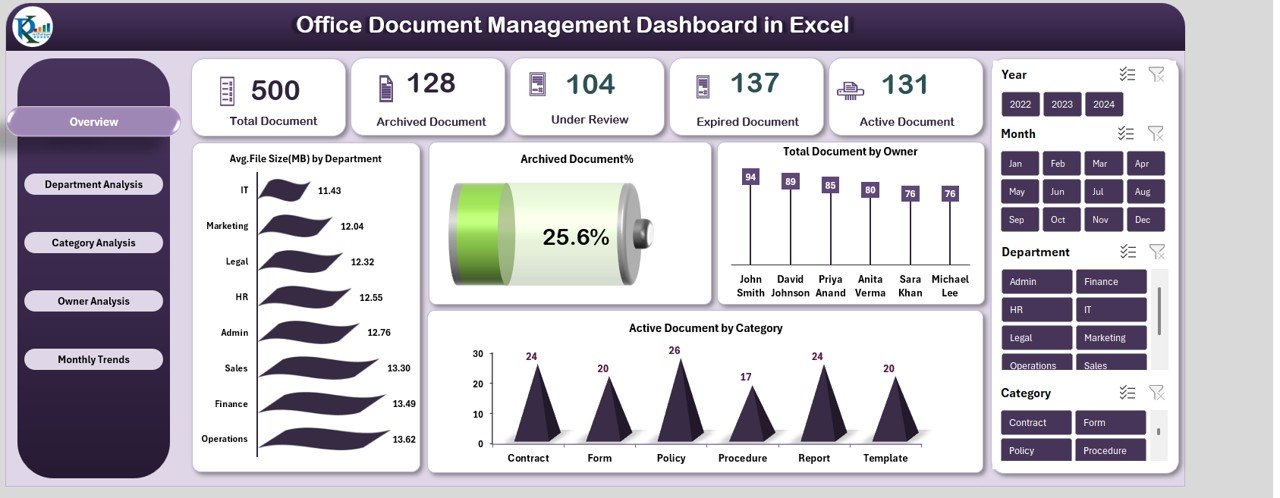
The Overview Page works as the home screen of the dashboard. It gives you a quick summary of your entire document collection. It includes the following key insights:
- Total Document
You can see how many documents exist across all departments and categories.
- Archived Document
These files are no longer active but stored for record-keeping.
- Expired Document
These files have passed their validity date and need attention.
- Active Document
These documents are currently in use and important for daily operations.
- Avg. File Size (MB) by Department
You can compare average file size across departments, which helps you manage storage usage better.
- Archived Document %
This shows what portion of your total documents are archived.
- Active Document by Category
This chart highlights which categories carry the most active files.
- Total Document by Owner
You can check how many files each team member owns.
This page helps you stay informed about the full document landscape in just a few seconds.
Click to buy Office Document Management Dashboard in Excel
Department Analysis .
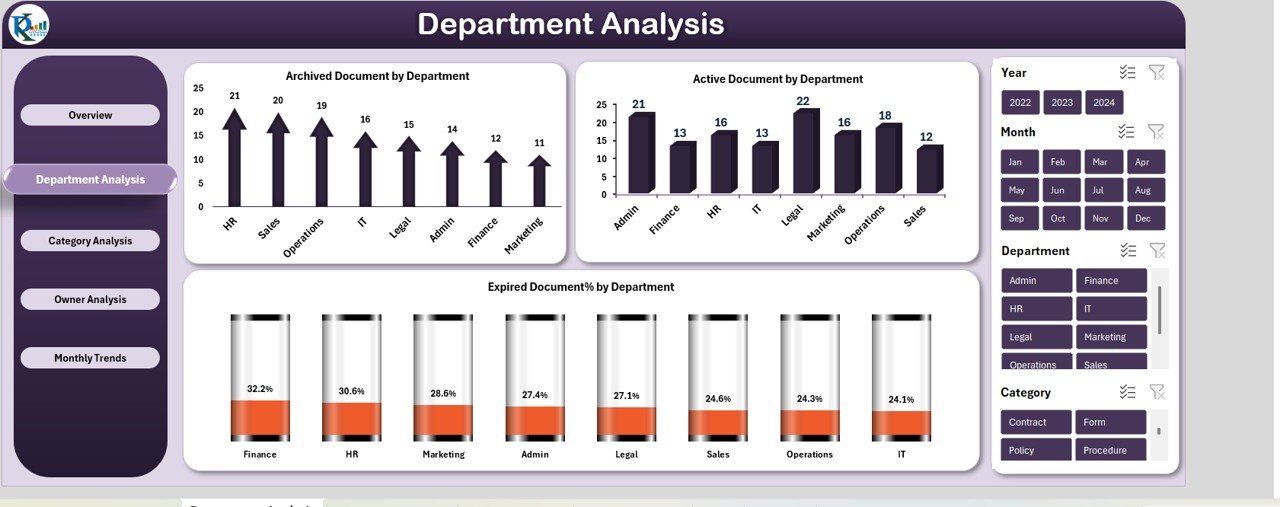
The Department Analysis page shows how each department manages its documents. You can track:
- Archived Document by Department
This helps you identify which departments store outdated documents.
- Active Document by Department
You can compare daily-use documents across teams.
- Expired Document % by Department
This is useful for compliance teams that must handle expired files quickly.
This page helps department heads know how updated or outdated their document collection is.
Click to buy Office Document Management Dashboard in Excel
Category Analysis Page .
Categorizing documents helps you manage them better. The Category Analysis page gives you insights like:
- Archived Document % by Category
You can see which categories hold the most outdated documents.
- Avg. File Size (MB) by Category
Large files often require storage planning, and this chart highlights them.
- Total Document by Category
This lets you compare the volume of documents across all categories.
This page gives a deeper view of how documents behave across different types of work.
Click to buy Office Document Management Dashboard in Excel
The Owner Analysis .
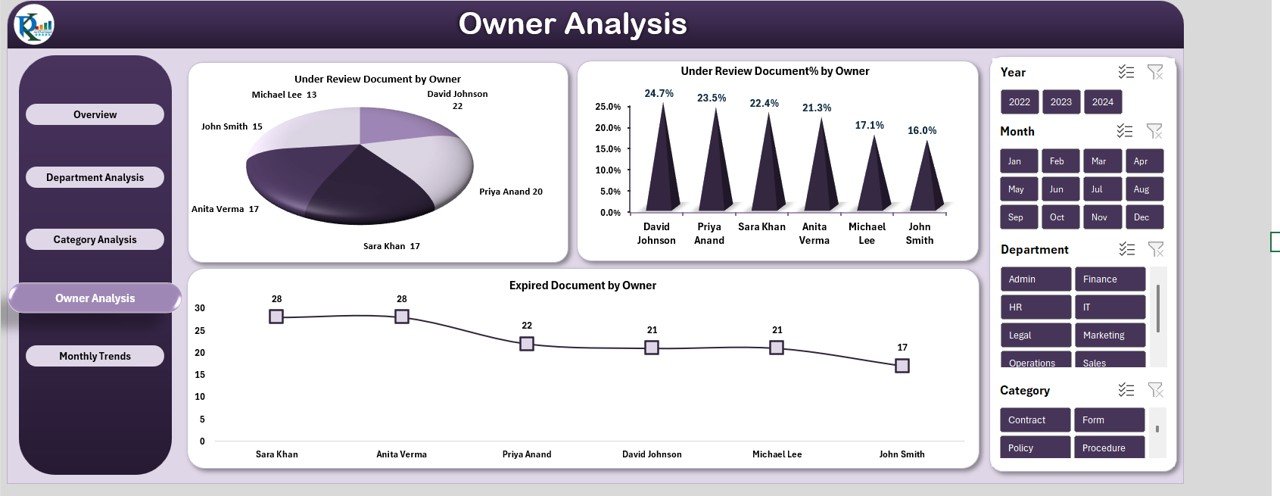
File ownership matters because it ensures clear responsibility. The Owner Analysis page helps identify trends and workload distribution.
- Under Review Document by Owner
You can see how many files each person is currently reviewing.
- Under Review Document % by Owner
This percentage helps you understand workload balance.
- Expired Document by Owner
This chart quickly shows which owners need to act on expired documents.
This page improves accountability and speeds up action.
Click to buy Office Document Management Dashboard in Excel
Monthly Trends Page .
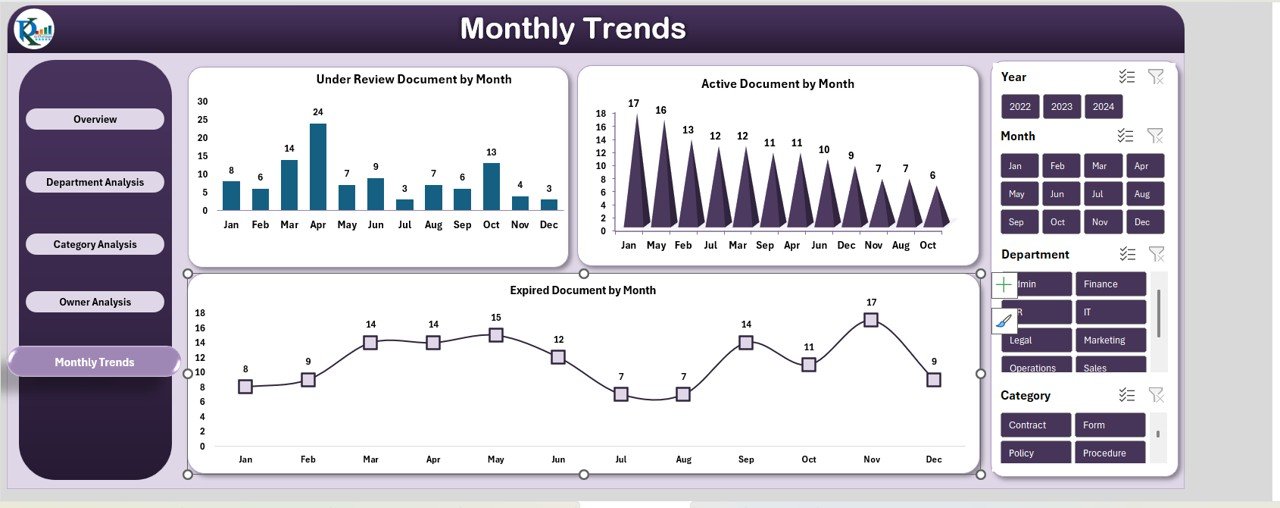
Monthly patterns tell you how document movement changes across the year. The Monthly Trends Page includes:
- Under Review Document by Month
Tracks how many documents entered review each month.
- Active Document by Month
Shows how active documents increase or decrease over time.
- Expired Document by Month
Displays the monthly count of expired documents.
This page helps you identify patterns, plan work cycles, and predict future trends.
Click to buy Office Document Management Dashboard in Excel
Advantages of the Office Document Management Dashboard in Excel
When you use this dashboard, you gain many benefits that support productivity, clarity, and compliance. Here are the most useful advantages:
Clear Visibility of All Documents
You see everything in one dashboard, which saves time and reduces confusion.
Instant Status Tracking
You know how many documents are active, expired, archived, or under review at a glance.
Improved Compliance
The dashboard helps you track expired files quickly so you can take corrective steps.
Reduced Manual Work
The dashboard removes the need for manual counting, sorting, and filtering.
Better Team Accountability
Each document has a clear owner, so nothing gets missed.
Easy to Use for Non-Technical Users
The dashboard uses Excel, so anyone can use it without extra training.
Supports Smart Decision-Making
Managers can track trends, compare departments, and plan better.
Helps You Organize Data Better
Categories, departments, owners, and statuses help you structure your entire document system.
What Are the Best Practices for Document Management in Excel?
If you want smooth and error-free document tracking, follow these best practices:
- Use a Standard Naming Method
Keep file names consistent so you can search easily.
- Update the Database Regularly
Add new documents and update old ones quickly to avoid confusion.
- Assign Clear Document Owners
Make one person responsible for each document.
- Use Categories and Departments Properly
Never skip category or department selection while updating files.
- Track Expiry Dates Carefully
Expired documents can create problems during audits, so review them weekly.
- Archive Old Files on Time
Move old files out of active folders to keep your system clean.
- Review Monthly Trends
Monthly insights help you plan storage, projects, and workload.
- Keep File Sizes in Control
Large documents consume storage and slow down sharing.
- Use Pivot Charts for Visual Insights
Pivot charts help you view patterns and take action faster.
- Back Up Your Document Data
Always keep a backup to avoid data loss.
How to Use the Dashboard Effectively Every Day?
Here is a simple daily routine to get the most from your dashboard:
- Check active, expired, and under review files every morning
- Follow up with owners who have overdue documents
- Review which departments hold many outdated files
- Check monthly trends every week
- Clean and archive documents at the end of each month
This routine helps you maintain a clean, updated, and well-organized document structure.
Who Can Use the Office Document Management Dashboard?
This dashboard works for many sectors and teams, such as:
- Administrative teams
- HR departments
- Finance departments
- Compliance teams
- IT teams
- Operations teams
- Project managers
- Legal departments
Any department that manages digital documents will find this tool extremely useful.
Conclusion
The Office Document Management Dashboard in Excel gives you full control over how your organization handles documents. It helps you find files quickly, track their status, compare departments, and manage storage with ease. Because it works inside Excel, your team can start using it immediately without learning new software.
With this dashboard, you bring clarity, speed, and structure to your entire document system. You reduce manual work, improve compliance, and help your team stay productive every day.
Frequently Asked Questions (FAQs)
- What is an Office Document Management Dashboard in Excel?
It is a ready-to-use system that tracks active, expired, archived, and under-review documents using charts, cards, and slicers in Excel.
- Can small businesses use this dashboard?
Yes, small teams benefit the most because the dashboard reduces manual work and helps them organize files easily.
- Do I need advanced Excel skills to use it?
No, you only need basic Excel knowledge. The dashboard works with simple pivot tables and slicers.
- Can I track file owners and departments?
Yes, the dashboard shows documents by owners, departments, and categories.
- Does it help with compliance?
Yes, you can detect expired and outdated documents quickly, which supports audit and compliance needs.
- Can I add more fields?
You can add as many fields as you want if your organization needs additional data points.
- Does it support monthly trend analysis?
Yes, it includes monthly charts to help you track how document activity changes over time.
- Can multiple team members use the dashboard?
Yes, the file can be shared on shared drives, Teams, OneDrive, or Google Drive.
Watch the step-by-step video tutorial:
Visit our YouTube channel to learn step-by-step video tutorials
Click to buy Office Document Management Dashboard in Excel