Managing manufacturing operations without a clear task calendar often creates confusion, missed deadlines, and production delays. However, when teams use a Manufacturing Task Calendar in Excel, they gain structure, visibility, and control over daily, monthly, and yearly manufacturing activities.
Therefore, this detailed guide explains what a Manufacturing Task Calendar in Excel is, why it matters, how it works, its sheet-wise structure, advantages, best practices, and frequently asked questions. Moreover, the language stays simple and practical so production teams, plant managers, and operations planners can apply it immediately.
Click to buy Manufacturing Task Calendar in Excel
What Is a Manufacturing Task Calendar in Excel?
A Manufacturing Task Calendar in Excel is a ready-to-use planning and scheduling tool that helps manufacturing teams organize tasks, events, and operational activities across days, months, and years.
Instead of tracking production tasks in scattered spreadsheets or paper planners, this calendar centralizes all manufacturing activities into one structured Excel file. As a result, teams gain clarity, consistency, and accountability.
Moreover, because it runs fully in Microsoft Excel, users can manage schedules without expensive software or technical skills.
Why Do Manufacturing Teams Need a Task Calendar?
Manufacturing environments move fast. Therefore, teams must track machine maintenance, production schedules, audits, safety drills, shutdowns, and internal reviews accurately.
Without a proper calendar:
- Tasks overlap
- Deadlines get missed
- Teams lose coordination
- Production efficiency drops
However, a Manufacturing Task Calendar in Excel solves these issues by offering:
- Centralized planning
- Visual scheduling
- Easy updates
- Clear task ownership
As a result, factories operate more smoothly and predictably.
How Does a Manufacturing Task Calendar in Excel Work?
The calendar works by storing all task details in a structured database sheet and displaying them dynamically across Annual, Monthly, and Daily views.
Users can:
- Add new tasks using forms
- Update or delete existing tasks
- Highlight weekends or specific days
- Switch color themes
- View tasks by date range
Because Excel automates these actions, teams spend less time managing schedules and more time executing tasks.
What Worksheets Are Included in the Manufacturing Task Calendar in Excel?
This Manufacturing Task Calendar includes five well-structured worksheets, each designed for a specific purpose.
Home Sheet
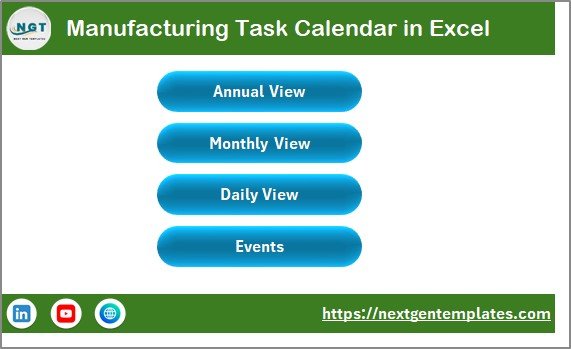
The Home sheet works as the navigation hub of the calendar.
Key Features of the Home Sheet:
- Clean index layout
- Easy navigation buttons
- Quick access to all calendar views
Navigation Buttons Available:
- Annual View
- Monthly View
- Daily View
- Events
Because of this design, users jump between views instantly without searching through tabs.
Click to buy Manufacturing Task Calendar in Excel
Annual View Sheet
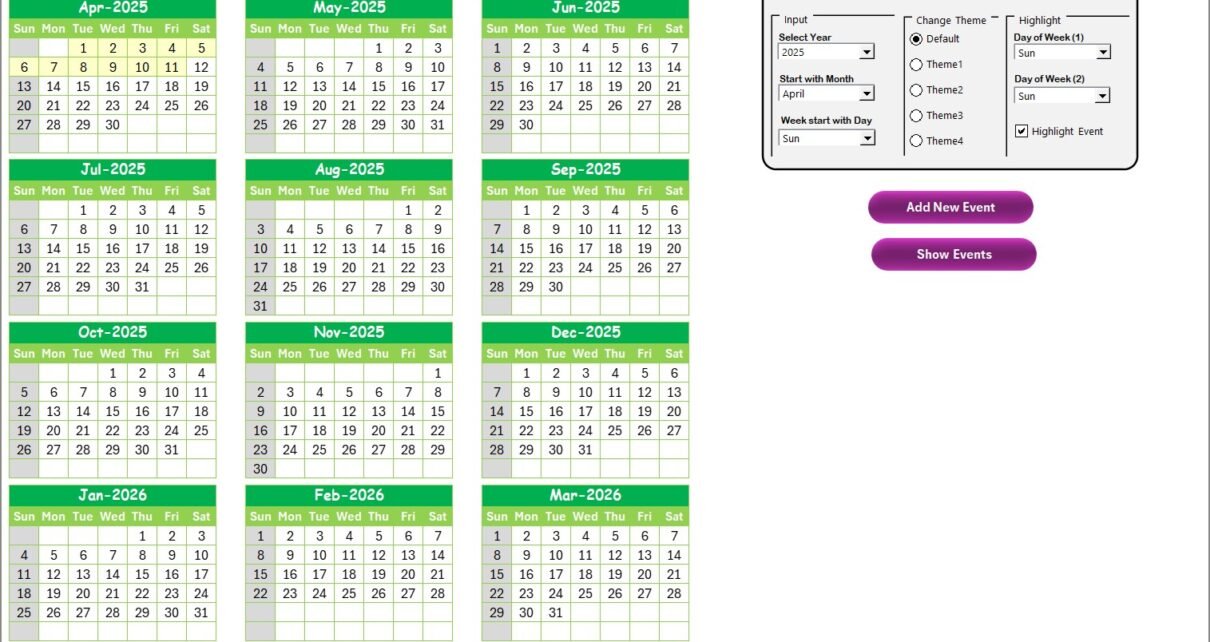
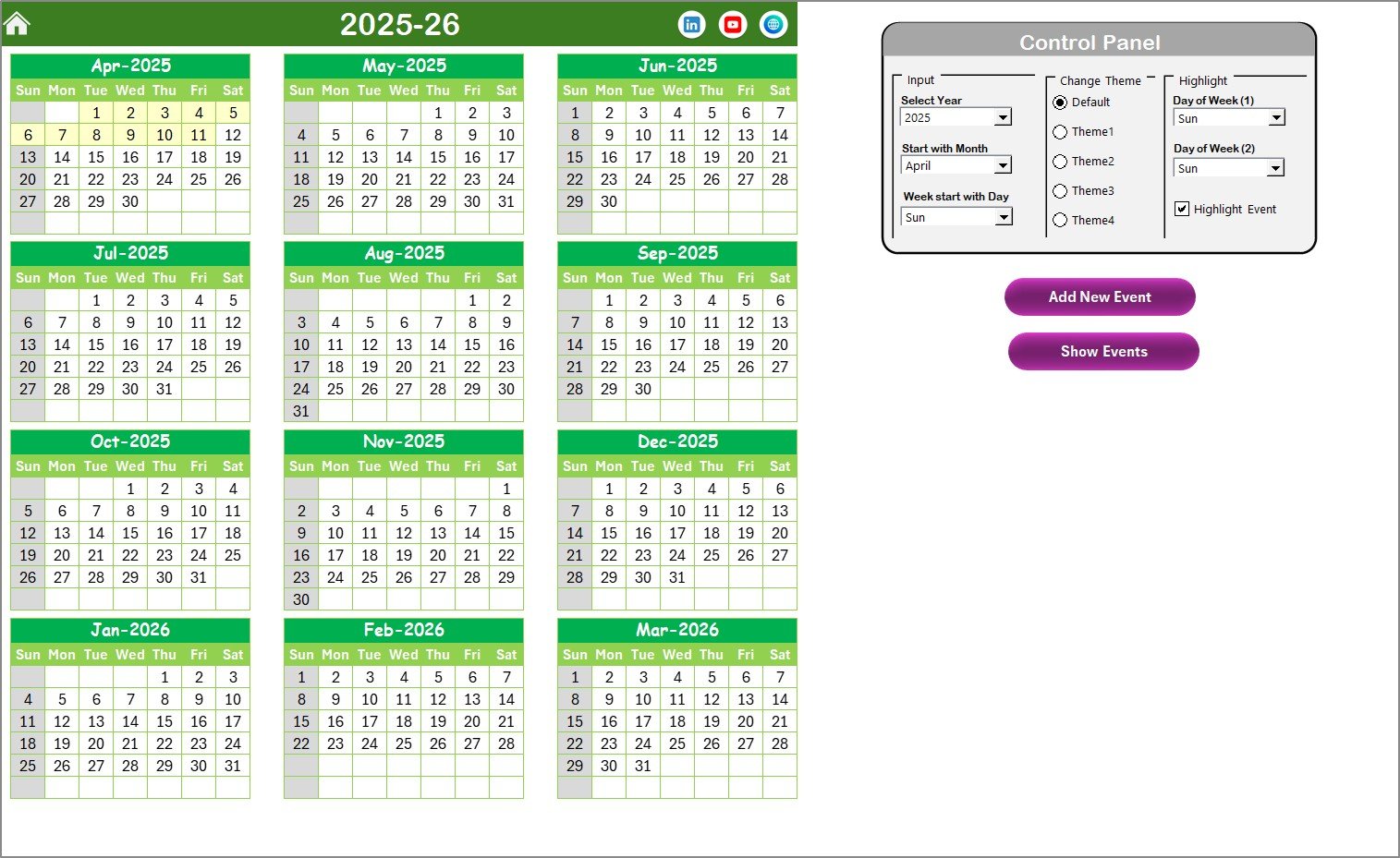
The Annual View Sheet displays all 12 months of the year in one screen, giving a high-level overview of manufacturing activities.
Why Is Annual View Important?
- Helps plan long-term production schedules
- Highlights busy and idle periods
- Supports yearly audits and shutdown planning
What Is the Control Panel in the Annual View?
The Annual View includes a powerful Control Panel that enhances flexibility.
Input Group:
- Select Year
- Change Starting Month
- Change Starting Day of the Week
As a result, the calendar adapts instantly to company-specific fiscal or production calendars.
Change Theme Group:
- Choose from 5 color themes
- Apply theme across the entire workbook
This feature improves readability and visual comfort.
Highlight Group:
- Highlight Day of Week (1) and Day of Week (2)
- Example: Highlight Saturdays and Sundays in grey
- Enable Highlight Events to show tasks in yellow
Because of this, teams instantly spot weekends and important tasks.
What Do the Buttons in Annual View Do?
Add New Event Button:
- Select a date
- Click the button
- Fill the event form
- Submit to save
Show Event Button:
- Select a date
- Click the button
- View all tasks scheduled for that date
Therefore, users manage tasks directly from the calendar view.
Click to buy Manufacturing Task Calendar in Excel
Monthly View Sheet
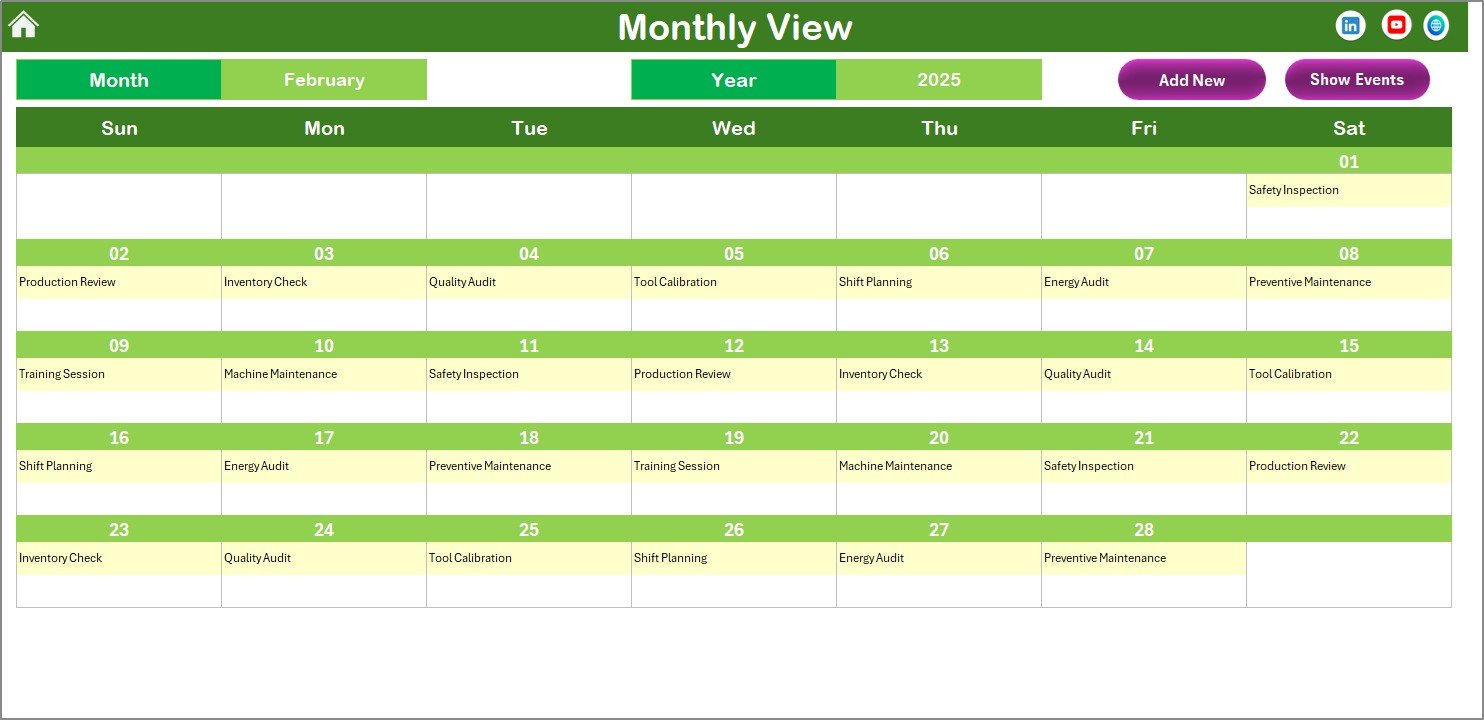
The Monthly View Sheet displays a single month calendar with task visibility.
Why Use Monthly View?
- Ideal for production supervisors
- Helps plan weekly shifts
- Tracks monthly maintenance and inspections
Features of Monthly View:
- Select Month and Year
- View tasks directly on the calendar
- Displays “more than 1…” when multiple tasks exist on a date
This design keeps the calendar clean and readable.
Buttons in Monthly View:
Add New Event Button:
- Select a date
- Open the event form
- Add task details
- Save instantly
Show Event Button:
- Select a date
- View all tasks scheduled for that day
Because of this, monthly planning becomes quick and accurate.
Click to buy Manufacturing Task Calendar in Excel
the Daily View Sheet
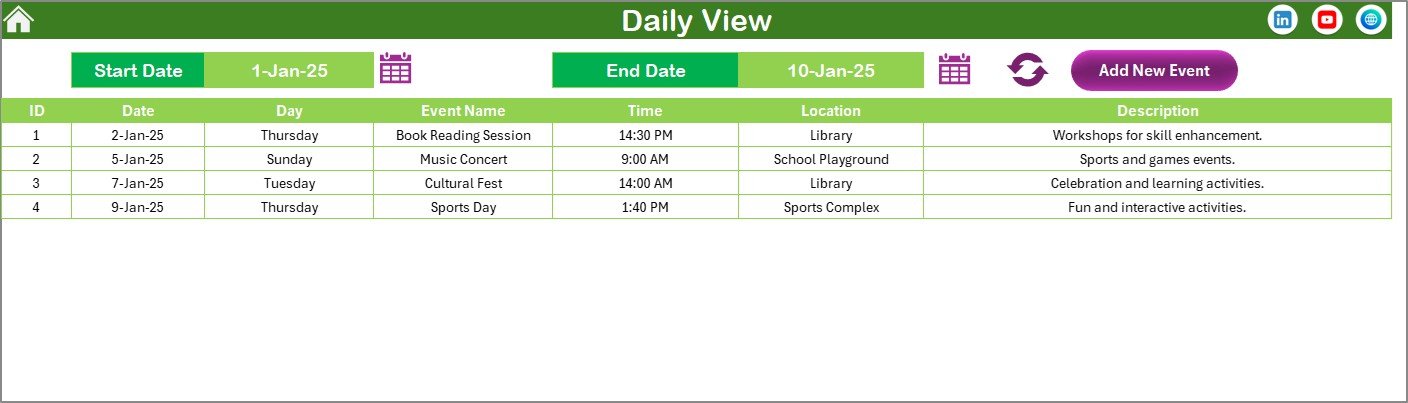
The Daily View Sheet shows a detailed list of tasks within a selected date range.
Why Is Daily View Useful?
- Ideal for operations teams
- Helps track daily production activities
- Supports shift-wise planning
Features of Daily View:
- Select Start Date and End Date
- Use calendar icons for easy date selection
- Click Refresh to load latest tasks
- View full task details in a list format
Add New Event in Daily View:
- Click Add New Event
- Fill event form
- Submit to save
As a result, teams manage daily workloads efficiently.
Events Sheet
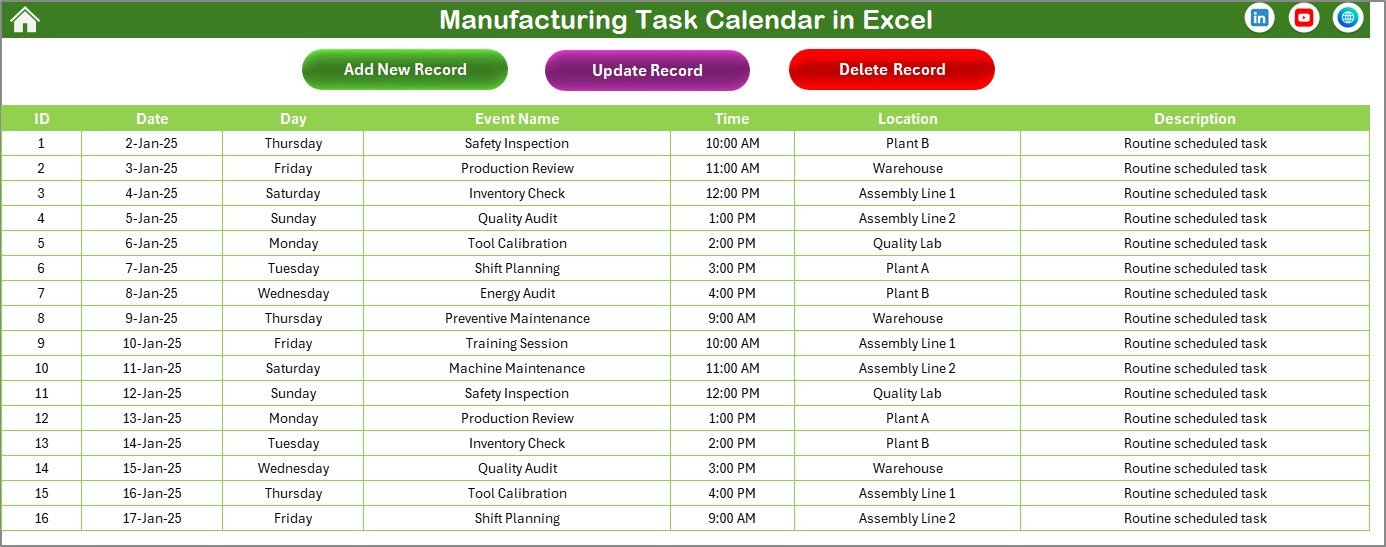
The Events Sheet acts as the database of the entire calendar.
What Data Does the Events Sheet Store?
- ID – Auto-generated number
- Date – Event date
- Day – Day name
- Event Name – Task name
- Time – Event time
- Location – Task location
- Description – Short details
Because all views pull data from this sheet, accuracy remains consistent across the calendar.
Buttons in Events Sheet:
Add New Record:
- Opens event form
- Saves new task
Update Existing Record:
- Select task ID
- Open pre-filled form
- Modify details
- Save changes
Delete Record:
- Select task ID
- Delete task permanently
Therefore, users maintain full control over task data.
Click to buy Manufacturing Task Calendar in Excel
Advantages of Manufacturing Task Calendar in Excel
Using a Manufacturing Task Calendar in Excel delivers multiple operational benefits.
Centralized Task Management
- Stores all manufacturing tasks in one file
- Eliminates scattered trackers
Better Production Planning
- Visualizes tasks across days, months, and years
- Prevents scheduling conflicts
Improved Team Coordination
- Keeps everyone aligned on timelines
- Reduces miscommunication
Customizable and Flexible
- Change themes
- Adjust calendar settings
- Modify fields as needed
Cost-Effective Solution
- Uses Microsoft Excel
- No subscription or license cost
User-Friendly Design
- Simple buttons
- Easy navigation
- No technical skills required
Best Practices for the Manufacturing Task Calendar in Excel
To get the best results, teams should follow proven practices.
Update Tasks Regularly
Always add, update, or delete tasks as changes occur.
Standardize Task Naming
Use clear and consistent task names to avoid confusion.
Use Highlight Features
Highlight weekends and critical tasks for quick visibility.
Assign Responsibility Clearly
Mention departments or owners in descriptions.
Review Calendar Daily
Check daily view every morning to stay on track.
Back Up the File
Maintain backups to avoid accidental data loss.
Who Should Use a Manufacturing Task Calendar in Excel?
This calendar fits various manufacturing roles:
- Plant Managers
- Maintenance Teams
- Production Planners
- Operations Managers
- Quality and Compliance Teams
Because of its flexibility, both small factories and large plants can use it effectively.
Conclusion: Why Should You Use a Manufacturing Task Calendar in Excel?
A Manufacturing Task Calendar in Excel simplifies production planning, improves task visibility, and strengthens operational control. Instead of juggling multiple tools, teams manage everything from one structured Excel file.
Moreover, with annual, monthly, and daily views, powerful control panels, and an integrated event database, this calendar becomes a reliable planning companion for manufacturing operations.
Frequently Asked Questions (FAQs)
- Is the Manufacturing Task Calendar in Excel easy to use?
Yes. The calendar uses simple buttons, forms, and layouts, making it easy for all users.
- Can I customize the calendar?
Yes. You can change themes, highlight days, adjust start days, and modify fields.
- Do I need advanced Excel skills?
No. Basic Excel knowledge is enough to use this calendar.
- Can multiple users use this calendar?
Yes. Teams can share the file using OneDrive or SharePoint with proper access control.
- Can I track maintenance and audits?
Yes. You can schedule maintenance, audits, inspections, and shutdowns easily.
- Does it support long-term planning?
Yes. The annual view supports yearly and long-term planning.
- Is this calendar suitable for small factories?
Yes. Both small and large manufacturing units can use it effectively.
Visit our YouTube channel to learn step-by-step video tutorials
Watch the step-by-step video tutorial:
Click to buy Manufacturing Task Calendar in Excel