In today’s fast-moving manufacturing environment, project timelines often decide success or failure. Therefore, manufacturers must plan tasks carefully, track milestones clearly, and manage events efficiently. However, many teams still rely on scattered spreadsheets, emails, and manual reminders. As a result, deadlines slip, coordination weakens, and productivity suffers.
That is exactly where a Manufacturing Project Calendar in Excel becomes a powerful and practical solution.
This in-depth article explains what a Manufacturing Project Calendar in Excel is, why manufacturing teams need it, how it works, its worksheet-wise structure, key features, advantages, best practices, and frequently asked questions. Moreover, the language stays simple, the structure stays clear, and every section focuses on real manufacturing use cases.
Click to buy Manufacturing Project Calendar in Excel
What Is a Manufacturing Project Calendar in Excel?
A Manufacturing Project Calendar in Excel is a ready-to-use, interactive Excel-based calendar designed to plan, schedule, and track manufacturing-related projects, events, and activities in one centralized file.
Instead of maintaining multiple sheets for production schedules, maintenance events, audits, and meetings, this calendar brings everything together. As a result, manufacturing managers gain a single source of truth for project planning.
Because the calendar runs in Excel, teams can use it without learning new software. Additionally, it supports automation, visual calendars, event forms, and dynamic views.
Why Do Manufacturing Teams Need a Project Calendar in Excel?
Manufacturing projects involve many moving parts. Therefore, teams must stay aligned at all times. However, without a structured calendar, several challenges arise.
Common Challenges Without a Structured Calendar
- Missed production milestones
- Poor coordination between departments
- Overlapping maintenance and production schedules
- Limited visibility into upcoming events
- Manual tracking errors
Because of these challenges, manufacturing teams need a system that is visual, easy to update, and reliable.
How Excel Solves These Challenges
Excel provides flexibility, familiarity, and customization. Moreover, when combined with an automated project calendar, it becomes a powerful planning tool.
A Manufacturing Project Calendar in Excel helps teams:
- Plan projects clearly
- Track events accurately
- Visualize timelines easily
- Update schedules quickly
- Improve accountability
How Does a Manufacturing Project Calendar in Excel Work?
The Manufacturing Project Calendar in Excel works through multiple interconnected worksheets. Each worksheet serves a specific purpose. Together, they create a complete planning and tracking system.
This template includes five structured worksheets, each designed to support manufacturing project management efficiently.
What Are the Worksheets in the Manufacturing Project Calendar in Excel?
Let us explore each worksheet in detail to understand how the calendar works.
Home Sheet
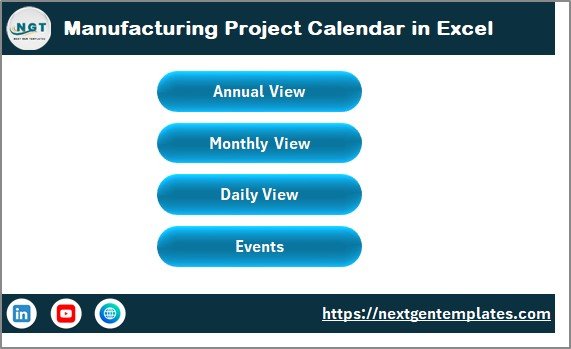
The Home Sheet acts as the main index and navigation hub of the entire workbook.
Purpose of the Home Sheet
The Home Sheet helps users move quickly between different calendar views without searching for tabs. As a result, navigation becomes simple and intuitive.
Buttons Available on the Home Sheet
The Home Sheet includes four clearly defined buttons:
- Annual View Button – Opens the yearly calendar
- Monthly View Button – Opens the selected month calendar
- Daily View Button – Opens detailed event listings
- Events Button – Opens the events database
Because of this structured navigation, even new users can start using the calendar instantly.
Click to buy Manufacturing Project Calendar in Excel
Annual View Sheet
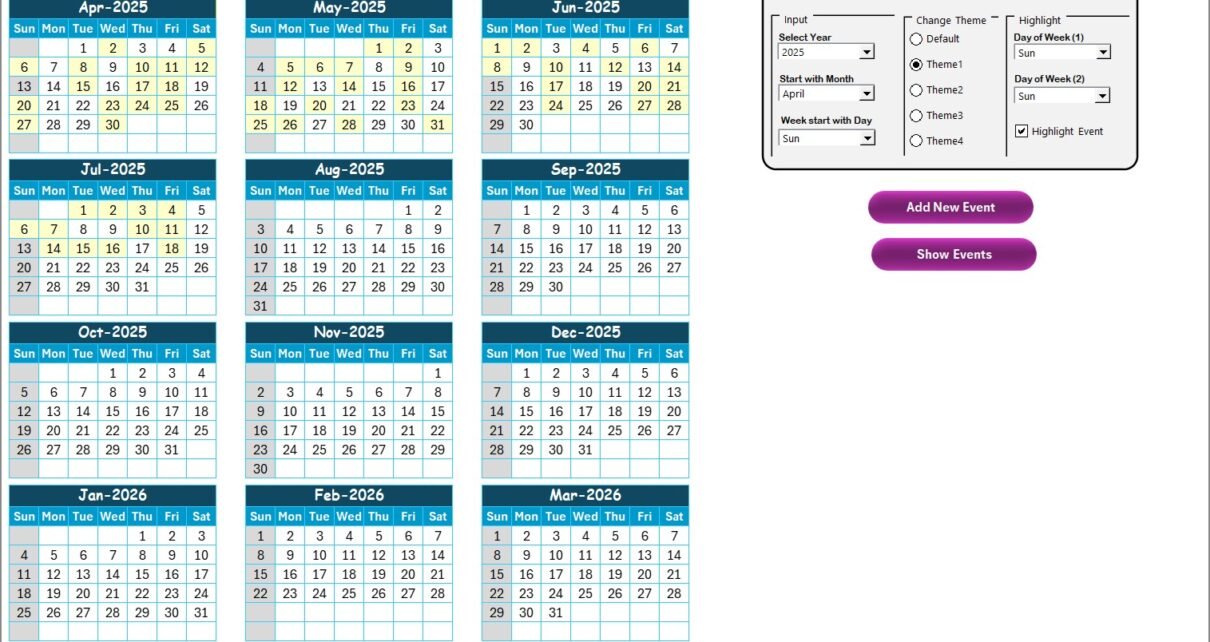
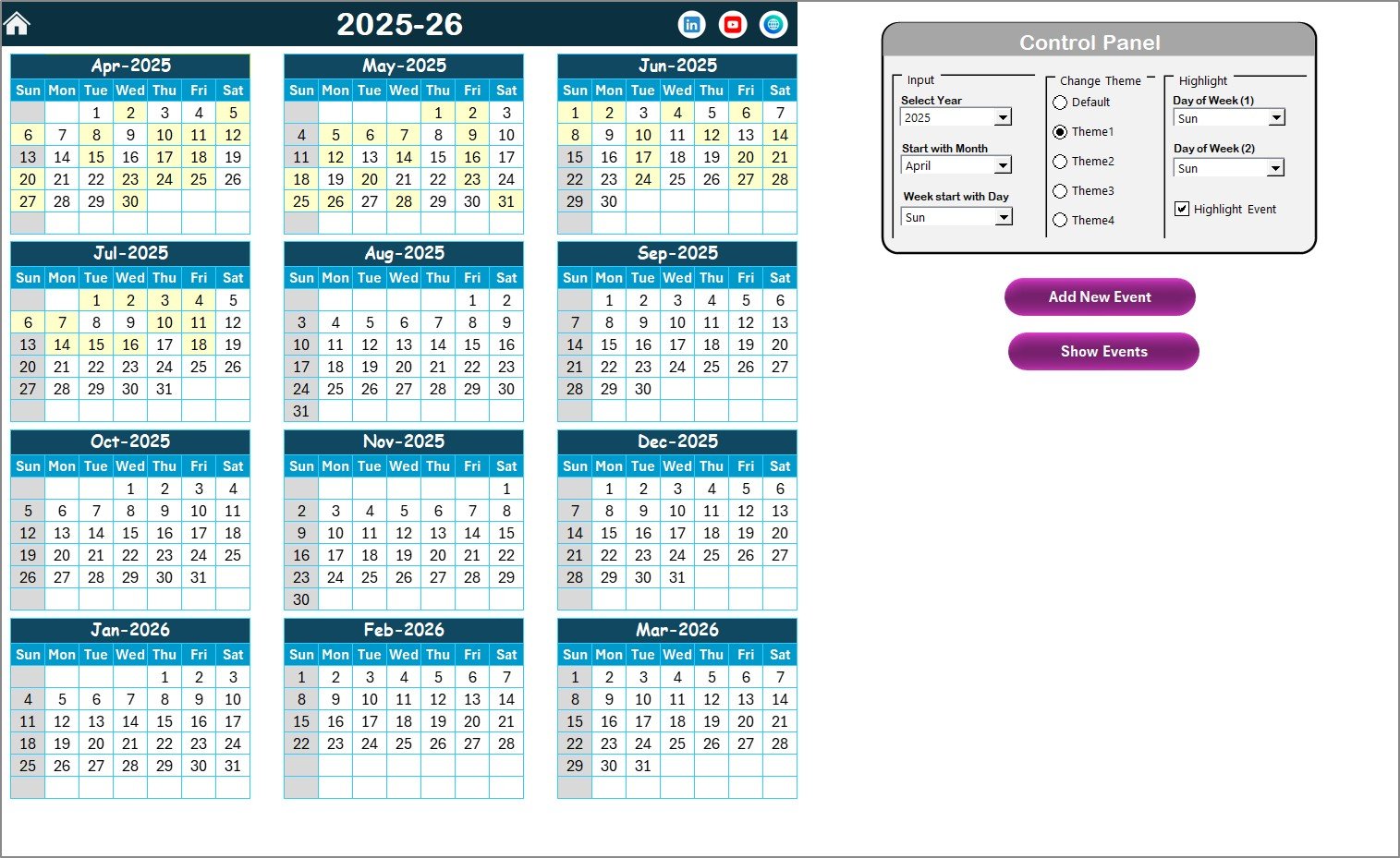
The Annual View Sheet displays all 12 months in a single view. Therefore, it provides a high-level overview of the entire year.
Key Benefits of the Annual View
- Long-term planning visibility
- Easy identification of busy months
- Better resource allocation
- Clear overview of major project milestones
What Is the Control Panel in the Annual View Sheet?
The Annual View includes a powerful Control Panel that allows users to customize the calendar dynamically.
Input Group
The Input Group allows users to:
- Select the Year
- Change the starting month
- Set the starting day of the week
As a result, the calendar adjusts automatically without manual changes.
Change Theme Group
The Change Theme Group allows users to select from five color themes.
Because of this feature:
- Users can apply a consistent theme across the workbook
- Organizations can align the calendar with brand colors
- Visual clarity improves significantly
Highlight Group
The Highlight Group enhances visual focus.
Users can:
- Select Day of Week (1) and Day of Week (2)
- Highlight specific days such as Saturday and Sunday
- Enable Highlight Event Checkbox to mark event days in yellow
As a result, weekends and important events stand out clearly.
Click to buy Manufacturing Project Calendar in Excel
Annual View Sheet
The Annual View Sheet includes two action buttons.
Add New Event Button
This button allows users to:
- Select a date on the calendar
- Click Add New Event
- Open the event entry form
- Enter event details and submit
The selected date automatically links to the event. Therefore, data entry becomes fast and accurate.
Show Event Button
The Show Event button displays all events scheduled on the selected date. Consequently, users can review daily activities instantly.
Monthly View Sheet
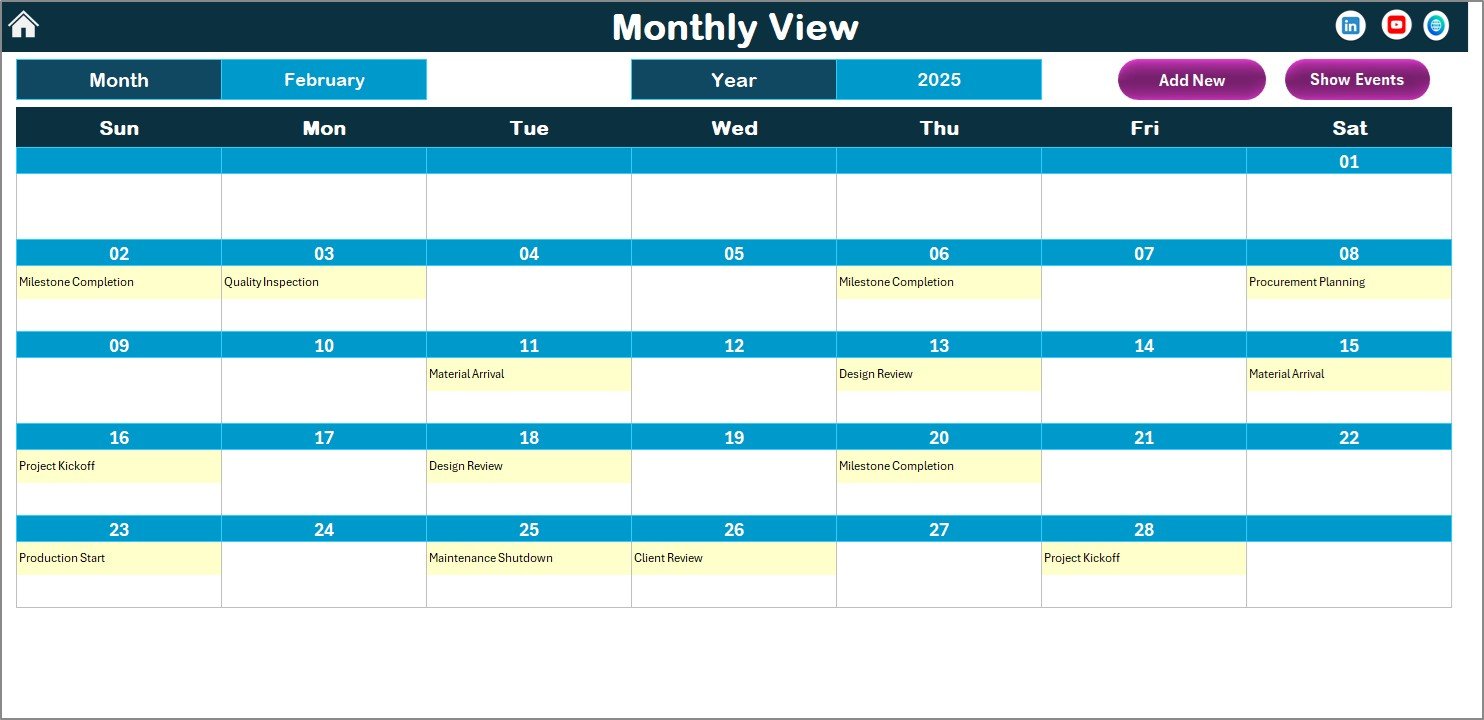
Key Features of the Monthly View
- Displays a single month calendar
- Allows month and year selection at the top
- Shows at least one event per date
- Displays “more than 1…” if multiple events exist
As a result, users get a clean and readable monthly overview.
Click to buy Manufacturing Project Calendar in Excel
The Monthly View includes two buttons similar to the Annual View.
Add New Event Button
This button lets users add events directly for the selected date in the monthly calendar.
Show Event Button
This button displays detailed event information for the selected date.
Because of these buttons, users can manage monthly schedules without switching sheets.
Daily View Sheet
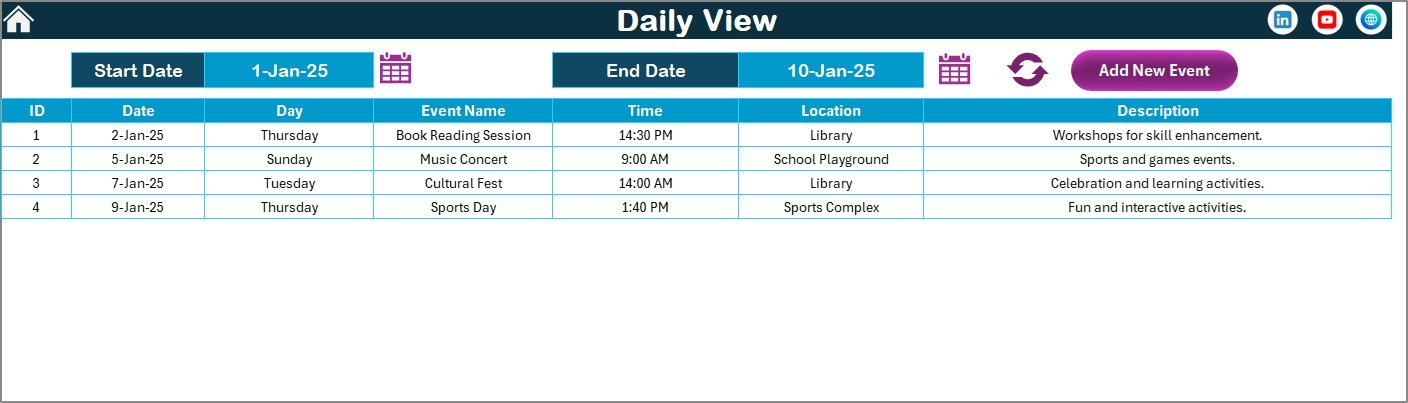
The Daily View Sheet focuses on detailed event tracking across a selected date range.
How the Daily View Works
Users can:
- Select Start Date and End Date
- Use the calendar icons to choose dates
- Click the Refresh Button to update data
As a result, the sheet displays all events within the selected range along with full details.
Click to buy Manufacturing Project Calendar in Excel
Why Is the Daily View Important for Manufacturing Teams?
Manufacturing projects often require daily-level tracking. Therefore, the Daily View helps teams:
- Monitor daily activities
- Track maintenance schedules
- Review audits and inspections
- Analyze workload distribution
Additionally, the Add New Event Button allows users to add events directly from this view.
Events Sheet
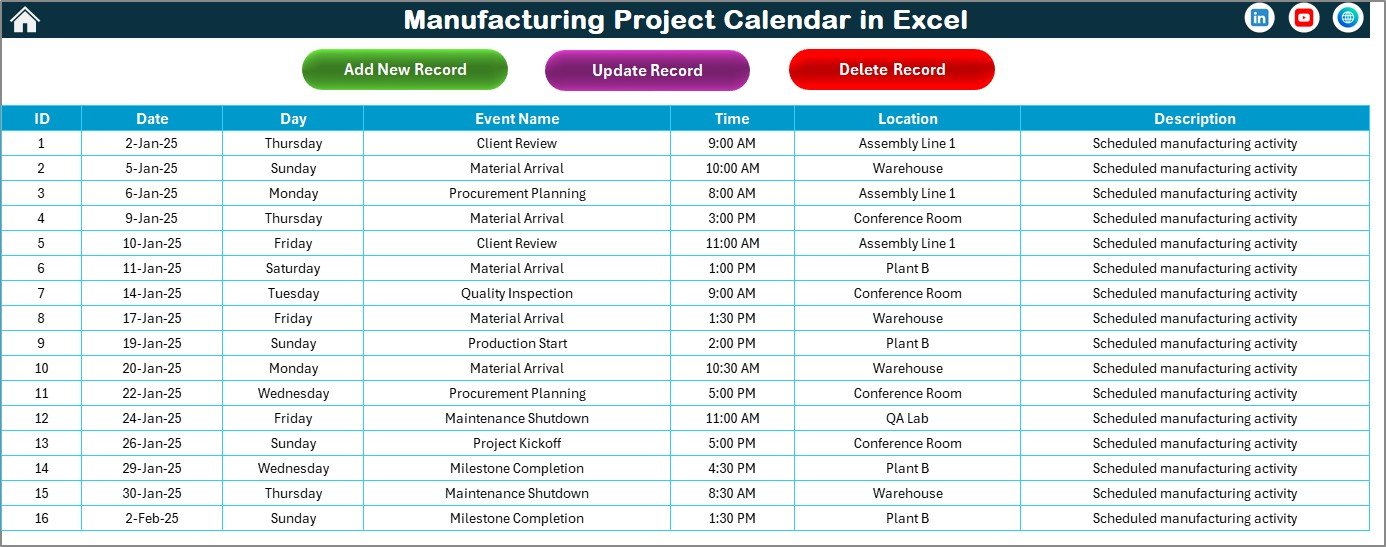
The Events Sheet acts as the backend database of the calendar.
Why Is the Events Sheet Important?
All calendar views pull data from this sheet. Therefore, it ensures data consistency across the workbook.
What Data Does the Events Sheet Store?
The Events Sheet captures the following fields:
- ID – Auto-generated unique number
- Date – Event date
- Day – Day of the week
- Event Name – Name of the event
- Time – Event time
- Location – Event location
- Description – Short event description
Because of this structured format, reporting and filtering become easy.
Click to buy Manufacturing Project Calendar in Excel
What Buttons Are Available on the Events Sheet?
The Events Sheet includes three powerful buttons.
Add New Record Button
This button opens the event form to add new events directly into the database.
Update Existing Record Button
Users can:
- Select the event ID
- Click Update Existing Record
- Modify prefilled event details
- Submit changes
As a result, updates become controlled and error-free.
Click to buy Manufacturing Project Calendar in Excel
Advantages of Manufacturing Project Calendar in Excel
Using a Manufacturing Project Calendar in Excel offers several strong advantages.
- Centralized Project Planning
All manufacturing events and project schedules stay in one file. Therefore, teams avoid confusion and duplication.
- Improved Visibility
Annual, monthly, and daily views provide clear visibility at every planning level.
- Easy Customization
Users can change themes, highlight days, and adjust calendar settings instantly.
- Faster Decision-Making
Because data updates automatically, managers can act quickly.
- No Additional Software Cost
Excel already exists in most organizations. Therefore, no extra investment is required.
- User-Friendly Interface
Buttons, forms, and navigation simplify usage for all users.
- Better Accountability
Clear event ownership and timelines improve responsibility across teams.
Best Practices for Using Manufacturing Project Calendar in Excel
To get the maximum value, teams should follow these best practices.
- Maintain Data Accuracy
Always update events through forms instead of manual edits.
- Review the Calendar Regularly
Daily or weekly reviews help avoid missed deadlines.
- Use Highlight Features Wisely
Highlight weekends, shutdown days, and key milestones.
- Standardize Event Naming
Consistent naming improves clarity and reporting.
- Protect the Events Sheet
Restrict editing access to prevent accidental data loss.
- Backup the File Regularly
Keep backups to avoid data loss.
- Train Team Members
A short walkthrough ensures consistent usage.
Who Can Use a Manufacturing ProManufacturing Project Calendar in ExcelManufacturing Project Calendar in Excelject Calendar in Excel?
This calendar suits many roles, including:
- Manufacturing project managers
- Production planners
- Plant managers
- Maintenance teams
- Quality and audit teams
- Operations heads
Because of its flexibility, teams across industries can adapt it easily.
Conclusion
A Manufacturing Project Calendar in Excel transforms how manufacturing teams plan, track, and manage projects. Instead of relying on disconnected tools, this calendar offers a centralized, visual, and automated solution.
With structured worksheets, dynamic controls, event forms, and multiple views, teams gain full control over manufacturing schedules. Moreover, because it runs in Excel, adoption remains easy and cost-effective.
When used correctly, this calendar improves planning accuracy, strengthens coordination, and boosts operational efficiency.
Frequently Asked Questions (FAQs)
What is a Manufacturing Project Calendar in Excel?
A Manufacturing Project Calendar in Excel is a structured Excel-based tool that helps plan, schedule, and track manufacturing projects and events.
Can I customize the calendar year and starting month?
Yes, the control panel allows you to change the year, starting month, and starting weekday easily.
Can I add multiple events on the same date?
Yes, the calendar supports multiple events on a single date and displays them clearly.
Does the calendar update automatically?
Yes, all views update automatically when you add, update, or delete events.
Do I need advanced Excel skills to use this calendar?
No, the calendar uses buttons and forms, making it easy for beginners.
Can this calendar support manufacturing audits and maintenance schedules?
Yes, it works perfectly for audits, maintenance, shutdowns, and production milestones.
Is the Events Sheet editable directly?
While possible, best practice suggests using forms and buttons to maintain data accuracy.
Can I change the color theme?
Yes, the calendar offers five color themes for full workbook customization.
Is this calendar suitable for large manufacturing projects?
Yes, it scales well for small, medium, and large manufacturing projects.
Can I use this calendar for other industries?
Yes, although designed for manufacturing, it can adapt to other project types easily.
Click to buy Manufacturing Project Calendar in Excel
Watch the step-by-step video tutorial: