The Employee Master and Record Data Entry System in Excel stores 7 fields per employee — Name, Employee ID, Department, Designation, Mobile, Join Date, and Status — and rolls them into 3 live KPI cards that recalculate the moment a record is added, edited, or deleted. It ships with 30 ready-made dropdown values across three lists, 4 VBA-powered action buttons, and a 4-sheet workbook that costs $5.99 once instead of $3–12 per employee per month.
Most small teams keep employee records in a free-form spreadsheet where one person types “Sales”, another types “sales dept”, and a third leaves the column blank. Six months later nobody can answer “how many people are in Operations?” without cleaning the file first. This Excel employee master file fixes that at the point of entry: every department, designation, and status comes from a controlled list, every row gets an automatic serial number and timestamp, and the headcount numbers on top are always current. Employee Master and Record Data Entry System in Excel.
Key Features of the Employee Master and Record Data Entry System in Excel
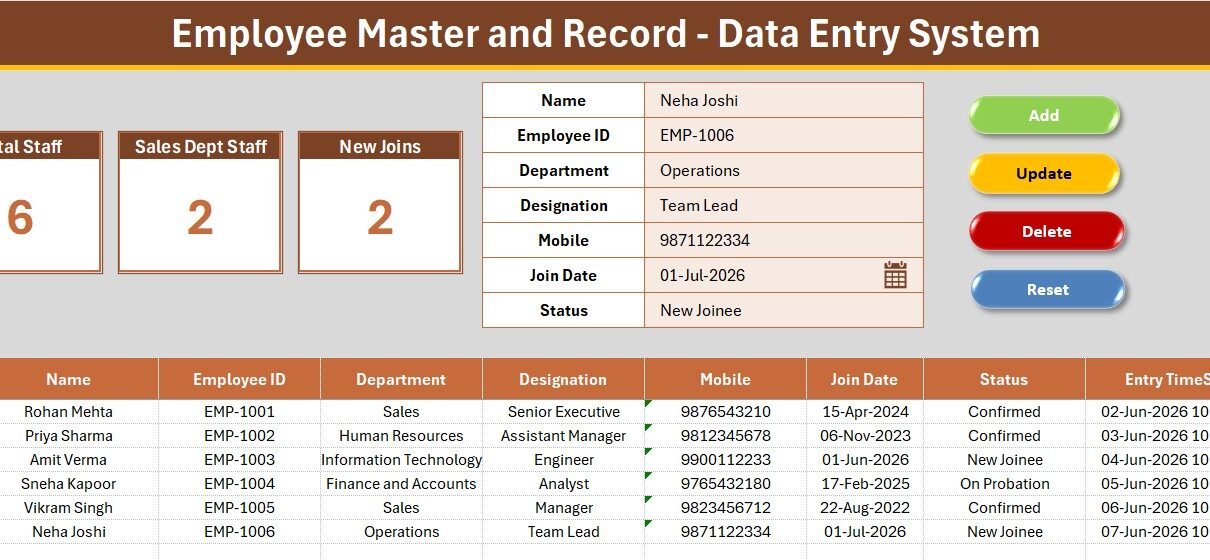
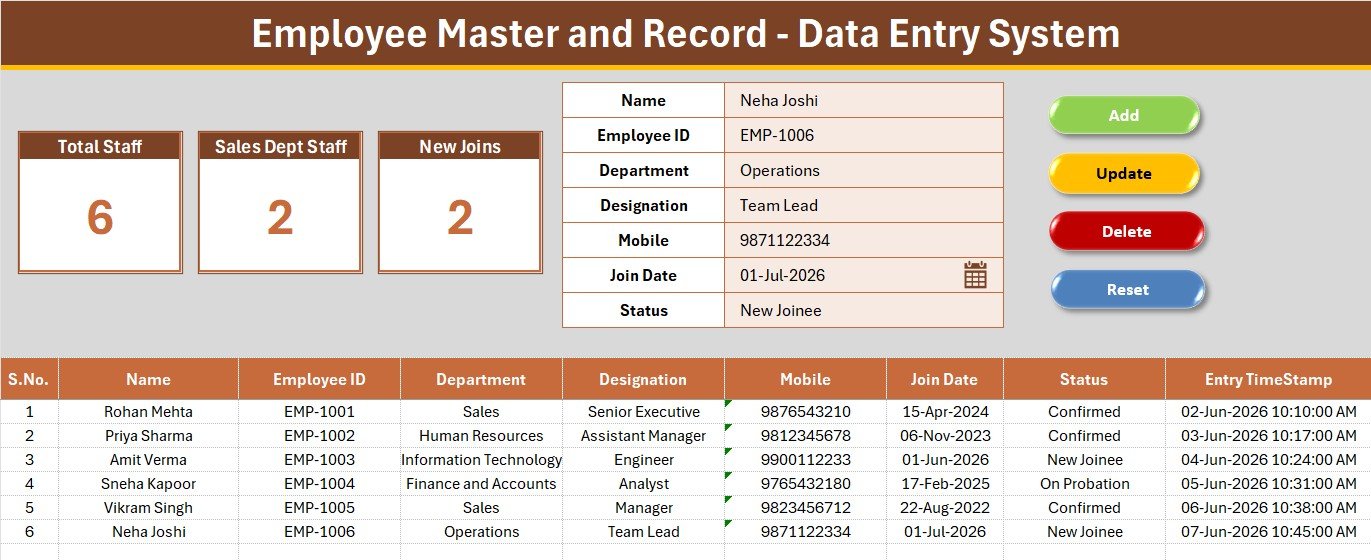
Everything sits on one screen. There is no jumping between a form sheet and a data sheet — the input form, the KPI cards, the four macro buttons, and the employee register all live on the Data Entry tab.
- 7-field employee record — Name, Employee ID, Department, Designation, Mobile, Join Date, and Status. Department, Designation, and Status are wired to named ranges on the Setting sheet through Excel data validation, so a typo can never break your filters or counts.
- 3 live KPI cards — Total Staff counts every record with COUNTA, Sales Dept Staff runs a COUNTIF on Department, and New Joins runs a COUNTIF on Status. All three formulas cover the full column, so they keep working as the register grows.
- VBA Add / Update / Delete / Reset — four macros drive the complete record lifecycle. Double-click any row in the register and it loads straight back into the form for editing.
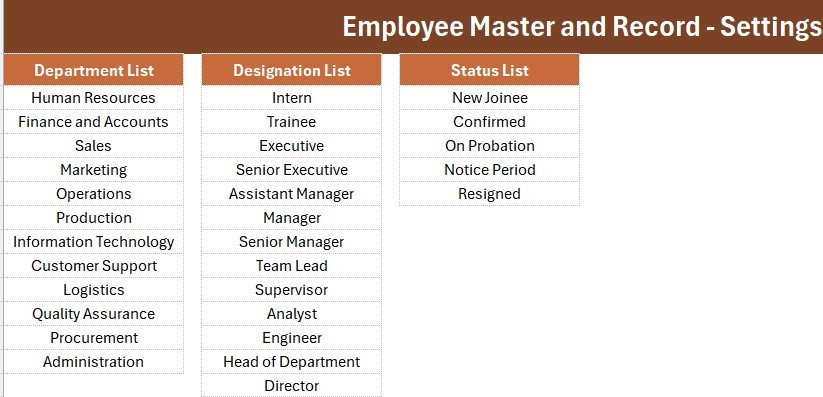
- 30 editable dropdown values — 12 departments, 13 designations from Intern through Director, and 5 employment status options. Every value is plain text on the Setting sheet, so you rename them to match your own org chart in seconds.
- Auto S.No and Entry TimeStamp — the serial number is a formula, not a typed value, so deleting a row renumbers the rest automatically. The timestamp column records when each employee was added, giving you an audit trail.
- Four-sheet workbook — Data Entry, Setting, Instructions, and Get More Templates, in Aptos Narrow throughout with a consistent theme colour across every heading bar. Employee Master and Record Data Entry System in Excel.
Template Structure — Sheet by Sheet
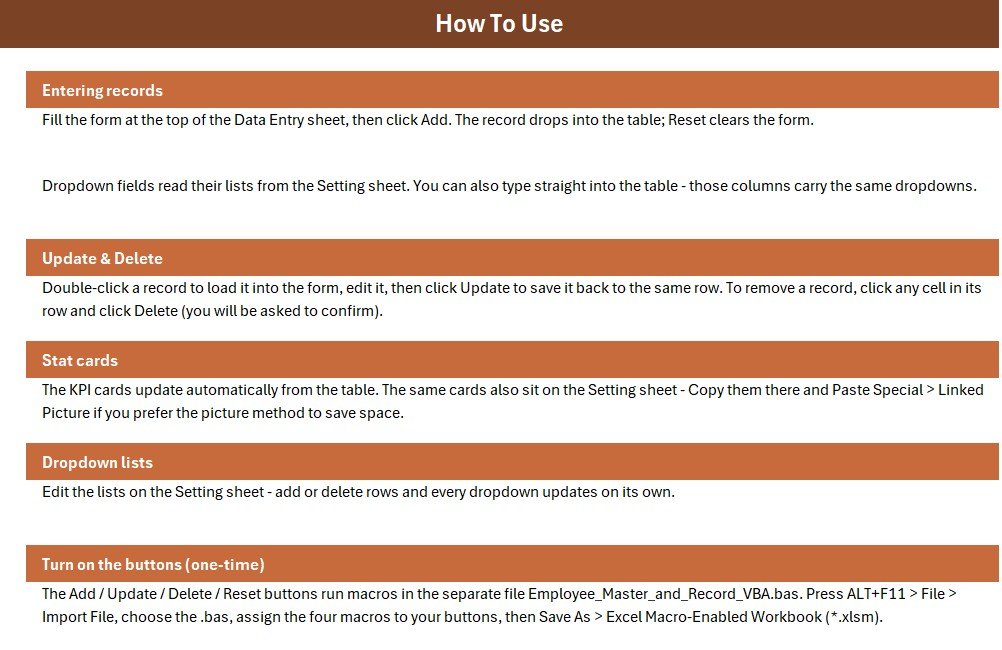
The workbook ships as an .xlsx file with the VBA supplied separately as a .bas module. You import the module once and save as .xlsm. Here is what each sheet does.
Data Entry Sheet
The main working screen. A grey dashboard panel across the top holds the three KPI cards on the left and the 7-field form on the right, with the coloured Add, Delete, Update, and Reset button cells in a 2×2 block beside the form. Below the panel sits the employee register with a themed header row and a hairline grid.
Employee Register and Records Table
Every employee you add lands here with an automatic serial number, all 7 fields, and an Entry TimeStamp. Because the columns are consistent and validated, you can drop a standard Excel filter on the header row and instantly slice by department, designation, or employment status. Employee Master and Record Data Entry System in Excel.
Setting and Instructions Sheets
The Setting sheet holds the three dropdown source lists plus a duplicate set of the KPI cards, which you can copy and Paste Special as a Linked Picture into any monthly report so the numbers stay live. The Instructions sheet documents the one-time VBA activation, and the Get More Templates sheet links back to the wider catalogue.
Employee Master and Record Data Entry System vs. Google Sheets vs. Paid HR SaaS — Feature Comparison
| Feature | Employee Master and Record Data Entry System | Google Sheets Equivalent | BambooHR / Zoho People |
|---|---|---|---|
| Cost | $5.99 one-time | Free (build it yourself) | $3–12 / employee / month |
| Platform | Microsoft Excel (offline) | Browser + Google account | Cloud only |
| Setup time | Under 10 minutes | Hours to build form + KPIs | Days (onboarding + data import) |
| One-click Add/Update/Delete form | ✅ VBA-powered | Needs Apps Script | ✅ |
| Works offline | ✅ Yes | ❌ Needs internet | ❌ Needs internet |
| Editable departments & designations | ✅ 30 values on Setting sheet | ✅ | Limited by plan |
| Real-time team collaboration | ❌ Single-user file | ✅ | ✅ |
| Per-user fees | None | None | Charged per employee |
| Year-1 cost at 5 users | $5.99 total | $0 + your time | $180–720 |
For small teams that want a clean, offline employee master file without paying per-employee SaaS fees, the Employee Master and Record Data Entry System sits in the sweet spot.
Who Should Use This Template
Perfect for:
- HR coordinators and office admins at 5–200 person companies maintaining one employee master list
- Small business owners who need department-wise headcount without monthly software
- Staffing agencies and factory supervisors keeping employee records offline for a site or shift
- Anyone migrating from a messy free-form spreadsheet to a structured, validated employee database
Not a fit if:
- You need SSO, role-based permissions, and document storage
- Several people must edit the same register simultaneously — a web app version suits better
- You want salary processing, tax computation, or payslip generation built in
Real-World Use Cases
Meera runs HR at a 60-person manufacturing firm. She keeps every employee’s ID, department, designation, and join date in one file, checks the New Joins card each Monday to see who still needs an induction, and exports the register when auditors ask for a headcount — without paying $6 per employee per month for cloud HR software.
Arjun manages a 25-person staffing agency. He logs each placed candidate with their designation and status, uses the Department dropdown to keep client-site records tidy, and relies on the Entry TimeStamp column as an audit trail when a client queries when someone was onboarded Employee Master and Record Data Entry System in Excel
Fatima supervises a retail chain with four outlets. She maintains one master employee file per outlet, renames the Department list to match her store sections, and uses the Status column to separate confirmed staff from those still on probation.
Advantages of the Employee Master and Record Data Entry System
- Data stays clean at the source. Controlled dropdowns mean your COUNTIF results are trustworthy on day one and still trustworthy after 500 records.
- Roughly 20 seconds per record. Tab through the form, pick from the lists, click Add — no scrolling to the bottom of a sheet to find the next empty row.
- No recurring cost. Five employees on a $6/user/month HR tool costs $360 in year one. This is $5.99, once, forever.
- Fully offline. Useful on factory floors, remote sites, and anywhere IT policy keeps employee data off cloud services.
- Completely editable. It is an ordinary Excel workbook — add columns, change colours, or extend the macros as you like.
- Employee Master and Record Data Entry System in Excel.
Opportunities for Improvement
Being honest about the limits matters. This is a single-user Excel file, so two people cannot edit it at the same time — if that is your situation, a Google Apps Script web app version is the better fit. There is no built-in duplicate check on Employee ID, so it is worth adding conditional formatting on that column if several people take turns with the file. The workbook also has no password protection, no payroll or salary logic, and no automatic reporting beyond the three KPI cards; for trend charts and attrition analysis you would pair it with a dedicated HR dashboard. Finally, because the action buttons are drawn by the user over coloured cells, the four Form-Control buttons must be added manually the first time Employee Master and Record Data Entry System in Excel
Best Practices
- Customise the Setting sheet first. Edit the Department, Designation, and Status lists before entering a single record — changing them later means fixing existing rows.
- Use a consistent Employee ID format. Something like EMP-1001 sorts and filters far better than mixed formats.
- Keep one owner per file. Store it on a shared drive but assign a single person to make edits.
- Back up weekly. Save a dated copy — Employee_Master_2026-07-23.xlsm — so you can roll back a bad bulk edit.
- Learn the data validation behind it. Microsoft’s guide to applying data validation to cells and the Excel VBA reference on Microsoft Learn both help if you want to extend the system yourself.
Explore Relevant Templates
Pair this with the Employee Attendance Data Entry System in Excel to log daily attendance against the same employee list, and the Leave Application Data Entry System in Excel to handle approvals. For reporting on the same workforce, the Employee Turnover Dashboard in Excel and the Employee Disciplinary Action Tracker in Excel slot straight into the same routine. Teams that outgrow a single-user file can move to the Employee Attendance & Payroll Management System web app. Browse the full HR & Payroll Templates category or more Excel VBA Tools.
💎 Save more — get all 10 HR templates in the HR & Workforce Analytics Bundle →
Frequently Asked Questions
What fields does the Employee Master and Record Data Entry System track?
The Employee Master and Record Data Entry System tracks 7 fields per employee — Name, Employee ID, Department, Designation, Mobile, Join Date, and Status. Three of those use editable dropdown lists, and three KPI cards summarise total staff, department headcount, and new joiners Employee Master and Record Data Entry System in Excel
Do I need to enable macros?
Yes. The Employee Master and Record Data Entry System uses VBA for the Add, Update, Delete, and Reset buttons, so you must enable macros and save the file as a macro-enabled workbook (.xlsm) before the employee form will work.
Can I change the departments and designations?
Absolutely. The Employee Master and Record Data Entry System keeps all 30 dropdown values on the Setting sheet, so you can rename, add, or remove departments, designations, and status labels to match your organisation structure in seconds Employee Master and Record Data Entry System in Excel
How does this compare to BambooHR or Zoho People?
The Employee Master and Record Data Entry System is a one-time $5.99 offline Excel tool, while BambooHR and Zoho People charge roughly $3–12 per employee per month. It covers structured employee record keeping and headcount KPIs, but not payroll, SSO, or document workflows Employee Master and Record Data Entry System in Excel
How long does setup take?
Setup takes under 10 minutes — import the VBA module, attach four Form-Control buttons to the macros, and save as .xlsm. After that, adding a new employee record takes roughly 20 seconds.
Can more than one person use it at the same time?
No. The Employee Master and Record Data Entry System is a single-user Excel file, so it is best kept with one owner. For multi-user access with logins and role-based permissions, use a Google Apps Script web app version instead.
Does it work on Excel for Mac or Excel Online?
The Employee Master and Record Data Entry System works on Excel for Windows and Excel for Mac, since both support VBA. Excel Online does not run VBA macros, so the four action buttons will not work there — you can still view and filter the register Employee Master and Record Data Entry System in Excel
About the Author
👉 Click here to Purchase the Employee Master and Record Data Entry System in Excel
Built by PK — Microsoft Certified Professional with 15+ years of Excel, Google Sheets, and Power BI experience. Founder of NextGenTemplates, reaching 300K+ subscribers across YouTube channels. Every template is hand-built and tested before release.
Conclusion
If your employee records currently live in a spreadsheet nobody trusts, the Employee Master and Record Data Entry System in Excel is the smallest possible step to fixing that: a validated 7-field form, 30 controlled dropdown values, three live headcount KPIs, and a full VBA record lifecycle — in a file you own outright Employee Master and Record Data Entry System in Excel
👉 Click here to Purchase the Employee Master and Record Data Entry System in Excel
✅ Instant download · One-time payment · No subscription · Lifetime access
🎥 For step-by-step video tutorials, visit Youtube.com/@PK-AnExcelExpert
📅 Last updated: July 2026