In today’s fast-moving world, staying productive and organized is not just an option—it is a necessity. Whether you are a student, a professional, or a business leader, you face dozens of small and large tasks every day. Without a system to manage them, tasks often get delayed, forgotten, or duplicated. That’s where a Daily Routine Outline Checklist in Excel Template becomes a powerful tool.
Excel is more than just a spreadsheet tool—it is a structured, flexible, and dynamic platform that can help you manage daily tasks with ease. With a ready-to-use checklist template, you can track activities, assign responsibilities, monitor progress, and ensure accountability. The template is designed to make your routine smoother, improve time management, and enhance productivity.
Click to buy now Daily Routine Outline Checklist in Excel
In this article, we will explore everything about the Daily Routine Outline Checklist in Excel Template:
- What it is and how it works
- Key features of the template
- Step-by-step instructions to use it effectively
- Advantages of using the checklist
- Opportunities for improvement
- Best practices for making the most of it
- Frequently Asked Questions
By the end, you will understand not only how to use the template but also how to adapt it to your personal or professional needs.
What is a Daily Routine Outline Checklist in Excel?
A Daily Routine Outline Checklist in Excel is a structured digital tool that helps you track and complete daily activities in an organized way. Instead of juggling sticky notes, paper lists, or multiple apps, this Excel-based solution centralizes all tasks into one place.
The template includes two main worksheets:
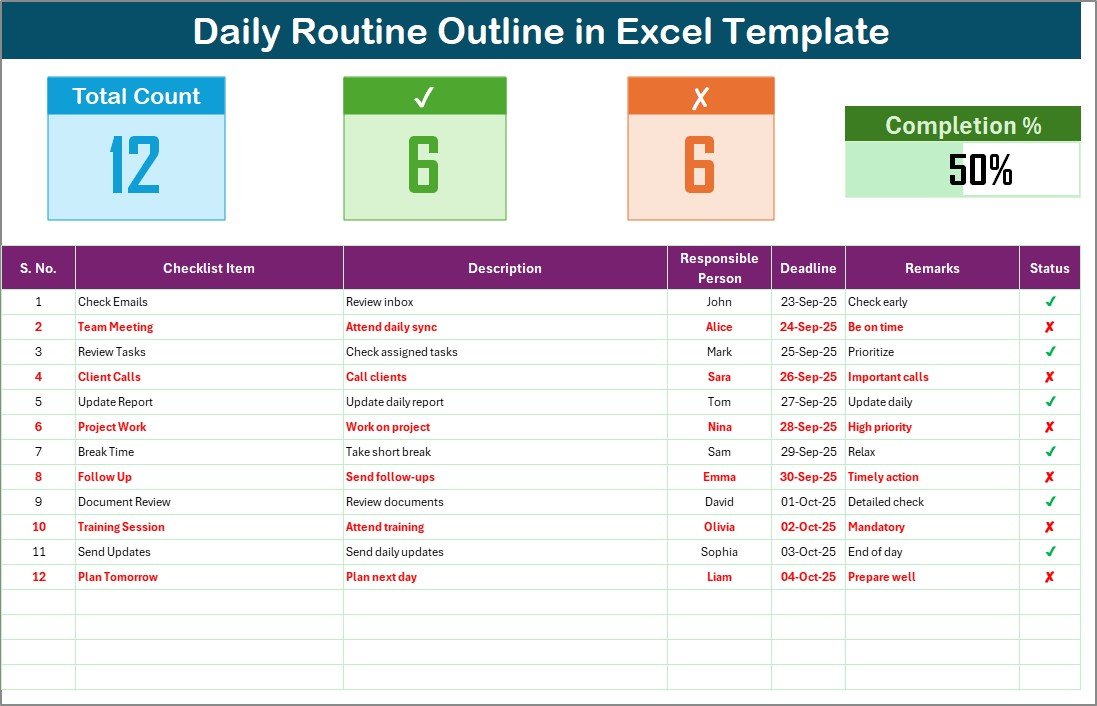
- Checklist Sheet – This is the primary sheet where you record all your daily activities. It includes columns for Serial No., Checklist Item, Description, Responsible Person, Deadline, Remarks, and Status. You can update the status of each task using a checkmark or a cross
Daily Routine Outline Checklist in Excel
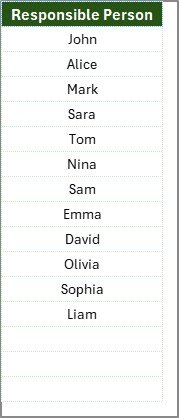
- List Sheet – This supporting sheet stores the list of responsible persons. It helps create drop-down menus in the main checklist sheet, making task assignment faster and error-free.
Click to buy now Daily Routine Outline Checklist in Excel
This combination of sheets ensures that the checklist remains both dynamic and easy to use.
Key Features of the Template
The Daily Routine Outline Checklist in Excel Template is designed with simplicity and efficiency in mind. Some of its standout features include:
- Task Tracking Made Simple
Each task is assigned a serial number along with details like description, deadline, and person responsible. You can mark completion status with a simple checkmark.
- Visual Progress Monitoring
The template provides a Top Section with quick summary cards:
- Total Count – Total number of tasks listed
- Completed Count – Number of tasks finished
- Pending Count – Number of tasks still open
- Progress Bar – Visual representation of completion percentag
- Drop-Down List Integration
With the help of the List Sheet, the Responsible Person column in the main table has a drop-down menu. This ensures consistency in names and makes data entry easier.
- Deadline Tracking
Deadlines can be entered for each task, making it simple to filter or highlight overdue items.
- Customizable Columns
Although the template comes preloaded with key fields, you can add or modify columns as per your unique requirements.
How to Use the Daily Routine Outline Checklist in Excel
Using this checklist template is simple, even if you are new to Excel. Here is a step-by-step guide:
Step 1: Download and Open the Template
Start by opening the ready-to-use Excel file. You will see two sheets: the Checklist Sheet and the List Sheet.
Step 2: Enter Responsible Persons
On the List Sheet, enter the names of all people who will be part of the task routine. This list will be linked to the main checklist via drop-downs.
Step 3: Fill in the Checklist Items
On the Checklist Sheet, record each activity under the following columns:
- Serial No. – Auto-numbered or entered manually
- Checklist Item – Task name (e.g., “Send daily report”)
- Description – Brief details about the task
- Responsible Person – Choose from drop-down list
- Deadline – Enter due date
- Remarks – Notes or comments
- Status – Mark ✔ for complete or ✘ for pending
Step 4: Monitor the Progress Cards
As you update the status column, the top section cards automatically refresh to show totals, completed tasks, pending tasks, and overall progress percentage.
Step 5: Customize if Needed
You can add conditional formatting to highlight overdue tasks, color-code high-priority items, or insert filters to sort tasks by person or deadline.
Step 6: Review and Update Daily
At the end of each day, update the checklist. This ensures your records remain accurate and up-to-date.
Advantages of Daily Routine Outline Checklist in Excel
Using this Excel template comes with many benefits:
- Improved Time Management – Helps you prioritize tasks and meet deadlines.
- Clear Accountability – Assigns responsibilities and avoids confusion.
- Simple Progress Tracking – Provides quick summaries with counts and a progress bar.
- Flexibility – Fully customizable based on personal or team needs.
- Error Reduction – Drop-downs minimize spelling mistakes or duplicate names.
- Better Collaboration – Teams can share the file and update their tasks regularly.
- Cost-Effective – Unlike paid task management software, this is a free Excel-based tool.
Opportunities for Improvement
While the Daily Routine Outline Checklist in Excel Template is powerful, there are areas where you can enhance it further:
- Automation with VBA – Add macros to auto-update dates or send email reminders.
- Integration with Outlook or Google Calendar – Sync deadlines for better reminders.
- Mobile-Friendly Version – Optimize the sheet for smartphone viewing.
- Advanced Analytics – Add pivot tables or charts to analyze task completion trends.
- Collaboration via OneDrive or Google Drive – Enable real-time updates for team projects.
Click to buy now Daily Routine Outline Checklist in Excel
Best Practices for Using the Daily Routine Outline Checklist
To maximize the effectiveness of your checklist, follow these best practices:
- Keep it Updated – Make sure to mark tasks daily to avoid backlogs.
- Use Consistent Names – Always select names from the drop-down to prevent duplication.
- Set Realistic Deadlines – Avoid overloading the checklist with impossible targets.
- Color-Code Priorities – Use Excel formatting to highlight urgent vs. non-urgent tasks.
- Review Weekly – At the end of the week, review tasks completed vs. pending.
- Backup Your File – Save the template regularly to prevent accidental data loss.
Conclusion
A Daily Routine Outline Checklist in Excel Template is not just a productivity tool—it is a daily companion that ensures you stay on track with your personal and professional tasks. By centralizing activities, assigning responsibilities, and monitoring progress visually, it provides a clear path toward efficiency and accountability.
Unlike expensive project management tools, this Excel template offers flexibility, simplicity, and customization. Whether you are managing your personal life or coordinating a team project, the checklist helps you stay organized and productive.
When used effectively, it can become the foundation of improved time management, better teamwork, and higher productivity.
Frequently Asked Questions (FAQs)
- What is the purpose of a Daily Routine Outline Checklist in Excel?
The purpose is to organize daily tasks, assign responsibilities, and track progress in one structured Excel template.
- Can I customize the template for my needs?
Yes, the template is fully customizable. You can add new columns, change formatting, or modify drop-down lists.
- How do I track overdue tasks in this template?
You can apply conditional formatting to highlight tasks where the deadline has passed but the status is still pending.
- Can this template be used by teams?
Absolutely. The checklist can be shared via OneDrive, SharePoint, or Google Drive so that multiple people can update it in real time.
- Do I need advanced Excel knowledge to use this template?
No. The template is beginner-friendly and requires only basic Excel skills like data entry and drop-down selection.
- Is this template better than using task management software?
For small teams or personal use, yes. It is cost-effective, flexible, and easy to manage without extra subscriptions. However, for larger enterprises, dedicated project management software might offer more advanced features.
Visit our YouTube channel to learn step-by-step video tutorials
Watch the step-by-step video tutorial:
Click to buy now Daily Routine Outline Checklist in Excel