Part of the free Module 7: Conditional Formatting · Lesson 2 of 15 · Full Excel course
Updated on 5 September 2026 · Works in Excel 365, 2021, 2019 and 2016 unless noted.
Top/Bottom Rules are the six conditional formatting presets in Excel that highlight cells by rank instead of by a fixed value: Top 10 Items, Top 10%, Bottom 10 Items, Bottom 10%, Above Average and Below Average. Excel ranks every number in the selection, formats the cells at the chosen end of the ranking, and re-ranks automatically whenever a value changes.
What Top/Bottom Rules do
A Highlight Cells Rule asks one question of each cell: is it greater than 184? A Top/Bottom Rule asks a question of the whole selection: which ten cells are the largest? That difference matters. With a fixed threshold, a great month can leave every cell green; with a rank rule, exactly the best ten stand out no matter how the numbers move. The count is relative, so when a bigger value arrives the previous tenth-place cell drops out of the highlight on the next recalculation.
Use these presets to spot top performers, the weakest regions, outliers above the mean, or the bottom quarter of a scorecard. They are the quickest way to build a performance view for a dashboard because the dialog has only two controls: a number and a format. You find them under Home > Conditional Formatting > Top/Bottom Rules.
The six presets compared
| Preset | Highlights | What you set | Ties and rounding |
|---|---|---|---|
| Top 10 Items | The N largest values | N from 1 to 1000 | Every cell equal to the Nth value is included |
| Top 10% | The largest N percent of cells by count | Percent from 1 to 100 | Count is rounded down; ties included |
| Bottom 10 Items | The N smallest values | N from 1 to 1000 | Zeros count as real values |
| Bottom 10% | The smallest N percent of cells by count | Percent from 1 to 100 | Count is rounded down; ties included |
| Above Average | Values strictly greater than the mean of the selection | Nothing, only a format | Average is recalculated live |
| Below Average | Values strictly less than the mean of the selection | Nothing, only a format | Average is recalculated live |
All six ignore blank cells and text. A cell that holds a number stored as text is treated as text and never ranks, which is the most common reason a rule seems to miss values.
Step by step: highlight the top 10 sales values
The example is a day-wise, location-wise sales table in B2:G9. Only the numbers are selected; the day labels and the header row stay outside the range.
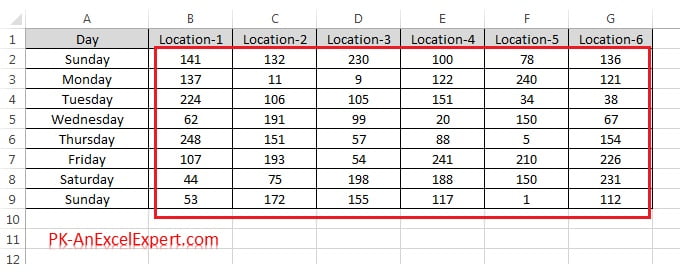
- Select the range B2:G9.
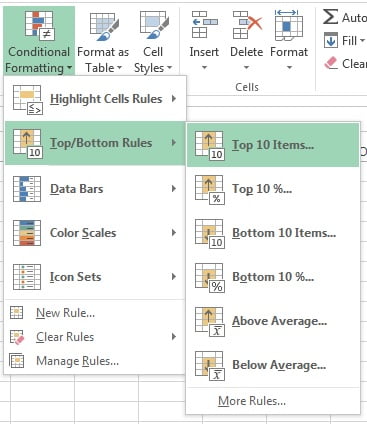
- Go to Home > Conditional Formatting > Top/Bottom Rules > Top 10 Items.
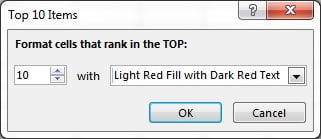
- In the Top 10 Items dialog, keep 10 or change the count with the spinner. Open the with drop-down and choose a format; the default is Light Red Fill with Dark Red Text, and Custom Format opens the Format Cells dialog.
- Click OK. The ten largest values in the range are highlighted. Type a larger number anywhere in the range and the smallest of the ten loses its fill.
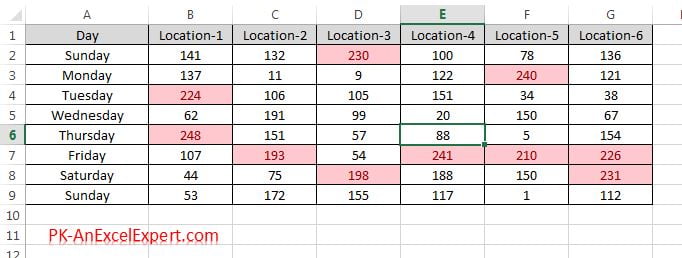
The other Top/Bottom Rules presets
Each preset opens the same small dialog. Only the label and the meaning of the number change.
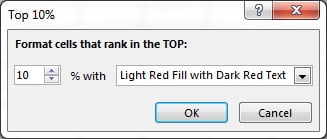
Top 10%
Highlights the top 10 percent of the cells by count, and you can change the percentage. With 50 numbers Excel highlights 5 cells; with 49 numbers it rounds down and highlights 4. If several cells tie at the cut-off value, all of them are included, so you may see more highlights than the arithmetic suggests. Percent rules are the right choice when the size of the range changes from month to month, because the highlight scales with the data.
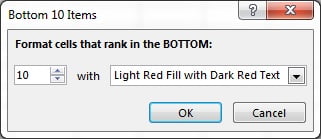
Bottom 10 Items
Highlights the ten smallest values. Change the count to 3 or 5 to show only the weakest results. Remember that a zero is a real number and will always be among the bottom items, while a blank cell is skipped.
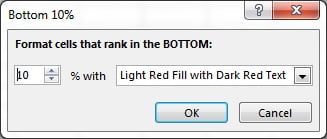
Bottom 10%
Highlights the lowest 10 percent of the cells by count, using the same rounding and tie rules as Top 10%.
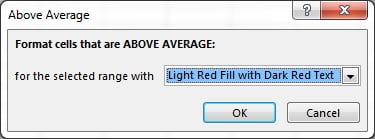
Above Average
Excel calculates the average of the selected range and highlights every cell strictly greater than it. If the average of 48 numbers is 130, all values above 130 are formatted and a cell holding exactly 130 is not. The average is recalculated whenever the data changes, so the highlight is always relative to the current figures.
Below Average
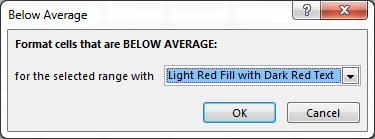
Highlights every value smaller than the range average, which makes under-performing days or locations stand out immediately. Apply Above Average in green and Below Average in red to the same range and you have a two-colour view of the whole table in four clicks.
More Rules
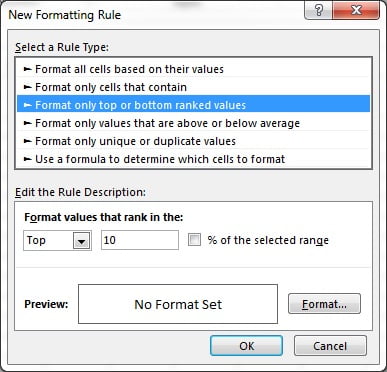
Opens the New Formatting Rule dialog with the rule type Format only top or bottom ranked values pre-selected. Here you can switch between Top and Bottom, tick % of the selected range, and design a custom format. The same dialog also holds Format only values that are above or below average, which adds equal-or-above, equal-or-below and standard deviation options that the presets do not offer.
Ranking the whole table or one column at a time
A Top/Bottom Rule ranks every cell inside its Applies to range as one pool. Select B2:G9 and Top 3 Items gives you the three largest numbers in the whole table, which might all sit in one location. To find the best day in each location, apply the rule to one column at a time: select B2:B9, apply Top 3 Items, then repeat for C2:C9 and so on. The Format Painter copies a rule with a relative Applies to range, so you can apply the rule once and paint it across the remaining columns. To rank each row instead, select one row of numbers at a time. There is no per-row option inside the dialog itself; the rule ranks exactly the cells you give it.
Worked example: best and worst days in a sales table
A regional manager wants the three strongest figures in green, the two weakest in red and anything above the average in bold. Sample data:
| Day | Location-1 | Location-2 | Location-3 |
|---|---|---|---|
| Monday | 192 | 148 | 176 |
| Tuesday | 165 | 192 | 131 |
| Wednesday | 184 | 171 | 203 |
| Thursday | 158 | 120 | 189 |
- Select B2:D5 (the twelve numbers).
- Top/Bottom Rules > Top 10 Items, change 10 to 3, choose Green Fill with Dark Green Text, OK.
- With the same range selected, Top/Bottom Rules > Bottom 10 Items, change 10 to 2, choose Light Red Fill with Dark Red Text, OK.
- Top/Bottom Rules > Above Average, choose Custom Format, set the font style to Bold, OK twice.
Result: 203 and both 192 cells are green, because the tie at 192 means the Top 3 rule highlights three cells that share two distinct values. 120 and 131 are red. The average of the twelve values is 169.08, so 192, 176, 184, 171, 203 and 189 are bold, and the green cells are both green and bold because the two rules set different properties. Change Thursday at Location-2 from 120 to 210 and the highlights move at once: 210 joins the green set, 192 at Location-1 drops out, and 148 becomes the second red cell.
Tips and common mistakes
- Exclude totals and headers from the selection. A total row is always the top item and text headers distort nothing but look wrong when a rule is edited later.
- Rank per column when locations differ in size. A whole-table rule compares a small shop with a flagship store; apply the rule column by column for a fair comparison.
- Expect ties. A Top 3 rule can highlight four or five cells when values repeat. Use a formula rule with RANK if you must show exactly three.
- Zeros are values, blanks are not. Empty cells never rank, but a 0 typed to show no sales will fill the Bottom 10 list.
- Percent rules round down. Top 10% of 15 cells highlights one cell, not two. Use Items when you need an exact count.
- Above Average is strict. The mean itself is not highlighted; choose More Rules and Equal or above to include it.
- Check Manage Rules before applying again. Every click on a preset adds a new rule; edit the existing rule rather than stacking duplicates.
Errors and how to fix them
| Problem | Cause | Fix |
|---|---|---|
| Nothing is highlighted | Numbers stored as text; no numeric cells in the selection | Select the cells, use Data > Text to Columns > Finish, or multiply by 1 with Paste Special |
| Too many cells highlighted | Ties at the cut-off value | Accept the ties, reduce N, or switch to a formula rule with RANK |
| Fewer cells than expected with a percent rule | Excel rounds the count down | Raise the percentage or use the Items version |
| Highlight sits on the total row | Total included in the Applies to range | Manage Rules > edit the Applies to box to end above the total |
| Whole table ranks together | One rule over several columns | Apply the rule to each column or row separately |
Practice exercise
Open the course practice file or use any table of numbers, then:
- Highlight the top 5 sales values in the whole table in green.
- Apply Bottom 10% with a red border only, using Custom Format, and count how many cells it marks.
- Apply Above Average and Below Average to the same range with different fills and note which cells get neither.
- Apply Top 3 Items to one column, then use the Format Painter to copy the rule to the remaining columns so each column ranks on its own.
- Open Manage Rules, change the Top 5 rule to Top 2 and confirm the highlights update.
Key takeaways
- Top/Bottom Rules format cells by rank inside the selection, not against a fixed number.
- Items presets take a count from 1 to 1000; percent presets take a share of the cell count and round down.
- Ties at the cut-off are all highlighted, blanks and text are ignored, and zeros rank as real values.
- Above Average and Below Average are strict comparisons with a live-recalculated mean.
- The rule ranks exactly the cells in its Applies to range, so apply it per column or per row for separate rankings.
- More Rules opens the full dialog with percent, equal-or-above and standard deviation options.
Related lessons
- Conditional Formatting course hub
- Highlight Cells Rules: the seven value-based presets
- New Rule: Format only top or bottom ranked values
- New Rule: Format only values above or below average
- COUNTIF function for counting how many cells a rank rule will highlight
- Excel Dashboard course for putting rank highlights on a report page
- Microsoft Support: Highlight patterns and trends with conditional formatting
Frequently asked questions
Can I highlight the top 5 instead of the top 10?
Yes. In the Top 10 Items dialog, change the number with the spinner or type any value from 1 to 1000 before choosing a format. The name of the menu entry never changes, but the rule uses whatever count you enter. You can also change the count later through Manage Rules and Edit Rule.
Why are more than 10 cells highlighted?
Ties. When several cells share the tenth-largest value, Excel highlights all of them because they all rank in the top 10. If you need exactly ten cells, build a formula rule such as =RANK(B2,$B$2:$G$9)+COUNTIF($B$2:B2,B2)-1<=10, which breaks ties by position.
Does Above Average include the average value itself?
No. The preset highlights values strictly greater than the average. Open Top/Bottom Rules > More Rules, choose Format only values that are above or below average and select Equal or above if you need to include the mean itself.
How do I apply a Top 10 rule to each row separately?
Select the first row of numbers only, apply Top 10 Items, then use the Format Painter or Paste Special > Formats to copy that rule to the other rows one at a time. Each paste creates a rule whose Applies to range is the single row, so every row ranks its own values.
Do Top/Bottom Rules work on dates?
Yes, because Excel stores dates as serial numbers. Top 3 Items on a column of dates highlights the three latest dates and Bottom 3 Items the three earliest. Dates typed as text are ignored, so make sure the cells align right by default or convert them with Text to Columns.
Want the finished version? Ready-made Excel KPI dashboards with top and bottom performer highlights built in are available at NextGenTemplates.com.