Part of the free Module 6: Data Validation · Lesson 2 of 14 · Full Excel course
Updated on 5 September 2026 · Works in Excel 365, 2021, 2019 and 2016 unless noted.
Decimal data validation in Excel restricts a cell to numeric values, including fractions, that satisfy a condition such as between 3.00 and 3.99 or greater than or equal to 0. Text is rejected, while both 3.5 and 3 are accepted. It is the rule to use for prices, rates, weights, percentages and scores, and it is set up in under a minute from the Data Validation dialog.
What decimal validation does and when to use it
The built-in rules each test one kind of value. Whole number allows integers only. Decimal allows any real number, so it is the general “numbers only” rule. Excel checks the entry the moment you press Enter: if the value is a number and passes the comparison you chose, it is stored; otherwise an error alert appears and the cell keeps its previous content.
Use Decimal for any column where fractions make sense: unit prices, exchange rates, discount percentages, hours worked, appraisal scores, temperatures, lengths and weights. Use Whole number instead for counts such as quantity or headcount, where 2.5 would be meaningless. Because the Minimum and Maximum boxes accept cell references and formulas, a Decimal rule can also enforce a relationship between cells, for example a selling price that may not drop below cost. The rule behaves the same way in Excel 2016, 2019, 2021 and Microsoft 365.
How to apply decimal validation step by step
This example limits a range to values between 3.00 and 3.99, the kind of rule you might use for a grade point average band.
- Select the cells you want to validate, for example B2:B20.
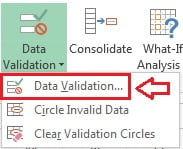
- Go to Data > Data Tools > Data Validation and click Data Validation. The keyboard shortcut is Alt, A, V, V.
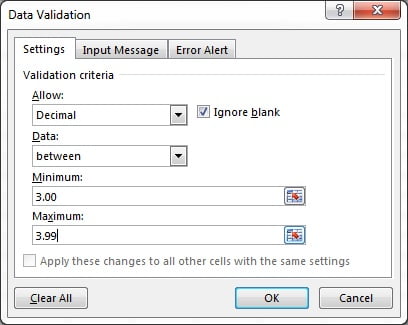
- On the Settings tab set Allow to Decimal.
- Set Data to between, then type 3.00 in Minimum and 3.99 in Maximum.
- Leave Ignore blank ticked if empty cells are allowed, and click OK.
- Test the rule. Type 3.5 and it is accepted. Type 4, 2.99 or the word “three” and Excel shows the standard error message.
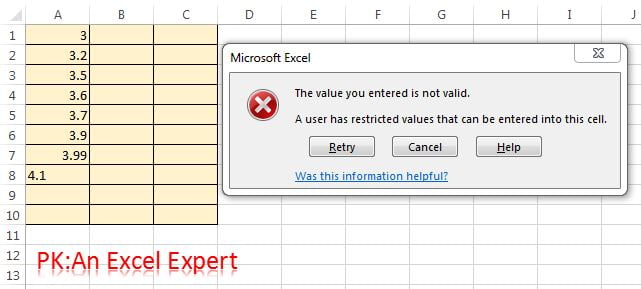
The default message reads “This value doesn’t match the data validation restrictions defined for this cell.” You can replace it with your own wording on the Error Alert tab, which is covered in the error alert lesson.
The eight comparison options in the Data box
The Data drop-down offers the same comparisons as Whole number validation. The table shows what each one accepts and a typical use.
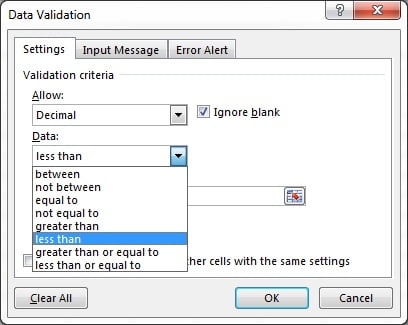
| Data option | Boxes shown | Accepts | Typical use |
|---|---|---|---|
| between | Minimum, Maximum | Min ≤ value ≤ Max | Discount 0 to 0.5 |
| not between | Minimum, Maximum | Outside the band, limits excluded | Block a reserved range |
| equal to | Value | Exactly that number | Fixed fee such as 4.99 |
| not equal to | Value | Anything except that number | Reject 0 in a divisor column |
| greater than | Minimum | value > Min | Positive amounts only |
| less than | Maximum | value < Max | Under a spending cap |
| greater than or equal to | Minimum | value ≥ Min | Non-negative numbers |
| less than or equal to | Maximum | value ≤ Max | Maximum weight 25.0 kg |
The most common setup is Decimal, greater than or equal to, 0. It means “any non-negative number” and is the simplest way to force numbers-only entry in an amount column.
Using cell references and formulas as limits
Instead of typing a fixed number, click in the Minimum or Maximum box and select a cell, or type a formula. Excel writes it as an absolute reference such as =$H$1. Three patterns cover most needs:
- Limit stored in a cell: Maximum
=$H$1. Change H1 and every validated cell follows the new cap without editing the rule. - Limit relative to another column: select C2:C50, set Minimum to
=B2*0.9. Excel adjusts the row for each cell, so each selling price in C must be at least 90 percent of its cost in B. - Limit calculated from a formula: Maximum
=SUM($B$2:$B$50)stops a single entry exceeding the total of another range.
Write the formula for the active cell (the top-left cell of the selection) and Excel shifts relative references for the rest, exactly as it does for conditional formatting.
Worked example: discount percentage between 0 and 25 percent
A sales sheet has a Discount column formatted as a percentage. The company allows discounts from 0 percent to 25 percent. Because percentages are stored as decimals, the rule must use 0 and 0.25, not 0 and 25.
| Product | List price | Discount | Accepted? |
|---|---|---|---|
| Desk lamp | 34.00 | 10% | Yes (stored as 0.10) |
| Office chair | 189.00 | 25% | Yes (stored as 0.25) |
| Monitor arm | 59.50 | 30% | No, above 0.25 |
| Keyboard | 42.00 | -5% | No, below 0 |
- Select C2:C100 and format it as Percentage with 0 decimal places.
- Open Data > Data Validation, set Allow to Decimal and Data to between.
- Enter 0 as Minimum and 0.25 as Maximum, then click OK.
- Type 30% in C4. Excel rejects it. Type 20% and it is accepted and displayed as 20%.
Typing “20%” with the percent sign is stored as 0.20, so it passes. Typing a bare 20 in a percentage-formatted cell is usually stored as 0.20 because Excel assumes a percentage, but typing 20 in an unformatted cell stores 20 and fails the rule. Format the column first to avoid surprises.
Tips and common mistakes
- Decimal accepts whole numbers too. If 3 must be rejected and only fractions allowed, use Custom validation with
=A2<>INT(A2). - Percentages are decimals. A percent column needs limits between 0 and 1, never 0 and 100.
- No rounding is applied. A cell showing 3.99 may hold 3.995, and a 3.00 to 3.99 rule rejects it. Validation tests the stored value, not the displayed one.
- Use the right decimal separator. Type 3.99 with a full stop unless your Windows region setting uses a comma, in which case type 3,99.
- Store limits in cells. A Maximum of
=$H$1lets a manager change the cap without opening the dialog. - Pasting bypasses the rule. Copied values overwrite validated cells without a check. Run Circle Invalid Data afterwards to find them.
- Blanks pass by default. Untick Ignore blank only when an empty entry must be refused; note that it does not stop a user pressing Delete.
Errors and how to fix them
| Problem | Cause | Fix |
|---|---|---|
| Every number is rejected | Minimum is larger than Maximum, or a limit references an empty cell | Swap the limits or fill the referenced cell |
| Percent entries fail | Limits entered as 0 and 25 instead of 0 and 0.25 | Use decimal fractions for percentage columns |
| “The Maximum must be greater than or equal to the Minimum” | Excel checks the limits when you click OK | Correct the values before saving the rule |
| Text such as 3.5 kg is rejected | Any text fails a Decimal rule | Enter 3.5 and put the unit in the header or a custom number format |
| Rule works in row 2 but not below | Limit formula uses a relative reference that shifts off the data | Use $ on the row or column that must stay fixed |
| Values from another sheet ignore the rule | Copied or pasted values skip validation | Use Circle Invalid Data or Paste Special Values into a validated cell one at a time |
Practice exercise
- Create a Unit Price column and allow only decimals greater than 0. Confirm that 0, -5 and “free” are all rejected.
- Add a Tax Rate column formatted as a percentage and allow values between 0 and 0.3. Test 18%, 30% and 35%.
- Put a maximum weight in cell H1 and validate a Weight column with less than or equal to
=$H$1. Change H1 and test again. - Validate a Selling Price column so each value is at least 90 percent of the Cost in the column to its left.
- Paste a block of out-of-range numbers into the validated column and use Circle Invalid Data to find them.
Key takeaways
- Decimal validation accepts any number, with or without a fractional part, that passes the comparison you choose.
- Choose from eight Data options; “greater than or equal to 0” is the everyday numbers-only rule.
- Minimum and Maximum can be fixed values, cell references or formulas.
- Percentages must be validated as fractions between 0 and 1.
- Validation tests stored values, ignores display rounding, and does not check pasted data.
Related lessons
- Data Validation course hub
- Whole number validation
- Custom formula validation
- Prevent duplicates and enforce formats with custom formulas
- Conditional Formatting course to highlight values that slip through
- Microsoft Support: Apply data validation to cells
Frequently asked questions
What is the difference between Decimal and Whole number validation in Excel?
Whole number accepts integers only, so 3 passes and 3.5 fails. Decimal accepts any number that meets the condition, including integers, so both 3 and 3.5 pass. Choose Whole number for counts and Decimal for amounts, rates and measurements. Both rules reject text and both offer the same eight comparison options.
How do I allow any number but block text in Excel?
Set Allow to Decimal, Data to greater than or equal to, and enter a very low Minimum such as -1E+307. Any number then passes and any text fails. The alternative is Allow: Custom with the formula =ISNUMBER(A2), which reads more clearly and is easier to combine with other conditions using AND.
Can I limit the number of decimal places with data validation?
Not with the Decimal setting, which only tests the size of the number. Use Custom validation with =A2=ROUND(A2,2) to allow at most two decimal places. The entry passes only when rounding to two places leaves it unchanged. Change the 2 to whatever precision you need.
How do I validate a percentage column in Excel?
Format the column as Percentage first, then apply Decimal validation with limits expressed as fractions: 0 and 1 for 0 to 100 percent, or 0 and 0.25 for a 25 percent cap. Excel stores 25% as 0.25, so limits of 0 and 25 would accept values up to 2,500 percent.
Does decimal validation check values that are pasted or filled?
No. Validation runs only when a value is typed and confirmed with Enter or Tab. Paste, Fill Down and formulas that return a value are not tested. Use Data > Data Validation > Circle Invalid Data to audit existing cells, or protect the sheet to limit pasting.
Video lessons: watch the free Excel tutorials on PK: An Excel Expert on YouTube.
Want the finished version? Ready-made Excel dashboards, trackers and VBA systems are available at NextGenTemplates.com.