The average mid-sized warehouse handles between 2,500 and 15,000 shipments a month across multiple zones, 2–3 shifts, and 3–5 carriers — yet most ops teams still track that complexity in a patchwork of Excel files, carrier portals, and WMS reports that were last refreshed on Friday afternoon. The Warehouse Efficiency Dashboard in Power BI consolidates all of that into a single .pbix file with 5 connected pages, 4 executive KPI cards, and 12+ visuals — so every Monday review starts with the same numbers.
This Warehouse Efficiency Dashboard in Power BI is built for supply chain managers, warehouse operations leads, and logistics analysts who need fulfillment rate by warehouse, avg pick time by zone and shift, shipping cost by carrier, and shift-level productivity in one place — without paying $4,000+ per year for Tableau or waiting 6 months for a full ERP rollout. In this post I will walk through exactly what is inside the template, who it fits, who it does not fit, and how it compares against Tableau, Qlik, Zoho Inventory, and NetSuite ERP.
Click to buy Warehouse Efficiency Dashboard in Power BI
Key Features of the Warehouse Efficiency Dashboard in Power BI
The Warehouse Efficiency Dashboard in Power BI is a single .pbix file with a connected data model, not 5 disconnected pages. That matters because every slicer filters every visual across every page, and one refresh updates the whole template.
- 4 KPI cards on the Overview page — Total Shipments, Total Quantity Shipped, Total Shipping Cost, and Total Storage Cost pinned at the top. Cards recalculate instantly when any slicer changes.
- 5 analysis pages covering Overview, Warehouse Analysis, Shipping Insights, Worker Productivity, and Order Fulfillment — each purpose-built for a specific operations conversation.
- 12+ visuals wired to a shared shipments fact table — swap the sample data for your WMS or ERP export and every chart auto-updates.
- 8+ slicers across the template for warehouse, zone, month, order type, shift, carrier, priority, and status filtering.
- Fully editable DAX measures — Total Shipments, Fulfillment Rate, Avg Pick Time, Total Shipping Cost, and more. Modify freely or add your own.
- Opens in free Power BI Desktop — no Power BI Pro subscription required to edit locally.
- $17.99 one-time purchase with lifetime access and free future updates.
Dashboard Pages Explanation
1. Overview Page
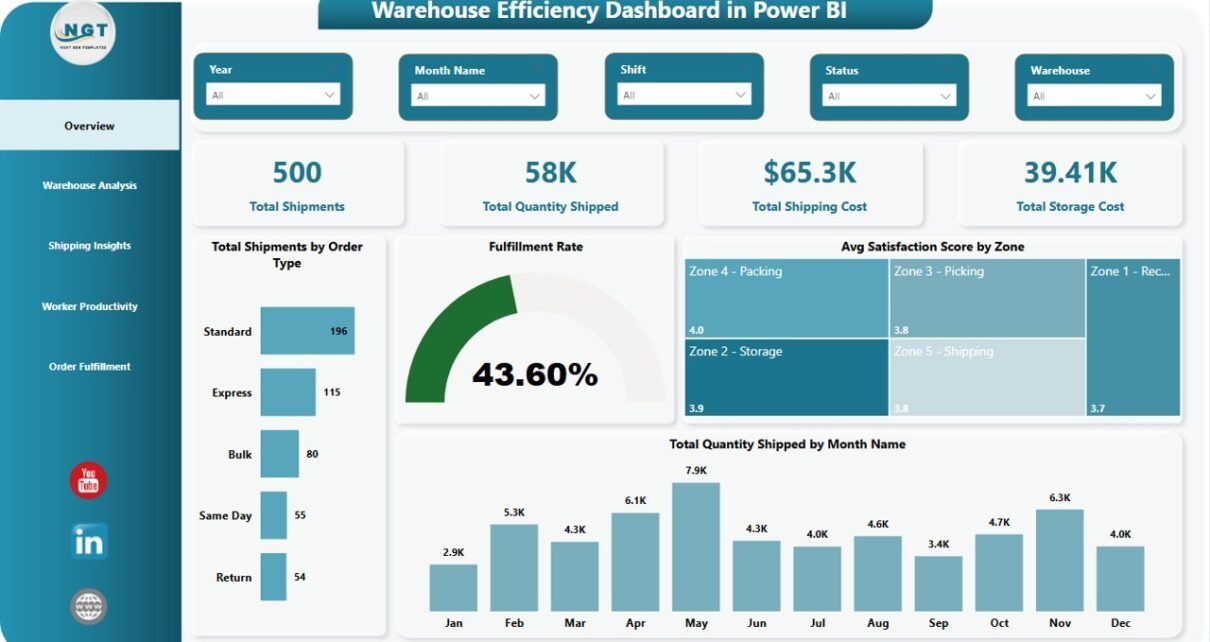
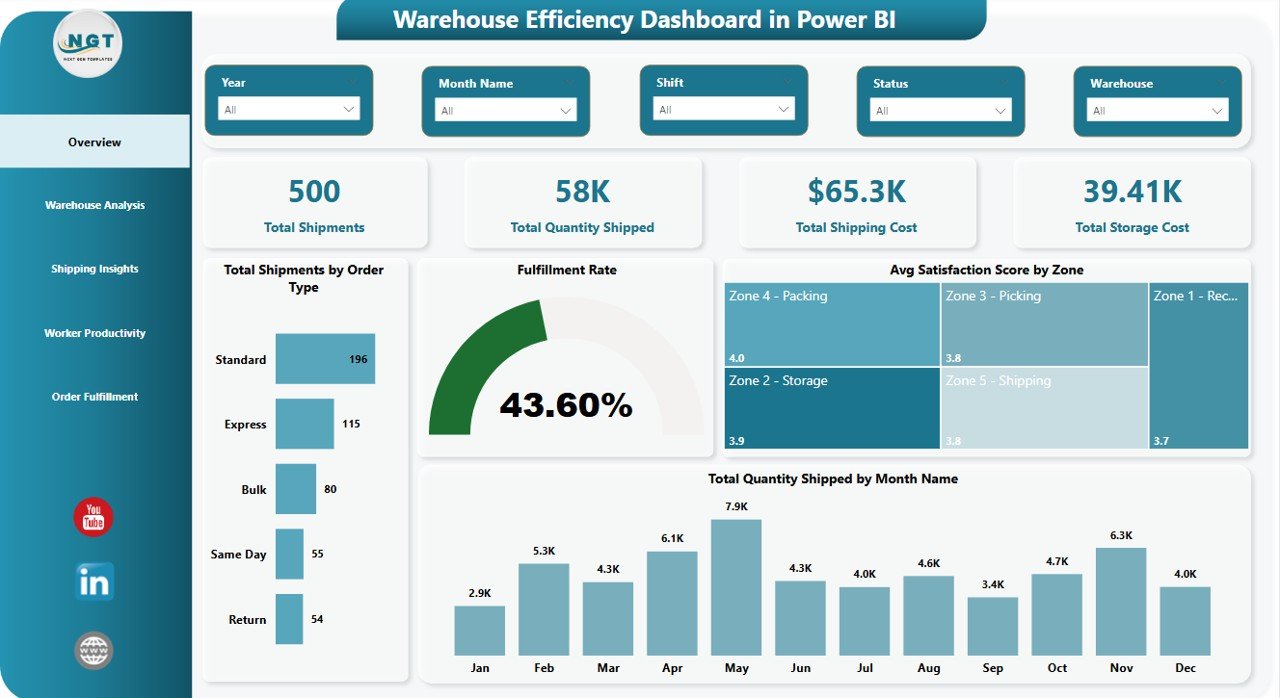
The Overview page is the executive summary. It opens with the four headline KPI cards — Total Shipments, Total Quantity Shipped, Total Shipping Cost, and Total Storage Cost — so any stakeholder walking into a meeting sees the state of the warehouse in three seconds.
Below the cards are 4 analysis visuals:
- Total Shipments by Order Type — breaks shipment volume across order types so you can see which categories dominate throughput and plan staffing accordingly.
- Fulfillment Rate — the top-line single-number health metric of the whole operation, displayed prominently.
- Avg Satisfaction Score by Zone — surfaces which zones are actually meeting service expectations and which are dragging the score down.
- Total Quantity Shipped by Month Name — monthly trend showing seasonality and growth rate at a glance.
- Click to buy Warehouse Efficiency Dashboard in Power BI
2. Warehouse Analysis
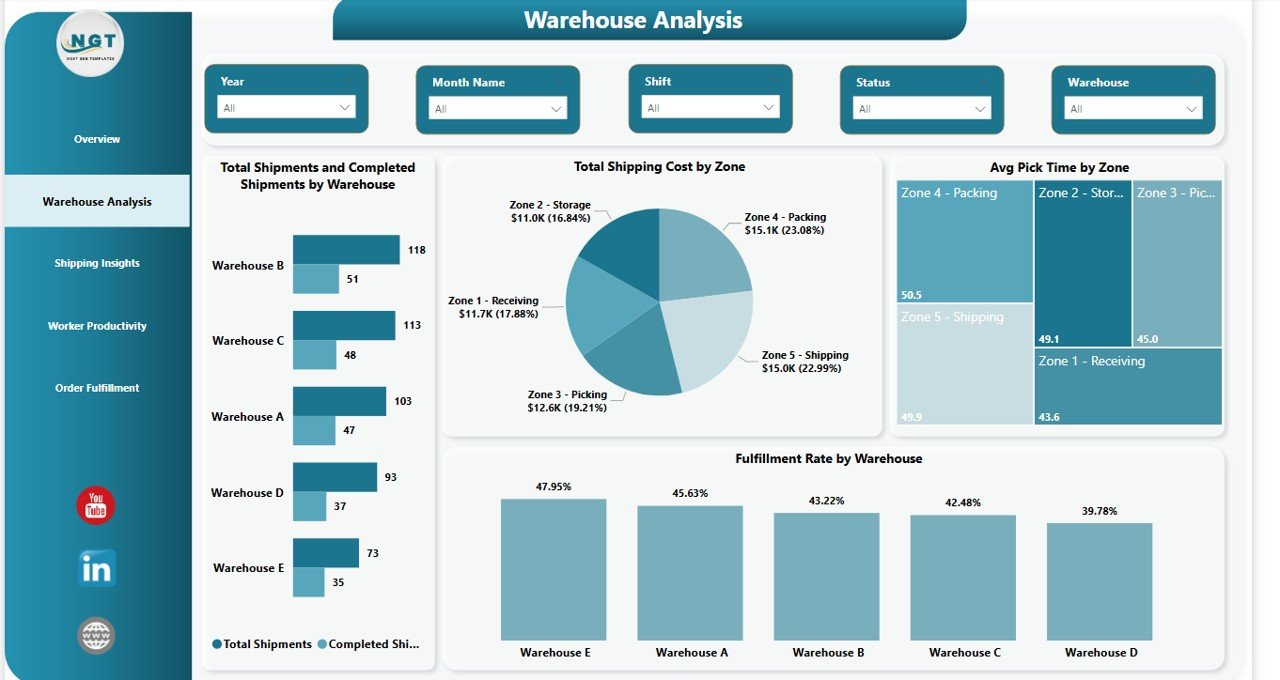
The Warehouse Analysis page answers one question better than any other: which of my warehouses is actually performing, and which is dragging the network down? If you run more than one site, this is the page you will open first every week.
- Total Shipments and Completed Shipments by Warehouse — side-by-side volume vs completion comparison. The gap is your fulfillment shortfall per site.
- Total Shipping Cost by Zone — zone-level freight spend for carrier negotiation conversations.
- Avg Pick Time by Zone — pick time per zone is the cleanest leading indicator of layout efficiency and labor productivity.
- Fulfillment Rate by Warehouse — warehouse-level fulfillment, ranked. Benchmark sites and surface process gaps instantly.
Click to buy Warehouse Efficiency Dashboard in Power BI
3. Shipping Insights
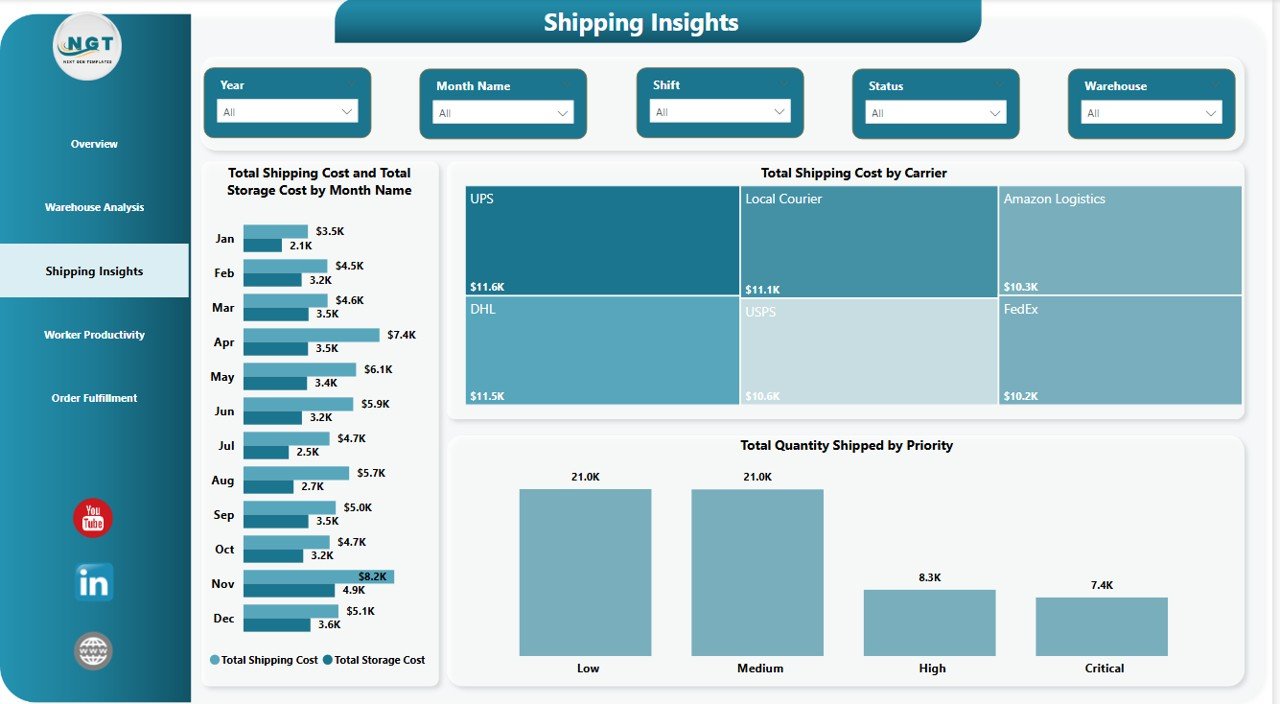
Shipping and storage are the two biggest cost lines on most warehouse P&Ls. The Shipping Insights page pulls them apart so finance and operations can argue from the same numbers.
- Total Shipping Cost and Total Storage Cost by Month Name — dual-metric monthly trend showing how the two costs move together. Surfaces the months when storage is quietly eating your margin.
- Total Shipping Cost by Carrier — carrier-level spend breakdown for contract renegotiation. Shows exactly where the freight dollars go.
- Total Quantity Shipped by Priority — volume by priority level so you can see how much throughput is express vs standard.
Click to buy Warehouse Efficiency Dashboard in Power BI
4. Worker Productivity
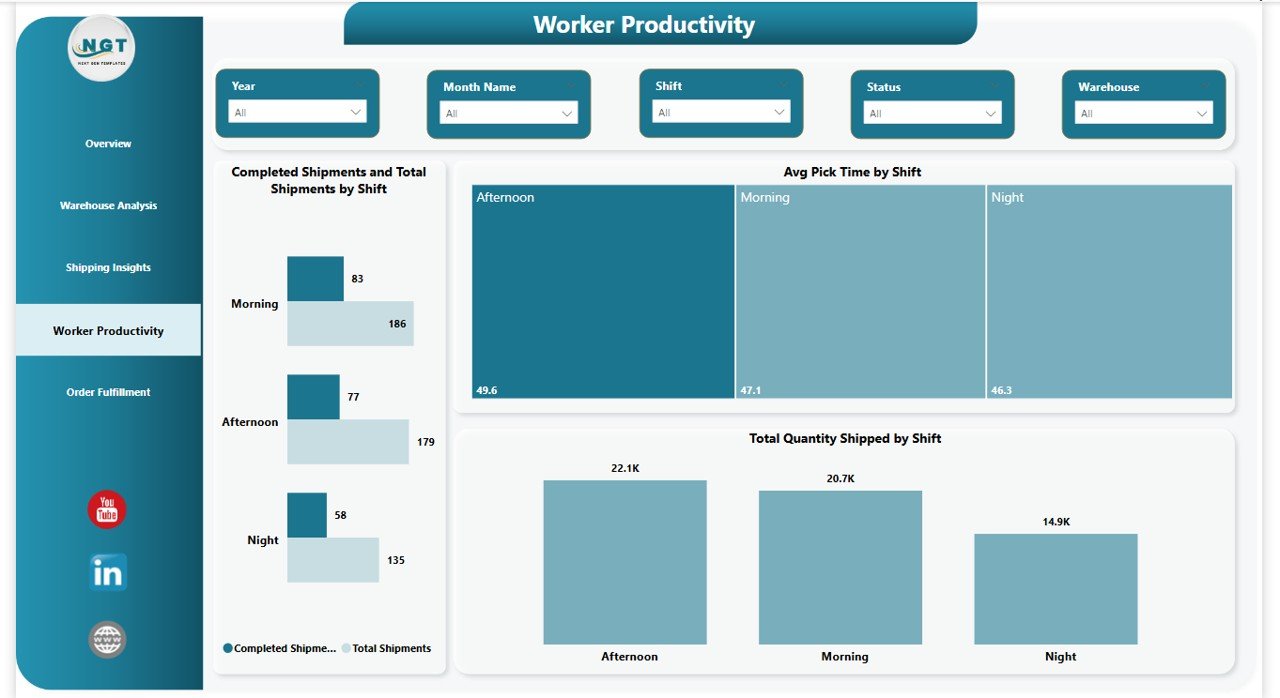
Most warehouses run 2 or 3 shifts and productivity varies dramatically between them — sometimes by 30–50%. The Worker Productivity page makes that variance visible so shift supervisors can coach against real data, not folklore.
- Completed Shipments and Total Shipments by Shift — shift-by-shift throughput with the completion gap highlighted. Makes the high performer obvious.
- Avg Pick Time by Shift — the single cleanest labor productivity metric per shift.
- Total Quantity Shipped by Shift — total units per shift, useful for volume-based shift incentive programs.
Click to buy Warehouse Efficiency Dashboard in Power BI
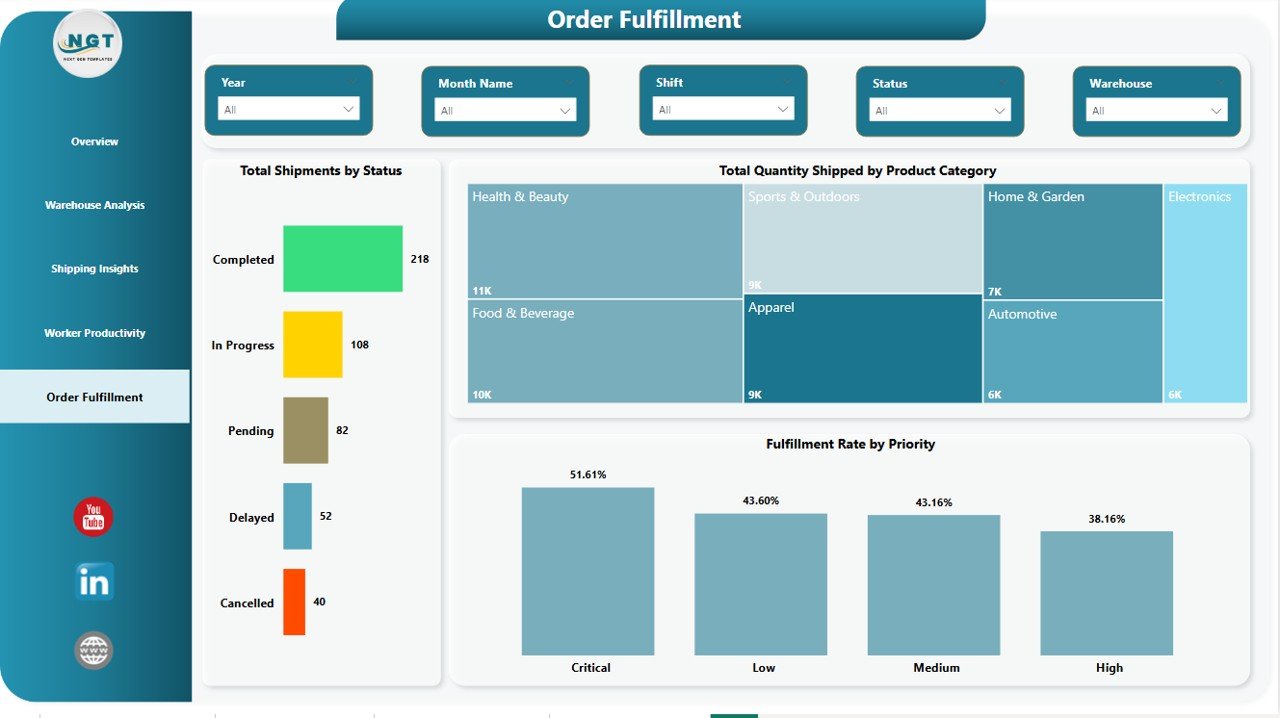
5. Order Fulfillment
The final page drills into the order itself — by status, by product category, by priority — so customer service and ops share a single view of what is moving through the warehouse and what is stuck.
- Total Shipments by Status — shipment volume split across statuses (pending, in-transit, completed, etc.) for pipeline health.
- Total Quantity Shipped by Product Category — units per category, highlighting which SKUs drive your volume.
- Fulfillment Rate by Priority — fulfillment percentage broken by order priority. Shows whether express orders actually get the service level they paid for.
Click to buy Warehouse Efficiency Dashboard in Power BI
Warehouse Efficiency Dashboard in Power BI vs. Tableau / Qlik vs. Zoho Inventory / NetSuite ERP — Feature Comparison
| Feature | Warehouse Efficiency Dashboard in Power BI | Tableau / Qlik | Zoho Inventory / NetSuite ERP |
|---|---|---|---|
| Cost | $17.99 one-time ✅ | $70–$115 / user / month | $35–$999+ / user / month |
| Platform | Power BI Desktop (free) ✅ | Tableau / Qlik Sense | Web-based ERP |
| Setup time | Under 30 minutes ✅ | 2–6 weeks | 3–9 months implementation |
| Pre-built warehouse visuals | 12+ visuals, 5 pages ✅ | Build from scratch | Fixed reporting templates |
| Fulfillment rate + pick time included | ✅ Out of the box | Manual calc needed | Report module only |
| Works offline in Power BI Desktop | ✅ | Limited | ❌ Cloud only |
| Customize DAX & visuals freely | ✅ Full access | ✅ | ❌ Locked |
| Year-1 cost at 5 users | $17.99 ✅ | $4,200–$6,900 | $2,100–$59,940+ |
| Ongoing subscription | ❌ None ✅ | Required | Required |
For teams that want executive-ready warehouse analytics without paying $4,000+ per year for Tableau or waiting 6 months for a full ERP rollout, the Warehouse Efficiency Dashboard in Power BI sits in the sweet spot.
Who Should Use This Template
Perfect for:
- Supply chain and warehouse managers at 3PLs, e-commerce brands, and manufacturers running 1–20 warehouses
- Logistics analysts who are tired of rebuilding the same Power BI report every month
- Operations consultants delivering warehouse performance diagnostics to clients
- COOs and VP Operations who want a repeatable weekly or monthly warehouse scorecard
- MBA students and supply chain learners building a Power BI portfolio
Not a fit if:
- You run 50+ warehouses that need real-time IoT sensor integration and SOC 2 certified cloud infrastructure
- You need a full WMS with barcode scanning, goods receipt, and putaway workflows — this is an analytics dashboard, not a transactional system
- You need a cloud dashboard shared across 100+ concurrent viewers without a Power BI Pro license
Real-World Use Cases
Priya leads operations at a 4-warehouse 3PL in North India. Every Monday at 9 AM she opens the Warehouse Efficiency Dashboard in Power BI, filters by the previous week, and compares fulfillment rate across her four sites on the Warehouse Analysis page. She then drops into the Worker Productivity page to flag which shift is dragging pick time up. What used to be a 3-hour Excel consolidation exercise her analyst ran every week is now a 10-minute review. Her team reclaimed roughly 150 analyst-hours per year.
Arjun runs supply chain analytics for a D2C skincare brand. He points the .pbix file at the company’s combined Shopify orders + 3PL carrier data export, schedules a daily refresh, and uses the Shipping Insights page on the first of every month to show the CFO which carrier is eating the biggest share of the shipping budget. After the first monthly review he renegotiated the primary carrier contract and saved roughly $8,400 per year — the template paid for itself 467 times over in year one.
Sandra is a freelance operations consultant specializing in 30-day warehouse diagnostics for mid-market manufacturers. She drops each client’s historical shipment data into the same .pbix, customizes the cover title, and delivers a Power BI-based warehouse performance report on day 5 instead of day 20. Her billable hours now go to diagnosis and recommendations rather than building visuals from scratch — effectively 3x-ing her margin per engagement.
Advantages of the Warehouse Efficiency Dashboard in Power BI
- One-time cost, lifetime access — $17.99 once instead of $70–$999 per user per month for SaaS alternatives. A 5-person team saves $4,200–$12,000 in year one alone.
- Runs in free Power BI Desktop — no Pro subscription required for editing. You only need a Pro license if you want to publish to Power BI Service for browser sharing.
- Connected data model — one fact table, one refresh, every visual updates. No disconnected pivot tables drifting out of sync.
- Fully customizable — every DAX measure, every visual, every color is editable. Fork it into your own corporate template.
- Executive-ready design — clean layout, consistent palette, and readable fonts built to present to leadership without additional formatting.
- Fast deployment — most users have their own data running through the dashboard in under 30 minutes.
Opportunities for Improvement
Being honest about limitations matters, so here is what this dashboard is not:
- Not a real-time dashboard. The template refreshes when you click Refresh — it does not stream live from your WMS. If you need sub-minute latency with IoT integration, you need a dedicated BI platform, not a .pbix file.
- Not a WMS replacement. This is an analytics layer on top of your warehouse data. It does not manage putaway, barcode scanning, or goods receipt — it measures the results.
- Sample data has 500 rows. At very high volume (millions of rows per month), you may want to connect the .pbix to a SQL data warehouse instead of a flat file. The measures and visuals scale, but data prep gets more involved.
- Requires Power BI Desktop on Windows. If your entire team runs macOS without any Windows machines, you will need a workaround (Power BI Service, Parallels, or VM).
Best Practices
- Keep your shipments fact table in one place. Point the Power BI query at a single source — CSV, Excel, or SQL — rather than appending from multiple exports every week.
- Standardize your zone and shift names. “Zone A” and “Zone-A” will show up as two separate categories. Clean the source data.
- Use the Warehouse Analysis page in your Monday ops review. Start with Fulfillment Rate by Warehouse, then drill into Avg Pick Time by Zone for the lowest-performing site.
- Rebuild carrier contracts once per quarter using the Total Shipping Cost by Carrier chart. Most mid-market warehouses leave 10–20% on the table by not renegotiating annually.
- Publish to Power BI Service only when the model is stable. Don’t publish a .pbix that is still being tweaked daily — it confuses downstream consumers.
- For additional learning, the Microsoft Power BI documentation is the definitive reference on DAX, data modeling, and publishing workflows.
Explore Relevant Templates
The Warehouse Efficiency Dashboard in Power BI is part of a broader NextGenTemplates catalog covering supply chain, logistics, and inventory analytics:
- Warehouse Efficiency Dashboard in Excel — the same analytics built in Microsoft Excel with pivot tables, for teams on Excel workflows.
- Warehouse Efficiency Dashboard in HTML — browser-based version that needs no software install at all.
- Procurement Management Dashboard in Power BI — PO tracking, supplier analysis, and spend visibility.
- Transportation and Logistics Dashboard in HTML — fleet and delivery analytics.
- Vendor Performance Dashboard in HTML — supplier scorecard and SLA tracking.
- Supply Chain Delivery Calendar in Excel — delivery schedule planner.
💎 Save 36% — Get all 8 warehouse & inventory templates in the Inventory & Warehouse Master Kit Bundle for $69.99.
Frequently Asked Questions
What KPIs does the Warehouse Efficiency Dashboard in Power BI track?
The Warehouse Efficiency Dashboard in Power BI tracks 4 executive KPIs on the Overview page — Total Shipments, Total Quantity Shipped, Total Shipping Cost, and Total Storage Cost — along with derived metrics across the other pages including Fulfillment Rate, Avg Pick Time by Zone and by Shift, and Avg Satisfaction Score by Zone.
What software do I need to open the Warehouse Efficiency Dashboard in Power BI?
You need Power BI Desktop, which is free to download from Microsoft. The Warehouse Efficiency Dashboard in Power BI opens as a standard .pbix file on any Windows 10 or Windows 11 machine — no Power BI Pro subscription is required to edit it locally.
How does this compare to paying for Tableau or NetSuite ERP?
Tableau runs $70–$115 per user per month and NetSuite ERP starts around $999 per month. The Warehouse Efficiency Dashboard in Power BI is a $17.99 one-time purchase. For a 5-user team over one year that is roughly $4,200–$12,000 in savings while getting the same warehouse, shipping, and productivity analytics.
How long does setup take?
Most teams have the Warehouse Efficiency Dashboard in Power BI running on their own data in under 30 minutes. Install Power BI Desktop (5 min), open the .pbix file (instant), replace the sample data via Transform Data (10–15 min), and click Refresh. No DAX knowledge is required for standard use.
Can I customize the DAX measures and visuals?
Yes. Every DAX measure in the Warehouse Efficiency Dashboard in Power BI — Total Shipments, Fulfillment Rate, Avg Pick Time, Total Shipping Cost, and the rest — is fully editable. You can modify them, add new measures, change color palettes, and extend the data model to fit your own corporate reporting standard.
Is this template available in Excel, Google Sheets, or HTML?
Yes. The Warehouse Efficiency Dashboard is also available in Excel and HTML on NextGenTemplates. Pick the platform that matches your team’s tooling and skill set — the analytics are equivalent across formats.
Do I get free updates to the template?
Yes. Your purchase of the Warehouse Efficiency Dashboard in Power BI includes lifetime access and free future updates. One payment, no subscription, no renewal fees.
About the Author
Built by PK — Microsoft Certified Professional with 15+ years of Excel, Google Sheets, and Power BI experience. Founder of NextGenTemplates, reaching 300K+ subscribers across YouTube channels. Every template is hand-built and tested before release.
Conclusion
If you run a warehouse — or analyze one — and you have been rebuilding the same Power BI report every month, the Warehouse Efficiency Dashboard in Power BI is designed to make that work disappear. Five connected pages, four executive KPI cards, twelve-plus visuals, and a clean shipments fact table — all in a single .pbix file you can open in free Power BI Desktop and deploy against your own data in under 30 minutes.
👉 Click here to Purchase the Warehouse Efficiency Dashboard in Power BI for $17.99.
✅ Instant download · One-time payment · No subscription
🎥 Visit Youtube.com/@PK-AnExcelExpert for step-by-step video tutorials on Excel, Power BI, and Google Sheets dashboards.