Managing holidays, events, and financial deadlines becomes difficult when everything sits in separate files or different systems. As the workload increases, teams often miss important dates, reporting timelines, tax deadlines, and business events. Because of this, every finance team needs a simple and clear way to track holidays. A Financial Holiday Calendar in Excel solves this problem. It keeps every important date in one place and helps you stay organized throughout the year.
In this detailed guide, you will learn what a Financial Holiday Calendar in Excel is, how it works, and why every finance department needs one. You will also explore its worksheets, key features, benefits, and best practices. By the end, you will know exactly how this tool helps you plan better and avoid last-minute mistakes.
Click to buy Financial Holiday Calendar in Excel
What Is a Financial Holiday Calendar in Excel?
A Financial Holiday Calendar in Excel is a ready-to-use template that displays annual, monthly, and daily holiday details in a clear format. It helps finance professionals track:
- Public holidays
- Bank holidays
- Accounting deadlines
- Payroll cut-off dates
- Tax filing reminders
- Meetings and events
Since it is designed inside Excel, it becomes easy to update, manage, and automate. You can also customize it for your organization without any technical skills.
This calendar template includes five powerful worksheets that help you manage everything smoothly: Home, Annual View, Monthly View, Daily View, and Events.
Why Do You Need a Financial Holiday Calendar in Excel?
A finance department deals with time-sensitive activities almost every day. Payroll, tax filing, month-end closing, vendor payments, and reporting need strict timelines. A missed date can lead to penalties, delays, or compliance errors.
Because of this, companies use a structured calendar system that shows all important dates in one place.
A Financial Holiday Calendar in Excel helps you:
- Plan daily tasks with accuracy
- Avoid missing deadlines
- Prepare better for financial closures
- Schedule work around public holidays
- Manage events across teams
- Keep everyone aligned
It works as a central hub for all financial events and holidays.
Key Worksheets in the Financial Holiday Calendar in Excel
This template includes five highly functional worksheets, each designed to make navigation simple and fast.
Let’s explore each one in detail.
Home Sheet: Your Main Navigation Center
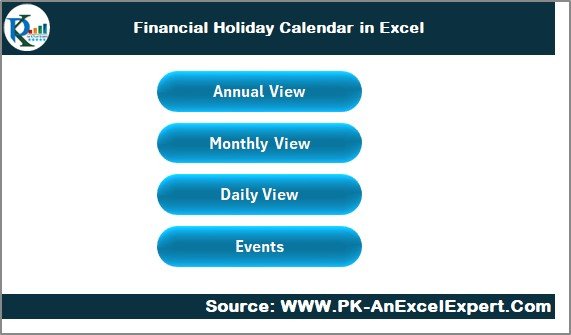
The Home sheet works as the index page of the entire calendar. It helps you jump to any worksheet instantly with one click. You will find four main buttons:
- Annual View
- Monthly View
- Daily View
- Events
These buttons make navigation effortless. Instead of scrolling through sheets manually, you can directly go to the view you need. It saves time and creates a clean structure that anyone can understand.
This page also sets the tone for the entire calendar template. Everything looks neat, and users can easily move between different sections.
Click to buy Financial Holiday Calendar in Excel
Annual View Sheet: Your Year-at-a-Glance Calendar
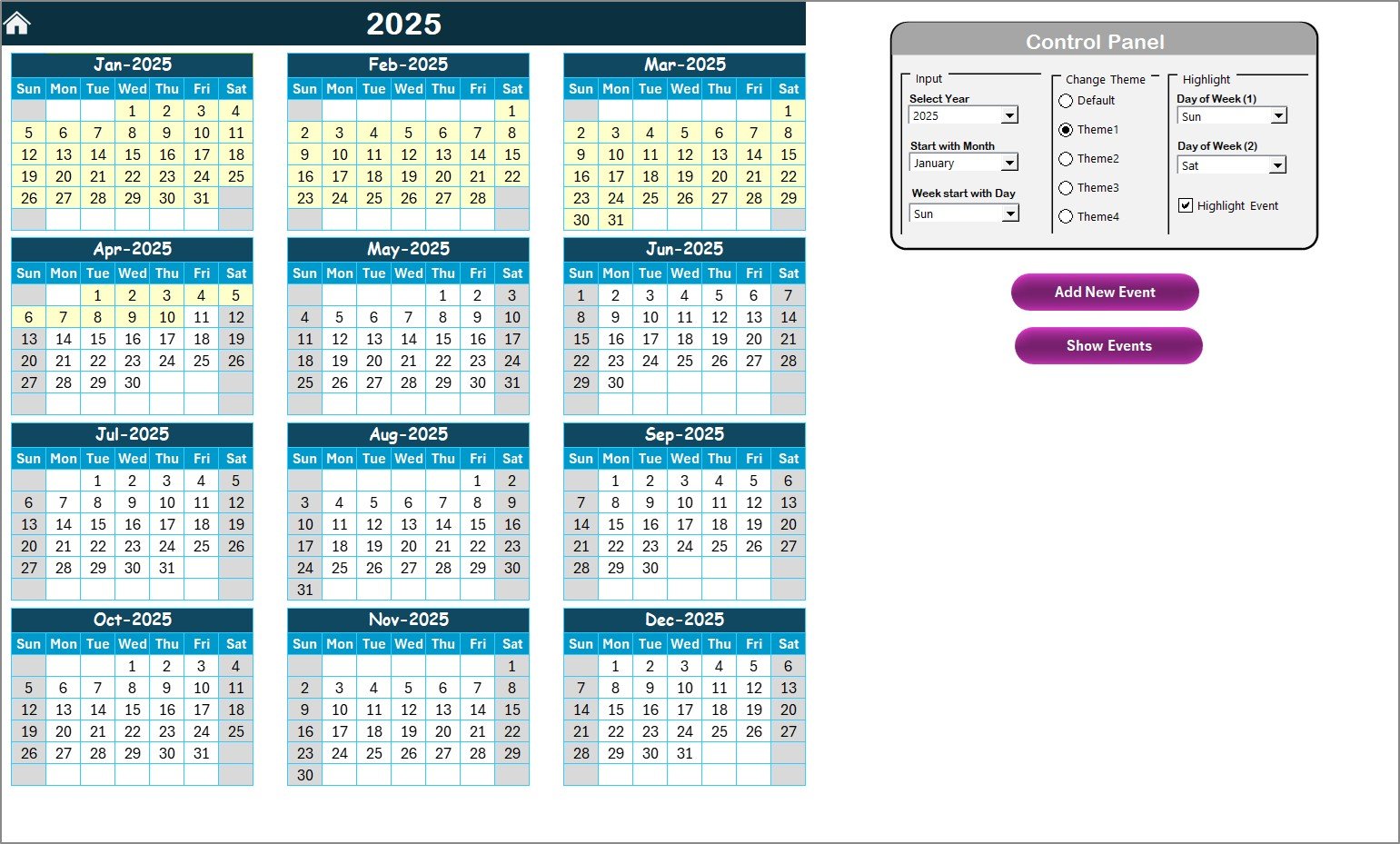
The Annual View sheet displays all 12 months on a single screen. This makes yearly planning very easy. Whether you want to check public holidays, financial events, internal deadlines, or workflows, you can do it directly from this page.
What You See on the Annual View Sheet
This sheet shows:
- All 12 monthly calendars
- Highlighted weekends (optional)
- Highlighted events
- Selected themes
- Custom starting day of the week
- Custom starting month of the year
You can quickly switch between different years by using the control panel.
Annual View Control Panel: Manage Your Calendar Easily
One of the strongest features of this Excel template is the Control Panel. It has three useful groups:
Input Group
This section helps you control how the calendar appears. You can:
- Select the Year
- Change the starting month
- Change the starting day of the week
This feature helps companies operating in different regions. For example, some countries start their week on Monday, while others start on Sunday. Some organizations follow a fiscal year that starts in April. With this control panel, you can adjust everything easily.
Change Theme Group
You can choose from five colour themes. Once you select a theme, the entire workbook updates automatically. This improves visibility and personal preference.
Businesses love this because:
- Some prefer professional colours
- Some want bold visual themes
- Some need high-contrast colours
The template gives you complete flexibility.
Highlight Group
This group helps you highlight:
- Weekend days (like Saturday and Sunday)
- Any two days of the week
- All event days in yellow
If you want to highlight Saturday and Sunday, you can choose them from the drop-down. This helps teams plan around holidays and weekends.
You can also check the Highlight Event option. Once you do that, the calendar marks all events automatically.
Buttons on the Annual View Sheet
You also get two highly useful buttons:
Add New Event
Just select a date and click Add New Event.
A form opens where you can enter:
- Event Name
- Time
- Location
- Description
After you submit the form, the event gets added to that selected date.
Show Event
If you want to see which events are scheduled on a particular date, select that date and click Show Event.
It displays the complete list instantly.
Click to buy Financial Holiday Calendar in Excel
Monthly View Sheet: A Detailed Look at One Month
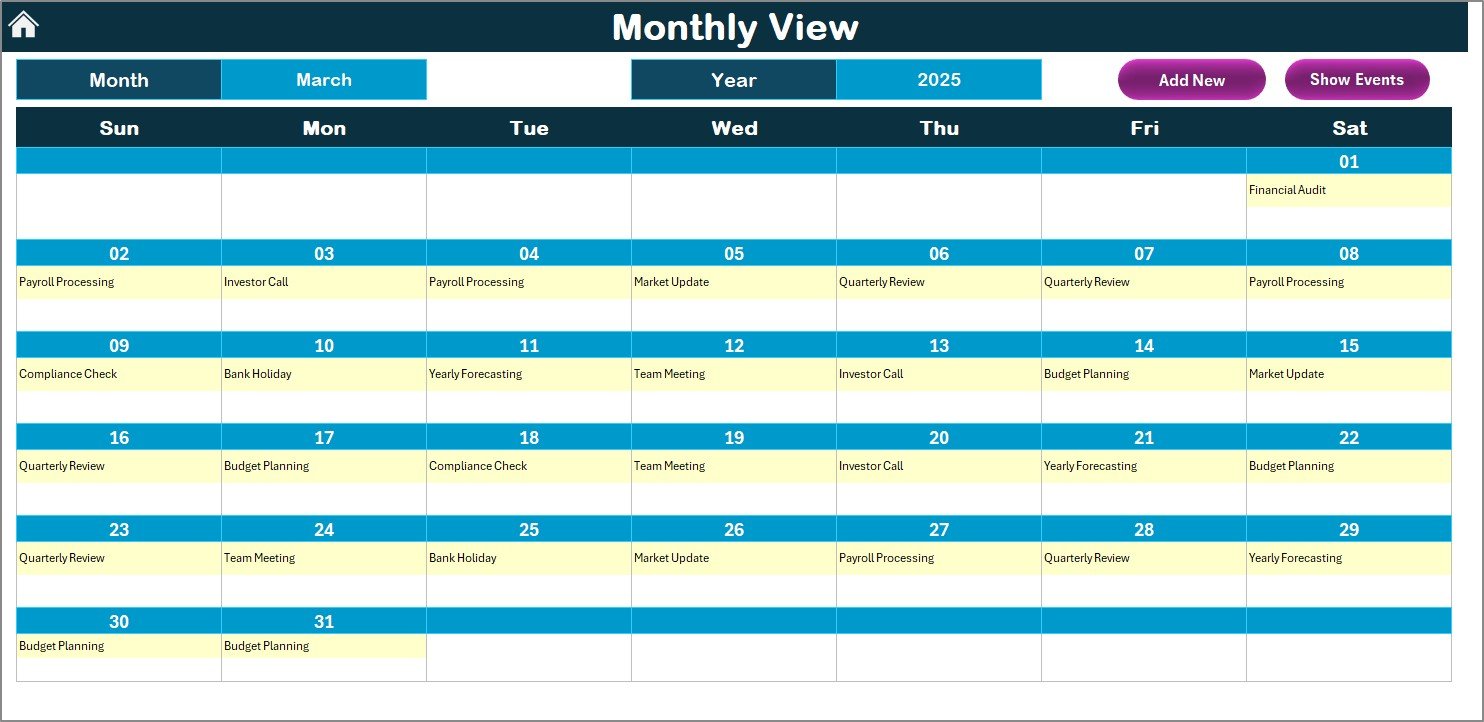
The Monthly View sheet focuses on a single month. You can select your Month and Year from the top. Once you do that, the calendar updates automatically.
This sheet is ideal when you want to:
- Plan financial activities for the month
- Schedule meetings
- Review deadlines
- Prepare for month-end closing
- Track multiple holidays
If a date has more than one event, the calendar shows “more than 1…” so that you can check details easily.
Buttons on the Monthly View Sheet
This sheet also includes two buttons for event management:
Add New Event
Select a date and click this button to add a new entry.
Show Event
Select a date and click this button to view a list of all events scheduled for that date.
Both buttons make monthly planning smooth and fast.
Click to buy Financial Holiday Calendar in Excel
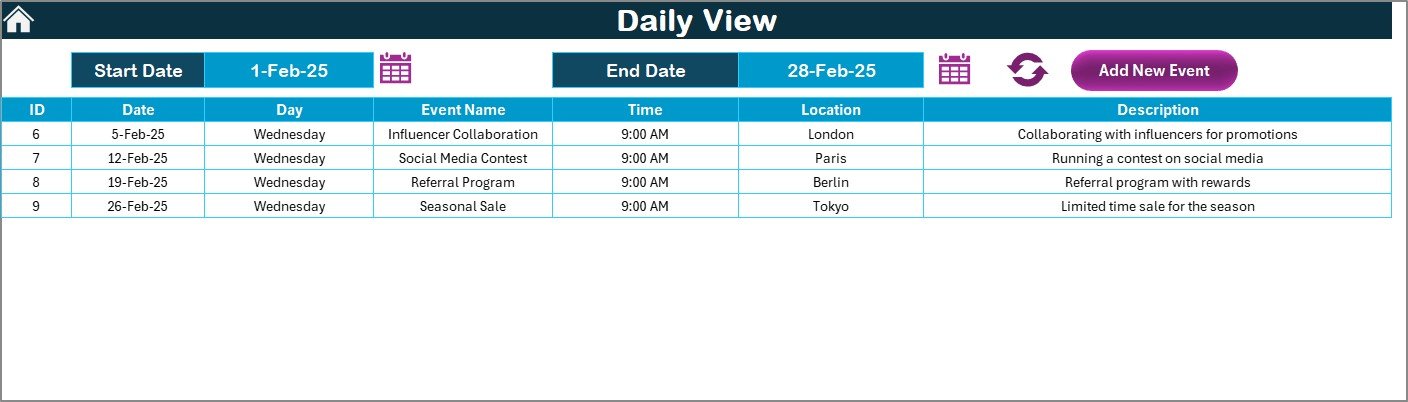
Daily View Sheet: View Events for Any Date Range
The Daily View sheet gives you event details for a selected date range. It helps you track:
- Day-wise events
- Meeting schedules
- Deadlines
- Project timelines
- Holiday impacts
You only need to choose a Start Date and End Date using the calendar icons. Then click the Refresh button. It shows the complete list of events within that period.
This sheet includes an Add New Event button as well. You can add events directly without going to the Events sheet.
Events Sheet: Your Master Database of All Events
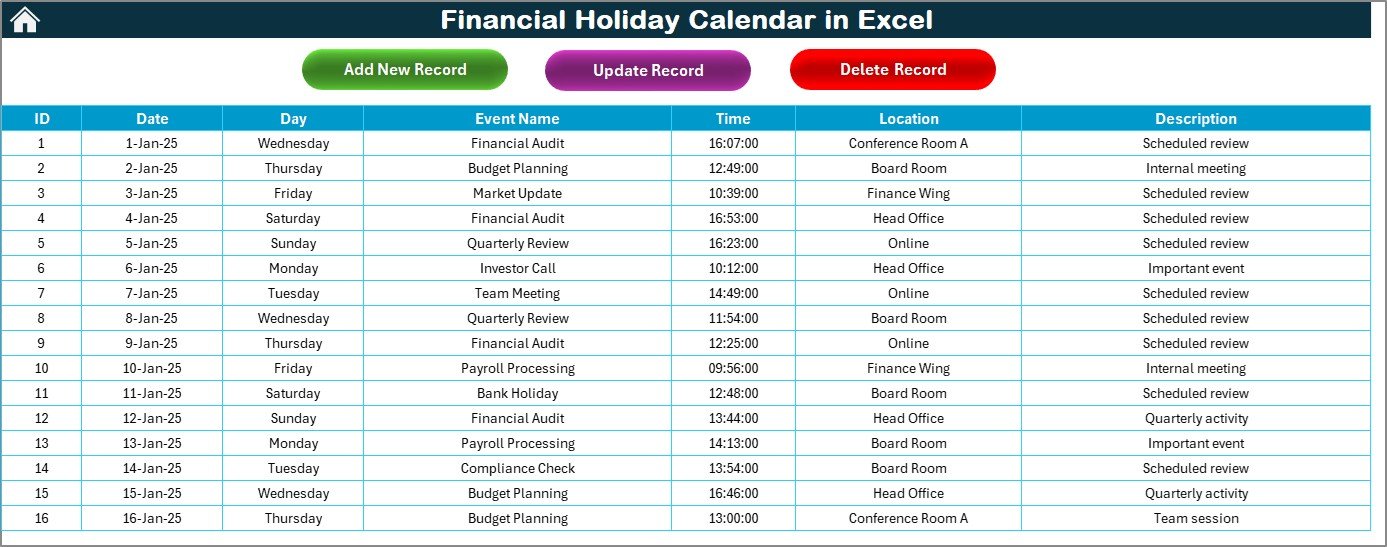
The Events sheet captures all the data you enter through the form. It works like the backend database of the entire calendar.
You will find these columns:
- ID – Auto-generated
- Date – Event date
- Day – Day name (Monday, Tuesday, etc.)
- Event Name – Title of the event
- Time – Event time
- Location – Place of the event
- Description – Short details
This sheet also includes three important buttons:
Add New Record
Opens the event form so you can add new events.
Update Existing Record
Select the ID of the record you want to change.
Click the button, update the form, and save the changes.
Delete Record
Select the ID and click Delete Record to remove the event.
This makes event management extremely easy.
Click to buy Financial Holiday Calendar in Excel
Advantages of a Financial Holiday Calendar in Excel
A Financial Holiday Calendar offers many benefits for teams of all sizes. Let’s explore the main advantages.
- Easy Planning and Scheduling
You can plan financial work, reporting tasks, and deadlines more effectively when every important date is visible on one screen.
- Helps You Avoid Missed Deadlines
You stay on top of tax dates, payroll timelines, bank holidays, and month-end closures. This reduces errors and delays.
- Improves Team Communication
Everyone can see the same calendar. This keeps every department aligned and reduces confusion.
- Fully Customizable
You can change colours, themes, layouts, and start days. You can also add unlimited events.
- Saves Time
Instead of searching through emails and files for holiday details, you can check everything in one place.
- Perfect for Financial Workflows
Finance teams deal with deadlines every month. A calendar designed in Excel fits their needs perfectly.
Best Practices for Using the Financial Holiday Calendar in Excel
To get the best results, you should follow a few simple best practices.
- Update the Calendar Every Month
Add new events, update dates, and delete old entries to keep everything clean.
- Use Clear Event Names
Use simple names like “Payroll Cut-Off” or “GST Filing Deadline” for easy understanding.
- Highlight Weekends and Holidays
This helps you plan work shifts and avoid scheduling meetings on non-working days.
- Keep Descriptions Short
Short descriptions make the event table easy to read.
- Back Up Your Events Sheet
Since it stores all your important dates, save a backup regularly.
- Use Themes Wisely
Choose a colour theme that improves visibility, not one that distracts.
- Train Your Team
Show your team how to use the calendar so that everyone stays aligned.
Conclusion
A Financial Holiday Calendar in Excel is one of the most useful tools for finance teams, HR departments, and business managers. It helps you see every important date—holidays, meetings, deadlines, and events—in a clean, structured format. With multiple views like annual, monthly, and daily, you can plan your work easily and avoid missing deadlines.
The event management system, automated navigation, and customizable features make this calendar a powerful tool for daily financial operations. Since everything sits inside Excel, you can edit it anytime and tailor it to your business needs.
When you use the right calendar, you work more confidently, reduce errors, and stay organized all year.
Frequently Asked Questions (FAQs)
- What is a Financial Holiday Calendar in Excel?
It is a ready-to-use Excel template that shows all holidays, financial deadlines, and events in annual, monthly, and daily formats.
- Can I customize the calendar?
Yes, you can change the year, start day of the week, colour theme, and highlight rules. You can also add unlimited events.
- How do I add a new event?
You can select a date and click the “Add New Event” button. A form opens, and you can enter all event details.
- Can I see holidays for a full year?
Yes, the Annual View sheet shows all 12 months in one place.
- Can I track multiple events on the same date?
Yes, the Monthly View shows “more than 1…” when there are multiple events on the same day.
- Is this template suitable for businesses?
Absolutely. Finance teams, HR teams, payroll teams, and managers can all use it.
- Do I need advanced Excel skills?
No. The template works with buttons and simple selections, so anyone can use it.
- Does the Events sheet store all my data?
Yes, it stores every event you add, along with ID, date, time, location, and description.
- Can I highlight weekends?
Yes, the Highlight Group allows you to highlight any two days of the week.
- How often should I update the calendar?
You should update it every month or whenever new holidays or deadlines are announced.
Visit our YouTube channel to learn step-by-step video tutorials
Watch the step-by-step video tutorial:
Click to buy Financial Holiday Calendar in Excel