Manufacturing operations run on tight schedules, fixed deadlines, and coordinated activities. Therefore, missing a maintenance date, safety drill, audit, production shutdown, or training session can cause serious operational disruptions. However, many manufacturing teams still rely on emails, wall calendars, or scattered spreadsheets to manage events. As a result, visibility drops, coordination weakens, and errors increase.
That is exactly where a Manufacturing Event Calendar in Excel becomes a powerful and practical solution.
A Manufacturing Event Calendar in Excel provides a centralized, visual, and easy-to-use system to plan, track, and manage all manufacturing-related events in one place. Moreover, because it is built in Excel, it remains affordable, flexible, and familiar for operations teams.
In this detailed article, you will learn what a Manufacturing Event Calendar in Excel is, how it works, its worksheet-wise structure, key features, advantages, best practices, and frequently asked questions. Furthermore, the language stays clear, active, and simple so that anyone can understand and implement it easily.
Click to buy Manufacturing Event Calendar in Excel
What Is a Manufacturing Event Calendar in Excel?
A Manufacturing Event Calendar in Excel is a ready-to-use scheduling and event-management template designed specifically for manufacturing environments.
Instead of tracking events across emails, diaries, or multiple files, this calendar allows manufacturing teams to manage all important events from one Excel workbook. Additionally, it provides annual, monthly, and daily views, which helps users plan both long-term and short-term activities efficiently.
Because manufacturing operations involve recurring events such as maintenance schedules, audits, safety drills, training programs, inspections, and shutdowns, this calendar ensures that nothing gets overlooked.
Why Do Manufacturing Teams Need an Event Calendar in Excel?
Manufacturing operations involve multiple departments, machines, shifts, and compliance requirements. Therefore, teams need a structured and visual system to manage events.
Here is why a Manufacturing Event Calendar in Excel becomes essential:
- Manufacturing events happen daily, weekly, monthly, and yearly
- Maintenance and shutdown events need advance planning
- Compliance audits require proper scheduling and tracking
- Training programs must align with production schedules
- Excel offers flexibility without expensive software
As a result, a centralized Excel calendar improves coordination, accountability, and operational control.
What Are the Key Features of the Manufacturing Event Calendar in Excel?
This ready-to-use Manufacturing Event Calendar in Excel includes multiple smart features designed for operational efficiency. Moreover, it follows a structured worksheet-based design that improves usability.
How Many Worksheets Are Available in the Manufacturing Event Calendar in Excel?
This calendar template includes 5 well-designed worksheets, each serving a specific purpose.
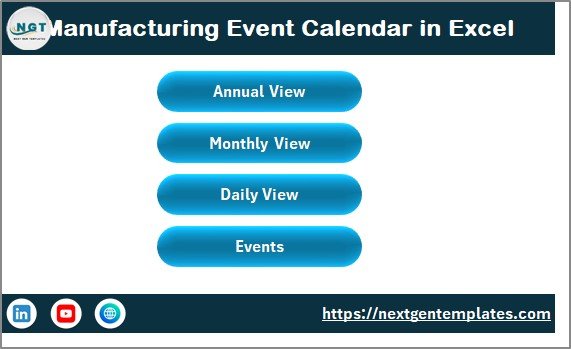
Home Sheet Tab: How Does the Navigation Work?
The Home Sheet acts as the index and navigation hub of the entire calendar. Therefore, users can quickly jump to any view without searching manually.
Buttons Available on the Home Sheet
The Home Sheet includes four interactive buttons:
- Annual View Button – Opens the full-year calendar
- Monthly View Button – Opens the selected month calendar
- Daily View Button – Displays event lists for selected dates
- Events Button – Opens the event database sheet
Because of this structured navigation, users save time and avoid confusion. Moreover, even new users can start using the calendar immediately.
Click to buy Manufacturing Event Calendar in Excel
Annual View Sheet Tab: How Can You Plan the Entire Year at Once?
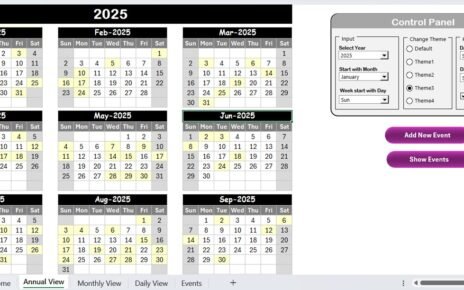
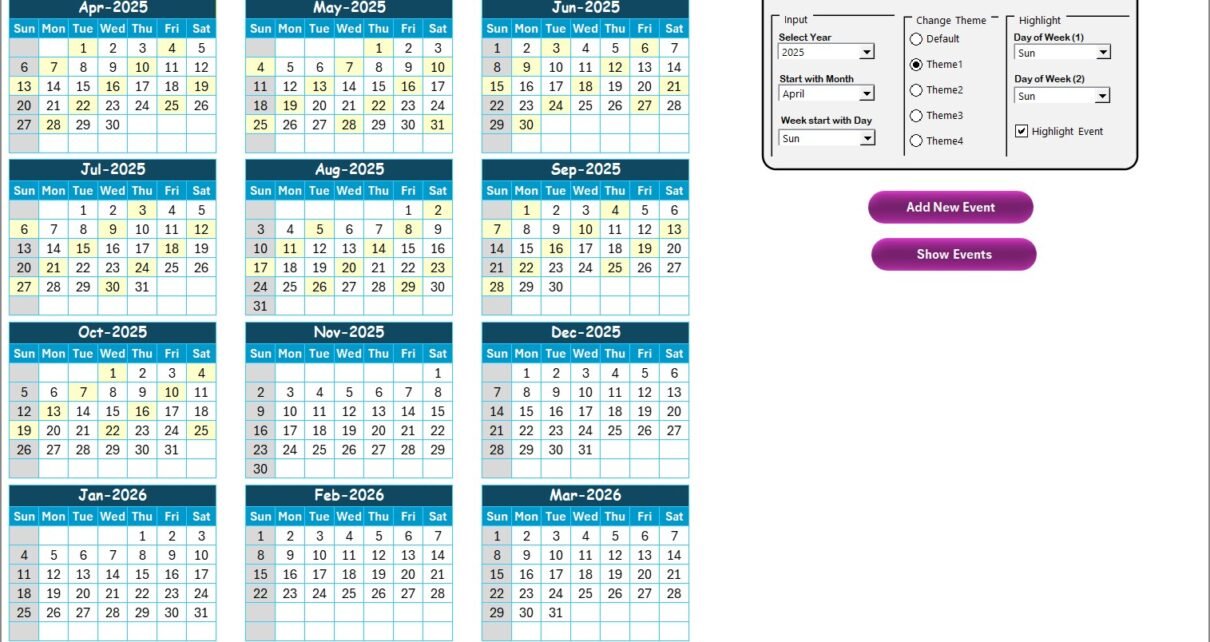
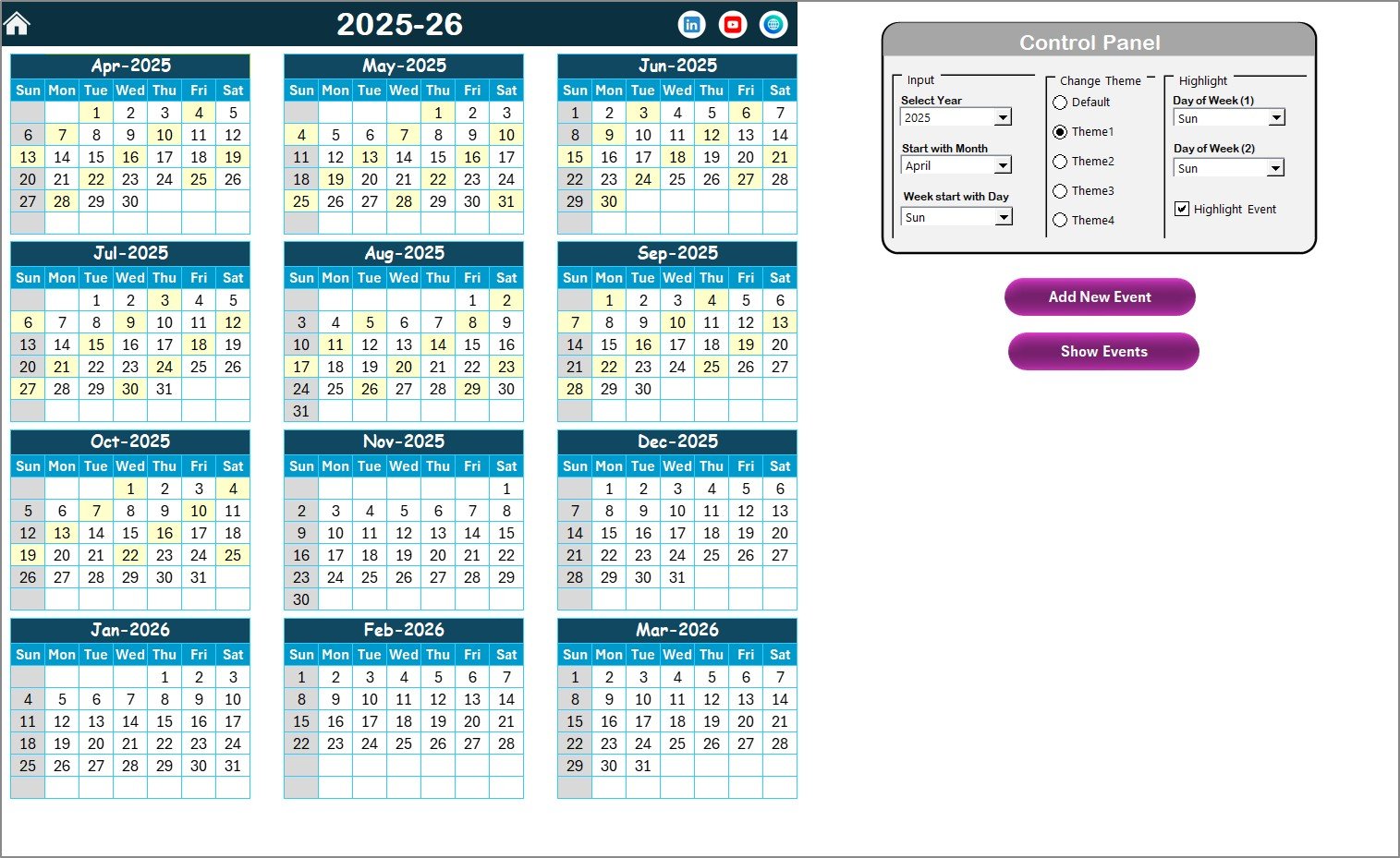
The Annual View Sheet displays all 12 months of the year on a single screen. Therefore, it provides a high-level overview of manufacturing activities.
This view helps management teams plan annual maintenance schedules, audits, shutdowns, and training programs in advance.
What Is Available in the Control Panel of the Annual View?
The Annual View includes a powerful Control Panel that allows users to customize the calendar dynamically.
Input Group: How Can You Customize the Calendar Year?
In the Input Group, users can:
- Select the Year to update the annual calendar automatically
- Change the starting month of the calendar
- Change the starting day of the week
Because of these options, the calendar adapts easily to different planning cycles.
Change Theme Group: How Can You Apply Color Themes?
The Change Theme Group allows users to apply one of five color themes across the entire workbook.
As a result:
- The calendar looks visually appealing
- Users can match company branding
- Different teams can use different color preferences
Highlight Group: How Can You Highlight Days and Events?
The Highlight Group improves visual clarity:
- Select Day of Week (1) and Day of Week (2) to highlight
- For example, highlight Saturday and Sunday in grey
- Enable Highlight Event checkbox to mark event dates in yellow
Because of this feature, weekends and important dates stand out clearly.
Add New Event Button: How Can You Add Events Quickly?
The Add New Event button allows users to add events directly from the calendar:
- Select a date on the annual calendar
- Click the Add New Event button
- Fill the event form
- Click Submit
The event automatically gets added to the selected date.
Show Event Button: How Can You View Events for a Date?
The Show Event button displays the list of events scheduled for the selected date. Therefore, users can review event details instantly without switching sheets.
Click to buy Manufacturing Event Calendar in Excel
Monthly View Sheet Tab: How Can You Focus on One Month?
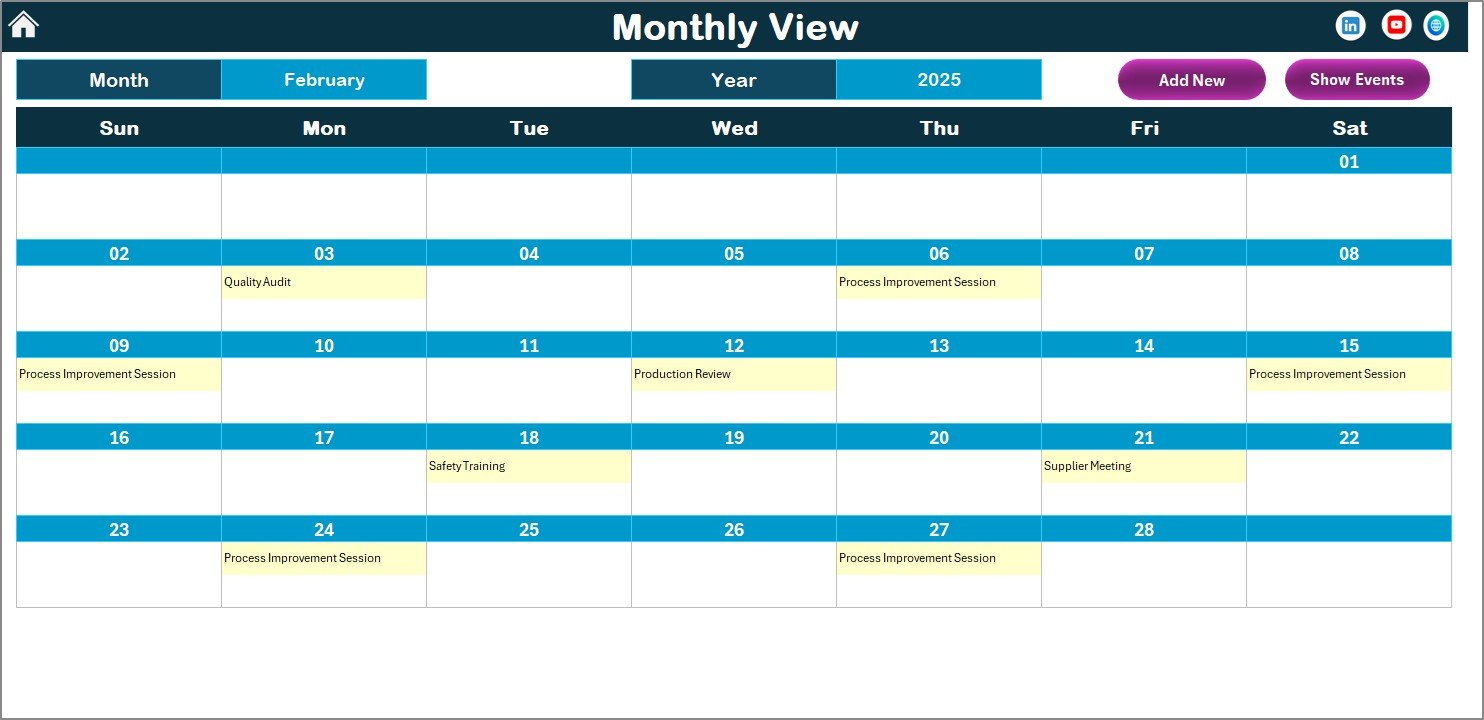
The Monthly View Sheet shows a single-month calendar for detailed planning.
At the top, users can select:
- Month
- Year
Based on the selection, the calendar updates automatically.
How Are Multiple Events Displayed in Monthly View?
- The calendar displays one event per date
- If multiple events exist, it shows “more than 1…”
This approach keeps the calendar clean while still indicating additional events.
What Buttons Are Available in Monthly View?
The Monthly View includes two buttons:
- Add New Event Button – Add an event for a selected date
- Show Event Button – View all events for a selected date
Because of this design, users manage monthly activities without opening other sheets.
Click to buy Manufacturing Event Calendar in Excel
Daily View Sheet Tab: How Can You Track Events in Detail?
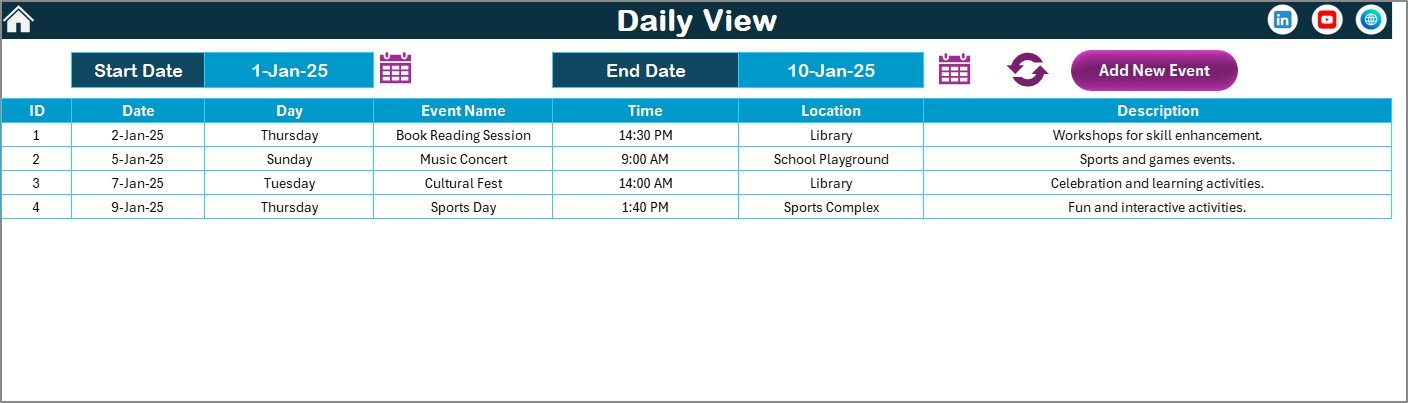
The Daily View Sheet focuses on event details within a selected date range.
How Does Date Range Selection Work?
At the top, users can:
- Select Start Date
- Select End Date
- Use calendar icons for easy selection
- Click Refresh to update the event list
As a result, users can analyze events for any period, such as a week, month, or project duration.
How Can You Add Events from Daily View?
The Add New Event button in the Daily View opens the event form. Users simply enter details and submit. Therefore, data entry remains quick and consistent.
Click to buy Manufacturing Event Calendar in Excel
Events Sheet Tab: How Is Event Data Stored?
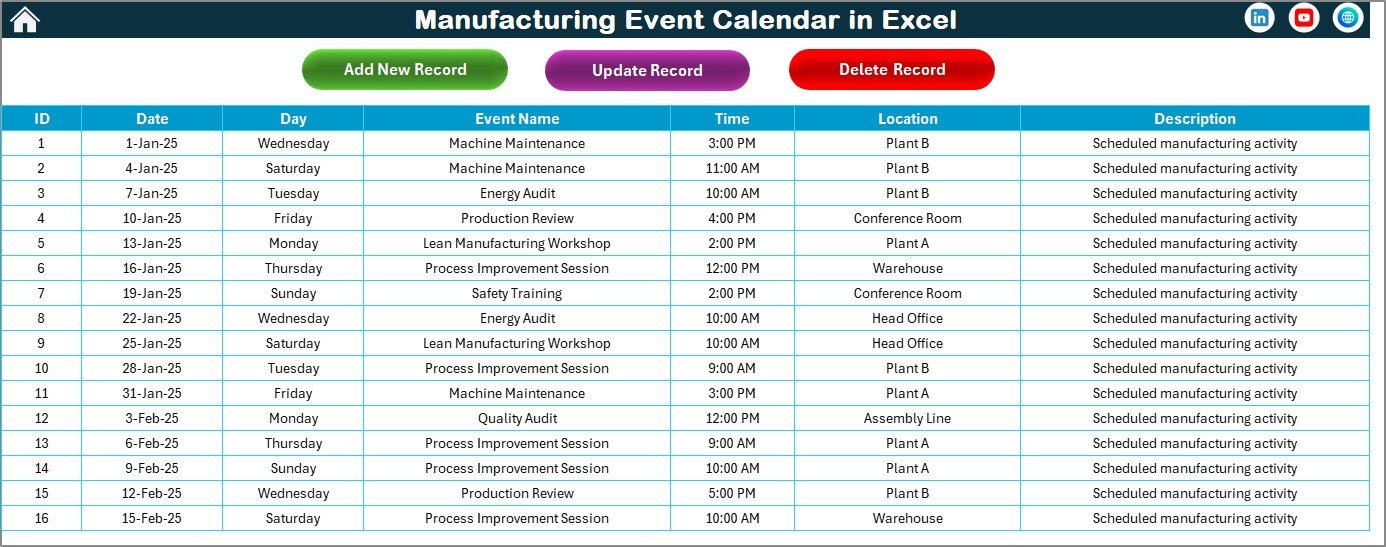
The Events Sheet works as the database for all calendar activities. Every event added through any view gets stored here automatically.
What Data Fields Are Captured in the Events Sheet?
The Events Sheet includes the following columns:
- ID – Auto-generated unique number
- Date – Event date
- Day – Day of the week
- Event Name – Name of the event
- Time – Event time
- Location – Event location
- Description – Short event description
Because of this structure, data stays clean, searchable, and consistent.
What Buttons Are Available on the Events Sheet?
The Events Sheet includes three control buttons:
Add New Record Button
- Opens the Add Event form
- Users enter event details
- Click Submit to save
Update Existing Record Button
- Select the event ID
- Click Update Existing Record
- Edit prefilled form data
- Submit to update the record
Delete Record Button
- Select the event ID
- Click Delete Record
- The event gets removed permanently
These buttons ensure full control over event data.
Click to buy Manufacturing Event Calendar in Excel
Advantages of Manufacturing Event Calendar in Excel
Using a Manufacturing Event Calendar in Excel offers several practical benefits.
Centralized Event Management
- All events stay in one Excel file
- No scattered emails or notes
- Easy access for all stakeholders
Improved Planning and Visibility
- Annual, monthly, and daily views
- Better long-term and short-term planning
- Clear visibility of upcoming activities
User-Friendly and Familiar Interface
- Built in Microsoft Excel
- No training required
- Easy adoption by teams
Customizable and Flexible
- Change year, month, and themes
- Highlight weekends and events
- Adapt to different manufacturing needs
Cost-Effective Solution
- No expensive software required
- One-time setup
- Ideal for small and large plants
Best Practices for the Manufacturing Event Calendar in Excel
To get the best results, follow these proven best practices.
Maintain Consistent Data Entry
- Use clear event names
- Keep descriptions short and meaningful
- Avoid duplicate entries
Update the Calendar Regularly
- Add events as soon as they are planned
- Update changes immediately
- Delete cancelled events
Use Color Highlights Wisely
- Highlight weekends clearly
- Highlight critical events
- Avoid too many colors
Review the Calendar Weekly
- Check upcoming events
- Confirm responsibilities
- Avoid last-minute surprises
Back Up the Excel File
- Save copies regularly
- Store backups securely
- Avoid accidental data loss
Who Should Use a Manufacturing Event Calendar in Excel?
This calendar suits a wide range of users:
- Manufacturing plant managers
- Maintenance teams
- Production planners
- Safety officers
- HR and training teams
- Quality and compliance teams
Conclusion: Why Should You Use a Manufacturing Event Calendar in Excel?
A Manufacturing Event Calendar in Excel transforms how manufacturing teams plan and manage events. Instead of reacting to missed schedules and miscommunication, teams gain control, clarity, and confidence.
Because it offers annual planning, monthly focus, daily tracking, and centralized data management, this ready-to-use Excel calendar becomes an essential operational tool. Moreover, its simplicity, flexibility, and affordability make it suitable for every manufacturing organization.
If you want better planning, fewer surprises, and smoother operations, a Manufacturing Event Calendar in Excel is the right solution.
Frequently Asked Questions (FAQs)
What is a Manufacturing Event Calendar in Excel used for?
A Manufacturing Event Calendar in Excel helps plan, track, and manage all manufacturing-related events such as maintenance, audits, training, and shutdowns.
Can I customize the calendar year and start day?
Yes, you can easily change the year, starting month, and starting day of the week from the control panel.
Can I add multiple events on the same date?
Yes, the calendar supports multiple events on the same date and displays them clearly.
Is this calendar suitable for small manufacturing units?
Yes, it works perfectly for both small plants and large manufacturing facilities.
Do I need advanced Excel skills to use this calendar?
No, the calendar uses simple buttons and forms, so anyone familiar with Excel can use it easily.
Visit our YouTube channel to learn step-by-step video tutorials
Click to buy Manufacturing Event Calendar in Excel
Watch the step-by-step video tutorial: