Planning plays a major role in every manufacturing unit. When teams miss deadlines, skip important activities, or lose track of schedules, production slows down immediately. However, when you use a structured calendar, you plan every day and every shift with clarity. Because of this, more companies now use a Manufacturing Planning Calendar in Excel to manage their production events, important tasks, downtime plans, audits, and daily activities.
This article explains everything about the Manufacturing Planning Calendar in Excel. You will learn how it works, how each sheet helps you manage your tasks, and why this template saves time for every production team. You will also see the benefits, best practices, and answers to common questions related to this tool.
Click to buy Manufacturing Planning Calendar in Excel
What Is a Manufacturing Planning Calendar in Excel?
A Manufacturing Planning Calendar in Excel is a ready-to-use planning tool that helps you manage production events in an organized way. It shows your annual activities, monthly plans, and daily events in a structured layout. You can track every event with details such as date, day, time, location, and description. You can also add, update, or delete events using simple buttons.
Since this calendar works inside Excel, you can change themes, jump between views, and highlight important days without using complex software. This gives you more control over your production schedule.
Key Features of the Manufacturing Planning Calendar in Excel
This Excel calendar includes five powerful worksheets that help you manage events with speed and accuracy.
Home Sheet: Quick Navigation for All Pages
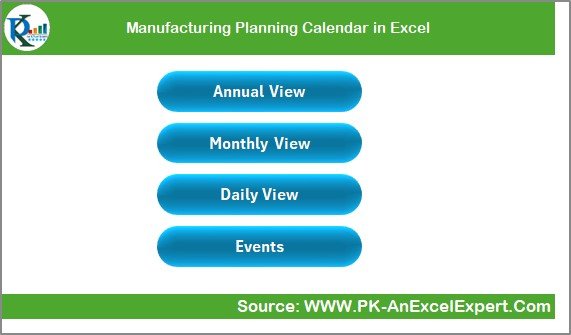
The Home sheet works as an index page. You see four navigation buttons on this sheet:
- Annual View
- Monthly View
- Daily View
- Events
You can click on any button and move to the respective sheet instantly. This simple layout saves time and helps you jump between different calendar pages without confusion.
Click to buy Manufacturing Planning Calendar in Excel
Annual View:
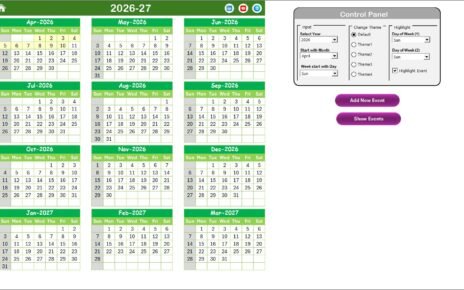
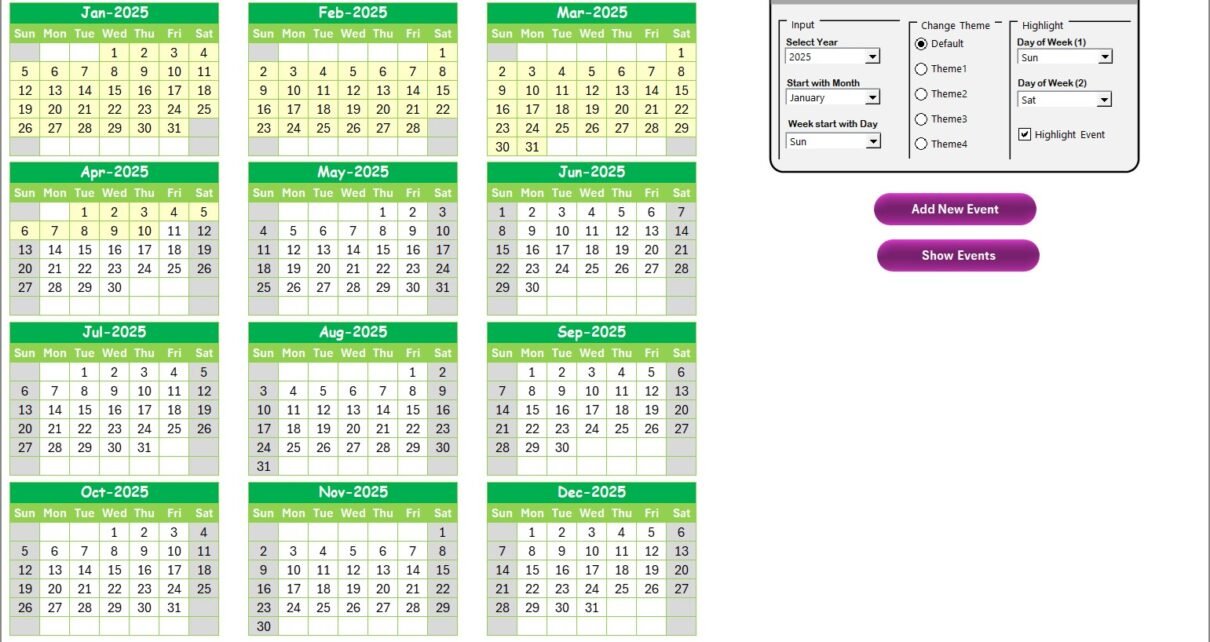
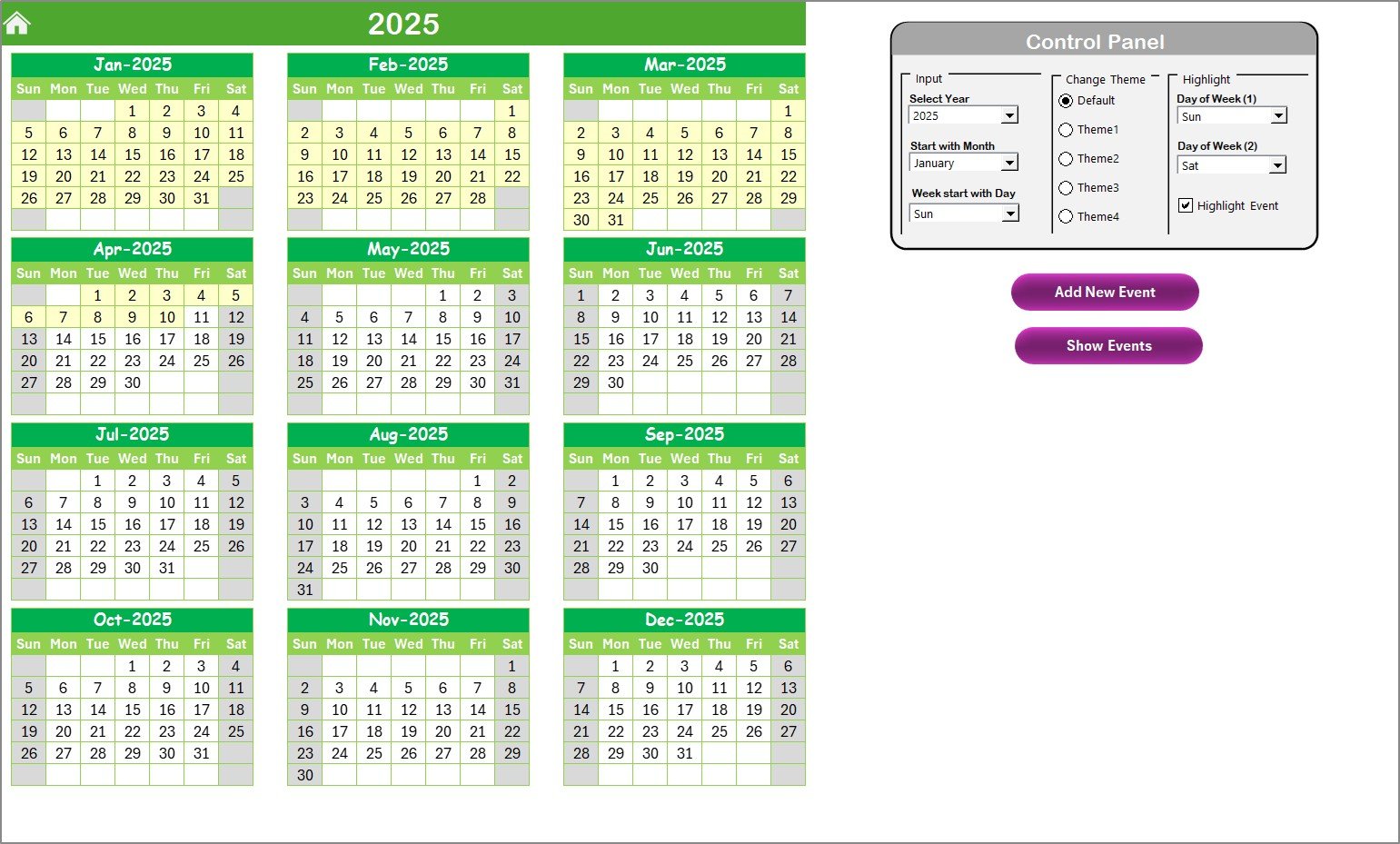
The Annual View sheet shows the full-year calendar on a single page. You see all 12 months together, which helps you plan long-term production schedules with confidence.
This sheet also includes a control panel with three groups.
Input Group
You can change the following settings:
- Select the Year
- Change the starting month
- Change the starting day of the week
When you change these inputs, the entire annual calendar adjusts instantly.
Change Theme Group
The template offers five color themes. You can apply any color theme to the entire workbook in one click. This helps your team work with a clean and visually consistent design.
Highlight Group
This group helps you highlight:
- Day of Week 1
- Day of Week 2
For example, you can highlight Saturday and Sunday in a grey color to track your non-working days. You can also highlight events in yellow by enabling the “Highlight Event” checkbox.
Add New Event Button
You can select any date on the calendar and click this button to add a new event. A form opens, and you can enter:
- Event Name
- Time
- Location
- Description
After saving, the event appears on the selected date.
Show Event Button
Select the date and click this button to view all events linked to that date.
Click to buy Manufacturing Planning Calendar in Excel
Monthly View: A Detailed View for One Selected Month
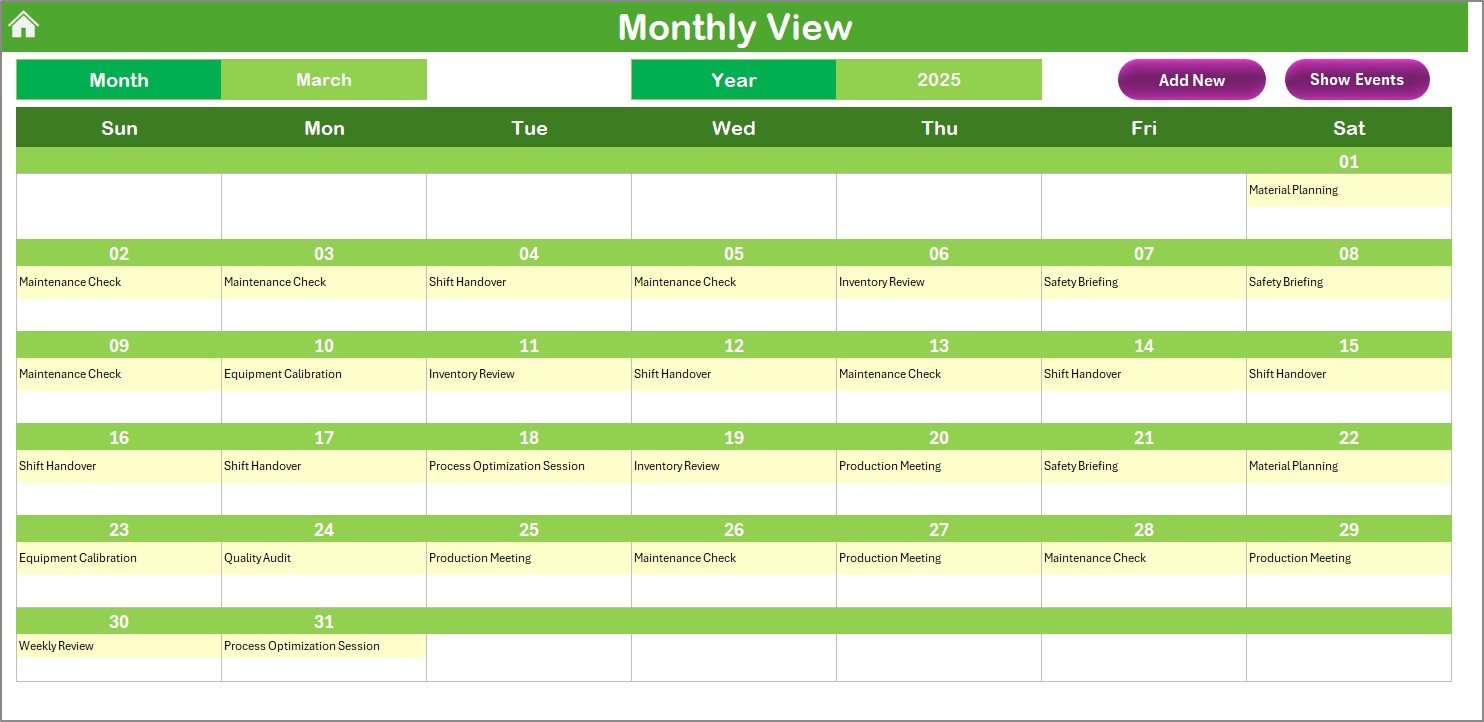
The Monthly View sheet shows a single calendar for the selected month. You can choose the Month and Year, and the sheet updates automatically.
Here, you see events for each day. When there is more than one event on a date, you will see the note “more than 1…”, which tells you that the date has multiple activities.
Monthly View Buttons
- Add New Event – Add a new event to any selected date
- Show Event – View all events scheduled on that date
This view helps teams plan one month at a time and review important deadlines, inspections, and production milestones.
Click to buy Manufacturing Planning Calendar in Excel
Daily View: View All Events in a Date Range
The Daily View sheet shows all events in a selected date range. You only need to enter:
- Start Date
- End Date
Use the calendar icons to select the dates. Then click on the Refresh button to load the events for that range.
You also see an Add New Event button on the top of the sheet. You can add new events directly from this view.
This page is useful when you track short-term tasks like:
- Shift activities
- Machine maintenance
- Material inspections
- Production tasks
- Daily reviews

Click to buy Manufacturing Planning Calendar in Excel
Events Sheet: The Database of All Events
The Events sheet stores all event data in a structured format. It contains:
- ID – Auto-generated number
- Date – Event date
- Day – Day name such as Monday, Tuesday
- Event Name – Name of the event
- Time – Event time
- Location – Where the event will take place
- Description – Short description
This sheet contains three important buttons:
- Add New Record
Click to open the event form and enter new event details.
- Update Existing Record
Select the ID you want to update and click the button. The form loads the event data and you can edit it.
- Delete Record
Select the ID and click the delete button to remove that event from the database.
This works like a mini event-management system inside Excel.

Click to buy Manufacturing Planning Calendar in Excel
Why Do You Need a Manufacturing Planning Calendar in Excel?
Manufacturing plants handle hundreds of activities every week. A simple mistake such as missing a maintenance schedule or skipping a compliance event may stop the entire production. This is why a planning calendar becomes so important.
With this Excel tool, your team:
- Tracks every important date
- Plans work ahead of time
- Reduces last-minute delays
- Improves coordination between departments
- Keeps a clear record of all tasks
Now let us explore the advantages of using this tool.
Advantages of Manufacturing Planning Calendar in Excel
A Manufacturing Planning Calendar offers many advantages, and each one improves your production planning process.
You plan your entire year with ease
The annual view helps you plan your shutdowns, audits, inspections, and production cycles without missing anything.
You focus better with monthly planning
The monthly calendar shows you upcoming tasks clearly, so you stay prepared for every activity.
You track daily events with accuracy
The daily view shows events for a selected date range, so you never lose track of short-term tasks.
You add or update events instantly
All event-related actions happen through simple buttons, so you save time and avoid manual errors.
You highlight important days
Highlight weekends, holidays, or critical dates to improve visibility across the team.
You control the design
The theme feature lets you choose any color scheme that matches your company’s style.
You manage a complete event database
Your events sheet works like a central storage, which improves reporting and review meetings.
You use it without technical knowledge
Since everything runs in Excel, your team does not need any programming knowledge.
How Does This Calendar Improve Manufacturing Operations?
This tool helps you:
- Improve production planning
- Reduce downtime
- Increase efficiency
- Improve communication
- Track compliance and audits
- Support shift planning
- Keep daily logs
These improvements help your plant avoid delays and stay ahead in performance.
Best Practices for the Manufacturing Planning Calendar in Excel
To get the best results from this tool, follow these simple best practices.
Update the calendar daily
Always enter the newest events and changes. When the calendar stays updated, your planning stays strong.
Use themes for better visibility
Choose color themes that improve readability for your team.
Highlight non-working days
Highlight weekends or special days, so your team avoids scheduling activity on closed days.
Keep event names short
Short and clear names help you read and understand the calendar quickly.
Use monthly view for team planning
Review the monthly calendar in team meetings and assign tasks accordingly.
Use daily view for shift-based planning
Daily view works best for shift tasks, maintenance checks, and inspections.
Clean old data every year
Remove old events before starting a new year to keep your file fast and organized.
Conclusion
A Manufacturing Planning Calendar in Excel gives you full control over your production schedule. You manage annual, monthly, and daily events with ease. You add and update events with simple buttons. You view all activities in a clean, organized format. Because everything runs in Excel, your team uses it without any training.
This tool helps you improve planning, reduce delays, and stay ahead in your daily manufacturing tasks. When you follow the best practices, you get even better results and your entire team stays aligned.
Frequently Asked Questions (FAQ)
- What is a Manufacturing Planning Calendar in Excel?
It is a ready-to-use Excel template that helps you manage daily, monthly, and annual production events.
- Can I customize the calendar?
Yes. You can change the year, month, color theme, starting day of the week, and highlighted days.
- Can I track multiple events on the same date?
Yes. The monthly view shows “more than 1…” when a date has multiple events.
- Is the event database editable?
Yes. You can add, update, or delete any record from the Events sheet.
- Can I use this for shift planning?
Yes. The daily view helps you track shift-level tasks easily.
- Does this require advanced Excel skills?
No. The entire calendar runs through simple buttons and dropdowns.
- Can I highlight weekends?
Yes. You can highlight any two days of the week using the highlight group.
- Can this calendar handle yearly planning?
Yes. The annual view shows all 12 months for long-term planning.
Visit our YouTube channel to learn step-by-step video tutorials
Watch the step-by-step video tutorial:
Click to buy Manufacturing Planning Calendar in Excel