Staying organized and efficient is key to achieving success—whether you are managing a business, department, or personal projects. A Monthly Review To-Do List Checklist in Excel provides a structured way to plan, track, and complete essential tasks efficiently.
In this guide, you’ll discover everything about the Monthly Review To-Do List Checklist in Excel, including its structure, features, advantages, best practices, and frequently asked questions. By the end, you’ll understand how this ready-to-use Excel template can simplify your monthly task management.
Click to buy Monthly Review To-Do List Checklist in Excel
What Is a Monthly Review To-Do List in Excel?
A Monthly Review To-Do List Checklist in Excel is a simple yet powerful tool designed to help individuals and teams review, track, and manage monthly goals. Instead of relying on paper notes or random reminders, this Excel template offers a clean and interactive layout to organize all your priorities in one place.
It allows users to record every key task, assign responsibilities, set deadlines, and track progress—all within Excel. This makes it ideal for professionals who prefer structured digital checklists that can be updated, filtered, and shared easily.
Structure of the Template
The Monthly Review To-Do List in Excel template is built with simplicity and functionality in mind. It consists of two main worksheet tabs:
Monthly Review To-Do List Sheet
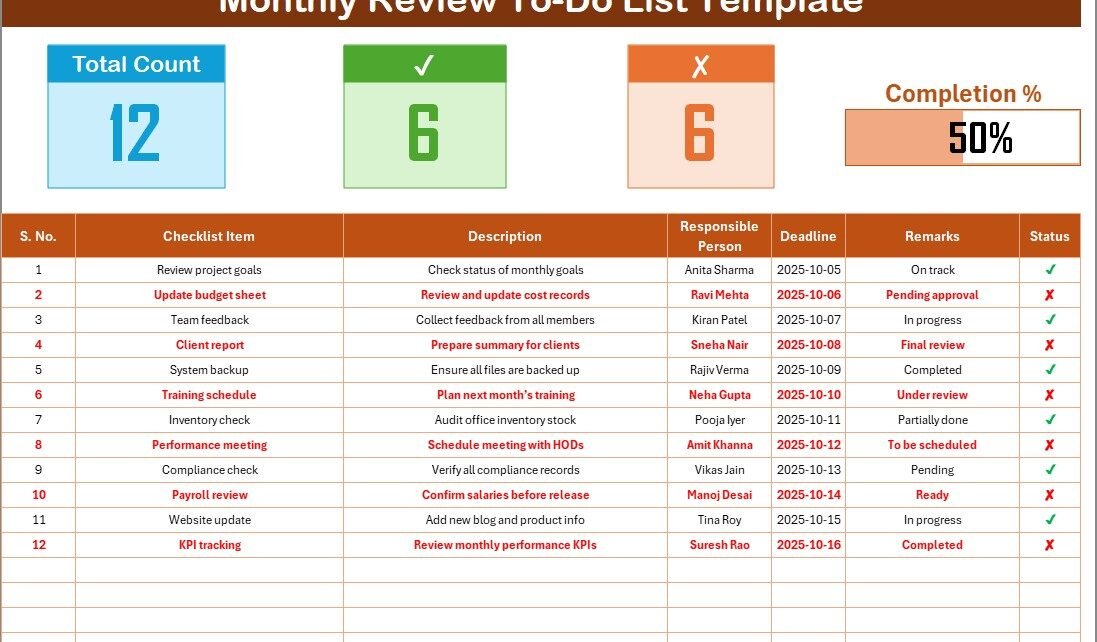
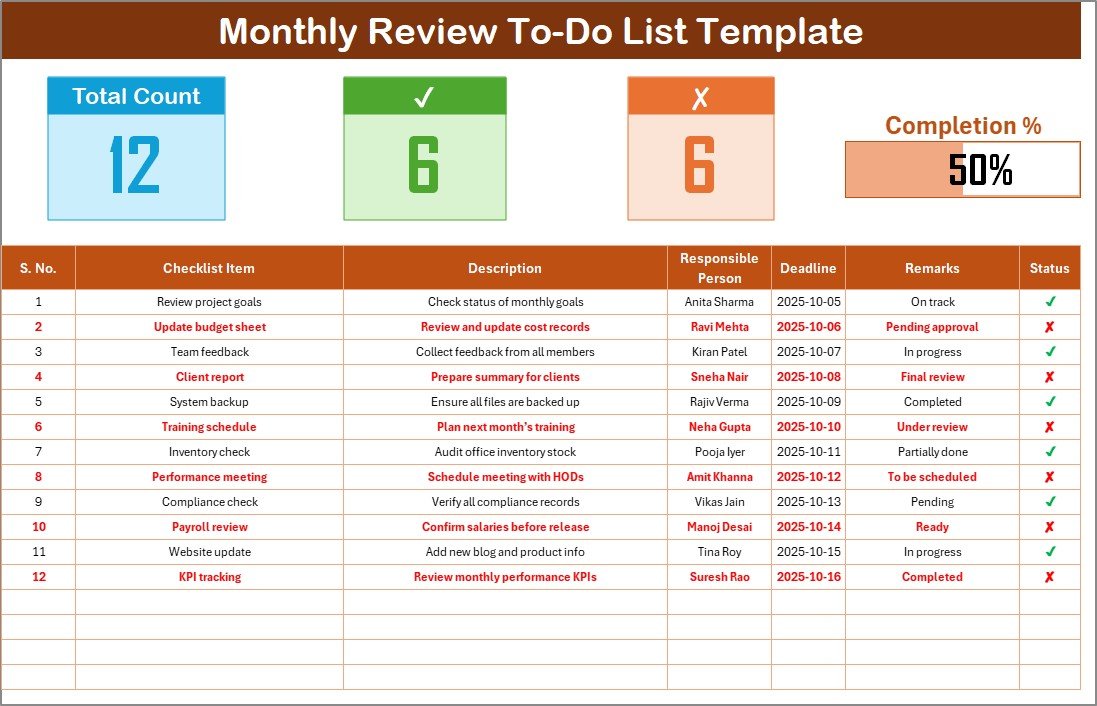
This is the main working sheet of the template. It allows users to input and track all checklist items.
Click to buy Monthly Review To-Do List Checklist in Excel
Top Section Overview:
At the top of this sheet, you’ll find three summary cards:
- Total Count – Displays the total number of tasks entered in the checklist.
- Completed Count – Shows how many tasks have been marked as completed.
- Pending Count – Highlights tasks that are yet to be completed.
Additionally, there’s a progress bar that visually displays the percentage of tasks completed, helping users gauge their progress instantly.
🔹The status column is the interactive part — when you change the status to ✔, it automatically updates the summary cards and progress bar.
List Sheet Tab
The List Sheet is the secondary worksheet that powers dropdown lists in the main sheet.
It stores a unique list of responsible persons, allowing for clean and consistent data entry. When assigning a task, you can easily select the name from the dropdown menu instead of typing it manually — reducing spelling errors and improving consistency.
This sheet also makes it easier to manage teams or departments where multiple people share responsibilities.

Click to buy Monthly Review To-Do List Checklist in Excel
How to Use the Monthly Review To-Do List Template
Follow these simple steps to make the most of this Excel-based productivity tool:
- Open the Template – Download and open the file in Microsoft Excel or Google Sheets.
- Enter Team Members – Go to the “List” sheet and add the names of people responsible for different tasks.
- Add Monthly Tasks – On the main sheet, list all the tasks for the month under “Checklist Item” and “Description.”
- Assign Responsibilities – Select the responsible person from the dropdown.
- Set Deadlines – Enter deadlines to ensure timely completion.
- Update Progress – As work progresses, update the “Status” column with ✔ (Completed) or ✘ (Pending).
- Review Progress – Use the top section’s progress bar and counts to quickly see overall task completion.
By the end of the month, you’ll have a complete visual summary of what was achieved and what needs attention.
Key Features of the Monthly Review To-Do List in Excel
This Excel-based template comes loaded with features that make monthly planning effortless:
- Month-wise Review – Focuses on one month at a time for better clarity.
- Visual Progress Bar – Displays task completion percentage automatically.
- Responsibility Tracker – Assigns and tracks accountability across team members.
- Deadline Management – Keeps tasks aligned with specific dates.
- Customizable Design – Add or remove columns as per organizational needs.
- Automatic Calculations – Updates total, completed, and pending counts in real time.
- Simple Data Entry – Uses dropdowns and symbols (✔ or ✘) for easy updates.
- Compatible with Excel and Google Sheets – Use it anywhere, on any device.
Why You Should Use a Monthly Review To-Do List in Excel
Here’s why professionals, managers, and teams prefer this Excel checklist over other tools:
- Clarity: Keeps all tasks and deadlines organized in one file.
- Accountability: Assigns clear responsibility to individuals.
- Productivity: Reduces confusion and overlapping of tasks.
- Tracking: Makes it easy to monitor progress throughout the month.
- Transparency: Offers a shared view for team collaboration.
- Efficiency: Saves time compared to manual reviews or scattered notes.
How the Dashboard Works Behind the Scenes
The dashboard logic is based on Excel formulas and conditional formatting.
- The Total Count formula counts all rows with task entries.
- The Completed Count formula counts all rows marked with ✔.
- The Pending Count formula calculates tasks without ✔ marks.
- The Progress Bar uses a simple percentage formula that divides completed tasks by total tasks, displayed visually through conditional formatting.
Advantages of Monthly Review To-Do List in Excel
Using a Monthly Review To-Do List offers several key advantages:
Organizational Clarity
You can visualize all your tasks for the month in one clean view, avoiding the chaos of multiple notes or untracked commitments.
Accountability and Ownership
By assigning responsible persons, you foster individual accountability and make it easier to follow up.
Measurable Progress
The automated progress bar gives you measurable insights into your task completion ratio — perfect for performance reviews.
Time Management
Deadlines keep you on track, ensuring important items are completed without delay.
Easy Collaboration
This sheet can be shared via Excel Online or Google Sheets, allowing multiple users to view or update simultaneously.
Historical Record
You can duplicate the template each month and maintain a log of progress over time — a valuable record for future reference.
Best Practices for Creating and Maintaining the To-Do List
To make your checklist more effective, follow these best practices:
- Keep Task Names Short: Use concise titles that are easy to scan.
- Assign Clear Owners: Avoid “multiple responsibility” confusion — one person per task works best.
- Set Realistic Deadlines: Give achievable timeframes to maintain consistency.
- Update Status Regularly: Mark ✔ or ✘ daily to avoid end-of-month backlog.
- Review Weekly: Don’t wait for the end of the month — schedule weekly reviews.
- Add Notes: Use the “Remarks” section to capture progress updates or challenges.
- Save Versions: Keep a copy of each month’s sheet to track long-term performance.
- Use Conditional Formatting: Highlight overdue or pending tasks in color for better visibility.
Opportunities for Improvement
While the current template is powerful, there’s always room for growth. Here are a few ideas for enhancement:
- Add Priority Levels: Include “High,” “Medium,” or “Low” columns to rank task importance.
- Integrate Progress % Column: Instead of ✔ or ✘, add percentage completion.
- Automated Email Alerts (VBA): Use macros to send reminders before deadlines.
- Add Monthly Summary Charts: Visualize performance trends across months.
- Team-Level Reporting: Create pivot tables to summarize by team or department.
- Outlook Calendar: Sync task deadlines with reminders.
- Power BI: Visualize performance trends month-over-month.
- Google Sheets: Collaborate online in real time.
- SharePoint or OneDrive: Centralize storage and access for teams.
Conclusion
A Monthly Review To-Do List in Excel is more than just a spreadsheet — it’s a productivity companion that helps you stay focused, accountable, and result-driven.
With automated counts, visual indicators, and an easy-to-use structure, this template empowers professionals to review progress effectively at the end of every month.
By following best practices and adopting this template, you can transform routine task reviews into actionable insights — ensuring continuous improvement month after month.
Frequently Asked Questions (FAQs)
- What is a Monthly Review To-Do List in Excel?
It’s an Excel-based tool used to plan, assign, and track tasks within a month. It helps measure performance and ensures accountability.
- How can I track task progress automatically?
Use ✔ for completed tasks. The template’s formulas automatically update the completed count and progress bar.
- Can I use this template in Google Sheets?
Yes. It’s fully compatible with Google Sheets and works with all built-in formulas and dropdowns.
- How can I customize this To-Do List?
You can add more columns such as “Priority,” “Category,” or “Completion %,” depending on your needs.
- Is this suitable for teams?
Absolutely! Multiple team members can collaborate in Excel Online or Google Sheets using shared access.
- What makes this better than a manual checklist?
It provides automation, visual progress tracking, accountability, and easy sharing — making it more efficient and accurate.
- Can I track multiple months?
Yes. Simply copy the main sheet and rename it for each month, maintaining one file per year for reference.
- Does it require Excel macros?
No macros are needed. The template works entirely on formulas and conditional formatting.
- Can I link this sheet to dashboards?
Yes. You can link it with summary dashboards in Excel or Power BI for higher-level visualization.
- Where can I download this template?
You can get the ready-to-use version from NextGenTemplates.com or PK-AnExcelExpert.com under the productivity tools category.
Visit our YouTube channel to learn step-by-step video tutorials
Watch the step-by-step video tutorial:
Click to buy Monthly Review To-Do List Checklist in Excel