In today’s unpredictable business environment, risk management plays a vital role in protecting organizations from potential losses, compliance failures, and operational disruptions. Whether you run a manufacturing plant, a construction firm, or a tech startup, risks exist everywhere — financial, operational, reputational, and strategic.
That’s where the Risk Management Audit Checklist in Excel becomes an essential tool. This easy-to-use, structured template helps teams systematically track, evaluate, and monitor risk-related tasks. It simplifies your internal audit process, ensures accountability, and gives management a clear view of organizational readiness.
This article explores everything you need to know about using a Risk Management Audit Checklist in Excel — from its structure and benefits to best practices, examples, and frequently asked questions.
Click to buy Risk Management Audit Checklist in Excel
What Is a Risk Management Audit Checklist in Excel?
A Risk Management Audit Checklist in Excel is a ready-to-use tool designed to help organizations assess and monitor risk control processes. It ensures that all critical risk-related areas — such as compliance, operations, data security, financials, and governance — are reviewed systematically.
The Excel template acts as a centralized dashboard for audit tracking. Users can list audit items, assign responsibilities, set deadlines, and track completion with clear visual indicators like ✔ (completed) and ✘ (pending). The built-in progress bar updates automatically, helping teams measure overall completion in real time.
Key Features of the Risk Management Audit Checklist Template
This professional Excel template includes two structured worksheets designed for both functionality and clarity.
Risk Management Audit Checklist Sheet
This is the main interface of the template where you record all audit activities. It is designed to make risk audits more organized and transparent.
Top Section Highlights
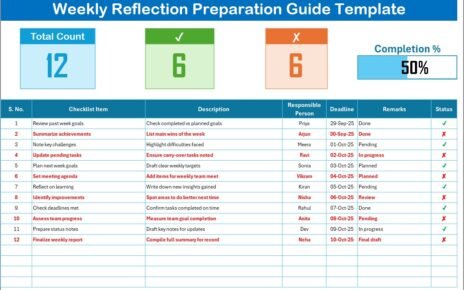
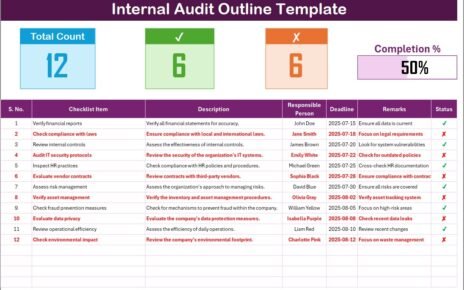
The top area displays three interactive cards:
- Total Count – Total number of checklist items created.
- Completed Count – Number of audit tasks marked as completed (✔).
- Pending Count – Number of items still pending (✘).
- Progress Bar – A visual tracker that shows completion percentage in real time.
These quick insights help auditors instantly assess progress without manually counting each task.

Click to buy Risk Management Audit Checklist in Excel
List Sheet Tab
The List Sheet stores a unique list of all Responsible Persons involved in the audit. This ensures consistency and helps create a drop-down list in the main sheet, reducing manual entry errors.
For instance, if multiple departments — Finance, Operations, HR, or IT — are part of the audit, this list keeps all names standardized.

Click to buy Risk Management Audit Checklist in Excel
Why Use Excel for Risk Management Audits?
You might wonder why Excel remains such a popular tool for managing risk audit checklists, especially when modern software options exist. The answer lies in flexibility, control, and customization.
Here are the top reasons professionals choose Excel:
- Familiar Interface: Most professionals already know Excel, so no training is needed.
- High Customizability: You can easily add columns, formulas, and conditional formatting to fit your organization’s workflow.
- Real-Time Visualization: With formulas and data bars, you can track progress automatically.
- Cost-Effective: No need to purchase expensive audit management software.
- Integration: Excel files integrate easily with Power BI, Google Sheets, or SharePoint for broader data analysis.
How to Use the Risk Management Audit Checklist in Excel
Here’s a step-by-step guide to make the most of this template:
Step 1 – Define Your Audit Scope
Before adding data, identify which departments, processes, or risk categories you will cover. For example:
- Financial Risks
- Compliance Risks
- Operational Risks
- IT & Cybersecurity Risks
- Strategic Risks
Step 2 – List All Audit Items
In the Checklist Table, record every audit task that needs review. For example:
- Verify compliance with internal policies
- Check vendor risk evaluation reports
- Review data backup systems
- Inspect fire safety and emergency response plans
Step 3 – Assign Responsibility
Use the drop-down list to assign each task to a responsible person. This creates accountability and ensures tasks do not overlap.
Step 4 – Set Deadlines
Enter realistic deadlines for each audit item. You can also use Excel’s conditional formatting to highlight overdue tasks automatically.
Step 5 – Update Status Regularly
Mark ✔ when an item is complete or ✘ if it is pending. The dashboard will instantly update the total completed percentage.
Step 6 – Analyze Progress
Monitor the progress bar and summary cards at the top. These visual indicators help audit managers track how much of the audit is done and where attention is needed.
Advantages of the Risk Management Audit Checklist in Excel
Using this checklist offers several operational and strategic benefits. Let’s explore the top advantages.
- Improved Visibility
The dashboard view helps managers quickly see what’s completed, pending, and overdue. No need to browse multiple reports — it’s all visible in one place.
- Streamlined Communication
Each task includes a “Responsible Person” field. This ensures that everyone knows their role and reduces confusion during audits.
- Enhanced Accountability
By assigning ownership, every team member stays aware of their responsibilities. This minimizes missed tasks and improves follow-through.
- Data-Driven Decision Making
Excel formulas calculate completion percentages and highlight performance gaps. These insights support informed decision-making during management reviews.
- Saves Time and Effort
Automation through Excel formulas reduces manual counting and reporting. The progress bar updates instantly, saving valuable time during audit cycles.
- Scalable and Flexible
You can easily expand the checklist by adding more items or departments without changing the template’s structure.
Best Practices for Using the Risk Management Audit Checklist
To get maximum results from your checklist, follow these best practices.
- Keep the Checklist Updated
Regularly update the checklist after every audit session. Outdated information can mislead decision-makers and affect risk assessments.
- Standardize Audit Criteria
Use uniform evaluation parameters — such as scoring systems or Yes/No criteria — across all departments for consistency.
- Schedule Regular Reviews
Conduct periodic reviews (monthly or quarterly) to monitor progress and identify recurring risks.
- Integrate with Power BI or Excel Dashboards
If possible, connect your audit checklist data with Power BI to visualize performance trends, patterns, and risk severity over time.
- Add Conditional Formatting
Use Excel’s conditional formatting to automatically color-code pending or overdue items. This makes the checklist more intuitive.
- Include Audit Evidence
In the remarks column, link to evidence files (like PDFs or screenshots) for better documentation and transparency.
How This Template Supports Decision-Making
The Risk Management Audit Checklist in Excel provides powerful insights that help leaders make smarter decisions.
- Risk Prioritization
You can sort items by department, responsible person, or deadline to identify high-risk areas needing immediate action.
- Performance Measurement
By tracking completion rates and delays, management can assess team efficiency and process bottlenecks.
- Compliance Assurance
This checklist ensures that all internal controls, regulations, and risk mitigation steps are well-documented and traceable.
- Continuous Improvement
Regular analysis of audit findings encourages proactive improvements in internal policies and operational controls.
Conclusion
The Risk Management Audit Checklist in Excel is more than just a spreadsheet — it’s a practical management tool that brings structure, transparency, and accountability to your risk review process.
With its simple layout, built-in metrics, and progress tracking, this template helps you stay proactive instead of reactive. It enables consistent documentation, improves audit quality, and ensures that your organization always meets compliance standards with ease.
When you implement this Excel-based checklist, you create a culture of responsibility and continuous improvement, ultimately strengthening your organization’s resilience.
Frequently Asked Questions (FAQs)
- What is the purpose of a Risk Management Audit Checklist?
It helps organizations systematically review and monitor all critical risk areas to ensure compliance, safety, and operational efficiency.
- How does the Excel checklist improve auditing?
It automates calculations, provides visual progress tracking, and allows easy data entry through drop-down lists and formula-based dashboards.
- Can I customize the checklist?
Yes! You can add new columns, departments, or KPIs, and even integrate it with Power BI for visual reporting.
- How often should I update the checklist?
You should update it regularly — ideally after every audit session or monthly review — to maintain accurate records.
- Who should use this checklist?
Risk managers, compliance officers, internal auditors, consultants, and department heads across industries can use this tool effectively.
- Is this checklist suitable for all business types?
Absolutely. It fits any organization that needs structured, transparent risk management — from startups to large enterprises.
Visit our YouTube channel to learn step-by-step video tutorials
Watch the step-by-step video tutorial:
Click to buy Risk Management Audit Checklist in Excel