Risk management sits at the heart of every successful organization. It protects your goals, reduces uncertainty, and creates long-term stability. However, many teams still struggle with tracking risks in a structured way. They often use scattered notes, manual checklists, or outdated documents. Because of this, they miss important deadlines and fail to take timely action.
A Risk Management Evaluation Checklist in Excel solves all these problems. It offers a simple, clean, and ready-to-use framework that helps teams identify risks, assign responsibilities, and monitor progress with full clarity. You capture everything in a structured table, track the completion status using checkmarks, and manage tasks with the help of visual progress indicators.
In this article, you will learn everything about this Excel checklist. You will see its features, benefits, structure, best practices, and examples. You will also learn how to use this checklist to create a strong and reliable risk management process in your organization.
Click to buy Risk Management Evaluation Checklist in Excel
What Is a Risk Management Evaluation Checklist in Excel?
A Risk Management Evaluation Checklist in Excel is a simple tool that helps teams track risk-related activities. It offers a step-by-step list of tasks that you need to check, verify, or complete during the risk evaluation process. The checklist also includes responsible persons, deadlines, remarks, and status indicators.
Because of Excel’s flexibility, you can record, update, and review checklist items in real time. You also get clear visuals such as a progress bar, total count, completed count, and pending count. These visuals keep your team informed and help you act quickly.
Why Do Organizations Use a Risk Management Evaluation Checklist?
Organizations use this checklist because it ensures consistency. Every team follows the same process and checks the same items. This creates discipline and helps the organization avoid repeated mistakes.
Moreover, Excel makes this process simple because:
- It works for small and large teams
- It does not require coding
- It offers filters, drop-downs, and conditional formatting
- It allows full customization
- It is easy to update, review, and share
Therefore, teams in finance, operations, manufacturing, IT, HR, healthcare, construction, and many other industries use this checklist to evaluate risks with accuracy.
Key Features of the Risk Management Evaluation Checklist in Excel
This template comes with two worksheets:
Main Checklist Sheet
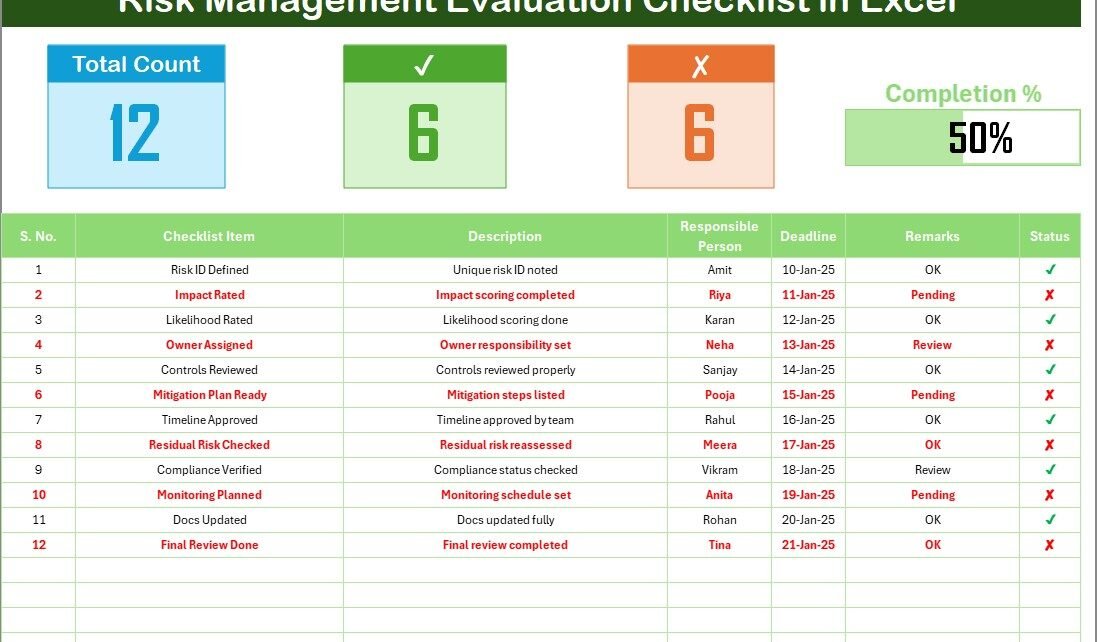
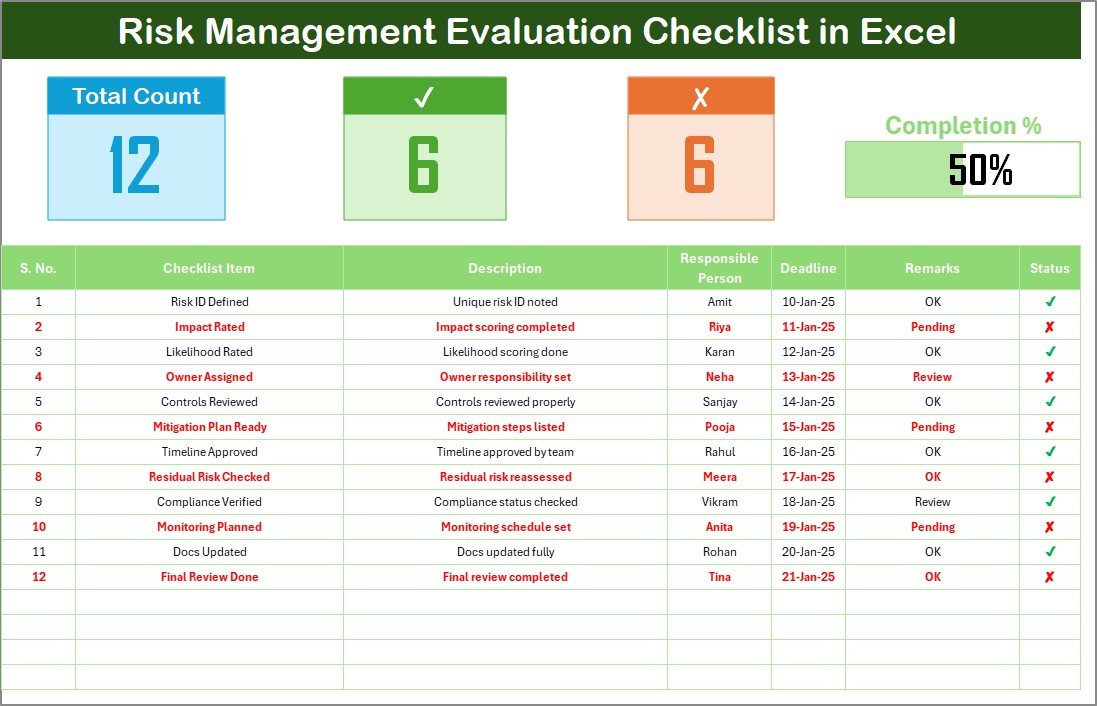
This is the core of your template, where you enter all the checklist data. It includes the following sections:
Top Section
The top area displays the overall progress of your checklist:
- Total Count
- Completed Count
- Pending Count
- Progress Bar for Checked %
These elements help you check the overall risk evaluation progress in seconds. As you update the checklist status, these numbers change automatically.
Checklist Table
The center of this worksheet contains the detailed checklist table. You record each item here and manage your full risk evaluation process.
Click to buy Risk Management Evaluation Checklist in Excel
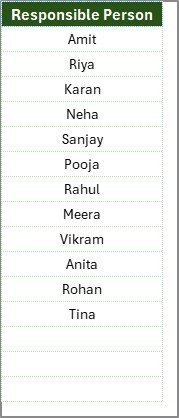
List Sheet Tab
This sheet stores the unique list of responsible persons. Excel uses this list to create the drop-down selection in the main checklist table. It ensures consistency and reduces errors that come from typing names manually.
Click to buy Risk Management Evaluation Checklist in Excel
How Does the Risk Management Evaluation Checklist Work?
You follow a simple flow:
- Set up your list of responsible persons
- Create or customize your checklist items
- Assign responsibilities and deadlines
- Enter remarks for important tasks
- Update the status as ✔ or ✘
- Review the progress bar and summary indicators
- Take action on pending items
Because Excel updates everything instantly, your dashboard always reflects the exact progress of your risk evaluation process.
What Should You Include in a Risk Management Evaluation Checklist?
A good risk evaluation checklist includes items that cover the full risk lifecycle. You can customize it based on your industry, but here is a strong baseline:
Risk Identification
- Identify operational risks
- Review financial risks
- Check IT and cybersecurity risks
- Evaluate compliance risks
Risk Assessment
- Assess impact
- Evaluate likelihood
- Prioritize risks
- Assign risk scores
Risk Mitigation Planning
- Create mitigation strategies
- Assign responsible persons
- Set timelines
- Allocate resources
Monitoring & Review
- Track progress
- Update status
- Review upcoming deadlines
- Record remarks
Reporting
- Prepare summary reports
- Highlight critical pending items
- Share updates with the leadership team
When you include all these areas, you create a strong evaluation process that covers every risk category.
Why Should You Use Excel for a Risk Management Checklist?
Excel remains one of the most reliable tools because it is:
- Simple
- Familiar
- Customizable
- Flexible
- Cost-effective
Teams do not need additional software, training, or licenses. Everything works inside Excel, and everyone understands the structure.
Additionally, Excel offers advanced functions such as:
- Conditional formatting
- Data validation
- Graphical elements
- SUM and COUNT formulas
- Dynamic drop-downs
- Progress bars
- Filters and sorting
These features allow you to build a professional and interactive checklist without any external help.
Advantages of the Risk Management Evaluation Checklist in Excel
Using this checklist brings several powerful advantages. Here are the top ones:
- Simple and Easy to Use
You manage everything through a clean Excel table. You update the status using just ✔ or ✘. Anyone can use this, even if they are not Excel experts.
- Helps You Track Risk Progress Clearly
The progress bar, total count, completed count, and pending count help you track your performance in a single glance.
- Assign Responsibilities Easily
You assign each task to a responsible person. This improves accountability and reduces confusion.
- Helps You Meet Deadlines
Because you record due dates in the checklist, you never miss important timelines. It helps teams complete tasks on time.
- Creates a Culture of Transparency
Each team member knows what they need to do, when they need to do it, and how much progress the team has made.
- Offers Full Customization
You can add new columns, modify the checklist items, or change the formatting anytime. Excel gives full freedom.
- Ensures Structured Risk Management
You follow a clear sequence from identification to reporting. This structure helps you reduce errors and improve decision-making.
How to Use the Risk Management Evaluation Checklist Step by Step
Follow these simple steps to use the template:
- Step 1: Open the Main Checklist Sheet
- You will see the top section, progress bar, and table.
- Step 2: Add or Edit Checklist Items
- Enter the checklist items that match your organization’s risk management needs.
- Step 3: Assign Responsible Persons
Use the drop-down list to assign the right team member.
- Step 4: Set Deadlines
- Enter realistic due dates to ensure timely actions.
- Step 5: Enter Remarks
- Add important comments such as delays, dependencies, or required approvals.
- Step 6: Update Status Regularly
Use:
- for completed
- for pending
As you update the status, Excel calculates the total, completed, pending, and progress percentage.
- Step 7: Review Progress and Take Action
- Use the summary cards and progress bar to monitor performance. Highlight pending risks and follow up with the responsible team.
Best Practices for the Risk Management Evaluation Checklist in Excel
Follow these best practices to use the checklist effectively:
Keep the Checklist Up to Date
Update the status daily or weekly. A risk checklist becomes useful only when you maintain it regularly.
Define Clear Responsibilities
Assign one person to each item. This avoids confusion and speeds up the process.
Set Realistic Deadlines
Plan deadlines based on workload and complexity. This ensures smooth execution.
Use Simple and Consistent Status Indicators
Use and consistently. Do not use multiple symbols, because they create errors.
Review Pending Items Frequently
Monitor unresolved tasks and take timely action. This helps you avoid sudden risk escalations.
Keep the Template Clean and Organized
Avoid adding unnecessary columns. Keep formatting simple so the checklist remains easy to read.
Customize Based on Your Industry
Modify checklist items so they match your business needs. Every industry faces different risks, so tailor your checklist accordingly.
Conclusion
A Risk Management Evaluation Checklist in Excel helps every organization improve its risk evaluation process. It provides a simple structure, visual progress indicators, responsible person tracking, and easy-to-use status updates. You can customize it fully, update it quickly, and share it with your team without complexity.
When you use this checklist consistently, you improve your risk identification process, strengthen your internal controls, and reduce uncertainty. Excel gives you a powerful yet simple tool that ensures discipline, transparency, and accuracy.
This checklist template is ideal for small teams, large organizations, project managers, compliance teams, and risk officers who want to manage risks with confidence.
Frequently Asked Questions (FAQs)
- What is a Risk Management Evaluation Checklist?
It is a structured checklist that helps you track risk-related tasks such as identification, assessment, mitigation, and reporting.
- Why should I use Excel for risk evaluation?
Excel is simple, flexible, and easy to customize. Anyone can use it, and it offers features like drop-downs, formulas, and progress bars.
- Can I add more checklist items?
Yes. You can add as many rows as you want. Excel expands the table automatically.
- Can multiple people use this checklist?
Yes. You can share the file with your team, and each person can update their assigned tasks.
- How do I update the progress bar?
You only update the ✔ and ✘ symbols. Excel calculates the percentages and updates the progress bar instantly.
- Can I use this checklist for any industry?
Yes. You can customize the table for manufacturing, IT, HR, finance, healthcare, education, construction, and more.
- Can I convert this checklist into a dashboard?
Yes. You can add charts, slicers, buttons, and pivot tables to create a full dashboard inside Excel.
Visit our YouTube channel to learn step-by-step video tutorials
Click to buy Risk Management Evaluation Checklist in Excel