In today’s fast-moving business environment, risk management has become one of the most critical components of organizational success. Companies, regardless of their size or industry, face numerous uncertainties — from operational disruptions and regulatory changes to financial losses and compliance issues.
To stay resilient, organizations must proactively identify, assess, and mitigate potential risks before they escalate into major problems. One of the most practical and efficient ways to manage this process is through a Risk Management Schedule Checklist in Excel — a structured and easy-to-use tool that ensures nothing gets overlooked.
This article explores everything you need to know about creating, using, and maintaining a Risk Management Schedule Checklist in Excel, including its key features, benefits, best practices, and FAQs.
Click to buy Risk Management Schedule Checklist in Excel
What Is a Risk Management Schedule Checklist in Excel?
A Risk Management Schedule Checklist in Excel is a simple yet powerful template designed to help businesses systematically track, evaluate, and control potential risks. It allows managers, team leads, and auditors to ensure that every risk mitigation step is properly planned, assigned, monitored, and completed on time.
Unlike complex risk management systems or expensive software, this Excel-based checklist provides a cost-effective and flexible solution that can be tailored to any organization or project.
You can use this template to:
- Plan and schedule risk management activities
- Assign responsibilities and set deadlines
- Track progress with visual indicators
- Maintain documentation for audits and compliance
This structured approach ensures that risk management becomes a routine practice rather than a reactive response.
Structure of the Risk Management Schedule Checklist Template
The Risk Management Schedule Checklist in Excel template consists of two main worksheets, each serving a distinct purpose to make tracking and analysis seamless.
Main Sheet – Risk Management Checklist
This is the core sheet where you capture all the details of your risk management tasks.
Top Section
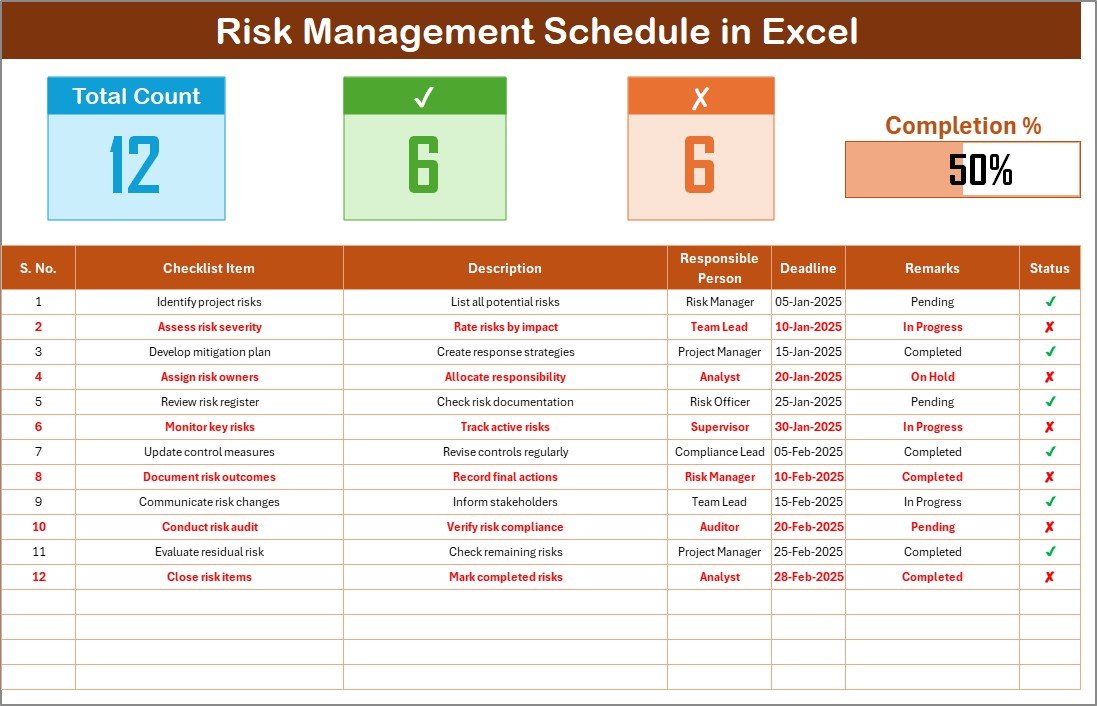
At the top of the sheet, there are three smart cards that summarize the overall status of your checklist:
- Total Count – Displays the total number of checklist items.
- Completed Count – Shows how many items are marked as done.
- Pending Count – Highlights the number of tasks yet to be completed.
- Progress Bar – Automatically calculates the percentage of completion and visually represents the progress using a dynamic bar.
These cards give you instant visibility into your team’s risk management performance at a glance.
Click to buy Risk Management Schedule Checklist in Excel
List Sheet – Drop-Down Control
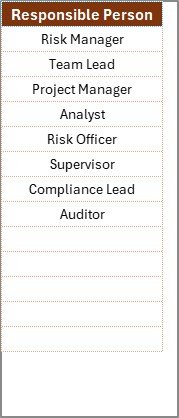
The second worksheet in the template is the List Sheet, which holds a list of unique names under “Responsible Person.”
This feature ensures:
- Consistency when assigning responsibilities
- Dynamic drop-down menus in the main table
- Error-free data entry and cleaner reporting
By maintaining this list, users can quickly assign or reassign tasks without typing names repeatedly, reducing manual errors and keeping the data uniform.
Click to buy Risk Management Schedule Checklist in Excel
How to Use the Risk Management Schedule Checklist in Excel
Implementing this checklist in your daily operations is extremely straightforward. Follow these simple steps:
- Step 1: Download and Open the Template
- After downloading the ready-to-use Excel file, open it on your system.
You’ll see two worksheets — the Main Checklist Sheet and the List Sheet. - Step 2: Customize the Responsible Person List
- Go to the List Sheet and update the list of team members, departments, or stakeholders responsible for risk management activities.
- Step 3: Fill in Checklist Details
On the Main Sheet, enter details in the following columns:
- Serial No. – Start numbering from 1.
- Checklist Item – Define each risk management task.
- Description – Add brief information about what needs to be done.
- Responsible Person – Choose from the drop-down list.
- Deadline – Enter the completion date.
- Remarks – Add any necessary comments.
- Step 4: Track Task Completion
- Change the Status column for each task using ✔ for completed or ✘ for pending.
The top cards and progress bar will automatically update to reflect the real-time status. - Step 5: Review and Analyze
- Use the visual summary (cards and progress bar) to monitor the completion rate, identify delays, and ensure that risk-related tasks are completed on time.
Why Use Excel for Risk Management Scheduling?
Excel remains one of the most versatile tools for business management. Using it for risk management offers several advantages:
- Ease of use – No coding or special training required.
- Full customization – Add or modify columns, formulas, or visuals as per your organization’s needs.
- Data visualization – Create charts, graphs, and dashboards to track performance.
- Automation – Leverage Excel formulas for automatic calculations.
- Accessibility – Compatible with both desktop and cloud versions like Google Sheets or OneDrive Excel Online.
With these benefits, Excel serves as a smart starting point for implementing structured risk management without investing in expensive software.
Key Features of the Risk Management Schedule Checklist Template
Here are the standout features that make this Excel template both powerful and practical:
Interactive Dashboard Elements
The top section’s dynamic cards and progress bar give you a quick snapshot of how many items are pending, completed, or overdue.
Automated Status Calculation
Each status update automatically refreshes the progress percentage and completion count — eliminating the need for manual tracking.
Drop-Down Lists for Responsible Person
The dedicated List Sheet ensures consistent data entry and easy team management.
Fully Editable Layout
You can add or remove columns, change formatting, or include conditional formatting to highlight overdue tasks.
Simple & Printable Format
Easily print the checklist or export it to PDF for meetings, audits, or reports.
Practical Applications of the Risk Management Schedule Checklist
This Excel-based checklist can be used across industries and departments to monitor different types of risks and compliance tasks:
- Corporate Governance – Track internal audits and compliance updates.
- Project Management – Identify and mitigate potential delays or cost overruns.
- Finance Departments – Monitor fraud prevention and budget control activities.
- IT & Cybersecurity – Manage vulnerability assessments and system updates.
- Healthcare or Manufacturing – Ensure safety standards and regulatory compliance.
- HR & Administration – Evaluate employee safety, welfare, and policy adherence.
By using the same structured template, every department can ensure that risk management activities remain aligned and traceable.
Advantages of Using a Risk Management Schedule Checklist in Excel
A well-structured checklist offers a variety of operational, strategic, and managerial benefits. Here are the most important ones:
- Enhanced Visibility
The checklist gives teams a clear overview of all risk activities, deadlines, and responsibilities, ensuring transparency across departments.
- Improved Accountability
Since each task has a designated “Responsible Person,” it’s easy to track ownership and ensure timely completion.
- Streamlined Auditing
The Excel format makes it simple to store, print, or share reports during audits or compliance inspections.
- Real-Time Monitoring
Automatic progress tracking helps managers spot delays and take corrective action before risks escalate.
- Centralized Information
All data is stored in one location, eliminating the chaos of scattered files or multiple reports.
- Cost-Effective Tool
Unlike costly risk management software, Excel is free, flexible, and universally accessible.
How to Customize the Checklist for Your Organization
Every business faces different types of risks, so customization is key.
You can easily modify the checklist to align with your internal processes:
- Add new columns such as Risk Category, Impact Level, or Mitigation Plan.
- Use conditional formatting to highlight overdue tasks.
- Create pivot charts for department-wise risk tracking.
- Integrate with Power BI for advanced data visualization.
- Set up formulas to calculate completion percentages automatically.
This flexibility makes the Risk Management Schedule Checklist in Excel suitable for both small startups and large enterprises.
Best Practices for Maintaining the Risk Management Schedule Checklist
To ensure maximum efficiency and accuracy, follow these best practices when using your Excel checklist:
- Regular Updates
Update the checklist daily or weekly to maintain accuracy and reflect real-time progress.
- Clear Ownership
Assign every task to a responsible person or department to prevent confusion or overlap.
- Set Realistic Deadlines
Establish achievable timelines for every activity to promote accountability and prevent delays.
- Use Visual Indicators
Incorporate colors (e.g., green for completed, red for pending) or emojis to make tracking easier.
- Review Periodically
Conduct monthly reviews to identify recurring risks and refine mitigation plans.
- Backup Your Data
Always store a backup copy on cloud platforms like OneDrive or Google Drive to prevent data loss.
- Train Your Team
Ensure all team members understand how to update and use the checklist properly.
- Link to Other Systems
If your organization uses project management tools, link the Excel checklist to maintain synchronized reporting.
By following these best practices, you can keep your risk management system proactive, transparent, and dependable.
How This Checklist Supports Decision-Making
The Risk Management Schedule Checklist in Excel is not just a task list — it’s a decision-support tool.
By analyzing data over time, organizations can:
- Identify bottlenecks in their risk control process.
- Track performance by department or individual.
- Forecast risks and allocate resources more effectively.
- Ensure compliance readiness during audits.
This data-driven approach empowers leadership to make informed, evidence-based decisions.
Conclusion
A Risk Management Schedule Checklist in Excel is more than a spreadsheet — it’s a comprehensive framework for building a culture of accountability, transparency, and continuous improvement.
By organizing all risk activities in one structured format, assigning responsibilities, and tracking progress visually, organizations can reduce uncertainty and enhance operational resilience.
Whether you’re a small business owner or a corporate risk manager, adopting this Excel-based solution can transform your risk management from a reactive task into a proactive strategy.
Frequently Asked Questions (FAQs)
- What is a Risk Management Schedule Checklist in Excel used for?
It helps track, assign, and monitor all risk-related activities within an organization. It ensures that no task is missed and every action is documented.
- Who should use this checklist?
Risk officers, auditors, project managers, and department heads can use it to oversee and manage risk control processes efficiently.
- Can I customize the checklist for my industry?
Yes, the Excel template is fully editable. You can add or remove columns, modify the structure, and adapt it for your industry-specific needs.
- How does the progress bar work?
The progress bar automatically calculates the percentage of completed tasks based on the ✔ and ✘ status markers in the checklist.
- Is Excel better than dedicated risk management software?
For small to mid-sized organizations, Excel provides a flexible, affordable, and user-friendly option. Large enterprises may integrate it with BI tools for advanced analytics.
- Can I share this checklist with my team?
Yes, you can share it via email, OneDrive, or Google Sheets for collaborative access and real-time updates.
- How often should I update the checklist?
It’s recommended to update it daily or weekly, depending on the frequency of your risk management activities.
- Is this checklist suitable for audit documentation?
Absolutely. It can serve as a reliable audit trail showing the status and evidence of risk management actions.
Visit our YouTube channel to learn step-by-step video tutorials
Watch the step-by-step video tutorial:
Click to buy Risk Management Schedule Checklist in Excel