Managing treasury operations without clear visibility often creates uncertainty, delays, and financial risk. Therefore, organizations increasingly rely on structured dashboards to monitor cash flow, liquidity, debt, and investment performance. That is exactly where a Treasury Management KPI Dashboard in Excel becomes a powerful, practical, and cost-effective solution.
In this detailed article, you will learn what a Treasury Management KPI Dashboard in Excel is, why it is essential, how it works, its key features, advantages, best practices, and frequently asked questions. Moreover, this article uses simple language, clear explanations, and real-world logic so that finance teams, treasury managers, and business leaders can easily understand and implement it.
Click to buy Treasury Management KPI Dashboard in Excel
What Is a Treasury Management KPI Dashboard in Excel?
A Treasury Management KPI Dashboard in Excel is a centralized reporting and monitoring tool that tracks key treasury-related performance indicators in a single interactive Excel file. Instead of managing scattered spreadsheets, emails, and manual reports, this dashboard brings all critical treasury KPIs together in one structured view.
Moreover, the dashboard helps organizations track:
- Cash position and liquidity
- Debt and interest exposure
- Forecast accuracy
- Target vs Actual performance
- Month-to-Date (MTD) and Year-to-Date (YTD) trends
- Current year vs previous year performance
As a result, treasury teams gain faster insights and stronger control over financial decisions.
Why Is Treasury KPI Tracking Important for Organizations?
Treasury functions play a direct role in business stability and growth. Therefore, tracking treasury KPIs regularly becomes essential.
Here is why treasury KPI tracking matters:
- It improves cash flow visibility
- It supports liquidity planning
- It reduces financial risk
- It improves forecast accuracy
- It strengthens decision-making speed
Without structured KPI tracking, treasury teams often react late. However, with a Treasury Management KPI Dashboard in Excel, teams act proactively instead of reactively.
How Does the Treasury Management KPI Dashboard in Excel Work?
The Treasury Management KPI Dashboard in Excel works on a simple but powerful logic. First, users enter data into structured input sheets. Then, Excel formulas, pivot logic, and conditional formatting transform that data into meaningful insights.
As a result, users see:
- Current performance
- Target achievement
- Variance analysis
- Trend movement
- Alerts through visual indicators
Moreover, since the dashboard runs in Excel, teams do not need expensive treasury software or complex IT support.
What Are the Key Worksheets in the Treasury Management KPI Dashboard in Excel?
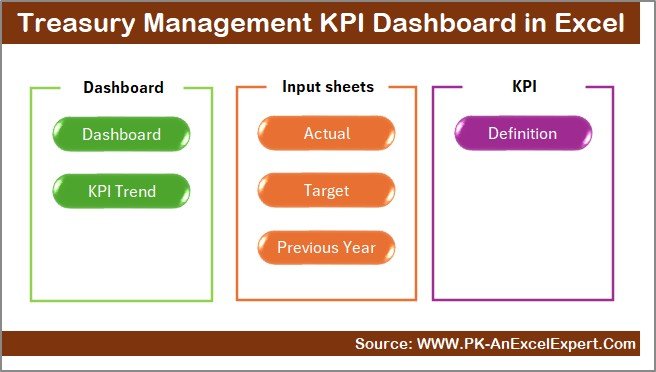
This dashboard includes 7 well-structured worksheets, each designed for a specific purpose. Let us explore them one by one.
the Summary .
The Summary Page works as an index or navigation hub for the entire dashboard.
Key Highlights of the Summary Page:
- Acts as the home page
- Contains 6 navigation buttons
- Allows quick access to all major sheets
- Improves user experience and usability
As a result, users move easily between sheets without scrolling or searching.
Click to buy Treasury Management KPI Dashboard in Excel
Dashboard Sheet .
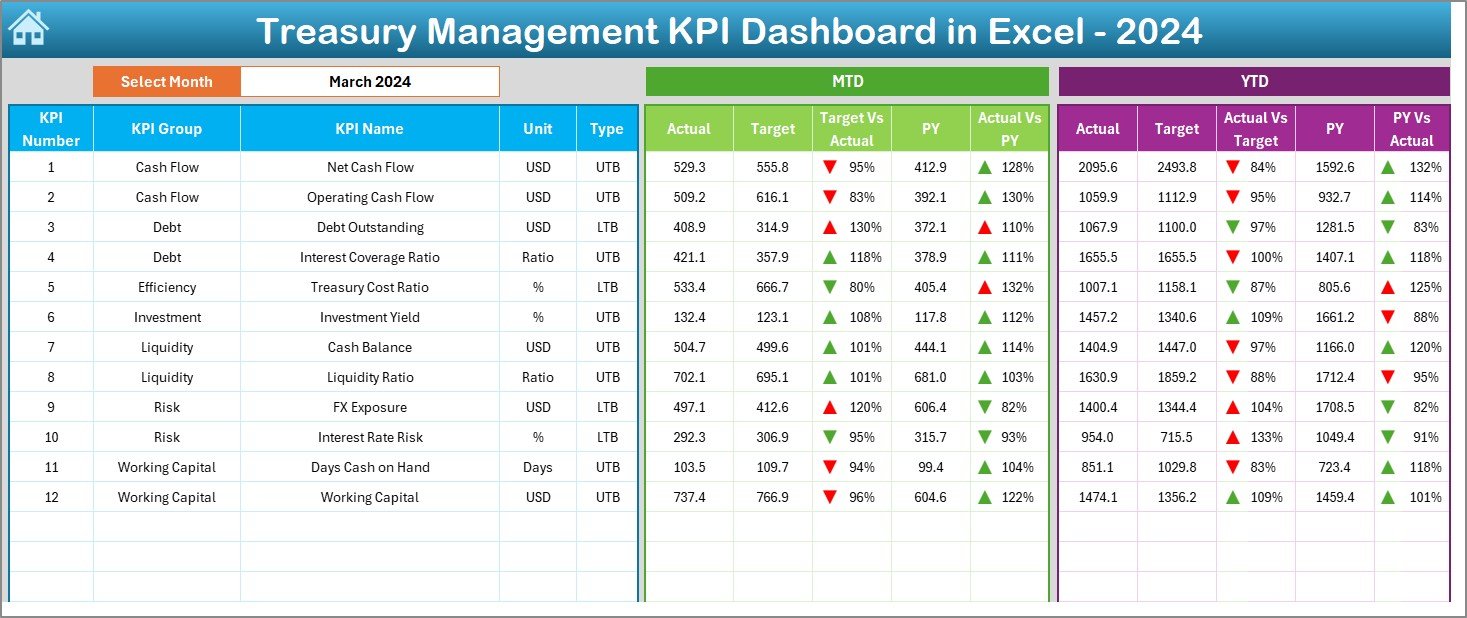
The Dashboard sheet tab is the core of the Treasury Management KPI Dashboard in Excel.
Key Features of the Dashboard Sheet:
- Displays all treasury KPIs in one view
- Includes a Month selector in cell D3
- Automatically updates all numbers when the month changes
- Shows MTD and YTD performance
KPIs Displayed on the Dashboard:
- MTD Actual
- MTD Target
- MTD Previous Year
- Target vs Actual
- Previous Year vs Actual
- YTD Actual
- YTD Target
- YTD Previous Year
Visual Enhancements:
- Conditional formatting
- Up and down arrows
- Quick performance signals
Therefore, decision-makers instantly understand whether performance is improving or declining.
Click to buy Treasury Management KPI Dashboard in Excel
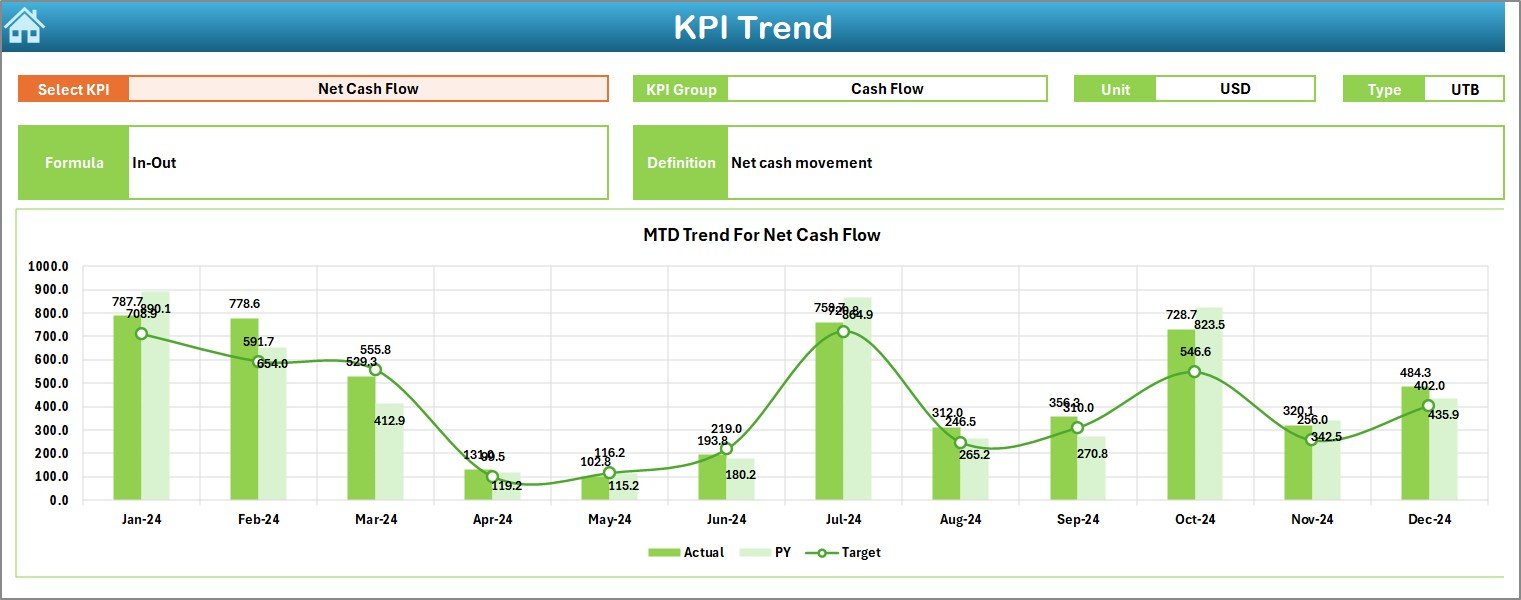
Trend Sheet Tab .
The Trend sheet tab focuses on deep KPI-level analysis.
How the Trend Sheet Works:
- Select a KPI Name from the drop-down in cell C3
- Dashboard automatically displays:
KPI Group
Unit of KPI
Type of KPI (Upper the Better / Lower the Better)
KPI Formula
KPI Definition
Trend Analysis:
- MTD trend chart
- YTD trend chart
- Actual vs Target vs Previous Year
As a result, users identify performance patterns, seasonality, and risks over time.
Click to buy Treasury Management KPI Dashboard in Excel
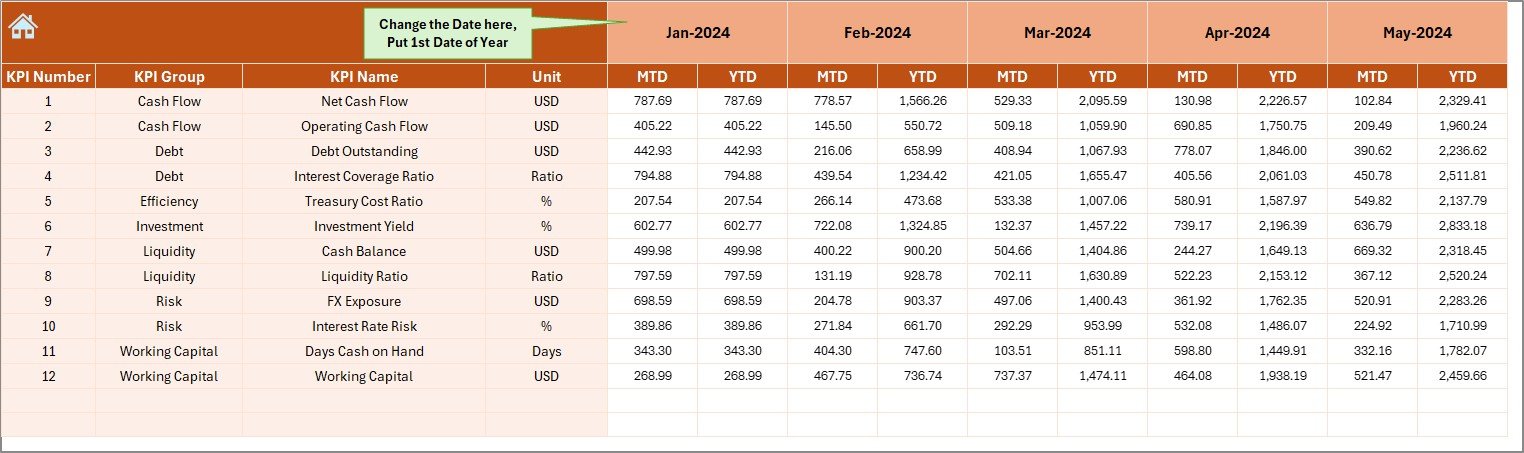
the Actual Numbers
The Actual Numbers Input sheet serves as the primary data entry area.
Key Functions:
- Enter actual values for each KPI
- Track MTD and YTD data
- Change the month dynamically using cell E1
- Input only the first month of the year once
Because of this structure, data entry remains simple, clean, and consistent.
Click to buy Treasury Management KPI Dashboard in Excel
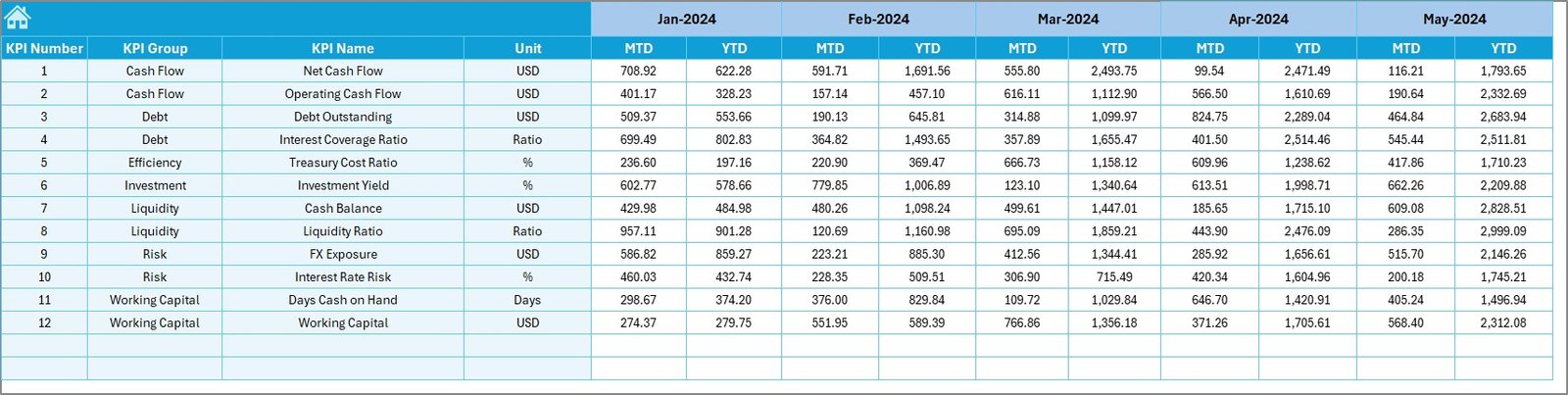
TargetSheet Tab
The Target Sheet tab stores planned performance values.
What You Enter in This Sheet:
- Monthly target values
- MTD targets
- YTD targets
- KPI-wise target allocation
Consequently, the dashboard compares actual performance against defined expectations.
Click to buy Treasury Management KPI Dashboard in Excel
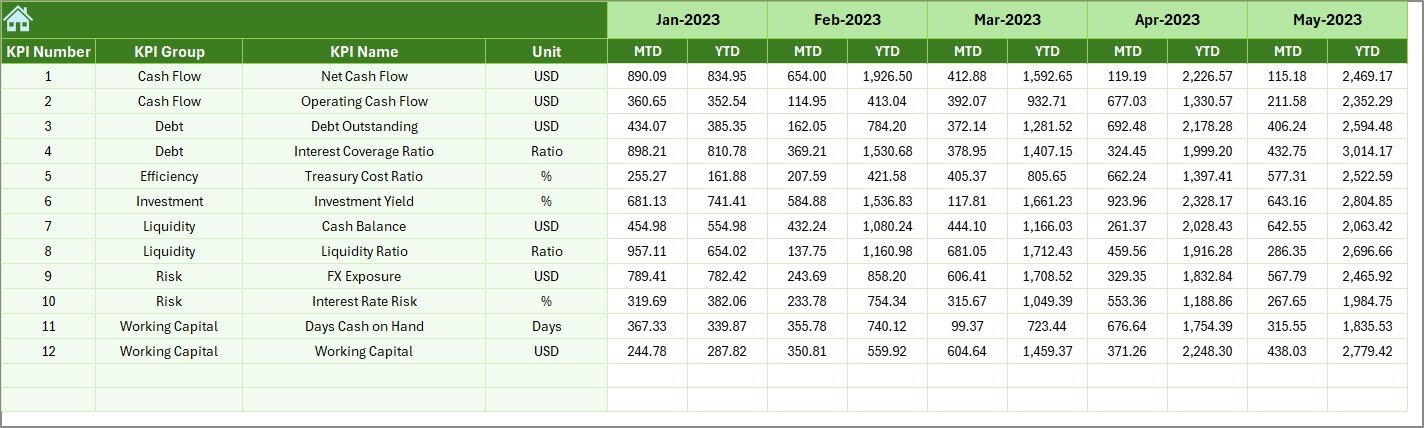
Previous Year
The Previous Year Number sheet tab allows historical comparison.
Why This Sheet Matters:
- Enter previous year data
- Track year-over-year improvement
- Compare growth, decline, and stability
- Improve forecasting accuracy
Therefore, treasury teams gain long-term performance insights.
Click to buy Treasury Management KPI Dashboard in Excel
KPI Definition
The KPI Definition sheet tab acts as the backbone of the dashboard.
Information Captured in This Sheet:
- KPI Name
- KPI Group
- Unit of Measurement
- KPI Formula
- KPI Definition
As a result, everyone understands what each KPI means, how it is calculated, and why it matters.

Click to buy Treasury Management KPI Dashboard in Excel
What KPIs Can Be Tracked Using a Treasury Management KPI Dashboard in Excel?
This dashboard supports multiple treasury-related KPIs, such as:
- Cash Balance
- Liquidity Ratio
- Net Cash Position
- Interest Coverage Ratio
- Debt-to-Equity Ratio
- Forecast Accuracy
- Investment Yield
- Working Capital Days
- FX Exposure Variance
Moreover, users can customize KPIs based on business needs.
Advantages of Treasury Management KPI Dashboard in Excel
Using a Treasury Management KPI Dashboard in Excel offers several benefits.
Key Advantages:
- Centralized treasury monitoring
- Clear MTD and YTD visibility
- Target vs Actual performance tracking
- Previous year comparison
- No expensive software required
- Fully customizable KPIs
- Easy Excel-based implementation
- Faster decision-making
- Reduced financial risk
- Improved transparency
As a result, treasury operations become more controlled and data-driven.
Opportunities for Improvement in Treasury KPI Dashboards
Even strong dashboards can improve further.
Possible Improvements:
- Automation using Power Query
- Integration with ERP systems
- Real-time bank data feeds
- Advanced scenario analysis
- Cash flow forecasting models
- Risk heat maps
Therefore, organizations can scale this dashboard as maturity grows.
Best Practices for the Treasury Management KPI Dashboard in Excel
Following best practices ensures accuracy, reliability, and adoption.
Best Practices:
- Define KPIs clearly in the KPI Definition sheet
- Use consistent units and formulas
- Update actual data regularly
- Review targets quarterly
- Validate previous year data
- Limit manual overrides
- Use conditional formatting wisely
- Keep dashboard layout clean
- Train users on interpretation
- Backup the file regularly
As a result, the dashboard delivers long-term value.
Who Should Use a Treasury Management KPI Dashboard in Excel?
This dashboard suits multiple roles and organizations.
Ideal Users:
- Treasury Managers
- Finance Managers
- CFOs
- Financial Analysts
- Business Controllers
- Mid-sized and large organizations
- Growing startups with treasury needs
Therefore, any organization handling cash and liquidity benefits from this dashboard.
Common Challenges in Treasury KPI Management and How This Dashboard Solves Them
Common Challenges:
- Scattered data
- Manual reporting errors
- Delayed insights
- Poor forecast accuracy
- Lack of KPI clarity
Dashboard Solutions:
- Centralized data structure
- Automated calculations
- Visual performance indicators
- Historical comparisons
- Clear KPI definitions
Consequently, treasury management becomes proactive instead of reactive.
Conclusion: Why You Should Use a Treasury Management KPI Dashboard in Excel
A Treasury Management KPI Dashboard in Excel transforms complex treasury data into actionable insights. It simplifies tracking, improves visibility, strengthens control, and supports smarter financial decisions.
Moreover, because it runs in Excel, teams avoid heavy software costs while still gaining powerful analytical capabilities. When implemented with clear KPIs and best practices, this dashboard becomes an essential treasury management tool.
Frequently Asked Questions (FAQs)
- What is the main purpose of a Treasury Management KPI Dashboard in Excel?
The main purpose is to track treasury performance, monitor cash flow, compare targets vs actuals, and support better financial decisions.
- Can this dashboard handle both MTD and YTD analysis?
Yes, the dashboard supports both Month-to-Date and Year-to-Date analysis for all KPIs.
- Is this dashboard suitable for small businesses?
Yes, small and mid-sized businesses can easily use and customize it based on their treasury needs.
- Can users add new KPIs to the dashboard?
Yes, users can add new KPIs by updating the KPI Definition, Actual, Target, and Previous Year sheets.
- Does the dashboard support previous year comparison?
Yes, it includes a dedicated Previous Year sheet for year-over-year analysis.
- Do users need advanced Excel skills to use it?
No, basic Excel knowledge is sufficient for data entry and dashboard usage.
- Can this dashboard replace treasury software?
While it does not replace enterprise treasury systems, it provides strong control and insights at a much lower cost.
Visit our YouTube channel to learn step-by-step video tutorials
Watch the step-by-step video tutorial:
Click to buy Treasury Management KPI Dashboard in Excel