Managing a finance department becomes easier when the team stays organized, informed, and aligned with daily responsibilities. Finance tasks demand accuracy, timely reporting, and quick decisions. However, many teams still track duties manually, which leads to missed deadlines, confusion, and unnecessary delays. Because of this, a Financial Staff Duty Calendar in Excel becomes a powerful and reliable tool.
This article explains everything you need to know about using a Financial Staff Duty Calendar in Excel. Financial Staff Duty Calendar in Excel You will learn how this calendar works, how it helps teams stay productive, and how you can use its features to streamline financial activities. Since this Excel calendar comes with an annual view, monthly view, daily view, and a complete event database, you can manage all financial duties effortlessly.
Click to buy Financial Staff Duty Calendar in Excel
What Is a Financial Staff Duty Calendar in Excel?
A Financial Staff Duty Calendar in Excel is a ready-to-use scheduling template created to help finance teams plan, track, and manage their daily activities. It organizes duties such as financial reporting, tax filing, invoice follow-ups, reconciliations, audits, budgeting tasks, and team schedules.
Finance leaders use it to assign tasks, monitor workloads, and ensure that every critical deadline stays visible. Team members use it to stay updated about upcoming responsibilities, events, or meetings.
Since this calendar runs in Excel, you can manage everything without learning additional software. You click, select dates, add events, and instantly see all schedules updated.
Why Should You Use a Financial Staff Duty Calendar?
Finance work requires strict timelines. Reports have due dates, payroll runs follow monthly cycles, audit tasks need tracking, and compliance activities require planning. A structured calendar reduces errors and helps the team:
- Work with clarity
- Meet deadlines
- Distribute tasks evenly
- Improve communication
- Reduce last-minute stress
Because the calendar stays in Excel, every team member can use it easily. You can customize it, apply themes, filter schedules, and manage events with simple clicks.
Key Features of the Financial Staff Duty Calendar in Excel
This calendar template includes five important worksheets, each designed to manage a different view of staff duties and events. These views help you monitor activities throughout the year, month, or day.
Home Sheet – Your Main Navigation Hub
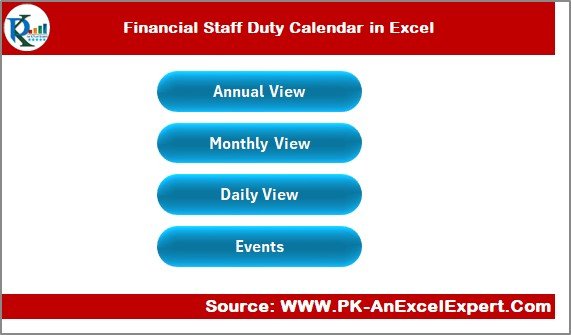
The Home sheet works as the index page of the workbook. It includes quick-access buttons that help you jump to other sheets instantly. The four buttons include:
- Annual View
- Monthly View
- Daily View
- Events
You click a button, and Excel takes you to that exact sheet. This layout creates a smooth experience, especially for teams that manage high volumes of financial events.
Click to buy Financial Staff Duty Calendar in Excel
Annual View Sheet – A Full-Year Calendar at a Glance
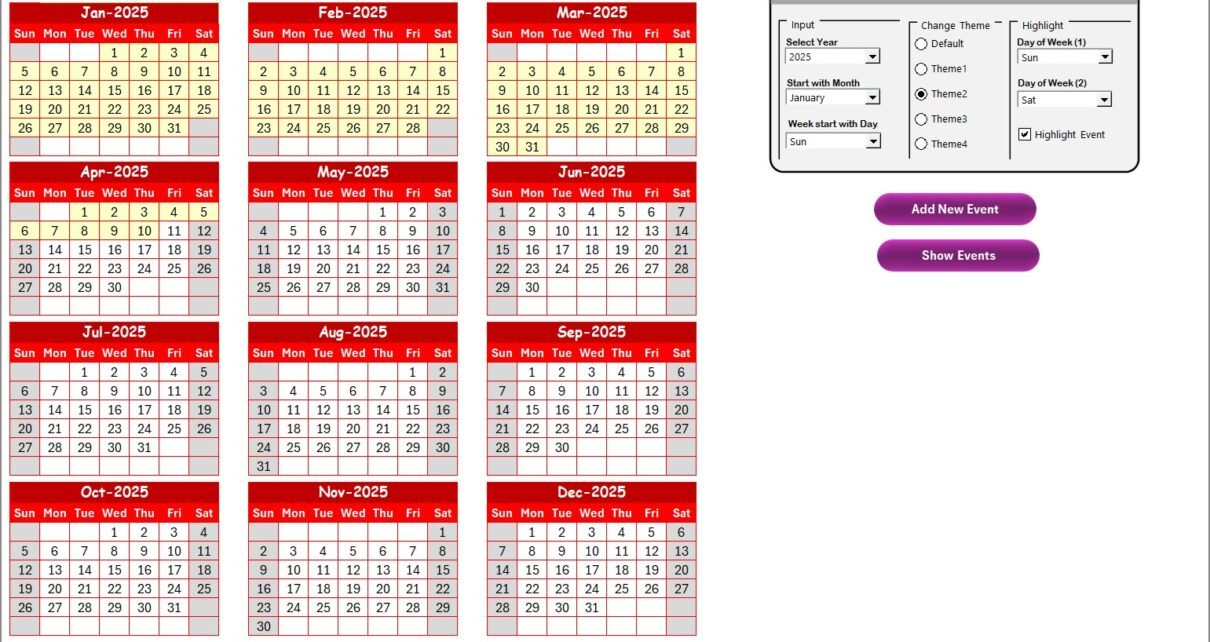
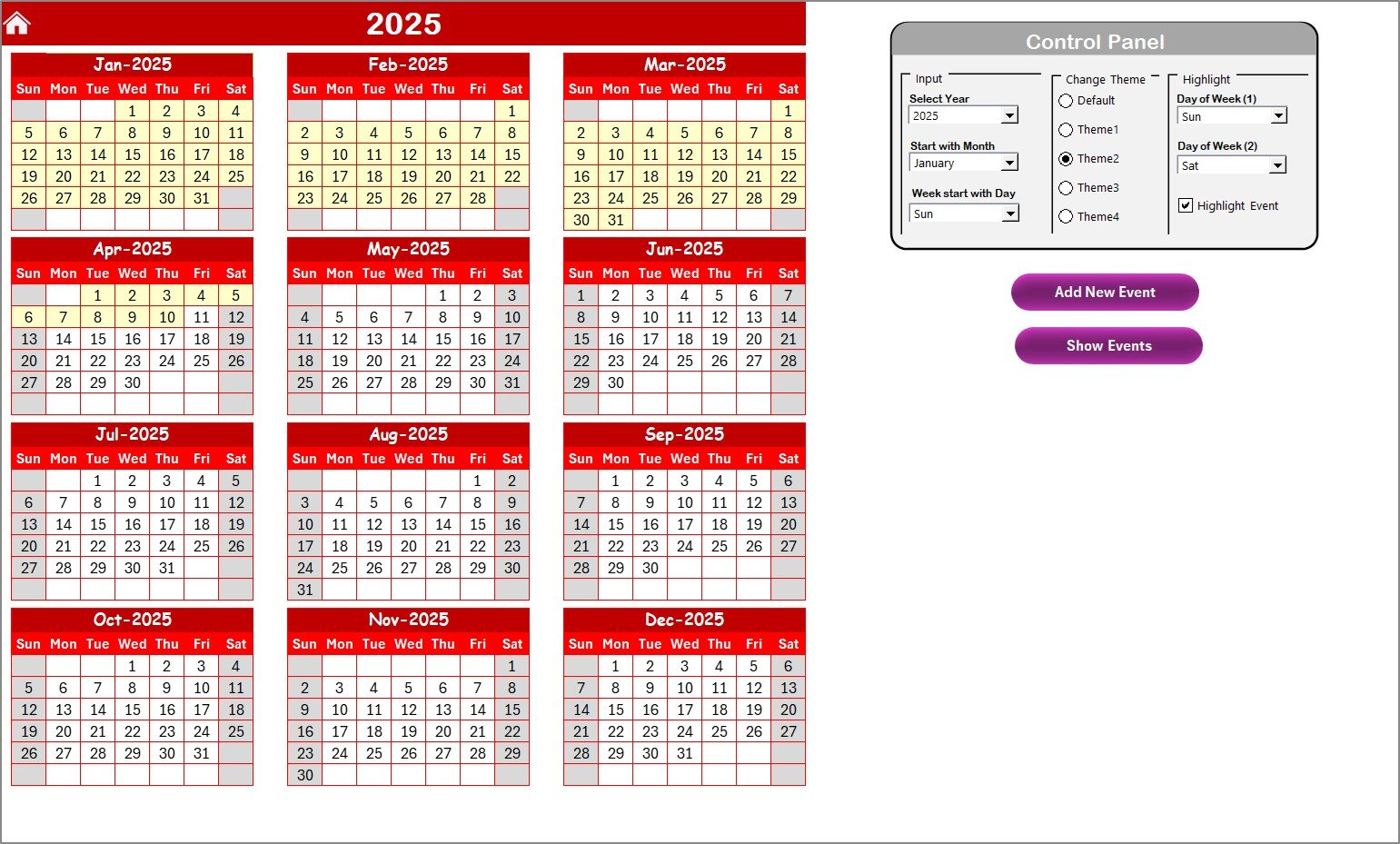
The Annual View Sheet displays all 12 months on one page. It becomes helpful when you want to see long-term tasks, yearly deadlines, and financial events across the entire year.
This sheet also includes a powerful Control Panel and two action buttons.
Control Panel Options
The control panel has three functional groups:
Input Group
You can change:
- The Year
- The Starting Month of the calendar
- The Starting Day of the week
These options adjust the entire annual layout instantly.
Change Theme Group
This calendar includes 5 color themes. You can apply any theme to the entire workbook with one click.
Teams often choose themes to match:
- Company branding
- Department colors
- Personal preferenceHighlight Group
This group helps you highlight specific days such as weekends or critical dates.
You can highlight:
- Day of Week (1)
- Day of Week (2)
For example, you choose Saturday and Sunday, and the calendar highlights them in gray. This makes weekend visibility easier.
You also get the Highlight Events option. When checked, the calendar highlights all event days in yellow.
Buttons on the Annual View Sheet
Add New Event Button
You select a date on the calendar and click the button. A form opens. You fill the event details and save it. The event appears on the selected date.
Show Event Button
You click this button to view event details for the selected date.
Click to buy Financial Staff Duty Calendar in Excel
Monthly View Sheet – A Detailed View of One Month
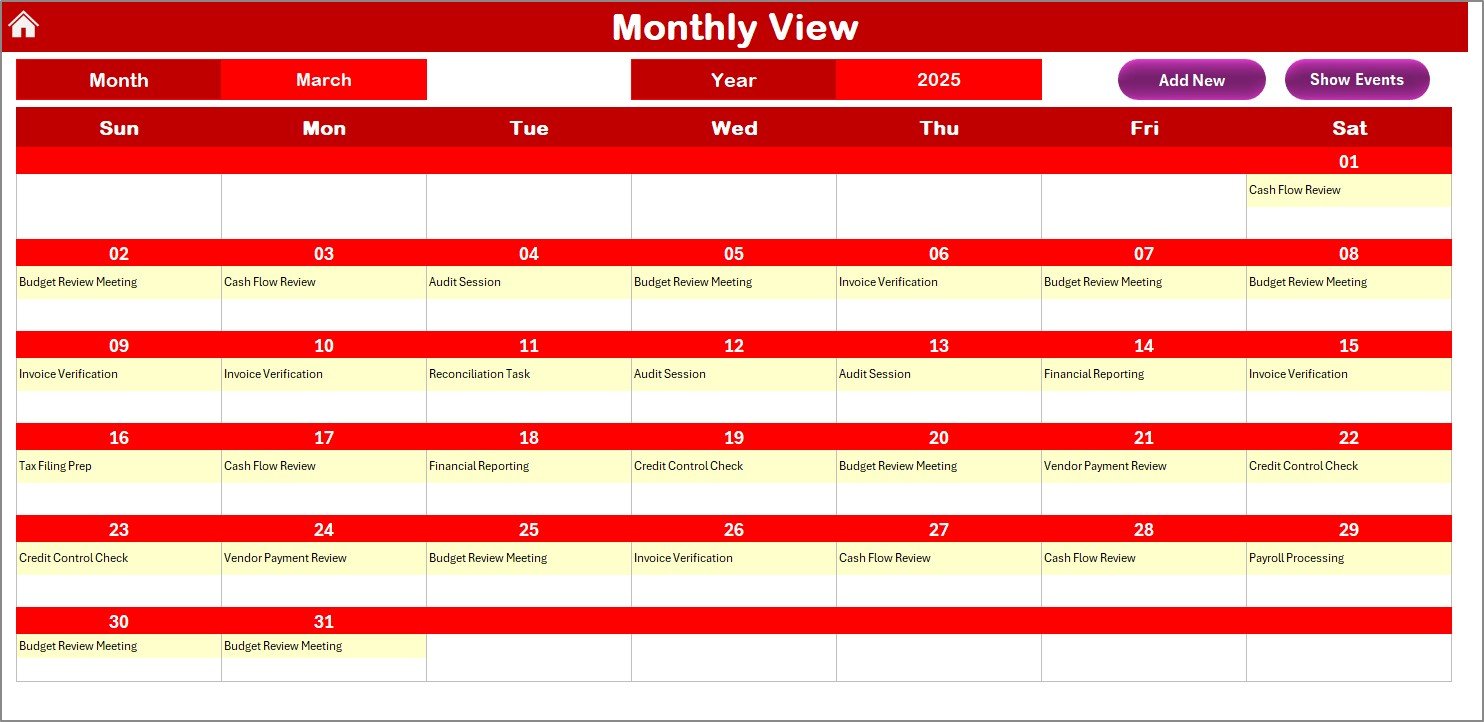
The Monthly View Sheet helps you review duties and events for the selected month. You choose:
- Month
- Year
Based on your selection, the calendar updates instantly.
Event Display
Each date shows one event. If more events exist, the calendar displays “more than 1…” to indicate additional tasks.
Buttons on the Monthly View Sheet
Add New Event
You click a date, add event details using the form, and save it. The event will appear for that exact date.
Show Event
This button shows you all events for the selected date.
This layout helps teams track daily responsibilities without opening multiple files.
Click to buy Financial Staff Duty Calendar in Excel
Daily View Sheet – Date-Range Based Staff Duties
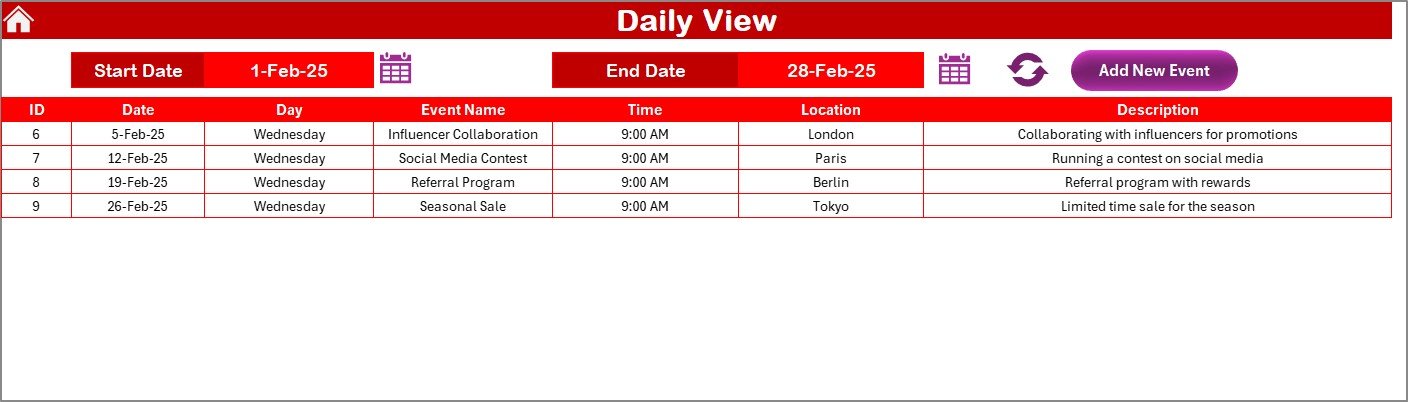
If you want to focus on a specific day or range, the Daily View Sheet is ideal.
You select:
- Start Date
- End Date
Then you click Refresh, and Excel loads all events within that date range.
Add New Event Button
You use this button to add events while reviewing daily schedules. It keeps your workflow smooth and consistent.
Click to buy Financial Staff Duty Calendar in Excel
Events Sheet – The Central Database
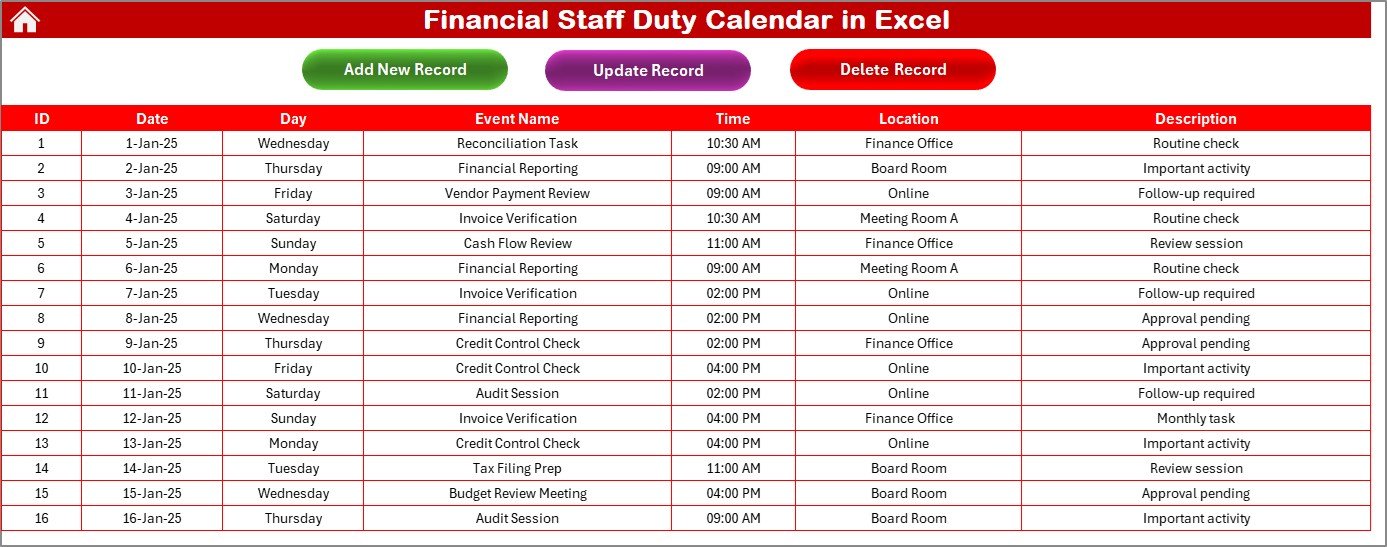
The Events Sheet stores all financial duties and event records. It includes:
- ID (auto-generated)
- Date
- Day
- Event Name
- Time
- Location
- Description
This sheet acts as the master table for your financial duty calendar.
Buttons on the Events Sheet
Add New Record
Opens a form where you enter event details. Once submitted, the event gets recorded.
Update Existing Record
You select an ID, click the button, and update the event through a prefilled form.
Delete Record
You select the ID and delete the event permanently.
This sheet makes it easy to manage duty changes throughout the year.
Click to buy Financial Staff Duty Calendar in Excel
How Does the Financial Staff Duty Calendar Improve Team Productivity?
A calendar gives structure to financial operations. Finance teams manage several activities, including audits, payroll, reporting, budgeting, tax compliance, invoice approvals, and reconciliations. When these duties get listed clearly, the entire department works with clarity.
Here is how the calendar improves performance:
- Everyone knows their responsibilities
- Managers monitor staff activity
- Deadlines stay visible
- Workloads stay balanced
- Meetings get scheduled properly
- Reporting dates never get missed
- Events remain documented
Since everything runs through easy buttons and forms, even a beginner can manage the calendar.
How to Use the Calendar for Daily Financial Operations?
You can use this Excel calendar for several daily tasks. Here are some examples:
- Assigning Daily Duties
Define responsibilities such as:
- Vendor payments
- Cash flow updates
- Invoice entries
- Tracking Monthly Deadlines
Use the monthly view to track:
- Payroll
- Tax submissions
- Expense claims
- Monitoring Financial Events
Record:
- Team meetings
- Audit sessions
- Budget review sessions
- Planning Year-End Activities
Use the annual view for:
- Year-end closing
- Asset verification
- Financial reporting schedules
This helps managers plan resources efficiently.
Advantages of Using a Financial Staff Duty Calendar in Excel
A financial duty calendar creates several benefits for finance teams. Here are the most important ones:
- Better Team Coordination
Finance teams stay aligned because everyone knows their duties.
- Improved Deadline Tracking
Deadlines remain clear throughout the month and year.
- Less Confusion and Errors
Since the tasks display clearly, the team avoids mistakes.
- Smooth Workflows
The daily, monthly, and annual views encourage structured planning.
- Easy Customization
Excel allows:
- Formatting
- Theme changes
- Conditional highlights
- Date-based filtering
- Faster Decision-Making
Managers see workload distribution at a glance.
- Centralized Team Schedule
All events stay in one place, which improves coordination.
Best Practices for Using the Financial Staff Duty Calendar in Excel
To get the most value from this calendar, follow these best practices:
- Update Events Regularly
Keep daily duties updated so the team stays informed.
- Use Short and Clear Event Names
This ensures the calendar looks clean and easy to read.
- Apply Color Themes Consistently
Use the same theme for all sheets to maintain uniformity.
- Highlight Important Financial Dates
Highlight tax deadlines, payroll days, and compliance tasks.
- Review the Daily View Every Morning
Stay aware of upcoming tasks and events.
- Backup the File Weekly
Finance data is critical, so keep a backup copy.
- Encourage Team Access
Allow team members to view or update relevant entries.
- Use the Events Sheet for Detailed Logging
This ensures all historical records remain available.
Common Mistakes to Avoid When Using the Calendar
While using an Excel duty calendar, avoid these mistakes:
- Adding long descriptions inside the monthly view
- Ignoring updates for multiple weeks
- Creating duplicate event entries
- Using complex formulas unnecessarily
Follow the given structure and keep the file organized.
Conclusion
A Financial Staff Duty Calendar in Excel helps finance teams stay organized, productive, and efficient. Since it offers annual, monthly, and daily views, you can plan every financial activity in a structured way. Teams stay aligned, deadlines become manageable, and managers gain complete visibility of financial workloads.
With built-in buttons, themes, and event forms, this Excel calendar becomes one of the most practical tools for any finance department. When you use it regularly and follow best practices, your team will work with clarity, confidence, and improved performance.
Frequently Asked Questions (FAQs)
- What is a Financial Staff Duty Calendar?
It is an Excel-based calendar that helps finance teams schedule, track, and manage duties and events.
- Can I customize the calendar?
Yes, you can change themes, highlight days, rename events, or modify layouts easily.
- How many events can I add?
You can add unlimited events because the Event Sheet works as a full database.
- Can beginners use this calendar?
Yes, the layout is simple, and all actions run through easy buttons.
- How does the Daily View help?
It displays all events within a selected date range, which helps with short-term planning.
- Does the monthly calendar show multiple events?
It shows one event, and if more events exist, it displays “more than 1…” on the date.
- Can I delete or update events?
Yes, the Events Sheet includes update and delete buttons for complete control.
Click to buy Financial Staff Duty Calendar in Excel
Visit our YouTube channel to learn step-by-step video tutorials
Watch the step-by-step video tutorial: