Managing holidays, plant shutdowns, maintenance days, and special manufacturing events often becomes challenging. However, when teams rely on scattered notes or static calendars, planning errors increase. Therefore, a Manufacturing Holiday Calendar in Excel provides a structured, automated, and user-friendly solution for tracking all important manufacturing dates in one place.
In this detailed guide, you will learn what a Manufacturing Holiday Calendar in Excel is, why manufacturers need it, how each worksheet works, its advantages, best practices, and frequently asked questions. Moreover, the explanation uses simple language, smooth transitions, and practical examples so that anyone can understand and implement it easily.
Click to buy Manufacturing Holiday Calendar in Excel
What Is a Manufacturing Holiday Calendar in Excel?
A Manufacturing Holiday Calendar in Excel is a ready-to-use Excel-based calendar designed to manage holidays, plant events, shutdowns, maintenance schedules, and operational activities. Instead of using paper calendars or basic spreadsheets, this solution offers annual, monthly, and daily views with event tracking features.
Most importantly, it allows manufacturing teams to plan production schedules, workforce availability, and maintenance tasks without confusion. Since it works entirely in Excel, users do not need additional software or technical expertise.
Why Do Manufacturing Companies Need a Holiday Calendar in Excel?
Manufacturing operations depend heavily on accurate scheduling. Even a single unplanned holiday can disrupt production targets. Therefore, companies need a reliable system to track non-working days and special events.
Key Reasons to Use a Manufacturing Holiday Calendar
- It helps avoid production delays caused by unplanned holidays.
- It supports better workforce planning and shift allocation.
- It improves coordination between HR, operations, and maintenance teams.
- It provides quick visibility of events at annual, monthly, and daily levels.
- It reduces manual errors and improves planning accuracy.
As a result, manufacturing organizations gain better control over time-sensitive operations.
What Worksheets Are Included in the Manufacturing Holiday Calendar in Excel?
This ready-to-use calendar includes five well-structured worksheets, each designed for a specific purpose. Together, these sheets provide complete visibility and control over manufacturing events.
Home Sheet Tab
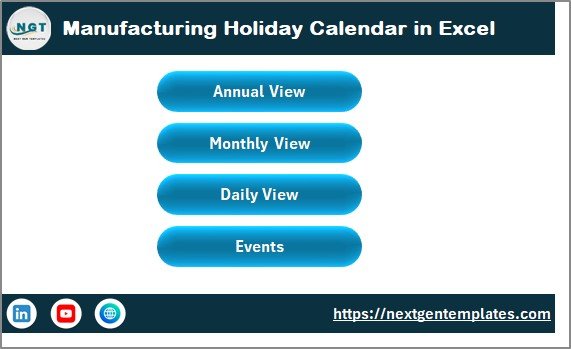
The Home Sheet acts as the central navigation hub of the calendar. Instead of searching through multiple sheets, users can move instantly to the required view.
Key Features of the Home Sheet
- Acts as an index page for easy navigation
- Provides four clickable buttons:
- Annual View
- Monthly View
- Daily View
- Events
- Improves user experience with a clean and organized layout
Because of this design, users save time and navigate the calendar effortlessly.
Click to buy Manufacturing Holiday Calendar in Excel
Annual View Sheet
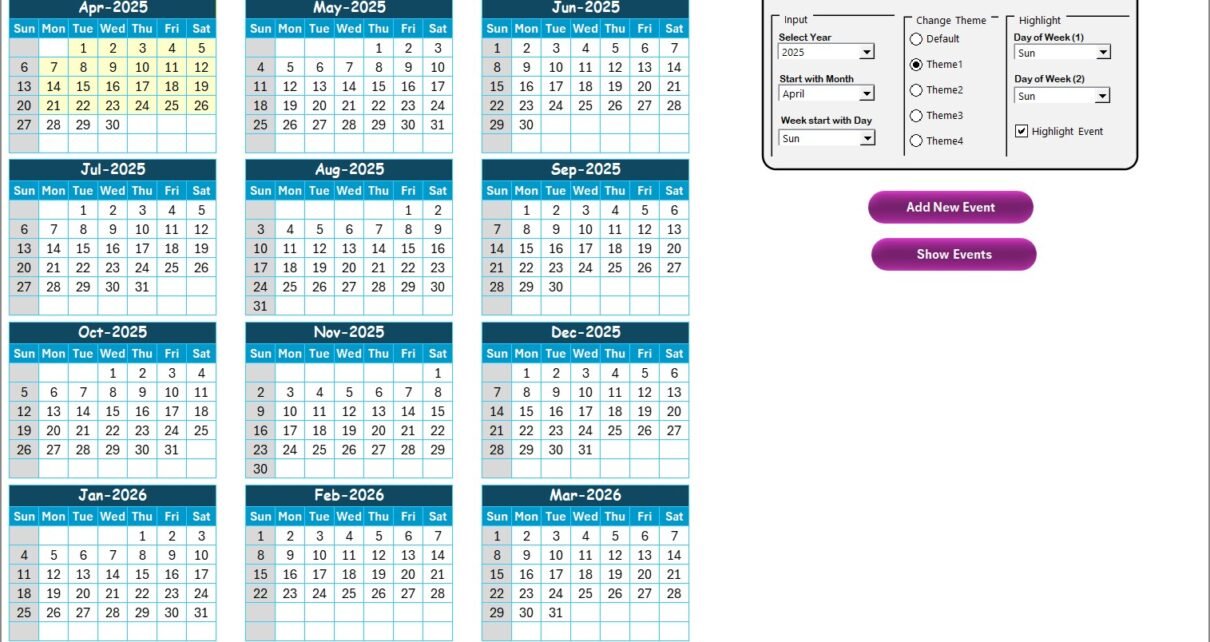
The Annual View Sheet displays a complete 12-month calendar on a single screen. This view helps management and planners understand the entire year at a glance.
What Does the Annual View Show?
- All 12 months displayed together
- Clearly marked holidays and events
- Highlighted weekends or selected weekdays
- Dynamic updates based on selected year
As a result, annual planning becomes faster and more accurate.
How Does the Control Panel in the Annual View Work?
The Control Panel adds flexibility and automation to the calendar. Instead of manually changing dates or formats, users can control everything from one place.
Input Group Features
- Select the Year to update the calendar automatically
- Change the starting month of the calendar
- Modify the starting day of the week
Change Theme Group
- Choose from five predefined color themes
- Apply the selected theme to the entire workbook instantly
- Maintain consistent branding or visual preference
Highlight Group
- Select Day of Week (1) and Day of Week (2) to highlight
- Highlight weekends like Saturday and Sunday easily
- Enable Highlight Event checkbox to show events in yellow
Because of these features, the calendar remains both flexible and visually clear.
How Do the Add New Event and Show Event Buttons Work in Annual View?
The Annual View includes two powerful action buttons that simplify event management.
Add New Event Button
- Select any date on the calendar
- Click Add New Event
- Fill in the event details in the form
- Submit the form to save the event
Show Event Button
- Select a specific date
- Click Show Event
- View all events scheduled for that date
Thus, users can manage events without switching sheets or editing raw data.

Click to buy Manufacturing Holiday Calendar in Excel
Monthly View Sheet
The Monthly View Sheet displays a single month calendar based on the selected month and year. This view helps supervisors and planners focus on short-term schedules.
Features of the Monthly View
- Dropdowns to select Month and Year
- Automatic calendar updates based on selection
- Displays one event directly on the date
- Shows “more than 1…” if multiple events exist
Because of this design, teams can quickly spot busy days and plan resources accordingly.
What Buttons Are Available in the Monthly View Sheet?
Just like the Annual View, the Monthly View includes action buttons for better usability.
Add New Event Button
- Select a date in the monthly calendar
- Click Add New Event
- Enter event details and submit
Show Event Button
- Select a date
- Click Show Event
- View all events scheduled for that date
Therefore, users manage events efficiently at the monthly level.

Click to buy Manufacturing Holiday Calendar in Excel
Daily View Sheet
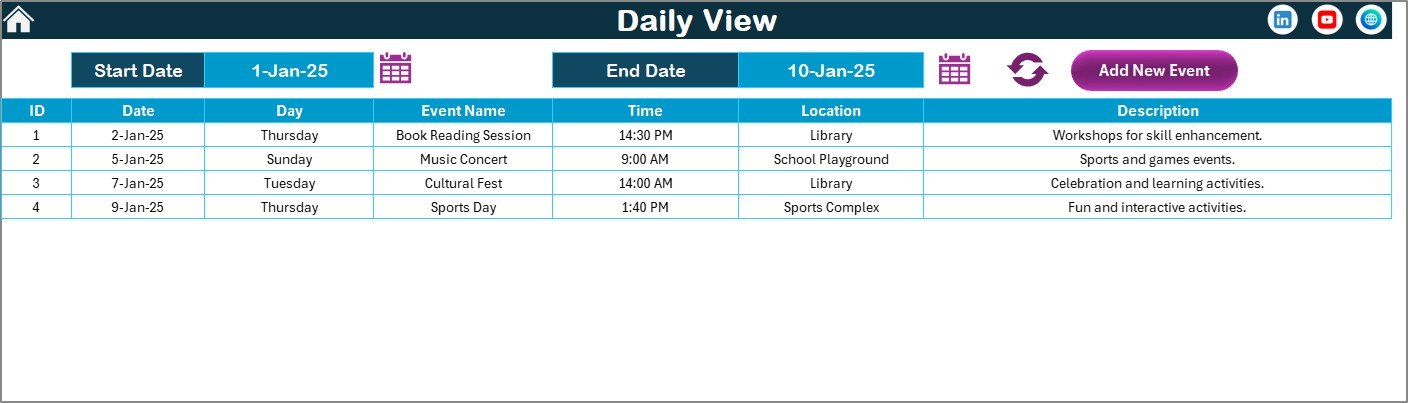
The Daily View Sheet focuses on detailed event tracking over a selected date range. This view works best for operations teams and planners who need granular information.
Key Features of the Daily View
- Select Start Date and End Date
- Use calendar icons for easy date selection
- Click Refresh to load updated data
- View a detailed list of events within the date range
Additionally, users can add new events directly from this sheet, which saves time and improves workflow efficiency.
Events Sheet
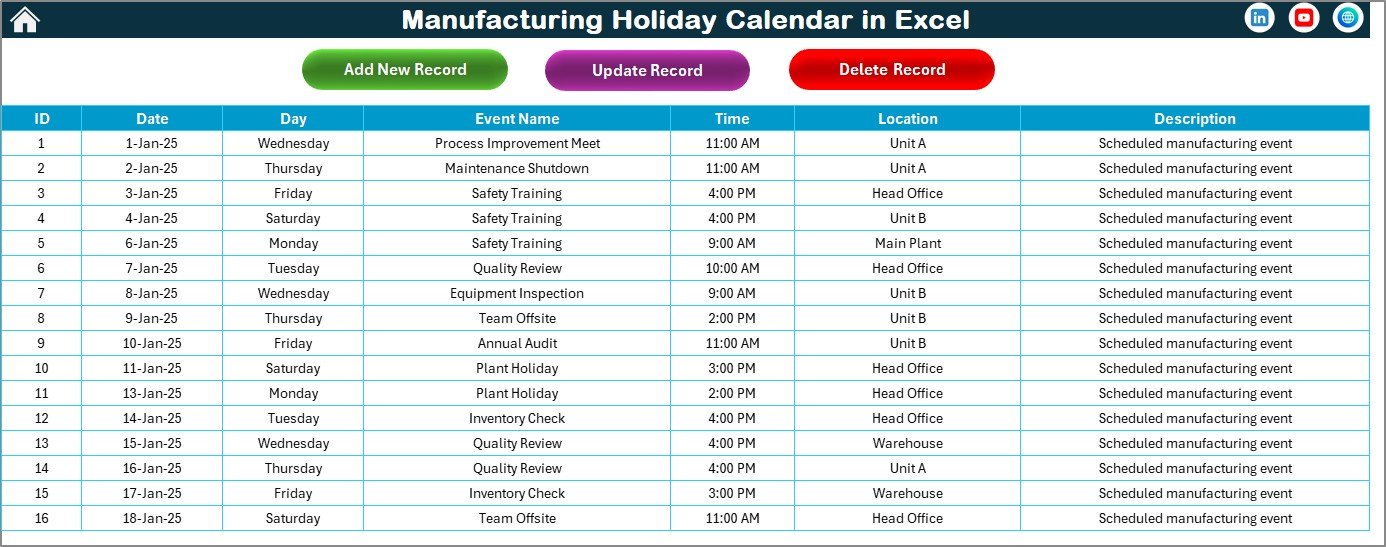
The Events Sheet works as the database of the entire calendar. All events entered from any view get stored here automatically.
What Information Does the Events Sheet Store?
- ID – Auto-generated unique number
- Date – Event date
- Day – Day name (Monday, Tuesday, etc.)
- Event Name – Name of the holiday or event
- Time – Event time
- Location – Event location
- Description – Short description of the event
Because of this structured database, data integrity remains intact.
What Buttons Are Available on the Events Sheet?
The Events Sheet includes three powerful buttons that help manage records efficiently.
Add New Record Button
- Opens the Add Event form
- Allows users to enter new event details
- Saves the data directly into the database
Update Existing Record Button
- Select the event ID to update
- Opens the form with prefilled information
- Modify details and submit to update
Delete Record Button
- Select the event ID
- Click delete to remove the record permanently
As a result, users maintain clean and accurate data.
Click to buy Manufacturing Holiday Calendar in Excel
Advantages of Manufacturing Holiday Calendar in Excel
Using a Manufacturing Holiday Calendar in Excel offers several practical benefits for organizations of all sizes.
Key Advantages
- Centralized holiday and event tracking
- Improved production and maintenance planning
- Easy navigation with multiple views
- Automated updates without manual effort
- Customizable themes and highlights
- No additional software cost
- User-friendly interface for all teams
Because of these advantages, manufacturing teams work more efficiently and confidently.
Who Can Use a Manufacturing Holiday Calendar in Excel?
This calendar suits various roles across manufacturing organizations.
Ideal Users Include:
- Production planners
- Plant managers
- Maintenance teams
- HR and workforce planners
- Operations managers
- Small and large manufacturing units
Therefore, it serves as a versatile planning tool across departments.
Best Practices for the Manufacturing Holiday Calendar in Excel
To get maximum value from this calendar, follow these proven best practices.
Best Practices
- Update holidays and shutdowns at the beginning of the year
- Use consistent naming for events
- Highlight weekends and non-working days clearly
- Review the Events Sheet regularly for accuracy
- Use Daily View for short-term operational planning
- Assign one owner to manage calendar updates
- Backup the file periodically
When teams follow these practices, the calendar remains reliable and effective.
How Does This Calendar Improve Manufacturing Productivity?
This calendar reduces confusion and improves coordination. Since all teams refer to one source, planning becomes consistent. Moreover, automation reduces manual errors, while visual clarity improves decision-making.
As a result, manufacturing units experience fewer disruptions and better operational efficiency.
Conclusion: Why Should You Use a Manufacturing Holiday Calendar in Excel?
A Manufacturing Holiday Calendar in Excel offers a simple yet powerful way to manage holidays, events, and operational schedules. With its Home, Annual, Monthly, Daily, and Events sheets, it delivers complete visibility and control.
Since it works entirely in Excel, teams adopt it quickly without training or extra costs. Most importantly, it supports better planning, reduces errors, and improves productivity across manufacturing operations.
If you want a reliable, flexible, and easy-to-use calendar solution, this template fits your needs perfectly.
Frequently Asked Questions (FAQs)
- What is a Manufacturing Holiday Calendar in Excel used for?
A Manufacturing Holiday Calendar in Excel helps track holidays, shutdowns, maintenance days, and events to improve production planning and workforce management.
- Can I customize the calendar year and starting day?
Yes, you can easily change the year, starting month, and starting day of the week using the control panel.
- Can I add multiple events on the same date?
Yes, the calendar supports multiple events on a single date and displays them clearly in Monthly and Daily views.
- Does this calendar require macros?
Yes, some features like buttons and forms use VBA macros. Therefore, you need to enable macros to use full functionality.
- Can I use this calendar for multiple plants?
Yes, you can customize event names and locations to track multiple plants or departments within the same file.
- Is this calendar suitable for non-manufacturing use?
Although it targets manufacturing, users can adapt it easily for offices, schools, or project planning.
- Can I export the events data?
Yes, since the Events Sheet stores structured data, you can export or analyze it easily using Excel tools.
- Does this calendar work with future years?
Yes, you can select any year from the control panel, and the calendar updates automatically.
- Is this calendar beginner-friendly?
Yes, the navigation buttons, clear layout, and forms make it easy for beginners to use.
- Why should I use Excel instead of online calendars?
Excel provides offline access, full customization, and no recurring subscription costs, making it ideal for manufacturing environments.
Visit our YouTube channel to learn step-by-step video tutorials
Watch the step-by-step video tutorial:
Click to buy Manufacturing Holiday Calendar in Excel