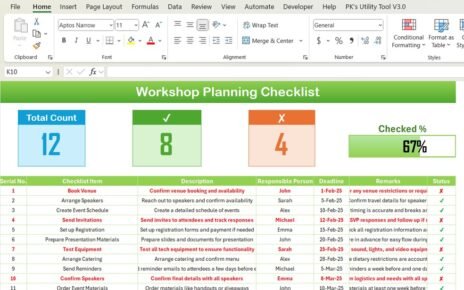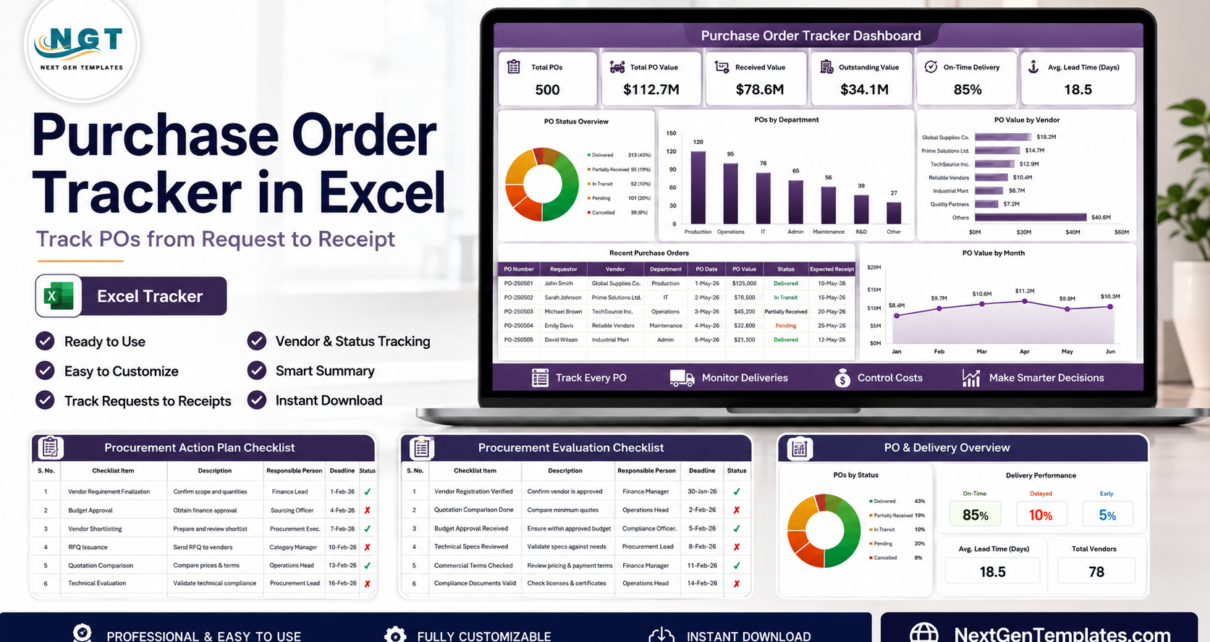
A purchase order Excel tracker gives procurement teams one place to follow every PO from request to approval, supplier confirmation, receipt, and closeout. That matters because a purchase order usually fails quietly: a request sits unapproved, a supplier ships late, a partial receipt never gets logged, or the invoice arrives before the receiving record is clean.
For U.S. small businesses, manufacturers, contractors, nonprofits, schools, and local agencies, the choice is often not “Excel or enterprise procurement.” It is “do we control the workflow today, or wait for a bigger system later?” Procurement SaaS can be valuable, but public pricing can start much higher than a spreadsheet-based template. For example, Precoro lists its Core procurement plan starting at $499 per month billed annually. By comparison, the main Procurement Management Dashboard in Excel is currently $17.99 as a one-time template purchase. This guide walks through a practical PO tracker workflow and compares four procurement templates you can plug into that workflow.
| Template | Format | Best For | Price |
|---|---|---|---|
| Procurement Management Dashboard in Excel | Excel dashboard | Tracking spend, budgets, supplier performance, order status, and delivery KPIs | $17.99 |
| Procurement Action Plan Checklist in Excel | Excel checklist | Turning approved procurement decisions into assigned actions and deadlines | $1.99 |
| Procurement Evaluation Checklist in Excel | Excel checklist | Standardizing vendor, contract, quote, and approval evaluation steps | $1.99 |
| Smart Cities Procurement Dashboard in Excel | Excel dashboard | Public-sector procurement, departmental budget visibility, compliance, and lead time tracking | $13.99 |
Why a Purchase Order Excel Tracker Matters Now
A PO tracker matters because purchase orders create a control point between request, spend approval, supplier commitment, receipt, and payment. When those steps live in separate emails or scattered spreadsheets, procurement loses the ability to answer simple questions fast: What is approved? What is late? What was received? Which supplier is slipping? Which purchase is over budget?
- PO processing cost varies widely. APQC benchmarking data published in April 2026 shows organizations spend about $14 to more than $54 to process a single purchase order. That gap becomes material when a team issues hundreds or thousands of POs each year.
- Subscription software can be expensive for teams that mainly need visibility. Precoro’s public pricing starts at $499 per month billed annually for its Core plan. That is $5,988 per year before comparing configuration, adoption time, and optional modules.
- Procurement teams are asking for better analytics. Amazon Business’s 2025 State of Procurement Data report, summarized by Business Reporter, found that 64 percent of decision-makers prioritize better data insights through AI and analytics.
- Procurement still needs a stronger strategic seat. The same Amazon Business report found that only 46 percent say procurement is included in top-level strategic discussions. A clean PO tracker helps procurement bring evidence to budget, supplier, and operations conversations.
- Technology and data maturity now separate leaders from followers. Deloitte’s 2025 Global Chief Procurement Officer Survey reports that top-quartile “Digital Masters” allocate up to 24 percent of their budgets to procurement technology, while 57 percent of surveyed CPOs cite siloed ways of working as a barrier to value delivery.
The practical lesson is simple: even if your long-term roadmap includes a full procure-to-pay platform, your team still needs a clean operating model. Excel can provide that starting point quickly. A purchase order tracker in Excel should not be a random list of PO numbers. It should reflect the real procurement lifecycle from the first request to the final receipt confirmation.
Build Your PO Tracker Workflow from Request to Receipt
A strong PO tracker is built around workflow stages, not just columns. The goal is to make every purchase visible, traceable, and easy to review. Start with the lifecycle below, then add the columns and formulas that help your team manage exceptions.
Step 1: Capture the purchase request
Every PO begins with a request. At this stage, your tracker should record the request ID, request date, requester, department, item or service description, category, preferred supplier, quantity, estimated unit cost, estimated total cost, budget owner, and business justification. If you skip this section, the PO record becomes a purchasing log rather than a decision trail.
Step 2: Track approval status
Add approval fields before a PO number is issued. Useful fields include approval status, approver name, approval date, approved budget, rejected reason, and follow-up notes. Use dropdown values such as Requested, Under Review, Approved, Rejected, and On Hold. This makes your PO tracker easier to filter during weekly procurement reviews.
Step 3: Create and issue the PO
Once approved, assign the PO number and record the supplier, payment terms, purchase category, order value, expected delivery date, and buyer or procurement owner. If your company uses manual PDFs, attach or link the PO file location. If you use an accounting system, include the accounting reference so finance can reconcile the record later.
Step 4: Monitor supplier confirmation
Supplier acknowledgement is one of the easiest steps to miss. Track supplier confirmation date, confirmed delivery date, promised lead time, revised delivery date, and confirmation notes. This helps separate orders that are truly in progress from orders that were sent but never accepted by the supplier.
Step 5: Record receipt and GRN details
The receipt stage should capture received date, received quantity, remaining quantity, Goods Received Note number, receiving owner, quality issue flag, damage notes, and receipt status. For a deeper receiving workflow, cross-link the process with a related tutorial such as Purchase and GRN Data-Entry System in Excel.
Step 6: Close the PO after invoice matching
A PO should close only after receiving and invoice checks are complete. Include invoice number, invoice received date, invoice matched status, variance amount, payment status, close date, and final PO status. Common final statuses include Open, Partially Received, Fully Received, Invoice Matched, Closed, Cancelled, and Disputed.
| PO Tracker Area | Recommended Excel Columns | Why It Helps |
|---|---|---|
| Request | Request ID, requester, department, category, item, quantity, estimated cost | Creates a clean audit trail before the PO exists |
| Approval | Approval status, approver, approval date, budget owner, comments | Prevents unapproved spend from moving forward |
| PO Issue | PO number, supplier, order value, payment terms, expected delivery date | Turns approved requests into trackable commitments |
| Delivery | Promised date, actual receipt date, received quantity, remaining quantity | Shows late, partial, and completed deliveries |
| Closeout | Invoice matched, payment status, variance amount, close date | Connects procurement, receiving, and finance |
For Excel formulas, keep the first version simple. Lead time can be calculated as actual receipt date minus PO issue date. Days late can be calculated as actual receipt date minus expected delivery date, with a zero value when the PO arrives on time. A variance column can compare invoice value against PO value. Conditional formatting should highlight late orders, unconfirmed suppliers, partial receipts, and invoices that do not match the approved PO amount.
Procurement Excel Templates Compared
The right template depends on where your purchase order workflow is weakest. If your issue is visibility, choose a dashboard. If your issue is execution discipline, use an action plan checklist. If your issue is inconsistent evaluation before approval, use an evaluation checklist. If your work is public-sector or grant-funded, the smart cities dashboard gives you a public accountability view with compliance and department analysis.
| Need | Best Template | Why |
|---|---|---|
| Track procurement spend, orders, supplier performance, and delivery | Procurement Management Dashboard in Excel | Best all-around dashboard for procurement reporting and PO visibility |
| Assign owners and deadlines after a procurement decision | Procurement Action Plan Checklist in Excel | Best for execution follow-up, action ownership, and completion tracking |
| Standardize vendor, quote, contract, and compliance review steps | Procurement Evaluation Checklist in Excel | Best before approval, especially when decisions need documentation |
| Report procurement performance across departments, categories, and public programs | Smart Cities Procurement Dashboard in Excel | Best for public-sector and program-management procurement visibility |
You can also build a larger procurement system by linking this workflow to related PK-AnExcelExpert tutorials such as Procurement Documentation Checklist in Excel, Procurement To-Do List Checklist in Excel, Procurement Analysis Report in Excel, and Procurement Management Dashboard in Power BI. These links help readers move from a basic PO log to a broader procurement reporting process.
Four Procurement Templates to Add to the Workflow
Procurement Management Dashboard in Excel
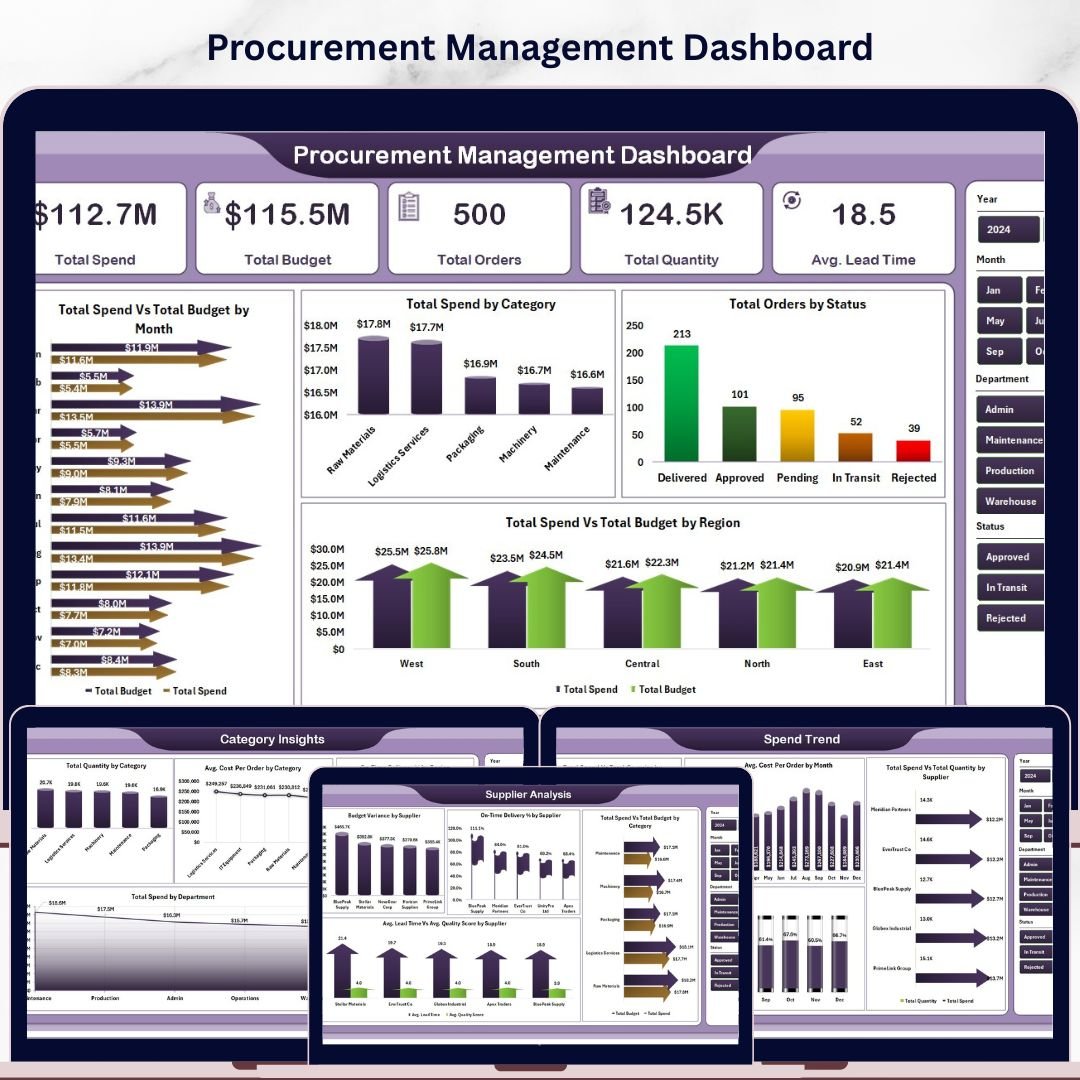
The Procurement Management Dashboard in Excel is the strongest fit when your PO tracker needs executive visibility. It is currently priced at $17.99 and is designed for procurement managers, supply chain teams, finance users, operations managers, and small business owners who need one Excel workbook for procurement reporting.
Screenshot view: the product gallery shows five dashboard pages plus supporting sheets. The Overview page includes KPI cards for Total Spend, Total Budget, Total Orders, Total Quantity, and Avg. Lead Time. Other pages cover spend trends, supplier analysis, category insights, and delivery performance. The source data sheet feeds pivot-powered charts that can be refreshed after new procurement records are added.
Use this template to review monthly spend vs budget, identify late supplier patterns, monitor order status, compare procurement categories, and report average lead time by buyer or supplier. It is especially useful once your purchase order Excel file has enough historical rows to analyze patterns, not just individual transactions.
Get the Procurement Management Dashboard in Excel
Procurement Action Plan Checklist in Excel
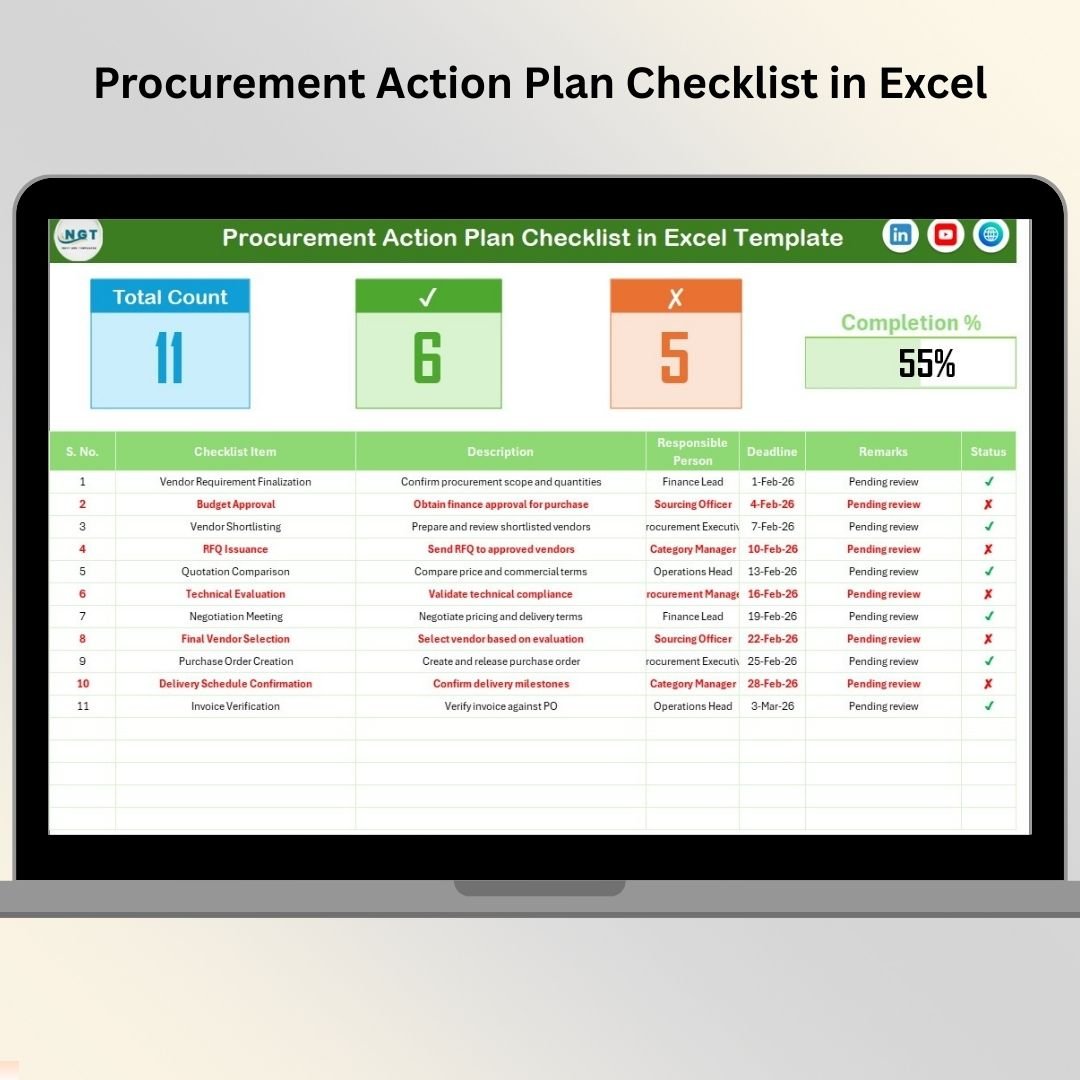
The Procurement Action Plan Checklist in Excel is currently priced at $1.99 and works best after a procurement decision has already been made. A PO workflow often breaks down because teams approve a purchase but do not track the follow-up actions: contract review, vendor onboarding, budget confirmation, supplier acknowledgement, delivery follow-up, and closeout tasks.
Screenshot view: the product page confirms two worksheets: the main action plan checklist and a list sheet for responsible-person dropdowns. The main sheet includes a top summary section for total count, checked count, crossed count, and a progress bar, followed by action rows with checklist item, description, responsible person, deadline, remarks, and status.
Use this template when you need to assign ownership after an approval meeting, track procurement audit actions, manage supplier negotiation follow-ups, document internal compliance work, or keep category managers aligned during a sourcing project. It pairs well with a PO tracker because it captures the work around the PO, not only the PO record itself.
Get the Procurement Action Plan Checklist in Excel
Procurement Evaluation Checklist in Excel
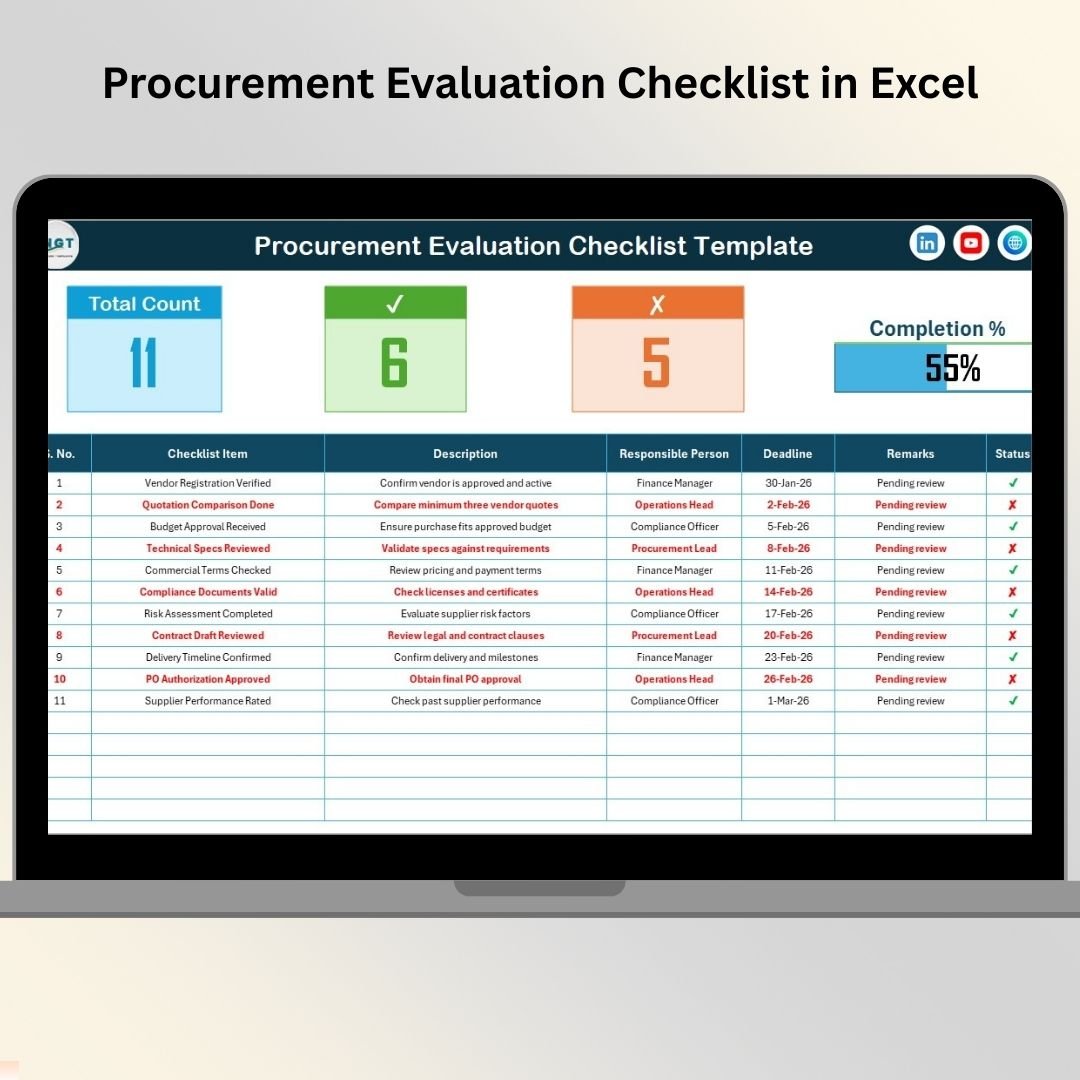
The Procurement Evaluation Checklist in Excel is currently priced at $1.99 and belongs before the PO is issued. It gives your team a consistent checklist for vendor evaluation, quote review, contract checks, approval documentation, and compliance review. That matters because a purchase order is only as strong as the decision process behind it.
Screenshot view: the product includes a procurement evaluation checklist sheet and a list sheet. The main area tracks serial number, checklist item, description, responsible person, deadline, remarks, and status. The summary section automatically reflects completion counts and progress, which makes it easier for managers to spot incomplete evaluation steps before a PO is approved.
Use this template when comparing suppliers, reviewing a new vendor, documenting quote evaluation, managing contract renewal checks, or preparing audit evidence. For teams that need a broader control file, it complements the Procurement Documentation Checklist in Excel and helps standardize the approval side of the PO workflow.
Get the Procurement Evaluation Checklist in Excel
Smart Cities Procurement Dashboard in Excel
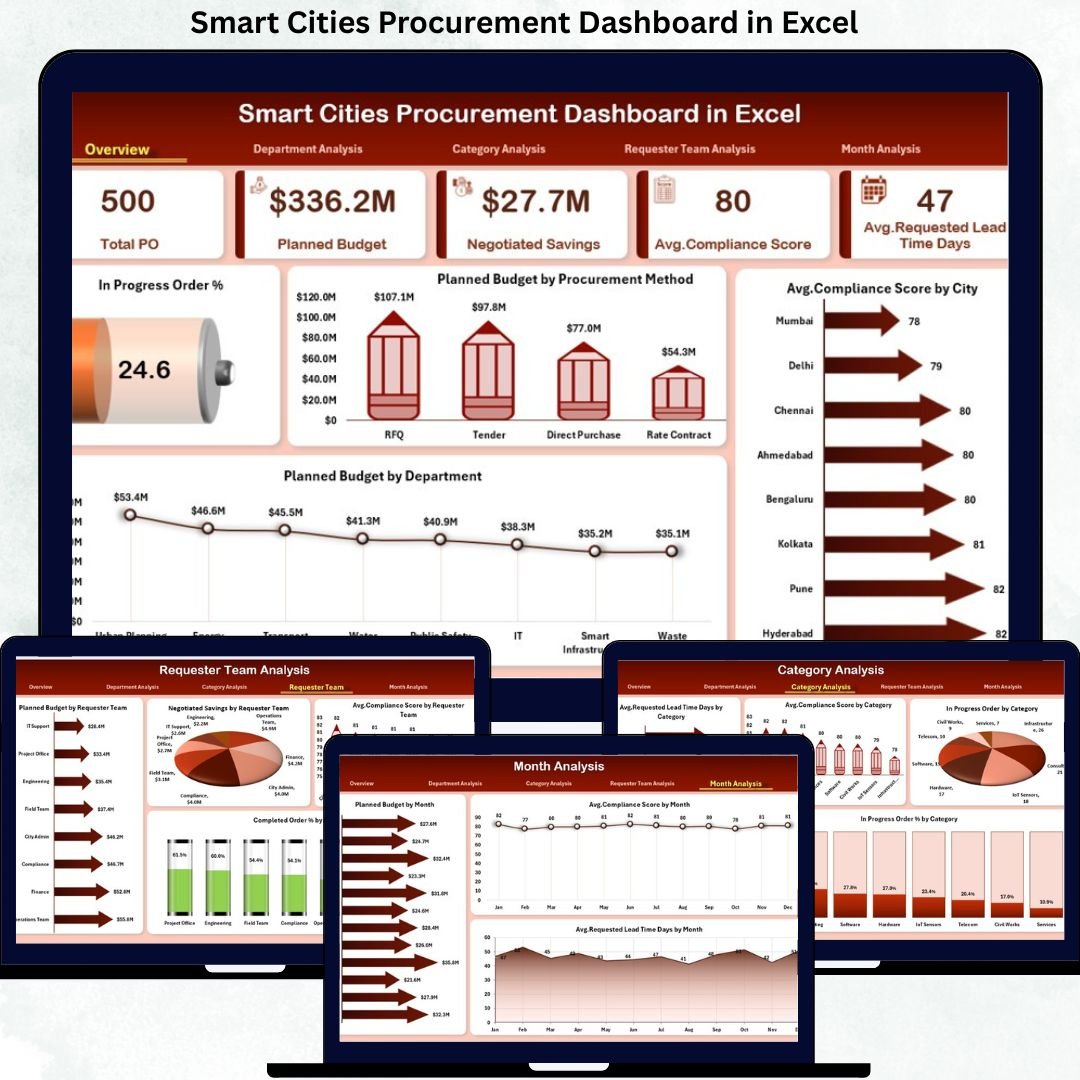
The Smart Cities Procurement Dashboard in Excel is currently priced at $13.99 and is a better fit when procurement visibility must support departments, city programs, compliance reviews, and public spending decisions. Public-sector teams do not only need to know whether a PO was received. They also need to explain budget use, procurement method, department performance, compliance scores, and lead-time patterns.
Screenshot view: the product gallery shows five analytical pages: Overview, Department Analysis, Category Analysis, Requester Team Analysis, and Month Analysis. The dashboard tracks planned budget, negotiated savings, compliance score, requested lead time, promised lead time, order status, department performance, and category behavior.
Use this template for municipal procurement reviews, grant-funded program tracking, smart city infrastructure purchasing, department budget comparisons, and public-sector supplier performance reporting. It also pairs naturally with the Procurement Manager Toolkit when you want a wider package of procurement and vendor management templates.
Get the Smart Cities Procurement Dashboard in Excel
How to Choose the Right Procurement Excel Template
Choose based on the stage where your process loses control. A PO tracker is useful only when it reflects the actual problem. If the issue is late approvals, start with evaluation and action checklists. If the issue is unclear spend visibility, start with the dashboard. If the issue is public accountability, use the smart cities dashboard.
| Situation | Recommended Choice | Reason |
|---|---|---|
| You have PO data but no management dashboard | Procurement Management Dashboard in Excel | Turns existing purchase records into spend, supplier, status, and lead-time reporting |
| People agree on decisions but actions are not completed | Procurement Action Plan Checklist in Excel | Assigns owners, deadlines, and completion status |
| Vendor and quote reviews are inconsistent | Procurement Evaluation Checklist in Excel | Creates a repeatable pre-PO evaluation process |
| You manage public-sector, city, or program procurement | Smart Cities Procurement Dashboard in Excel | Focuses on department, compliance, budget, and requester-team analytics |
| You need a cloud-based PO companion | Procurement Vendor Management Kit | Useful when a mixed Excel, Power BI, and Google Sheets procurement setup is preferred |
For most businesses, the best starting path is simple. First, build your PO tracker columns around request, approval, PO issue, supplier confirmation, receipt, and closeout. Second, use the Procurement Evaluation Checklist before issuing the PO. Third, use the Procurement Action Plan Checklist to manage follow-up actions. Fourth, use the Procurement Management Dashboard once you want monthly reporting and supplier performance analytics. That sequence keeps the workflow practical without forcing a full software rollout before the team is ready.
Frequently Asked Questions
What is a purchase order Excel tracker?
A purchase order Excel tracker is a spreadsheet used to track purchase requests, approvals, PO numbers, suppliers, delivery dates, receipt status, invoice matching, and closeout status. The best versions show the full PO lifecycle from request to receipt.
What columns should I include in a PO tracker?
Include request ID, requester, department, supplier, category, PO number, PO date, order value, approval status, expected delivery date, actual receipt date, received quantity, invoice matched status, payment status, and final PO status.
Can Excel track purchase orders from request to receipt?
Yes. Excel can track the full purchase order workflow if you use structured tables, dropdown status values, date fields, conditional formatting, and dashboard summaries. It works especially well for small and mid-sized teams that need visibility before adopting SaaS.
How do I track late purchase orders in Excel?
Add expected delivery date and actual receipt date columns. Calculate days late by subtracting expected delivery date from actual receipt date, then use conditional formatting to highlight open POs where today’s date is past the expected delivery date.
What is the difference between a PO tracker and a procurement dashboard?
A PO tracker records transaction-level purchase order details. A procurement dashboard summarizes those records into KPIs, charts, and trends such as total spend, budget variance, order status, supplier performance, and average lead time.
Which template is best for procurement reporting in Excel?
The Procurement Management Dashboard in Excel is the best fit for procurement reporting because it includes dashboard pages for overview KPIs, spend trends, supplier analysis, category insights, and delivery performance.
Which template helps before a purchase order is approved?
The Procurement Evaluation Checklist in Excel helps before approval. It standardizes the evaluation process for vendors, quotes, contracts, responsibilities, deadlines, remarks, and completion status before a PO is issued.
Which template helps after a procurement decision is made?
The Procurement Action Plan Checklist in Excel helps after a decision is made. It turns decisions into action items, assigns responsible people, sets deadlines, tracks completion, and shows progress with summary counts and a progress bar.
Is a spreadsheet enough for procurement control?
A spreadsheet is enough when the team needs visibility, basic controls, and repeatable reporting. It may not be enough when you need real-time multi-user approvals, ERP integration, punchout catalogs, automated three-way matching, or strict role-based access.
How often should a PO tracker be reviewed?
Review open purchase orders weekly and dashboard KPIs monthly. High-volume teams should review late, unconfirmed, partially received, and invoice-mismatch POs more often so procurement, receiving, and finance stay aligned.
About the Author
Built by PK – Microsoft Certified Professional with 15+ years of Excel, Google Sheets, and Power BI experience. Founder of NextGenTemplates, reaching 300K+ subscribers across YouTube channels. Every template is hand-built and tested before release.