In every organization, risk management plays a vital role in protecting assets, improving decision-making, and ensuring business continuity. But tracking potential risks manually or through complex software can be time-consuming and prone to errors. That’s why the Risk Management Checklist in Excel offers a simple yet powerful solution for businesses of all sizes.
This ready-to-use Excel template allows teams to identify, monitor, and manage risks in a structured and visual way. Whether you are running a small business or managing a large project, this checklist template simplifies the entire risk management process — from identifying issues to tracking progress toward resolution.
Click to buy Risk Management Checklist in Excel
What Is a Risk Management Checklist in Excel?
A Risk Management Checklist in Excel is a structured tool designed to help organizations systematically evaluate, record, and control potential risks. The template provides an easy-to-use interface where you can capture each risk item, assign responsibilities, track deadlines, and monitor completion progress through visual indicators like checkboxes and progress bars.
Unlike complicated risk management software, this Excel template is lightweight, customizable, and user-friendly. You don’t need technical expertise to start using it — everything is already formatted, and formulas are pre-built to calculate your completion percentage automatically.
Why Is Risk Management Important?
Risk management is essential for ensuring that your business can respond effectively to unexpected events. Ignoring risks can lead to financial losses, compliance issues, and reputational damage. Below are some reasons why risk management is critical:
- Ensures Business Continuity: Helps organizations prepare for uncertainties and minimize disruptions.
- Improves Decision-Making: Provides clear insights into potential threats, allowing better planning and strategy formulation.
- Reduces Financial Impact: Identifies risks early so that preventive actions can be taken to avoid costly mistakes.
- Enhances Compliance: Keeps your processes aligned with regulatory requirements.
- Builds Stakeholder Confidence: Demonstrates accountability and preparedness to clients, investors, and employees.
By using a risk management checklist, businesses can track all these areas efficiently without depending on multiple disconnected tools.
Key Features of the Risk Management Checklist in Excel
This template is more than just a list — it’s a mini-dashboard that gives you real-time visibility into your organization’s risk management status. Let’s explore its main features:
Interactive Dashboard Section
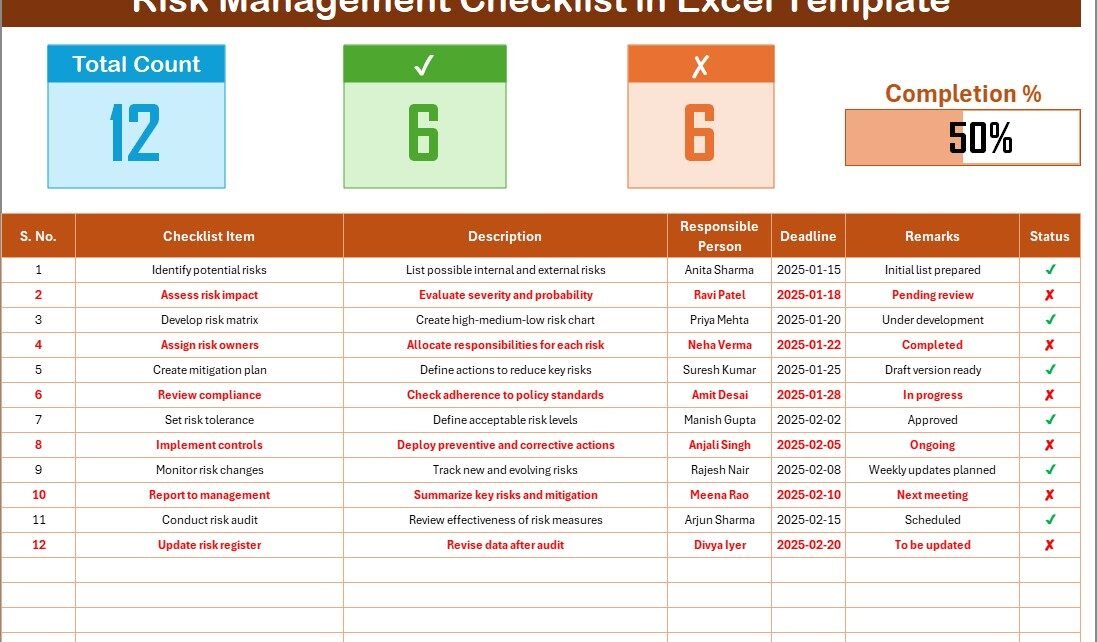
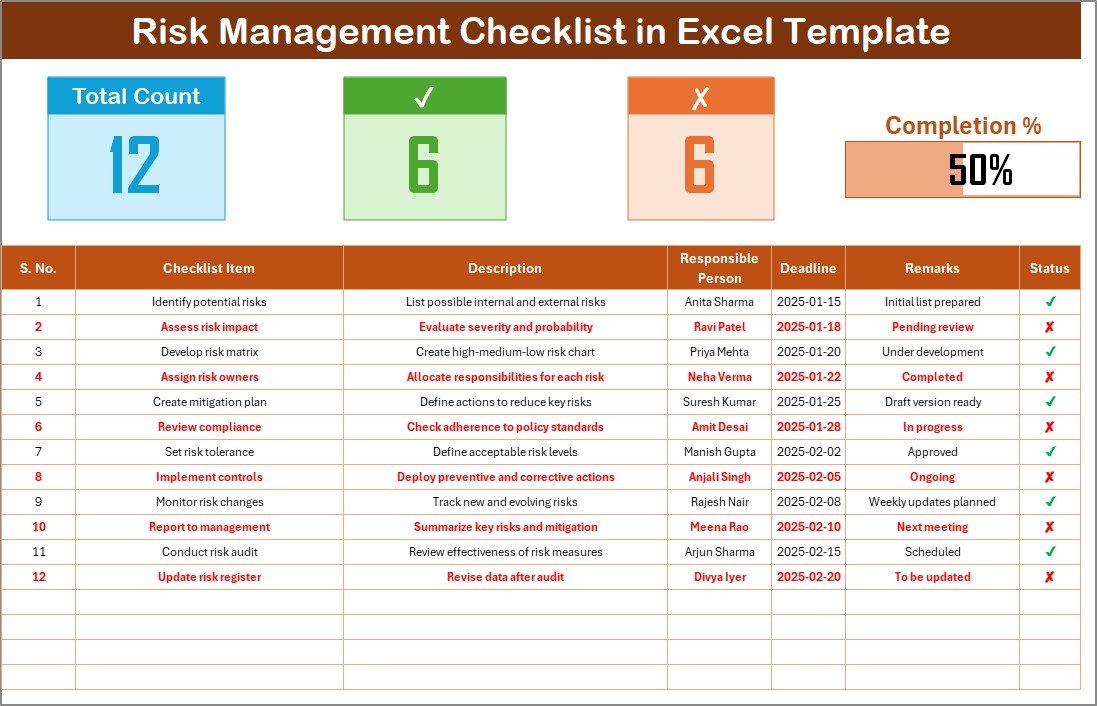
At the top of the main sheet, the template includes three key summary cards:
- Total Count: Displays the total number of checklist items.
- Completed Count: Shows how many items have been marked as completed (✔).
- Pending Count: Indicates how many tasks are still open or incomplete (✘).
- Progress Bar: Automatically updates to reflect the percentage of completion, providing a quick visual summary.
Click to buy Risk Management Checklist in Excel
Checklist Table
Drop-Down List for Responsible Person
The template comes with a secondary sheet that stores a unique list of responsible persons. This ensures clean data entry and enables drop-down selection on the main sheet. It also eliminates typing errors and makes reporting more accurate.
Automatic Calculations
All progress indicators and completion counts update automatically based on the checklist’s status column. You can track performance without manual calculations.
Customizable Layout
Since it’s built in Excel, users can easily modify column names, add new sections, or integrate with other reporting dashboards. It’s flexible enough to adapt to any organization’s workflow.
How to Use the Risk Management Checklist in Excel
Follow these simple steps to get started:
- Open the Template: Download and open the Excel file.
- Go to the “List” Sheet: Enter the names of all team members responsible for risk handling.
- Navigate to the Main Checklist Sheet: You’ll find pre-formatted columns for entering risk details.
- Add Checklist Items: List all possible risks, such as compliance issues, project delays, or data security threats.
- Assign Responsibilities: Select names from the drop-down list under the “Responsible Person” column.
- Set Deadlines: Specify target completion dates to keep tasks on track.
- Track Progress: Update the “Status” column using ✔ or ✘. The dashboard cards and progress bar will update instantly.
- Review and Take Action: Use the insights to identify delayed tasks or high-priority risks that need attention.
- Structure of the Template
The Risk Management Checklist in Excel includes two worksheet tabs designed for simplicity and clarity.
Main Checklist Sheet
This is your operational workspace. It’s divided into two sections:
- Top Section: Displays summary cards (Total, Completed, Pending) and a progress bar that calculates completion percentage.
- Bottom Section: Contains the full checklist table where you record, monitor, and update risk items.
List Sheet
This sheet serves as a database of responsible persons. It ensures that drop-downs in the main checklist sheet remain clean and consistent. You can add or remove names as needed.

Click to buy Risk Management Checklist in Excel
Advantages of Using a Risk Management Checklist in Excel
Using an Excel-based checklist for managing risks provides numerous benefits. Here are the most impactful ones:
Simple and Easy to Use
Excel is familiar to most professionals. You don’t need expensive software or training to get started.
Real-Time Tracking
The dashboard instantly updates your progress as you check off items, keeping everyone informed.
Improved Accountability
Each task has a designated responsible person and deadline, encouraging ownership and timely completion. Fully Customizable
You can easily modify columns, colors, or formulas based on your organization’s needs.
Centralized Risk Management
All risk information stays in one document, reducing confusion and ensuring transparency across departments.
Visual Insights
The progress bar and status cards provide a quick visual overview of the project’s current risk status.
Opportunities for Improvement
While this Excel checklist is an excellent solution, there are areas where enhancements can make it even more powerful:
- Integration with Power BI or Google Sheets: To create interactive dashboards with advanced charts.
- Automated Email Alerts: Using VBA or Power Automate to notify responsible persons before deadlines.
- Risk Categorization: Adding fields for risk type (Operational, Financial, Legal, etc.) can make analysis more detailed.
- Priority Levels: Including a “Risk Severity” or “Priority” column for better decision-making.
- Version Control: Using cloud storage (like OneDrive or Google Drive) to track changes made by different users.
Best Practices for Using the Risk Management Checklist in Excel
To make the most of your checklist, follow these best practices:
- Update Regularly: Keep the checklist current by reviewing and updating risks weekly or monthly.
- Set Clear Deadlines: Always assign realistic timelines to avoid bottlenecks.
- Use Conditional Formatting: Highlight overdue tasks automatically to draw attention.
- Encourage Collaboration: Share the Excel file with all team members to promote transparency.
- Review and Analyze Trends: Use past data to predict and prevent future risks.
- Backup Your Data: Save periodic copies to prevent accidental data loss.
- Combine with Other Tools: Integrate the checklist with Excel dashboards for overall project tracking.
Conclusion
The Risk Management Checklist in Excel is a must-have tool for any organization that values proactive management and transparency. It bridges the gap between strategy and execution by providing a clear, visual, and easy-to-use system for tracking risks.
With its automated summary cards, visual progress tracking, and customizable fields, this template empowers teams to stay organized, accountable, and informed. Whether you’re managing corporate compliance, project risks, or operational safety, this Excel tool gives you the clarity and control you need to succeed.
Frequently Asked Questions (FAQs)
- What is the purpose of a Risk Management Checklist in Excel?
It helps you systematically record, monitor, and resolve potential risks, ensuring your business stays compliant and prepared for challenges.
- Can I customize the checklist columns?
Yes! You can add new columns such as risk type, priority level, or status details based on your organization’s needs.
- How does the progress bar work?
The progress bar updates automatically based on the number of completed tasks (✔) versus the total tasks listed.
- Is this checklist suitable for all industries?
Absolutely. The structure is flexible enough to support sectors like healthcare, finance, construction, manufacturing, and IT.
- Can multiple users work on this file?
Yes, if you save it in a shared drive like OneDrive or Google Drive, multiple users can collaborate in real time.
- Do I need advanced Excel skills to use it?
Not at all! The template is beginner-friendly, with pre-built formulas and drop-downs ready for use.
Visit our YouTube channel to learn step-by-step video tutorials
Watch the step-by-step video tutorial:
Click to buy Risk Management Checklist in Excel