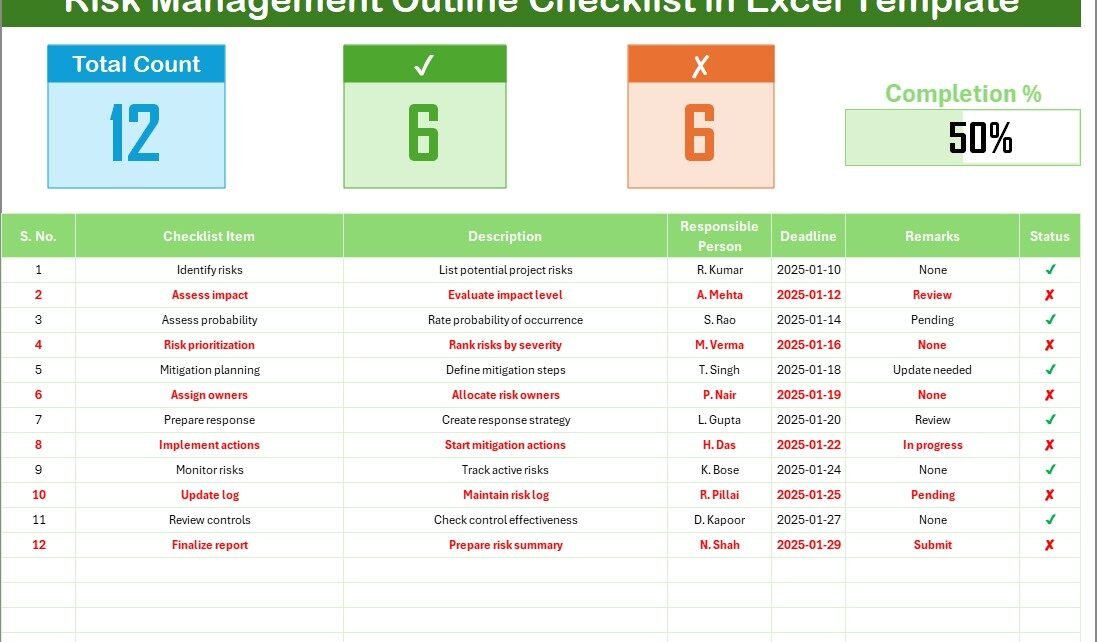
A Risk Management Outline Checklist in Excel is a ready-to-use template that helps you record risks, monitor action items, track progress, and stay compliant with your organization’s risk rules. The checklist keeps everything in one place so your team never misses deadlines or ignores important risks. You simply enter details in the table, update status, and review the overall completion rate with the help of a progress bar.
Teams use this checklist for:
- Operational risk tracking
- Project risk monitoring
- Compliance and regulatory checks
- Internal audit preparation
- Safety and security assessments
- Financial risk management
- Departmental risk reviews
Since the file is created in Excel, it becomes easy to update, share, customize, and extend.
Click to buy Risk Management Outline Checklist in Excel
Why Should You Use a Risk Management Checklist in Excel?
You should use this checklist because it gives you a structured method to manage risks. Many teams still write risk notes in emails or store reminders across multiple files. This creates confusion. However, when you track hazards in a single Excel file, nothing gets missed. The checklist also helps you assign a clear owner, add deadlines, and mark progress in real time. Moreover, Excel offers flexibility for formatting, sorting, filtering, and reporting.
How Does the Risk Management Outline Checklist in Excel Work?
This template contains two worksheets, and each sheet has a specific purpose. When you understand how both sheets work together, you can manage risks without any confusion.
- Main Checklist Sheet Tab
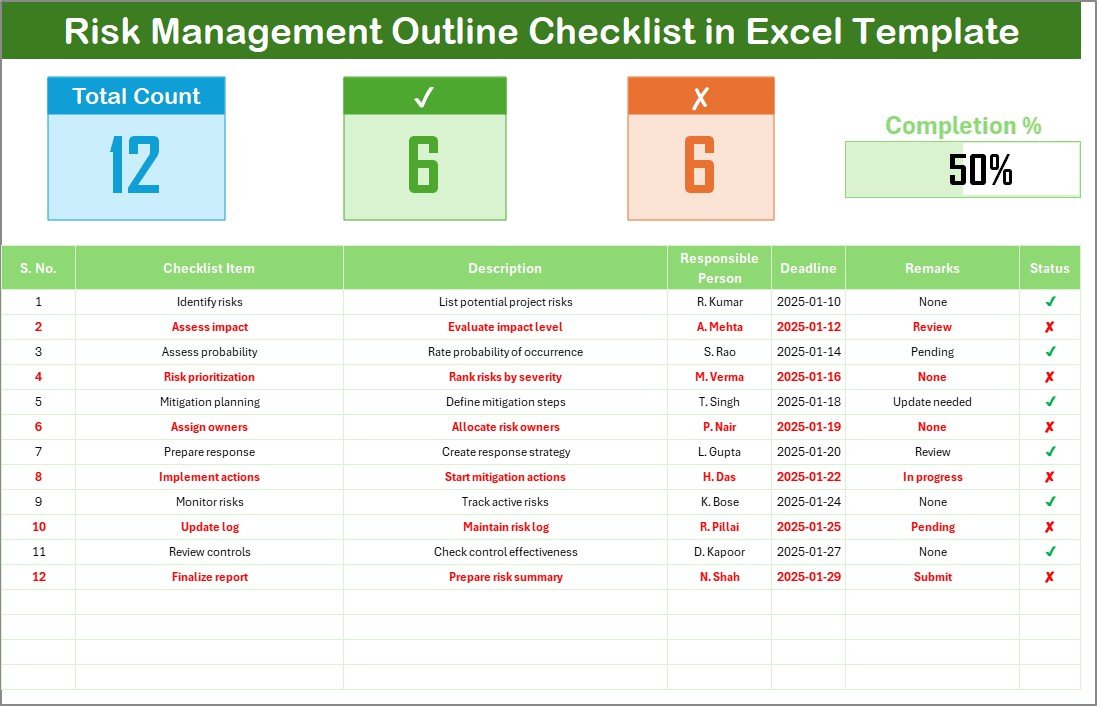
This is the core section of the template. You record and track every risk and action item on this page. The layout includes a top summary area and a detailed checklist table.
Top Section Overview
The top part of the sheet shows four key elements:
- Total Count – The total number of checklist items.
- Completed Count – Number of risks that you have marked as completed.
- Pending Count – Number of risks that still need action.
- Progress Bar for Checked % – A visual bar that shows how much of the checklist you have completed.
This section gives you a quick snapshot of risk readiness. As soon as you update the checklist, the summary numbers refresh automatically.
Click to buy Risk Management Outline Checklist in Excel
List Sheet Tab
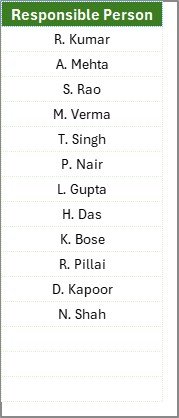
This sheet stores the unique list of Responsible Persons. This list helps create a drop-down selection in the main table. As a result, users do not need to type names manually. The drop-down reduces errors and keeps the file clean. You can add more names anytime, and the template will update automatically.
What Makes This Template Easy and Effective?
This Excel checklist includes several helpful features that make risk tracking both simple and accurate:
- Clean table structure
- Automatic summary cards
- Drop-down lists
- Progress visualization
- Clear status updates
- Editable fields
- Suitable for small and large teams
Because of these features, teams rely on this template when they want a quick yet effective risk management system.
What Should You Include in a Risk Management Checklist?
You should include items that cover all major risk categories in your organization. A strong checklist captures:
- Operational risks
- Technology risks
- Financial risks
- Compliance risks
- Strategic risks
- Safety risks
- Project risks
- Environmental risks
- Vendor and supply chain risks
Each item must include a description, owner, due date, and a clear status. Because Excel makes it simple to adjust fields, you can tailor the checklist to your team’s needs.
Why Is Risk Management Important for Every Organization?
Risk management helps organizations stay safe, compliant, and prepared. When teams identify threats early and take action on time, they avoid losses and improve performance. A well-structured risk process also builds transparency. Because everyone knows their responsibilities, the workflow becomes smooth.
In addition, risk management helps leaders make strong decisions. Since the checklist stores data clearly, management can understand where the organization stands and what issues need attention.
Advantages of Risk Management Outline Checklist in Excel
A Risk Management Outline Checklist in Excel offers many practical advantages. You can use it daily, weekly, or monthly to ensure your team stays on track. Here are the top benefits:
- Better Visibility of Risks
You see all risks on one screen. This helps you understand what items need attention. It also helps leaders track deadlines and workload easily.
- Clear Accountability
Each task includes a responsible person. Because of this clarity, you avoid confusion and ensure every risk item gets completed on time.
- Faster Decision-Making
Since you have updated information in one place, you can make decisions quickly. Teams no longer look through multiple emails or files.
- Easy Customization
Excel makes it easy to add new fields, new persons, and new risk categories. You can customize the checklist without any technical knowledge.
- Simple Status Tracking
You update status with ✔ or ✘. Because the progress bar updates automatically, you instantly understand your risk readiness.
- No Expensive Software Required
You don’t need complex risk management tools. The entire system runs on Excel, which everyone already uses.
- Improved Compliance
When you follow a checklist, you stay compliant with internal rules and external audits. You also maintain a record of all actions taken.
How to Use the Risk Management Checklist Effectively?
To get the best results, you should follow a clear process. Here is a simple step-by-step guide:
- List All Risks and Action Items
Start by entering every risk in the checklist table. Include descriptions and deadlines. Add remarks if you need clarification.
- Assign Responsibilities
Select the name of the responsible person from the drop-down list. This ensures clear ownership and quick follow-up.
- Update Status Regularly
Mark ✔ when a task completes. Leave ✘ for pending items. Update this daily or weekly so your progress remains accurate.
- Review Summary Cards
Use the summary cards to understand overall completion. If pending items begin to increase, you take corrective action immediately.
- Conduct Monthly Reviews
Sit with your team once a month and evaluate the checklist. Remove old risks, add new risks, and update deadlines.
Best Practices for the Risk Management Outline Checklist in Excel
To maintain accuracy and improve your risk readiness, follow these best practices:
- Keep the Checklist Updated Daily
Teams should update status as soon as an action completes. Fresh data leads to better decisions.
- Use Clear and Short Descriptions
Avoid long sentences. Use simple descriptions so everyone understands the task easily.
- Review Deadlines Frequently
You should revise deadlines based on priority. This helps you avoid delays.
- Maintain Clean Drop-Down Lists
Always keep the list of responsible persons clean. Remove duplicates and add new members regularly.
- Use Filters to Analyze Risks
Excel filters help you identify high-risk items quickly. You can filter by responsible person, deadline, or pending status.
- Share the Checklist with All Stakeholders
Send the file weekly to team members. Everyone stays aligned.
Common Mistakes to Avoid While Using the Checklist
Avoid these mistakes to keep your checklist effective:
- Not reviewing the file regularly
- Using unclear or vague descriptions
- Assigning too many tasks to one person
- Missing deadlines
- Leaving remarks incomplete
- Not updating status for completed items
When you avoid these mistakes, your checklist becomes a reliable risk monitoring tool.
Conclusion
A Risk Management Outline Checklist in Excel helps organizations stay prepared, informed, and proactive. Because the template is simple and well-structured, teams can track risks smoothly, assign responsibilities, and update the progress quickly. With the help of summary cards, drop-down lists, and a clear table, you can monitor every risk without confusion.
This checklist supports better planning, faster decisions, and greater compliance. When teams use it daily and follow best practices, they improve their risk performance and create a safer environment for all operations.
Frequently Asked Questions (FAQs)
- What is a Risk Management Checklist in Excel?
It is a structured Excel tool that helps you capture risks, track action items, assign responsibilities, and monitor progress.
- Who can use this checklist?
Project managers, compliance teams, auditors, safety officers, finance teams, IT managers, and any department that needs risk tracking.
- Can I customize this checklist?
Yes, you can add new columns, new risk categories, new names, and new formulas based on your workflow.
- Does this template include automatic calculations?
Yes, the checklist includes automatic progress calculations and summary cards.
- How often should I update the checklist?
You should update it daily or weekly so your risk information stays accurate.
- Can I share this file with my team?
Yes, you can share it through email, shared drives, Teams, or cloud platforms.
- What status symbols should I use?
Use ✔ for completed items and ✘ for pending items.
- Can this checklist support multiple projects?
Yes, you can create separate tabs for each project or add a project column in the main table.
Visit our YouTube channel to learn step-by-step video tutorials
Click to buy Risk Management Outline Checklist in Excel