Part of the free Module 12: Excel VBA Course · Lesson 5 of 18 · Full Excel course
Updated on 5 September 2026 · Works in Excel 365, 2021, 2019 and 2016 unless noted.
The VBA MsgBox and InputBox are the two built-in dialog boxes in Excel VBA. MsgBox displays a message with buttons and an icon and returns which button the user clicked. InputBox shows a prompt with a text box and returns what the user typed. Together they let any macro confirm an action, warn about a problem or collect a value at run time without designing a UserForm.
When to use MsgBox and InputBox
Use MsgBox to tell the user a macro has finished, to warn about missing data, or to ask a Yes/No question before doing something you cannot undo, such as deleting rows or overwriting a file. Use InputBox when the macro needs one value from the user: a month, a file name, a sales target or a cell range. Both dialogs are modal, so the code pauses until the user responds. Because they need no design work they are the right choice for small utilities. When you need several inputs on one screen, move up to a UserForm.
MsgBox syntax
The full signature is MsgBox(prompt, [buttons], [title], [helpfile], [context]). Only the prompt is required. The table below explains the arguments you will actually use.
| Argument | Required | What it does | Example |
|---|---|---|---|
| prompt | Yes | The message text, up to about 1,024 characters | "Report complete" |
| buttons | No | A number or constant that sets the buttons, icon and default button. Add constants together. | vbYesNo + vbQuestion |
| title | No | Text in the title bar. Defaults to Microsoft Excel. | "Month-end close" |
| helpfile, context | No | Link to a custom help file. Rarely used in Excel. | Leave blank |
The simplest call shows the text with a single OK button. Option Explicit belongs once at the very top of the module; it forces you to declare every variable and is included in the first block below.
Option Explicit

Sub Message_Box()
    MsgBox "Hello!"
End Sub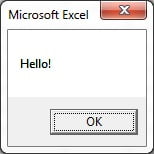
Add the second and third arguments to choose an icon and set your own title. Here the information icon and the title My Title are used.
Sub Message_Box_With_Title()
    MsgBox "Hello!", vbInformation, "My Title"
End Sub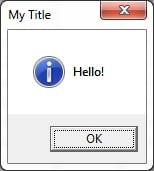
MsgBox button and icon constants
The buttons argument is built by adding one constant from each group. You can type the number or the constant name; the name is easier to read and is what professional code uses.
| Group | Constant | Value | Result |
|---|---|---|---|
| Buttons | vbOKOnly | 0 | OK |
| Buttons | vbOKCancel | 1 | OK, Cancel |
| Buttons | vbAbortRetryIgnore | 2 | Abort, Retry, Ignore |
| Buttons | vbYesNoCancel | 3 | Yes, No, Cancel |
| Buttons | vbYesNo | 4 | Yes, No |
| Buttons | vbRetryCancel | 5 | Retry, Cancel |
| Icon | vbCritical | 16 | Red circle with a cross |
| Icon | vbQuestion | 32 | Question mark |
| Icon | vbExclamation | 48 | Yellow warning triangle |
| Icon | vbInformation | 64 | Blue information circle |
| Default button | vbDefaultButton1 | 0 | First button is selected (default) |
| Default button | vbDefaultButton2 | 256 | Second button is selected |
| Default button | vbDefaultButton3 | 512 | Third button is selected |
| Modality | vbSystemModal | 4096 | Dialog stays on top of all applications |
For example, vbYesNo + vbExclamation + vbDefaultButton2 shows a warning with Yes and No where No is selected when the user presses Enter. That combination is the safe choice for any delete or overwrite prompt.
Multi-line messages with vbNewLine
MsgBox does not understand HTML or line breaks typed into the string. Join the parts with the ampersand and insert vbNewLine (or vbCrLf) where you want a new line. The same approach lets you mix fixed text with variables.
Sub Multi_Line_Message()
    Dim rowsDone As Long
    Dim sheetName As String

    rowsDone = 250
    sheetName = ActiveSheet.Name

    MsgBox "Import finished." & vbNewLine & vbNewLine & _
           "Rows processed: " & rowsDone & vbNewLine & _
           "Sheet: " & sheetName, vbInformation, "Import"
End Sub
Two vbNewLine constants in a row produce a blank line. Use vbTab to line up short columns of text inside the dialog.
Reading the return value: vbYes, vbNo and friends
When you give MsgBox more than one button it becomes a function: wrap the arguments in parentheses and store the result in a variable. The result is a number that tells you which button was clicked.
Sub Message_Box_Confirmation()
    Dim answer As VbMsgBoxResult

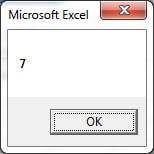
    answer = MsgBox("Do you like VBA?", vbQuestion + vbYesNo, "Quick poll")
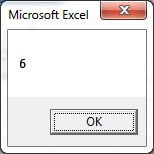
    MsgBox answer
End Sub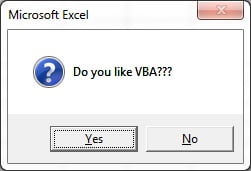
| Button clicked | Constant | Value |
|---|---|---|
| OK | vbOK | 1 |
| Cancel (or the close cross) | vbCancel | 2 |
| Abort | vbAbort | 3 |
| Retry | vbRetry | 4 |
| Ignore | vbIgnore | 5 |
| Yes | vbYes | 6 |
| No | vbNo | 7 |
Always compare with the named constant, as in If answer = vbYes Then, rather than the number. Declaring the variable as VbMsgBoxResult gives you IntelliSense for the constants. If the dialog has a Cancel button, the user can also press Esc or click the close cross, and both return vbCancel. A dialog with only Yes and No has no close cross, so the user must choose.
InputBox: collect a value from the user
The signature is InputBox(prompt, [title], [default], [xpos], [ypos]). It always returns a String, even when the user types a number.
Sub Input_Box()
    Dim userName As String

    userName = InputBox("What is your name?", "Welcome", "Guest")
    MsgBox "Hello " & userName
End Sub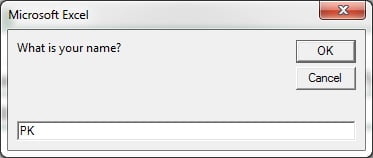
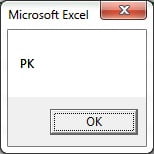
The third argument pre-fills the box with a default value, which saves typing and shows the user the expected format. Because the return is text, convert it before doing arithmetic: CLng(userText) for whole numbers, CDbl(userText) for decimals, and test with IsNumeric first so a stray letter does not crash the macro.
Application.InputBox and the Type argument
Excel adds its own version, Application.InputBox, with an extra Type argument that validates the entry for you and can return a Range object when the user selects cells with the mouse.
| Type | Accepts | Returns |
|---|---|---|
| 0 | A formula | String, e.g. =SUM(A1:A5) |
| 1 | A number | Double |
| 2 | Text | String |
| 4 | True or False | Boolean |
| 8 | A cell reference, typed or selected | Range object |
| 16 | An error value such as #N/A | Error |
| 64 | An array of values | Variant array |
Types can be added together: Type:=1 + 2 accepts a number or text. If the user types something that does not match, Excel shows its own error and keeps the box open, so you do not need to write that validation. Type 8 is the most useful in practice because it lets the user point at the range the macro should work on.
Sub Pick_A_Range()
    Dim target As Range

    On Error Resume Next
    Set target = Application.InputBox("Select the cells to total:", "Pick range", Type:=8)
    On Error GoTo 0

    If target Is Nothing Then
        MsgBox "No range selected.", vbExclamation
        Exit Sub
    End If

    MsgBox "Total of " & target.Address(False, False) & " = " & _
           Application.WorksheetFunction.Sum(target), vbInformation
End Sub
Handling Cancel
Every InputBox needs a Cancel check. The two versions behave differently, and getting this wrong is the most common InputBox bug.
- InputBox returns an empty string on Cancel. It also returns an empty string when the user clicks OK with nothing typed, so you cannot tell the two apart. Treat both as cancel:
If userText = "" Then Exit Sub. If you must tell them apart, useStrPtr(userText) = 0, which is True only for Cancel. - Application.InputBox returns False on Cancel for every Type except 8. With Type 8, Cancel raises run-time error 424 because False cannot be assigned to a Range with Set. That is why the example above wraps the call in
On Error Resume Nextand then testsIs Nothing.
Sub Ask_For_Number()
    Dim result As Variant

    result = Application.InputBox("Enter the sales target:", "Target", 50000, Type:=1)
    If VarType(result) = vbBoolean Then
        MsgBox "Cancelled.", vbInformation
        Exit Sub
    End If

    MsgBox "Target set to " & Format(result, "#,##0"), vbInformation
End Sub
Testing VarType(result) = vbBoolean is safer than result = False because a typed value of 0 would also equal False.
Worked example: confirm before clearing a range
Suppose the sheet Data holds this month-end extract in columns A to F.
| Invoice | Customer | Region | Month | Amount | Status |
|---|---|---|---|---|---|
| INV-1001 | Acme Ltd | North | August | 4,250 | Paid |
| INV-1002 | Bright Co | South | August | 1,980 | Open |
| INV-1003 | Cobalt plc | East | August | 7,600 | Paid |
The macro below asks which month is being closed, defaults to the current month, exits cleanly on Cancel, asks for confirmation with No selected by default, and reports the outcome either way.
Sub Clear_Old_Data()
    Dim answer As VbMsgBoxResult
    Dim monthName As String
    Dim sh As Worksheet
    Dim lastRow As Long

    Set sh = ThisWorkbook.Worksheets("Data")

    monthName = InputBox("Which month are you closing?", "Month-end close", Format(Date, "mmmm"))
    If monthName = "" Then Exit Sub

    answer = MsgBox("Clear all rows in " & sh.Name & " for " & monthName & "?" & vbNewLine & _
                    "This cannot be undone.", vbExclamation + vbYesNo + vbDefaultButton2, "Confirm")

    If answer = vbYes Then
        lastRow = sh.Cells(sh.Rows.Count, "A").End(xlUp).Row
        If lastRow > 1 Then sh.Range("A2:F" & lastRow).ClearContents
        MsgBox monthName & " data cleared.", vbInformation, "Done"
    Else
        MsgBox "No changes made.", vbInformation, "Cancelled"
    End If
End Sub
Run it, accept the default month and click Yes: rows 2 to 4 are cleared and the Done message appears. Run it again and press Enter at the confirmation: because No is the default button, nothing is deleted and the Cancelled message appears.
Tips and common mistakes
- Parentheses decide whether you get an answer.
MsgBox "Hi", vbYesNoshows the dialog and throws the result away;answer = MsgBox("Hi", vbYesNo)captures it. - InputBox always returns text. Convert with CLng, CDbl or Val and test with IsNumeric before arithmetic, or use Application.InputBox with Type 1.
- Make the safe button the default. Add vbDefaultButton2 to Yes/No prompts that delete or overwrite, so an accidental Enter does no harm.
- Never put MsgBox inside a long loop. A thousand pop-ups is not a progress bar. Use Application.StatusBar or Debug.Print to report progress instead.
- Keep the message short and specific. Say what happened and what the user should do next. Long paragraphs are not read.
- Set a title. The default title Microsoft Excel tells the user nothing; a title such as Import or Month-end close does.
- Check Cancel for both versions. Empty string for InputBox, False for Application.InputBox, and On Error for Type 8.
Errors and how to fix them
| Error or symptom | Cause | Fix |
|---|---|---|
| Compile error: Expected: = | Parentheses used without storing the result, e.g. MsgBox("Hi", vbYesNo) |
Either remove the parentheses or assign the result to a variable |
| Run-time error 13: Type mismatch | Arithmetic on the text returned by InputBox, or Cancel returned an empty string | Test IsNumeric and convert with CLng or CDbl, or use Application.InputBox Type 1 |
| Run-time error 424: Object required | Cancel clicked on Application.InputBox with Type 8 | Wrap the call in On Error Resume Next and test Is Nothing |
| Dialog shows the wrong buttons | Two constants from the same group were added, e.g. vbYesNo + vbOKCancel | Use one button constant, one icon constant and one default-button constant |
| Message appears on one line | Line breaks typed into the string are ignored | Join parts with & vbNewLine & |
| Macro seems to hang | A MsgBox is waiting behind another window or inside a loop | Add vbSystemModal, or move the MsgBox outside the loop |
Practice exercise
Click here to download the practice file, then try these tasks in a new module.
- Write a macro that asks for a sales target with InputBox, compares it with the value in cell B2, and shows an information box if the target is met or a critical box if it is not.
- Change the macro to use Application.InputBox with Type 1 and handle Cancel with VarType.
- Build a three-line MsgBox that reports the sheet name, the last used row and today’s date using vbNewLine.
- Write a macro with vbYesNoCancel that saves the workbook on Yes, continues on No and exits on Cancel.
- Use Application.InputBox with Type 8 to let the user select a range, then apply bold formatting to it.
Watch the step-by-step video tutorial
Key takeaways
- MsgBox shows a message; add button, icon and default-button constants together to build the dialog you need.
- Use parentheses and a variable to capture the result, then compare with vbYes, vbNo or vbCancel.
- Join text with the ampersand and use vbNewLine for multi-line messages.
- InputBox always returns a String; Application.InputBox validates with the Type argument and can return a Range.
- Check for Cancel every time: empty string, False, or an error with Type 8.
- Put the safe choice on the default button for any prompt that deletes or overwrites data.
Related lessons
- Excel VBA course hub
- If Then Else in VBA
- VBA variables and data types
- Error handling in VBA
- UserForms for multi-field input
- Excel TEXT function for formatting numbers before showing them
- Excel dashboard course
- MsgBox function reference on Microsoft Learn
- Application.InputBox method on Microsoft Learn
Frequently asked questions
How do I add a new line in a VBA MsgBox?
Join the parts of the message with the ampersand and place vbNewLine or vbCrLf between them, for example MsgBox “Line 1” & vbNewLine & “Line 2”. Two vbNewLine constants together create a blank line. Line breaks typed inside the quotation marks are ignored, so the constant is the only reliable way to break the text.
How do I check whether the user clicked Yes or No in a MsgBox?
Call MsgBox as a function with parentheses and store the result in a variable declared as VbMsgBoxResult. Then compare the variable with vbYes (6) or vbNo (7): If answer = vbYes Then run the action, otherwise skip it. Without the parentheses and the variable the answer is discarded.
What is the difference between InputBox and Application.InputBox?
InputBox is a VBA function that always returns a String and returns an empty string on Cancel. Application.InputBox is an Excel method with a Type argument that restricts the entry to a number, text, a formula, a Boolean or a cell range, returns the matching data type, and returns False when the user cancels.
How do I detect Cancel in a VBA InputBox?
For the InputBox function, test whether the result is an empty string and exit the procedure if it is. For Application.InputBox, test VarType(result) = vbBoolean, because Cancel returns False. With Type 8 (a range), Cancel raises error 424, so wrap the call in On Error Resume Next and check whether the range variable Is Nothing.
Can I make the No button the default in a Yes/No MsgBox?
Yes. Add vbDefaultButton2 to the buttons argument, for example MsgBox(“Delete rows?”, vbYesNo + vbExclamation + vbDefaultButton2). The second button, No, is then highlighted, so pressing Enter by accident does not confirm the action. Use vbDefaultButton3 for the third button in a Yes/No/Cancel dialog.
Want the finished version? Ready-made Excel dashboards, trackers and VBA systems are available at NextGenTemplates.com.