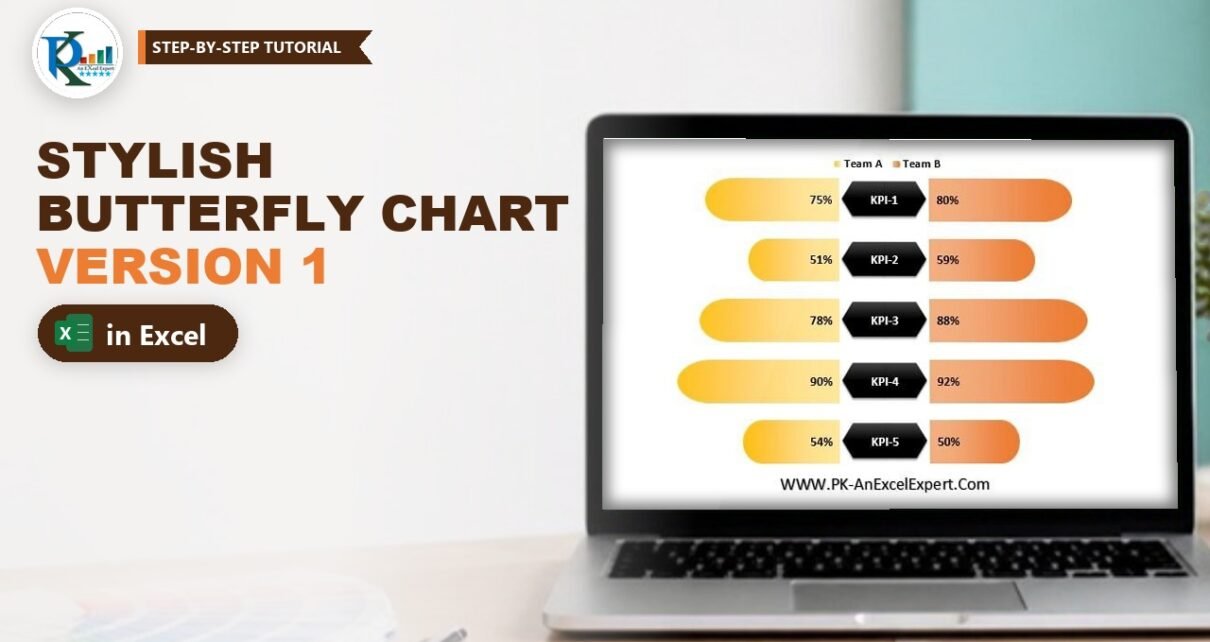
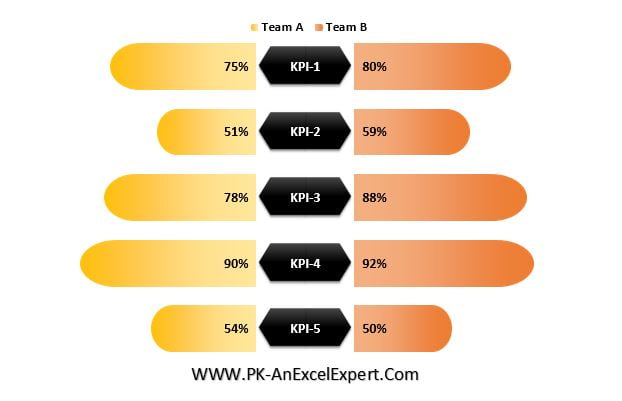
A butterfly chart in Excel puts two teams side by side so you can compare them on several KPIs in one look. Team A grows to the left, Team B grows to the right, and the KPI names sit in the middle like the body of a butterfly. In this tutorial you build my Stylish Butterfly Chart Version 1: rounded gradient bars, a black hexagon label for each KPI and values printed inside the bars. It is one stacked bar chart, three helper columns and a few shapes pasted into the series. No VBA and no add-ins.
Watch the Video Tutorial
In the video, PK adds three support columns to the team scores, turns them into a stacked bar chart, hides the blank areas and pastes rounded gradient shapes and a black pentagon label into the visible series. If the player does not start here, watch it on YouTube.
What You Will Build
- A comparison of Team A and Team B across five KPIs, with KPI-1 at the top.
- Team A bars that grow to the left from the centre, and Team B bars that grow to the right.
- Rounded bar ends with gold and orange gradients instead of flat rectangles.
- A black hexagon in the middle of each row that shows the KPI name.
- Percent labels inside the bars and a two-item legend at the top.
Part 1 – Prepare the Data for the Butterfly Chart in Excel
Step 1: Enter the team scores
Start with the KPI names and the two team scores, all stored as percentages:
A1: KPI Name   B1: Team A   C1: Team B
A2: KPI-1      B2: 75%      C2: 80%
A3: KPI-2      B3: 51%      C3: 59%
A4: KPI-3      B4: 78%      C4: 88%
A5: KPI-4      B5: 90%      C5: 92%
A6: KPI-5      B6: 54%      C6: 50%
Remove the gridlines from View > Gridlines so the chart sits on a clean background.
Step 2: Add the three support columns
The chart needs three helper columns next to the data:
D1: KPI Name Size       D2:D6: 50%
E1: Team A Blank Area   E2: =100%-B2
F1: Team B Blank Area   F2: =100%-C2
Fill E2 and F2 down to row 6 and format D2:F6 as percentages.
How the helper columns work
- KPI Name Size is the width of the middle block that will hold the KPI name. 50% is enough for short names like KPI-1.
- Team A Blank Area (
=100%-B2) is the empty space to the left of Team A’s bar. Bar plus blank always equals 100%, so every Team A bar starts from the same centre line and grows outwards. - Team B Blank Area (
=100%-C2) does the same job on the right side. - Each row therefore adds up to 100% + 50% + 100% = 250%. That total is the key to the axis setting in Step 6.
Part 2 – Build the Stacked Bar Chart
Step 3: Insert a stacked bar chart
Select the whole table (A1:F6) and go to Insert > Bar Chart > 2-D Stacked Bar.
Step 4: Switch rows and columns and reorder the series
Right-click the chart, choose Select Data and click Switch Row/Column so each column becomes a series and the KPIs become the categories. Then use the Move Up and Move Down arrows to put the series in this order:
- Team A Blank Area
- Team A
- KPI Name Size
- Team B
- Team B Blank Area
Click OK. The order is what creates the butterfly shape: empty space, Team A, the KPI block in the centre, Team B, then empty space.
Step 5: Show KPI-1 at the top
A bar chart lists categories from the bottom up, so KPI-5 appears first. Right-click the vertical axis, choose Format Axis and tick Categories in reverse order. Now KPI-1 is at the top.
Step 6: Set the horizontal axis to 250%
Right-click the horizontal axis, choose Format Axis and set Minimum to 0 and Maximum to 2.5 (250%). Every row adds up to exactly 250%, so with this maximum all rows line up edge to edge and the centre blocks stay in one straight column.
Step 7: Clean up the chart
- Delete both axes, the chart title and the gridlines.
- Right-click any bar, open Format Data Series and reduce Gap Width from 150% to about 30%.
- Select the Team A Blank Area series and set Shape Fill to No Fill. Do the same for Team B Blank Area.
- Select the chart area and set it to No Fill and No Outline.
Part 3 – Make the Bars Stylish
Step 8: Draw a rounded bar shape
Go to Insert > Shapes and choose Round Same Side Corner Rectangle (Rectangle: Top Corners Rounded). Draw it on the sheet, then use Rotate Right 90° so the rounded end points right. Drag the yellow handle all the way so the end becomes a full half circle, adjust the height and set Shape Outline to No Outline.
Step 9: Give it an orange gradient and paste it into Team B
Right-click the shape, choose Format Shape > Fill > Gradient fill and delete the extra gradient stops so only two are left. Set the first stop to Orange, Accent 2 and the second to a light orange. Press Ctrl+C, click the Team B series in the chart and press Ctrl+V. Every Team B bar now has the rounded orange look.
Step 10: Make the gold version for Team A
Select the shape again and change the gradient stops to Gold, Accent 4 and a lighter gold. Then go to Shape Format > Rotate > Flip Horizontal so the rounded end points left. Copy it, click the Team A series and paste.
Step 11: Build the KPI label shape
Go to Insert > Shapes > Block Arrows and choose the Pentagon (Arrow: Pentagon). Draw it, copy and paste it, and flip the copy horizontally. Push the two pentagons together so they form a hexagon, select both, right-click and choose Group. Apply a black shape style, copy the group, click the KPI Name Size series and paste.
Part 4 – Add Labels and the Legend
Step 12: Add the data labels
- Right-click the Team A series, choose Add Data Labels and set the label position to Inside End, so the value sits next to the centre.
- Add labels to Team B and set them to Inside Base, which is also next to the centre on the right side.
- Add labels to KPI Name Size. In Format Data Labels tick Value From Cells, select
A2:A6, click OK and untick Value. The hexagons now show KPI-1 to KPI-5 instead of 50%.
Make the KPI labels white and bold so they read well on black, and make the team values black, bold and a little bigger.
Step 13: Tidy the legend
Click the legend, then click the Team A Blank Area entry and press Delete. Do the same for KPI Name Size and Team B Blank Area, so only Team A and Team B remain. Right-click the legend, choose Format Legend and move it to the Top, then make the text black and bold.
Change any score in B2:C6 and the bars grow or shrink immediately, because the blank-area formulas recalculate and every row still adds up to 250%.
Longer KPI names
If your KPI names are longer, increase KPI Name Size, for example to 100%. Each row then totals 300%, so change the axis maximum to 3 as well. The rule is simple: the axis maximum is always 200% plus the KPI Name Size.
Version 1 vs Version 2
Version 1 is built from horizontal bars, so the KPIs are stacked from top to bottom and the teams spread left and right. In Stylish Butterfly Chart Version 2 the same idea is turned around: the KPIs run across the page and the team bars grow up and down. Pick the one that fits the space on your dashboard.
Common Errors and Fixes
- The rows do not line up in the middle. The axis maximum is on Auto. Set it to 2.5, or to 2 plus your KPI Name Size.
- KPI-5 is at the top. Tick Categories in reverse order on the vertical axis.
- A team’s bars point the wrong way. The series order is wrong. Open Select Data and use the move arrows until it matches Step 4.
- The hexagons show 50%. Value is still ticked in the KPI Name Size labels. Keep only Value From Cells.
Tips
- Keep both teams on the same 0% to 100% scale; the blank-area formulas assume scores never go over 100%.
- Add more KPIs by inserting rows inside the table range and extending the chart data with Select Data.
- Use colours that match your company theme; the shape method works with any gradient.
- Value From Cells needs Excel 2013 or later. Microsoft’s guide to creating a chart from start to finish covers the basic chart settings. (Version note is an addition, not from the video.)
Want It Ready-Made?
Want the finished, formatted workbook? The Stylish Butterfly Chart Version 1 template is available on NextGenTemplates.com, and you can browse more Excel charts and visualization templates. To use charts like this in full reports, see Excel Pivot Tables and Dashboards on NextGenTemplates Academy.
Related Tutorials
- Stylish Butterfly Chart Version 2
- Dynamic Comparison in Butterfly Chart
- Team Comparison with Tornado or Butterfly Charts in Excel
- Comparison Infographic in Excel
- Convert a Boring Bar Chart into Stylish Charts
Frequently Asked Questions
What is a butterfly chart used for?
It compares two groups on the same list of measures. One group extends to the left and the other to the right from a shared centre, so differences are easy to spot row by row.
Why is the axis maximum set to 2.5?
Each row is made of Team A plus its blank area (100%), the KPI name block (50%) and Team B plus its blank area (100%). That is 250%, so a maximum of 2.5 makes every row the same length and keeps the centre aligned.
Is a butterfly chart the same as a tornado chart?
They are closely related. Both place two series back to back. A tornado chart is usually sorted from the largest bar to the smallest, while this butterfly chart keeps the KPI order of your table.
How do I show KPI names in the middle of the chart?
Add data labels to the KPI Name Size series, choose Value From Cells, select the KPI name cells and untick Value.
Can I build this chart without VBA?
Yes. It uses only a stacked bar chart, three helper columns, shapes pasted into the series and data labels.
About the Author
PK is a Microsoft Excel expert and trainer and the founder of PK: An Excel Expert and NextGenTemplates.com. He has been teaching Excel, VBA, Power Query and Power BI since 2016 on his YouTube channel.
Conclusion
A stylish butterfly chart in Excel comes down to three ideas: blank-area helper columns that make every row the same total, a stacked bar chart with the series in the right order and an axis maximum of 250%, and shapes pasted into the visible series for the rounded, gradient look. Add Value From Cells labels for the KPI names and you have a clean two-team comparison that updates whenever the scores change.