The Optical Store Appointment Calendar in Excel is a macro-enabled workbook built around one idea: type each booking once, then read it four different ways. It ships with 7 worksheet tabs, 4 linked calendar views and 100 sample appointments already entered, dated 07 January 2026 through 31 December 2026 — 8 or 9 per month, across 24 appointment-type labels and 7 room names. Setup takes under 10 minutes.
Most independent optical stores still run the diary on paper or on a wall planner, then discover at 09:00 that two people were promised the same slot in the Contact Lens Studio. A subscription booking platform fixes that, but it also costs $16 to $61 a month forever, and much of what it offers — customer self-booking, SMS reminders, staff phone apps — is capacity a single-branch store taking bookings at the counter never actually uses. This Excel calendar template for opticians sits in the gap: a shared, printable diary you buy once and own.
What This Template Is — and What It Is Not
Being blunt up front saves everyone time. The Optical Store Appointment Calendar in Excel is a scheduling calendar. It plots appointment slots on a calendar grid and lists them by date range. It is not a patient record, an EHR or EMR, a practice-management system or an online booking engine. It stores no prescriptions, no clinical measurements and no health data. It sends no reminders, connects to no insurance or billing system, is not HIPAA or GDPR certified, and encrypts nothing. It makes no optometric, dispensing or medical claim.
Appointment names in the sample rows — “Comprehensive Eye Exam”, “Contact Lens Fitting”, “Spectacle Dispensing” — are text labels on demo data, there so you can see what a filled year looks like. They describe the slot, not anything the workbook does.
Key Features of the Optical Store Appointment Calendar in Excel
- 7 worksheet tabs: Home, Annual View, Monthly View, Daily View, This Month, Events and Setting.
- One source of truth. The Events sheet holds ID, Date, Day, Event Name, Time, Location and Description. All four views read from it — there is no second copy to keep in step.
- Macros are genuinely load-bearing. Opening the file and counting: the Annual View runs on 602 worksheet formulas and the Monthly View on 106, but the Daily View and This Month sheets contain zero formulas. Both are written cell-by-cell by the workbook’s own VBA routines,
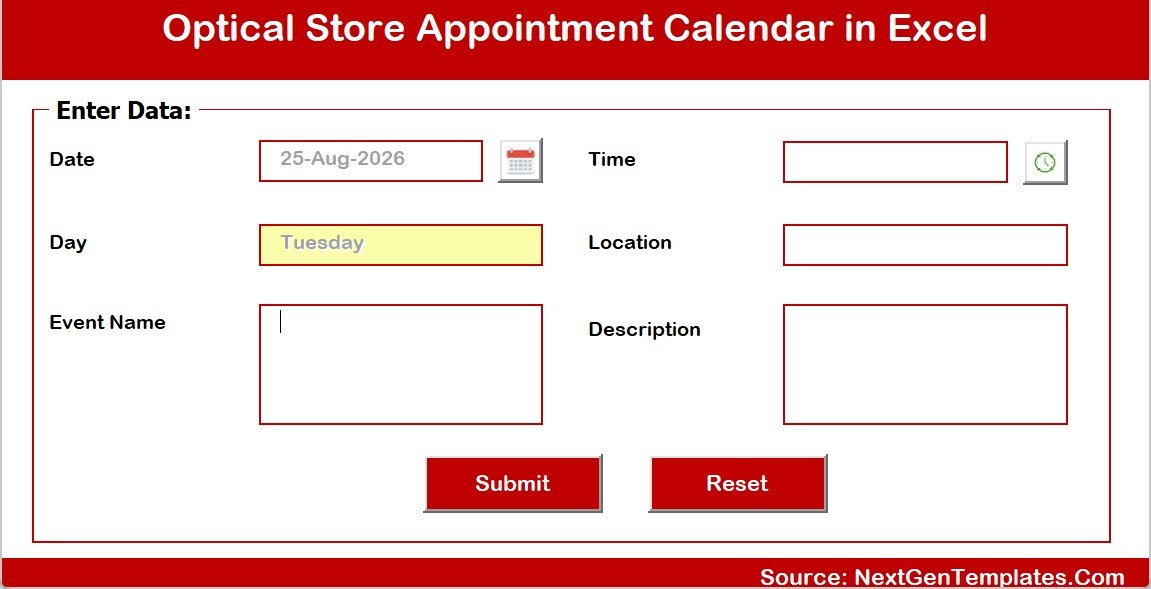
Refresh_Daily_ViewandRefresh_This_Month. - A real entry form. Add New Record, Update Record and Delete Record on the Events sheet open a VBA userform with a date picker, an auto-filled Day box, a time picker, Location and Description, plus Submit and Reset. The Monthly and Daily views carry their own Add New Event buttons onto the same form.
- 100 verified sample rows. IDs 1 to 100 with no duplicates, no repeated dates, and every row’s weekday recomputed against its date before release — 100 matches, 0 mismatches.
- A Setting sheet that actually controls the workbook: Year, Start with Month, first day of the week, two highlighted weekdays, an event-highlight toggle and the colour theme. The download ships set to 2026, starting January, weeks beginning Sunday, in the Red theme.
Sheets Explanation
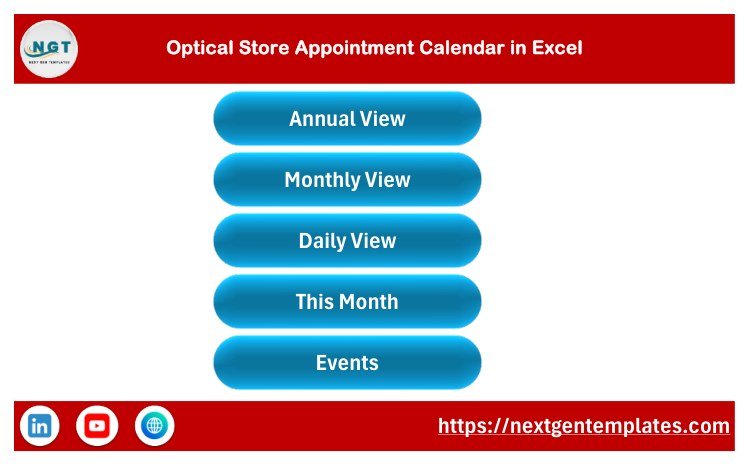
Home — the navigation menu
Five buttons: Annual View, Monthly View, Daily View, This Month and Events. Every other sheet carries a house icon back to it, so nobody has to hunt through tabs.
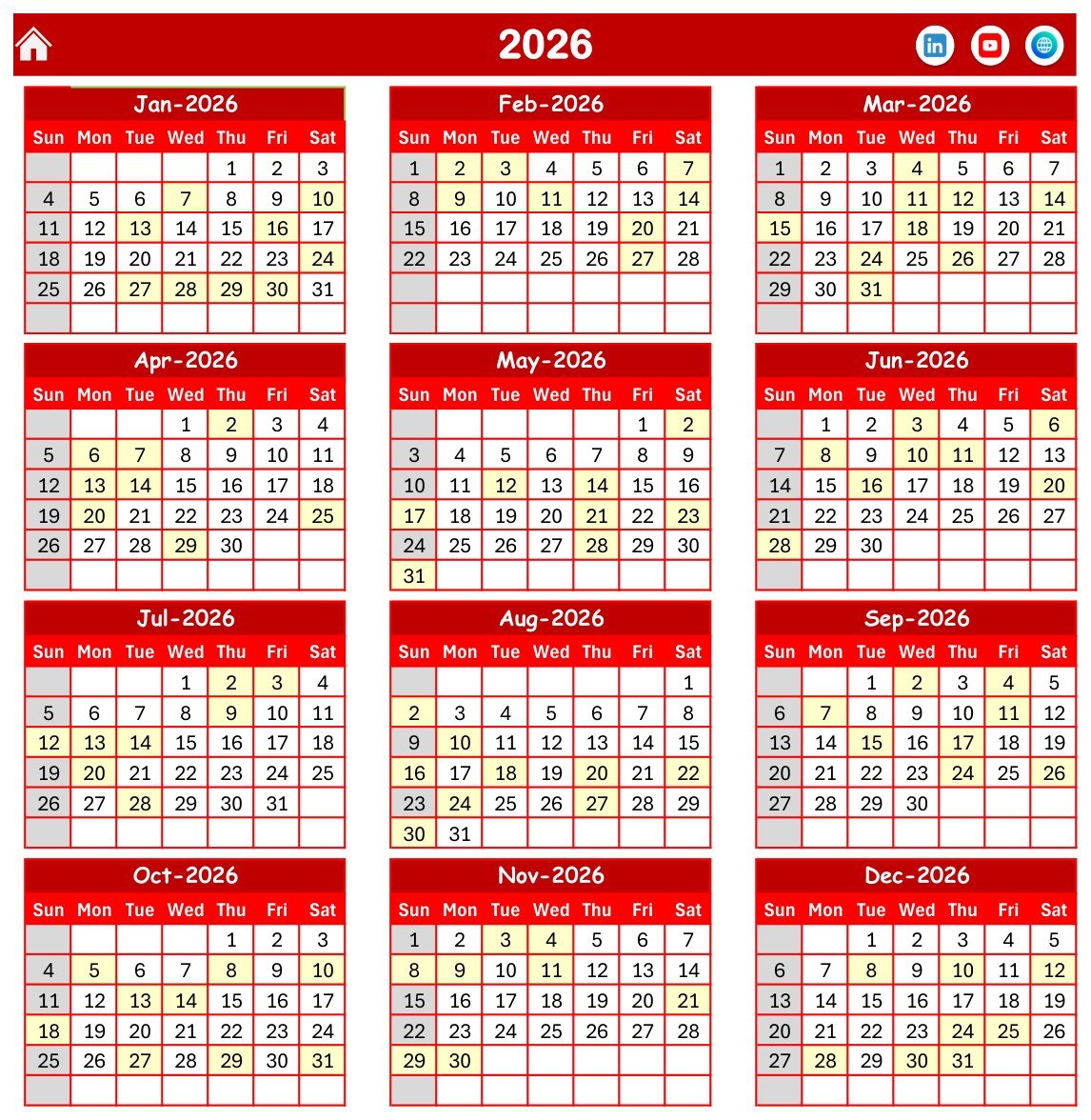
Annual View — the whole year on one page
January to December 2026, three months per row, twelve mini-calendars. Booked dates are shaded, and the two weekdays picked on the Setting sheet get their own shading. Change the year on the Setting sheet and every grid redraws — this page is formula-driven, so it will render even in Excel builds where macros are unavailable.
Monthly View — the month you are working in
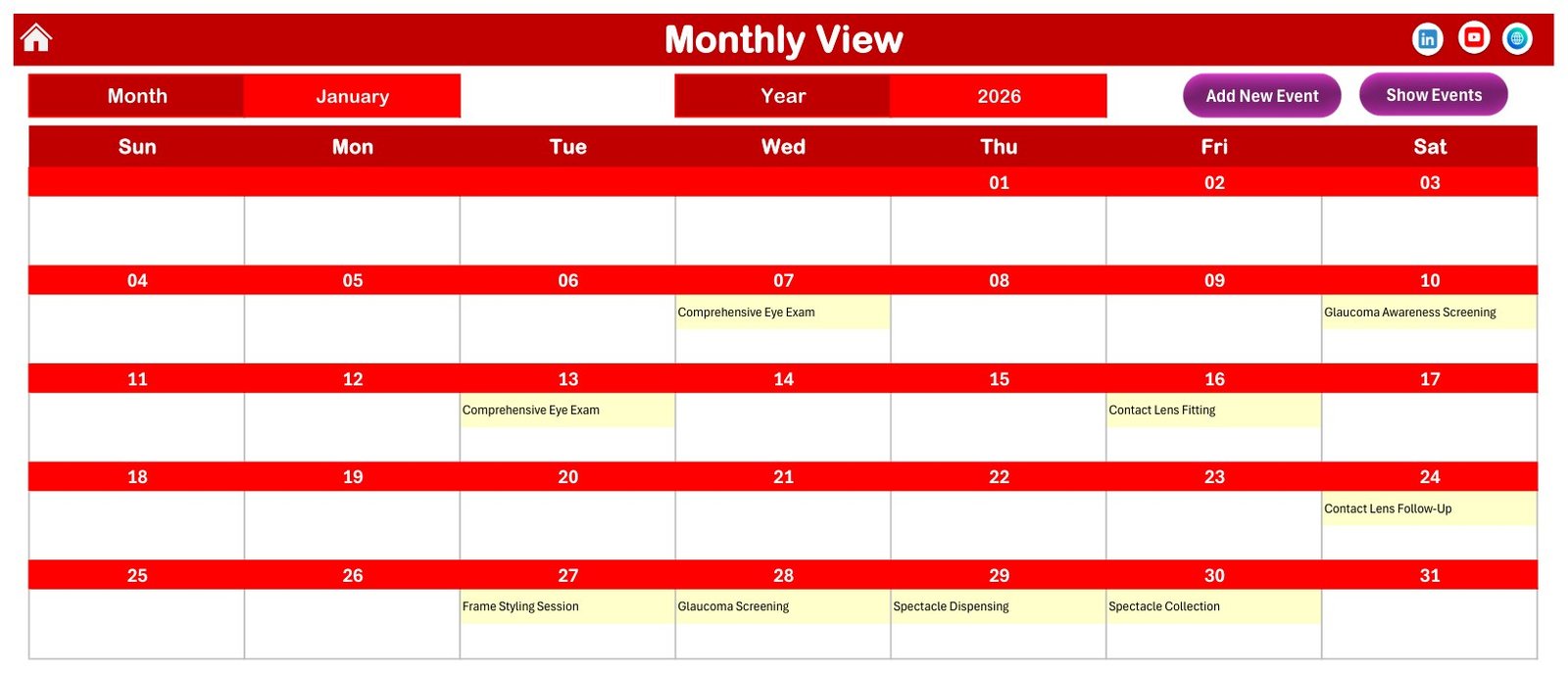
Two dropdowns, Month and Year, rebuild the grid. Each date cell shows the first booking’s name and adds a “+N more” note where a date carries several. The screenshot shows January 2026: an eye exam on Wednesday the 7th, an awareness screening on Saturday the 10th, a contact lens fitting on Friday the 16th and a run of four bookings across the 27th to the 30th.
Daily View — the front-desk print-out
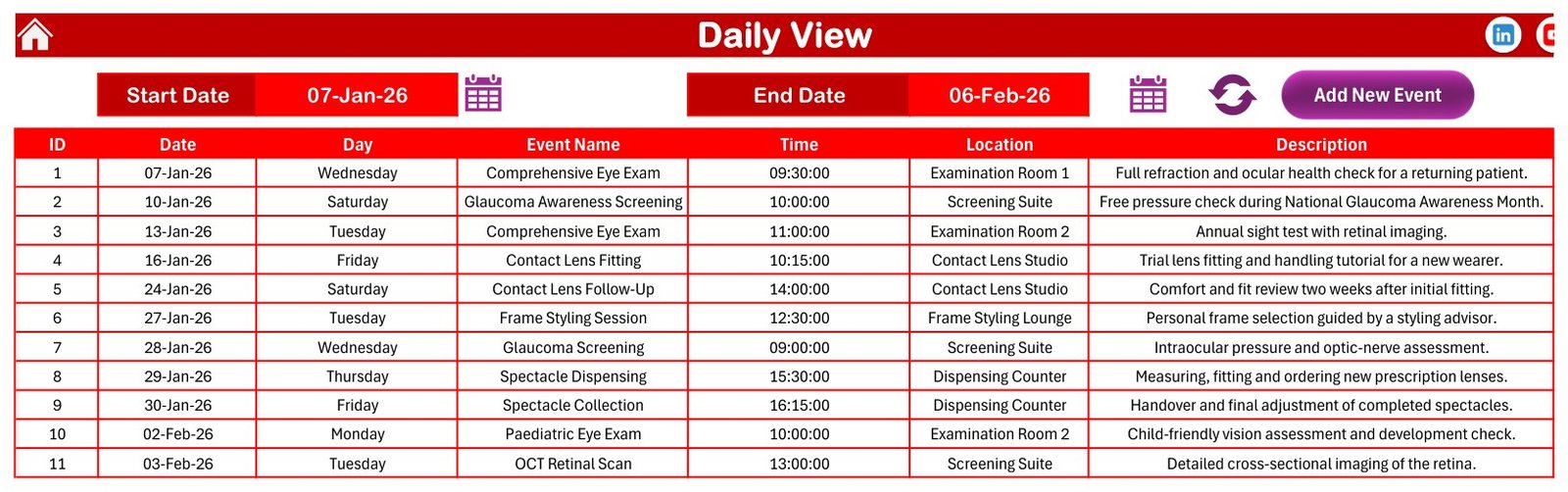
Set Start Date and End Date, hit refresh, and the sheet lists every booking in that window with all 7 columns. The screenshot runs 07-Jan-26 to 06-Feb-26 and returns 11 rows. Remember this sheet holds no formulas: the list you see was written by a macro, and it will not change until a macro runs again.
This Month Summary — counts, not charts
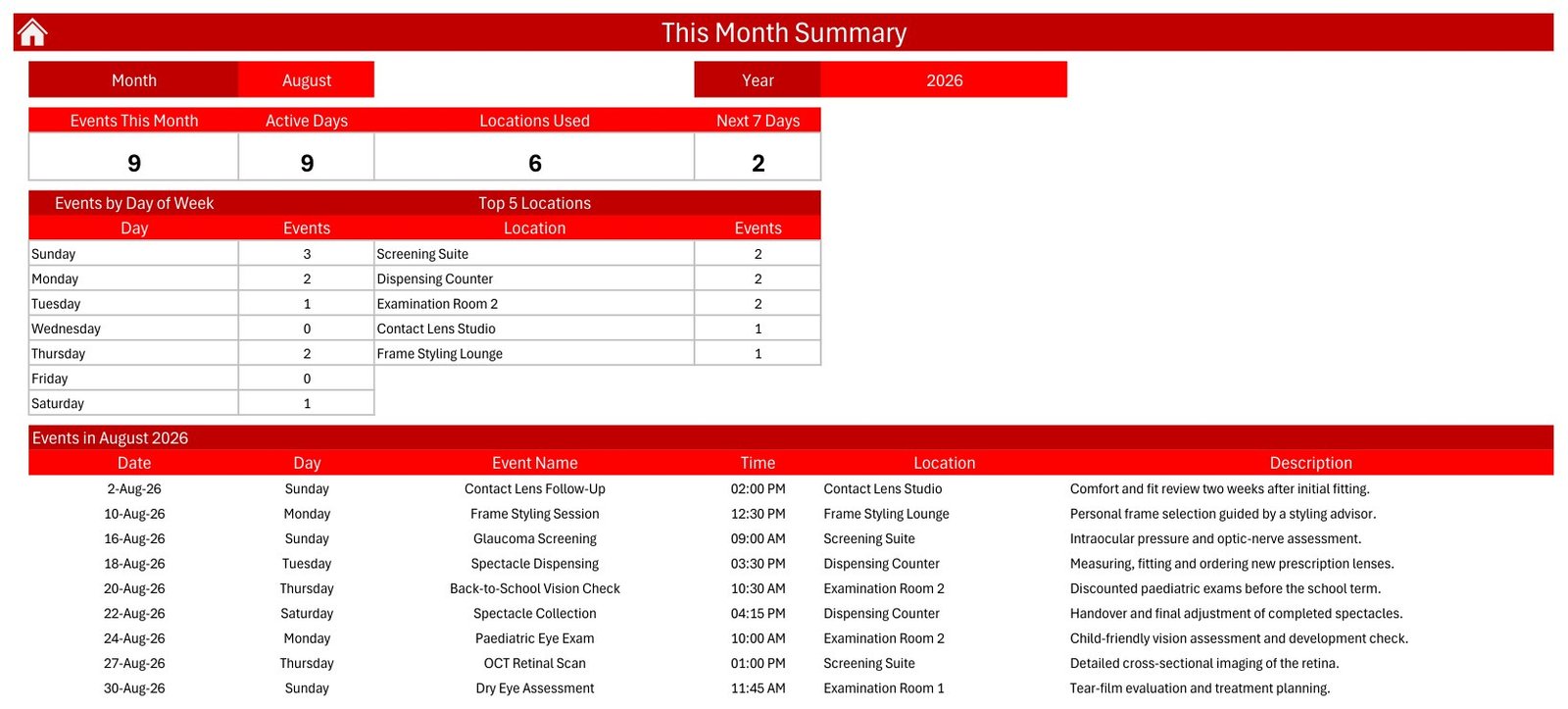
Four number cards — Events This Month, Active Days, Locations Used, Next 7 Days — then an Events by Day of Week table and a Top 5 Locations table, then the month’s full booking list. The screenshot shows August 2026: 9 events, 9 active days, 6 locations used, 2 in the next seven days, with the Screening Suite, Dispensing Counter and Examination Room 2 tied at 2 bookings each. Like the Daily View, this whole sheet is macro-written.
Events — the table everything reads from
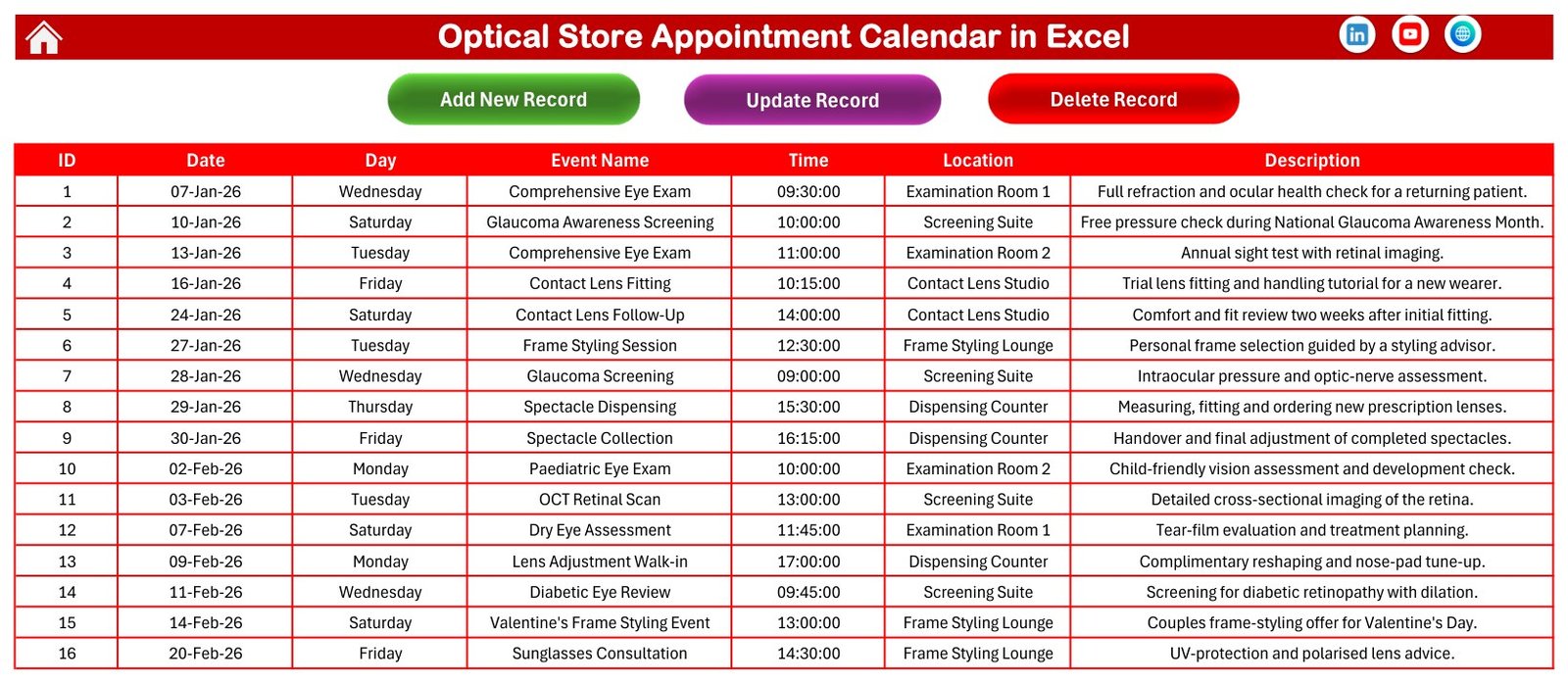
ID, Date, Day, Event Name, Time, Location, Description, with Add New Record, Update Record and Delete Record across the header. The 100 demo rows live here. Delete them and the workbook is yours.
The entry form
The VBA userform behind every Add button. Date picker, Day filled from the date, Event Name, time picker, Location, Description, Submit and Reset. It appends the row and refreshes the views so you never edit the grid by hand.
Optical Store Appointment Calendar in Excel vs. a Google Sheets Calendar vs. Acuity Scheduling / Setmore — Feature Comparison
| Feature | Optical Store Appointment Calendar in Excel | Google Sheets calendar equivalent | Acuity Scheduling / Setmore |
|---|---|---|---|
| Cost | $4.99 one-time ✅ | $4.99 one-time | $16–$61 per month |
| Platform | Microsoft Excel for Windows, desktop, offline ✅ | Browser, needs a Google account | Browser and vendor mobile app |
| Setup time | Under 10 minutes ✅ | Under 10 minutes | 1–3 hours plus staff onboarding |
| Works with no internet connection | Yes ✅ | No | No |
| Real-time team collaboration | No — one person edits the file at a time | Yes ✅ | Yes ✅ |
| Mobile access | Read-only at best; macros do not run on mobile Excel | Yes ✅ | Yes ✅ |
| Customer self-booking and reminders | No | No | Yes ✅ |
| Customisable fields, colours and year | Yes — the Setting sheet controls year, start month, first weekday, highlights and theme ✅ | Yes | Limited to the vendor’s field set |
| Year-1 cost at 5 users | $4.99 total ✅ | $4.99 total | $960–$3,660 |
For a single-branch optical store that wants a shared, printable diary without a monthly bill — and does not need customers booking themselves online — the Optical Store Appointment Calendar in Excel sits in the sweet spot.
Who Should Use This Template
Perfect for:
- Independent optical stores and eyewear retailers taking bookings by phone or at the counter
- Practice managers who want a printable day sheet and a month-at-a-glance page with no per-user fee
- Store owners comfortable in Excel on Windows who want to own the file outright
- Anyone whose diary has to work when the internet does not
Not a fit if:
- You need customers booking themselves online, or automatic SMS and email reminders
- Several people must edit the same diary at once, or from phones and tablets — macros do not run in Excel for the web, on iOS or on Android, and two people cannot edit an .xlsm simultaneously
- Your store is Mac-only — the form and refresh macros target Excel on Windows
- You want somewhere to keep clinical records, prescriptions or insurance claims — a spreadsheet is the wrong home for that
- You run several branches off one central diary
Real-World Use Cases
Priya runs a two-chair optical store on a high street. The workbook lives on the front-desk PC. Walk-ins go straight into the entry form; each morning she sets the Daily View to today’s date and prints it, so the counter staff can see the day without opening Excel at all.
Daniel manages an eyewear boutique with a part-time styling advisor. Before promising a Saturday frame-styling slot he checks the Monthly View to see how full that Saturday already is, and he uses the Top 5 Locations table on This Month Summary to see whether the Contact Lens Studio or the Frame Styling Lounge is the real bottleneck this month.
Meera owns a small optical shop and is coming off paper. She wanted one machine, no subscription, and no customer data leaving the building. She logs each booking by appointment type plus an internal reference number instead of a customer name, and keeps the reference-to-customer key in a separate, access-controlled file.
Advantages of the Optical Store Appointment Calendar in Excel
- One-time cost. $4.99 against $960 to $3,660 for a year of a five-seat booking platform. Over three years the gap is not close.
- No lock-in. The data is a plain Excel table. Copy it, filter it, pivot it, hand it to an accountant, move it anywhere.
- Offline by design. The diary opens during an outage, which matters at a counter with a queue.
- Four readings of the same data. A year view for planning leave and promotions, a month view for the week ahead, a date-range list for printing, and a summary for spotting which room is oversubscribed.
- No data leaves your machine. Nothing syncs, nothing uploads, no vendor holds your bookings.
Opportunities for Improvement
An honest list, because you will meet all of these:
- Macros are mandatory, and that is a real constraint. Two of the five views hold no formulas at all. On a locked-down corporate machine where macros are blocked by policy, the Daily View and This Month Summary simply freeze at their last written state — they do not error, which makes the failure quiet and easy to miss.
- The Day column is typed text, not a formula. On the Events sheet, cell C5 and the rows below hold literal strings like “Wednesday”. Edit a date and the weekday will not follow it, and nothing warns you. The fix takes ten seconds: put
=TEXT(B5,"dddd")in C5 and fill it down the column. Do this before you start entering real bookings. - Single-user file. One person edits at a time. Put it on a shared drive and you will meet the read-only prompt.
- No customer-identity design. There is deliberately no name, phone or email column, which is the right default — but it means you need a reference-code convention of your own if you want to know whose appointment a slot is.
- The sample year is 2026. Change the Year on the Setting sheet before you start, or your Annual View will be drawing a year you are not working in.
- Save-format trap. Save as .xlsx and Excel silently discards every macro. It must stay .xlsm.
Best Practices
- Convert the Day column to
=TEXT(B5,"dddd")on day one, before the file has real data in it. - Delete all 100 sample rows in one go rather than editing over them — leftovers in December 2026 will quietly skew your Annual View.
- Set the Year on the Setting sheet first, then the first day of the week to match how your store reads a week.
- Keep event names short and consistent (“Frame Styling”, not “Frame Styling Session with Advisor”) — the Monthly View cell is narrow, and the Top 5 Locations table only groups exact matches.
- Label bookings by appointment type and an internal reference code. Keep the code-to-customer key somewhere else, access-controlled.
- Take a dated copy of the .xlsm weekly. There is no version history in a local file.
- If macros ever look like they are not running, check the yellow security bar first — see Microsoft’s guidance on enabling macros in Microsoft 365 files.
Explore Relevant Templates
For the commercial side of the store rather than the diary, the Optical Retail Dashboard in Excel reports on frames, lenses and revenue, and the same analysis exists as the Optical Retail Dashboard in Power BI. If you have outgrown a spreadsheet entirely, the Eye Care Center Management System Web App is a full front-office system with logins.
The same four-view calendar layout is also sold for other appointment-led businesses: the Dental Clinic Appointment Calendar in Excel, the Physiotherapy Session Calendar in Excel and the Patient Follow-Up Visit Calendar in Excel. Buying more than one? The Healthcare Administrator Toolkit — 9 Premium Templates (Excel) bundles nine workbooks.
A Google Sheets edition of this particular calendar is being prepared and is not published yet — the Excel workbook is the only edition available today.
Related reading on this blog: Dental Clinic Appointment Calendar in Excel, Doctor On-Call Calendar in Excel and Pharmacy Stock Expiry Calendar in Excel.
Frequently Asked Questions
Do I have to enable macros to use the Optical Store Appointment Calendar in Excel?
Yes. The Daily View and This Month sheets in the Optical Store Appointment Calendar in Excel contain no formulas — both are written by VBA. Without macros the Annual and Monthly views still calculate, but those two sheets freeze at their last written values and the Add, Update and Delete buttons do nothing.
Does it work on Mac, in Excel for the web, or on a phone?
It is built for Microsoft Excel on Windows desktop. The Annual and Monthly views display anywhere because they are formula-driven, but the entry form, navigation buttons and the two macro-written sheets will not run in Excel for the web, on iOS, on Android, or reliably on Excel for Mac.
Is the Optical Store Appointment Calendar in Excel a patient record or booking system?
No. The Optical Store Appointment Calendar in Excel is a scheduling calendar only. It is not an EHR, EMR, practice-management or online booking system, holds no clinical or prescription data, is not HIPAA or GDPR certified, does not encrypt its contents and sends no reminders.
Should I type customer names into it?
We recommend against it. The Optical Store Appointment Calendar in Excel has no name, phone, email or address column by design, and an unencrypted file on a shared counter PC is a poor place for customer-identifiable data. Label bookings by appointment type plus a short internal reference code and keep the key elsewhere.
Why does the weekday not change when I edit a date?
Because the Day column ships as typed text rather than a formula. In the Optical Store Appointment Calendar in Excel, put =TEXT(B5,"dddd") into cell C5 on the Events sheet and fill it down; from then on the weekday follows whatever date you enter.
How does this compare with Acuity Scheduling or Setmore?
Those platforms take online bookings, send reminders and sync to staff phones for roughly $16 to $61 per month. The Optical Store Appointment Calendar in Excel does none of that — it is a $4.99 one-time offline diary you own outright. If nobody books themselves online, a subscription is buying a calendar at a premium.
What sample data is included, and should I keep it?
100 sample bookings dated 07 January 2026 to 31 December 2026, 8 or 9 per month, using 24 appointment-type labels and 7 room names. Every row’s weekday was verified against its date. Delete all 100 before you start — they exist only to demonstrate a filled year.
About the Author
Built by PK — Microsoft Certified Professional with 15+ years of Excel, Google Sheets and Power BI experience. Founder of NextGenTemplates, reaching 300K+ subscribers across YouTube channels. Every template is hand-built and tested before release.
Conclusion
If your optical store books appointments at the counter and you want a diary that costs once, prints cleanly and keeps working when the connection drops, this is the workbook. It gives you a year view, a month view, a date-range list and a monthly summary from a single Events table — and it is honest about what it is not: no online bookings, no reminders, no clinical records, no multi-user editing. Two things to do on day one: convert the Day column to a formula, and delete the 100 sample rows.
👉 Click here to Purchase the Optical Store Appointment Calendar in Excel
Instant download · One-time payment · No subscription
🎥 More Excel and VBA tutorials: Youtube.com/@PKAnExcelExpert
Last updated: September 2026