In today’s dynamic work environment, employee satisfaction plays a crucial role in organizational success. But no matter how efficient the system is, complaints are bound to arise. What truly matters is how well and how quickly those complaints are resolved. That’s where an Employee Complaint Resolution Tracker in Excel becomes a game-changer.
This powerful yet easy-to-use Excel-based tool with VBA automation allows organizations to handle, track, and resolve employee complaints effectively. In this article, we will explore the features, advantages, best practices, and common questions related to this ready-to-use Excel template.
Click to Purchases Employee Complaint Resolution Tracker in Excel
What is an Employee Complaint Resolution Tracker in Excel?
An Employee Complaint Resolution Tracker is a custom-built Excel template powered by VBA automation that lets HR departments:
Log complaints easily
Monitor resolution status
Track trends by department, complaint type, or priority
Analyze performance through visual dashboards
Update or delete records with a single click
Whether you’re running a small business or managing a large workforce, this tracker helps you manage grievances with transparency, speed, and accountability.
Key Components of the Tracker
Let’s break down the tool into its major functional parts.
Login Form
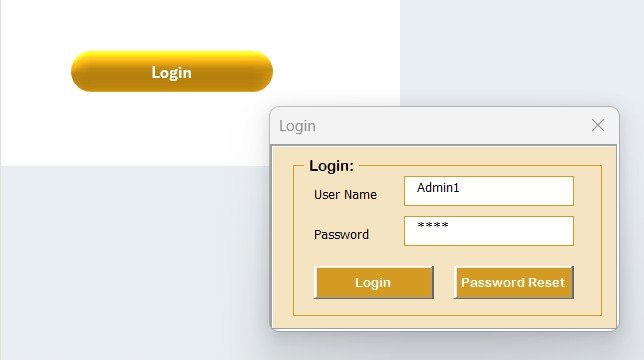
Security matters. The tool includes a user login form that ensures only authorized users access the system.
Default login: User ID:
Admin1| Password:abcdYou can change or manage users from the User Management module.
Main Form
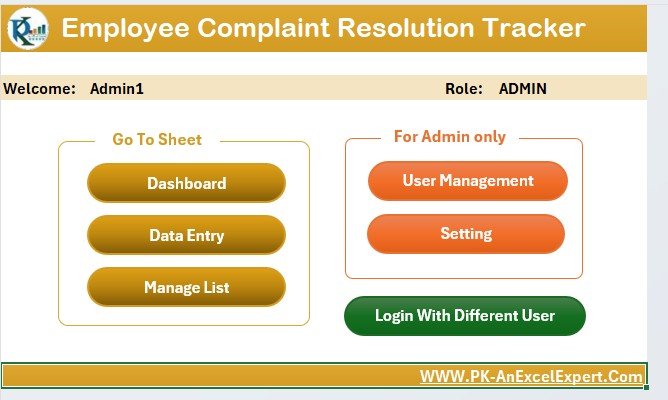
After logging in, users land on the Main Form, which is the command center of this tool. From here, you can:
Add, update, or delete complaints
Access dashboards
View important metrics
Navigate easily using buttons and dropdowns
Dashboard Sheet
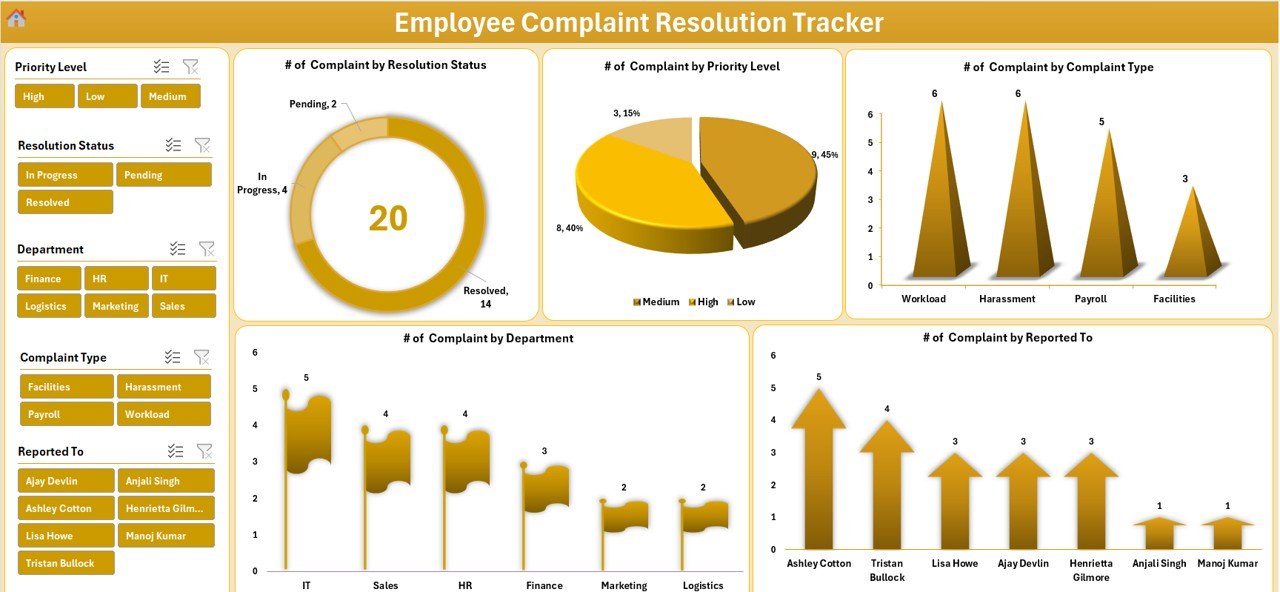
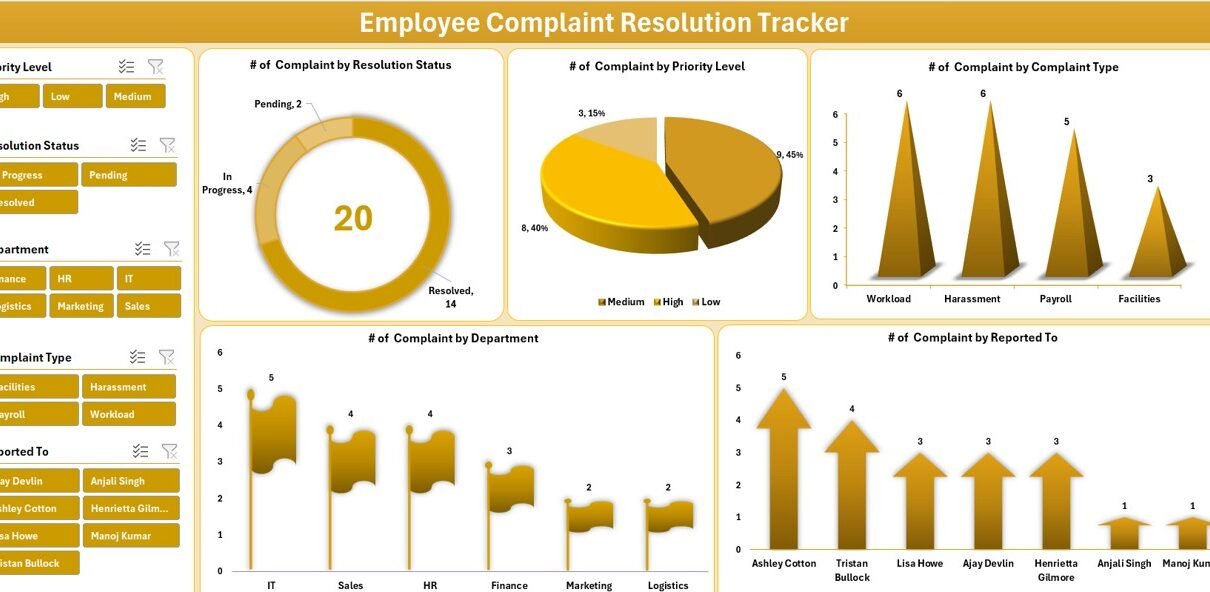
The dashboard provides a visual snapshot of all complaints with interactive slicers and charts:
📌 # of Complaints by Resolution Status – Doughnut chart
📌 # of Complaints by Priority Level – Pie chart
📌 # of Complaints by Type – Column chart
📌 # of Complaints by Department – Flag chart
📌 # of Complaints by Reported To – Column chart
You can filter data using slicers to drill down into specific areas.
Data Entry Sheet
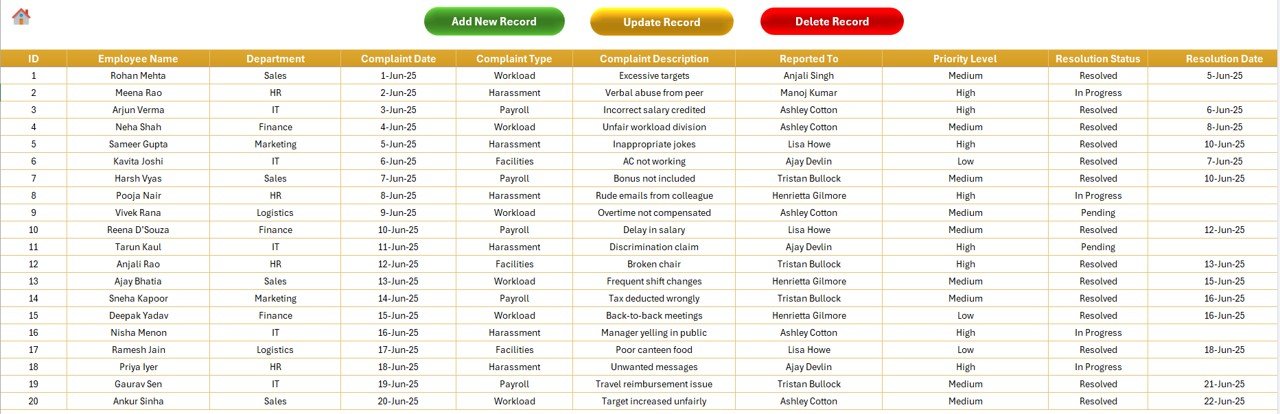
This sheet is the data backbone of the tool. It contains fields like:
Click to Purchases Employee Complaint Resolution Tracker in Excel
ID, Employee Name, Department
Complaint Date, Complaint Type, Description
Reported To, Priority Level
Resolution Status, Resolution Date, Action Taken, Remarks
You can manage records using 3 buttons:
Add New Record – Opens a form to enter new complaints
Update Record – Edits existing records
Delete Record – Removes complaints after confirmation
Manage List Sheet
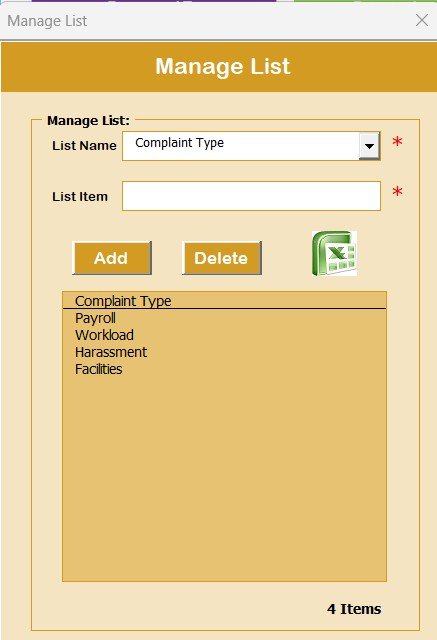
This is where you customize dropdowns for the form:
Departments
Complaint Types
Priority Levels
Reported To
Resolution Status
All list values can be added or deleted using add/delete buttons, which sync with the form.
Support Sheet
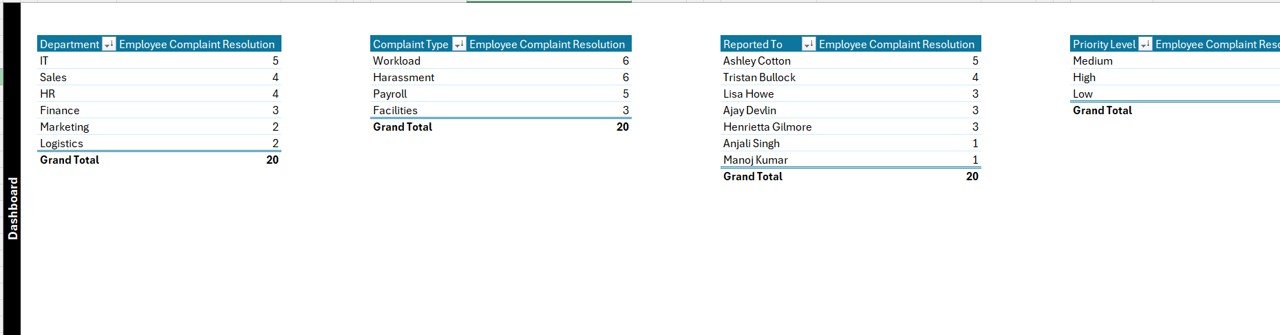
This sheet houses PivotTables used for generating dashboards. Users don’t need to interact with it—it can stay hidden.
User Management
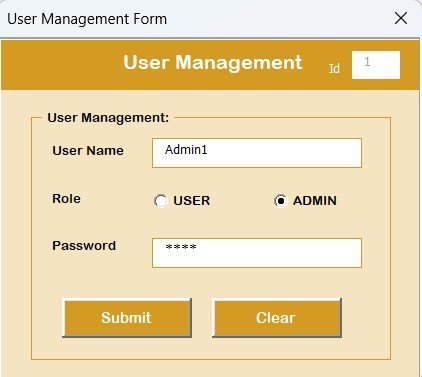
Admins can access this module to:
Add new users
Update existing users
Delete users
Reset or change passwords
Click to Purchases Employee Complaint Resolution Tracker in Excel
Settings Sheet
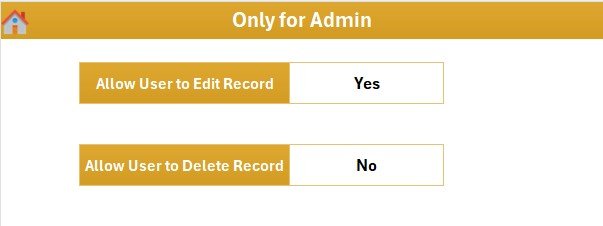
This optional sheet helps you configure additional settings such as default resolution categories, color coding, or form behavior. It enhances customization for power users.
Advantages of Using This Tracker
Here are the most impactful benefits of implementing this Excel-based solution:
✅ 1. Cost-Effective
There’s no need for expensive software subscriptions. Everything is done in Excel.
✅ 2. No Learning Curve
Built in Excel, a tool everyone already knows. No special training required.
✅ 3. Real-Time Dashboard
Get visual insights instantly as soon as a complaint is logged or updated.
✅ 4. Secure Login and User Management
Restrict access and manage roles with login forms and user credentials.
✅ 5. One-Click Data Entry
Forms make it fast and error-free to log and update complaints.
✅ 6. Fully Customizable
You can modify fields, dropdowns, and visualizations to suit your needs.
Best Practices for the Employee Complaint Resolution Tracker
To make the most of this tool, follow these best practices:
🔁 Keep Lists Updated
Regularly update dropdowns for departments, complaint types, and resolution statuses. This ensures accurate categorization.
🔒 Use Unique Login Credentials
Assign separate credentials for each user and regularly change passwords.
📈 Monitor the Dashboard Weekly
Use dashboard visuals to identify recurring complaint types or departments needing intervention.
🧼 Clean the Data
Check for duplicates or empty records. A clean dataset leads to accurate insights.
📅 Set Monthly Review Meetings
Use tracker insights in monthly HR meetings to track improvements and unresolved complaints.
How to Get Started with the Tool?
Here’s how you can start using this tool in just a few minutes:
Download the Excel template
Open the file and enable macros
Log in with the default credentials
Navigate through the main form
Start adding or updating complaints using the form
Watch the dashboard update in real-time
Customize list items in the “Manage List” tab
Add users or reset passwords via User Management
Why Excel with VBA is Perfect for This Task?
VBA (Visual Basic for Applications) makes this tool automated, interactive, and secure. With just a few lines of code:
Forms become user-friendly
Dashboards auto-refresh
Users can manage data with buttons
Workflows become streamlined
Excel + VBA delivers a lightweight, offline, and powerful complaint management system.
Real-World Applications
This tracker can be used by:
Human Resource Departments
Team Leaders and Managers
Administrative Offices
SMEs and Startups
Educational Institutions
Anywhere employees work, this tracker can help improve grievance handling.
Tips to Maximize Efficiency
Automate a backup system for the data file weekly
Use color formatting for unresolved or high-priority complaints
Set reminders for complaint follow-ups
Analyze trends monthly and act on them
Export reports and share with department heads
Conclusion
An Employee Complaint Resolution Tracker in Excel isn’t just a tool—it’s a commitment to workplace fairness, employee well-being, and operational efficiency.
With features like login security, a powerful dashboard, and one-click data handling, this tool empowers HR professionals to stay proactive, transparent, and responsive.
Whether you’re managing ten people or a thousand, this ready-to-use Excel tool gives you the control and clarity you need to resolve employee issues smoothly.
❓ Frequently Asked Questions (FAQs)
🔹 What is the purpose of an Employee Complaint Resolution Tracker?
It helps HR teams record, manage, and resolve employee complaints in an organized and visual way.
🔹 Is it necessary to know VBA to use this tool?
No. The tool is ready-to-use. You only need basic Excel knowledge. Everything runs with buttons and forms.
🔹 Can I customize the tool for my company?
Yes. You can change dropdowns, add more fields, modify charts, or even change branding. It’s 100% customizable.
🔹 How do I reset a user password?
Go to User Management, select the user, and use the change password option.
🔹 Is the dashboard updated automatically?
Yes. Whenever you add, update, or delete a complaint, the dashboard updates immediately.
Visit our YouTube channel to learn step-by-step video tutorials