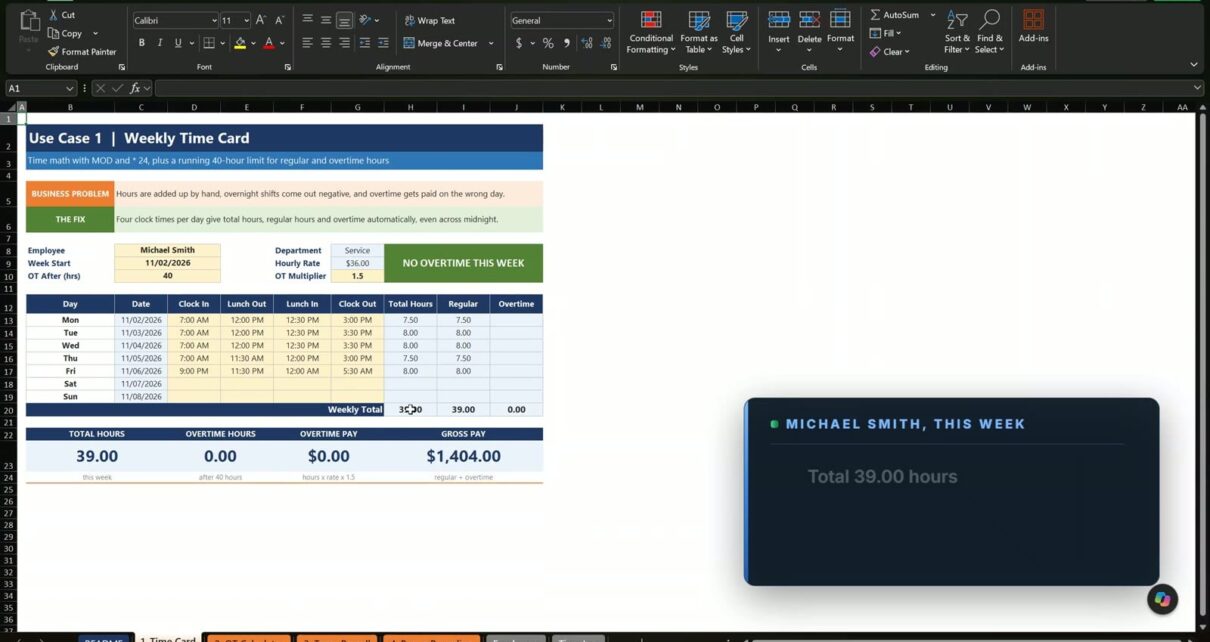
Adding up weekly hours by hand is slow, and night shifts and overtime make it easy to pay the wrong amount. In this tutorial you build an employee timesheet with an overtime calculator in Excel that adds the weekly hours, splits regular and overtime hours, and works out the gross pay by itself. The example is Tri-County Heating and Cooling in Columbus, Ohio: Michael Smith works 39 hours and earns $1,404.00, and when Saturday is added the week becomes 44.5 hours with 4.5 hours of overtime and $1,683.00 gross pay.
⬇️ Download the Free Practice Files
Practice file + solution workbook · .zip · Excel 365 or Excel 2021 or later
Watch the Video Tutorial
Video Overview
The sixteen-minute video opens with the finished file: type Saturday 7:00 AM to 12:30 PM and the badge turns red with 4.50 overtime hours, then the overtime calculator shows $153.00 over budget at 52 hours and the team payroll changes from $11,834.50 to $11,514.25 when you pick another week. Then you build everything from the practice file in three use cases and finish with a bonus tip on rounding clock times.
What You Will Build
- A weekly time card that turns clock times into hours, even for a night shift that crosses midnight.
- Regular and overtime hours with a running 40-hour limit for the week.
- An overtime calculator with a budget check and a what-if table and chart up to 60 hours.
- A team payroll for 10 employees from one time log with 103 punches and a week drop-down.
- A rounding check that shows how many minutes quarter-hour rounding moves.
The Practice Files and the Overtime Rule
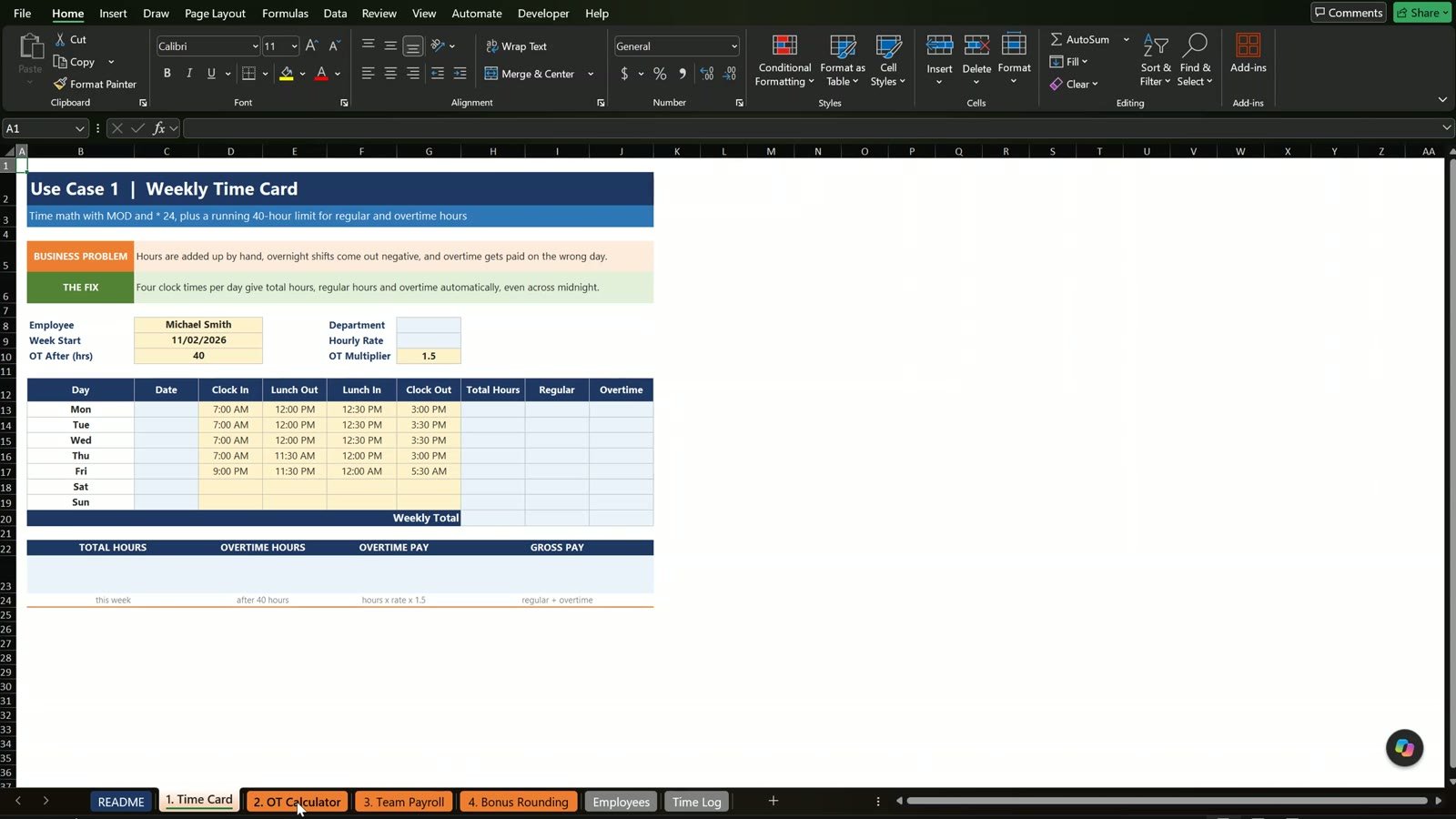
The Practice file has four lesson tabs (Time Card, OT Calculator, Team Payroll and Bonus Rounding), an Employees tab with the hourly rates and a Time Log tab. The yellow cells are inputs and the blue cells are the formulas you build. The Solution file has everything working. This example uses the US federal rule: overtime is paid after 40 hours in a work week at 1.5 times the normal rate. States can differ, so treat it as an educational example and not legal advice. You can read the official rule on the US Department of Labor overtime page.
Use Case 1: The Weekly Time Card
Step 1: Department and hourly rate with XLOOKUP
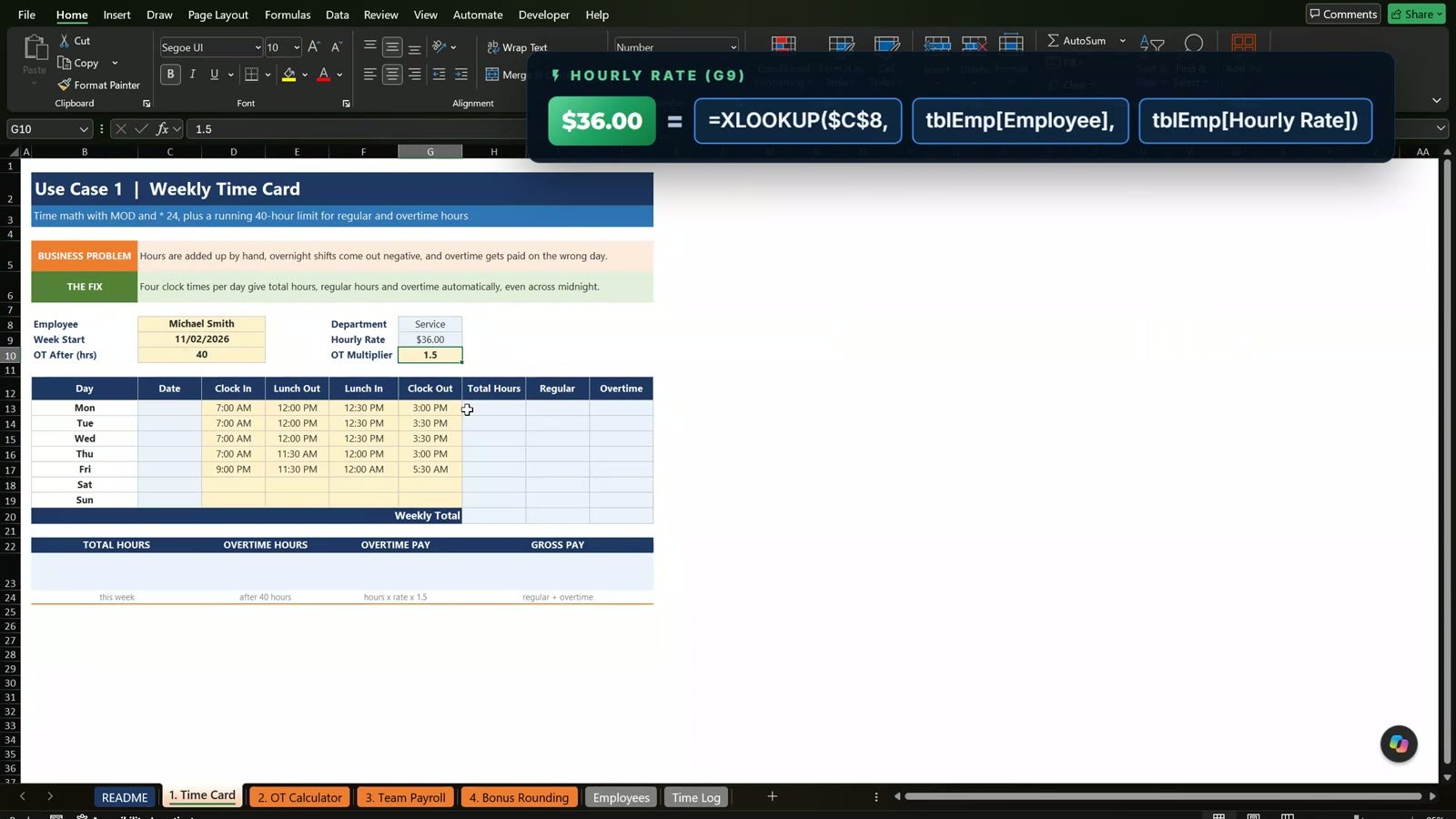
The employee name is picked in a yellow cell. Look up the department and the rate from the Employees table and lock the name with F4:
=XLOOKUP($C$8,tblEmp[Employee],tblEmp[Department])
=XLOOKUP($C$8,tblEmp[Employee],tblEmp[Hourly Rate])
Michael Smith works in Service and earns $36.00 an hour.
Step 2: The dates
The first date is the week start, =$C$9, and every next day is the day before plus one, =C13+1, copied down to Sunday.
Step 3: Total hours, and why a night shift goes negative
The simple way, clock out minus clock in, shows 0.33 because Excel stores time as a fraction of a day. Eight hours is one third of a day, so multiply by 24. Then try it on Friday: clock in at 9:00 PM and out at 5:30 AM gives minus 15.5 hours.
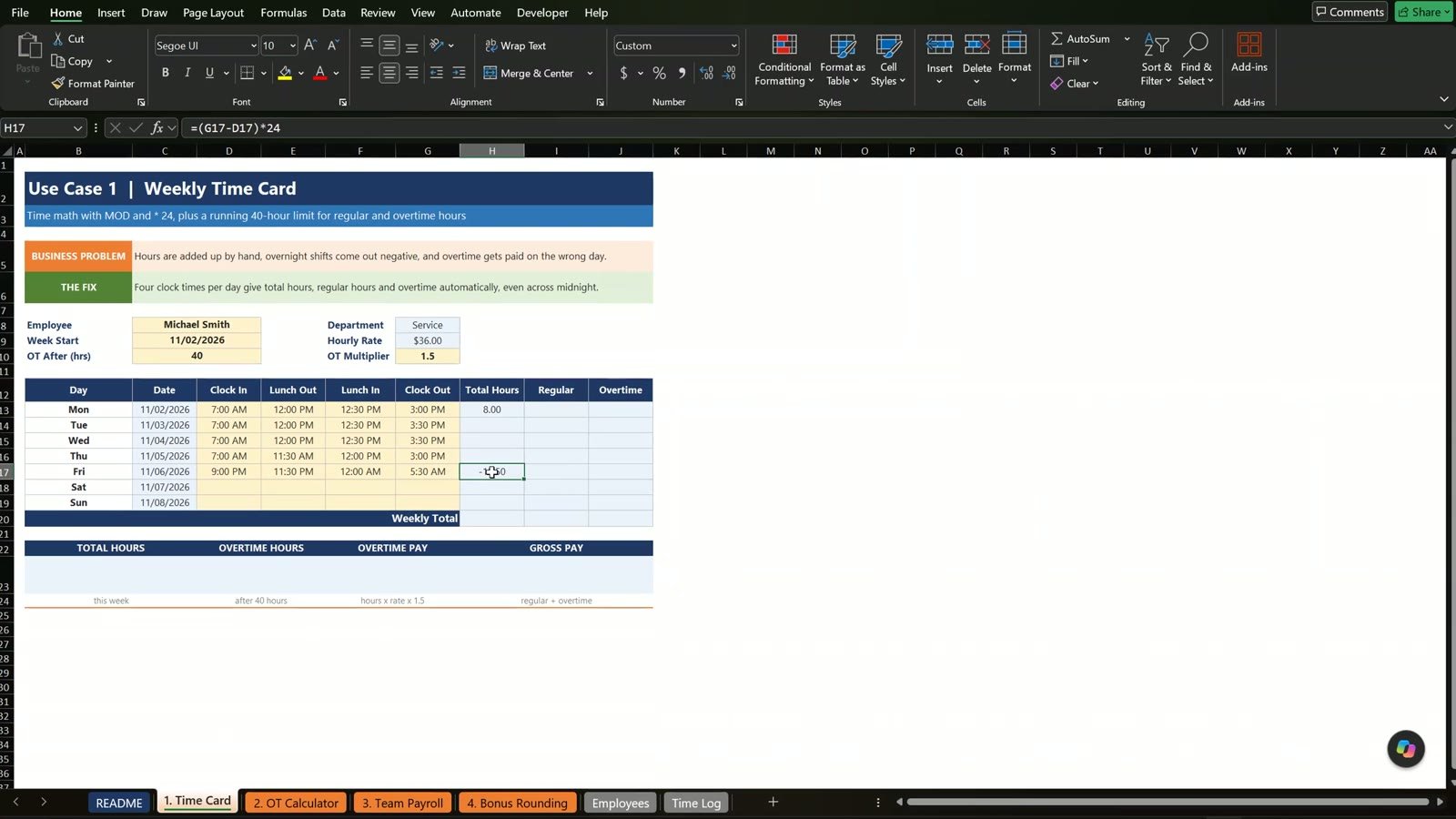
The MOD function fixes it. MOD with a 1 keeps only the part of a day, so a negative result wraps around into the next day. The final formula also subtracts the lunch break and rounds to two decimals:
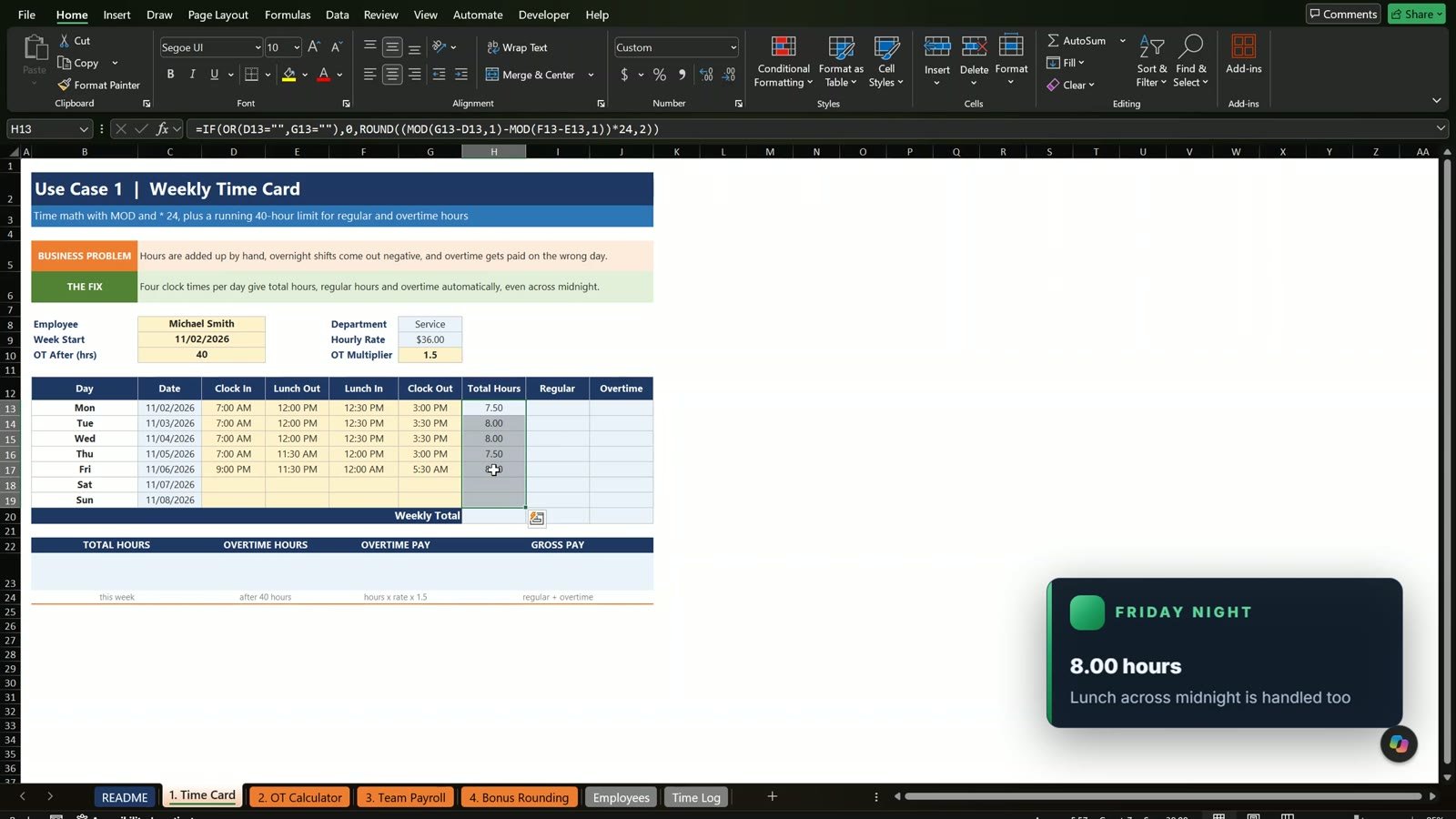
=IF(OR(D13="",G13=""),0,ROUND((MOD(G13-D13,1)-MOD(F13-E13,1))*24,2))
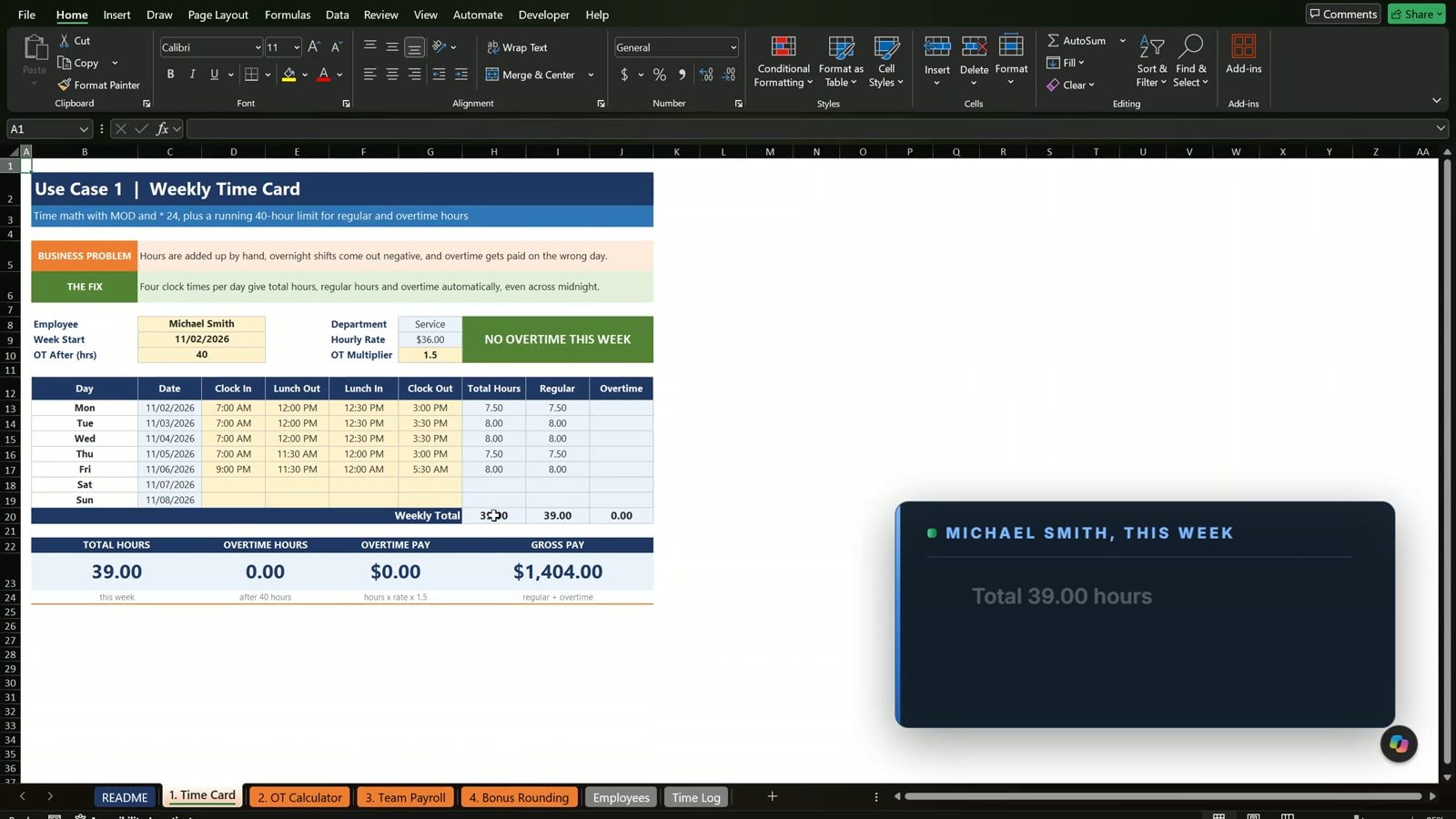
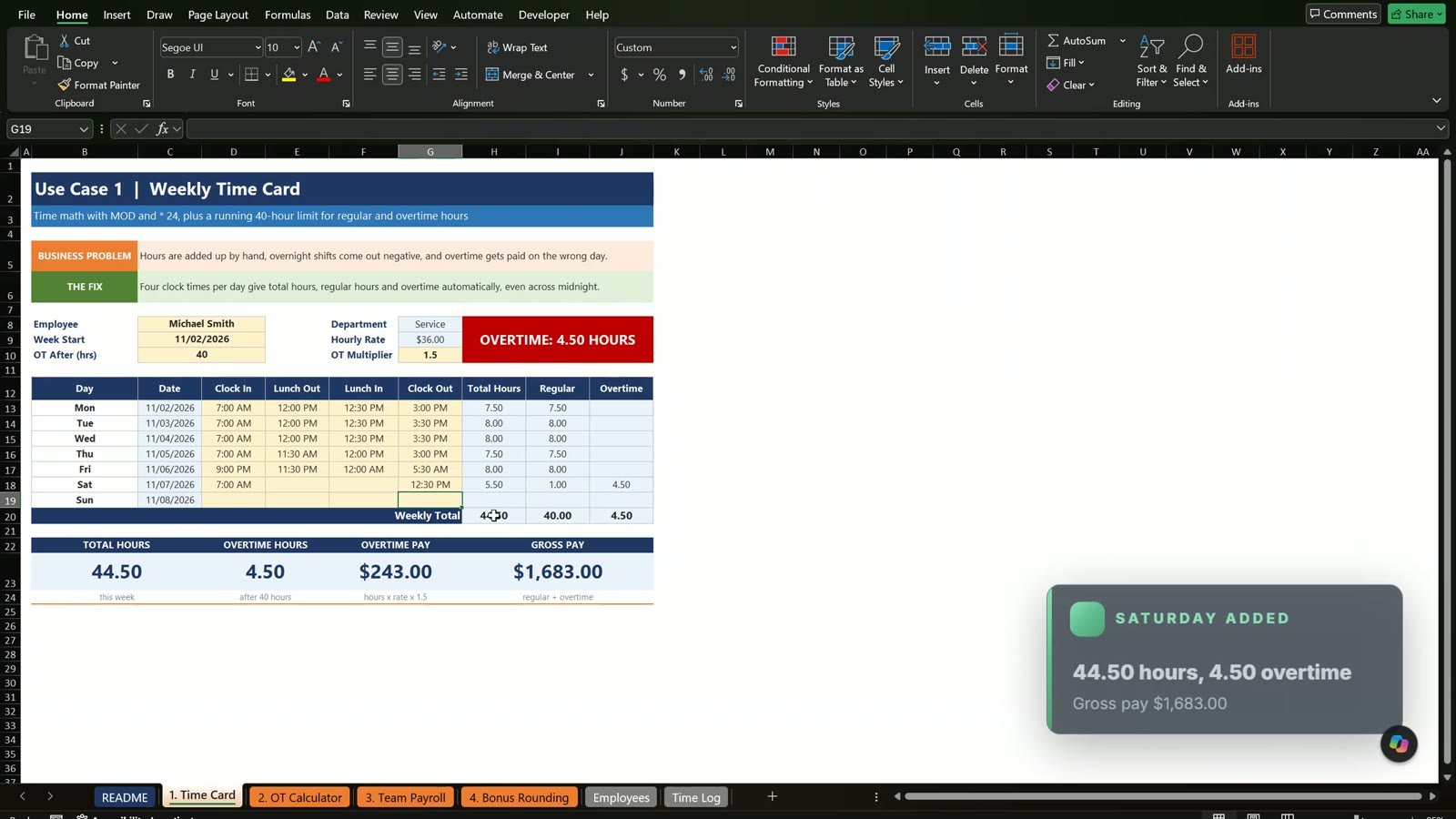
Monday is 7.50 hours, Tuesday and Wednesday 8.00, Thursday 7.50 and the Friday night shift a correct 8.00 hours, even with a lunch break across midnight. ROUND matters because time decimals are never exact, and tiny decimals could push a week just over 40 hours.
Step 4: Regular hours and overtime
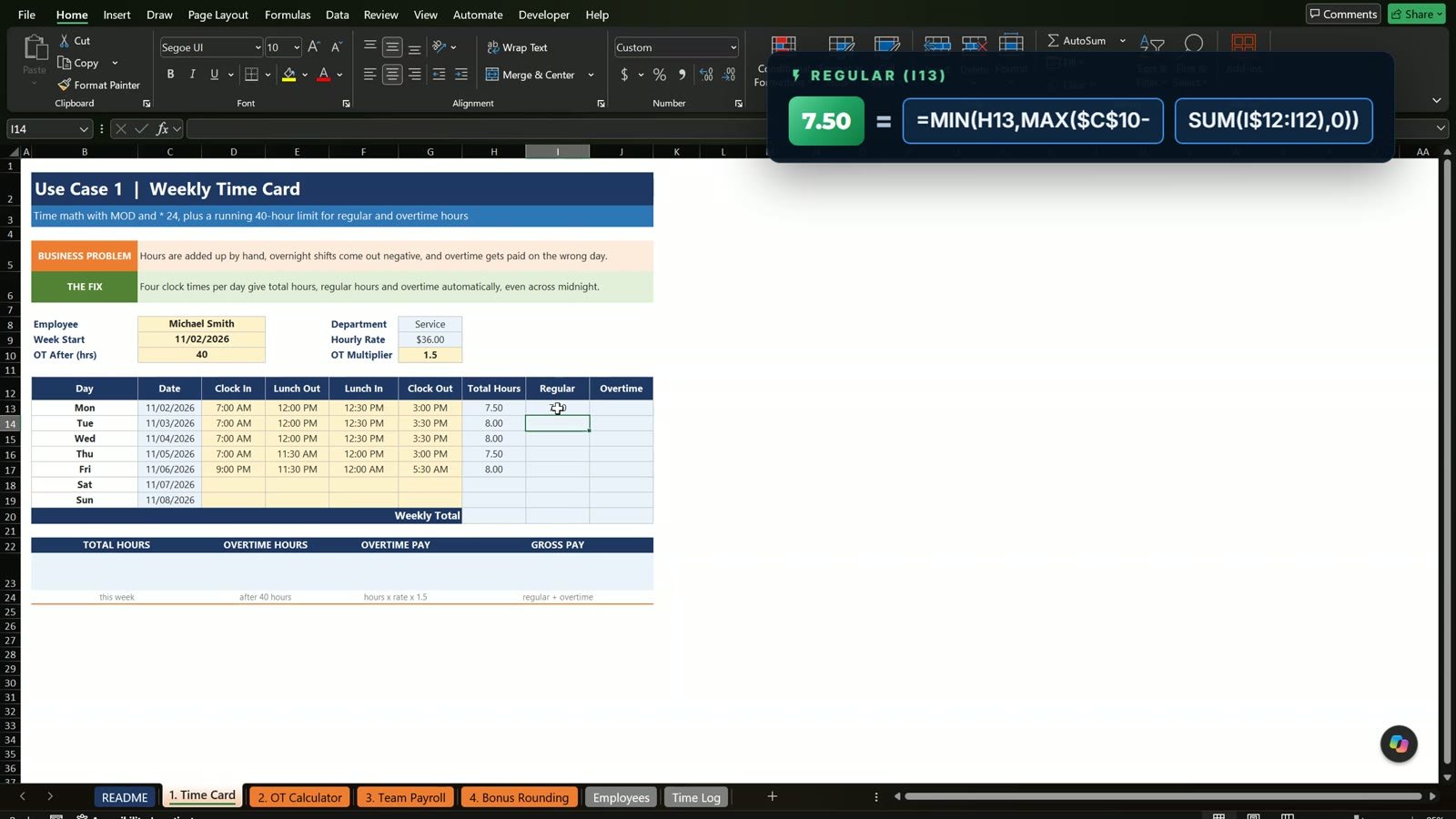
Overtime is decided by the week, not by the day, so a 9-hour Tuesday is not overtime by itself. Use a running total: once the week passes 40 hours, the rest is overtime. In the Regular column:
=MIN(H13,MAX($C$10-SUM(I$12:I12),0))
The first number is the hours of this day and the second is how many regular hours are still left in the week. The SUM starts on the header row, and text counts as zero, so the formula still works when you copy it down. Overtime is the total hours minus the regular hours, =H13-I13. The weekly total row adds the three columns: 39.00, 39.00 and 0.00.
The message and the pay cards
The badge at the top turns green or red:
=IF(J20>0,"OVERTIME: "&TEXT(J20,"0.00")&" HOURS","NO OVERTIME THIS WEEK")
The four cards read from the totals. Overtime pay is =J20*G9*G10 and gross pay is =I20*G9+J20*G9*G10, which gives $1,404.00 for 39 hours.
Now test it: Saturday from 7:00 AM to 12:30 PM with no lunch is 5.50 hours, but only 1.00 is regular because the limit is used up, so 4.50 are overtime. The week shows 44.50 hours, $243.00 overtime pay and $1,683.00 gross pay.
Use Case 2: The Overtime Calculator
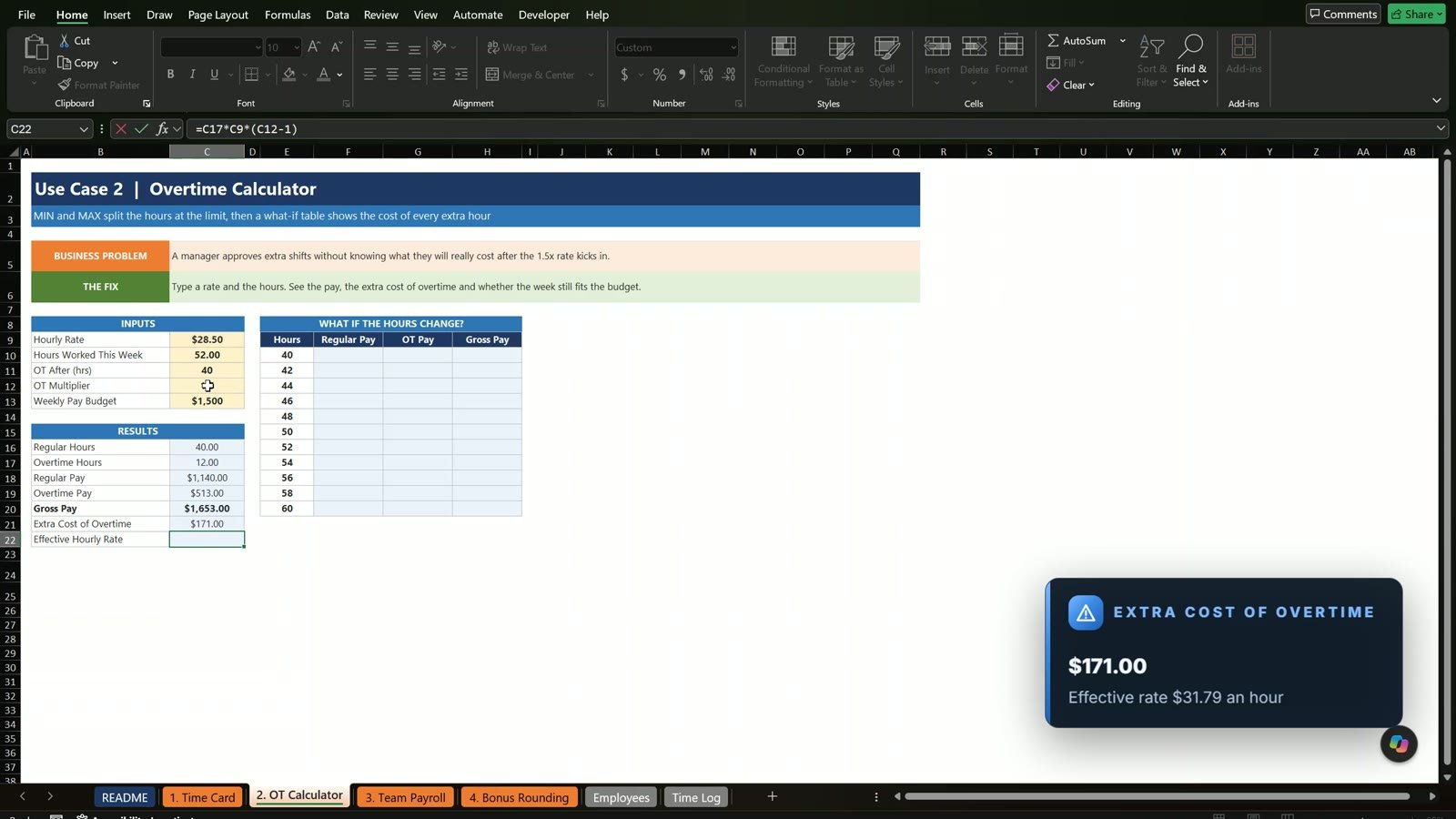
A manager wants to know what a long week really costs before approving it. The rate, hours, limit, multiplier and budget are the inputs. For a 52-hour week at $28.50 an hour:
| Result | Formula | Value |
|---|---|---|
| Regular hours | =MIN(C10,C11) | 40.00 |
| Overtime hours | =MAX(C10-C11,0) | 12.00 |
| Regular pay | =C16*C9 | $1,140.00 |
| Overtime pay | =C17*C9*C12 | $513.00 |
| Gross pay | =C18+C19 | $1,653.00 |
| Extra cost of overtime | =C17*C9*(C12-1) | $171.00 |
| Effective hourly rate | =C20/C10 | $31.79 |
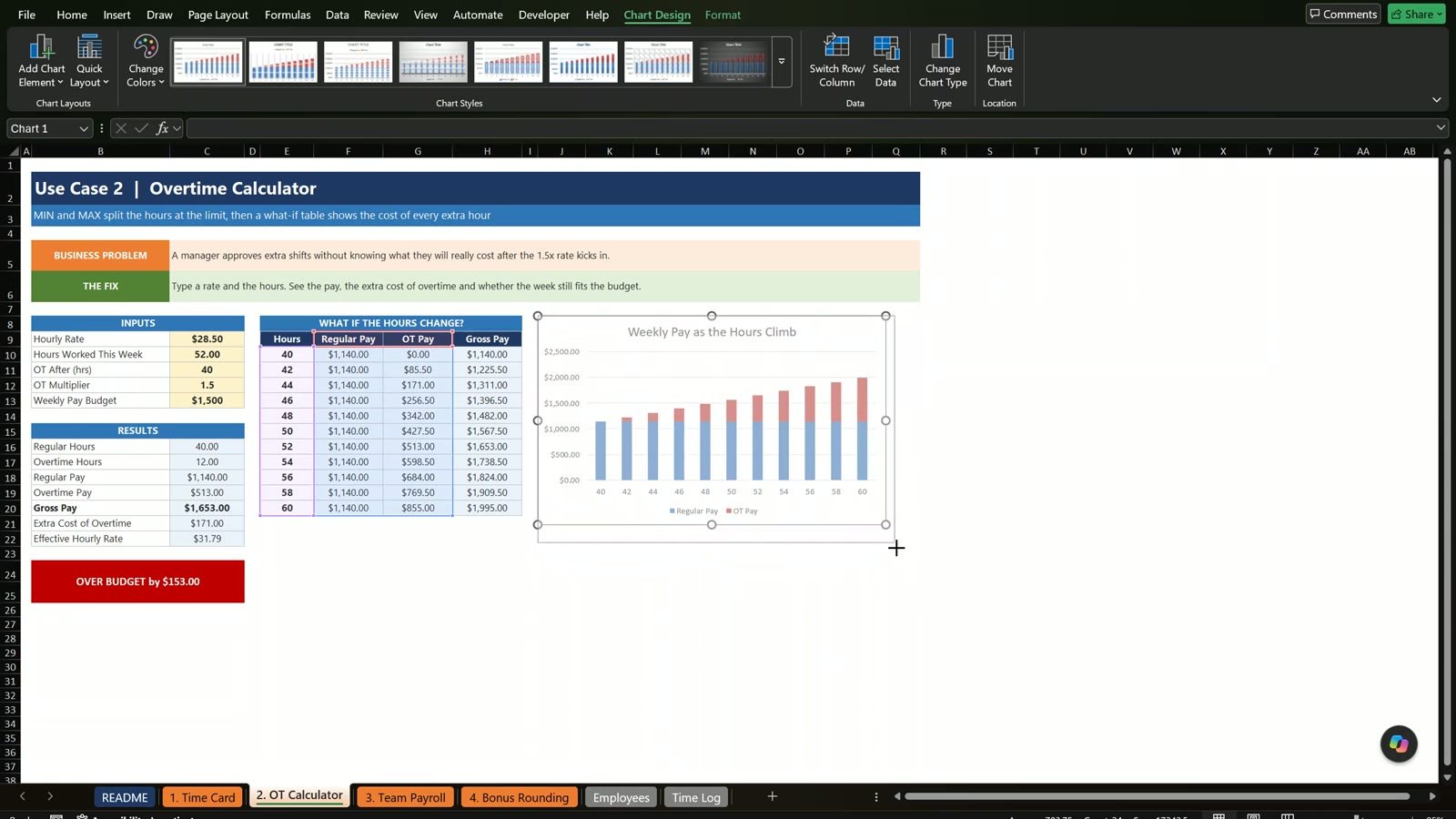
The budget check is =IF(C20>C13,"OVER BUDGET by "&TEXT(C20-C13,"$#,##0.00"),"WITHIN BUDGET"). At 52 hours it says over budget by $153.00. Cut the week to 46 hours and the gross pay drops to $1,396.50, within budget.
The what-if table and chart
To see every possible week side by side, fill a table from 40 to 60 hours with three formulas and lock the limit and rate with F4:
=MIN(E10,$C$11)*$C$9 (regular pay)=MAX(E10-$C$11,0)*$C$9*$C$12 (overtime pay)=F10+G10 (gross pay)
At 60 hours the pay is $1,995.00. Select the regular and overtime pay with their headers, insert a Stacked Column chart, use the hours as the labels on the bottom axis in Select Data and title it Weekly Pay as the Hours Climb. The blue part stays flat at 40 hours and the red part grows with every extra hour.
Use Case 3: Team Payroll From One Time Log
Instead of ten separate timesheets, keep one Time Log table and let a drop-down pick the week. The log has 103 rows of clock times for two pay weeks. In the Hours column use the same formula as before. Because it is a table, Excel writes the column names for you and one Enter fills all 103 rows:
=ROUND((MOD([@[Clock Out]]-[@[Clock In]],1)-MOD([@[Lunch In]]-[@[Lunch Out]],1))*24,2)
The Week Start column finds the Monday of every date. The 2 tells Excel that Monday is day 1 of the week:
=[@Date]-WEEKDAY([@Date],2)+1
Hours, pay and status for every employee
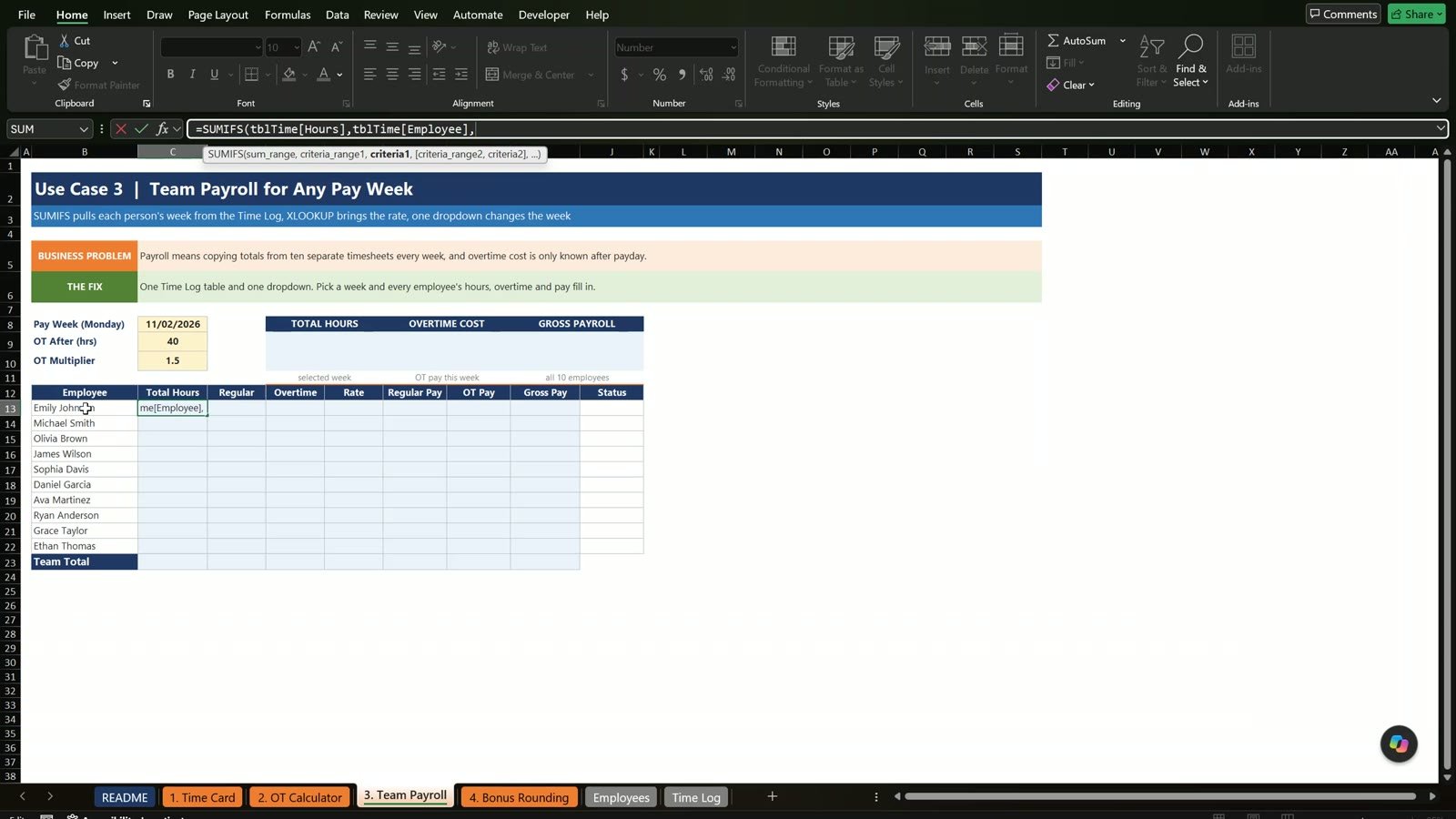
On the Team Payroll tab, the total hours for each employee is a SUMIFS on the log for the week picked in the drop-down:
=SUMIFS(tblTime[Hours],tblTime[Employee],$B13,tblTime[Week Start],$C$8)
Regular hours and overtime use MIN and MAX against the limit in one locked cell, the rate comes from XLOOKUP so it always follows the name, and the pay columns are regular hours times the rate and overtime hours times the rate times the multiplier. The status column has two levels:
=IF(E13>=8,"REVIEW",IF(E13>0,"OVERTIME","OK"))
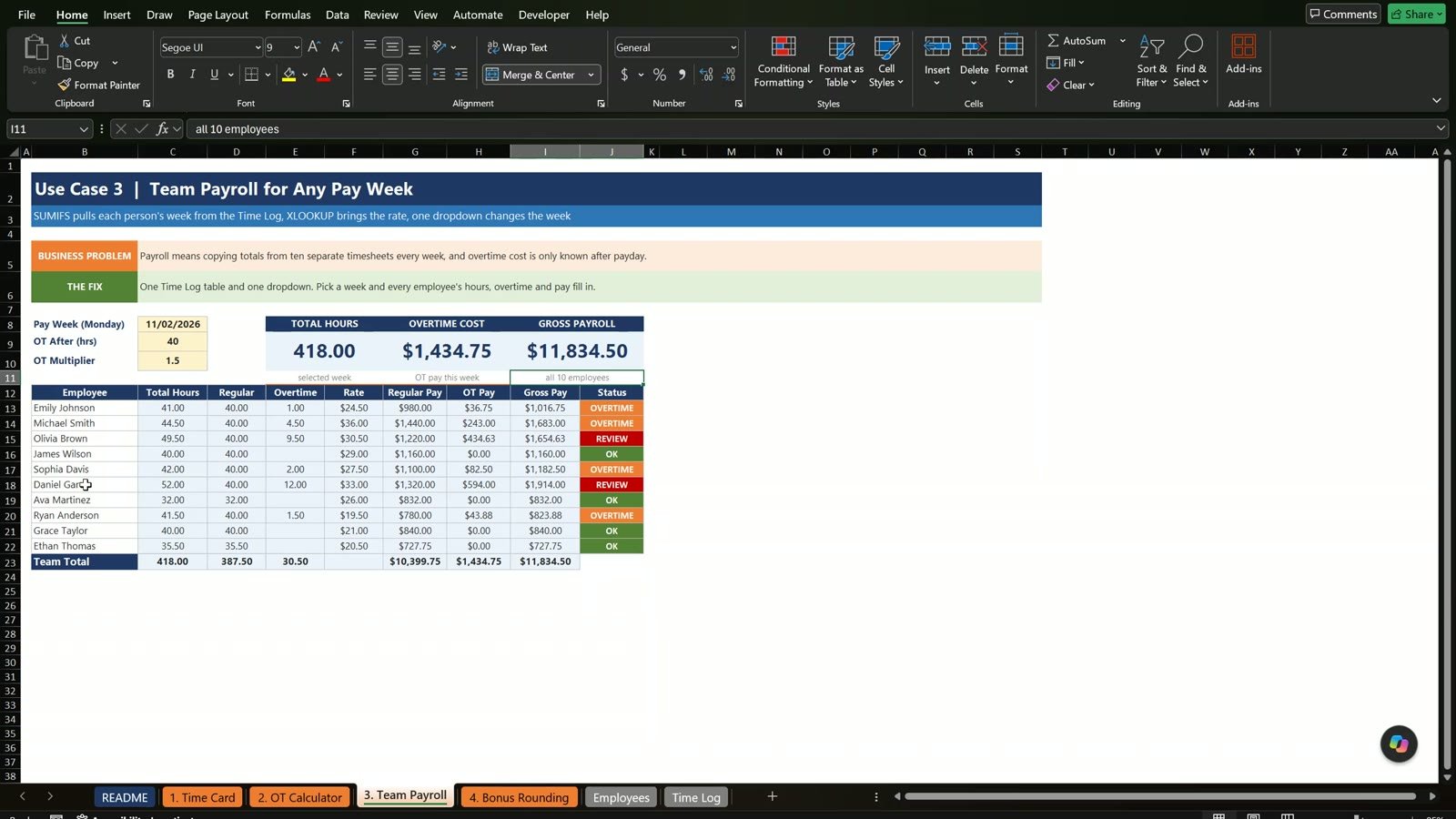
For the week of 11/02/2026 the team worked 418.00 hours with $1,434.75 of overtime cost and a payroll of $11,834.50. Michael Smith shows 44.50 hours and $1,683.00, the same answer as the time card, and Olivia Brown (9.50) and Daniel Garcia (12.00) show REVIEW. Pick 10/26/2026 and the payroll becomes $11,514.25 with James Wilson (11.00) to review.
The overtime chart
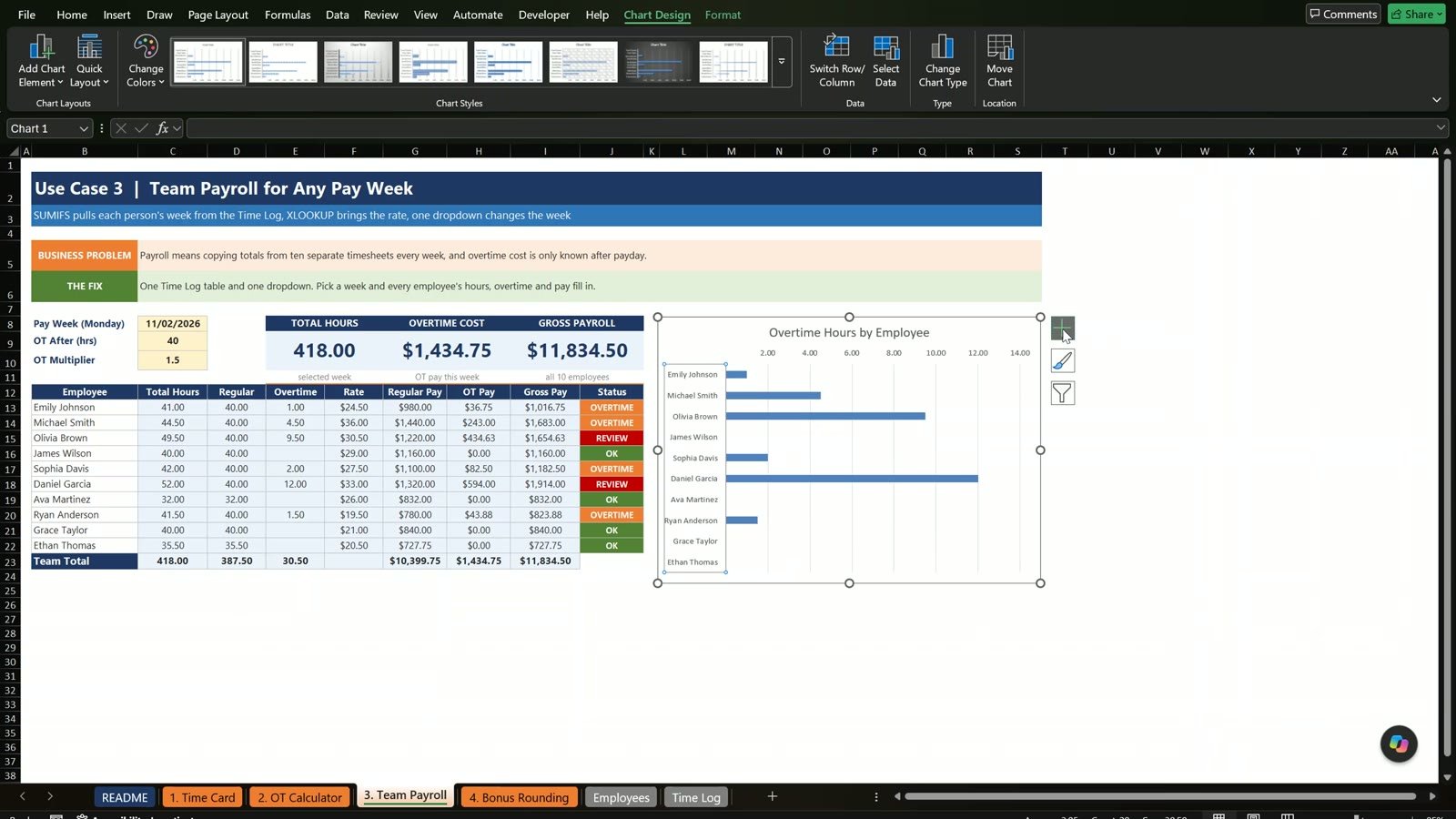
Select the names, hold Ctrl, select the overtime column and insert a Clustered Bar chart titled Overtime Hours by Employee. Turn on Categories in reverse order in the axis options so the first name sits at the top, and add data labels.
Good habit: keep the hourly rate only on the Employees tab, not in the log. When someone gets a raise you change one cell and the whole payroll updates.
Bonus: Round Clock Times to the Quarter Hour
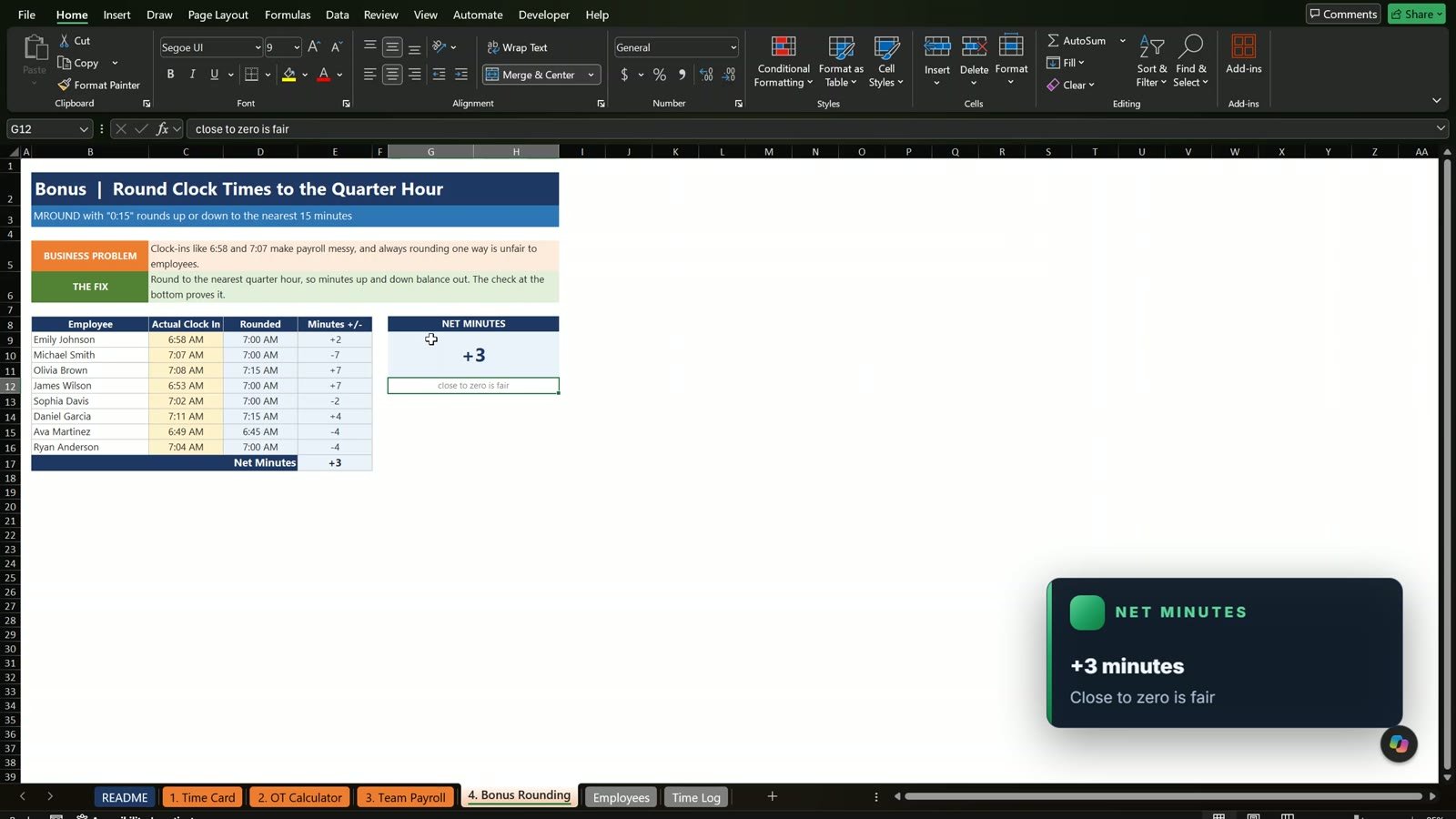
Some companies round punches to the nearest 15 minutes. =MROUND(C9,"0:15") rounds each time up or down, and =ROUND((D9-C9)*1440,0) shows how many minutes moved, because a day has 1,440 minutes. Add them up and the card shows plus 3 minutes, which is close to zero and fair. The problem starts only when a company always rounds in its own favor.
Want a Ready-Made Version?
This free file teaches the formulas. If you want a ready-to-use timesheet with more features, see the Automated Employee Timesheet Template in Excel, or the Attendance and Overtime Dashboard in Excel for charts and summaries. To learn formulas like these in depth, join the Excel + AI Mastery: 100 Essential Formulas course on Next Gen Templates Academy.
Related Tutorials
- Employee Attendance Tracker in Excel 2026
- 13-Week Cash Flow Forecast in Excel
- Billing and Invoice System in Excel
Frequently Asked Questions
How do I calculate overtime hours in Excel?
Add up the weekly hours, then use =MAX(hours-40,0) for overtime and =MIN(hours,40) for regular hours. The MAX with zero stops a short week from showing negative overtime. Change the 40 to your own overtime limit.
How do I calculate hours worked from clock in and clock out times?
Subtract the clock in from the clock out and multiply by 24, because Excel stores time as a fraction of a day. Eight hours is one third of a day, so a plain subtraction shows 0.33 until you multiply by 24.
Why does my timesheet show negative hours for a night shift?
Excel thinks the clock out on the next morning is on the same day, so 5:30 AM minus 9:00 PM is negative. Wrap the subtraction in MOD with a 1, for example =MOD(G13-D13,1)*24, and the result wraps around midnight.
How do I calculate overtime pay in Excel?
Overtime pay is the overtime hours times the hourly rate times the overtime multiplier, for example =J20*G9*G10 for 4.5 hours at $36.00 and 1.5x. Gross pay is the regular pay plus the overtime pay.
Is overtime calculated per day or per week?
Under the US federal rule it is decided by the work week: hours over 40 are overtime, so a 9-hour Tuesday is not overtime by itself. Some states, such as California, also count daily overtime, so check your state rules. This tutorial is an educational example and not legal advice.
How do I round clock times to the nearest quarter hour in Excel?
Use =MROUND(time,"0:15"). To see how many minutes the rounding moved, subtract the original time from the rounded time and multiply by 1440, the number of minutes in a day.
How do I build a team payroll from one time log?
Keep one Time Log table with a Week Start column, then use SUMIFS on the Hours column for each employee and the week picked in a drop-down. Look up the hourly rate with XLOOKUP from the Employees tab so a raise changes only one cell.
Is the practice file free?
Yes. The zip has the Practice and Solution workbooks for a fictional company, Tri-County Heating and Cooling in Columbus, Ohio. All names and numbers are example data.
Download the Free Practice Files
⬇️ Download the Free Practice Files
Practice file + solution workbook · .zip · Excel 365 or Excel 2021 or later
By PK, An Excel Expert. Tri-County Heating and Cooling and all names and numbers are fictional example data for learning. This is not legal or payroll advice.
Conclusion
You built a weekly time card that handles night shifts, an overtime calculator with a what-if chart, a team payroll from one time log and a rounding check. Download the free files, build along with the video and compare with the Solution file if you get stuck.