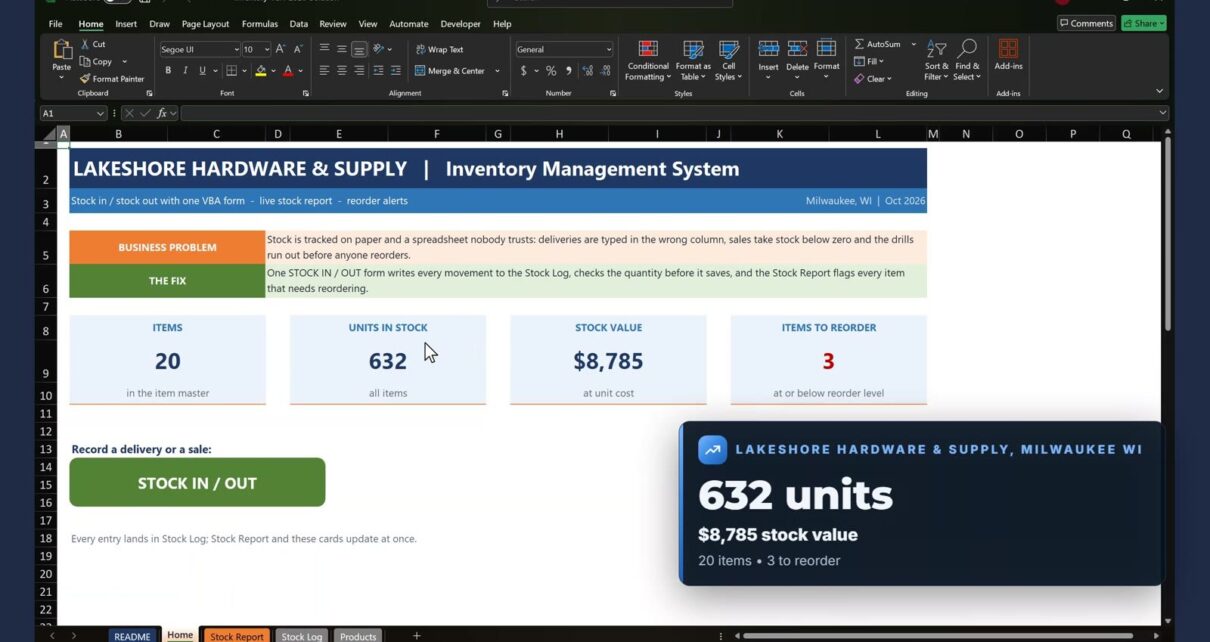
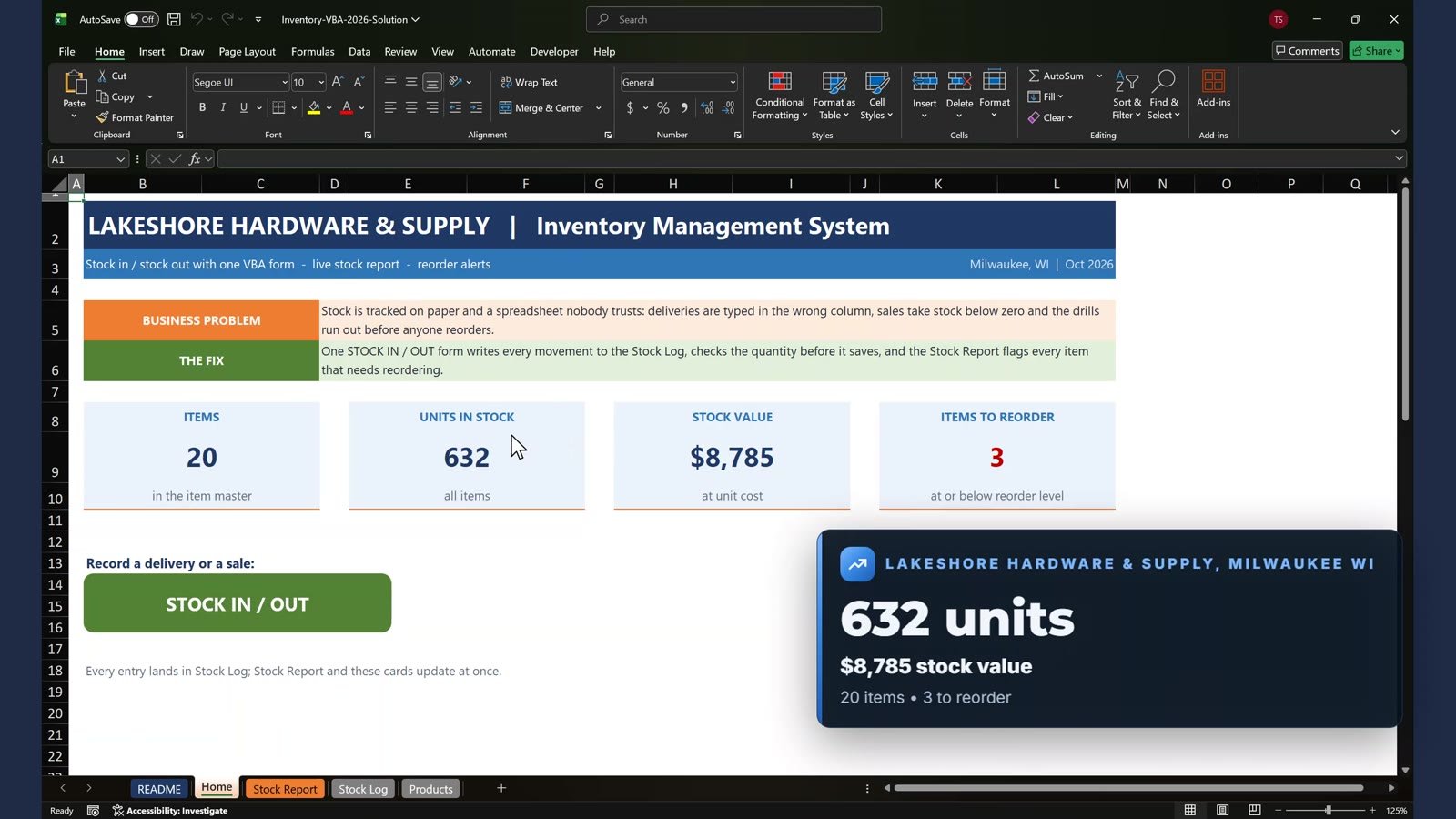
A hardware store tracks stock on paper and in a spreadsheet nobody trusts, so deliveries are typed in the wrong column and the drills run out before anyone reorders. In this tutorial you build an inventory management system in Excel VBA from a blank start file: a live stock report, a Stock In / Stock Out form and one button on the home page. The example is Lakeshore Hardware & Supply in Milwaukee, Wisconsin (fictional): 20 items, 632 units in stock, $8,785 stock value and 3 items to reorder.
Get the ready-to-use Inventory Management System V3.0
Watch the Video Tutorial
Video Overview
The 15-minute video opens with the finished system. A delivery of 24 cordless drills goes in through the form, the stock report flips that item from REORDER to OK and the cards update. Then a customer asks for 70 rolls of masking tape, and the form stops the sale because only 62 are in stock. After that you build everything from the start file: the formulas, the VBA module, the form and the code behind it. This is the 2026 remake of the original inventory video.
What You Will Build
- A live stock report with Stock In, Stock Out, Current Stock, Status and Stock Value.
- A VBA module that finds the current stock and reorder level of any item.
- A Stock In / Stock Out UserForm with a drop-down item list, date, type, quantity and remarks.
- Five checks before anything is saved.
- One button on the Home sheet that opens the form.
The Data
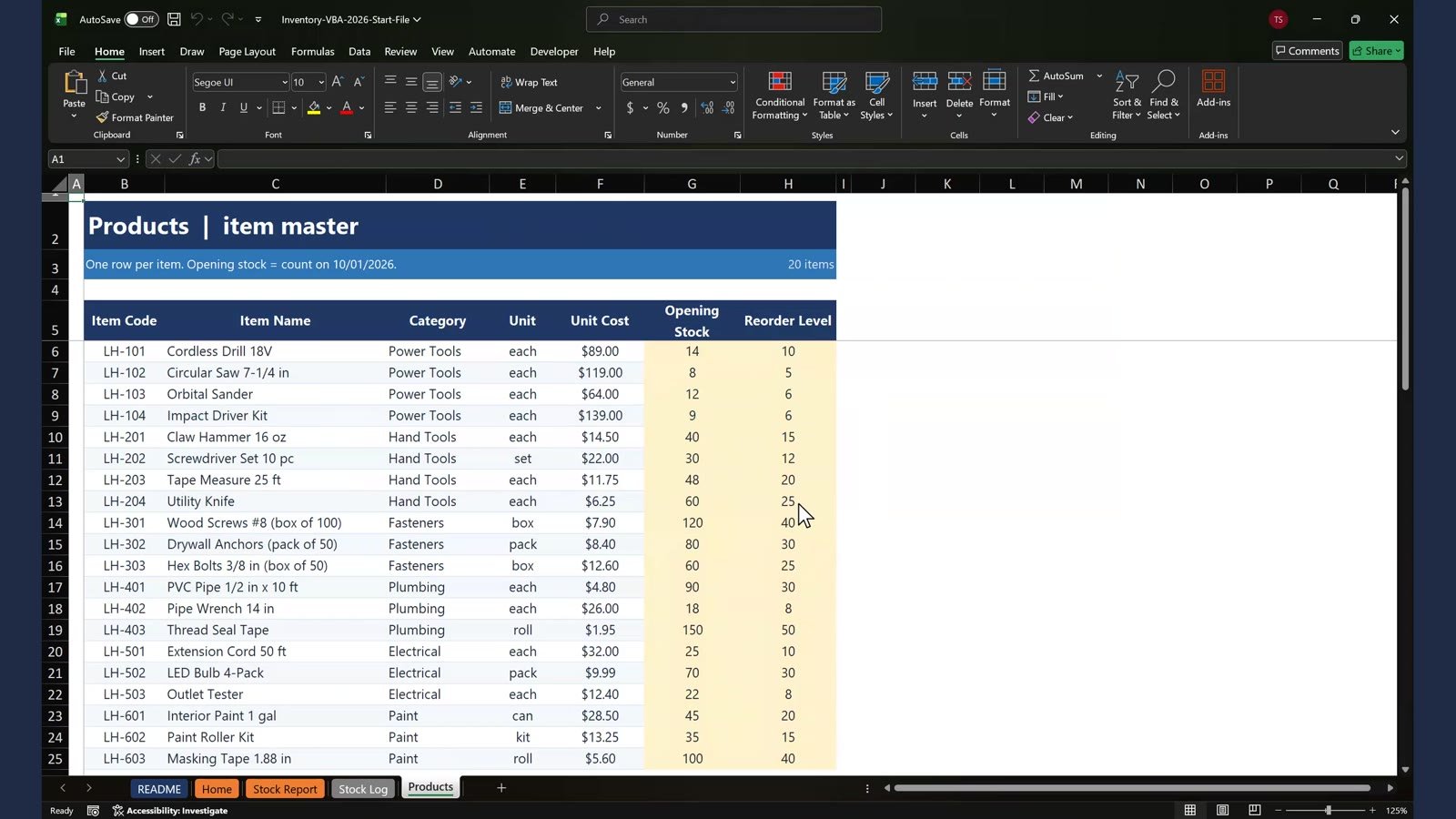
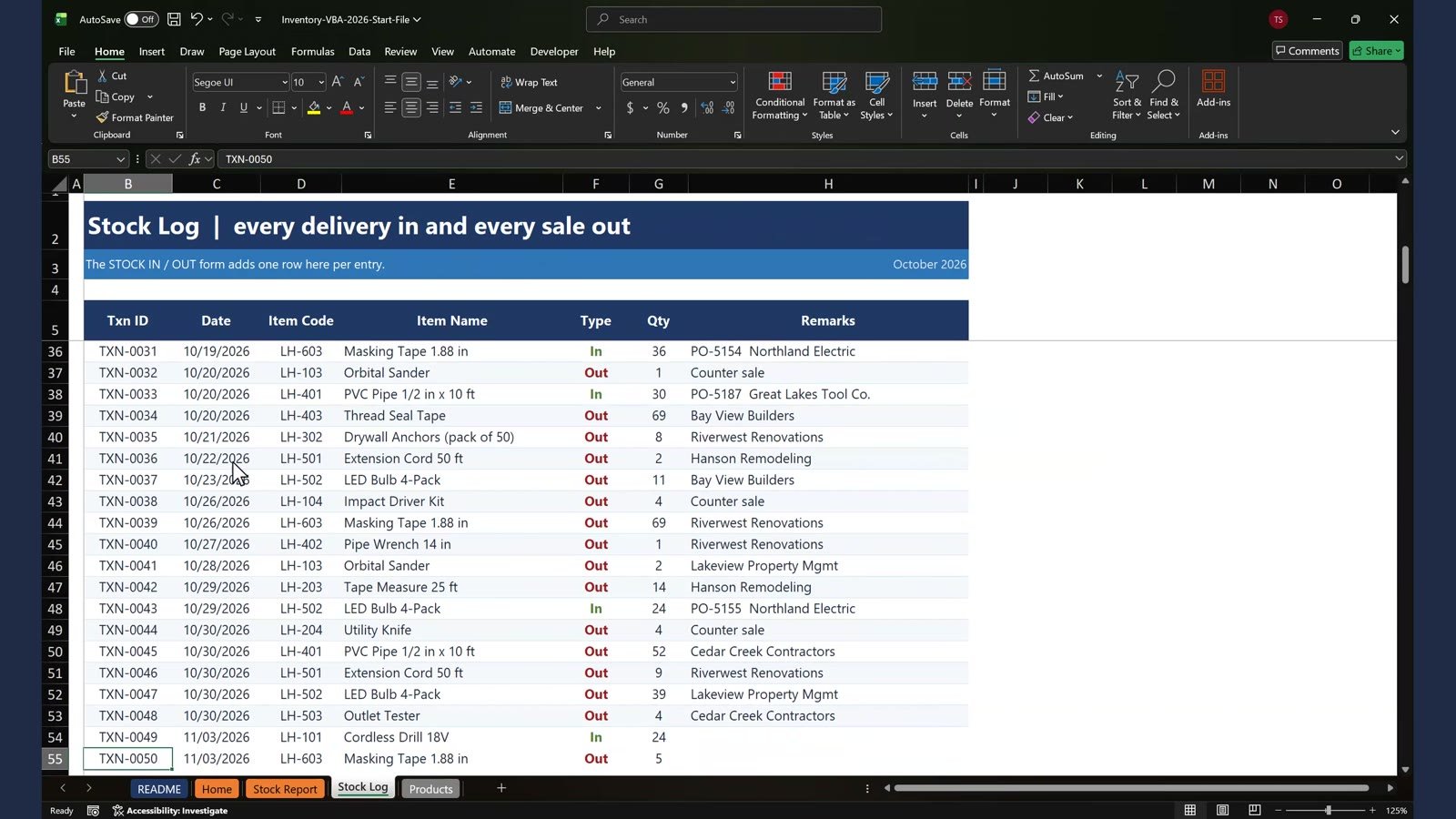
The start file has three sheets of data. The Products sheet is the item master: 20 items in six categories (Power Tools, Hand Tools, Fasteners, Plumbing, Electrical and Paint) with unit cost, opening stock counted on 10/01/2026 and a reorder level. The Stock Log holds 48 movements from October: 8 supplier deliveries and 40 sales. The Stock Report is empty, and that is the sheet you fill with formulas.
Step 1: The Live Stock Report
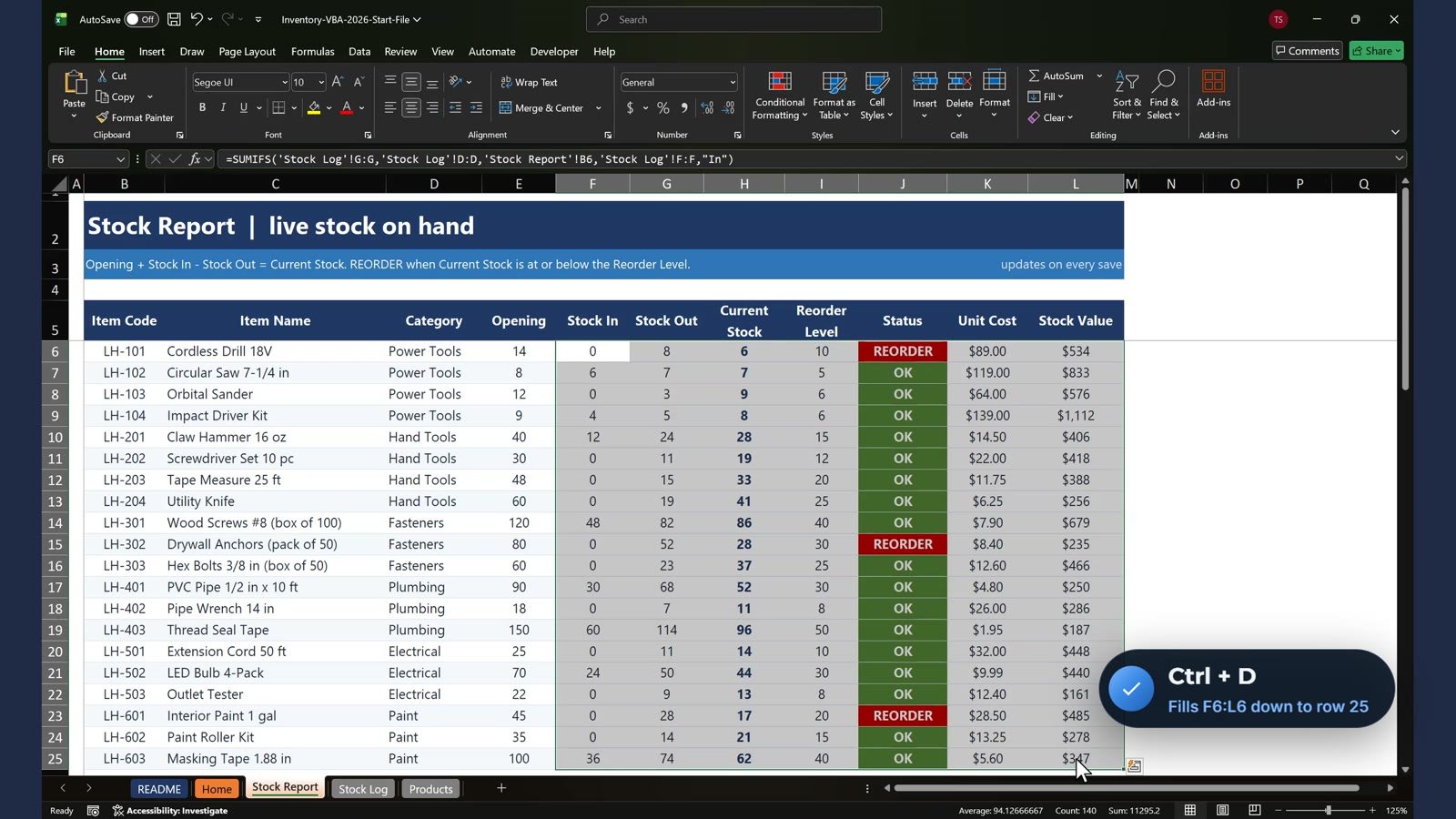
On the Stock Report select F6 and add up the quantity from the Stock Log for this item, only where the type is In. Stock Out is the same formula with Out. Current Stock is Opening plus In minus Out, Status flags the items at or below their reorder level, and Stock Value multiplies stock by unit cost:
=SUMIFS('Stock Log'!$G$6:$G$1000,'Stock Log'!$D$6:$D$1000,$B6,'Stock Log'!$F$6:$F$1000,"In")
=E6+F6-G6
=IF(H6<=I6,"REORDER","OK")
=H6*K6
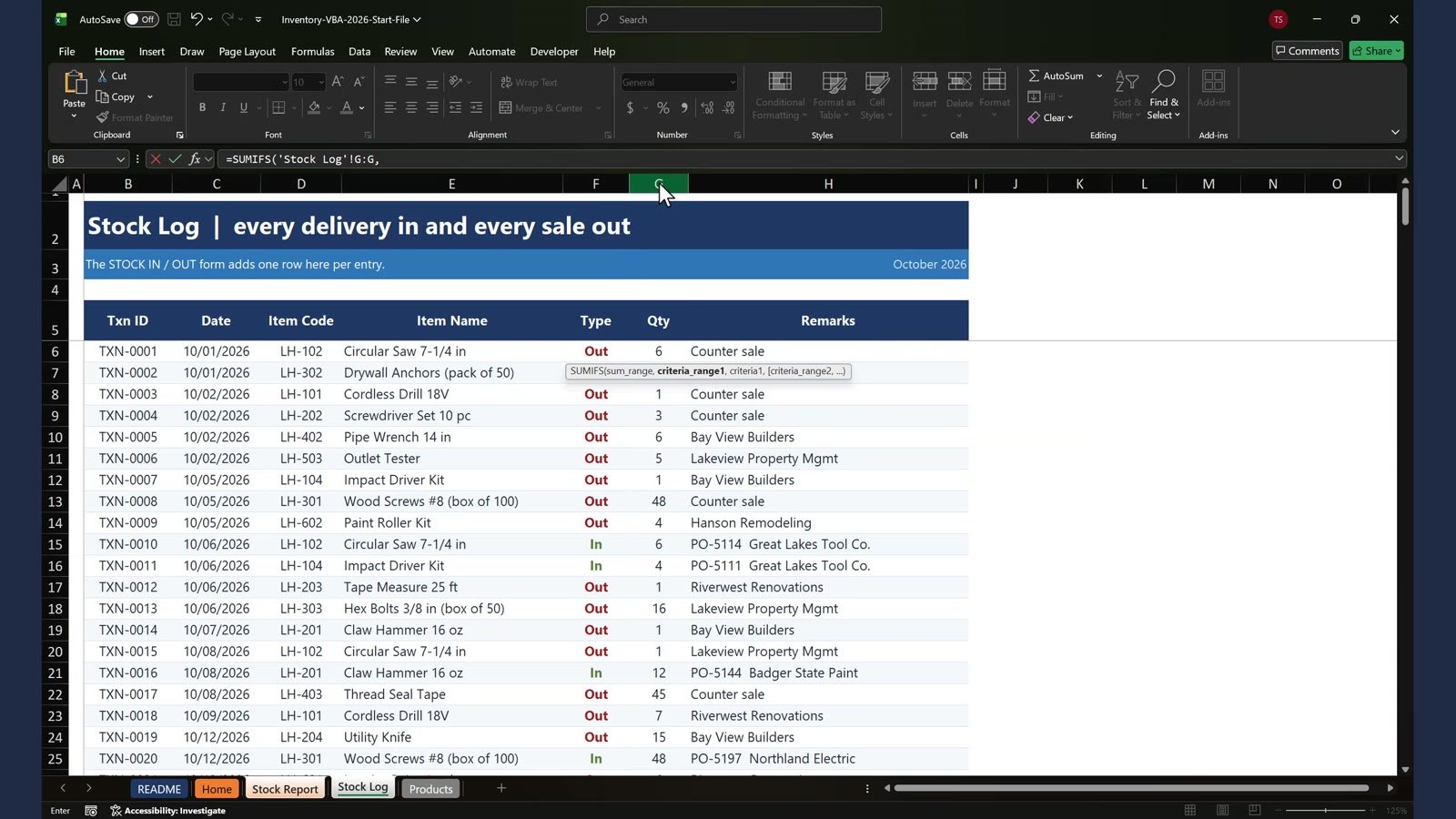
Select F6, hold Shift, click L25 and press Ctrl+D to copy the formulas down to all 20 items. Three items need reordering: the cordless drill, the drywall anchors and the interior paint. The Home cards now show 632 units, $8,785 and 3 items to reorder.
Step 2: The VBA Module
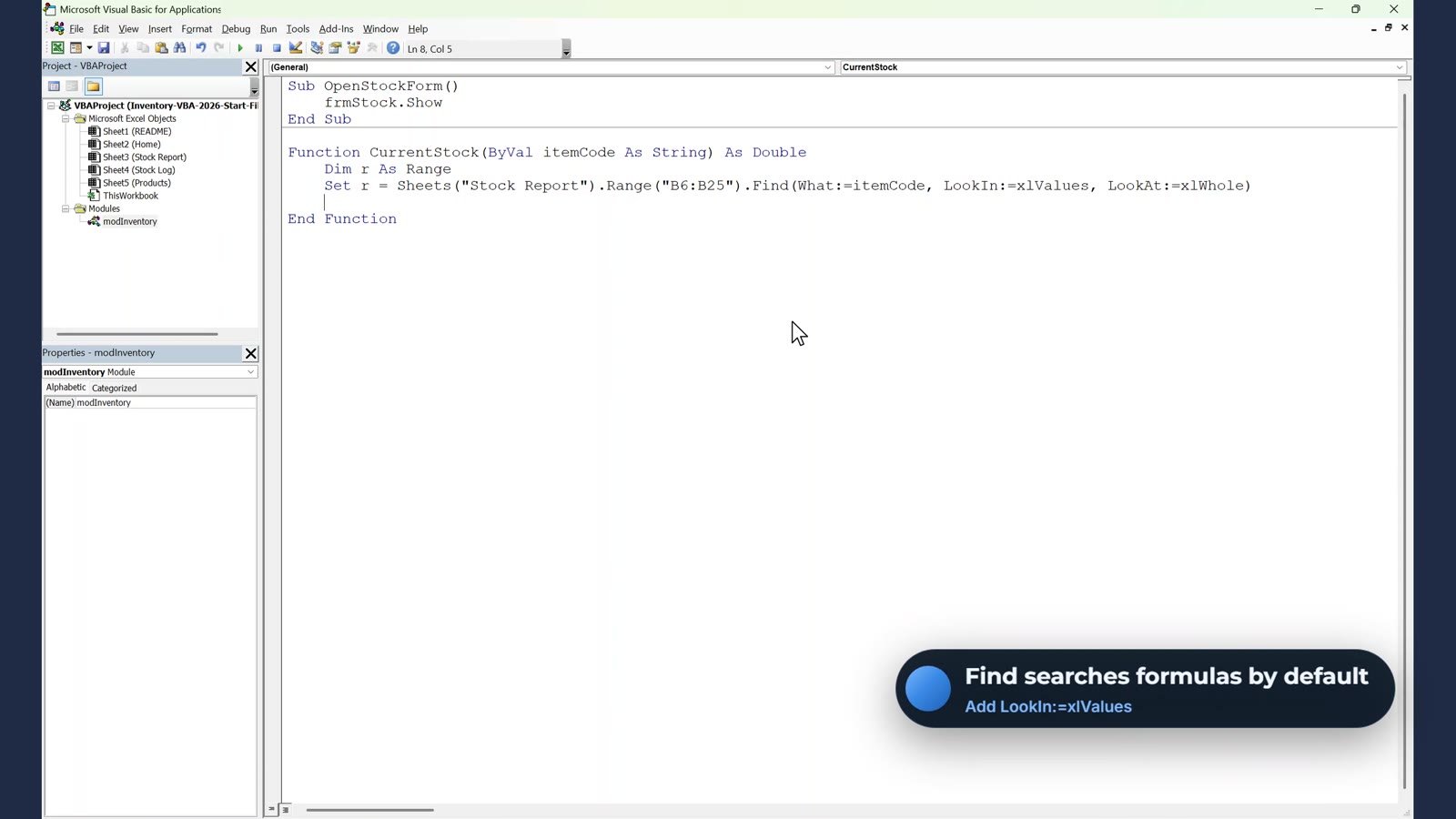
Press Alt+F11, insert a module named modInventory and add a function that returns the current stock of an item code. It uses Range.Find on the Stock Report.
The key line inside CurrentStock is the Find:
Set z = Sheets("Stock Report").Range("B6:B25").Find(What:=itemCode, LookIn:=xlValues, LookAt:=xlWhole)Gotcha: the item codes on the Stock Report are formulas that point to the Products sheet, and Find searches formulas by default, so the function returns 0. Adding LookIn:=xlValues fixes it.
Step 3: The UserForm
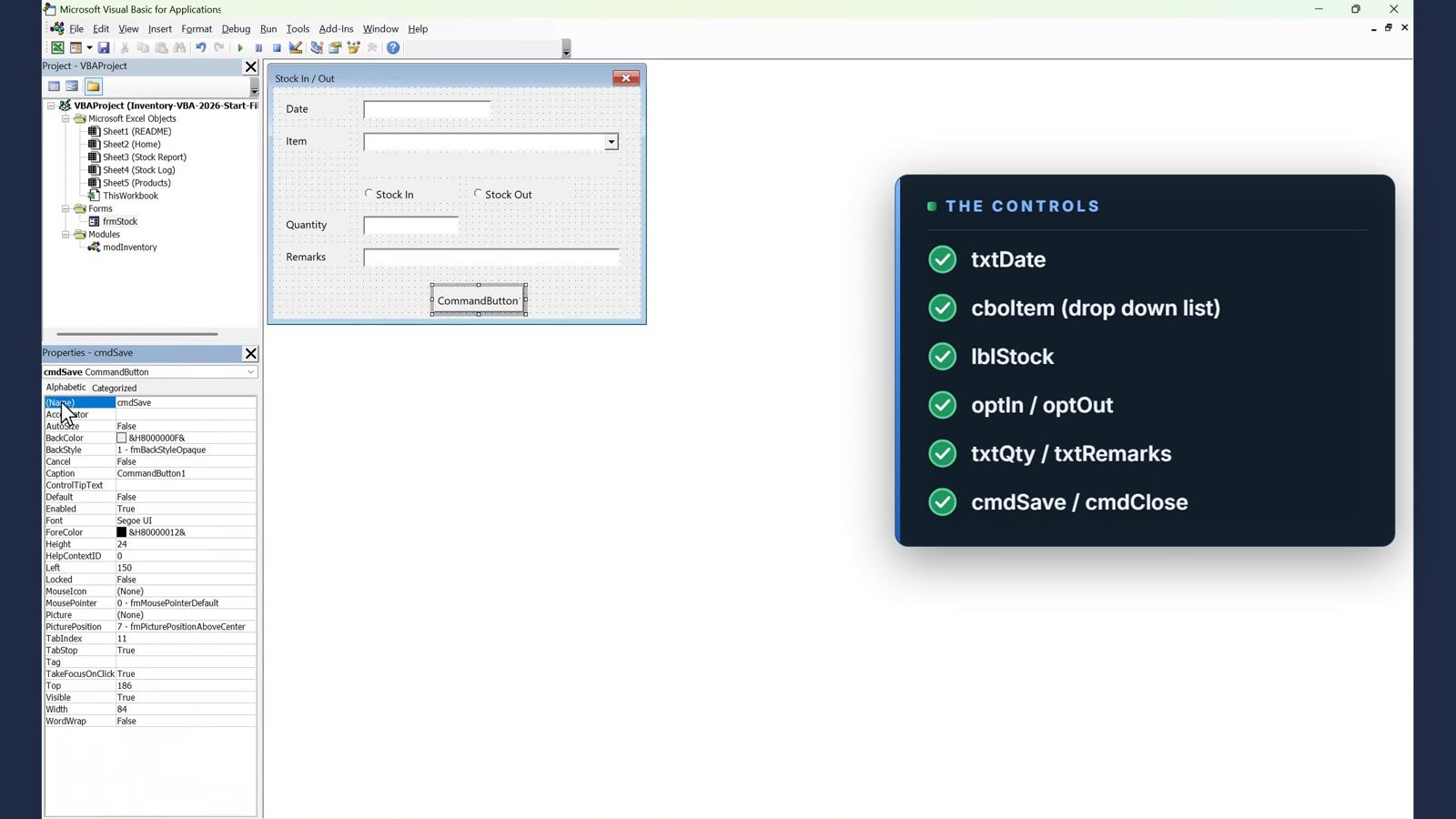
Insert a UserForm named frmStock and add the controls: txtDate, cboItem (a drop-down list, so nobody can type a wrong code), lblStock, the option buttons optIn and optOut, txtQty, txtRemarks, cmdSave and cmdClose. Set the combo box Style to drop-down list and set a sensible tab order.
Step 4: The Form Code
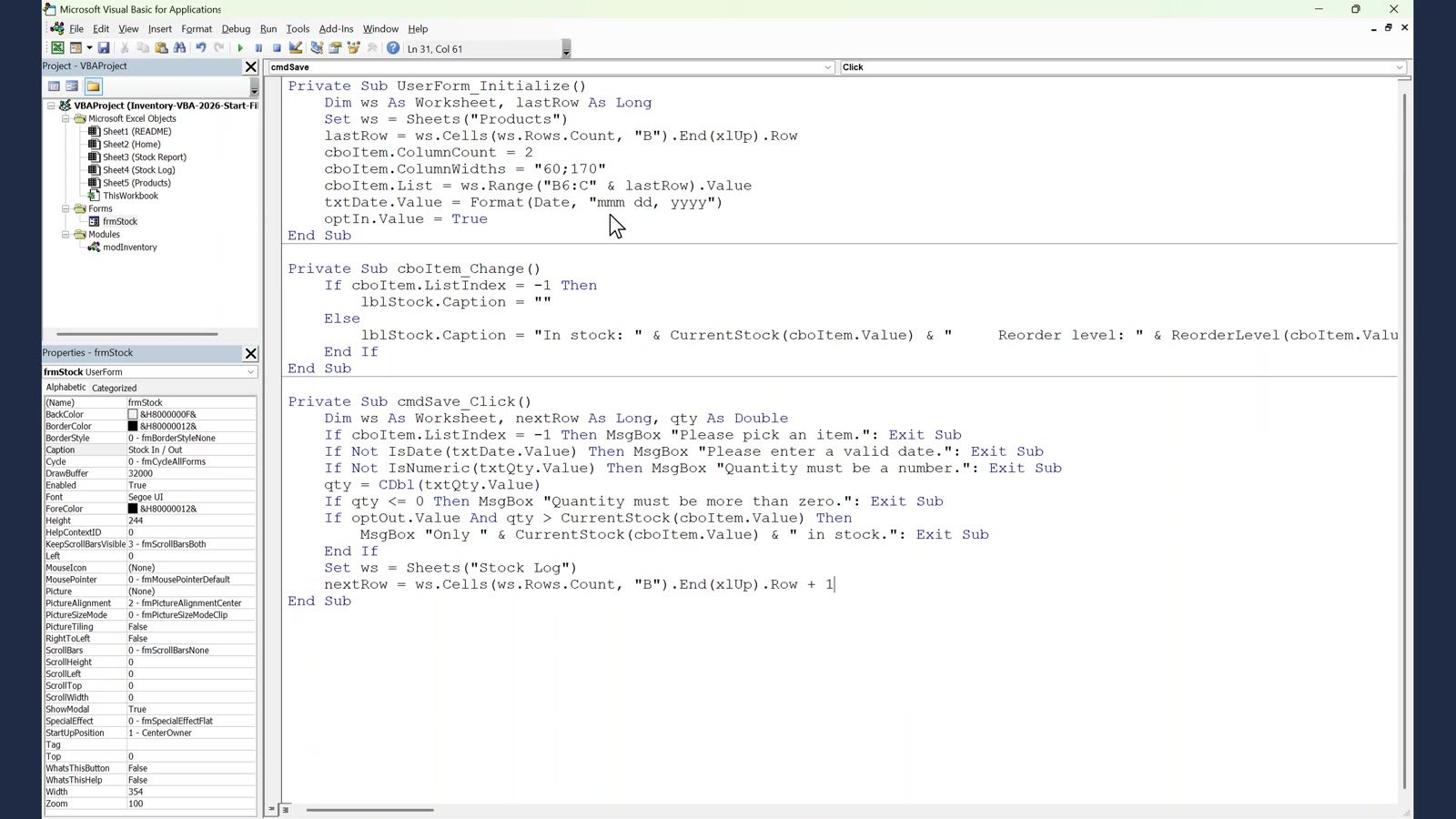
When the form opens it fills the item list from the Products sheet, sets today’s date and ticks Stock In. The month is written as a word, for example Nov 05, 2026, so the date is never read the wrong way on a computer with different regional settings.
Private Sub UserForm_Initialize()
    Dim ws As Worksheet, lastRow As Long
    Set ws = Sheets("Products")
    lastRow = ws.Cells(ws.Rows.Count, "B").End(xlUp).Row
    cboItem.ColumnCount = 2
    cboItem.ColumnWidths = "60;170"
    cboItem.List = ws.Range("B6:C" & lastRow).Value
    txtDate.Value = Format(Date, "mmm dd, yyyy")
    optIn.Value = True
End Sub
When the user picks an item, the label shows the stock and the reorder level, for example In stock: 6 Reorder level: 10. The Save button then runs five checks before it writes the next row of the Stock Log:
- An item is picked.
- The date is a real date.
- The quantity is a number.
- The quantity is more than zero.
- A Stock Out is not more than the stock on hand.
If all five pass, it finds the next empty row, creates the next transaction ID, writes the seven columns, shows a short confirmation and clears the form.
Step 5: The Button
On the Home sheet choose Insert, Shapes, draw a rounded rectangle, type STOCK IN / OUT, right-click it, choose Assign Macro and pick OpenStockForm. One click now opens the form.
Test the System
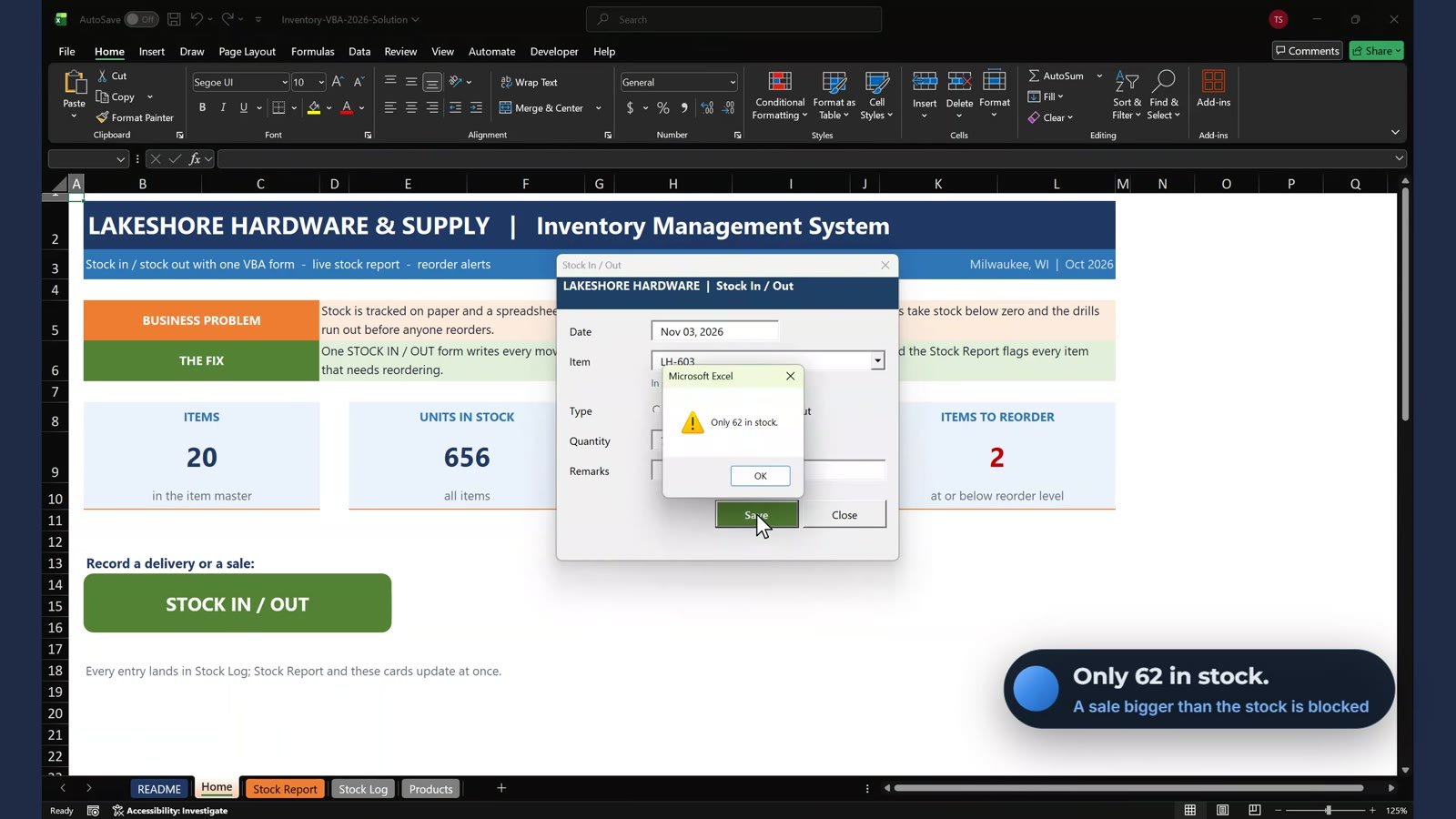
Open the form and pick the cordless drill: it shows 6 in stock and a reorder level of 10. Stock In 24 and click Save. The drill now shows 30, the status changes from REORDER to OK and the Items to Reorder card goes from 3 to 2. Then try a Stock Out of 70 for the masking tape: the form stops you with Only 62 in stock. An empty quantity gives Quantity must be a number.
Get the Ready-to-Use Version
This tutorial builds the core. The Inventory Management System V3.0 on Next Gen Templates has all the features ready to use. To learn VBA step by step, see the Excel VBA Basics with AI course on Next Gen Templates Academy.
Get the ready-to-use Inventory Management System V3.0
Frequently Asked Questions
How do I build an inventory management system in Excel with VBA?
Keep one Products sheet and one Stock Log sheet, calculate Stock In, Stock Out and Current Stock on a Stock Report with SUMIFS, then add a VBA UserForm that writes every movement to the next empty row of the Stock Log. A button on the Home sheet opens the form.
How is Current Stock calculated?
Current Stock is Opening stock plus Stock In minus Stock Out. Stock In and Stock Out are SUMIFS formulas over the Stock Log, filtered by item code and by the Type column.
How does the form stop a sale bigger than the stock?
Before saving, the Save button reads the current stock of the picked item. If the type is Stock Out and the quantity is more than the stock, it shows a message such as Only 62 in stock and does not write anything.
Why does Range.Find return nothing on the Stock Report?
The item codes on the Stock Report are formulas that point to the Products sheet. Find searches formulas by default, so add LookIn:=xlValues to search the values you see.
Do I need to save the file as a macro-enabled workbook?
Yes. Save it as an Excel Macro-Enabled Workbook (.xlsm), otherwise the VBA module and the UserForm are lost when you close the file.
Is there a free practice file?
No. This is a build-along. The finished, ready-to-use system with all features is the Inventory Management System V3.0 on Next Gen Templates.
By PK, An Excel Expert. Lakeshore Hardware & Supply and all names and numbers are fictional example data for learning.
Conclusion
With one SUMIFS report, a small VBA module, a UserForm with five checks and one button, you have an inventory system that cannot sell more than you have. Build it along with the video, then use the ready-made V3.0 file if you want every feature without the typing.