A training matrix Excel template answers one question fast: who in the team has completed which training, and what is still open? Most templates stop at a blank grid you fill in by hand. The Training Matrix Data Entry System in Excel works the other way round – you record each training session once in a form, and the employee x course matrix builds itself from those records. In this post we walk through every sheet, the formulas behind the matrix, and the limits you should know before you buy.
Watch the Training Matrix Excel Template – Data Entry System walkthrough
Why a Training Matrix Excel Template Needs a Data Entry System
A training matrix is a grid: employees down the side, courses across the top, a status in every cell. The trouble with a hand-typed grid is that it drifts away from the real training log. Someone attends a forklift refresher, the log gets a new line, but nobody updates the matrix. Two months later the matrix says the operator is overdue when he is not – or worse, says he is fine when his certificate lapsed.
This workbook keeps a single source of truth. Every session is a row in the Data Entry table with a Record ID, and the matrix is pure formulas reading that table. Add, update or delete a record and the matrix follows. That is the main difference between this system and a static training record template Excel users usually start with – and why it is more than the usual training matrix template Excel downloads offer.
What’s Inside the Workbook
The download is a ZIP with Training_Matrix_System.xlsm and a PDF user manual. The workbook has five sheets: Data Entry, Training Matrix, Setting, Instructions and Get More Templates.
1. Data Entry sheet – the form, the buttons and the records table
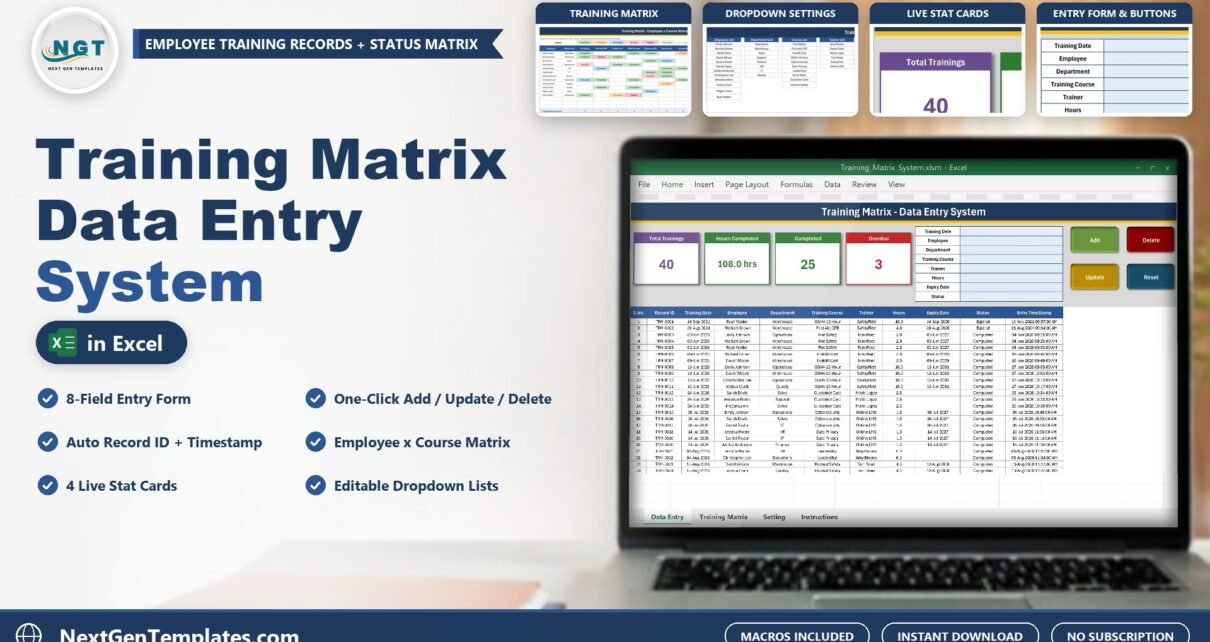
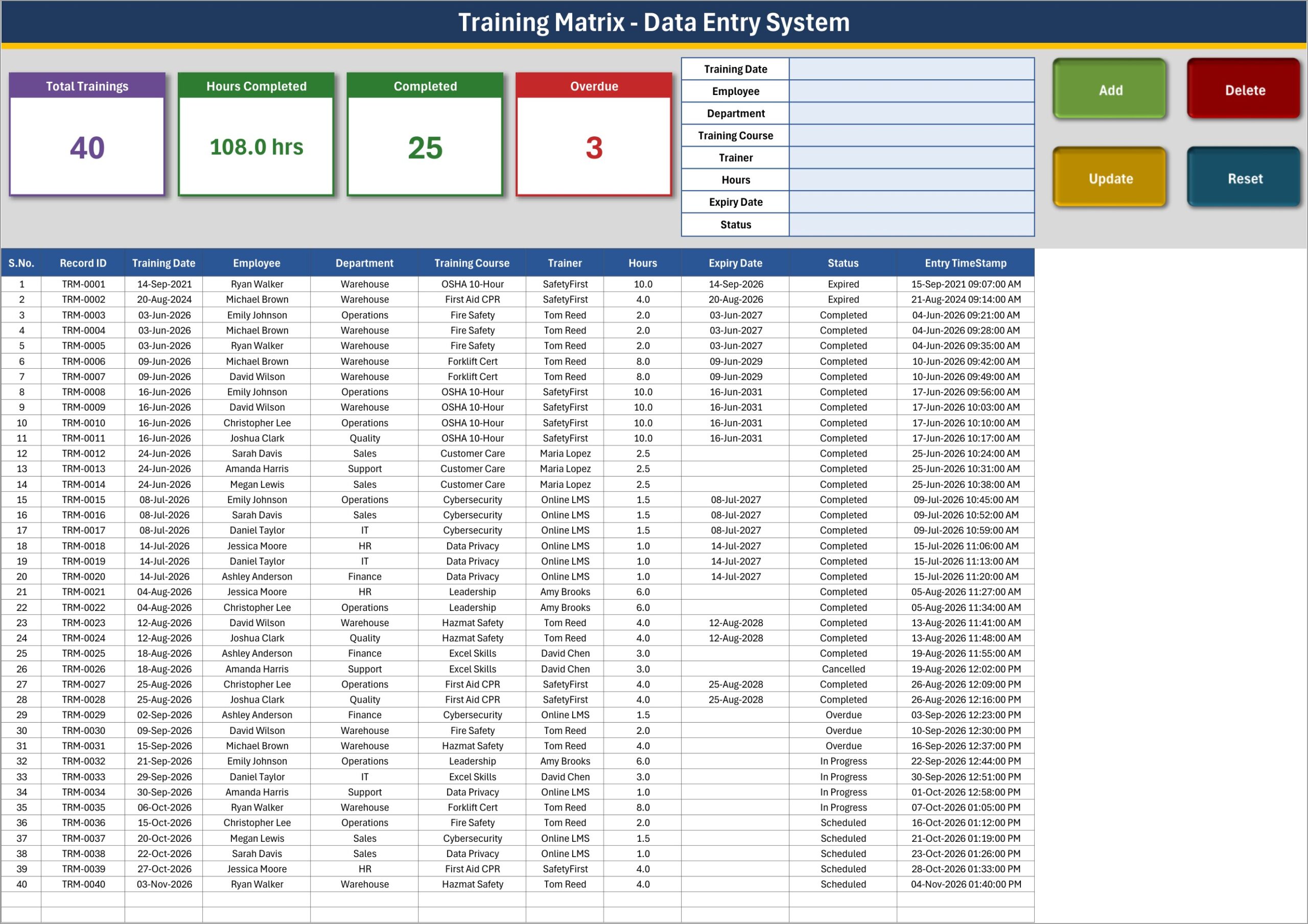
At the top sit four stat cards: Total Trainings (40 in the sample), Hours Completed (108.0 hrs), Completed (25) and Overdue (3). Next to them is the eight-field form – Training Date, Employee, Department, Training Course, Trainer, Hours, Expiry Date and Status – and four macro buttons: Add, Update, Delete and Reset.
The table below has eleven columns: S.No., Record ID, Training Date, Employee, Department, Training Course, Trainer, Hours, Expiry Date, Status and Entry TimeStamp. The Add macro writes the next ID (TRM-0001, TRM-0002…) and the timestamp, so each record is traceable. To edit, double-click a row – the record loads into the form, the macro remembers its ID, and Update saves it back to the same row even if the table has been sorted.
2. Training Matrix sheet – employee x course status
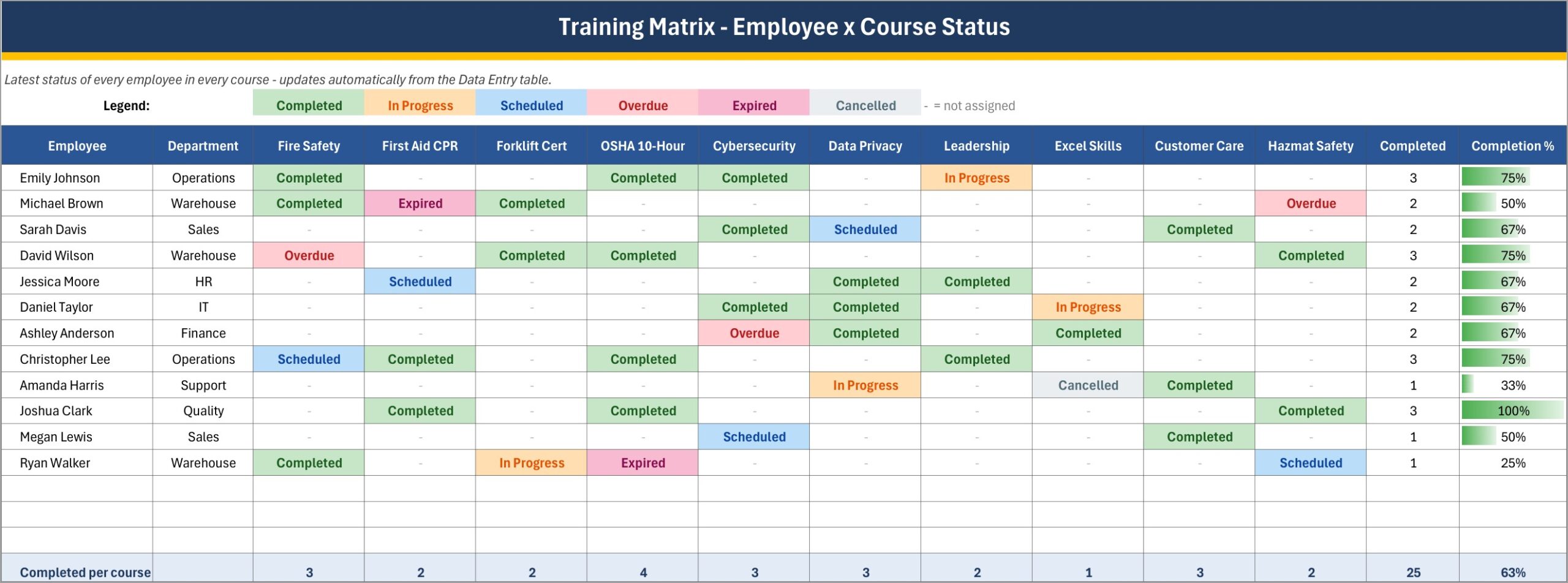
This is the heart of the training matrix Excel template. Each cell uses a LOOKUP(2,1/(...)) formula to find the last record for that employee and that course in the Data Entry table and shows its status. A dash means the course has not been assigned. Conditional formatting colours the six statuses: Completed (green), In Progress (orange), Scheduled (blue), Overdue (red), Expired (pink) and Cancelled (grey).
On the right, a Completed count and a Completion % data bar for each employee; at the bottom, a completed count for each course. In the sample data Joshua Clark is at 100%, Amanda Harris at 33% and the whole team at 63%. The grid covers the first 15 employees and the first 10 courses of your Setting lists.
3. Setting sheet – lists and cards
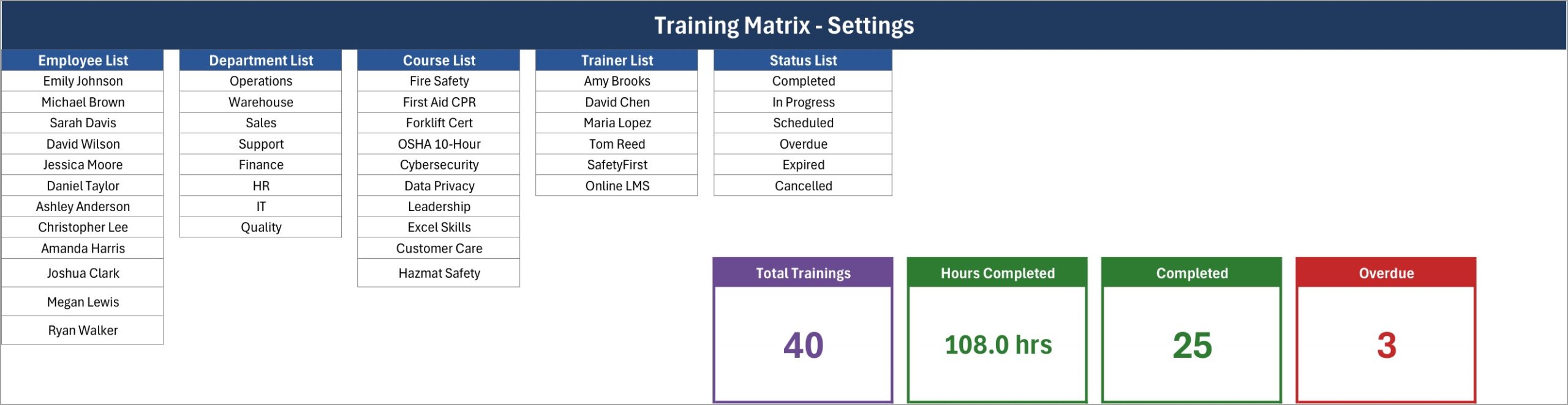
The Employee, Department, Course, Trainer and Status lists live here. Each one is a dynamic named range built with OFFSET and COUNTA, so typing a new name directly under the last one adds it to every dropdown. The four real KPI cards are also on this sheet; the Data Entry sheet shows them as linked pictures.
4. Instructions sheet
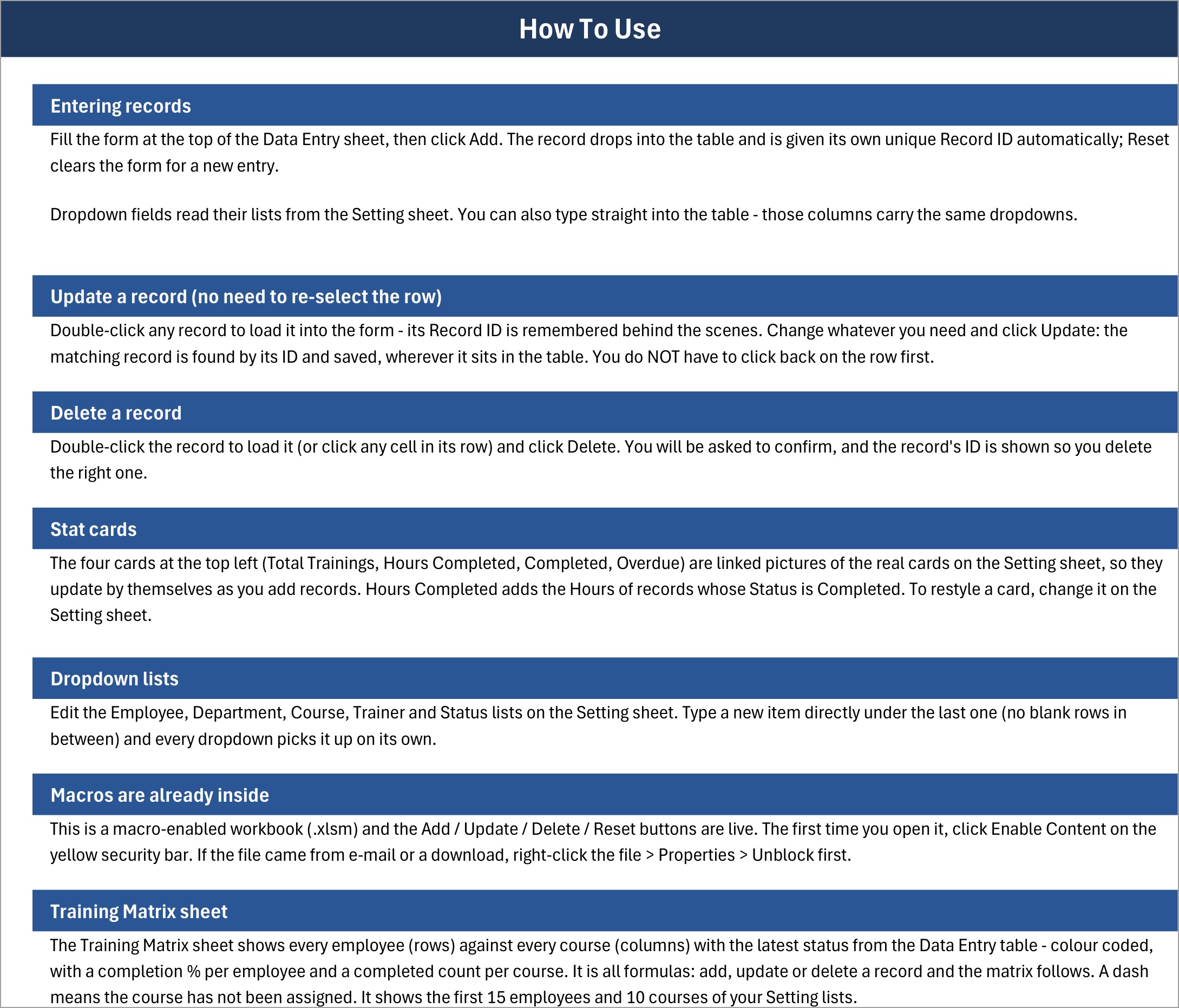
Step-by-step notes for entering, updating and deleting records, editing lists, enabling macros and reading the matrix.
How the Stat Cards Are Calculated
- Total Trainings – counts Record IDs, so every saved record is counted once.
- Hours Completed –
SUMIFon Status = Completed, adding only finished sessions. - Completed and Overdue –
COUNTIFon those two statuses.
Completion % per employee is completed courses divided by assigned courses (cells that are not a dash). A Cancelled entry counts as assigned, which is why Amanda Harris sits at 33%: one completed out of three entries.
How to Set Up Your Own Training Matrix
- Unzip the file, right-click
Training_Matrix_System.xlsm> Properties > Unblock, open it in Excel for Windows and click Enable Content. - On the Setting sheet, replace the sample employees, departments, courses and trainers. Keep the six status words unchanged – the cards and colours depend on them.
- Clear the 40 sample rows on the Data Entry sheet.
- Add each training session through the form. Put the certificate expiry date in Expiry Date for courses that lapse.
- Review the Training Matrix sheet weekly. When a session is missed or a certificate expires, update that record’s status.
Limitations You Should Know
- Status is manual. The Expiry Date is stored, but the workbook does not compare it with today’s date or send reminders. You set Overdue or Expired yourself.
- Latest row wins. If an employee took the same course twice, the matrix shows the status of the record lowest in the table.
- 15 x 10 grid. Larger teams are still recorded and counted, but only the first 15 employees and 10 courses appear in the matrix.
- About 200 rows with dropdowns. In-table dropdowns and date checks cover rows 15-213; the form keeps working beyond that.
- Windows desktop Excel only. The VBA buttons do not run in Excel for the web, Excel for Mac or Google Sheets.
- Not a compliance system. It records what you enter. It does not certify training or prove compliance with OSHA or any other standard; sample course names are just labels.
Who Should Use This Employee Training Tracker Excel File
HR coordinators, safety officers, warehouse and operations supervisors and small training teams who want an employee training tracker Excel file with a real matrix, not a typed grid. If you need course delivery, automatic e-mails or many people editing at once, an LMS is the better fit.
Related reading on this blog: the Training Schedule Request Tracker in Excel, the Training Enrolments Tracker in Excel, the Employee Training Effectiveness Dashboard in Excel, the Training and Development Dashboard in Excel and the Employee Document Data Entry System in Excel.
Frequently Asked Questions
Is this training matrix Excel template free?
No, it is a paid, one-time download from NextGenTemplates with no subscription.
Does the matrix update automatically?
Yes. The matrix is formulas over the Data Entry table, so adding, updating or deleting a record changes it straight away. Statuses themselves are set by you.
Will it remind me when a certificate expires?
No. It stores the Expiry Date next to each record but does not send alerts or change the status on its own.
Can I rename the courses?
Yes. Edit the Course List on the Setting sheet; the matrix headers follow the first 10 courses.
Do I need macros?
Yes, for the Add, Update, Delete and Reset buttons. Use Excel for Windows desktop and click Enable Content.
Get the Training Matrix Data Entry System
Stop updating a training grid by hand. Download the Training Matrix Data Entry System in Excel and let the matrix build itself from your training records.