Your Power BI chart shows the total. Then your boss points at one bar and asks: which orders make up that number? Power BI drill through answers that in one click. You build a small details page once, and from then on you can right-click any bar and jump to the exact rows behind it, already filtered.
In this quick tutorial we use a sales file with 120 fictional orders. The chart shows revenue by product, and we drill through on Laptop Pro 14 to see its 27 orders.
The whole trick in 45 seconds.
⬇️ Join Free on Skool & Download the Practice File
Free membership · takes 1 minute · the file is in Classroom → Free Downloads from YouTube
What Is Drill Through in Power BI?
Drill through is a link from a summary visual to a details page. When you right-click a data point (a bar, a row, a slice) and choose Drill through, Power BI opens the target page and filters it to the item you clicked. The details page stays hidden in the background until someone needs it, so your main report stays clean.
The practice file has one table, tblSales, with Order ID, Region, Sales Rep, Product, Units and Revenue. Load it into Power BI Desktop with Get Data > Excel workbook and follow along.
How to Set Up Power BI Drill Through (6 Steps)
Step 1: Build the summary chart
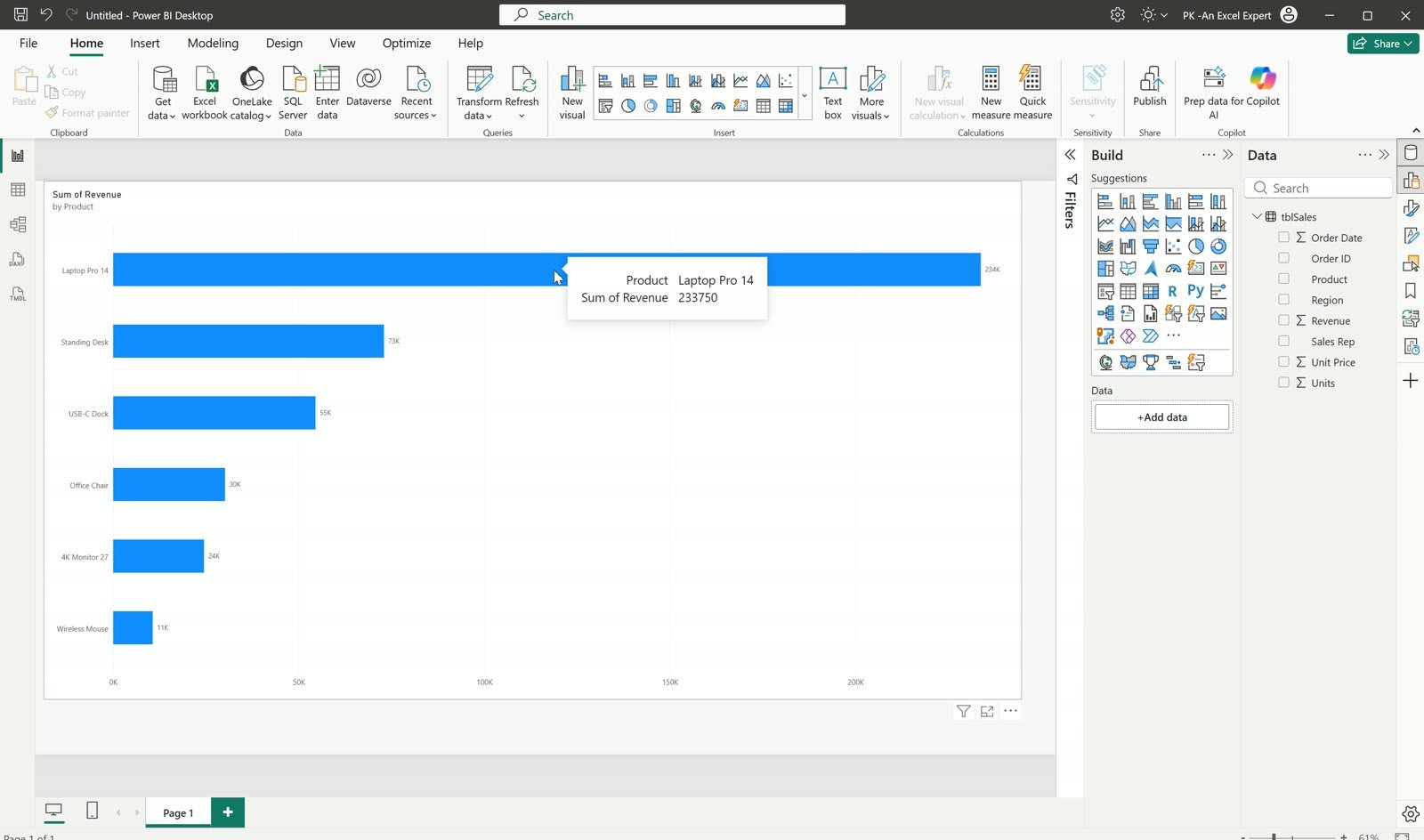
On Page 1, add a bar chart with Product on the axis and Sum of Revenue as the value. Hover the top bar and the tooltip shows Laptop Pro 14 = 233,750. That single number is what we want to explain.
Step 2: Add a details page with a table
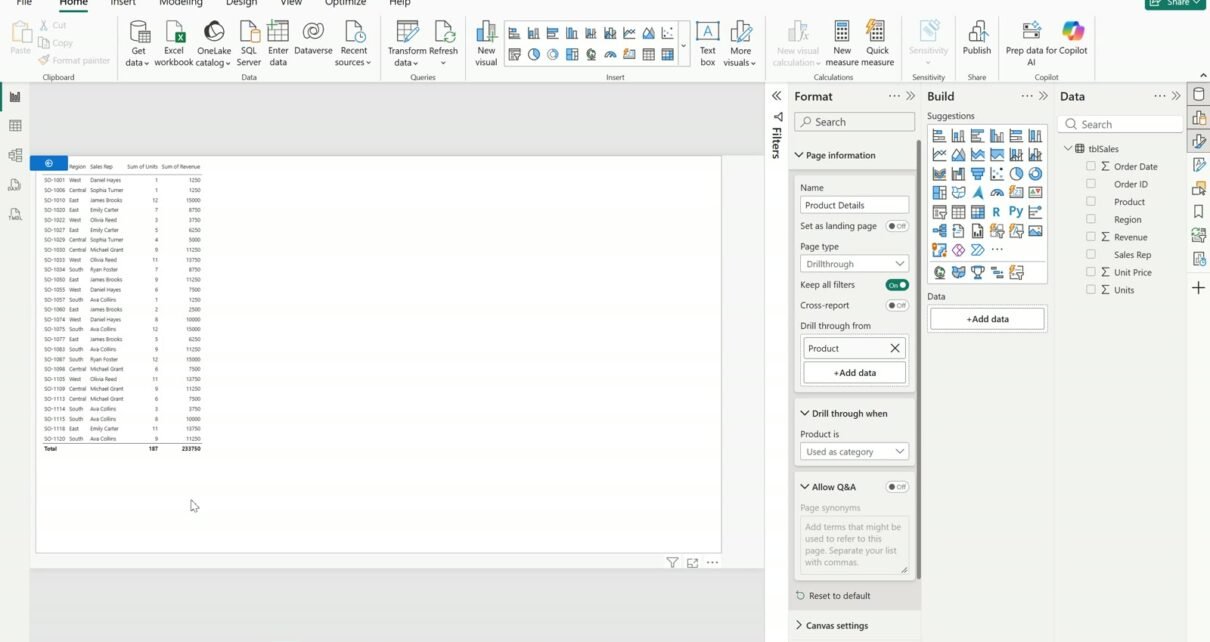
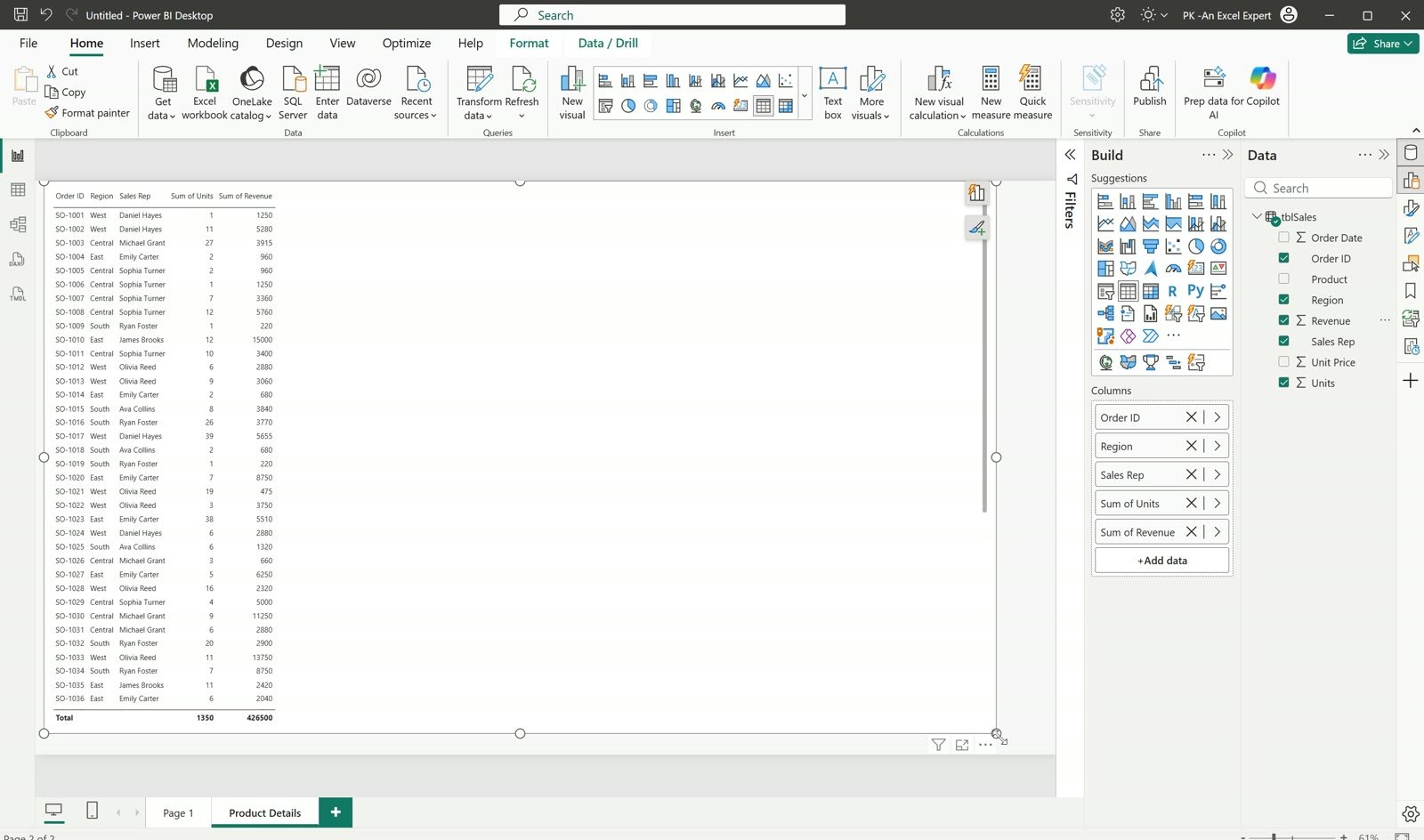
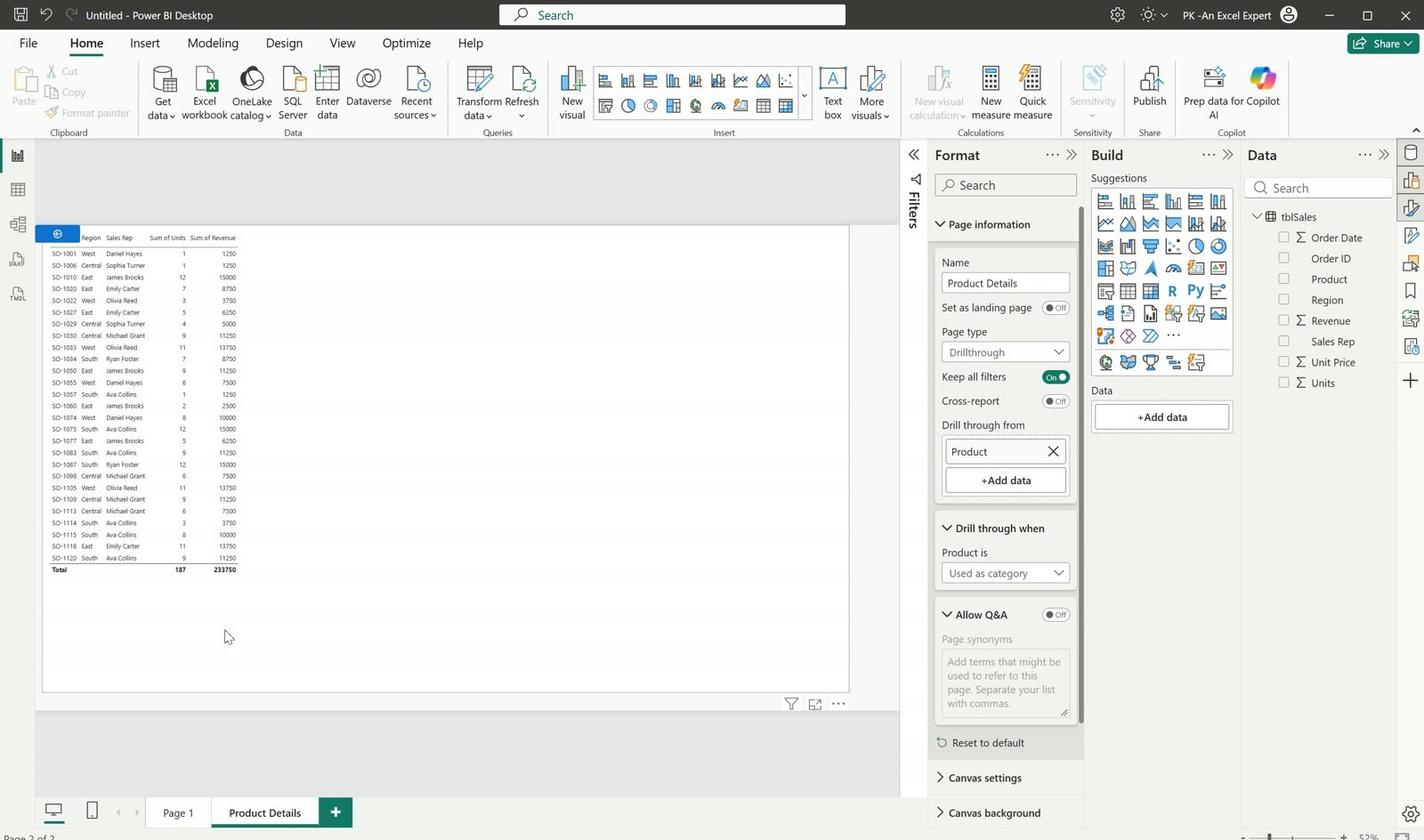
Add a new page and rename it Product Details. Insert a table visual with Order ID, Region, Sales Rep, Units and Revenue. Right now it lists every order.
Step 3: Set the page type to Drillthrough
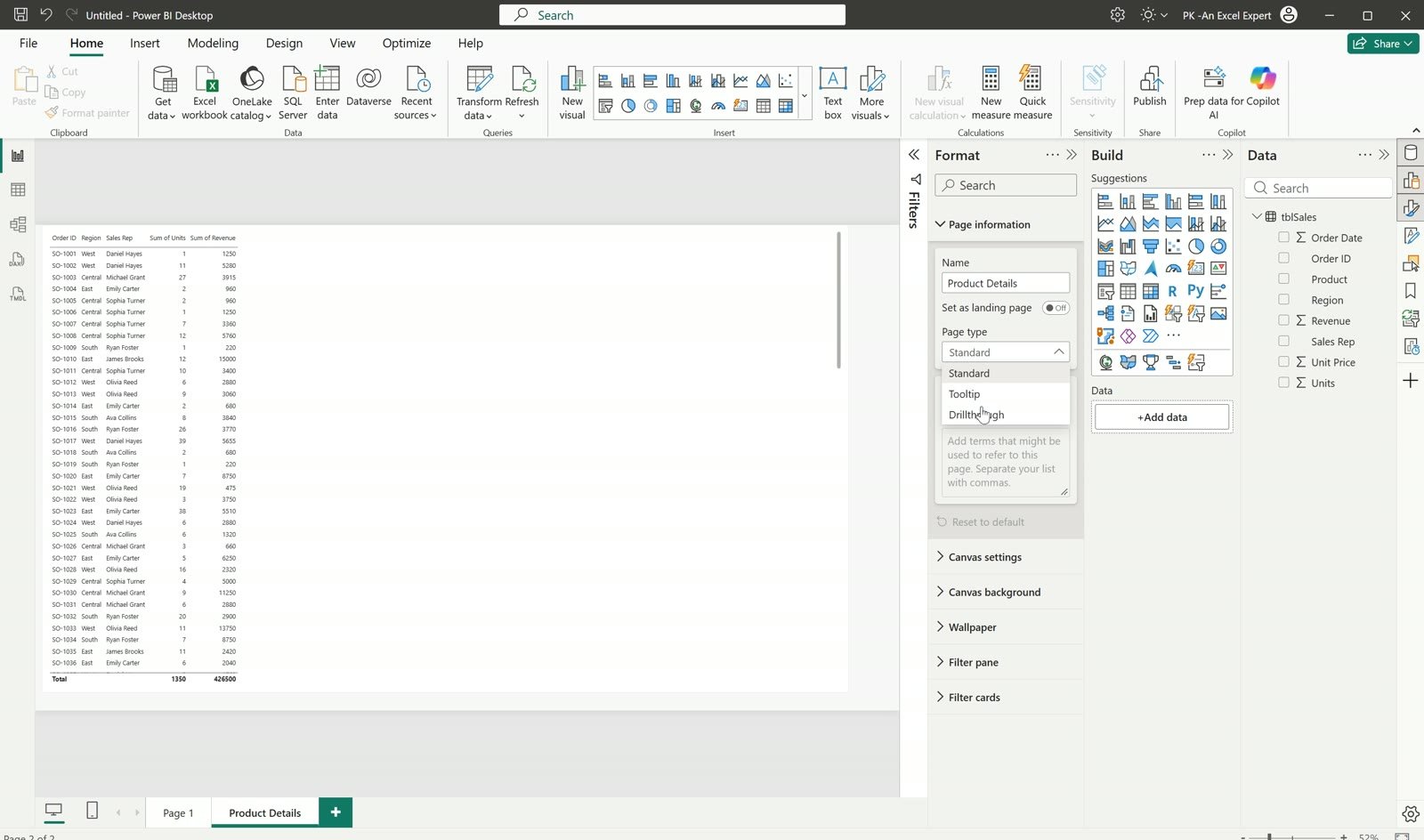
Click an empty part of the Product Details page so no visual is selected. In the Format pane open Page information and set Page type to Drillthrough.
Note: in current Power BI Desktop the drill-through settings live under Format > Page information, not in the Build pane where older guides show them.
Step 4: Drag Product into “Drill through from”
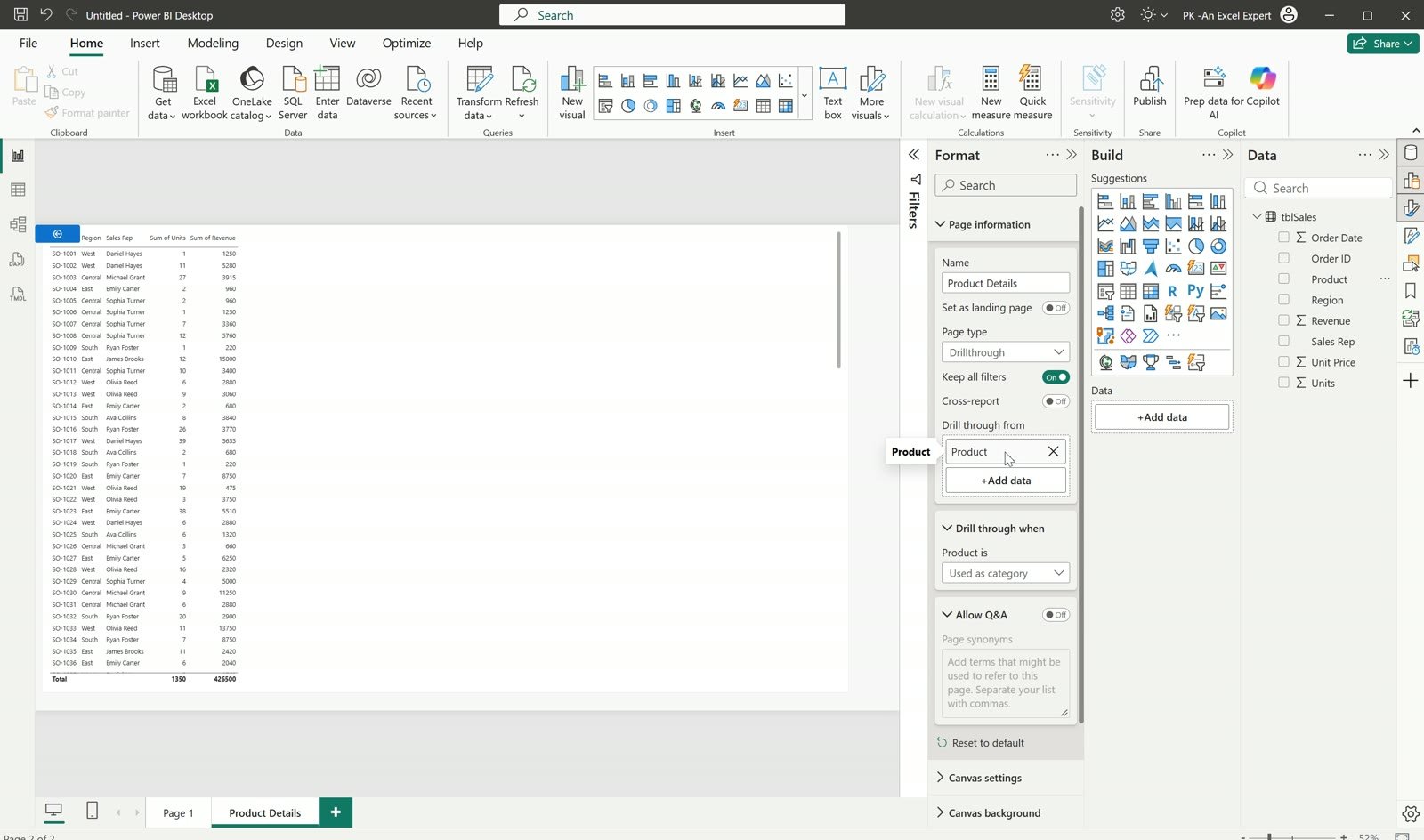
Drag the Product field into the Drill through from box. Leave Keep all filters on, so any slicer you use on Page 1 also carries over to the details page.
Step 5: Right-click a bar and drill through
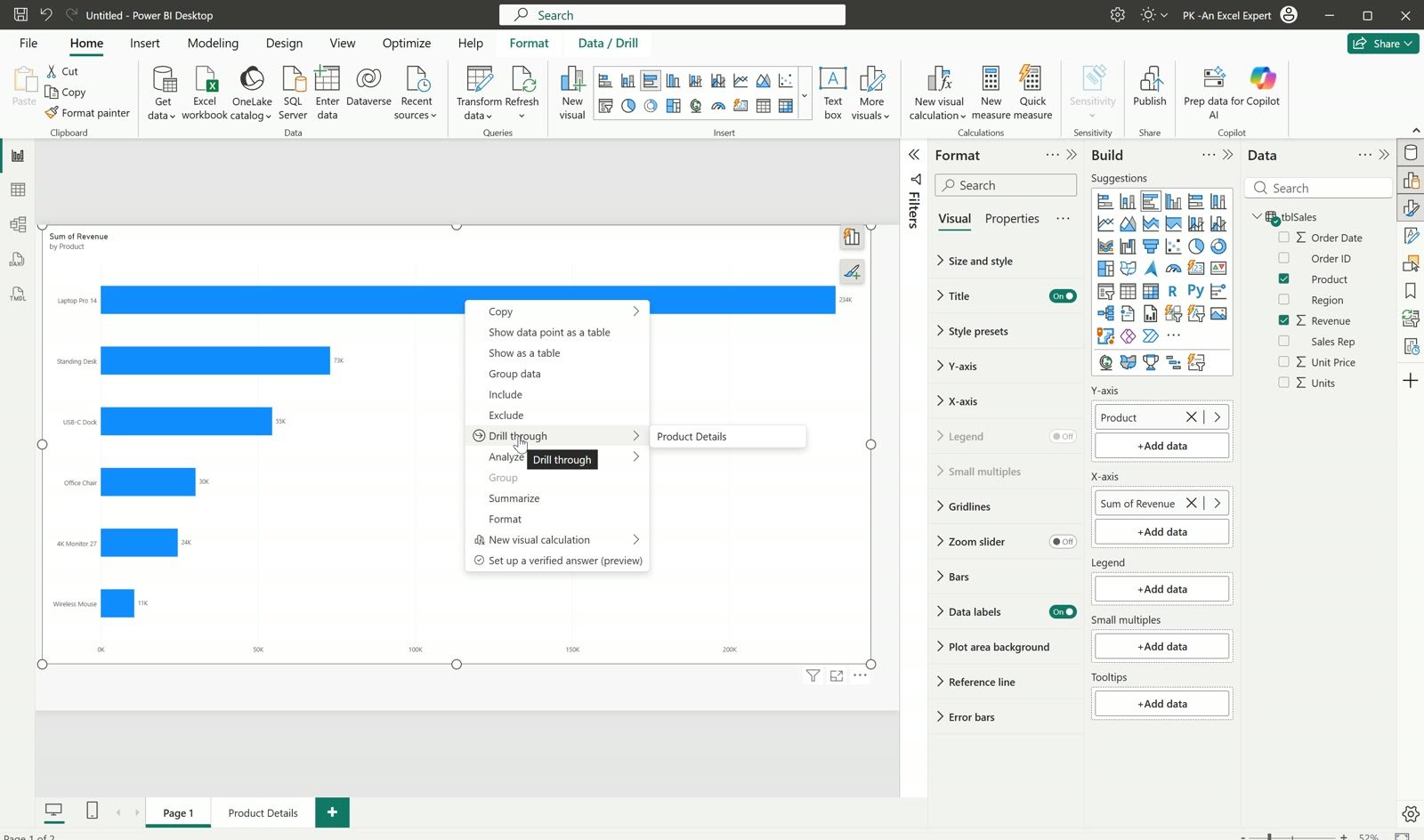
Go back to Page 1. Right-click the Laptop Pro 14 bar and choose Drill through > Product Details.
Step 6: Read the filtered result
Power BI opens Product Details filtered to Laptop Pro 14: only its 27 orders, with region, sales rep, units and revenue. The table total shows 187 units and 233,750 revenue, the same number the bar showed.
Power BI Drill Through Tips
- One details page can serve many visuals. Any visual on any page that uses Product will offer the same drill through.
- Add more fields to the “Drill through from” box (for example Region) when you want the details page to filter on a combination.
- Want more ways to use it, such as a drill-through button? Read 3 Ways to Use the Drill Through in Power BI.
- Once your report has several pages, give it an app-style menu with the Power BI page navigator glass navigation bar.
Frequently Asked Questions
What is the difference between drill down and drill through in Power BI?
Drill down moves down a hierarchy inside the same visual, for example from year to month. Drill through jumps to a different page that is filtered to the item you clicked, so you can show a full table of details there.
Where is the drill through option in Power BI Desktop?
Select the target page with no visual selected, then open Format > Page information and set Page type to Drillthrough. The “Drill through from” box appears there for the fields you want to pass.
Why does Drill through not show when I right-click?
The visual you right-click must use the same field you placed in “Drill through from”. If the chart uses Product and the details page expects Region, the option will not appear.
Does Keep all filters matter?
With Keep all filters on, slicers and filters from the source page also apply to the details page. Turn it off if you only want the drill-through field to filter the page.
Get the free practice file from the button above, open it in Power BI Desktop and try it on a different product.