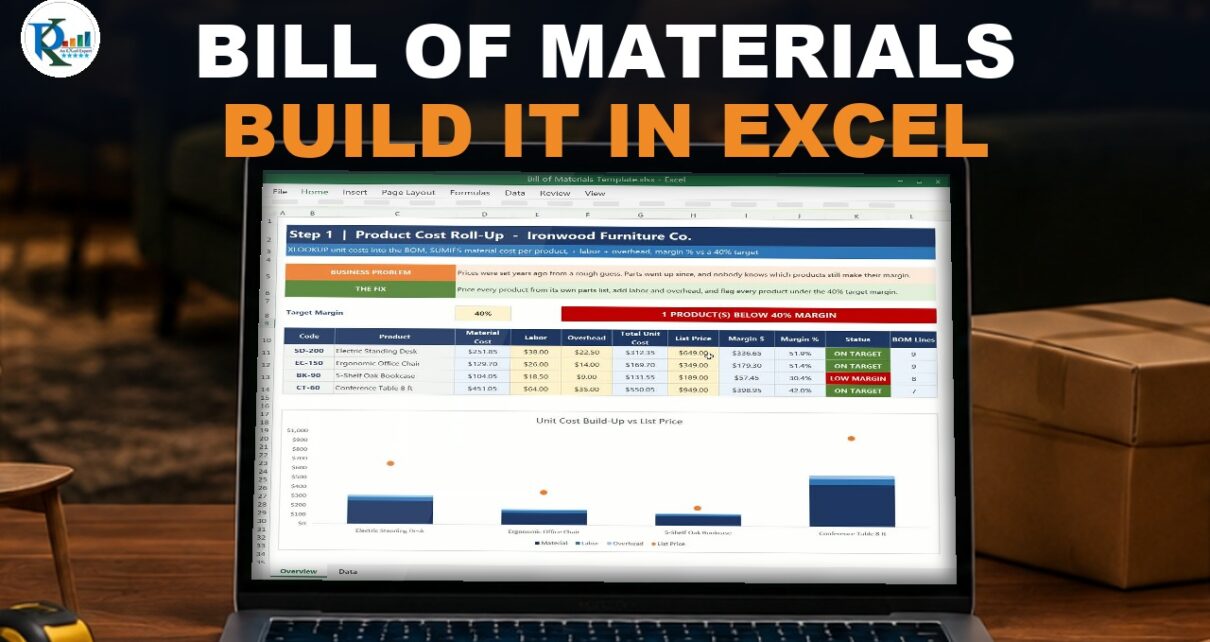
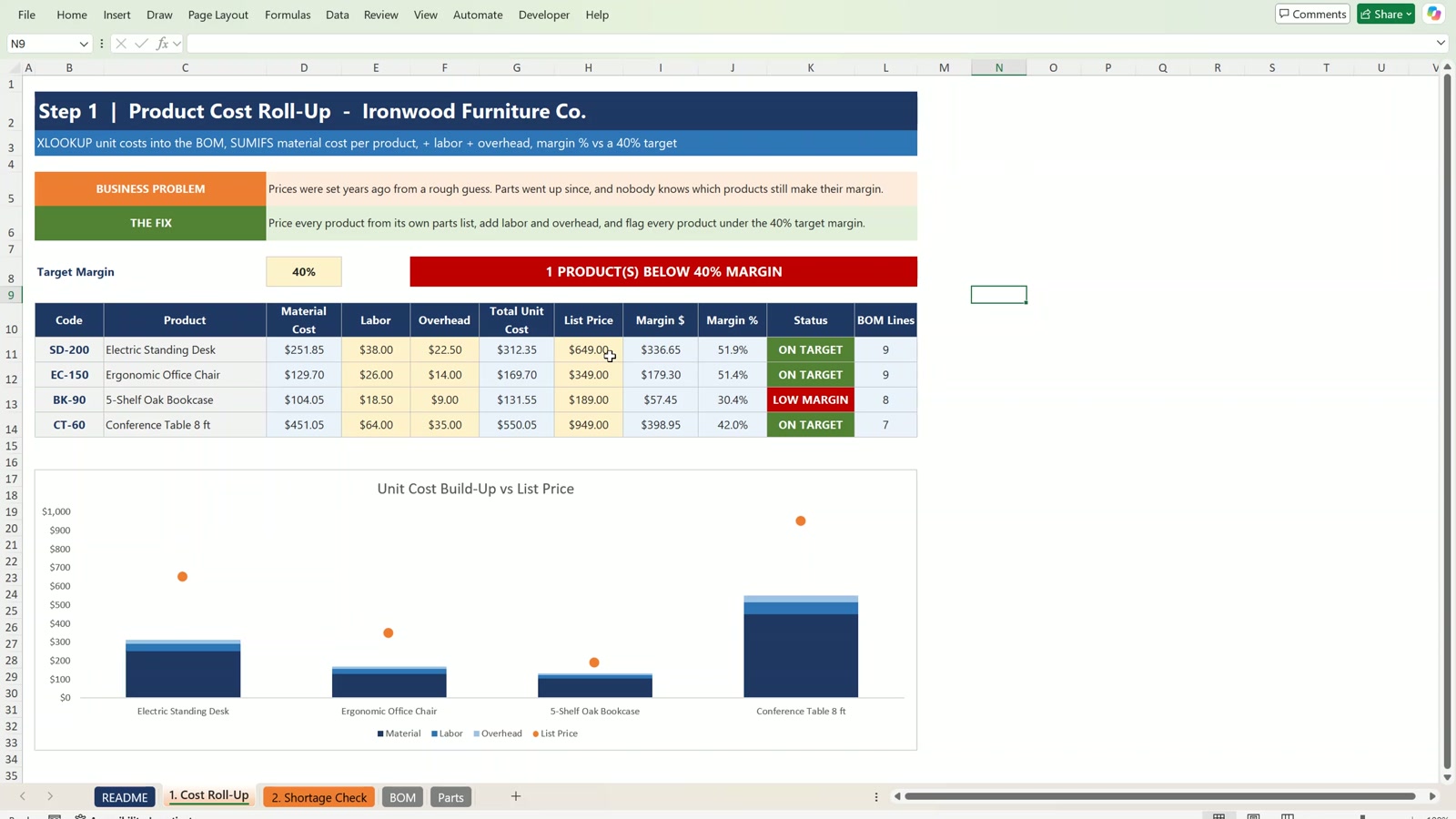
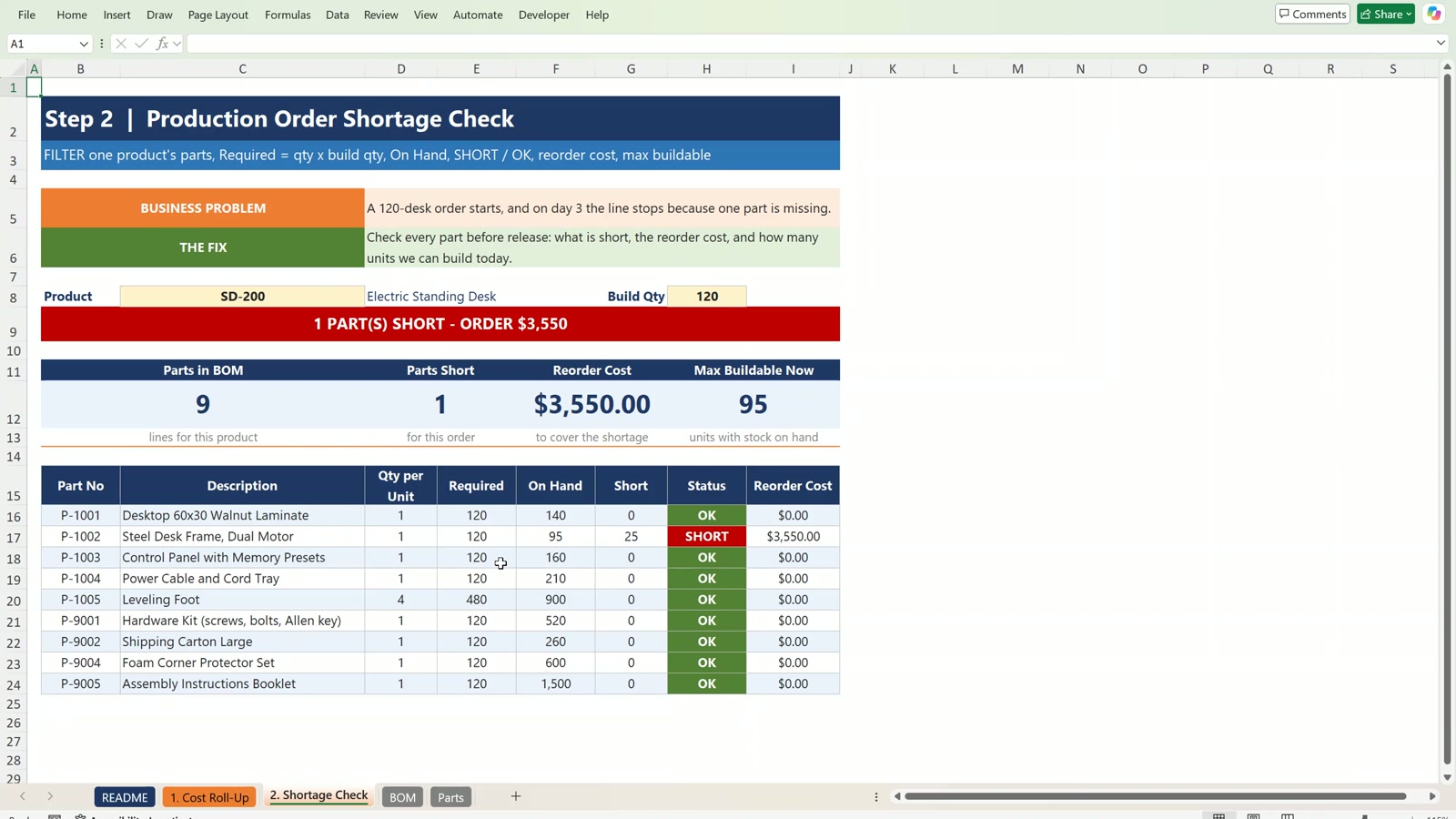
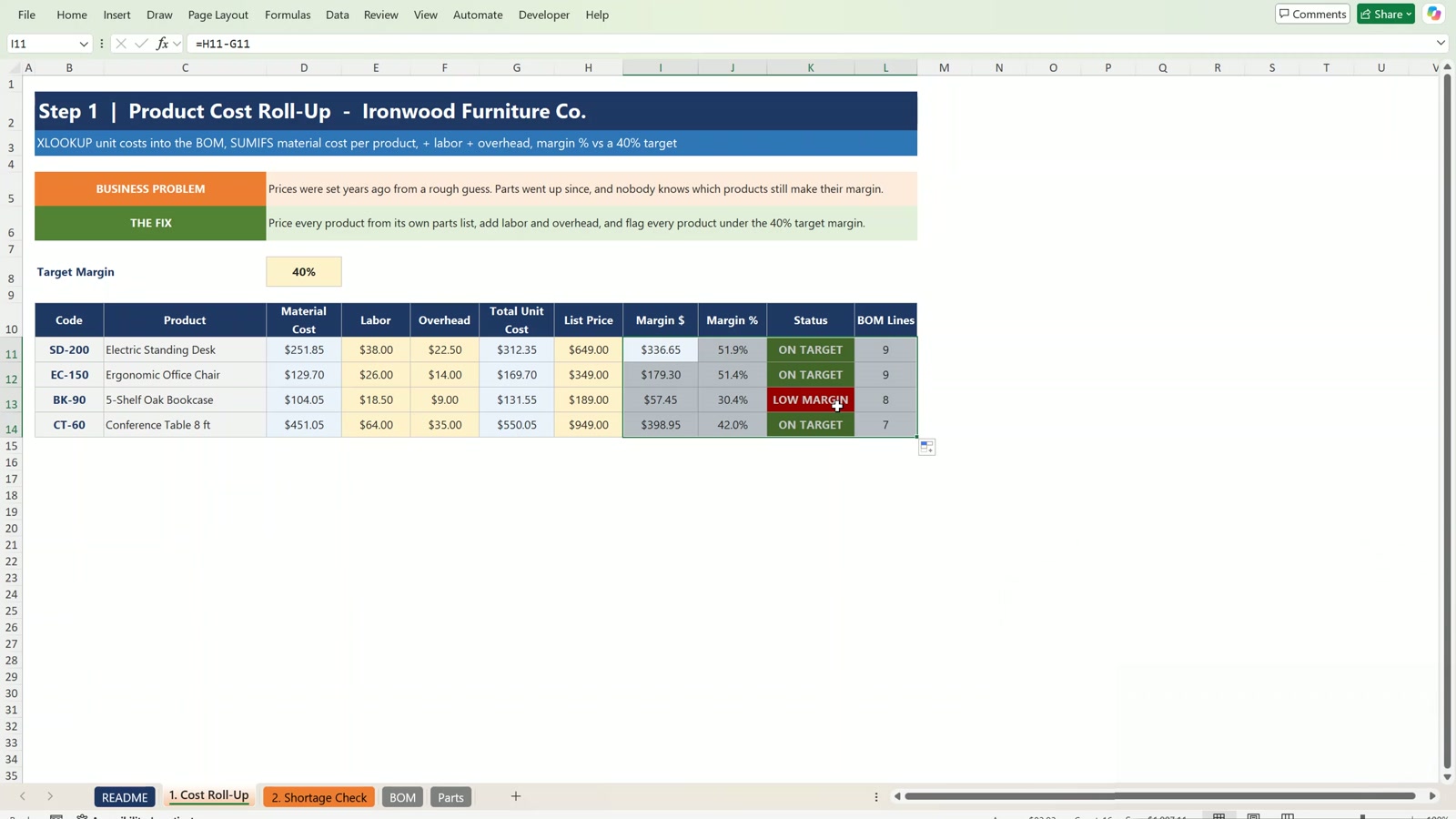
A bill of materials template in Excel tells you what one product costs to make and whether you have the parts to build the next order. In this tutorial you build both views. The example is Ironwood Furniture Co., a fictional office furniture maker in Grand Rapids, Michigan, with 4 products and 23 purchased parts. The bookcase makes only 30.4% margin against a 40% target, and an order for 120 standing desks is 25 steel frames short.
Watch the Video Tutorial
Video Overview
The video opens with the finished cost roll-up and shortage check. Then you build both step by step: part descriptions and costs inside the bill of materials, material cost per product, margin and status, an alert box, a stacked column chart, and a shortage check that follows one product drop-down and a build quantity.
How the Workbook Is Laid Out
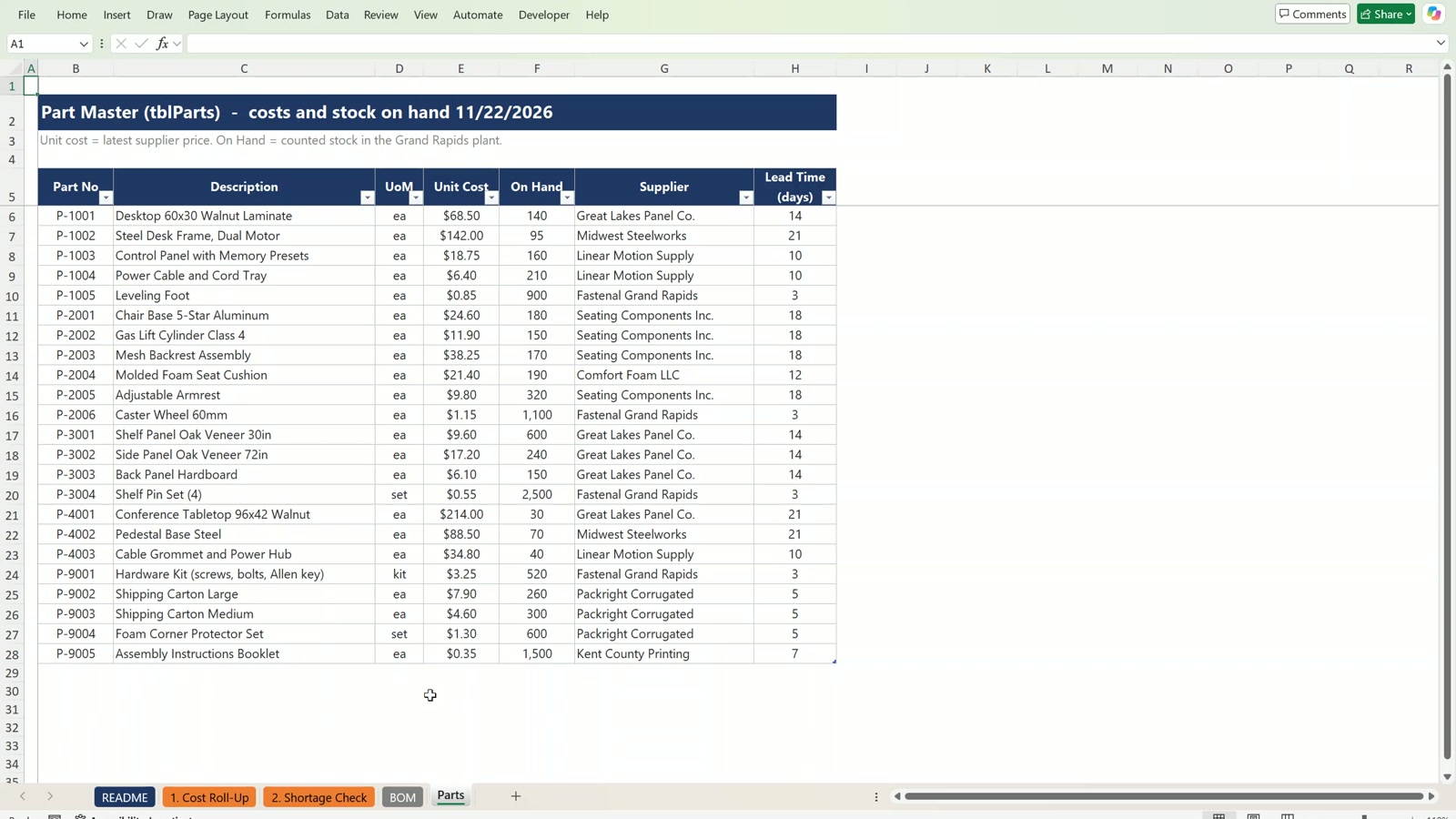
The part master table, tblParts, holds each part once with its unit cost and stock on hand. The bill of materials table, tblBOM, holds product, part number and quantity for ONE finished unit. Shared parts such as the hardware kit appear under every product, but the price lives in one place.
Step 1: Costs Inside the Bill of Materials
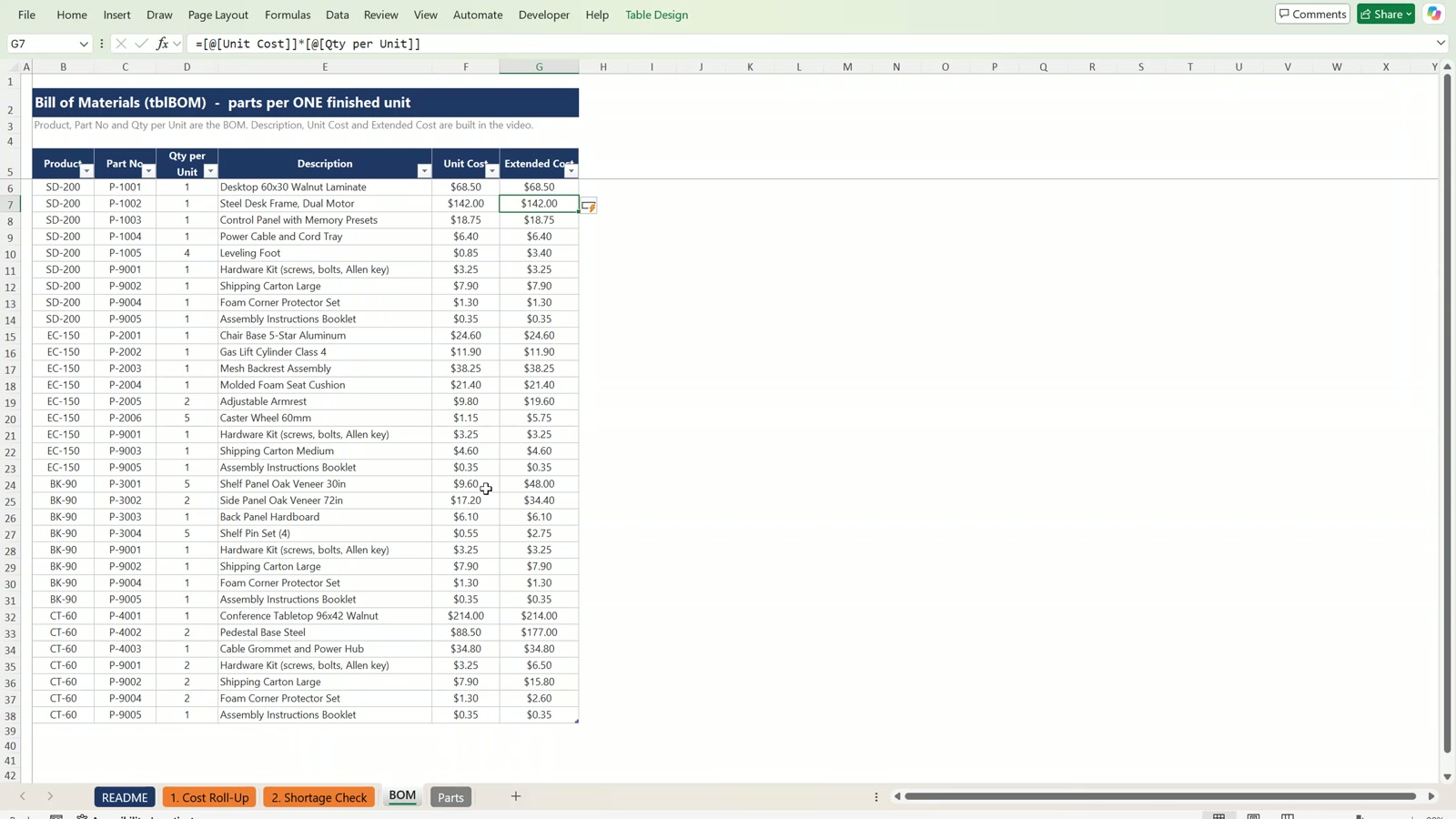
Description, unit cost and extended cost go in the table. Type the first row and Excel fills the column.
=XLOOKUP([@[Part No]],tblParts[Part No],tblParts[Description])
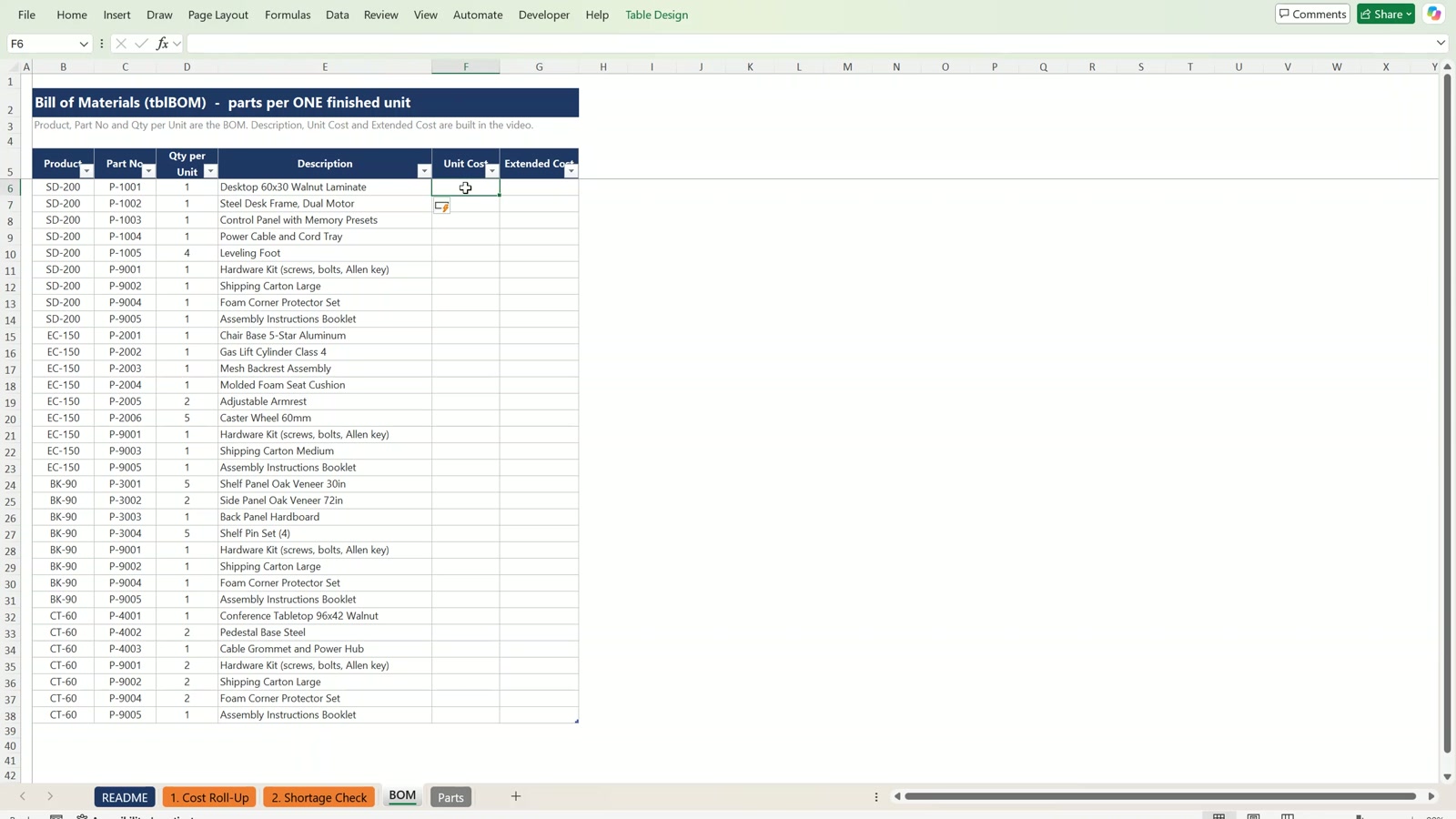
=XLOOKUP([@[Part No]],tblParts[Part No],tblParts[Unit Cost])
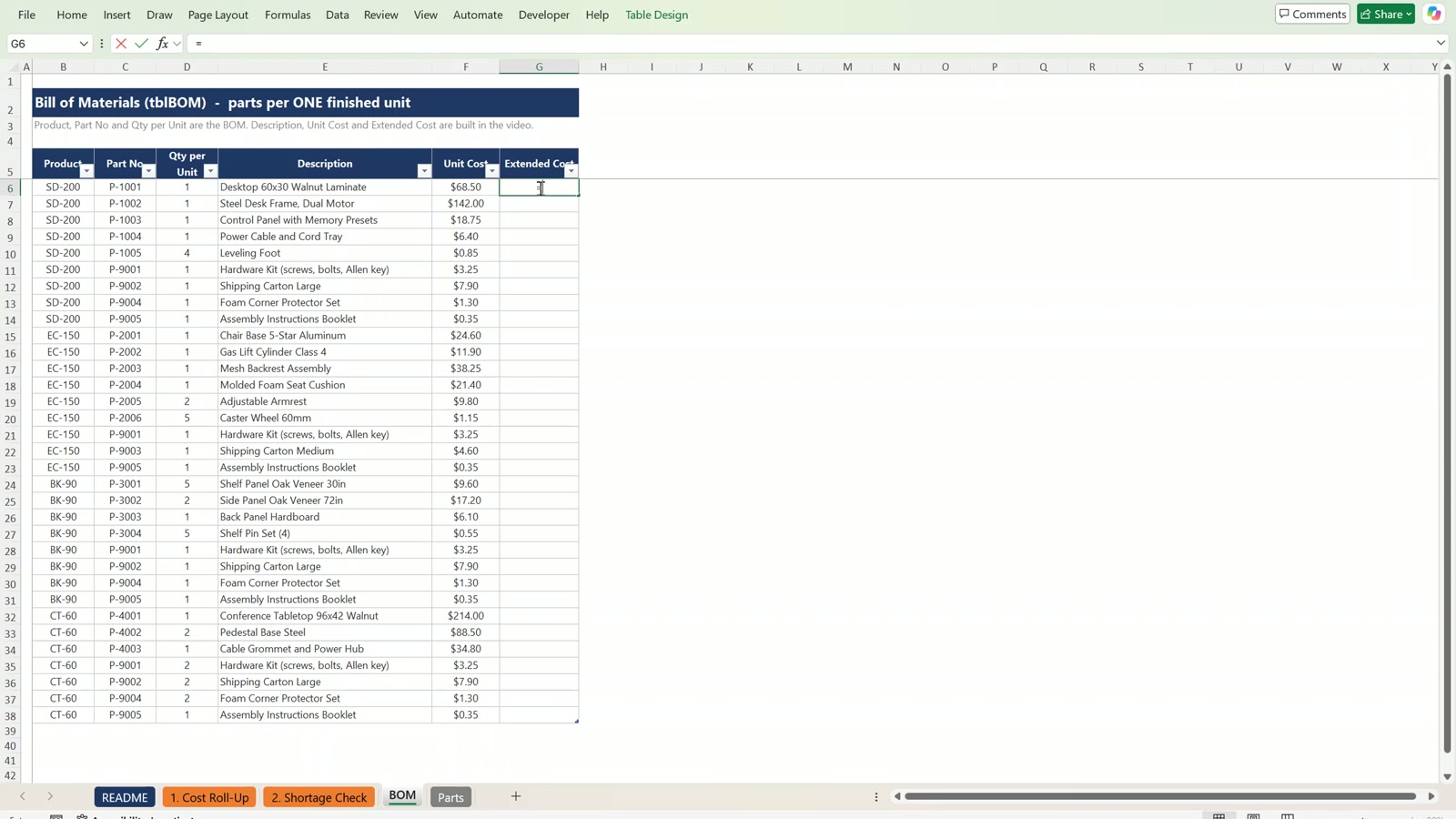
=[@[Qty per Unit]]*[@[Unit Cost]]
Step 2: Product Cost Roll-Up
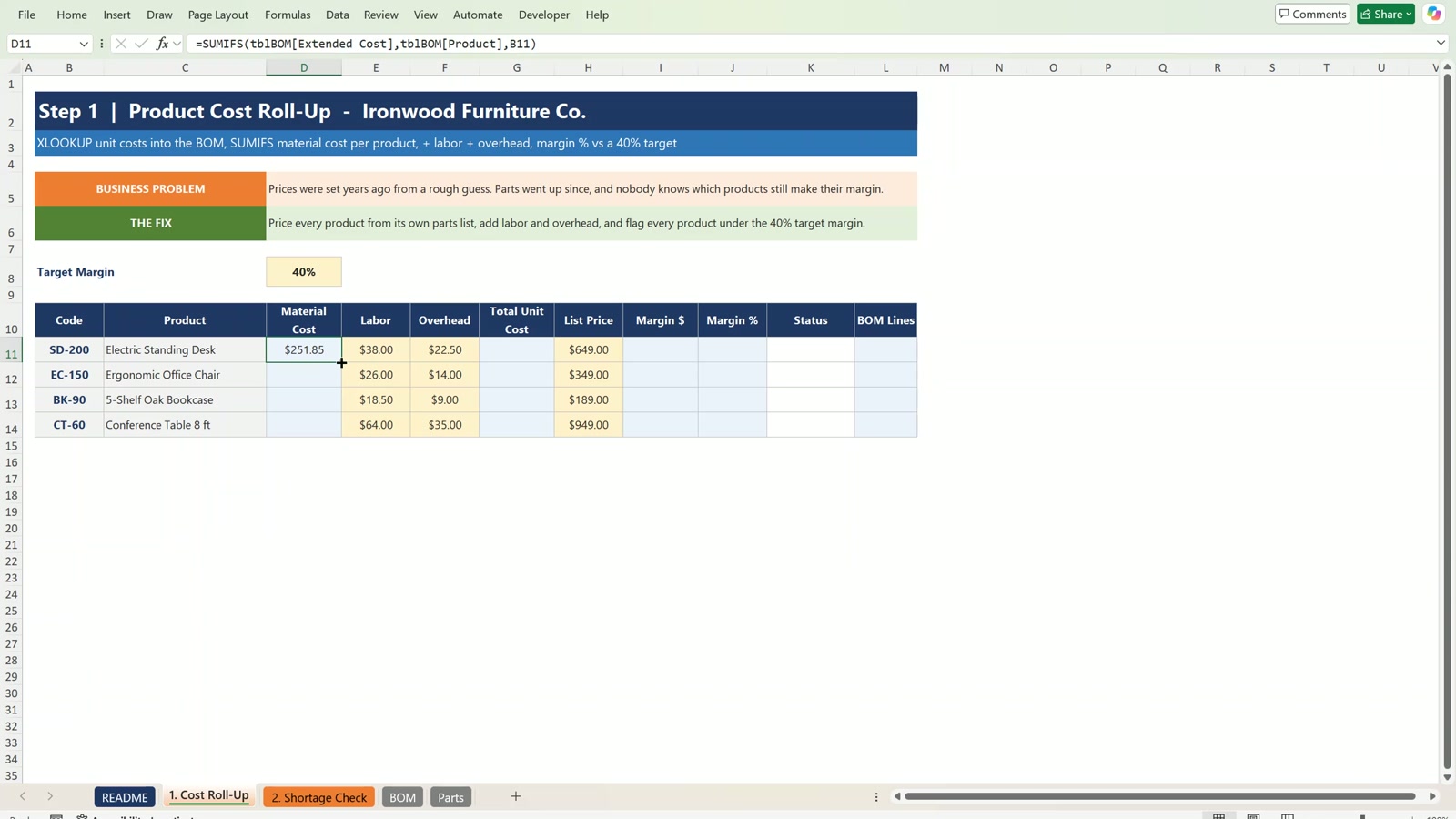
On the roll-up sheet, material cost for each product is a SUMIFS over the table.
=SUMIFS(tblBOM[Extended Cost],tblBOM[Product],B11)
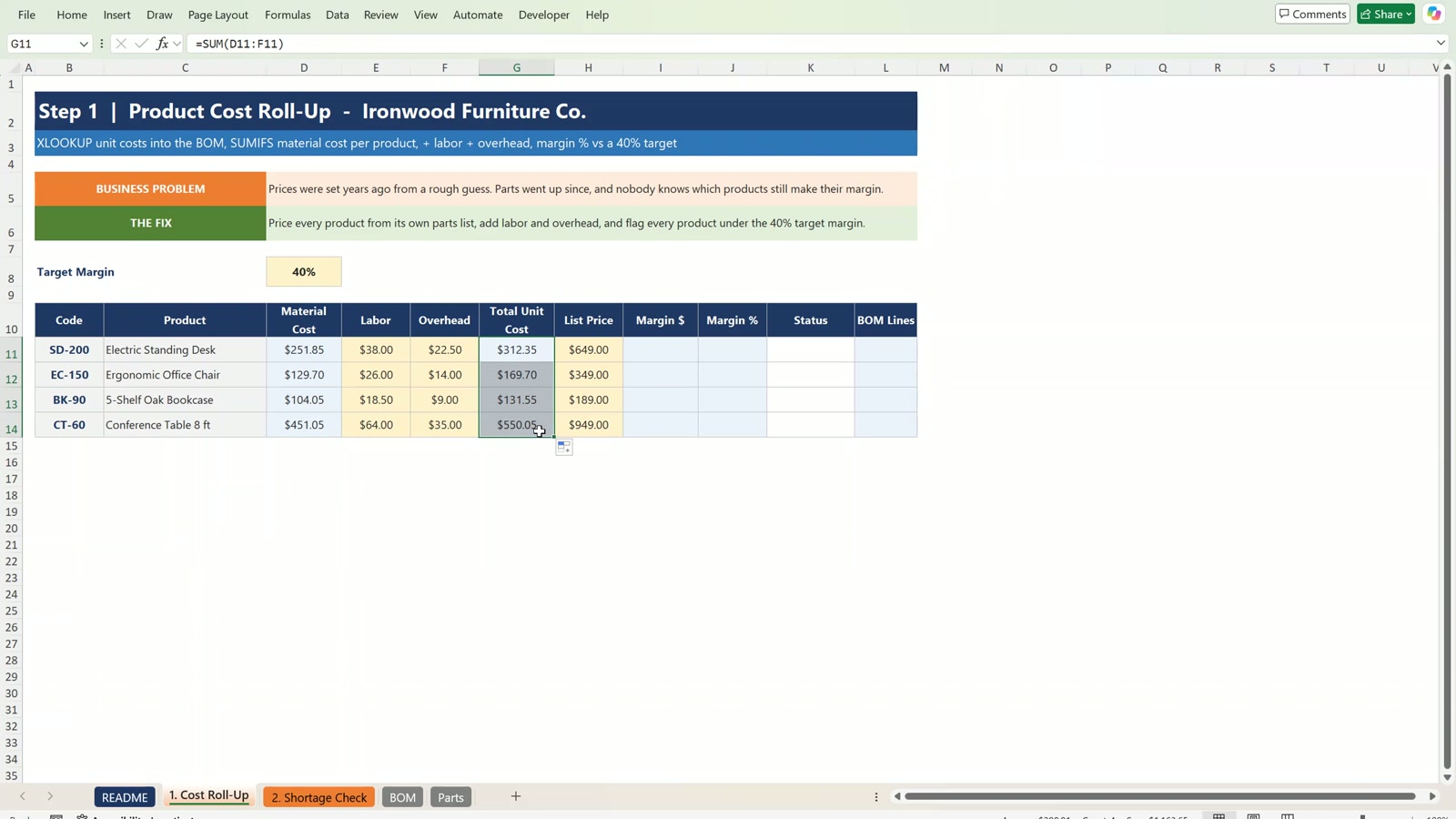
Total unit cost adds material, labor and overhead.
=SUM(D11:F11)
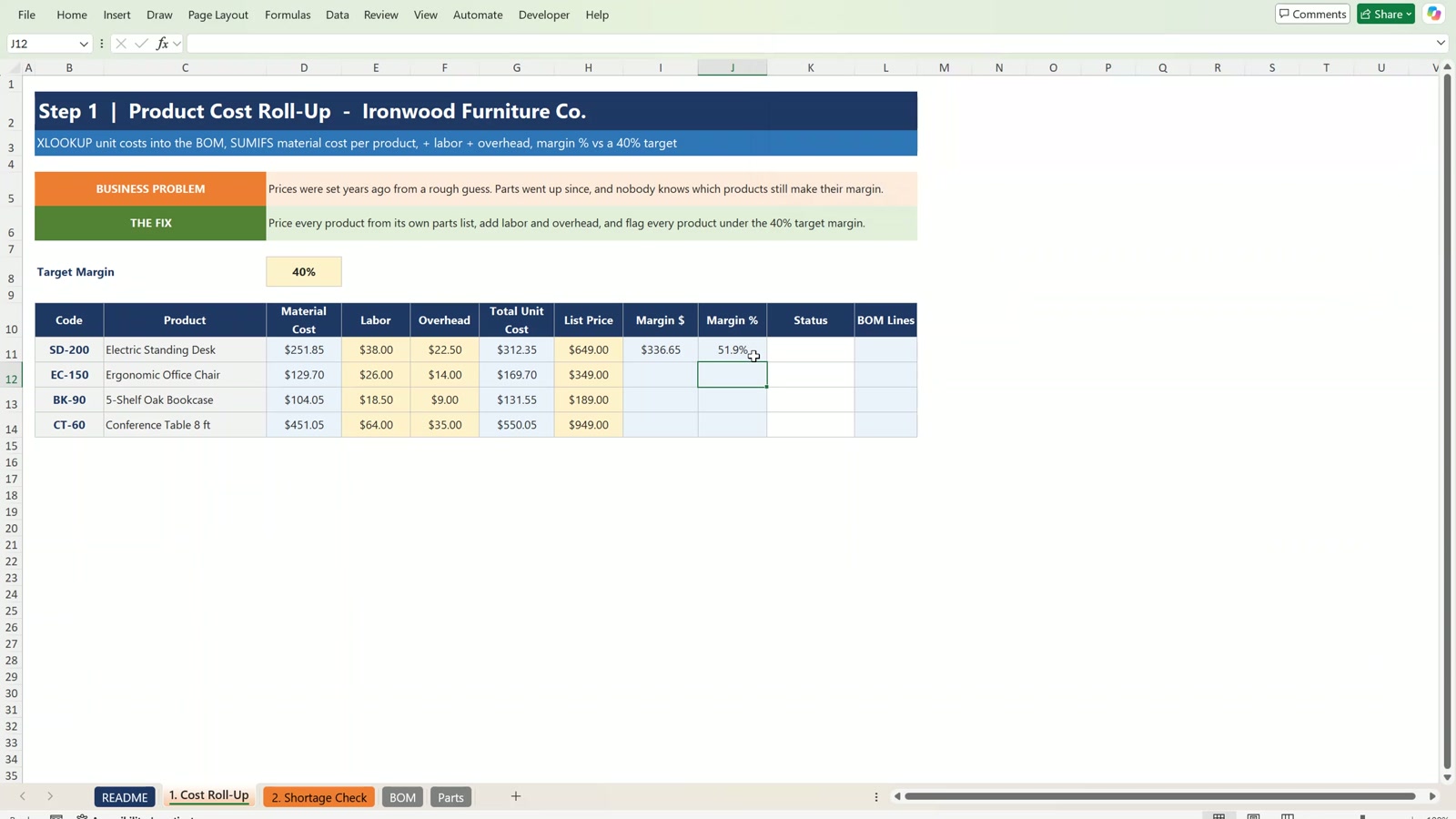
Margin dollars is the list price minus total cost, and margin percent divides that by the list price.
=H11-G11
=I11/H11
The status compares the margin with the target in D8 (lock it with F4), and COUNTIFS counts the BOM lines.
=IF(J11>=$D$8,"ON TARGET","LOW MARGIN")
=COUNTIFS(tblBOM[Product],B11)
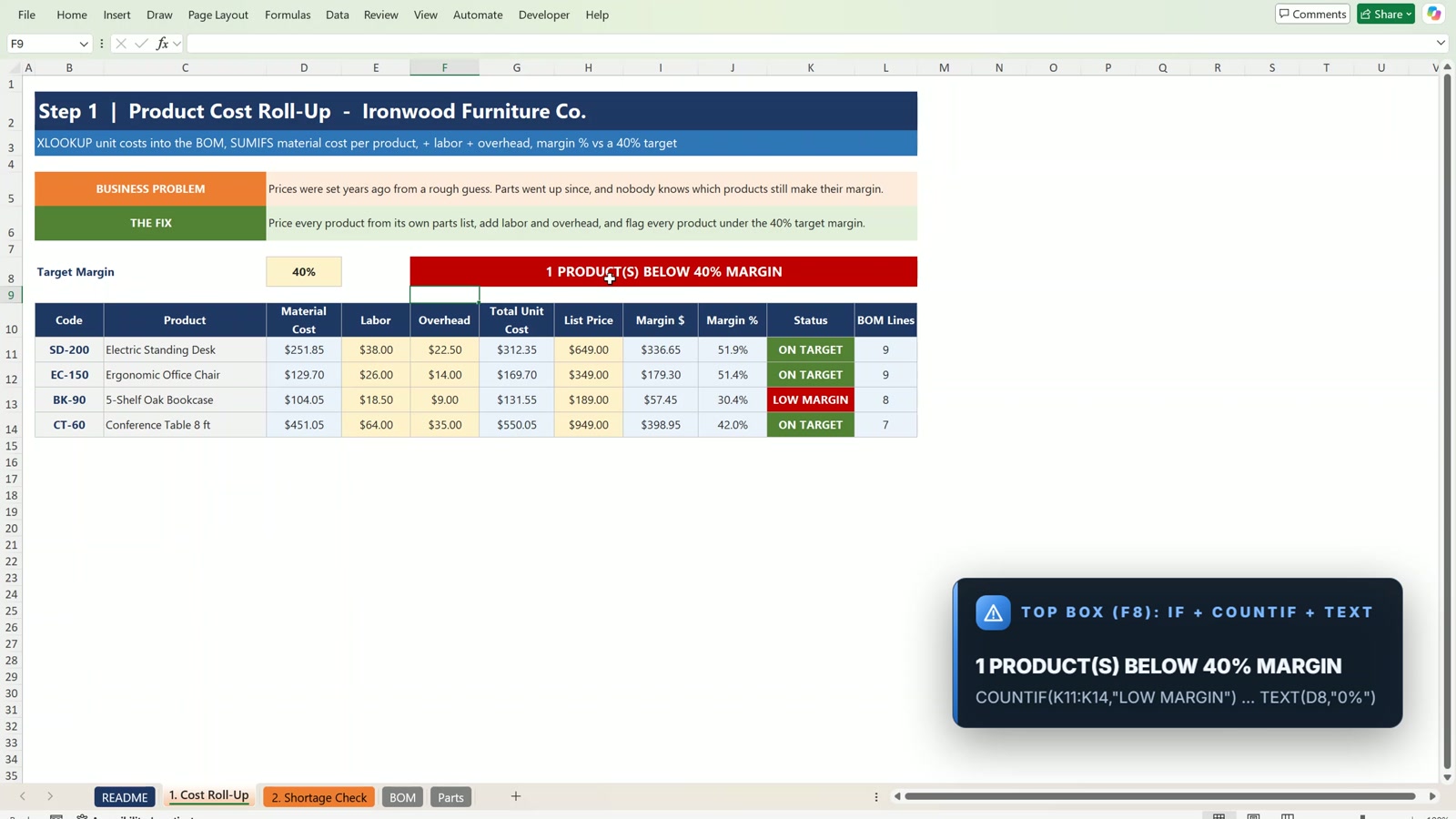
The alert box counts the low margin products.
=IF(COUNTIF(K11:K14,"LOW MARGIN")=0,"ALL PRODUCTS ON TARGET MARGIN",COUNTIF(K11:K14,"LOW MARGIN")&" PRODUCT(S) BELOW "&TEXT(D8,"0%")&" MARGIN")
Step 3: Cost Chart
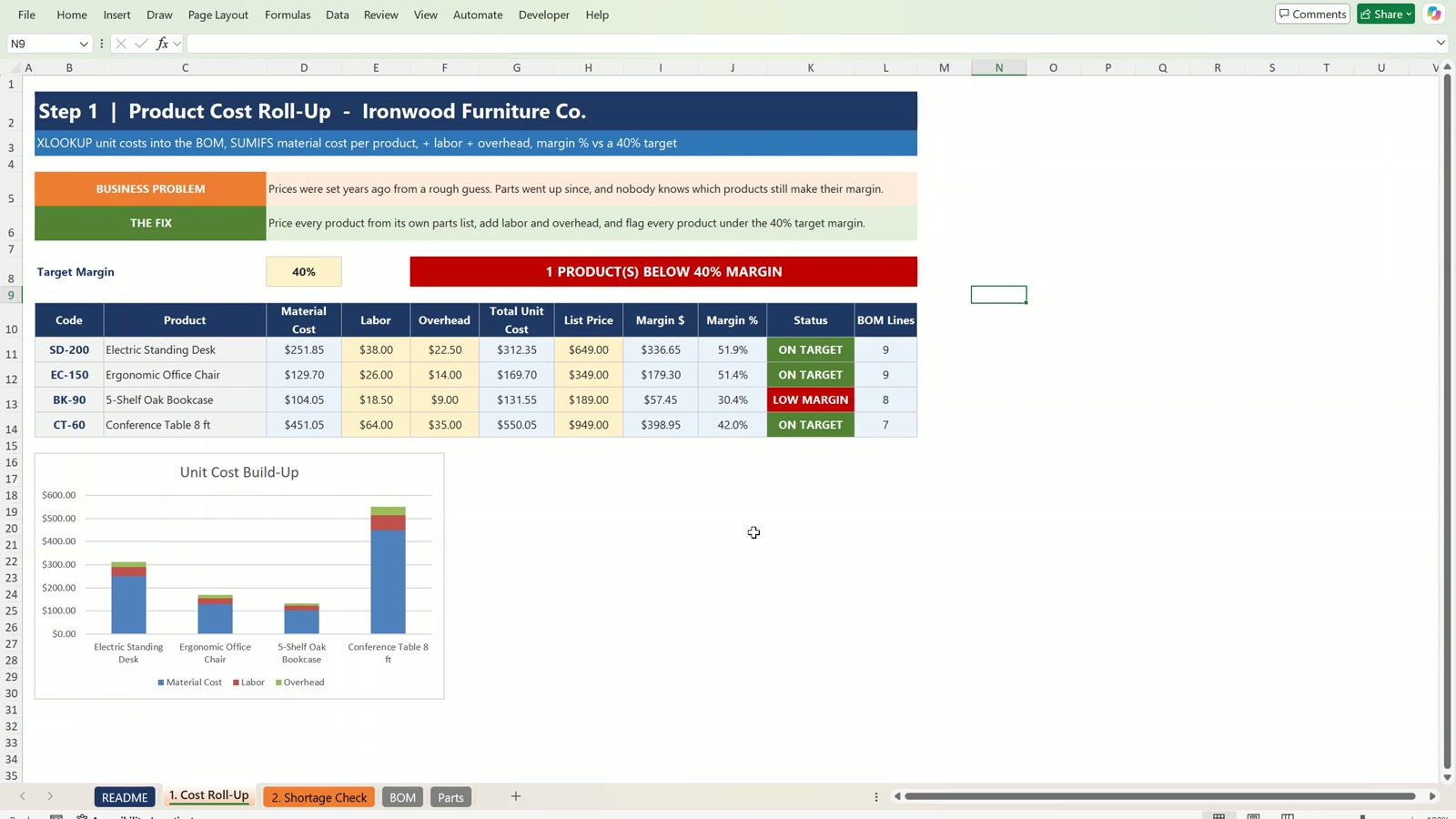
Select the product names and the three cost columns, then choose Insert, Column Chart, Stacked Column. Title it Unit Cost Build-Up and place it under the table.
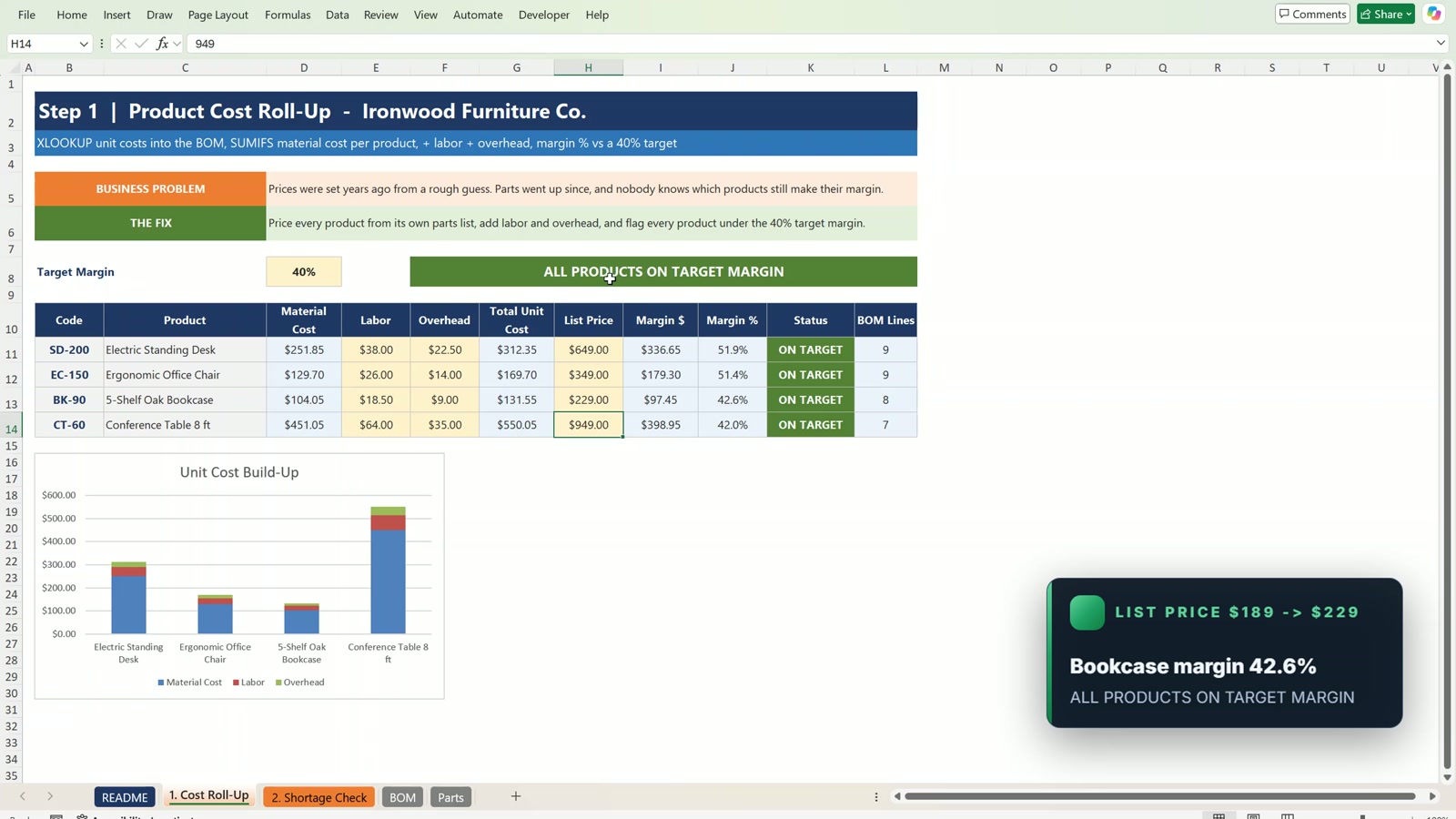
Now test it: raise the bookcase list price from $189 to $229. The margin moves to $97.45, or 42.6%, and the box turns green.
Step 4: Parts Shortage Check
Choose a product and a build quantity. First pull the product name, then list its parts. Type each formula only in row 16 or the input row and let it spill.
=XLOOKUP(C8,'1. Cost Roll-Up'!B11:B14,'1. Cost Roll-Up'!C11:C14)
=FILTER(tblBOM[Part No],tblBOM[Product]=C8)
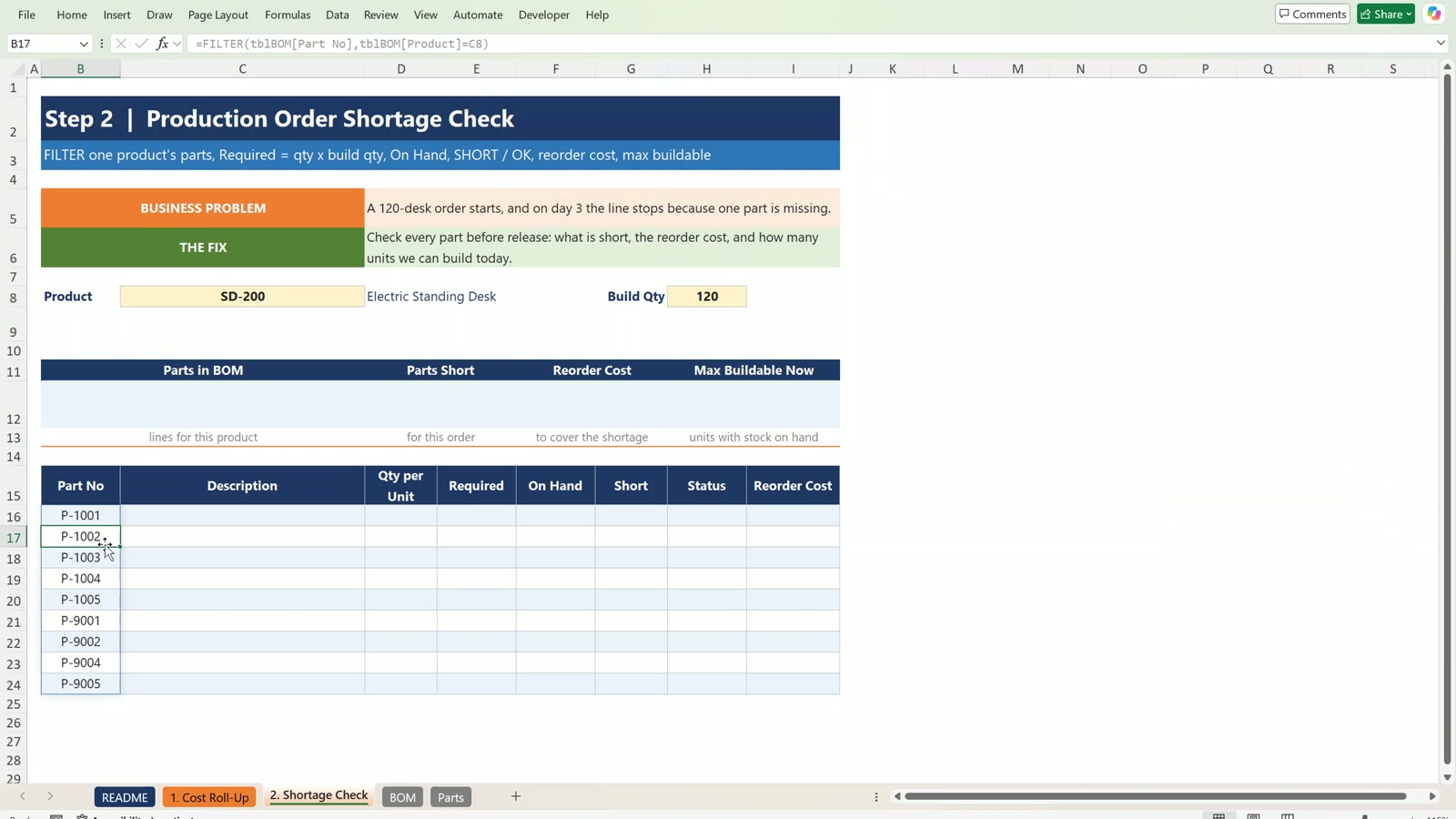
=XLOOKUP(B16#,tblParts[Part No],tblParts[Description])
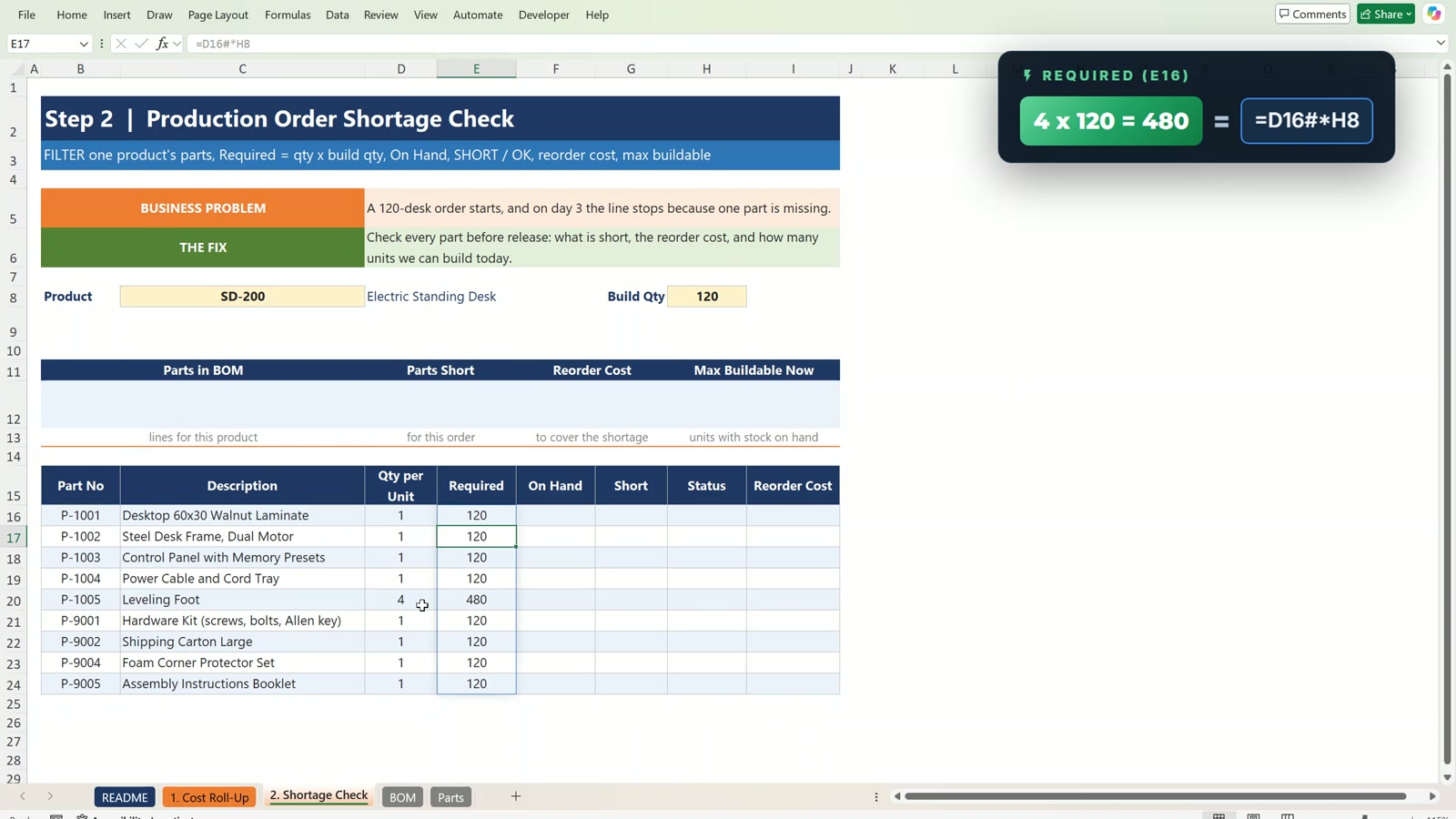
=FILTER(tblBOM[Qty per Unit],tblBOM[Product]=C8)
=D16#*H8
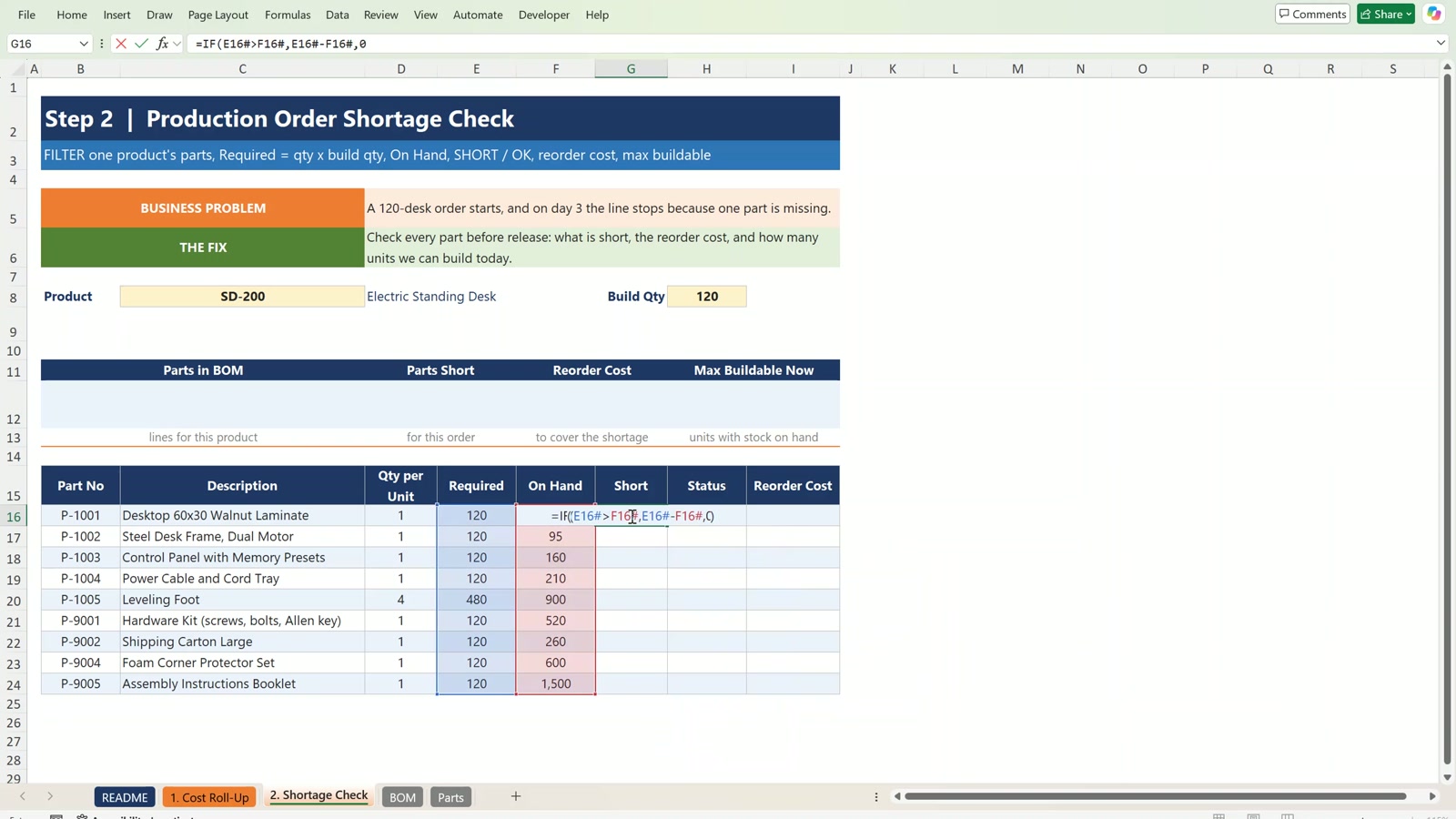
=XLOOKUP(B16#,tblParts[Part No],tblParts[On Hand])
=IF(E16#>F16#,E16#-F16#,0)
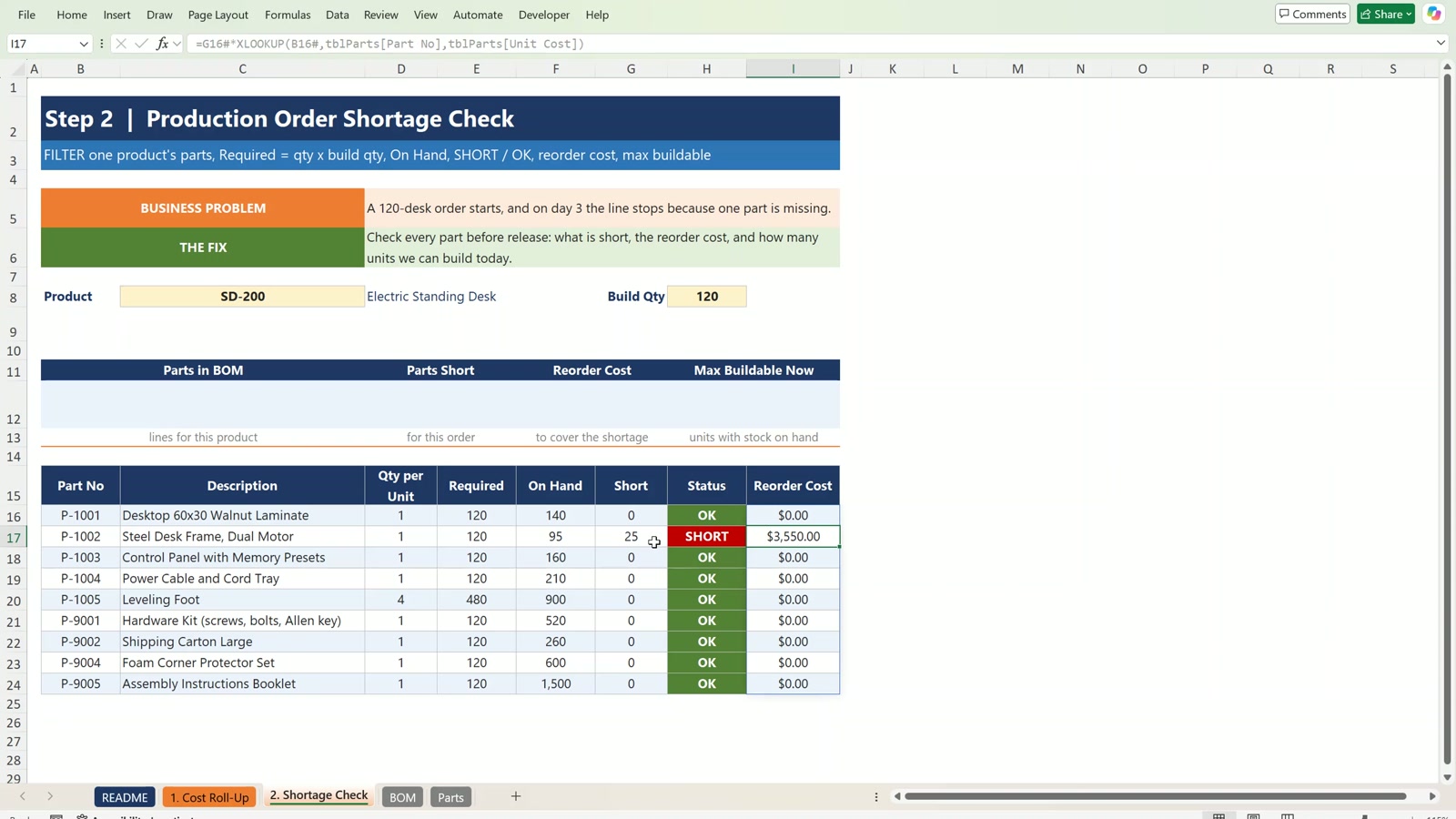
=IF(G16#>0,"SHORT","OK")
=G16#*XLOOKUP(B16#,tblParts[Part No],tblParts[Unit Cost])
Step 5: Summary Cards and Status Box
=ROWS(B16#)
=COUNTIF(H16#,"SHORT")
=SUM(I16#)
=MIN(INT(F16#/D16#))
These show the parts in the BOM, the parts short, the reorder cost and the maximum units you can build now (95).
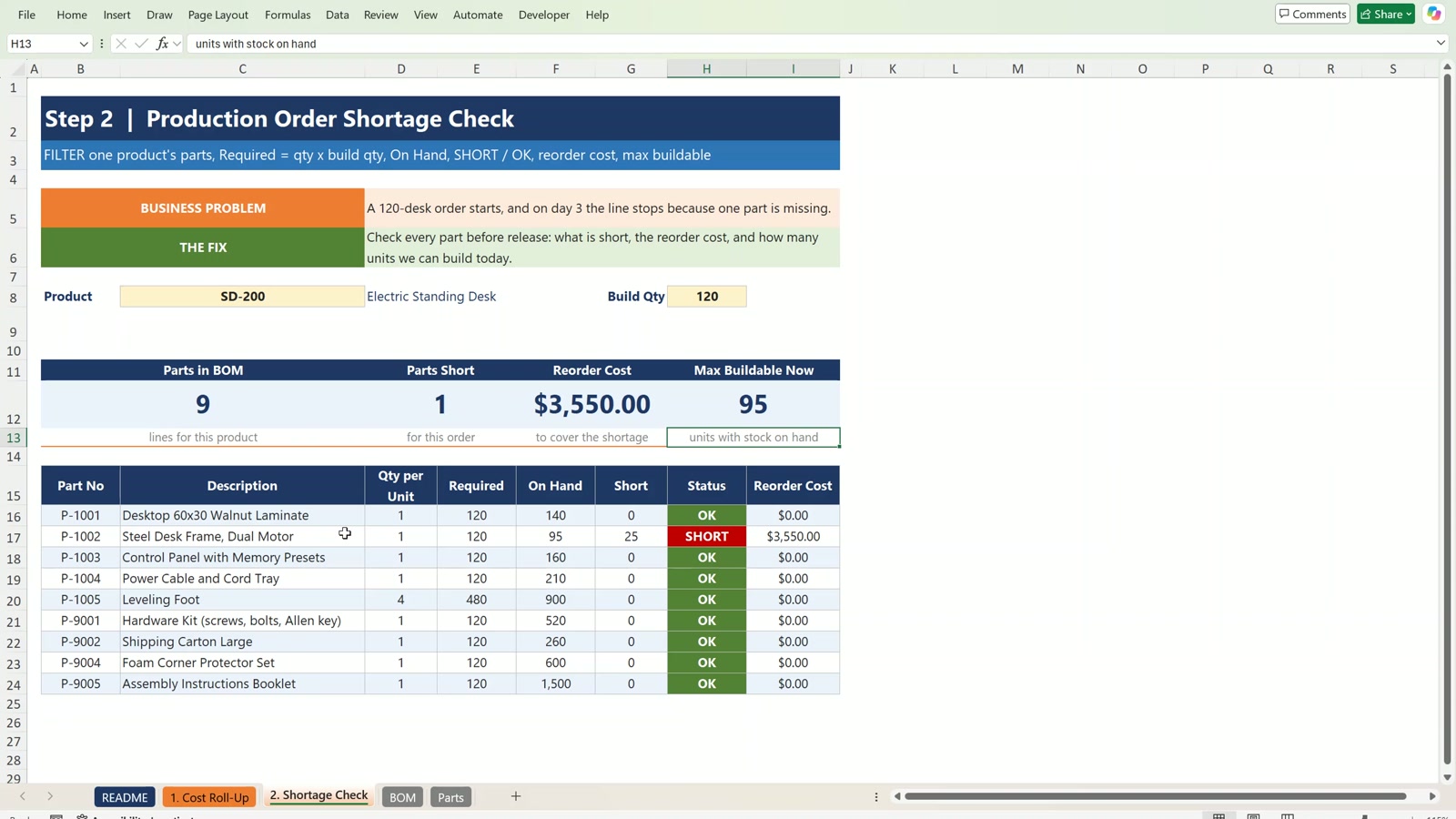
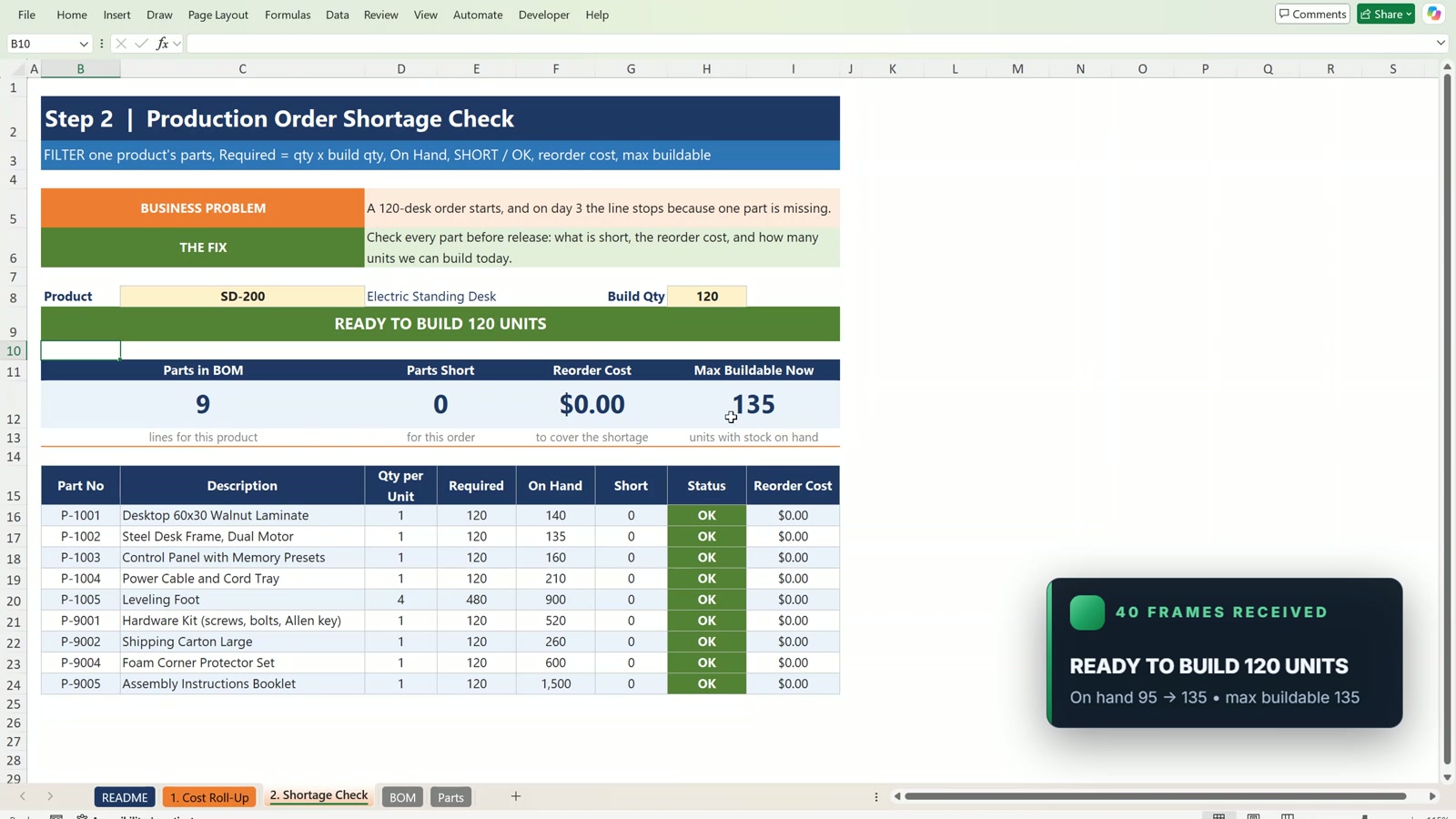
=IF(D12=0,"READY TO BUILD "&H8&" UNITS",D12&" PART(S) SHORT - ORDER "&TEXT(F12,"$#,##0"))
When a purchase order for 40 frames arrives, change on hand from 95 to 135 and the box shows READY TO BUILD 120 UNITS.
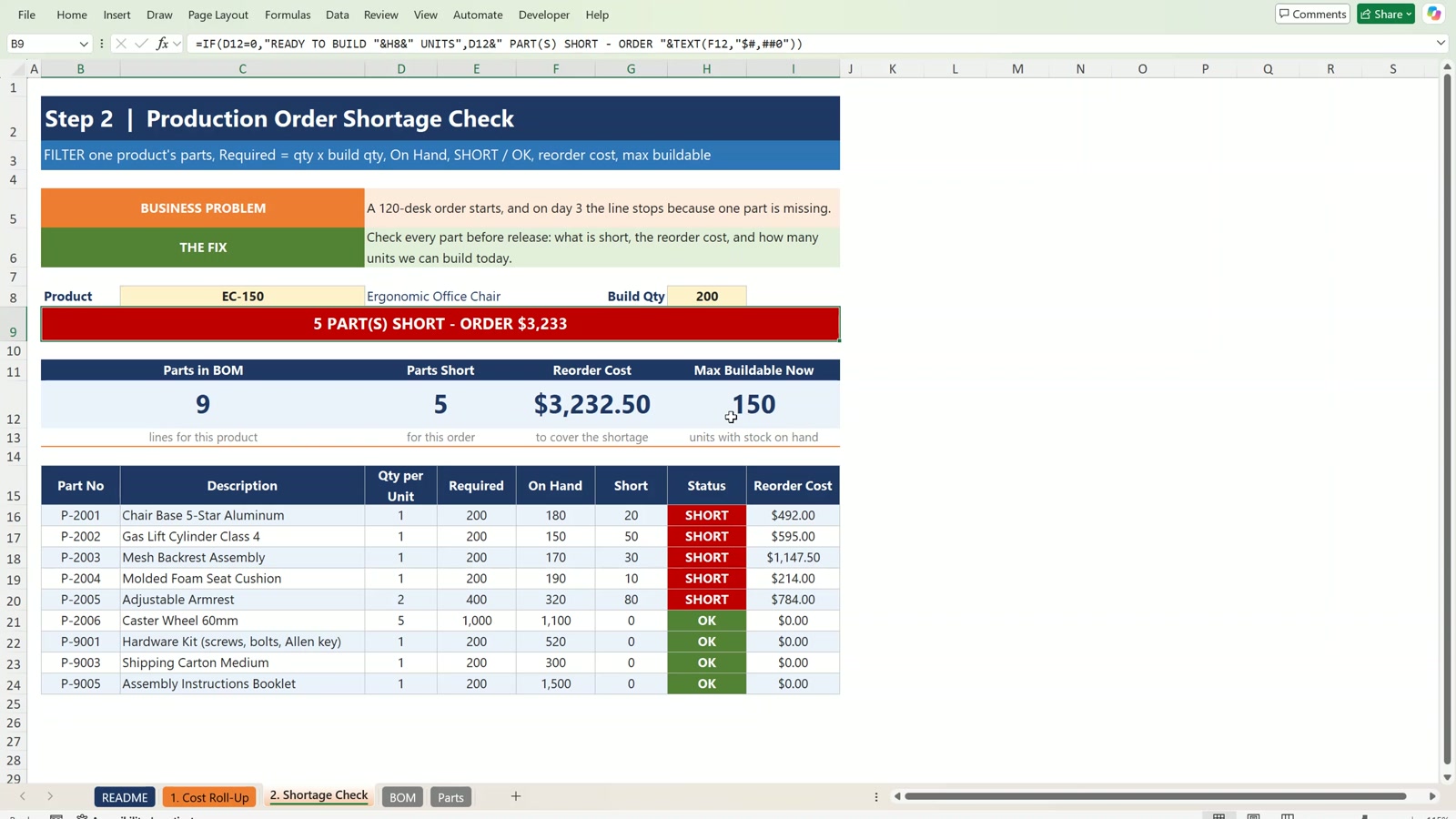
Switch to the office chair with a build quantity of 200 and five parts are short. Stock on hand is shared, so check orders one by one and reserve the parts for each.
Parts List or Bill of Materials Template?
| Question | Plain parts list | This template |
|---|---|---|
| What does one unit cost? | Add it by hand | SUMIFS roll-up with labor and overhead |
| Which product misses margin? | Not visible | Status column and alert box |
| Can we build this order? | Check part by part | FILTER shortage check |
| A part price changes | Edit many rows | Change it once in the part master |
Want the Ready-to-Use Version?
Get the Bill of Materials Template in Excel and Google Sheets from Next Gen Templates, with all features built. To learn the formulas in depth, join Excel + AI Mastery: 100 Essential Formulas and Real-World Projects. Use code BF40 for 40% off, valid till 1 December 2026, 23:59 IST. Microsoft’s FILTER function documentation explains spill results.
Related Tutorials
- Budget vs Actual Variance Report in Excel
- Accounts Payable Aging Report in Excel
- Restaurant Food Cost Report in Excel
Frequently Asked Questions
What is a bill of materials?
A bill of materials lists every part needed to make one unit of a product, with the quantity of each part. Adding the unit cost of each part turns it into a product cost.
How do I calculate product cost from a bill of materials in Excel?
Multiply quantity per unit by unit cost on every line, total the lines for each product with SUMIFS, then add labor and overhead.
How do I check whether I have enough parts for a production order?
List the parts of the product with FILTER, multiply the quantity per unit by the build quantity, and compare the result with the stock on hand.
Why use IF instead of MAX for the short quantity?
MAX returns one number for the whole range. IF compares row by row, so each part gets its own short quantity.
What does the # sign mean after B16?
It refers to the whole spilled range that starts in B16, so the formulas grow or shrink when you choose another product.
Which Excel version do I need?
XLOOKUP, FILTER and spill ranges need Microsoft 365 or Excel 2021 or later.
By PK, An Excel Expert. Ironwood Furniture Co. and all names and numbers are fictional example data for learning.
Conclusion
XLOOKUP brings prices into the parts list, SUMIFS rolls them up to a product cost, and FILTER with spill ranges checks every production order before it starts.