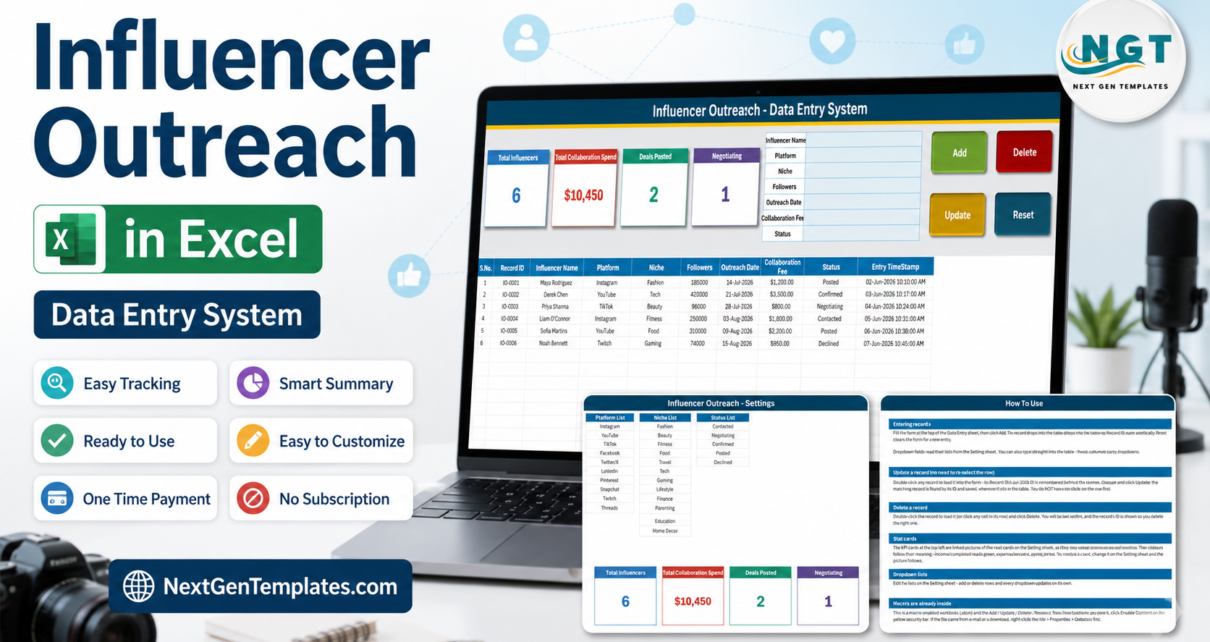
Influencer outreach falls apart in the same place every time: not in the pitch, but in the record of it. A DM here, a spreadsheet column there, an e-mail thread you cannot find, and three weeks later nobody can say whether the fitness creator on TikTok was offered $800 or $1,200, or whether she ever replied. The Influencer Outreach Data Entry System in Excel replaces that with one macro-enabled workbook – four sheets, a seven-field entry form, four live KPI cards, a ten-column record table and a status that runs from Contacted all the way to Posted. Six sample records ship inside it, and the Add, Update, Delete and Reset buttons are real VBA rather than formulas you have to drag down.
This walkthrough covers exactly what is in the file, what each of the four KPI cards actually calculates, where the arithmetic will surprise you, and who should skip it.
Key Features of the Influencer Outreach Data Entry System in Excel
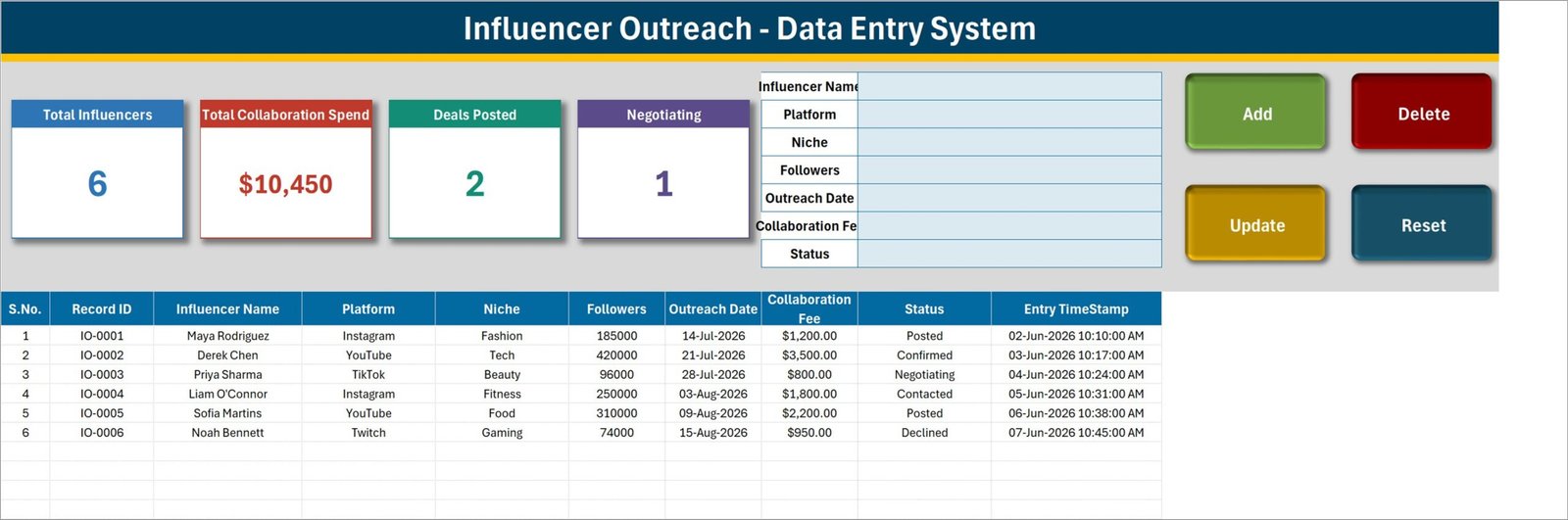
- A seven-field form, not a wall of columns. Influencer Name, Platform, Niche, Followers, Outreach Date, Collaboration Fee and Status sit in one panel at the top of the Data Entry sheet.
- Four VBA buttons. Add, Update, Delete and Reset. Delete confirms first and shows the Record ID, so the wrong creator cannot vanish by accident.
- Automatic Record IDs. Entries are stamped IO-0001, IO-0002 and onwards, and the macro never recycles a number after a deletion.
- Update by ID, not by selection. Double-click a record to load it back into the form; Update finds the row by its ID wherever it has moved to.
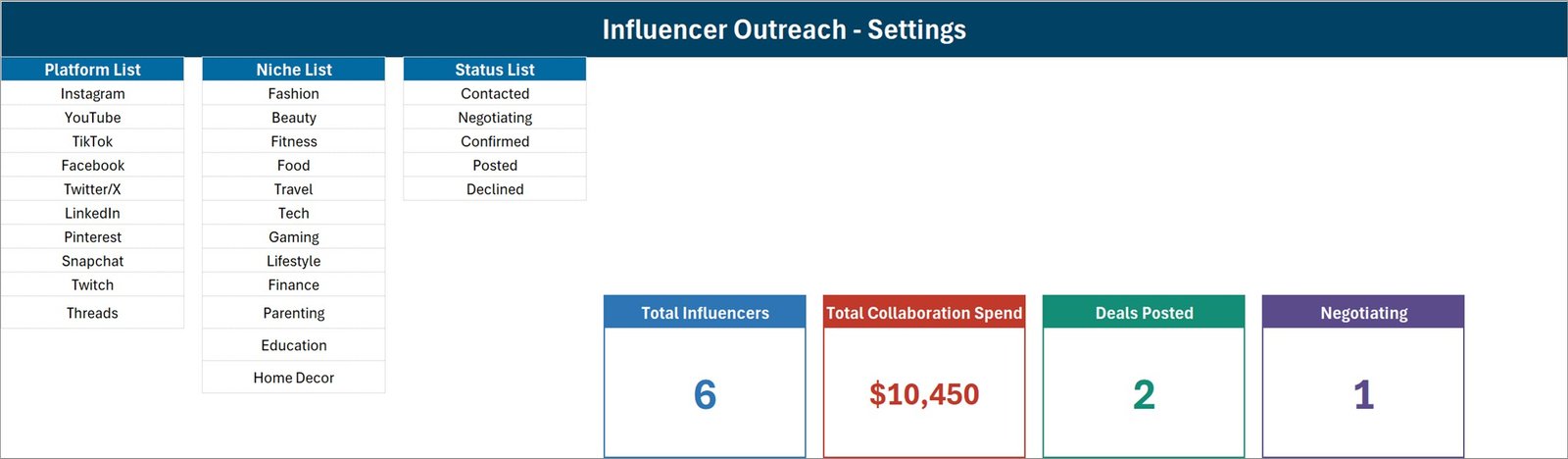
- A five-stage pipeline. Contacted, Negotiating, Confirmed, Posted, Declined – the whole conversation from first message to published post.
- Ten platforms and twelve niches ready to go. Instagram, YouTube, TikTok, Facebook, Twitter/X, LinkedIn, Pinterest, Snapchat, Twitch and Threads; Fashion, Beauty, Fitness, Food, Travel, Tech, Gaming, Lifestyle, Finance, Parenting, Education and Home Decor.
- Four KPI cards. Total Influencers, Total Collaboration Spend, Deals Posted and Negotiating, all refreshing on their own.
- An entry timestamp on every record. Stored separately from the outreach date, so you can see when the row was actually created.
- One .xlsm file. Desktop Excel for Windows, macros enabled, no add-ins, no account, no subscription.
Inside the Workbook – Sheet by Sheet
1. Data Entry
This is the screen you live on. The seven-field form sits top centre, the four KPI cards top left, and the Add, Delete, Update and Reset buttons top right. Below them the table runs across ten columns: S.No., Record ID, Influencer Name, Platform, Niche, Followers, Outreach Date, Collaboration Fee, Status and Entry TimeStamp. Records start on row 15, and the Platform, Niche and Status columns carry the same dropdowns as the form, so you can type straight into the table when you prefer.
2. Setting
Three editable lists – Platform List (ten entries), Niche List (twelve) and Status List (five) – plus the four real KPI cards. The cards you see on the Data Entry sheet are linked pictures of these, which is why they refresh without a macro. Restyle a card here and the picture follows.
3. Instructions
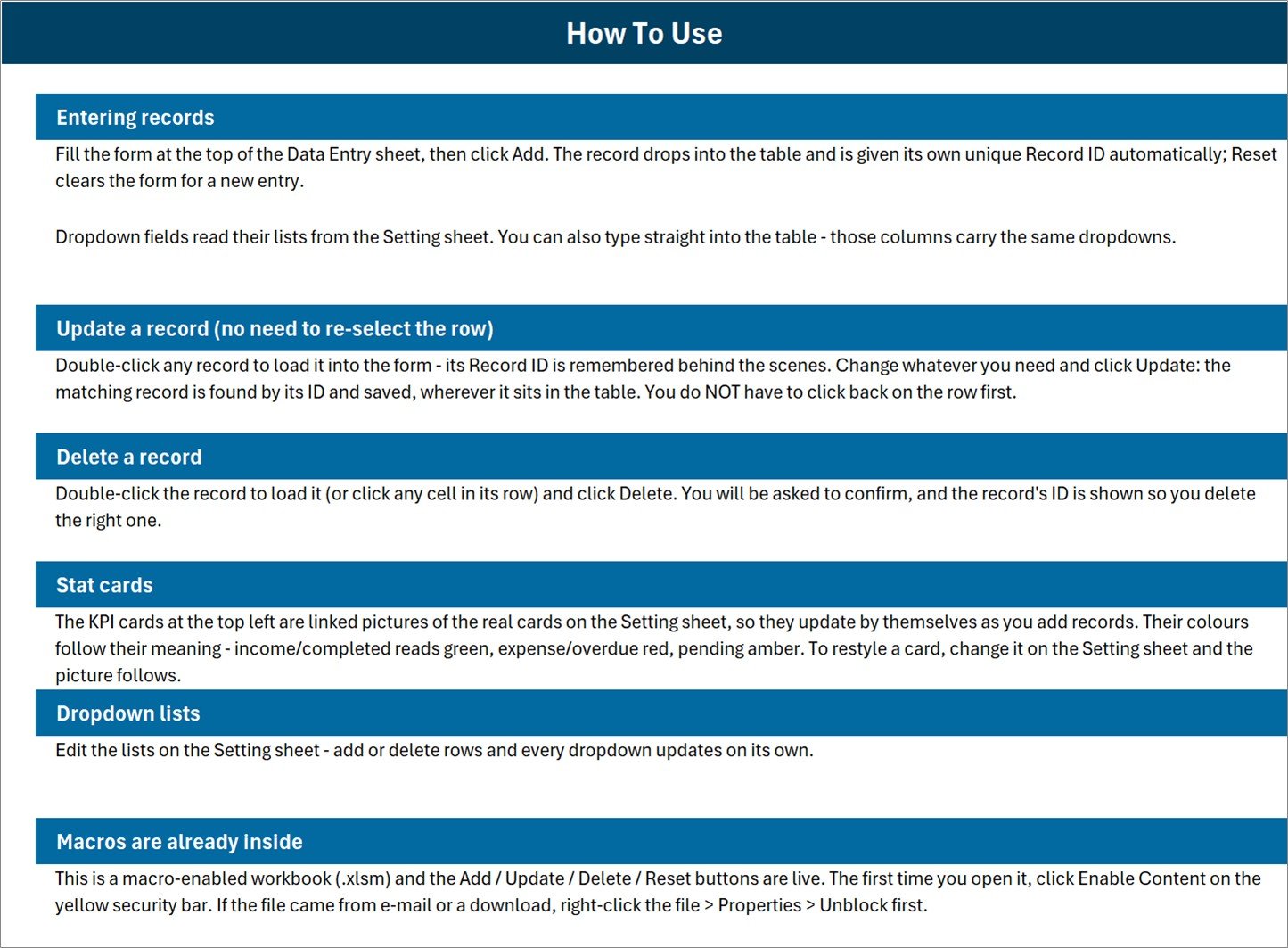
A single How To Use page: entering records, updating without re-selecting the row, deleting safely, how the stat cards work, editing the dropdown lists, and enabling macros the first time the file is opened.
4. Get More Templates
A links page back to the wider NextGenTemplates catalogue – Excel dashboards, Google Sheets templates, Power BI reports and Apps Script web apps.
Influencer Outreach in Excel vs. a Sheet You Build vs. an Influencer Platform – Feature Comparison
| This Excel template | A spreadsheet you build | Influencer CRM or platform | |
|---|---|---|---|
| Cost | $6.99 once | Free, plus hours of building | $50 – $500+ per month |
| Setup | Enable macros, delete six sample rows | Columns, validation, formulas | Demo, onboarding, seats |
| Add / Update / Delete buttons | Yes – VBA, update by Record ID | No | Yes |
| Fetches follower counts | No – you type them | No | Yes, from platform APIs |
| Engagement and campaign analytics | No | Only if you build it | Yes |
| Sends the outreach messages | No | No | Usually yes |
| Real-time collaboration | No – one file, one user | Yes in Google Sheets | Yes |
| Mobile access | No – VBA does not run on mobile or web Excel | Yes | Yes |
| Data stays on your PC | Yes | Depends | No |
| Year-1 cost, solo marketer | $6.99 | $0 | $600 – $6,000 |
Who Should Use This Template
It suits anyone doing outreach by hand and in volume – a solo marketer seeding a launch, a small brand building a creator roster, an agency account manager juggling three clients, or a creator-side manager tracking the brands they pitched. If you want that history on your own machine rather than inside a platform you rent, this is the right shape of tool.
It does not suit shared editing, phone use, or anyone expecting platform behaviour. There is no Instagram, YouTube or TikTok connection, no follower lookup, no engagement rate, no message sending, no contract handling and no payment processing. Everything in the file is something a human typed.
Real-World Use Cases
The launch seeding run. Forty micro-creators go in over three weeks at Contacted with the fee offered. Replies move rows to Negotiating, Confirmed or Declined. The Negotiating card becomes the morning to-do list; Deals Posted is what gets reported at month end.
The agency account manager. One file per client, the same seven fields in each. Because Platform and Niche are dropdowns, pulling up every TikTok fitness creator ever approached is a filter, not a memory test.
The creator-side manager. Used in reverse: the name column holds the brand contact, the fee column holds the quote, and the status column runs from first pitch to published post.
Advantages of the Influencer Outreach Data Entry System in Excel
- Nothing to break. Because Add, Update and Delete are macros rather than formulas, there is no fill-down to preserve and no array formula a paste can destroy.
- Update-by-ID rather than update-by-selection. Most home-made outreach sheets make you find the row again before editing it. This one remembers the ID, which removes a whole class of “I overwrote the wrong creator” mistakes.
- IDs never get recycled. Delete IO-0004 and the next record is still IO-0007, so an ID refers to one creator forever.
- The lists are genuinely yours. Platforms, niches and statuses are ordinary ranges on the Setting sheet – no VBA edit needed to change them.
- Local by default. Rates you negotiated and creators you are courting sit on your machine, not in a vendor’s database.
Opportunities for Improvement
Four things about the shipped build are worth knowing before you rely on the numbers. None of them stops the workbook doing its job, and each has a one-line fix.
- Total Collaboration Spend is unfiltered. The card is
=SUM('Data Entry'!$H$15:$H$1048576), so it adds every fee in the table regardless of status. In the shipped sample it reads $10,450, but only $6,900 of that is Confirmed or Posted – the other $3,550 is offers still in play plus one Declined creator at $950. If you want committed spend only, aSUMIFSon the Status column gives it to you. - Only two of the five statuses have a card. Deals Posted counts Posted and the fourth card counts Negotiating; Contacted, Confirmed and Declined are not carded. Two spotlights plus a total, never a breakdown that sums to six.
- Total Influencers counts names, not IDs. It is
=COUNTA('Data Entry'!$C$15:$C$1048576), pointed at Influencer Name. Save a row with the name blank and it is stored, given an ID, and still not counted. Repointing that one formula at column B makes the card exact. - The dropdown ranges are fixed. PlatformList is
Setting!$A$3:$A$12, NicheList$C$3:$C$14and StatusList$E$3:$E$7, while the Instructions sheet says lists update on their own when you add rows. Overwriting an existing entry works instantly; adding an eleventh platform below the last one needs the named range extended first. The in-sheet validation also covers rows 15 to 214, so beyond that you copy a validated cell down.
Two smaller notes: the Instructions sheet’s “Stat cards” paragraph carries generic wording about income, expense and overdue colours that belongs to the wider data-entry template family rather than to these four cards; and in the shipped sample the outreach dates run July to August 2026 while the entry timestamps are 2 to 7 June 2026, which reads as planned dates entered in advance rather than a record of when contact happened.
Best Practices
- Enter the creator at first contact, not after they reply. The value of the file is the count of people you approached, including the ones who said no.
- Record the fee you offered, and update it when it moves. The card is only useful if the numbers reflect the current position.
- Date-stamp the follow-up, not just the first message. Overwrite Outreach Date when you chase, and you have a “last touched” column for free.
- Keep one file per campaign or per client. It is a single-user workbook; splitting by campaign keeps the KPI cards meaningful.
- Add a cost-per-follower column if you shortlist on value. Followers and Collaboration Fee are adjacent, so it is one formula in column K.
- Back it up. Local means local. A copy in OneDrive or Drive is a copy, not a collaboration feature.
Explore Relevant Templates
- Social Media Influencer Outreach Calendar in Excel – plan the week’s sends, then record the replies here.
- Influencer Collaboration Checklist in Excel – brief, deliverables and sign-off, step by step.
- Influencer Campaign Dashboard in Excel – for when the posts are live and you need charts, not a list.
- Social Media Influencer Tracking Dashboard in Google Sheets – the shareable, multi-user version of the same job.
- Multi-Platform Social Media Calendar in Excel – the posting schedule the collaborations feed into.
Frequently Asked Questions
Does it pull follower counts or engagement rates from social platforms?
No. There is no API connection, no lookup and no refresh. Followers is a number you type after checking the profile, and it will still say what you typed a year later. There is no engagement rate, reach, impressions, CPM or ROI anywhere in the file.
Is this a CRM?
No. It stores one row per creator with seven attributes and a status. There are no e-mail threads, no reminders, no tasks, no attachments and no notes field, and nothing is sent from the workbook.
What does the Total Collaboration Spend card really add up?
Every Collaboration Fee row, with no status filter – offers, confirmed deals, published posts and declined creators alike. See Opportunities for Improvement above for the exact split in the shipped sample.
Will the buttons work on a Mac, a phone or Excel for the web?
The file opens, but Add, Update, Delete and Reset will not run. They are VBA, which is unsupported on Excel for the web, Excel mobile and Google Sheets. Use desktop Excel for Windows.
How many records can it hold?
The table itself is open-ended and the KPI formulas read the whole column, so the practical limit is Excel’s. The in-sheet dropdowns are defined for rows 15 to 214; past that you can still type or copy a validated cell down.
Can I add my own columns?
You can add columns to the right of Entry TimeStamp for your own formulas – cost per follower, campaign name, a link to the post. Adding a field the buttons should write to means editing the VBA, since the macro maps the seven form cells to fixed columns.
Does it handle more than one currency?
Collaboration Fee is a single currency-formatted column, so a mixed-currency roster needs either a converted figure or an extra column of your own.
About the Author
Built by PK – Microsoft Certified Professional with 15+ years of Excel, Google Sheets, and Power BI experience. Founder of NextGenTemplates, reaching 300K+ subscribers across YouTube channels. Every template is hand-built and tested before release.
Conclusion
If your outreach lives in DMs and half-remembered numbers, a $6.99 workbook that forces every creator into the same seven fields is worth more than another browser tab. It will not find creators for you, message them, or tell you what they are worth – but it will tell you, months later, exactly who you approached, what you offered, and what came of it. Get the Influencer Outreach Data Entry System in Excel for $6.99, pay once, and keep the file.