The Payroll Data Entry System in Excel captures 7 fields per salary record — Employee Name, Department, Mobile, Pay Date, Net Salary, Payment Mode and Status — and feeds them into 3 live KPI cards that recalculate the instant a record is added, edited or removed. The workbook ships with 27 editable dropdown values across three lists, four VBA macro buttons, and a four-sheet structure, all for a one-time $5.99 instead of the $40–80 monthly fee most payroll platforms charge.
Most small teams still record salary payments in a free-form spreadsheet: one person types “HR”, another types “Human Resources”, a third leaves the payment mode blank, and by March nobody can produce a clean department-wise payroll total. This post walks through how the Payroll Data Entry System in Excel fixes that with validated dropdowns, an auto-numbered register, a time-stamped audit trail and a macro-driven form that takes about 20 seconds per entry.
Key Features of the Payroll Data Entry System in Excel
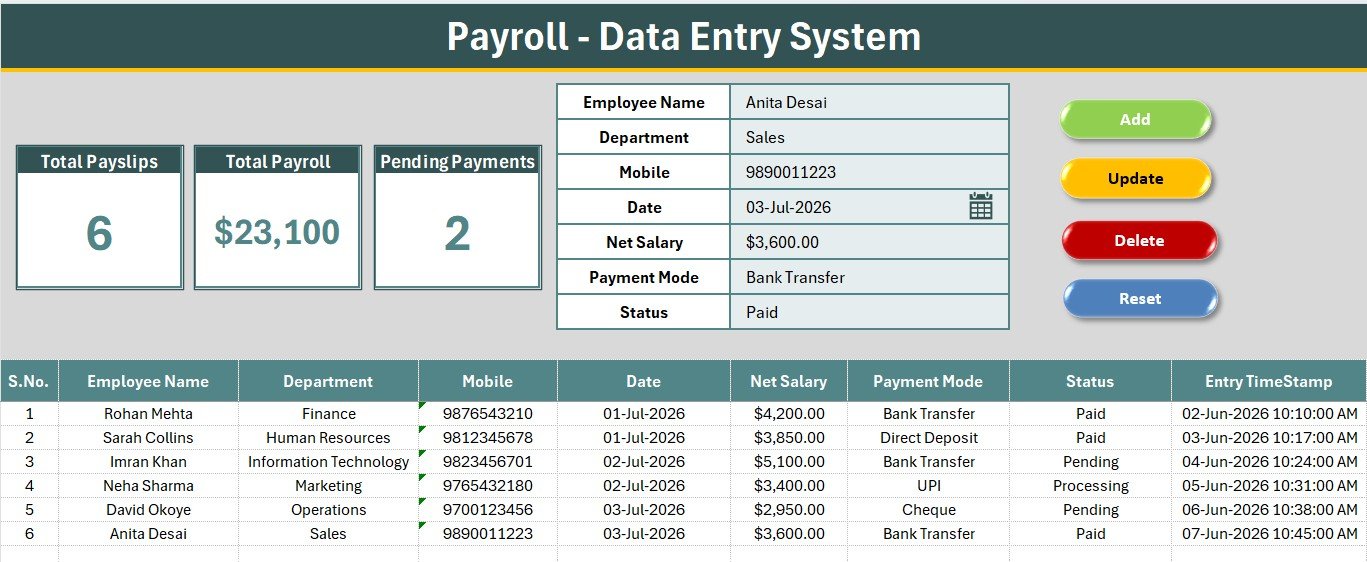
Everything sits on a single Data Entry sheet — the form, the KPI cards, the four macro buttons and the running payroll register. There is no navigating between tabs while you work.
- 7-field payroll record. Employee Name, Department, Mobile, Pay Date, Net Salary, Payment Mode and Status. Department, Payment Mode and Status are wired to named ranges on the Setting sheet, so a typo can never split one department into two lines in your totals.
- 3 live KPI cards. Total Payslips counts every record, Total Payroll sums the Net Salary column with currency formatting, and Pending Payments counts every row where Status equals “Pending”. All three are live formulas — nothing needs refreshing.
- Four VBA buttons. Add, Update, Delete and Reset run the complete payslip lifecycle. Double-click any row in the register and it loads straight back into the form for editing.
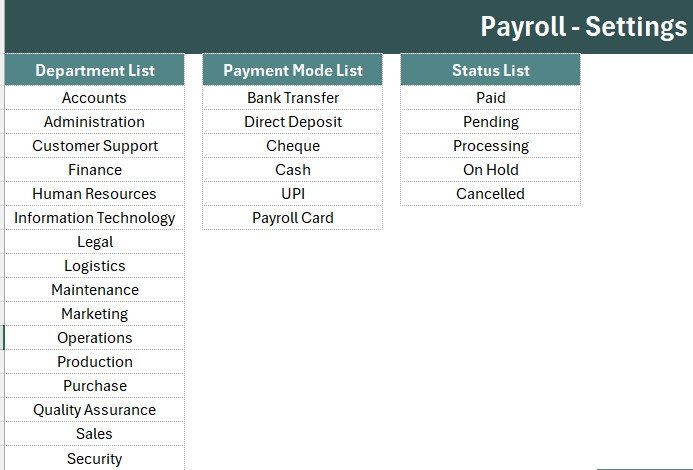
- 27 editable dropdown values. 16 departments, 6 payment modes (Bank Transfer, Direct Deposit, Cheque, Cash, UPI, Payroll Card) and 5 payment statuses (Paid, Pending, Processing, On Hold, Cancelled). Rename or extend any of them on the Setting sheet in seconds.
- Auto S.No and Entry TimeStamp. Every payroll row is numbered automatically and stamped with the moment it was logged — the audit trail an accountant or auditor will actually accept.
- Four-sheet workbook. Data Entry, Setting, Instructions and Get More Templates, in a clean teal theme with Aptos Narrow throughout.
Sheets Explanation — What Each Screen Does
The workbook ships as an .xlsx file with four sheets, plus a separate VBA module you import once and then save as .xlsm. Here is what you get on each screen.
Payroll Data Entry Dashboard
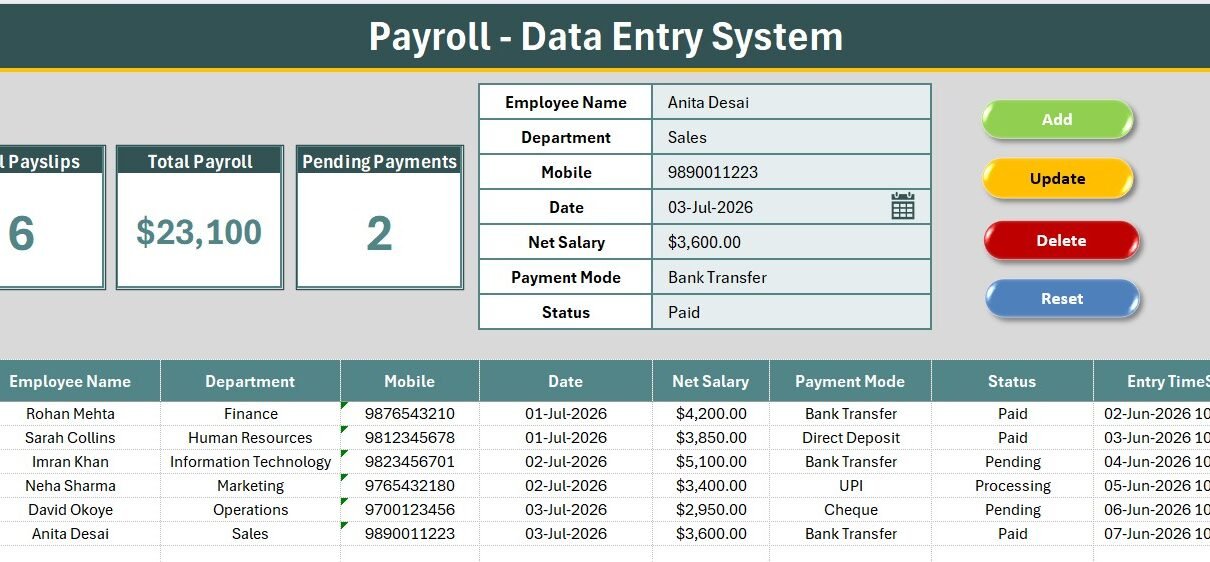
The main screen holds the Total Payslips, Total Payroll and Pending Payments KPI cards across the top, the 7-field salary form with its three dropdowns, and the four coloured Add / Delete / Update / Reset button cells sitting directly beside the form.
Payroll Register and Records Table
Every submitted payslip lands in the records table below the form with auto S.No, department, mobile, pay date, net salary, payment mode, payment status and Entry TimeStamp. Because it is a plain Excel range, you can filter one department, sort by pay date, or pivot the whole register whenever month-end reporting comes around.
Setting and Instructions Sheets
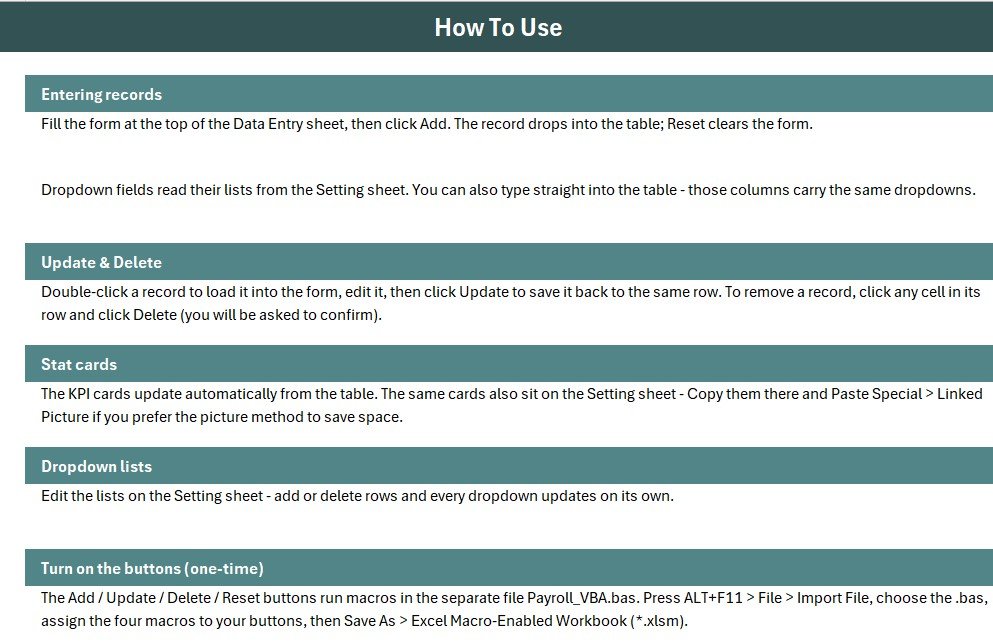
The Setting sheet holds the Department, Payment Mode and Status source lists that drive the form’s data validation dropdowns, plus a duplicated set of stat cards you can copy and paste as a linked picture into a monthly payroll report. The Instructions sheet walks through the one-time VBA activation in three steps.
Payroll Data Entry System vs. Google Sheets vs. Paid Payroll SaaS — Feature Comparison
| Feature | Payroll Data Entry System in Excel | Google Sheets Equivalent | Gusto / QuickBooks Payroll |
|---|---|---|---|
| Cost | $5.99 one-time | Free (build it yourself) | $40–80 / month + $6–12 per employee |
| Platform | Microsoft Excel (offline) | Browser + Google account | Cloud only |
| Setup time | Under 10 minutes | Hours to build form + KPI formulas | Days (company + tax onboarding) |
| One-click Add/Update/Delete form | ✅ VBA-powered | Needs Apps Script | ✅ |
| Works offline | ✅ Yes | ❌ Needs internet | ❌ Needs internet |
| Editable departments & payment modes | ✅ 27 values on Setting sheet | ✅ | Limited by plan |
| Automatic tax filing | ❌ Record-keeping only | ❌ | ✅ |
| Per-employee fees | None | None | Charged per employee |
| Year-1 cost at 5 employees | $5.99 total | $0 + your time | $840–$1,680 |
For small teams that want a clean, offline payroll register without paying per-employee SaaS fees, the Payroll Data Entry System in Excel sits in the sweet spot.
Who Should Use This Template
Perfect for:
- Payroll clerks and office admins at 5–200 person companies who log monthly salary payments by hand
- Small business owners who want department-wise payroll totals and a live pending-payment count without monthly software
- Accountants and bookkeepers maintaining a separate salary register per client
- Factory and retail supervisors recording weekly wages against departments or shifts
- Anyone graduating from a free-form salary spreadsheet to a structured, validated record
Not a fit if:
- You need automatic tax computation, statutory filing or direct bank disbursement — this is a register, not a payroll processor
- Several people must edit the same file simultaneously; a shared Excel workbook is not the right tool for that
- You need printable payslip PDFs with a gross-to-net breakdown
Real-World Use Cases
Priya handles payroll at a 45-person design studio. She logs every salary payment with its department and payment mode, watches the Pending Payments card fall to zero by the 5th of each month, and hands her founder a single Total Payroll figure — without paying roughly $60 a month for cloud payroll software she would use for ten minutes a week.
Daniel is a bookkeeper managing 8 small clients. He keeps one copy of the workbook per client, renames the Department list to match each business, and leans on the Entry TimeStamp column whenever a client queries a month-end figure and wants to know exactly when a payment was recorded.
Ritu runs a 30-worker manufacturing unit. She records weekly wages against Production, Maintenance and Quality Assurance, keeps cash payments visibly separate from bank transfers via the Payment Mode dropdown, and filters the register by department when building her monthly cost sheet.
Advantages of the Payroll Data Entry System in Excel
It removes the data-quality problem at the source. Three validated dropdowns mean department names, payment modes and statuses are always spelled identically, so a pivot table or SUMIFS over the register returns a number you can trust the first time.
It costs less than one hour of bookkeeping. At $5.99 one-time against $840–$1,680 for a year of entry-level payroll SaaS at five employees, the template pays for itself before you finish setting it up. There are no per-user fees and no renewal.
It works with no internet and no account. The file lives on your machine, which matters when salary data is involved. Nothing is uploaded, nothing syncs, and there is no vendor holding your records.
It stays fast because it stays simple. A single sheet, three formulas behind the KPI cards, and four short macros — no add-ins, no Power Query refresh, no volatile array formulas dragging performance down as the register grows.
Opportunities for Improvement
Being straight about the limits: this is a payroll register, not a payroll engine. It records the Net Salary you type in; it does not compute gross-to-net, income tax, provident fund or any statutory deduction. If you need that maths, our guide to payroll calculation formulas in Excel covers the federal, state and FICA side in detail.
It is also a single-user file. Two people opening the same workbook from a shared drive will hit Excel’s read-only lock, so pick one owner per file. Finally, because the buttons are Form Controls over coloured cells, you do have to attach the four macros once yourself — the Instructions sheet covers it, but it is a five-minute step rather than a zero-minute one.
Best Practices
- Customise the Setting sheet before your first entry. Replace the 16 sample departments with your real org structure so historical records never need renaming later.
- Keep one file per financial year. Archive the previous year rather than letting a single register run to tens of thousands of rows.
- Use the Status column as a workflow, not a label. Enter a payment as Pending when it is approved, move it to Processing on submission, and Paid on confirmation — the Pending Payments card then becomes a genuine to-do list.
- Back the file up before running Delete. The macro removes the row immediately; there is no undo stack for VBA actions.
- Pair it with an employee master. Keep names and departments consistent by sourcing them from the Employee Master and Record Data Entry System in Excel.
Explore Relevant Templates
If you are building out a full HR stack in Excel, pair this with the Employee Master and Record Data Entry System in Excel for the employee list that feeds your payroll register, and the Payroll Calculator and Payslip Generator in Excel when you need gross-to-net maths and printable payslips.
For reporting on the same numbers, the Payroll Management Dashboard in Excel and the Payroll Accuracy KPI Dashboard in Excel turn the register into month-on-month visuals. On the attendance side, our posts on the weekly attendance sheet in Excel and seven attendance-tracking methods compared pair naturally with payroll, and the Performance Management Dashboard in Excel covers the appraisal cycle.
Also available as: a cloud version in the Monthly Payroll Manager and Dashboard in Google Sheets, and a multi-user login-based web app in the Employee Attendance & Payroll Management System.
💎 Save more — get all 10 HR templates in the HR & Workforce Analytics Bundle →
Frequently Asked Questions
What fields does the Payroll Data Entry System in Excel track?
The Payroll Data Entry System in Excel tracks 7 fields per salary record — Employee Name, Department, Mobile, Pay Date, Net Salary, Payment Mode and Status. Three of those use editable dropdown lists, and three KPI cards summarise total payslips, total payroll value and pending payments.
Do I need to enable macros to use it?
Yes. The Payroll Data Entry System in Excel uses VBA for the Add, Update, Delete and Reset buttons, so you must enable macros and save the file as a macro-enabled workbook (.xlsm) before the form will work.
Can I change the departments and payment modes?
Absolutely. All 27 dropdown values sit on the Setting sheet of the Payroll Data Entry System in Excel, so you can rename, add or remove departments, payment modes and status labels in seconds. The form, records table and KPI cards pick up the change automatically.
Does the template calculate tax or deductions?
No. The Payroll Data Entry System in Excel records the final Net Salary you enter — it is a payroll register, not a tax engine. For gross-to-net calculation and printable payslips, pair it with the Payroll Calculator and Payslip Generator in Excel.
How does this compare to Gusto or QuickBooks Payroll?
The Payroll Data Entry System in Excel is a one-time $5.99 offline tool, while Gusto and QuickBooks Payroll cost roughly $40–80 per month plus $6–12 per employee. It covers structured salary record-keeping and payroll KPIs, but not automatic tax filing or bank disbursement.
How long does setup take?
Setup takes under 10 minutes — import the VBA module, attach four buttons to the macros, and save as .xlsm. After that, logging a salary payment in the Payroll Data Entry System in Excel takes roughly 20 seconds.
Can more than one person use it at the same time?
No. The Payroll Data Entry System in Excel is a single-user workbook, so it is best kept with one owner. For multi-user access with logins and role-based permissions, use the Employee Attendance & Payroll Management System web app instead.
About the Author
Built by PK — Microsoft Certified Professional with 15+ years of Excel, Google Sheets, and Power BI experience. Founder of NextGenTemplates, reaching 300K+ subscribers across YouTube channels. Every template is hand-built and tested before release.
Conclusion
If your salary records currently live in a spreadsheet nobody trusts, the Payroll Data Entry System in Excel is the smallest change that fixes it: validated dropdowns instead of free typing, a macro form instead of scrolling to the next blank row, three live KPI cards instead of a manual month-end tally, and a time-stamped audit trail you did not have to build.
🛒 Click here to Purchase the Payroll Data Entry System in Excel
✅ Instant download · One-time payment · No subscription
🎥 For step-by-step video tutorials, visit Youtube.com/@PK-AnExcelExpert
📅 Last updated: July 2026