Running a retail shop on a bill book, a stock spreadsheet and a notebook for expenses works right up to the day you need an answer. How much did the City Mall branch actually make last month? Which products are about to run out? How much is still uncollected? Three sources, three answers, none of them reconciled.
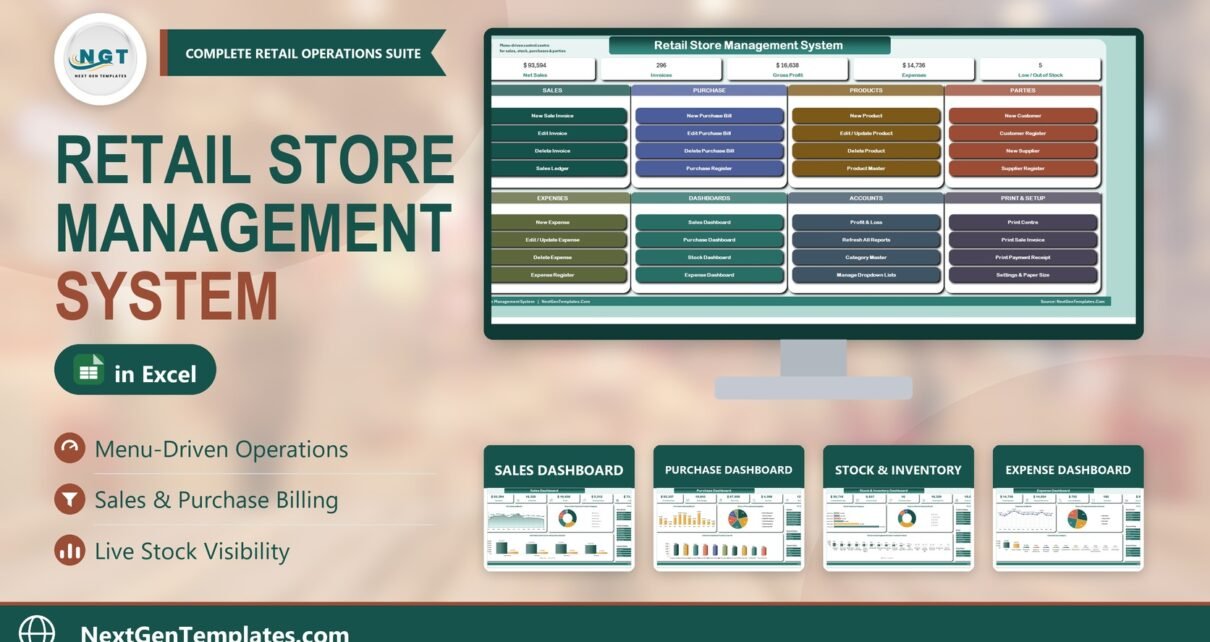
The Retail Store Management System V1.0 in Excel VBA puts the whole shop in one macro-enabled Excel file. You raise invoices from a proper form, record purchase bills, keep products, customers and suppliers in real masters, log expenses, and read five dashboards plus a full Profit & Loss statement built from the same rows you just entered.
In this article I will walk through every screen of the system, exactly as it appears when you open the file.
Click to Buy Retail Store Management System V1.0 in Excel VBA
Watch the Video Demo
Video Overview
The 12-minute demo walks through the whole system in the order you would actually use it. It opens on the MAIN screen with its live KPIs, then raises a real multi-line sale invoice — customer, store branch and cashier at the top, products added one by one with the type-to-search picker — saves it and prints it straight away. From there it covers the Sales Ledger, the Customer Master, purchase bills, the Product Master and the expense forms, then moves to the five report pages: Sales, Purchase, Stock & Inventory and Expense dashboards and the Profit & Loss statement. The last few minutes are the setup you do once: the Category Master and dropdown lists, the Print Centre with A4, 4 inch and 3 inch previews and the PDF option, and the Settings sheet where you enter your company details and switch the currency and tax rate.
What Is the Retail Store Management System V1.0 in Excel VBA?
It is a ready-to-use Excel + VBA application for a single-branch shop or a small chain. Nothing to install, no subscription, no internet connection needed. Enable macros and it is working. It includes:
- A menu-driven MAIN screen with live KPIs
- Multi-line sale invoice and purchase bill forms
- Sales Ledger and Purchase Register with edit, delete and print
- Product, Customer and Supplier masters
- Expense register with categories and payment status
- Sales, Purchase, Stock & Inventory and Expense dashboards
- A formula-driven Profit & Loss statement by financial year
- A Print Centre for Tax Invoice, Payment Receipt and Purchase Order
- Three paper sizes: A4, 4 inch (104 mm) and 3 inch (80 mm) thermal
- Settings for company details, currency, tax rate and document prefixes
If you have used one of our other systems, such as the Homeopathy Clinic Management System V1.0 or the Dry Clean Service Management System V1.0, the layout will feel familiar straight away.
1. MAIN Screen – the control centre
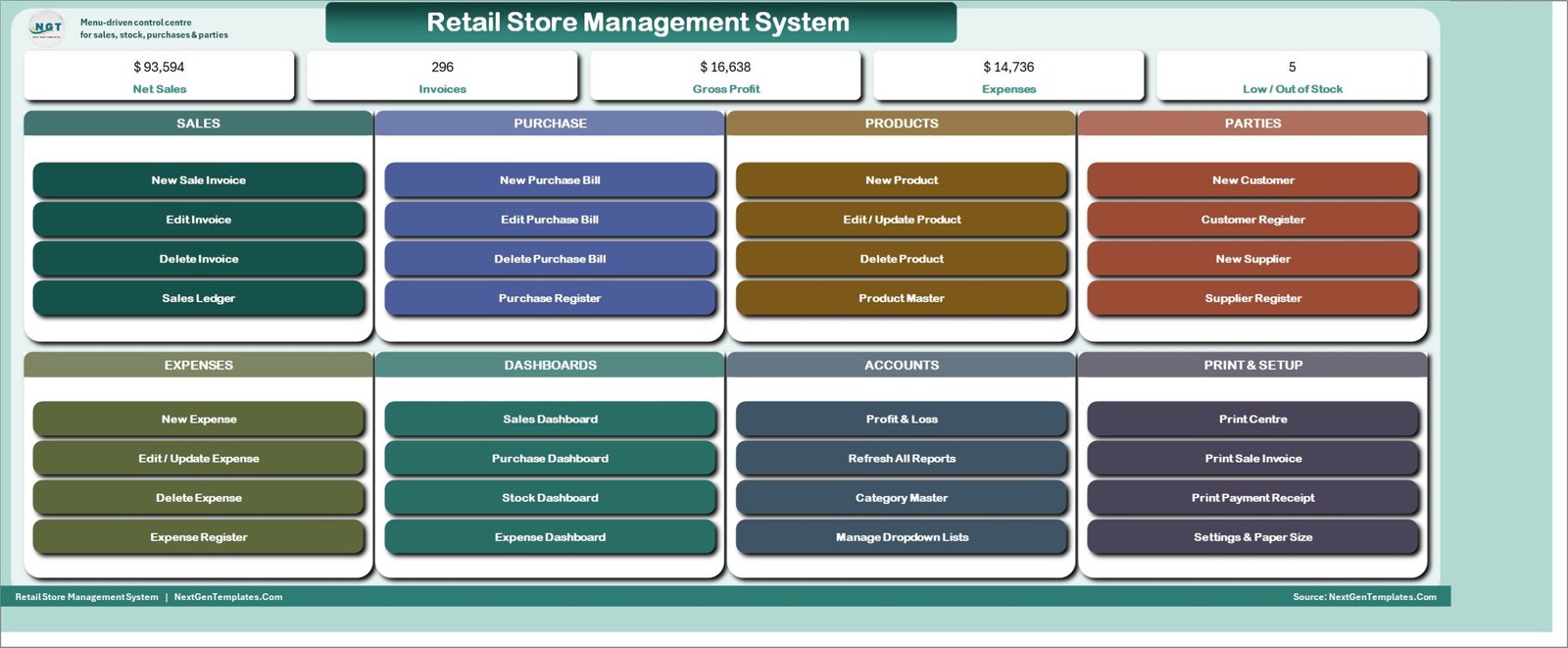
MAIN is the first sheet and the opening screen. Across the top it shows the numbers a shop owner checks first — in the sample data $93,594 net sales, 296 invoices, $16,638 gross profit, $14,736 expenses and 5 products low or out of stock.
Below that are eight colour-coded section cards:
- Sales – New Sale Invoice, Edit Invoice, Delete Invoice, Sales Ledger
- Purchase – New Purchase Bill, Edit Purchase Bill, Delete Purchase Bill, Purchase Register
- Products – New Product, Edit / Update Product, Delete Product, Product Master
- Parties – New Customer, Customer Register, New Supplier, Supplier Register
- Expenses – New Expense, Edit / Update Expense, Delete Expense, Expense Register
- Dashboards – Sales, Purchase, Stock and Expense dashboards
- Accounts – Profit & Loss, Refresh All Reports, Category Master, Manage Dropdown Lists
- Print & Setup – Print Centre, Print Sale Invoice, Print Payment Receipt, Settings & Paper Size
Click to Buy Retail Store Management System V1.0 in Excel VBA
2. New Sale Invoice – billing at the counter
Click New Sale Invoice and the billing form opens. Pick the customer, the store branch and the cashier at the top; the customer type and the rate are worked out by the form and locked so they cannot be typed over.
Then build the basket: choose a product, enter the quantity and click Add Item. Each line appears in the grid and the invoice total updates as you go, so a three-line bill takes a few seconds. Click Save Invoice and the system asks whether you want to print it now — say yes and the print preview opens immediately.
The product, customer and supplier pickers are type-to-search: start typing any part of the name and the list filters as you type.
3. Sales Ledger – edit, delete or reprint any invoice
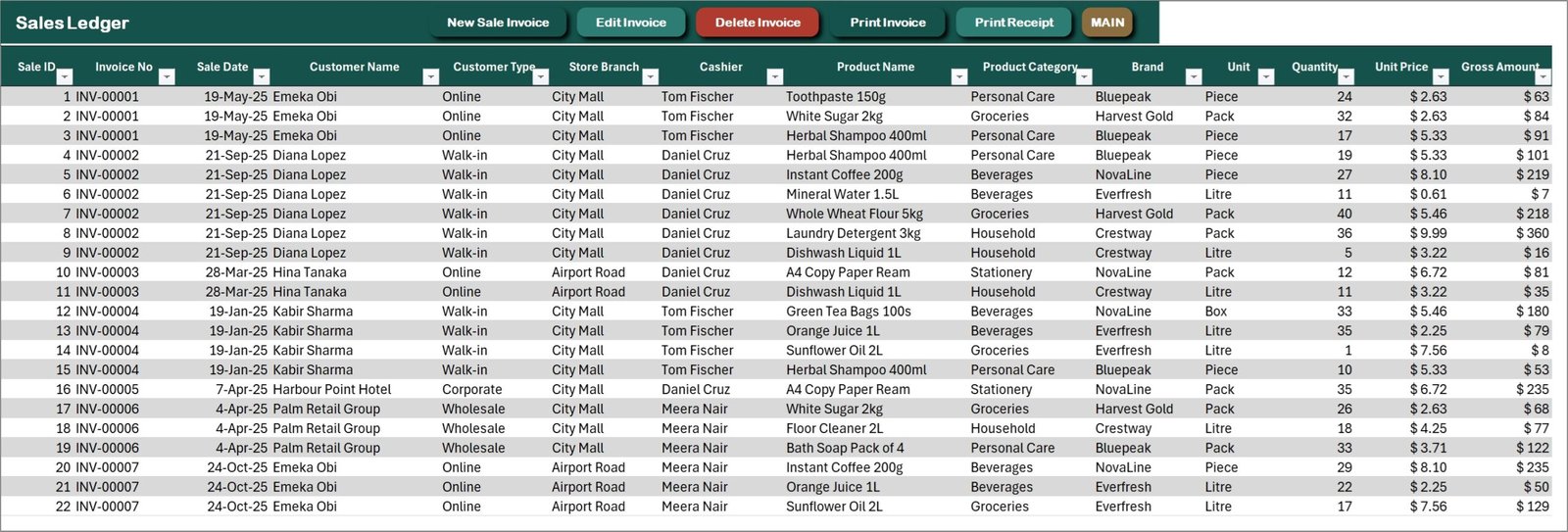
Every invoice line is stored in the Sales Ledger with the sale ID, invoice number, date, customer, customer type, store branch, cashier, product, category, brand, unit, quantity, unit price, gross amount, discount, tax, payment status and month.
Select any row and use the action bar: Edit Invoice reopens that invoice with all of its lines, Delete Selected removes it after a confirmation, and Print Invoice or Print Receipt sends it straight to the preview.
4. Purchase Bill and Purchase Register
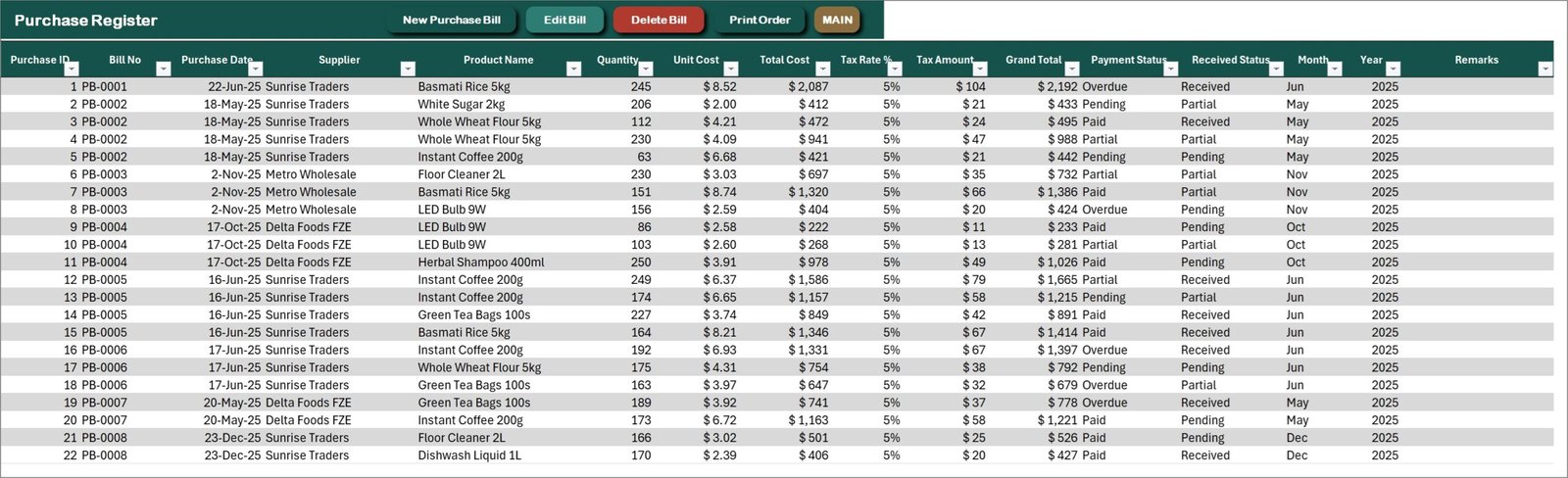
Purchases work exactly like sales. New Purchase Bill opens the same basket-style form for a supplier bill: choose the supplier, add products with their cost price and quantity, and save. The Purchase Register keeps every bill line with the supplier, payment terms, purchase value and status, and stock is updated from it.
Click to Buy Retail Store Management System V1.0 in Excel VBA
5. Product Master
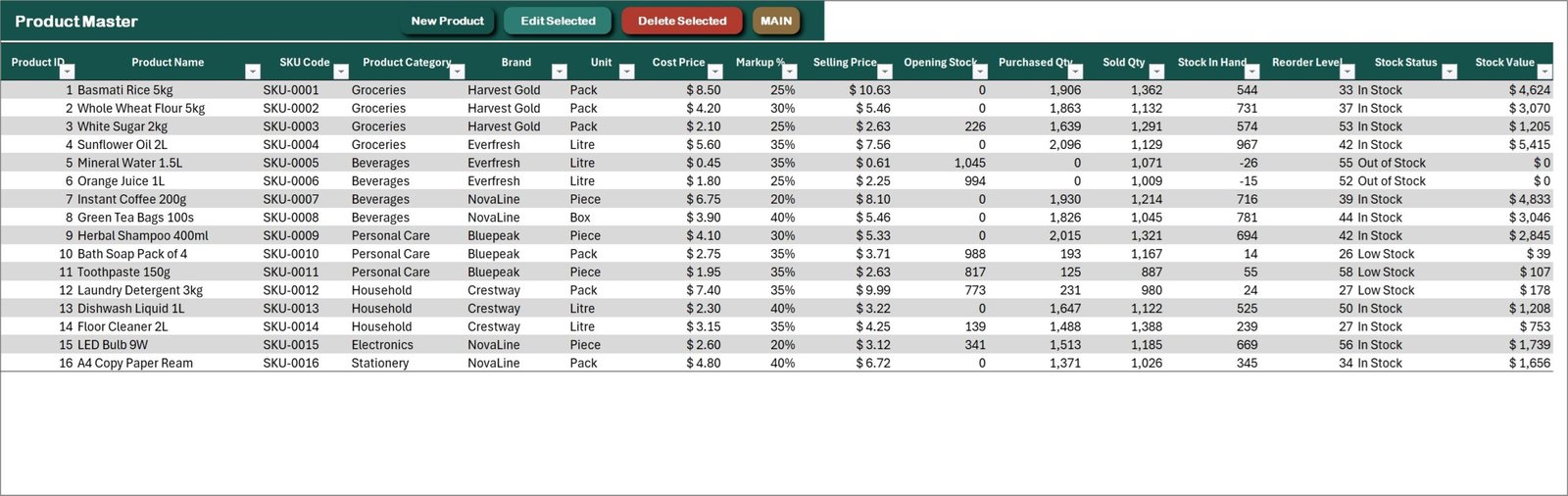
The Product Master is where an item is defined once and used everywhere: product code, product name, category, brand, unit, supplier, cost price, selling price, opening stock, stock in hand, reorder level and stock status. The status column is what drives the low or out of stock count on the MAIN screen.
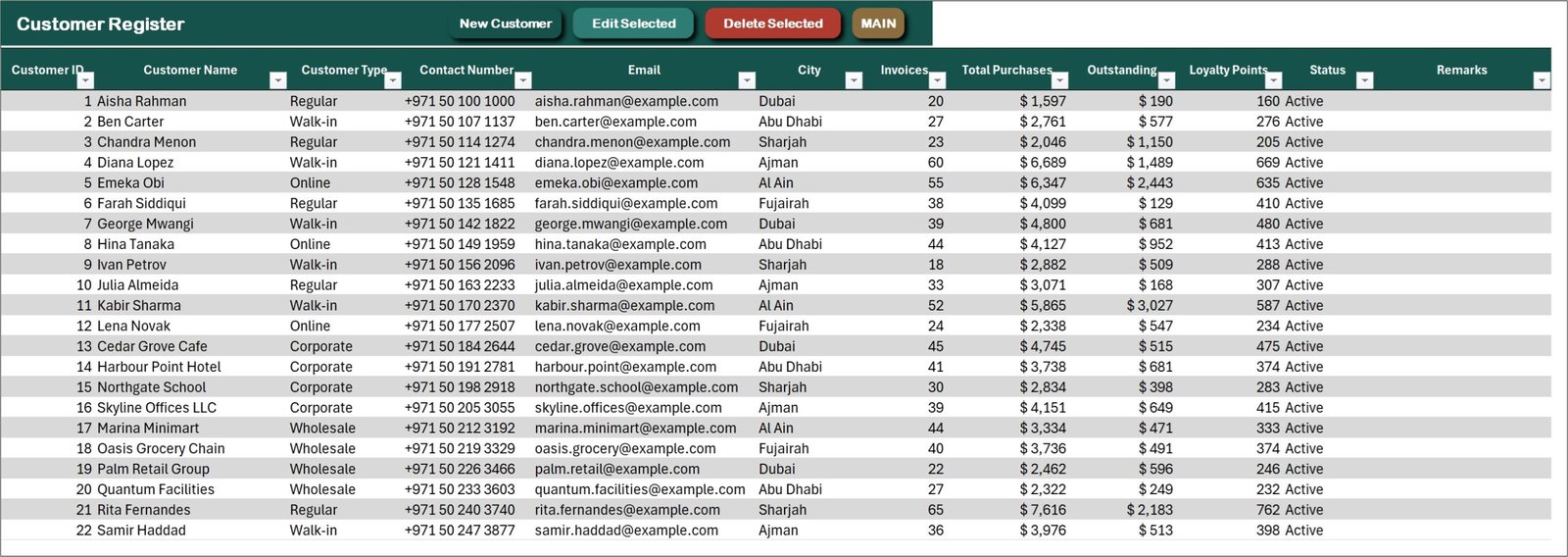
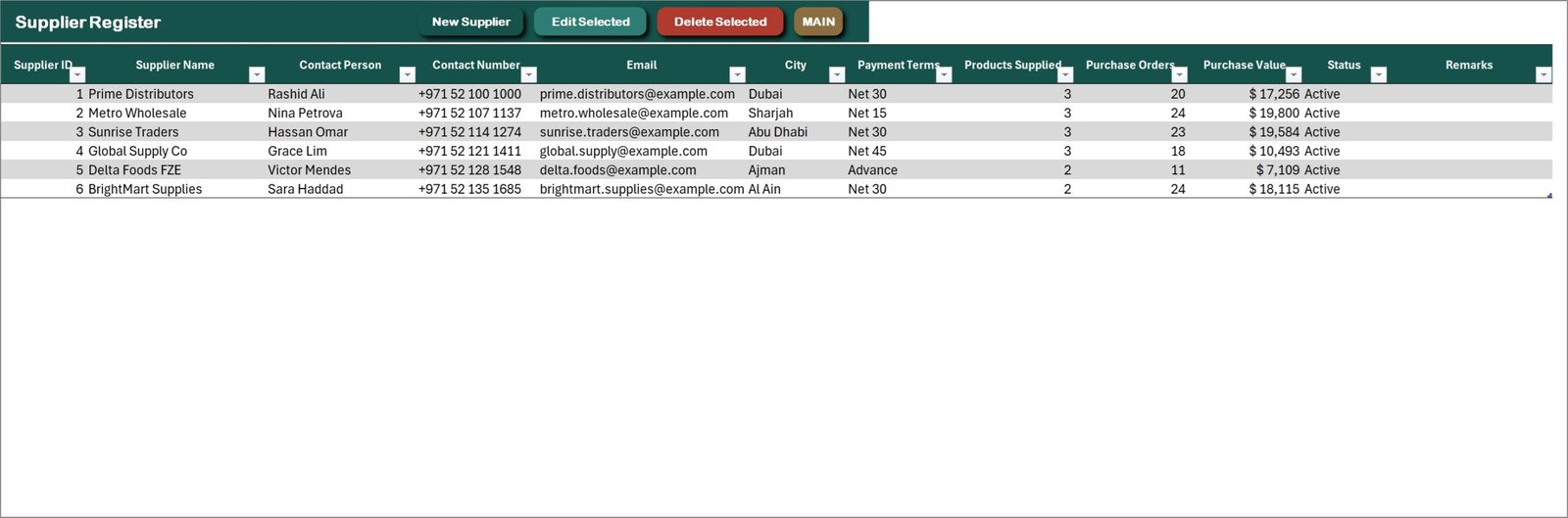
6. Customer Register and Supplier Register
Add a customer from the invoice flow or straight from Parties → New Customer: name, customer type (walk-in, online, wholesale, corporate), contact number, email, city and remarks. The register then tracks orders, total business, outstanding and loyalty points for each customer.
The Supplier Register does the same for suppliers: contact person, payment terms, products supplied, purchase orders and purchase value.
7. Expenses
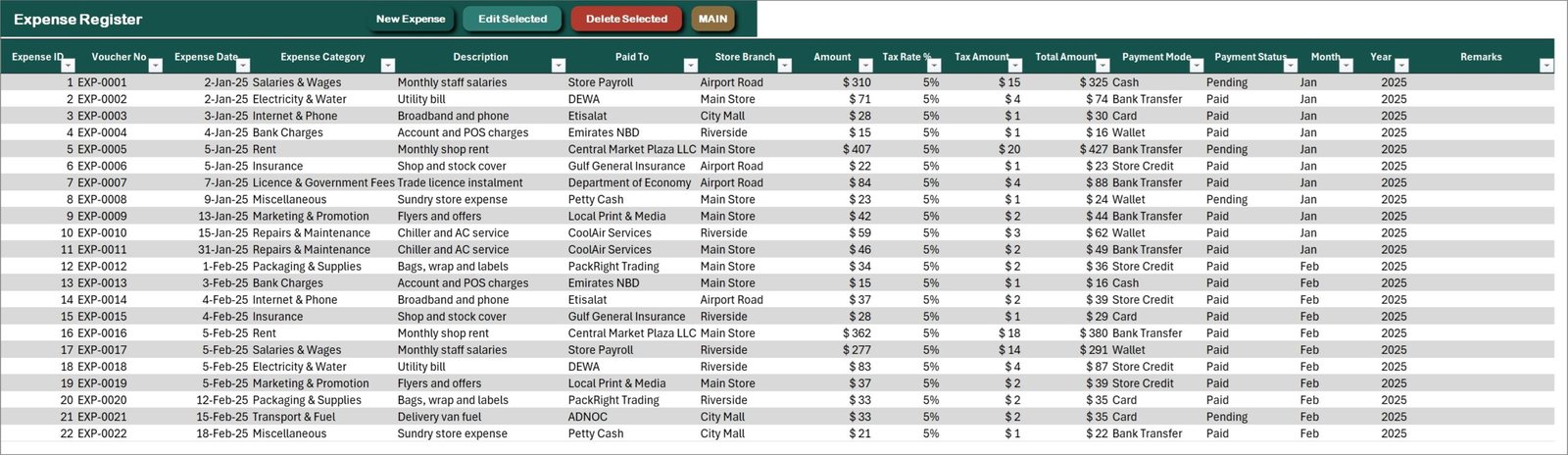
Open New Expense, pick the date from the calendar button, choose the expense category, enter the amount and tax, then record how it was paid and whether it is paid, partial, pending or overdue. Everything lands in the Expense Register, which feeds both the Expense Dashboard and the Profit & Loss.
Click to Buy Retail Store Management System V1.0 in Excel VBA
8. Sales Dashboard
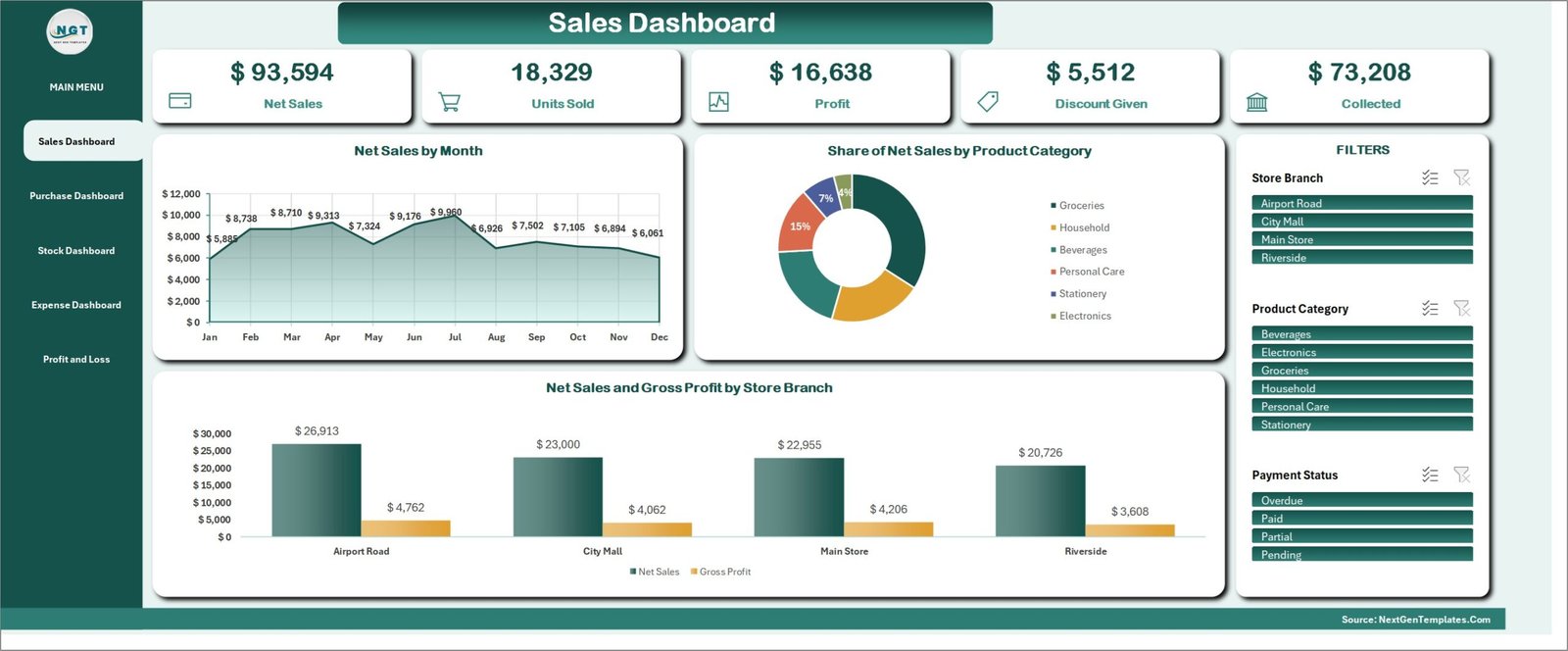
The Sales Dashboard opens with five KPI cards — $93,594 net sales, 18,329 units sold, $16,638 profit, $5,512 discount given and $73,208 collected.
Underneath: net sales by month, share of net sales by product category, and net sales against gross profit for every store branch. The slicer panel on the right filters the whole page by Store Branch, Product Category and Payment Status in one click.
9. Purchase Dashboard
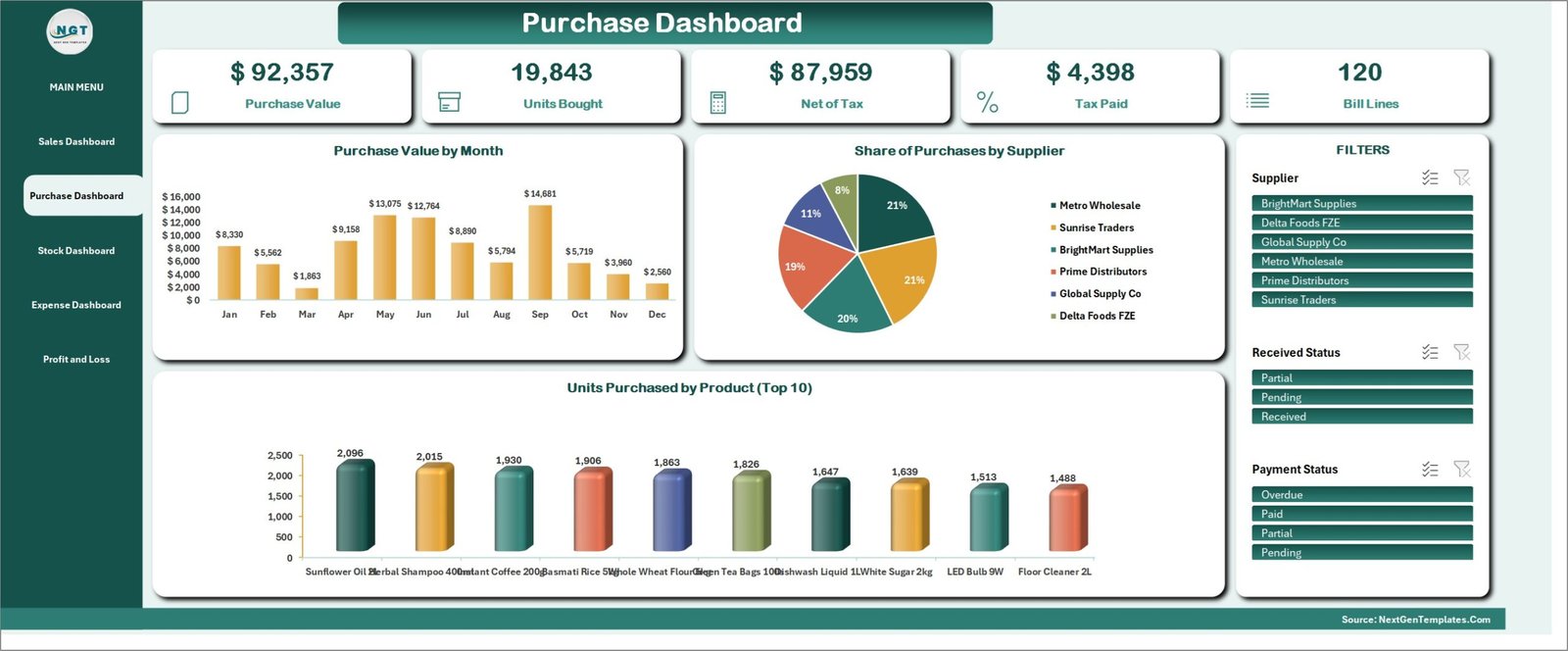
Purchase value by month, share of purchases by supplier and the top products by units purchased, with the paid and pending split on the KPI row. This is the page that tells you which supplier is really taking the biggest share of your spend.
10. Stock & Inventory Dashboard
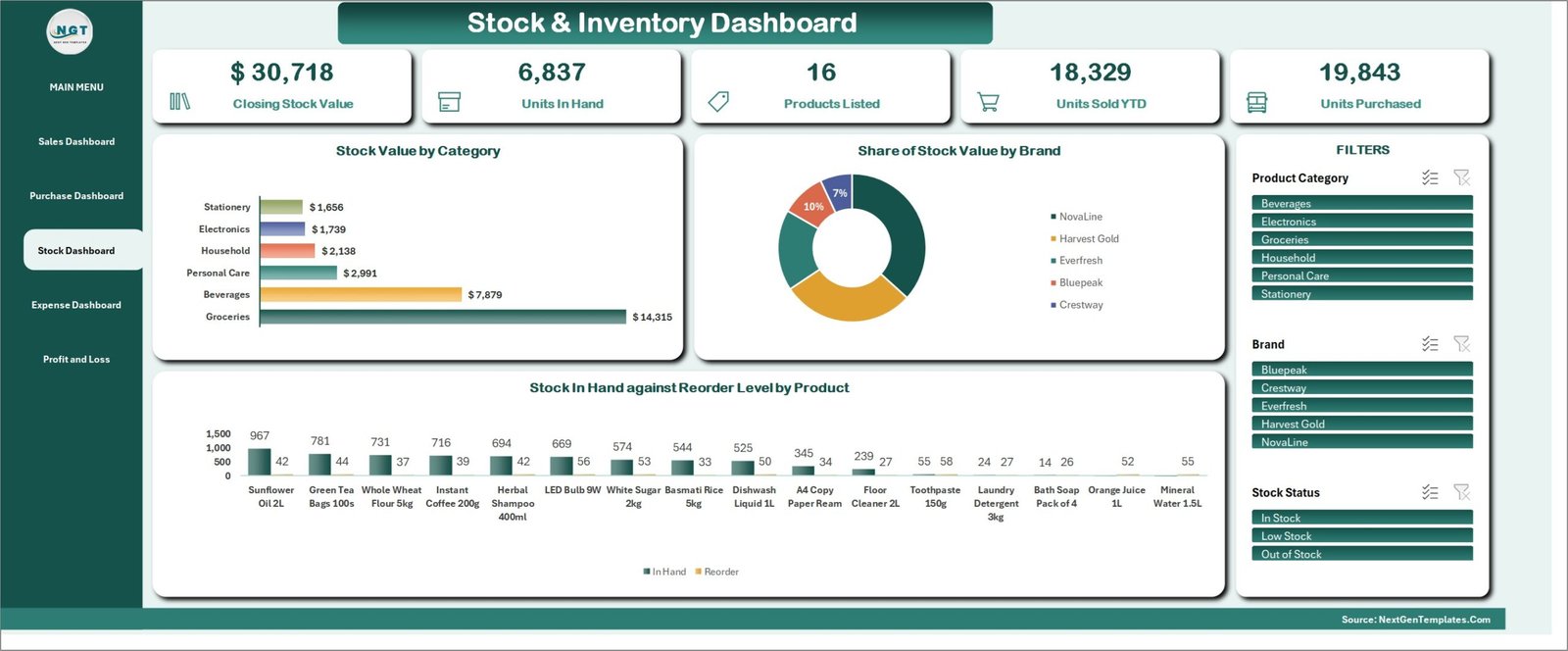
Closing stock value, units in stock, products listed, units sold and units purchased, then stock value by category, share of stock value by brand, and the useful one, stock in hand plotted against the reorder level for every product. A reorder decision becomes a glance instead of a count.
Click to Buy Retail Store Management System V1.0 in Excel VBA
11. Expense Dashboard
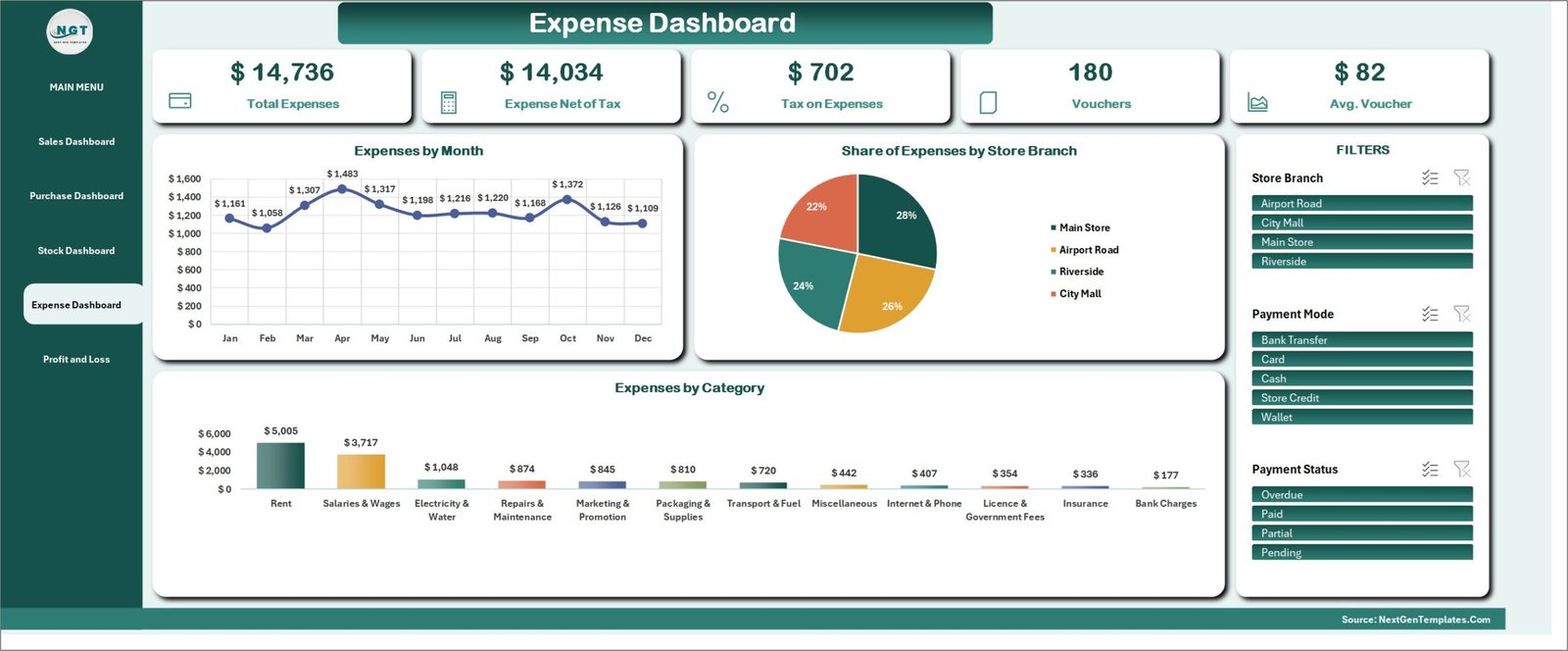
Total expenses, expenses net of tax, tax on expenses, the voucher count and the average voucher value, plus expenses by month, by category and by store branch.
12. Profit & Loss Statement
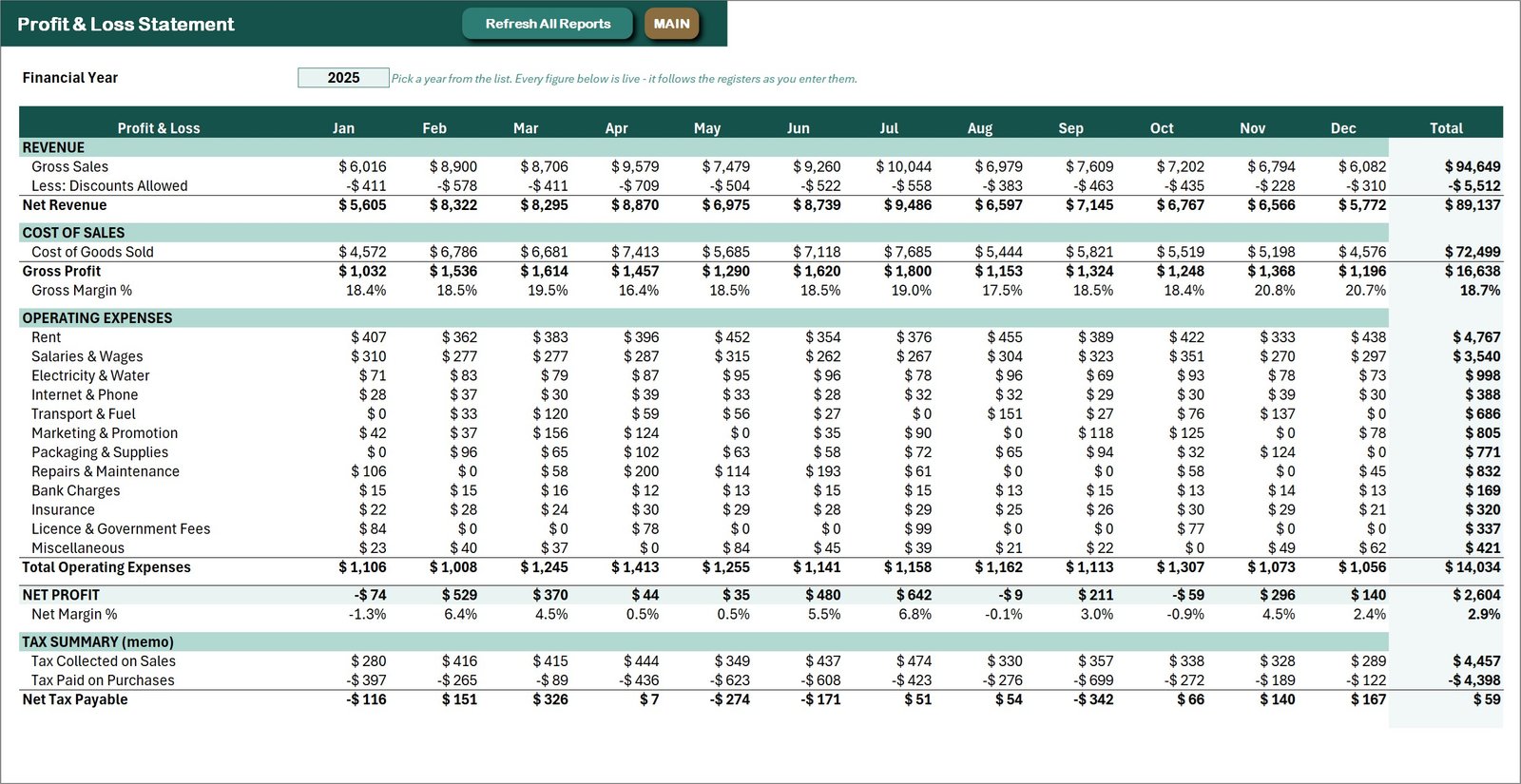
This is a proper P&L, not a pivot table. Revenue and discounts allowed, cost of sales, gross profit and gross margin %, every operating expense line, total operating expenses, net profit and net margin %, and a tax summary — for all twelve months with a total column.
Choose the year from the Financial Year dropdown (it runs to 2050), click Refresh All Reports, and the statement rebuilds from the ledgers.
13. Category Master and Manage Dropdown Lists
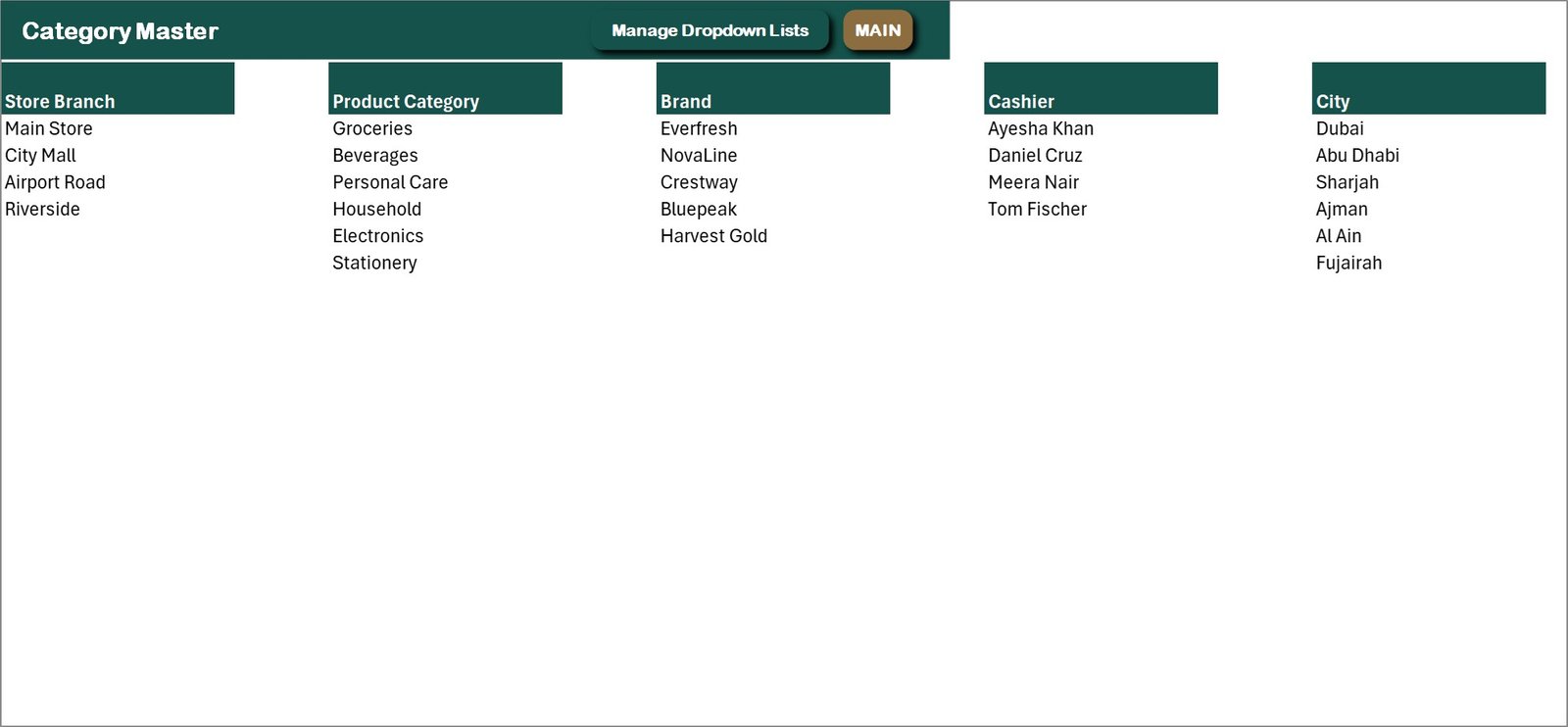
The Category Master holds every list the system uses: store branches, product categories, brands, cashiers and cities. Manage Dropdown Lists lets you add a value or remove one — add a new unit, for example, and it is immediately available in the product form. Nothing is hard-coded in the VBA.
14. Print Centre and paper sizes
Open Print Centre, choose the document — Tax Invoice, Payment Receipt or Purchase Order — then select the invoice number (or paste it), pick the paper size and click Preview.
Choose 3 inch and the preview really is 80 mm wide, ready for a thermal receipt roll; 4 inch gives 104 mm; A4 gives the full-page tax invoice. There is also a Print & PDF option that writes the document straight to a PDF in the folder you choose.
Click to Buy Retail Store Management System V1.0 in Excel VBA
15. Settings – make it yours
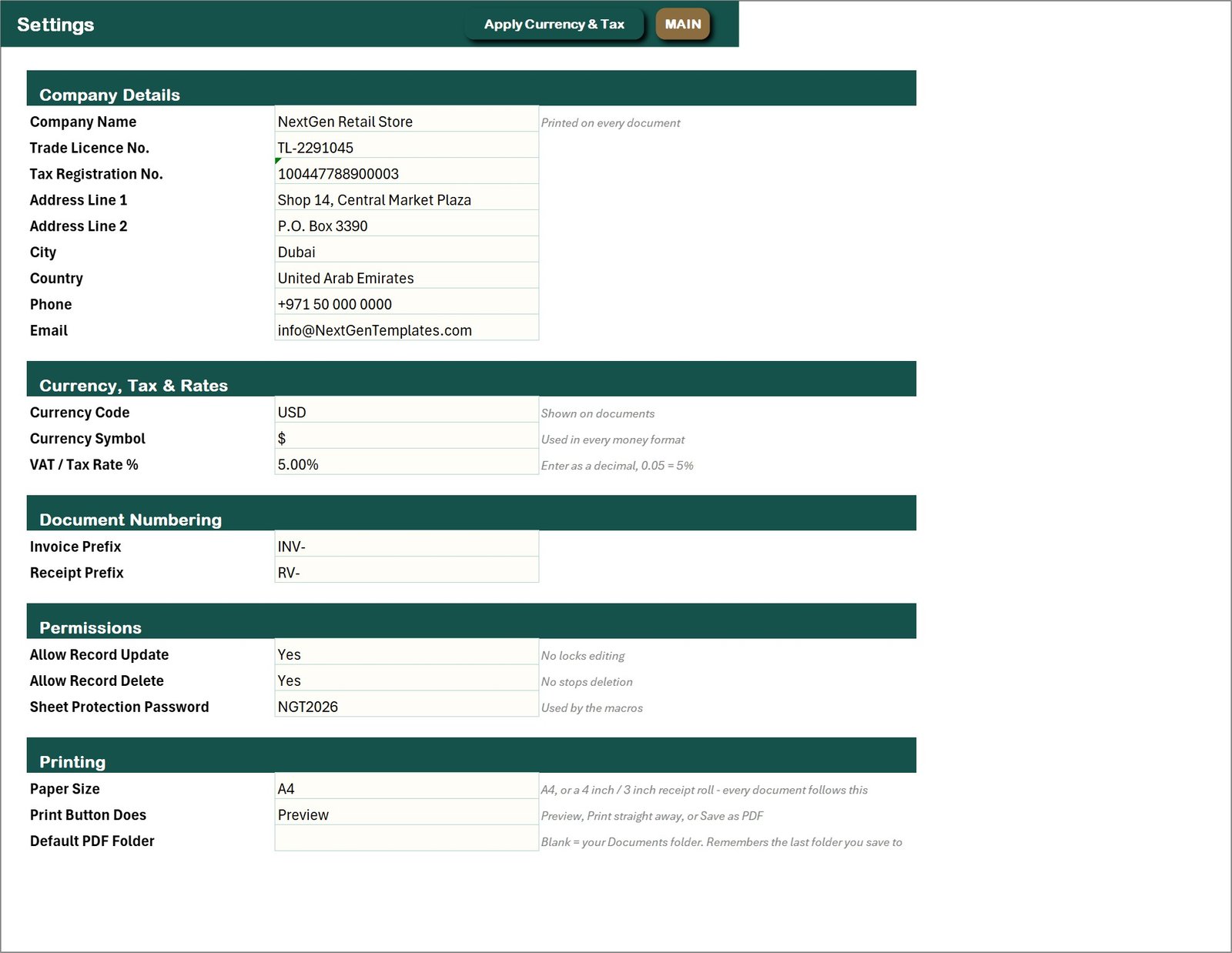
The Settings sheet is where the system becomes your shop:
- Company details – name, trade licence number, tax registration number, address, city, country, phone and email (these print on every document)
- Currency, tax & rates – currency code, currency symbol and VAT / tax rate %
- Document numbering – invoice prefix and receipt prefix
- Permissions – allow record update, allow record delete, sheet protection password
- Printing – paper size, what the Print button does (Preview / Print / Save as PDF) and the default PDF folder
Change the currency and tax rate, click Apply Currency & Tax, and every sheet — sales, purchases, dashboards and the P&L — recalculates and shows the new symbol.
Retail Store Management System vs a spreadsheet vs POS software
| Plain spreadsheet | Retail Store Management System V1.0 | Cloud POS software | |
|---|---|---|---|
| Cost | Free | One-time | Monthly subscription |
| Invoice & receipt printing | Manual | A4, 4 inch, 3 inch built in | Yes |
| Stock and reorder alerts | Manual formulas | Automatic | Yes |
| Profit & Loss | Build it yourself | Formula-driven, by year | Usually an add-on |
| Works offline | Yes | Yes | No |
| Your data stays with you | Yes | Yes | On their servers |
| Customisable | Yes | Yes, plain Excel + VBA | Rarely |
Advantages of the Retail Store Management System V1.0
- One file for billing, purchases, stock, parties, expenses and reporting
- One-time purchase, no subscription and no activation
- Runs entirely offline inside Microsoft Excel
- Professional VBA forms with Add, Update, Delete and Reset
- Multi-line invoices and bills, not one row per item typed by hand
- Type-to-search pickers for products, customers and suppliers
- Thermal-printer ready at 3 inch and 4 inch, plus A4
- Any currency and any tax rate
- Multi-branch comparison built into the dashboards
- A 13-page illustrated PDF manual in the download
Best Practices
- Fill in the Settings sheet before you raise the first invoice, because the company details print on every document
- Set up the Category Master and dropdown lists before adding products
- Record purchase bills as they arrive so stock in hand stays honest
- Click Refresh All Reports before reading the dashboards or the P&L
- Keep a dated copy of the file as a backup at the end of each month
- Use the reorder-level column rather than eyeballing the shelves
Who Should Use It
- Grocery, mini-mart, stationery, electronics and personal-care shops
- Single-branch retailers and small multi-branch chains
- Store managers who need a real invoice and a real P&L
- Accountants who would rather have the shop data in an Excel file
- Anyone replacing a POS subscription with a one-time tool
Looking for something smaller first? The Wholesale Order Book Data Entry System in Excel is a single-form starting point.
Conclusion
The Retail Store Management System V1.0 in Excel VBA gives a shop everything it needs in one file: billing, purchases, stock, customers, suppliers, expenses, five dashboards and a Profit & Loss statement, with invoices and receipts that print on the printer you already own. It is a one-time purchase, it works offline, and the data stays on your own machine.
Click to Buy Retail Store Management System V1.0 in Excel VBA
Frequently Asked Questions
1. Do I need to know Excel or VBA to use it?
No. Every action runs from a button or a form on the MAIN screen. You only need to be able to open the file and enable macros.
2. How do I enable macros?
Click Enable Content on the yellow bar when the file opens. Microsoft explains the settings in detail in their macro-security guide.
3. Can I change the currency from USD?
Yes. Set the currency code, symbol and tax rate on the Settings sheet, click Apply Currency & Tax, and every sheet and printed document updates.
4. Will it print on a 3 inch thermal printer?
Yes. Choose 3 inch (80 mm) or 4 inch (104 mm) on the Settings sheet or in the Print Centre. The print areas are already sized for those widths, one page per document.
5. Can I run more than one store branch?
Yes. Add your branches in the Category Master, select the branch on each invoice, and the dashboards compare branches automatically.
6. Can I remove the sample data?
Yes. Delete the demo rows from the Data, Purchases, Products, Customers, Suppliers and Expenses sheets, click Refresh All Reports, and the system is empty and ready.
7. Does it work on Mac or Excel Online?
It is built for Microsoft Excel on Windows. VBA user forms are not supported in Excel Online and behave differently on Mac, so Windows is recommended.
8. Is it a one-time purchase?
Yes. Download it once and use it forever, with no subscription and no activation.
Visit our YouTube channel to learn step-by-step video tutorials
Click to Buy Retail Store Management System V1.0 in Excel VBA