Restaurant P and L Dashboard in Power BI is a professionally designed, ready-to-use Power BI dashboard that empowers restaurant owners, financial analysts, and operations managers to track profitability, revenue, costs, and performance across multiple restaurant branches from a single interactive interface. This template includes 5 dynamic analytical pages covering every critical aspect of restaurant financial management — from high-level KPI monitoring to detailed branch comparisons, revenue breakdowns, cost analysis, and profitability trends 📊🍽️.
Managing a restaurant or food chain without clear financial visibility is a recipe for profit leakage. Scattered Excel files, manual calculations, and delayed reports make it nearly impossible to react quickly to cost overruns or revenue drops. The Restaurant P and L Dashboard in Power BI solves this by centralizing all your restaurant P&L data into one powerful, visual, and filterable dashboard that updates in real time.
Whether you operate a single restaurant or manage a multi-branch food chain, this dashboard delivers the insights you need to control costs, optimize revenue, and grow profitably. Explore our full range of Power BI Dashboard Templates for more solutions.
Key Features of Restaurant P and L Dashboard in Power BI
The Restaurant P and L Dashboard in Power BI includes 5 interactive dashboard pages, 5 KPI summary cards, multiple dynamic charts, and slicer-based filtering — all designed for restaurant financial analysis. Here are the standout features that make this template a must-have for any food and beverage business:
- 5 Interactive Dashboard Pages — Overview, Branch Performance, Revenue Analysis, Cost Breakdown, and Profitability Trend pages provide 360-degree visibility into restaurant financial health.
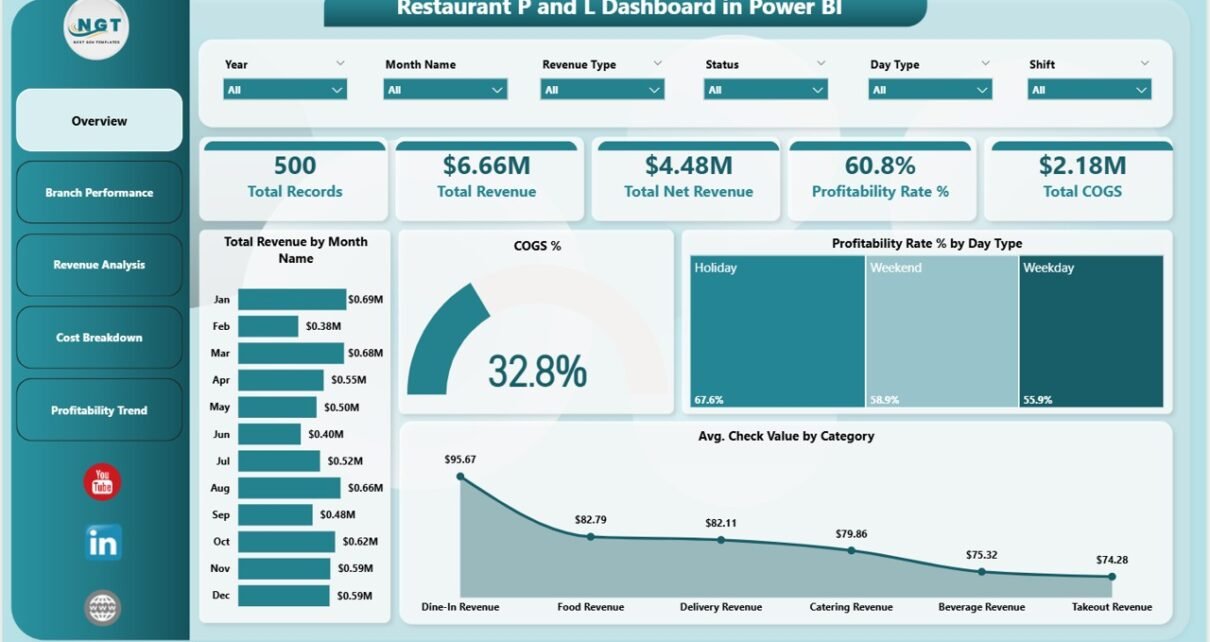
- KPI Summary Cards — Track Total Records, Total Revenue, Total Net Revenue, Profitability Rate %, and Total COGS at a glance on the Overview page.
- Dynamic Slicer-Based Filtering — Apply quick filters using built-in slicers to drill down into specific segments instantly.
- Branch-Level Comparison — Compare Total Revenue, Total Labor Cost, and Total Waste across different restaurant branches on the Branch Performance page.
- Revenue Breakdown Analysis — Analyze Total Net Revenue by Revenue Type, Total Revenue by Shift, and Total Revenue by Category.
- Cost Control Insights — Monitor Total Labor Cost by Day Type, COGS % by Category, and Total Waste by Revenue Type.
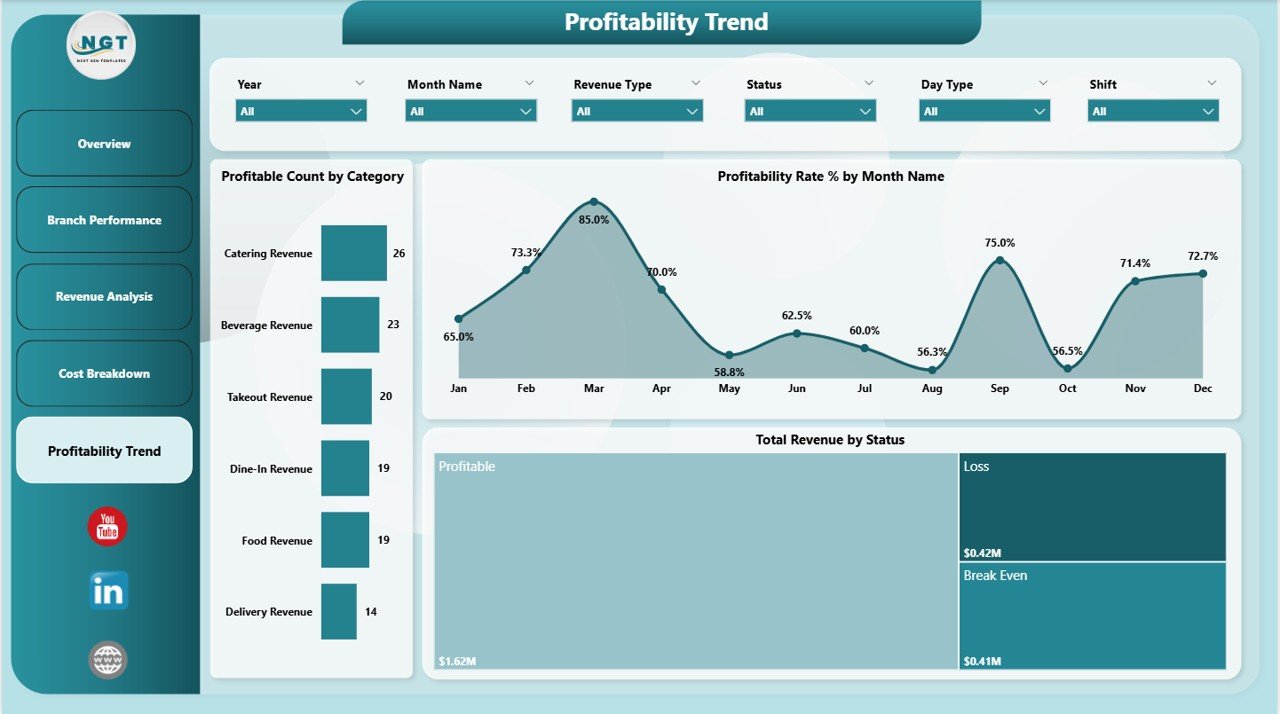
- Profitability Trend Monitoring — Track Profitable Count by Category, Profitability Rate % by Month Name, and Total Revenue by Status.
- Real-Time Data Refresh — Connect your data source and refresh all visuals with one click in Power BI Desktop.
Dashboard Pages Explanation
1. Overview Page
The Overview Page serves as the executive control panel for the entire restaurant P&L dashboard. At the top, 5 KPI cards display Total Records, Total Revenue, Total Net Revenue, Profitability Rate %, and Total COGS — giving decision-makers an instant snapshot of business health. Below the cards, you’ll find charts showing Total Revenue by Month Name, COGS %, Profitability Rate % by Day Type, and Avg. Check Value by Category. Multiple slicers on the right side allow instant filtering by various dimensions.
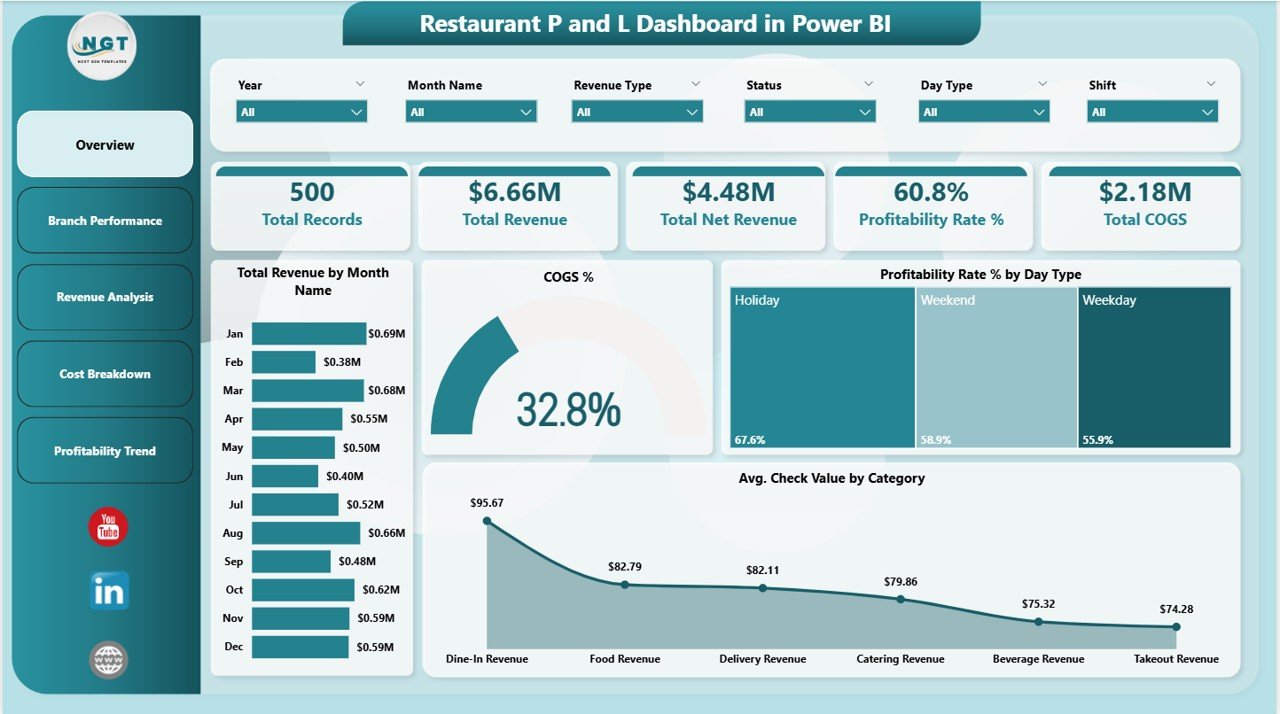 Overview Page
2. Branch Performance Page
The Branch Performance Page enables multi-location restaurant operators to compare outlet-level performance side by side. This page features charts for Total Revenue by Restaurant Name, Total Labor Cost by Restaurant Name, and Total Waste by Restaurant Name. By analyzing these three dimensions together, managers can quickly identify which branches are generating the most revenue and which ones have disproportionately high labor or waste costs — helping pinpoint operational inefficiencies.
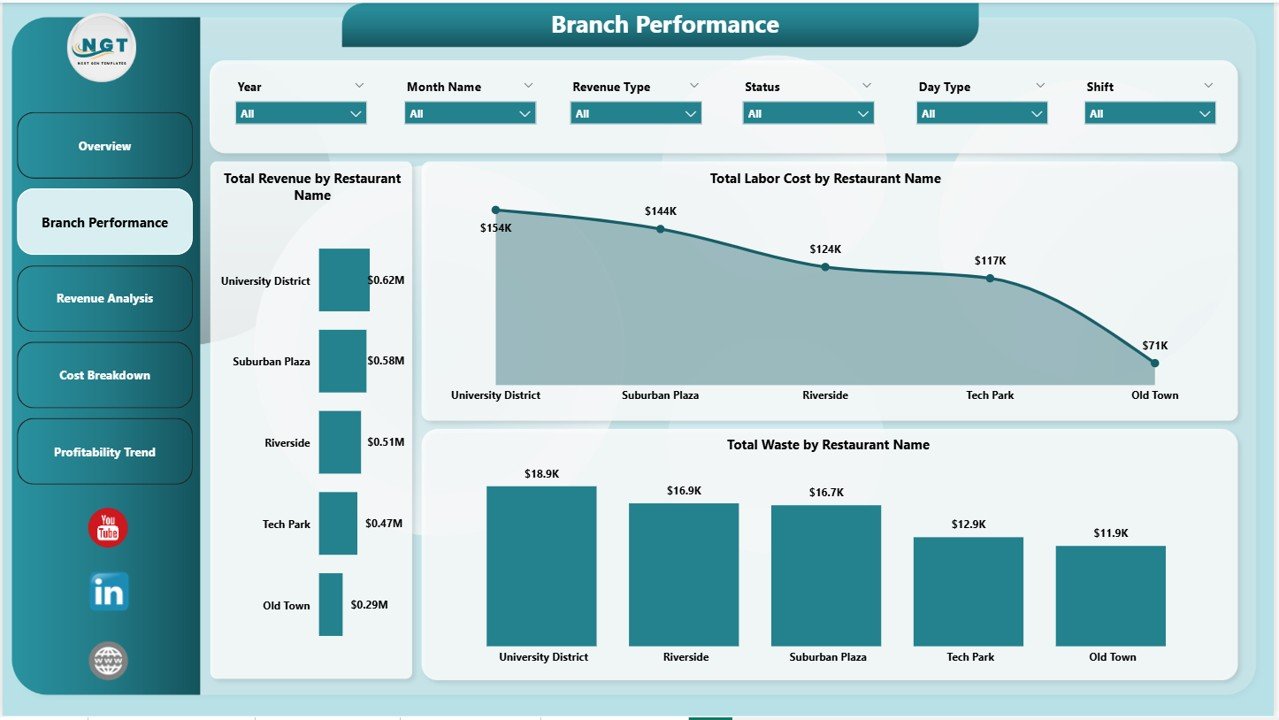 Branch Performance
3. Revenue Analysis Page
The Revenue Analysis Page breaks down your restaurant’s income streams for deeper understanding. It includes charts for Total Net Revenue by Revenue Type, Total Revenue by Shift, and Total Revenue by Category. This analysis helps managers understand whether dine-in, takeaway, or delivery drives the most revenue, which shifts are most productive, and which food categories contribute most to the top line.
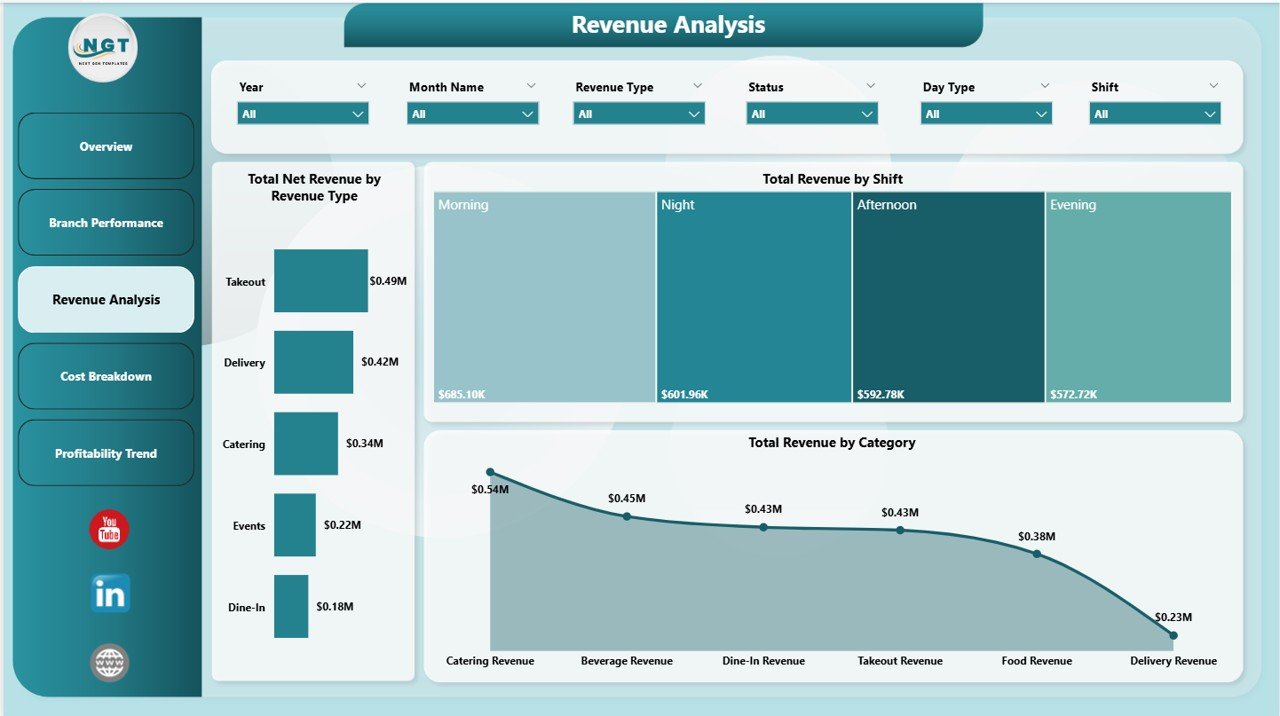 Revenue Analysis
4. Cost Breakdown Page
The Cost Breakdown Page provides a detailed view of where your money goes. Charts for Total Labor Cost by Day Type, COGS % by Category, and Total Waste by Revenue Type help you identify the biggest cost drivers. Understanding whether weekends or weekdays have higher labor costs, which food categories carry the highest COGS percentage, and where waste is concentrated allows for targeted cost reduction strategies.
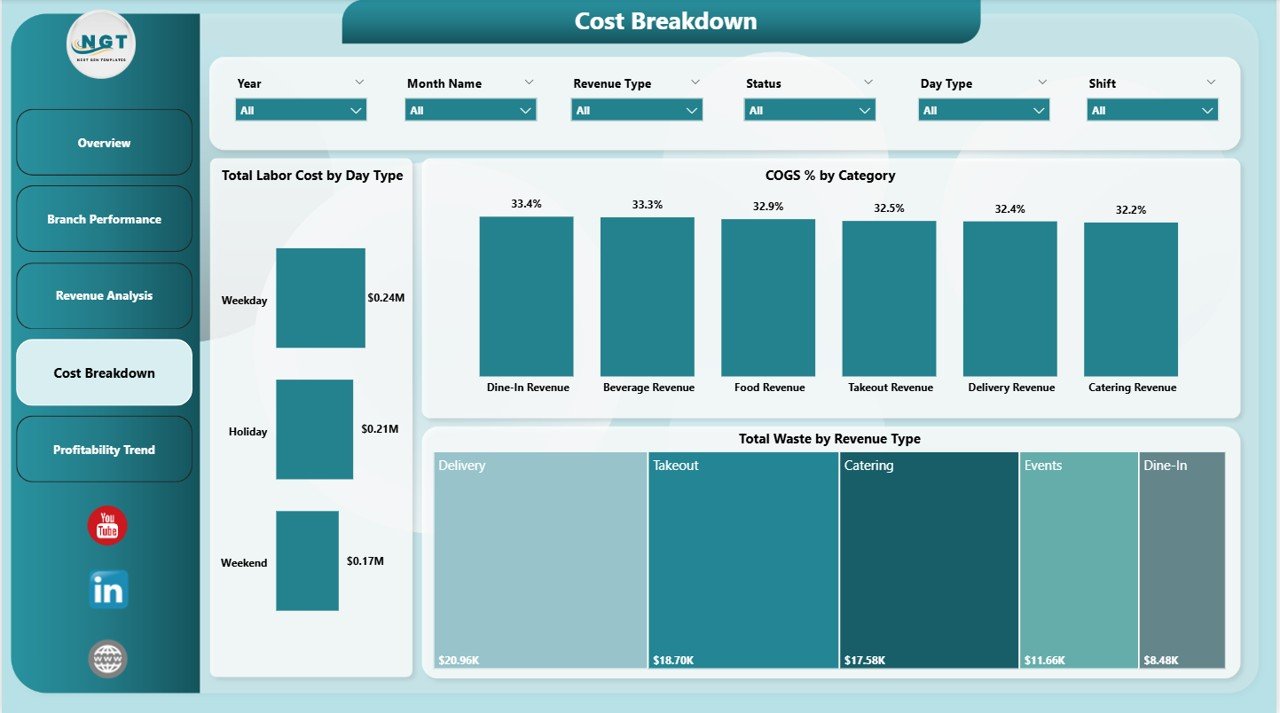 Cost Breakdown
5. Profitability Trend Page
The Profitability Trend Page tracks your restaurant’s financial trajectory over time. It includes charts for Profitable Count by Category, Profitability Rate % by Month Name, and Total Revenue by Status. This page helps identify seasonal patterns in profitability, understand which categories consistently deliver profits, and monitor the status distribution of transactions to ensure healthy business operations.
 Profitability Trend
Advantages of Restaurant P and L Dashboard in Power BI
- Centralized Financial Visibility — All restaurant P&L metrics in one interactive dashboard instead of scattered spreadsheets.
- Real-Time Decision Making — Refresh data and get updated insights instantly, enabling faster corrective actions.
- Multi-Branch Comparison — Easily compare performance across outlets to identify winners and underperformers.
- Cost Optimization — Detailed cost analysis helps reduce labor expenses, waste, and COGS effectively.
- Profitability Tracking — Monthly trend analysis reveals seasonal patterns and long-term financial health.
- No Advanced Skills Needed — Built for business users who can use Power BI Desktop without writing DAX or complex formulas.
Opportunities for Improvement
- Adding a customer satisfaction or feedback page would complement the financial analysis with service quality insights.
- Including a forecast or budget vs actual comparison page could help with financial planning and target setting.
- Integration with POS systems for automated data refresh would further reduce manual data entry effort.
Best Practices for Using This Dashboard
- Update your data weekly or monthly for consistent trend analysis and accurate KPI tracking.
- Use slicers actively to compare specific branches, time periods, or categories rather than looking at aggregate numbers alone.
- Share the dashboard with your finance and operations teams using Power BI Service for collaborative decision-making.
- Start with the Overview page for a quick health check, then drill into specific pages based on areas of concern.
Explore Relevant Templates
🔹 Restaurant P and L Dashboard in Excel — The Excel version with pivot-powered analytics for the same restaurant P&L data.
🔹 Restaurants and Food Services Dashboard in Power BI — Broader restaurant analytics covering sales, costs, ratings, and city-level performance.
🔹 Coffee Chains Dashboard in Excel — Perfect for coffee shop and franchise chain analytics.
🔹 Food and Beverage Dashboard in Google Sheets — Cloud-based F&B analytics in Google Sheets.
👉 Click here to Purchase Restaurant P and L Dashboard in Power BI
Frequently Asked Questions
What is the best Power BI dashboard template for restaurant profit and loss analysis?
The Restaurant P and L Dashboard in Power BI is one of the best templates for tracking restaurant financial performance. It includes 5 interactive pages covering revenue, COGS, labor costs, waste, branch comparisons, and monthly profitability trends — all with slicer-based filtering for instant analysis.
How do I track restaurant profitability across multiple branches in Power BI?
The Branch Performance page in the Restaurant P and L Dashboard in Power BI allows you to compare Total Revenue, Total Labor Cost, and Total Waste across all your restaurant branches side by side. Combined with slicers, you can filter by specific time periods or categories for deeper analysis.
Can I use this dashboard without advanced Power BI skills?
Yes. The dashboard is designed for business users. Simply open the .pbix file in Power BI Desktop (free from Microsoft), replace the sample data with your own restaurant records, and click Refresh. All charts, KPI cards, and visuals update automatically.
What restaurant KPIs does this dashboard track?
The dashboard tracks Total Records, Total Revenue, Total Net Revenue, Profitability Rate %, Total COGS, Labor Costs, Waste, Average Check Value, and more. These KPIs are displayed across 5 dedicated dashboard pages with visual charts and monthly trends.
Is there an Excel version of this restaurant P&L dashboard available?
Yes. NextGenTemplates offers the Restaurant P and L Dashboard in Excel with the same 5 pages, pivot tables, and slicer-based filtering — perfect for teams that prefer working in Microsoft Excel.
Conclusion
The Restaurant P and L Dashboard in Power BI transforms complex restaurant financial data into clear, visual, and actionable business intelligence. With 5 interactive pages, real-time filtering, and comprehensive KPI tracking, it equips restaurant owners, managers, and analysts with everything they need to control costs, optimize revenue, and grow profitability. Whether you run a single outlet or a multi-location chain, this dashboard gives you the clarity to make smarter, faster, and more confident decisions.
👉 Click here to Purchase Restaurant P and L Dashboard in Power BI
🎥 Visit our YouTube channel for step-by-step video tutorials:
👉 Youtube.com/@PK-AnExcelExpert