Your customer list has duplicates, and you are emailing the same people twice. You can remove duplicates in Excel in about ten seconds with one built-in button. The trick is to tell Excel which column decides what a duplicate is, and to keep a copy of the original first.
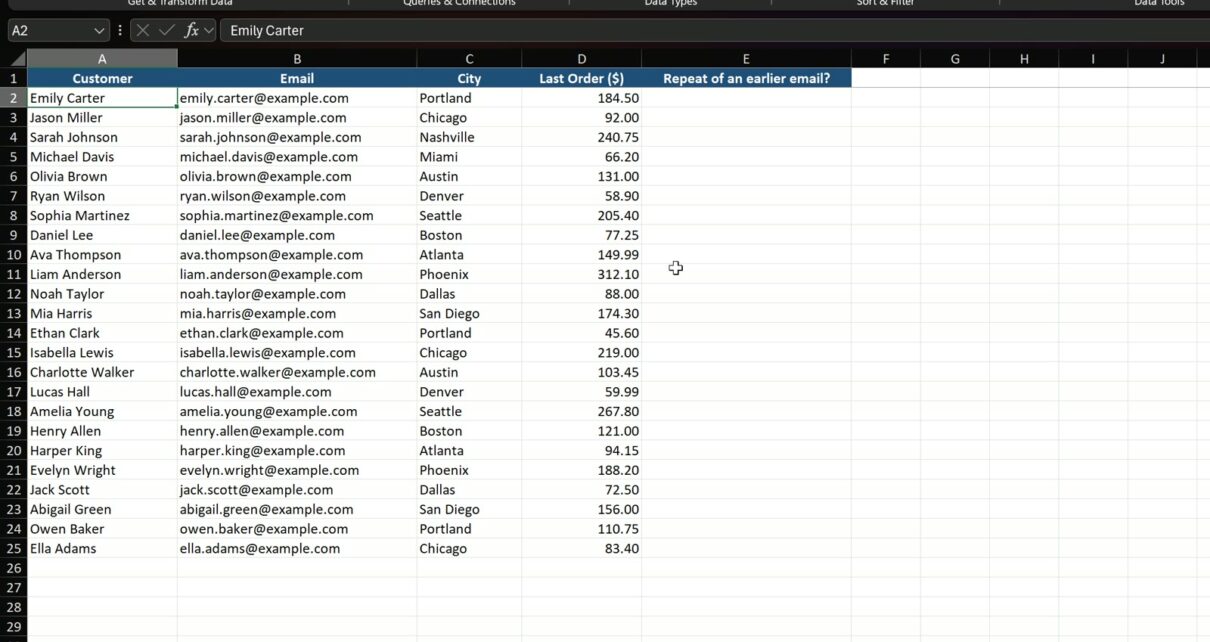
In this quick tutorial we use a practice file with 30 fictional customer rows. Six of them repeat an earlier email. At the end you will have 24 clean customers and the untouched original sheet next to them.
The whole trick in under 40 seconds.
⬇️ Join Free on Skool & Download the Practice File
Free membership · takes 1 minute · the file is in Classroom → Free Downloads from YouTube
What Does Remove Duplicates in Excel Do?
Remove Duplicates (on the Data tab, in the Data Tools group) deletes rows whose values repeat an earlier row in the columns you tick. It keeps the first row it finds and deletes the later copies. It works on the cells in place, which is why you should copy the sheet before you run it.
The practice file has one sheet, Customers, with Customer, Email, City and Last Order ($). Column E, Repeat of an earlier email?, uses =IF(COUNTIF($B$2:B2,B2)>1,"Duplicate","") to flag each repeat so you can see the six rows before you remove them.
How to Remove Duplicates in Excel (6 Steps)
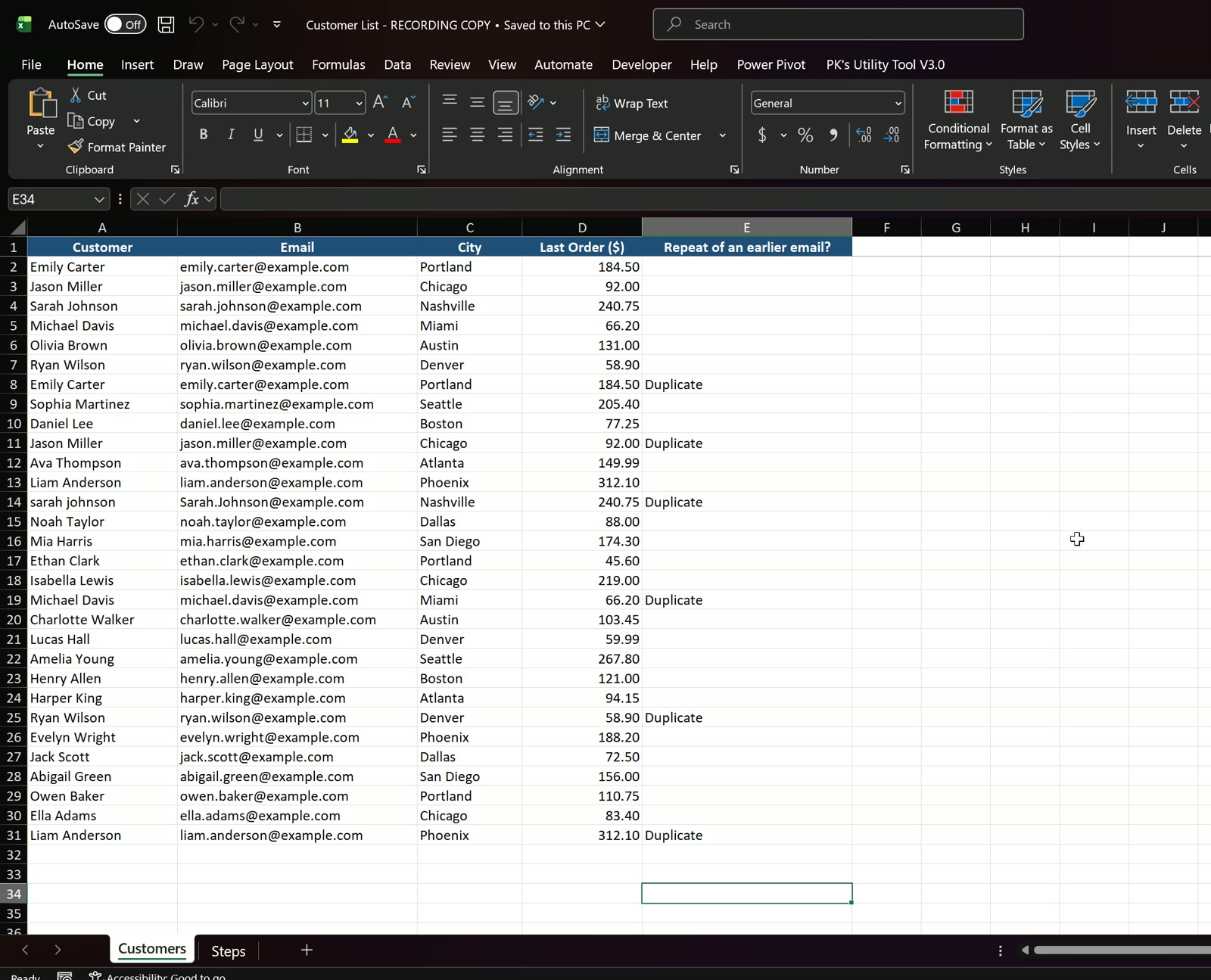
Step 1: Look at the duplicates first
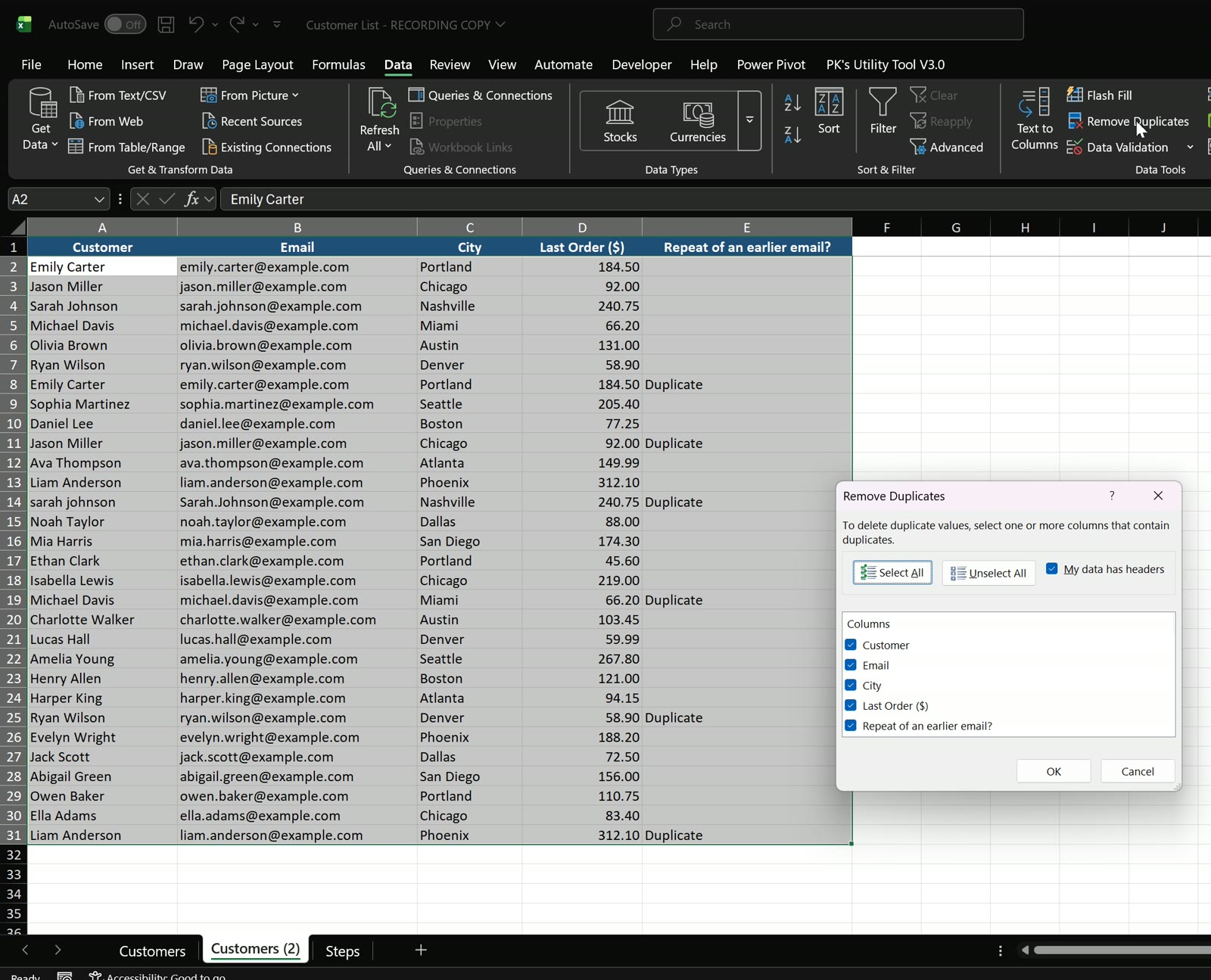
Open the Customers sheet. The flag column marks six rows as Duplicate: Emily Carter, Jason Miller, sarah johnson, Michael Davis, Ryan Wilson and Liam Anderson each appear twice.
Step 2: Copy the sheet so the original stays safe
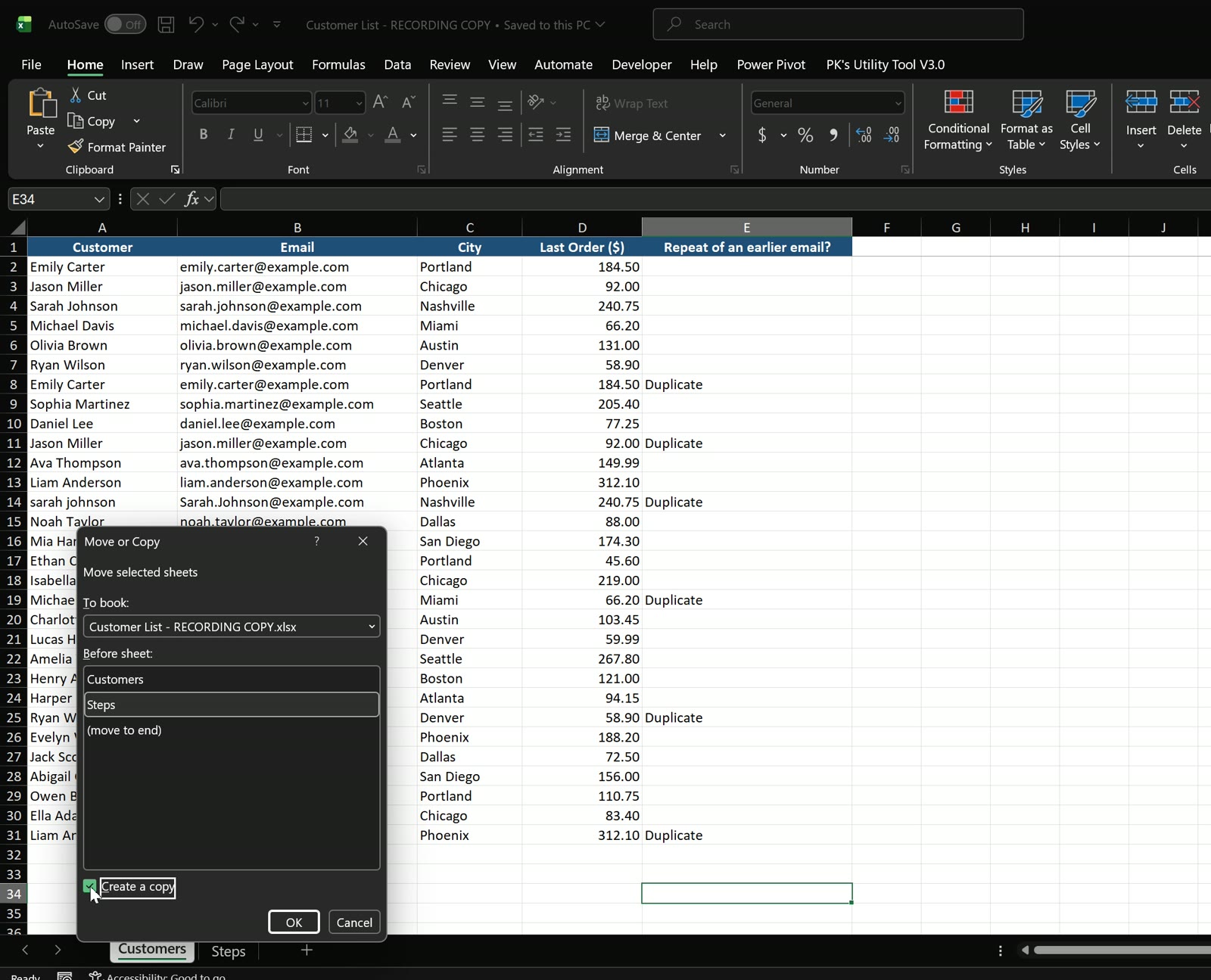
Right-click the Customers tab, choose Move or Copy, tick Create a copy and click OK. Excel adds Customers (2). Do the cleanup on the copy.
Step 3: Open Data > Remove Duplicates
On Customers (2), click any cell inside the list, then go to Data > Remove Duplicates. Excel selects the whole list and ticks every column by default.
Step 4: Tick only the Email column
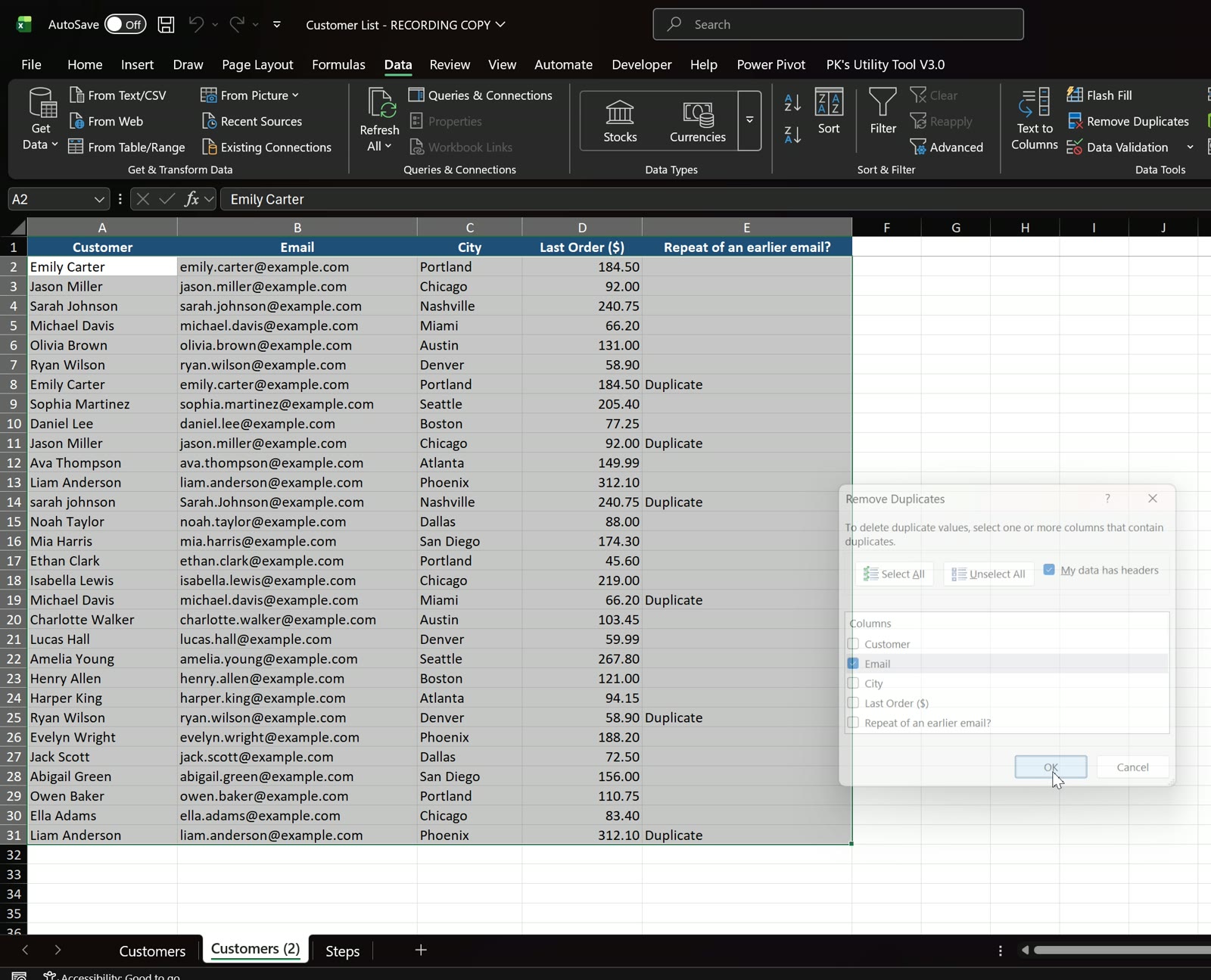
Click Unselect All, then tick only Email. With every column ticked, a row only counts as a duplicate when all its cells match. Jason Miller’s second row has a trailing space in the name, so it would survive. The email is the real ID of a customer, so match on that alone.
Step 5: Click OK and read the message
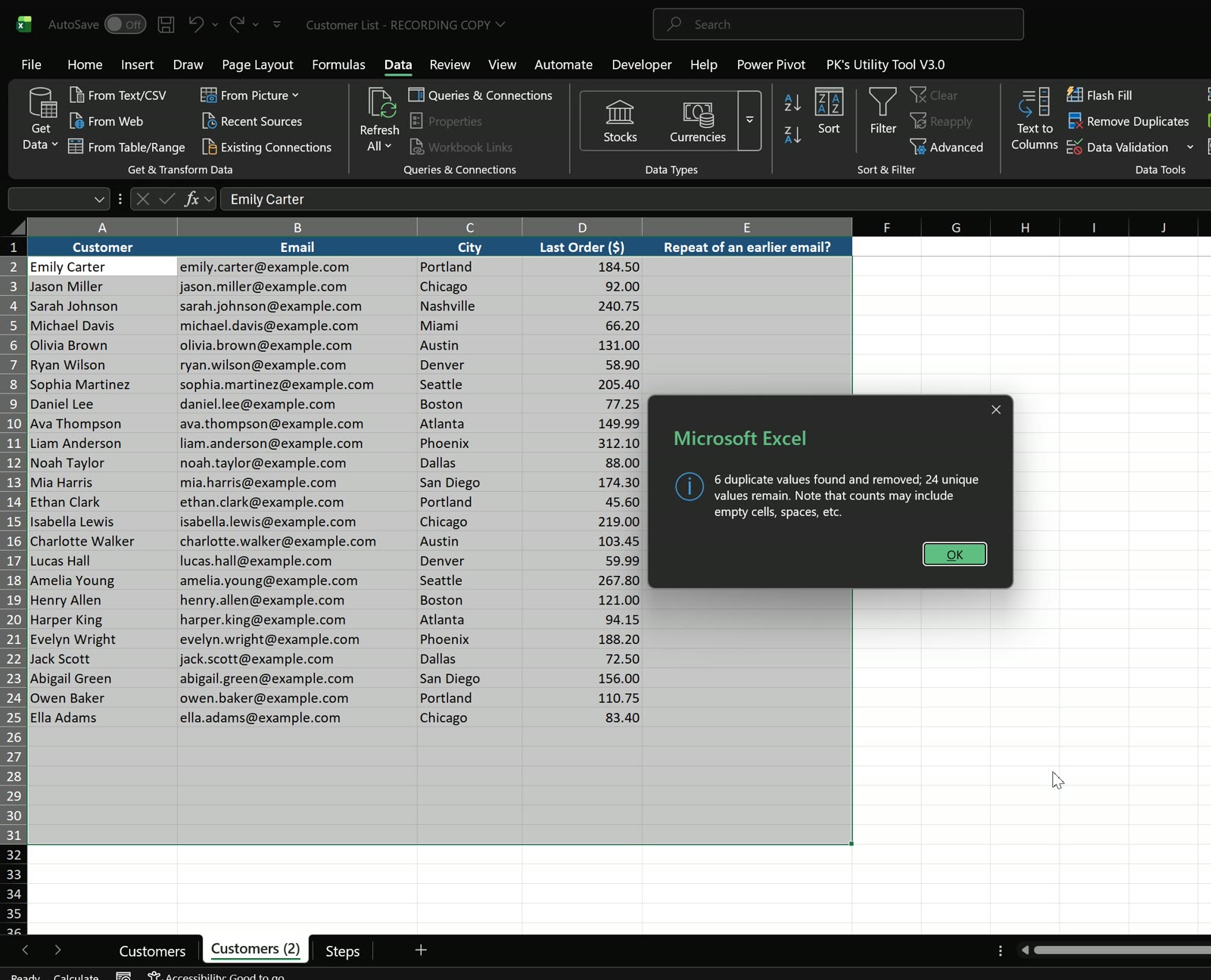
Excel reports: 6 duplicate values found and removed; 24 unique values remain. That matches the six rows the flag column marked in step 1.
Step 6: Check the clean list
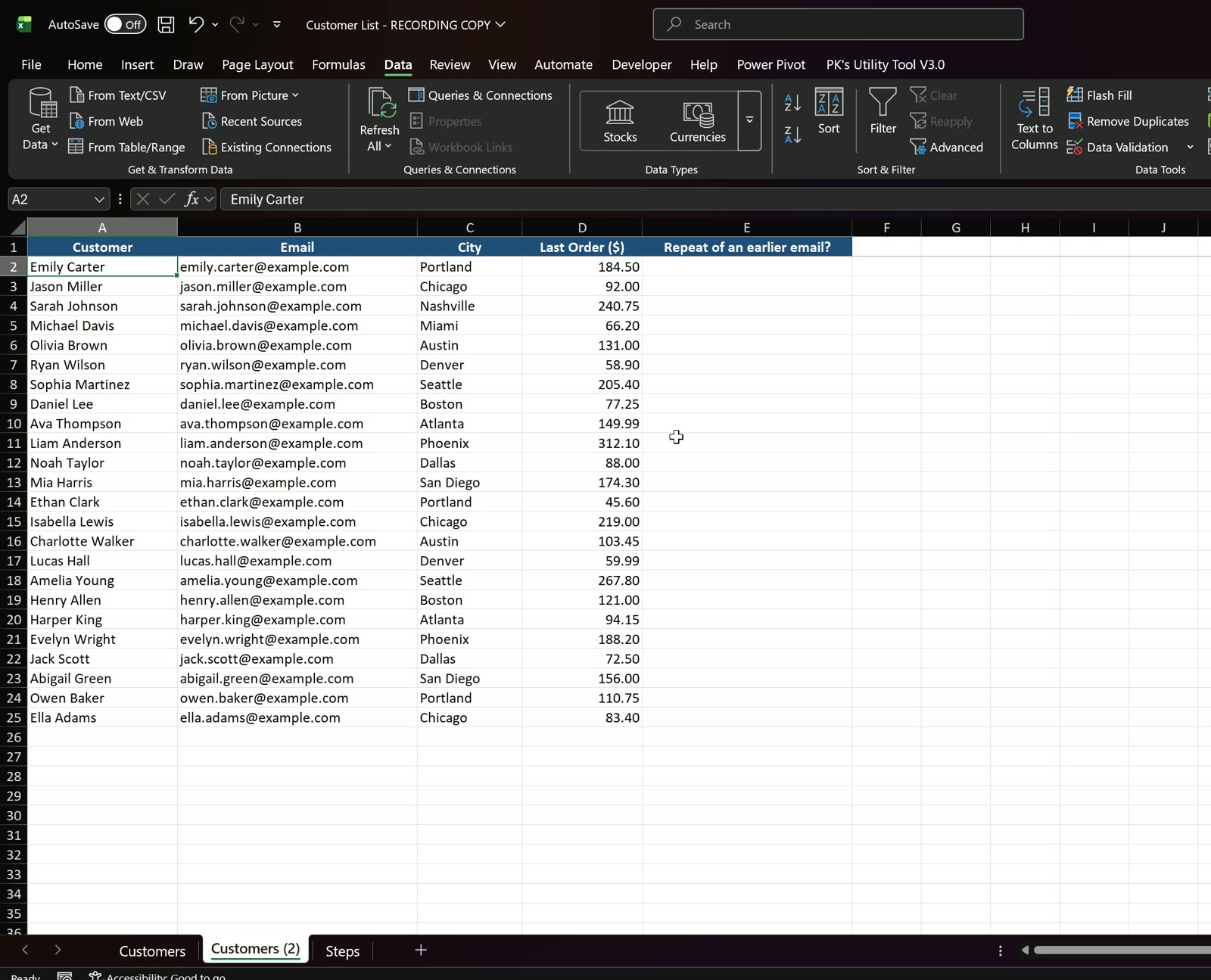
Customers (2) now has 24 customers and the flag column is empty, so no email repeats. The original Customers sheet still has all 30 rows if you need to go back.
Tips for Removing Duplicate Rows in Excel
- Remove Duplicates ignores letter case. sarah johnson with [email protected] still matched the earlier Sarah Johnson row.
- It keeps the first row it meets. Sort the list first (for example newest order on top) if you want to keep a particular copy.
- Extra spaces count as different text. Clean them with TRIM in a helper column if you have to match on names.
- Want to stop duplicates from being typed in the first place? Read how to prevent duplicate entries using data validation in Excel.
Frequently Asked Questions
How do I remove duplicates in Excel but keep the first one?
Data > Remove Duplicates always keeps the first occurrence and deletes the later ones. Put the row you want to keep higher in the list before you run it.
Can I remove duplicates based on one column only?
Yes. In the Remove Duplicates dialog click Unselect All and tick only that column, such as Email. Excel then deletes whole rows whose value in that column repeats.
How do I find duplicates in Excel without deleting them?
Use a flag formula like the one in column E of the practice file, =IF(COUNTIF($B$2:B2,B2)>1,"Duplicate",""), or Conditional Formatting > Highlight Cells Rules > Duplicate Values.
Can I undo Remove Duplicates?
Ctrl+Z works straight after, but not after you save and close the file. That is why step 2 copies the sheet first.
Download the free practice file from the button above and try it with a different column ticked to see how the result changes.