One thousand five hundred online orders, and the owner wants answers every Monday morning. In this tutorial you build an e-commerce sales dashboard in Excel where one click on a slicer filters every chart and every number. You use four PivotTables, three PivotCharts, summary cards with GETPIVOTDATA, three slicers and a timeline. The example is Trailhead Outfitters, an online outdoor gear store in Boulder, Colorado.
⬇️ Download the Free Practice Files
Practice + Solution workbooks · 1,500 example orders · .zip · Excel 365 / 2021
Watch the Video Tutorial
Video Overview
The ten-minute video starts with the finished dashboard, then builds it in three use cases and a bonus. First four PivotTables from one Excel Table. Then the dashboard sheet with three PivotCharts and five summary cards. Then slicers connected to every pivot, where one click on Website or Amazon changes the whole page. The bonus adds a timeline and shows what to do when new orders arrive. Along the way you meet three traps: copy the pivot instead of inserting a new one, average a 1 and 0 column for a rate, and use GETPIVOTDATA for the cards.
What You Will Build
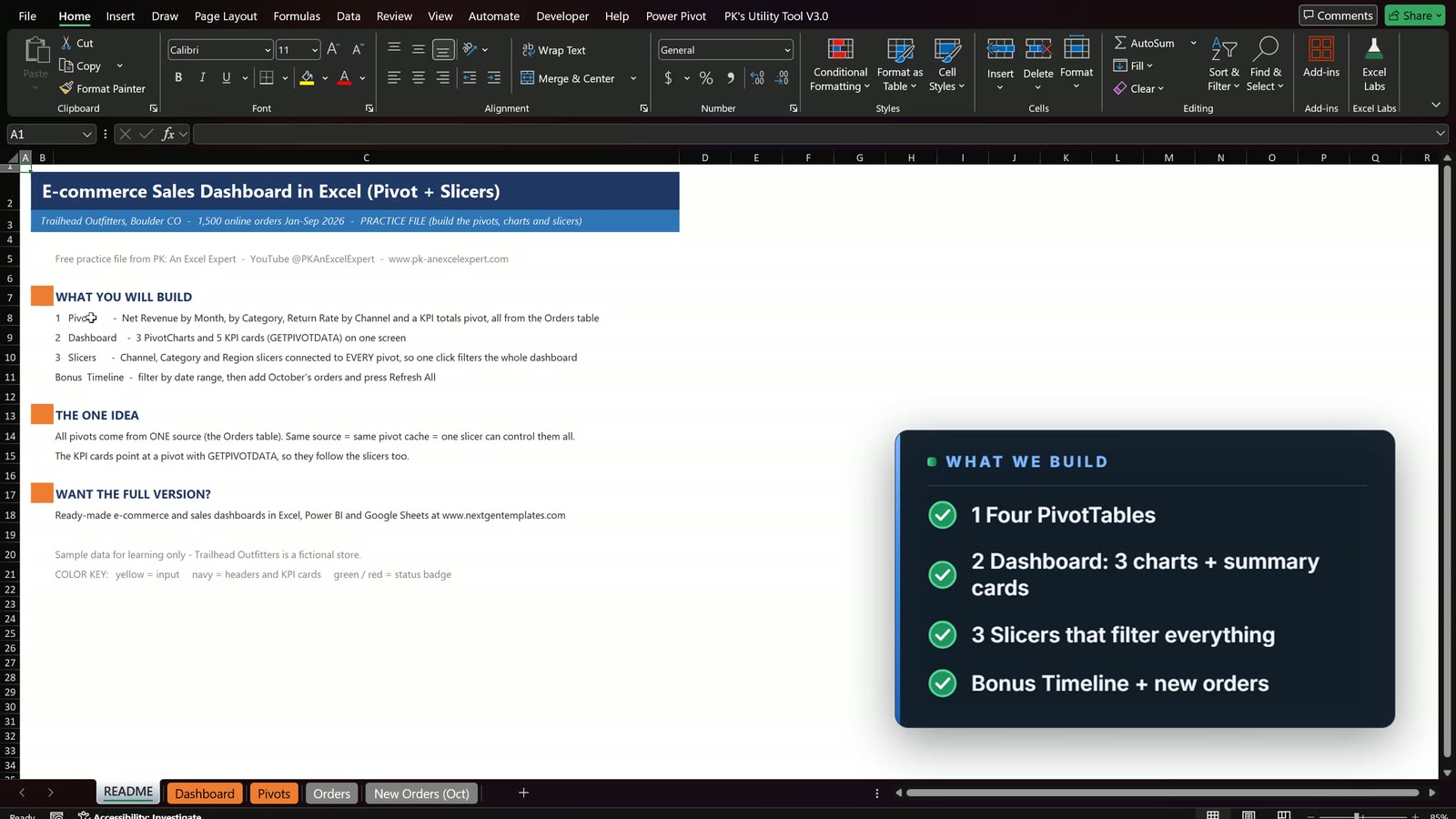
- Four PivotTables on one pivot cache: revenue by month, revenue by category, return rate by channel and a KPI pivot.
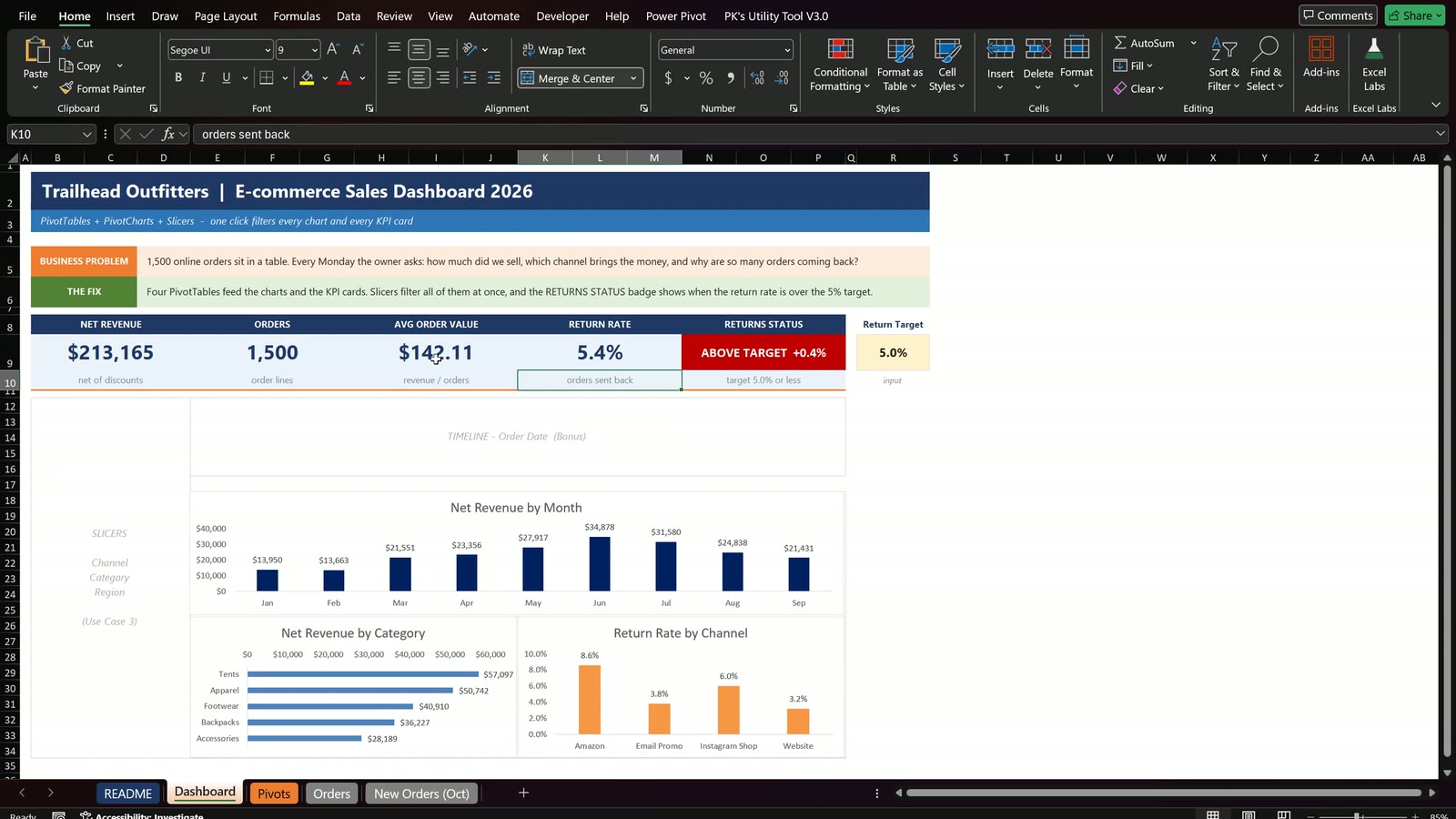
- Three PivotCharts: a navy column chart, a clustered bar with the biggest category on top, and an orange return-rate column chart.
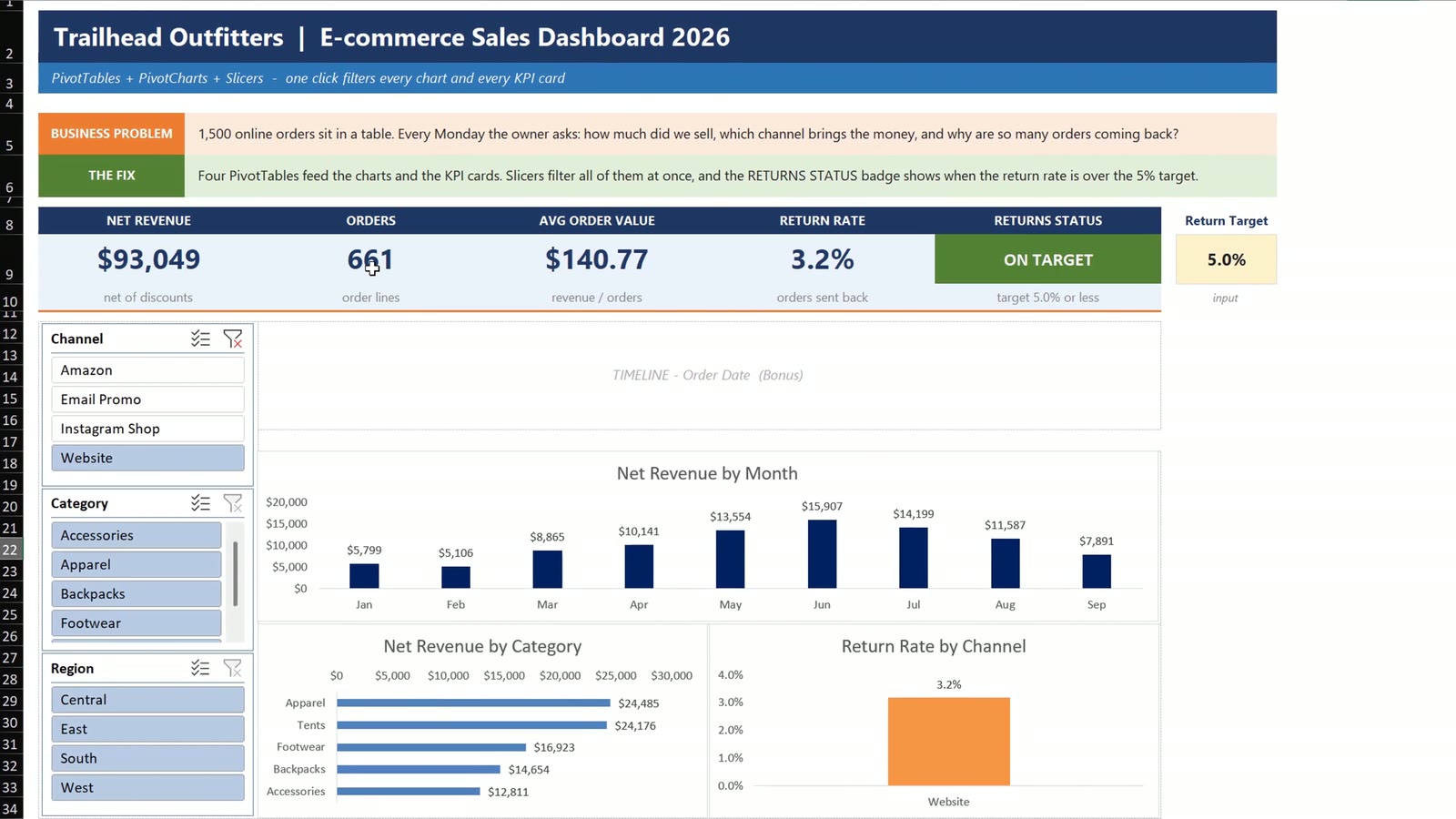
- Five summary cards: net revenue, orders, average order value, return rate and a Returns Status badge against a 5.0% target.
- Three slicers and a timeline that filter everything at once.
The Practice Files and the Data
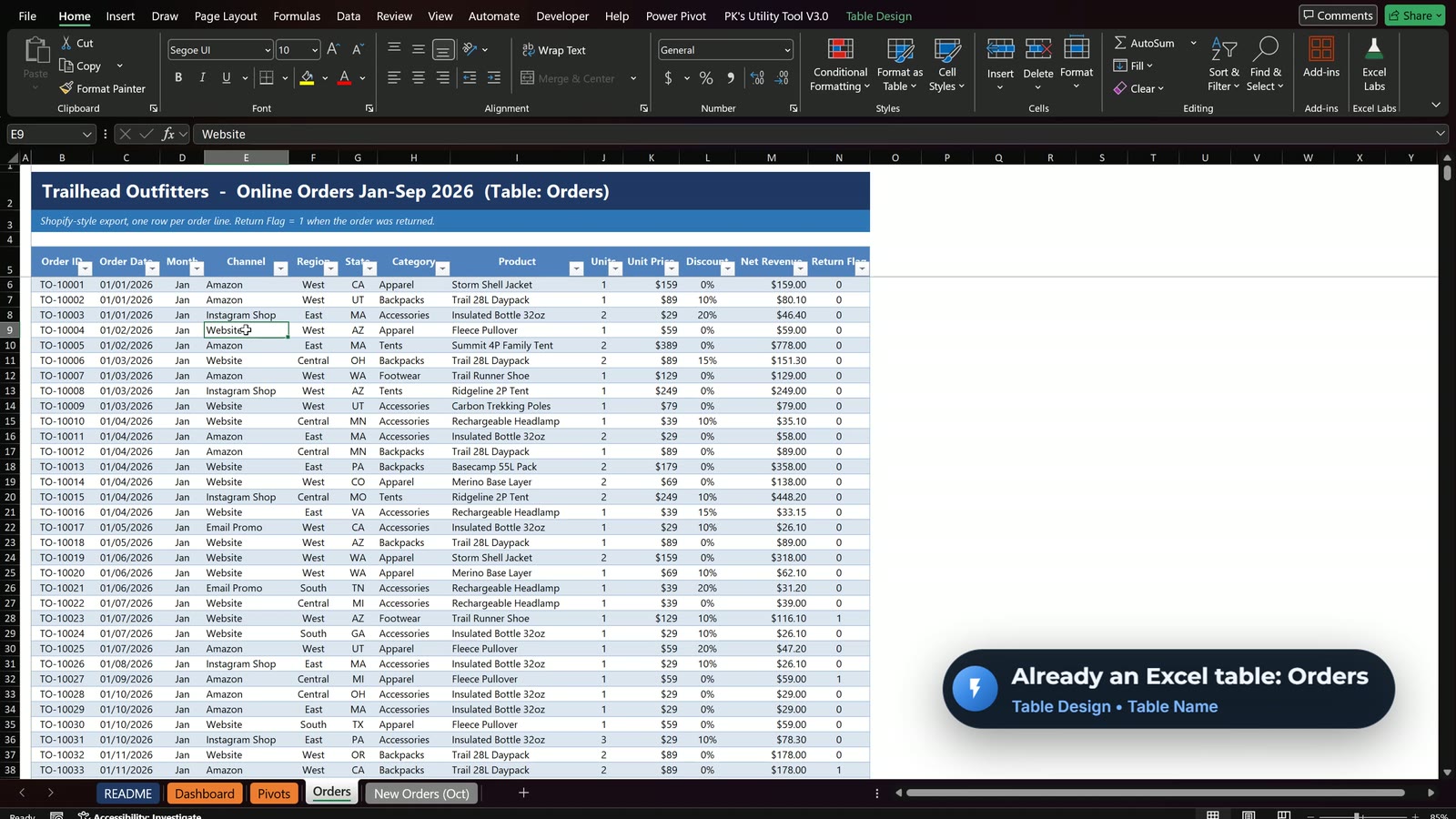
The data has 1,500 order lines from 01/01/2026 to 09/30/2026 across four channels (Website, Amazon, Instagram Shop, Email Promo), five categories, twelve products and four US regions. The Orders range is already an Excel Table called Orders, which matters because the pivots use that name as their source. The Practice file has the dashboard layout ready with dashed boxes for the charts and slicers. The Solution file has everything finished.
Use Case 1: Four PivotTables
On the Pivots sheet select B10, choose Insert > PivotTable, type Orders in the Table or Range box and put it on the existing sheet at B10.
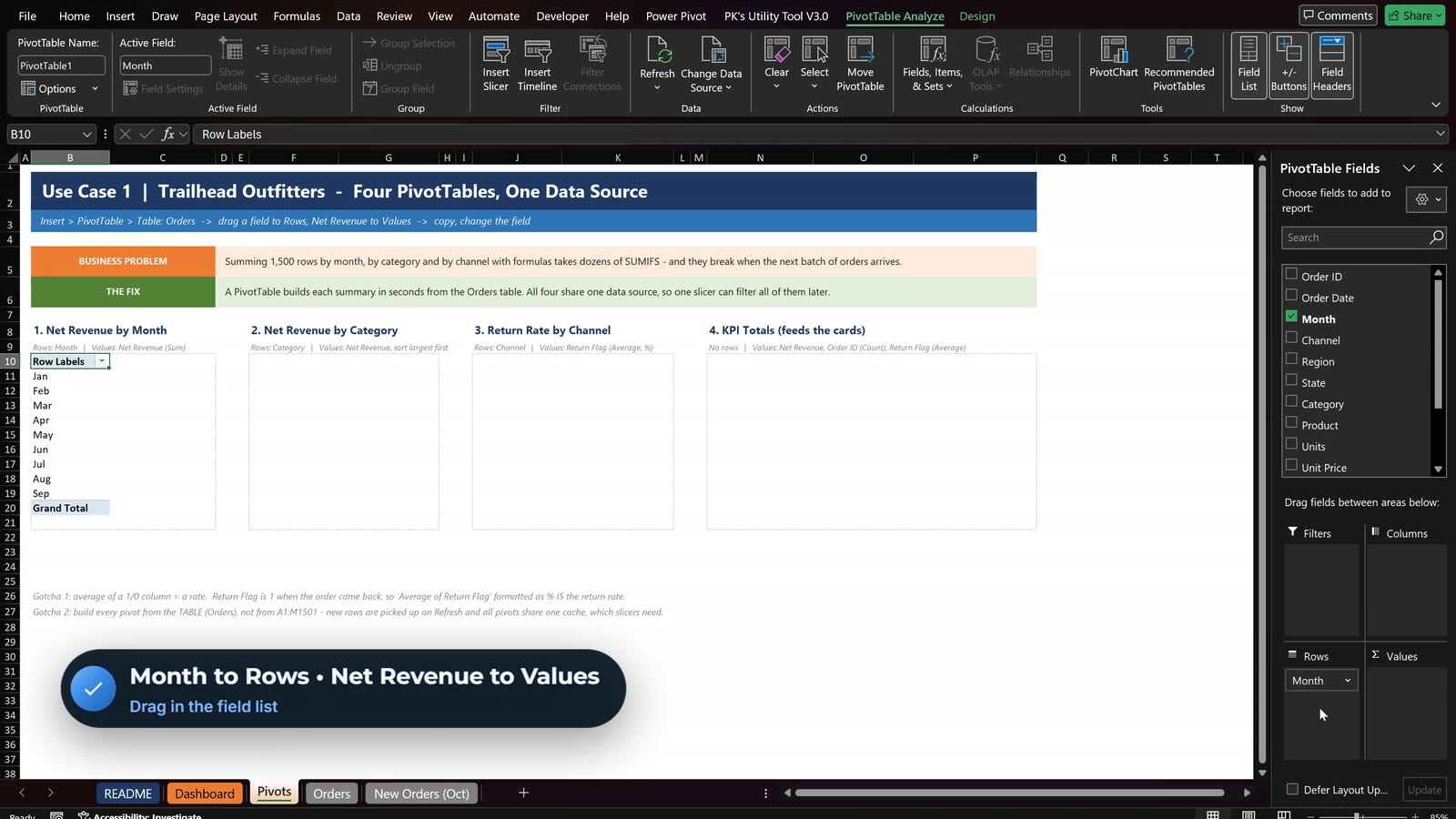
Pivot 1: Net Revenue by Month
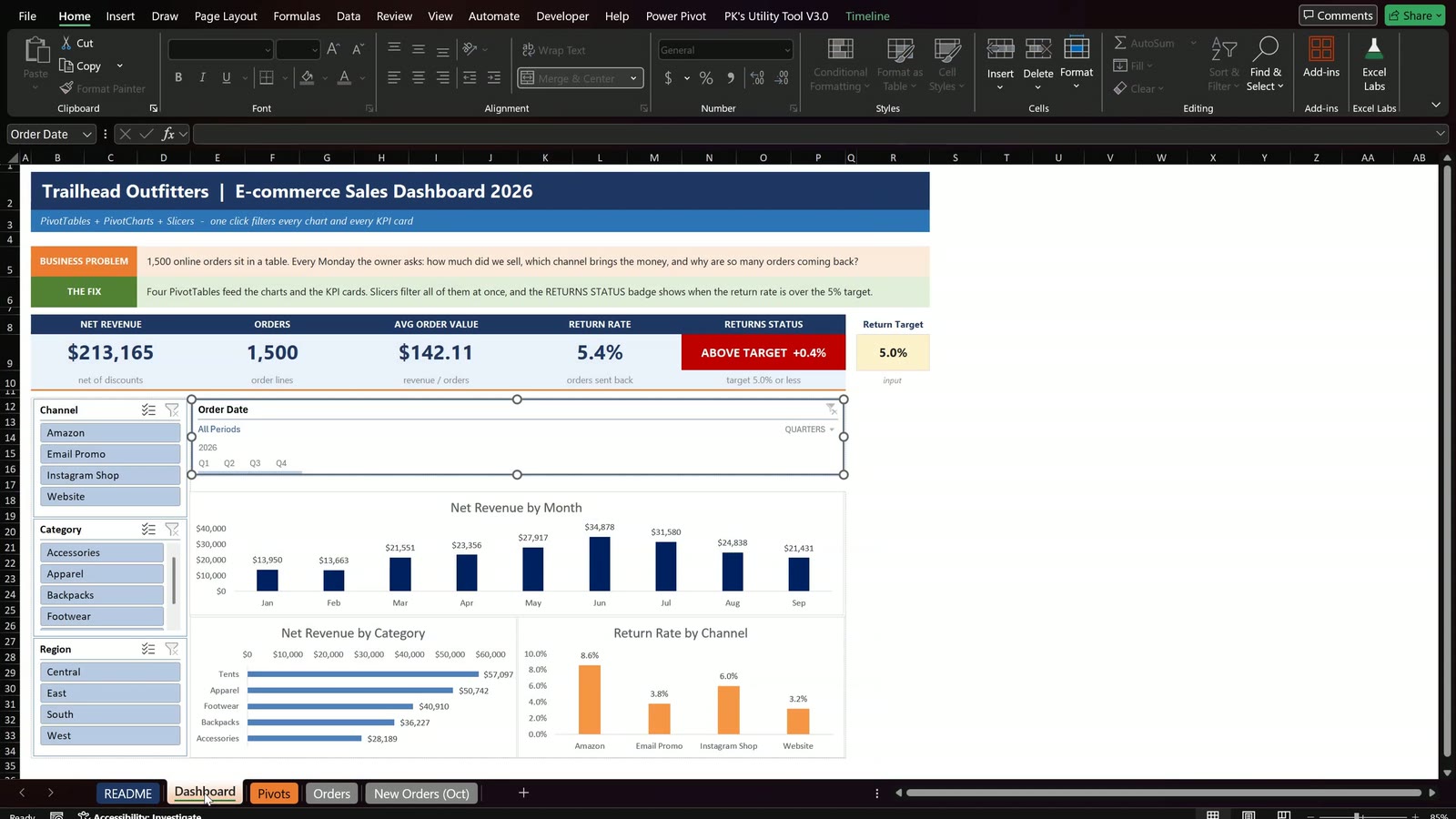
Drag Month to Rows and Net Revenue to Values, then set the number format to Currency with no decimals. The grand total is $213,165 and June is the best month.

Pivot 2: Revenue by Category (the copy trap)
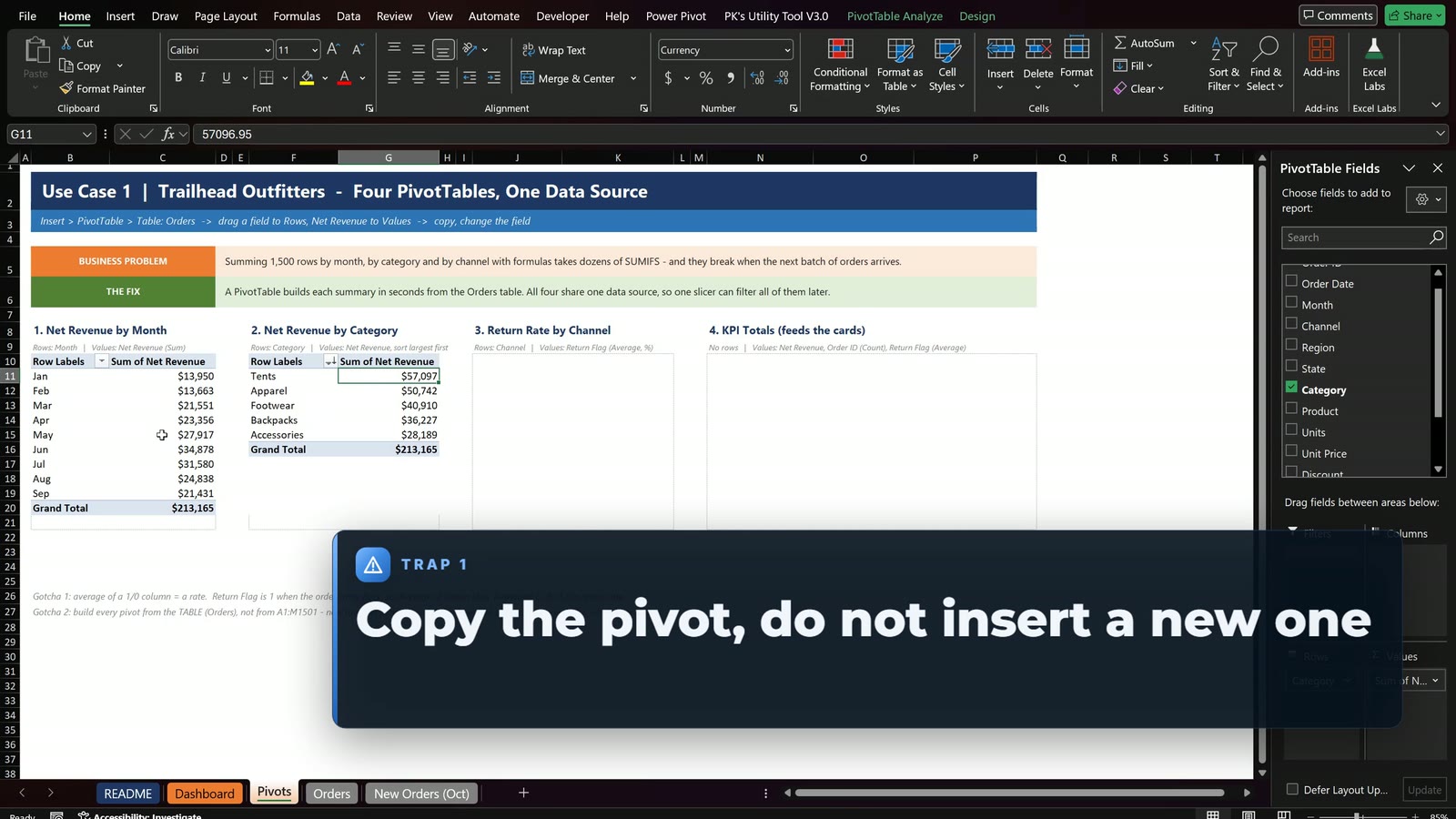
Copy the first pivot to F10, remove Month, drag Category to Rows and sort largest to smallest. Do not insert a new pivot: copies share one pivot cache, and a shared cache lets one slicer control every pivot.
| Category | Net Revenue |
|---|---|
| Tents | $57,097 |
| Apparel | $50,742 |
| Footwear | $40,910 |
| Backpacks | $36,227 |
| Accessories | $28,189 |
Pivot 3: Return Rate by Channel
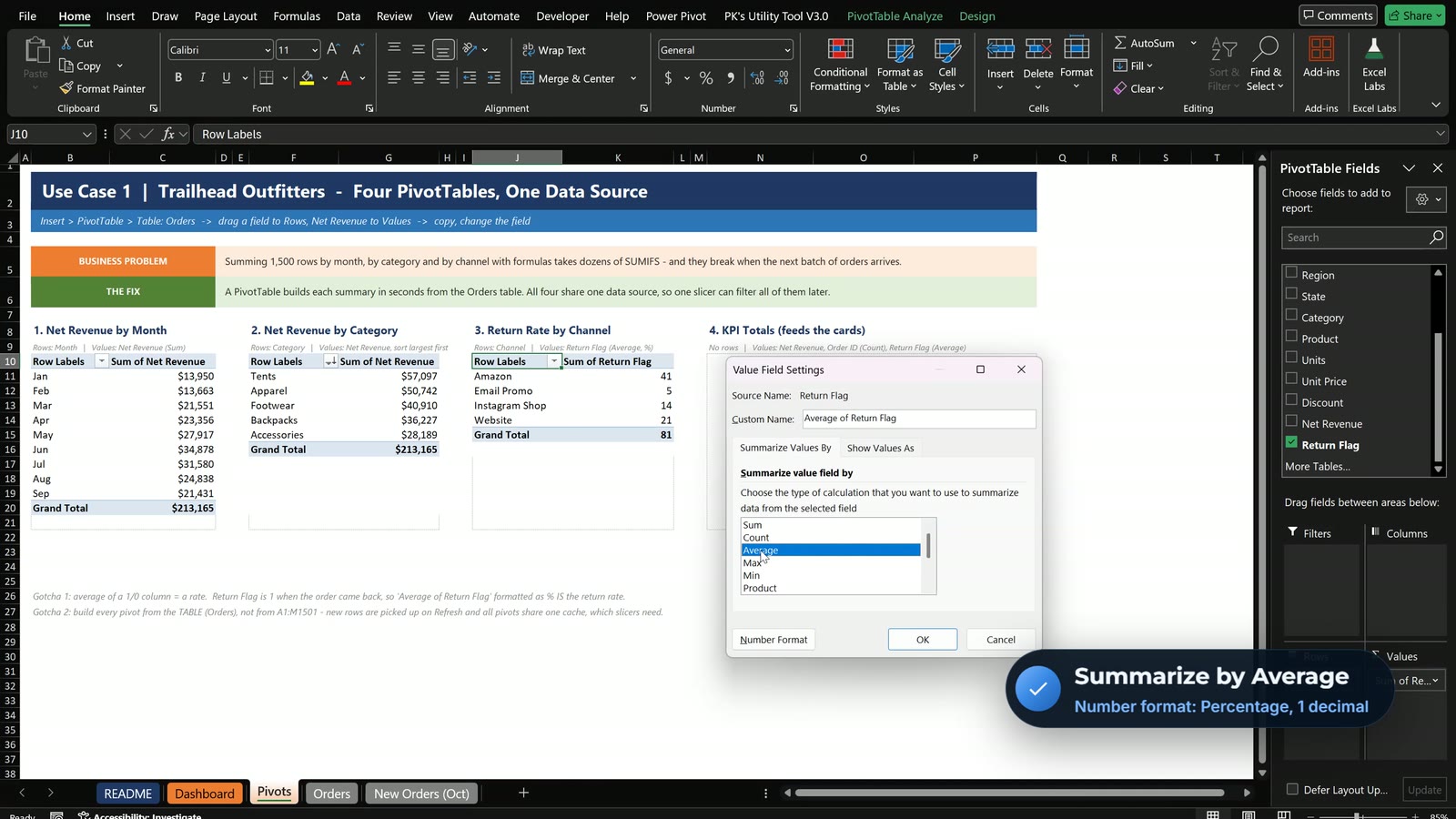
In J10 use Channel in Rows and Return Flag in Values. A sum of ones is only a count, so open Value Field Settings, choose Average and the Percentage format with one decimal.
| Channel | Return rate |
|---|---|
| Website | 3.2% |
| Email Promo | 3.8% |
| Instagram Shop | 6.0% |
| Amazon | 8.6% |
| Grand Total | 5.4% |
Pivot 4: the KPI pivot
In N10 use no rows at all, only three values: Sum of Net Revenue ($213,165), Count of Order ID (1,500) and Average of Return Flag (5.4%). This pivot feeds the summary cards.
Use Case 2: The Dashboard
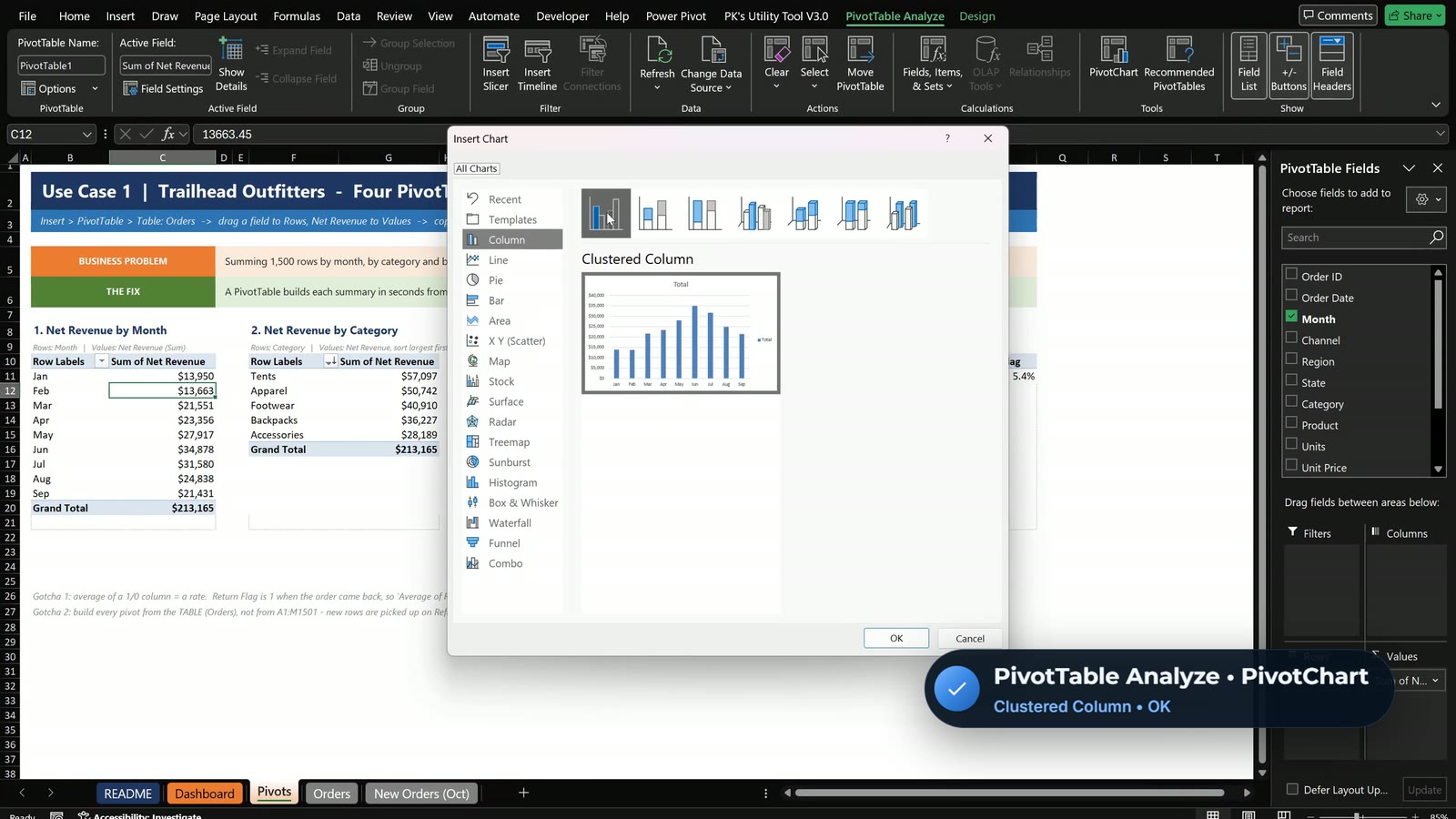
Select a cell in a pivot, choose PivotTable Analyze > PivotChart and pick Clustered Column for the month pivot. Make it clean with navy bars, no gridlines and data labels, hide the field buttons and move it onto the first dashed box. For the category pivot use a Clustered Bar and tick Categories in reverse order so Tents sit on top. For the returns pivot use an orange column chart so Amazon stands out.
Summary cards with GETPIVOTDATA
In B9 type = and click the revenue cell in the fourth pivot: Excel writes the formula itself.
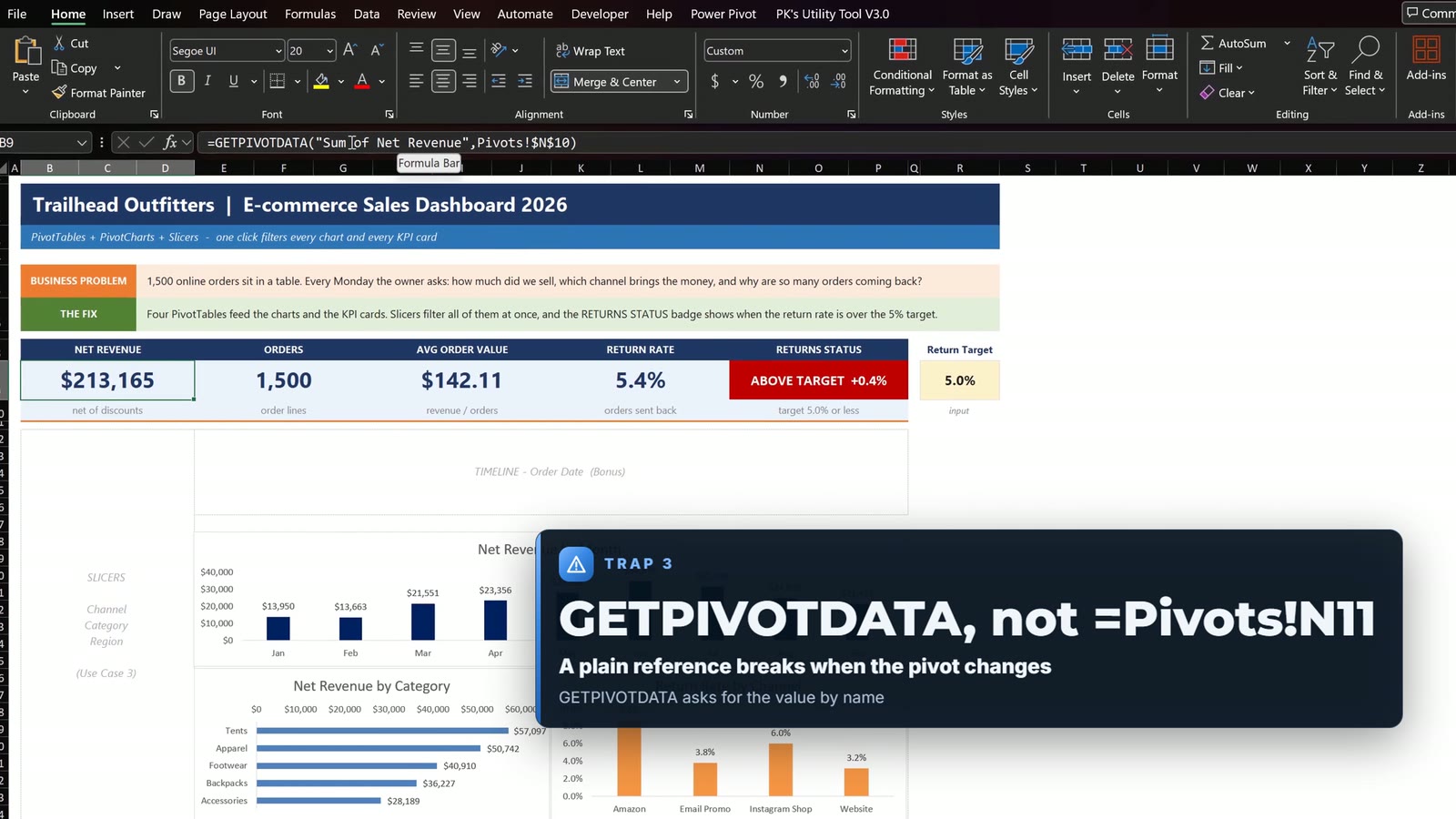
=GETPIVOTDATA("Sum of Net Revenue",Pivots!$N$10)
=GETPIVOTDATA("Count of Order ID",Pivots!$N$10)
=GETPIVOTDATA("Average of Return Flag",Pivots!$N$10)
The cards show $213,165, 1,500 orders and a 5.4% return rate. Average Order Value fills in as $142.11, and the Returns Status card compares 5.4% with the 5.0% target in R9 and shows ABOVE TARGET +0.4% in red.
Trap 3: a plain reference such as =Pivots!N11 points at a fixed cell, so it breaks when a slicer changes the pivot. GETPIVOTDATA asks for the value by its name.
Use Case 3: Slicers That Filter Everything
Select a cell in the fourth pivot, choose PivotTable Analyze > Insert Slicer and tick Channel, Category and Region. Right now each slicer filters only one pivot. Select the Channel slicer, open Slicer > Report Connections, tick all four PivotTables and repeat for Category and Region.

| Channel | Net revenue | Orders | Avg order | Return rate | Status card |
|---|---|---|---|---|---|
| Website | $93,049 | 661 | $140.77 | 3.2% | ON TARGET (green) |
| Amazon | $71,161 | 476 | $149.50 | 8.6% | ABOVE TARGET +3.6% (red) |
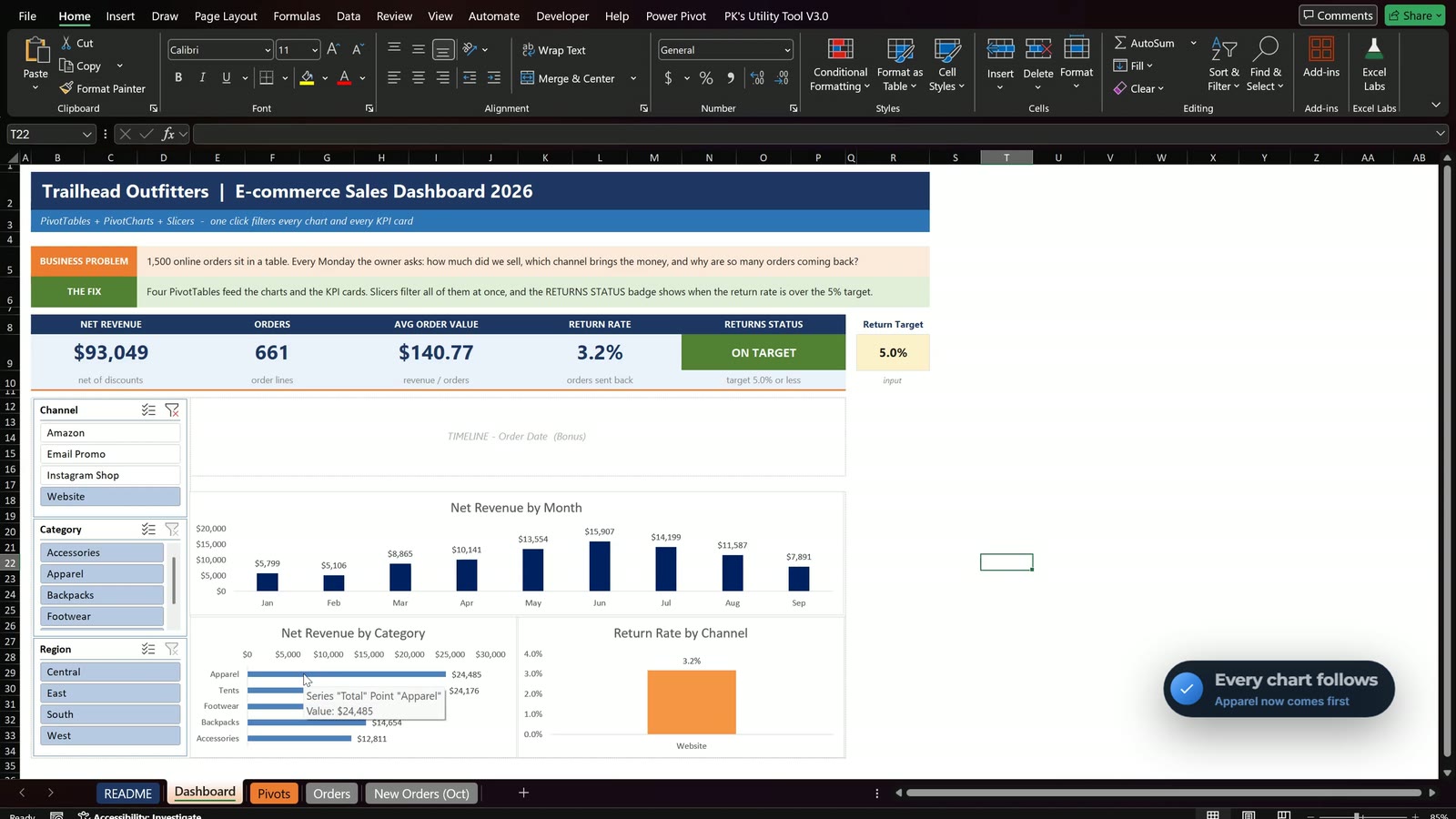
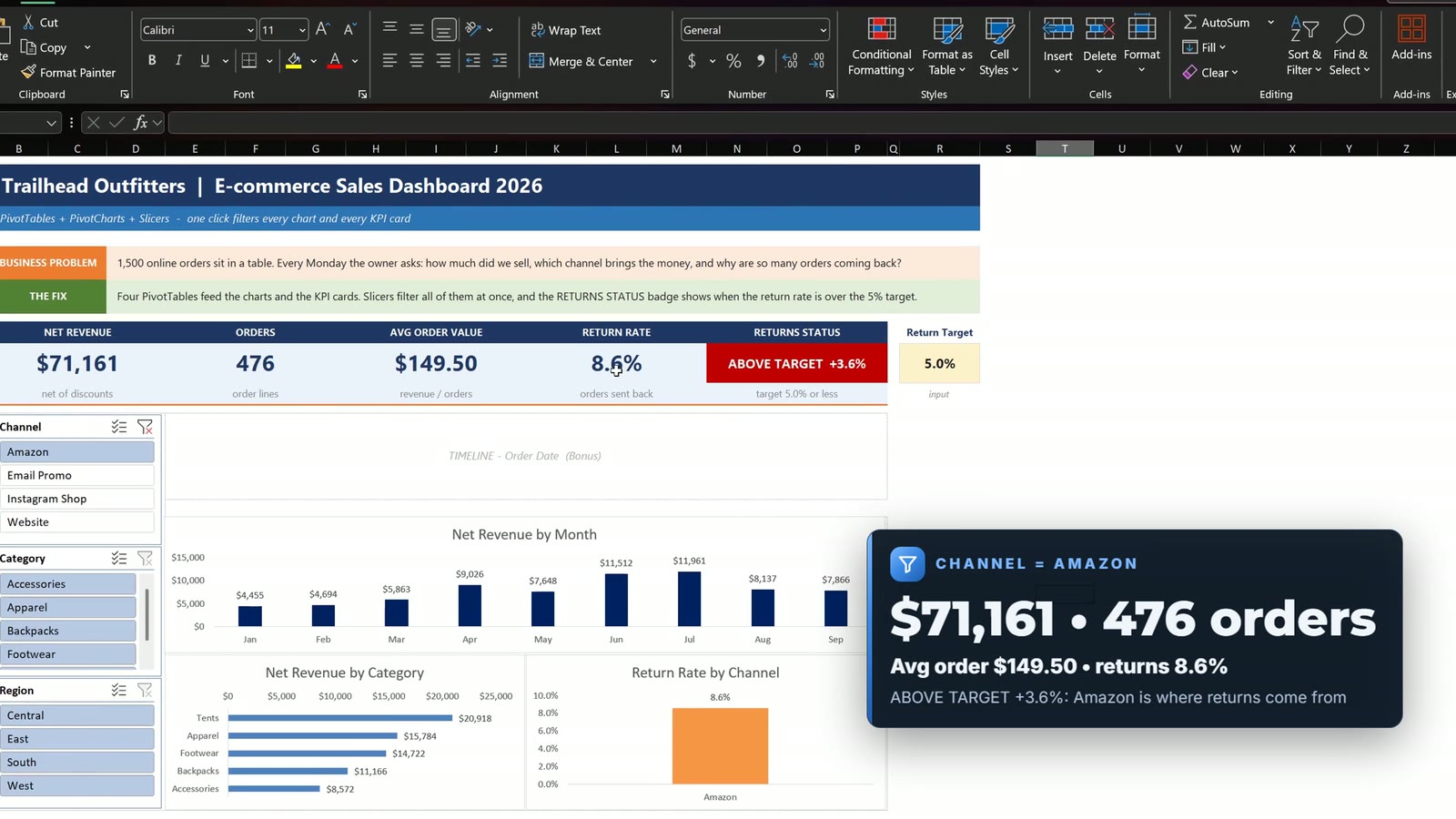
Clear the filter and everything returns to the full year. Remember: a slicer only filters the pivots it is connected to, so open Report Connections again whenever you add a new pivot or slicer.
Bonus: Timeline and New Orders
With the fourth pivot selected, choose Insert > Timeline, tick Order Date and connect it to all four pivots the same way. Set it to quarters and select Q2 (April to June): revenue for the spring season is $86,151.
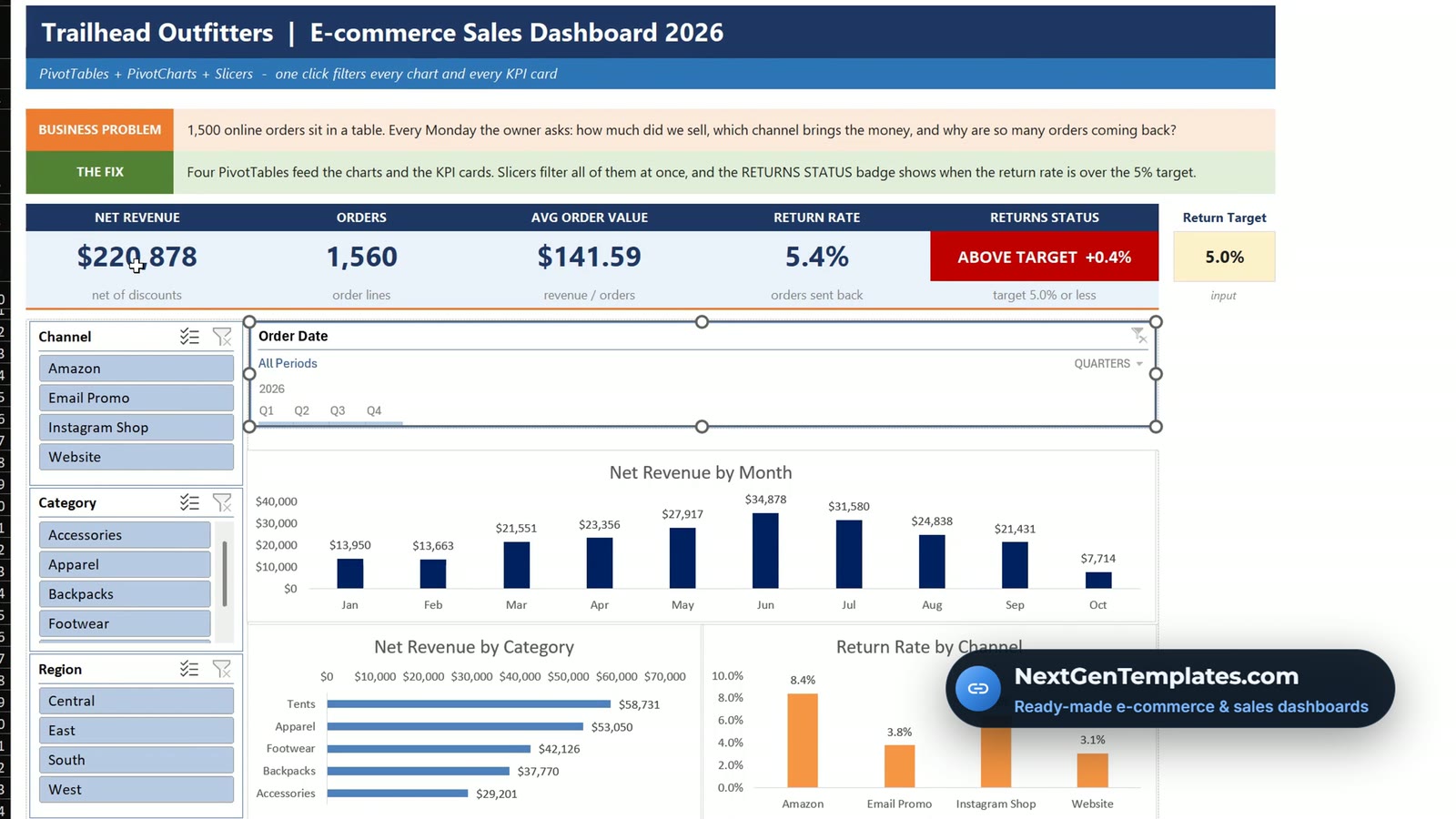
The New Orders sheet holds 60 orders from October. Copy them right below the Orders table and the table grows by itself to 1,560 rows. The dashboard does not change until you choose Data > Refresh All: then net revenue becomes $220,878 and an October bar appears on the month chart.
Tips
- Build every pivot from the Table name, so new rows are included automatically.
- Keep Month as text if you do not want Excel to auto-group dates on screen.
- Check Report Connections first when a chart refuses to follow a slicer.
- Want to go deeper? See Building a Sales Dashboard in Excel: Pivot Tables, Slicers, and Pivot Charts and Cross Filter functionality in Excel chart. Microsoft explains slicers in its official slicer guide.
Want a Finished, Designed Version?
If you would rather start from a ready-made online-store dashboard, see the Online Furniture Retail Dashboard in Excel: 5 pages and 17 charts, with the same one-click filtering idea. To learn the method step by step, take the Excel Pivot Tables & Dashboards course on Next Gen Templates Academy.
Frequently Asked Questions
How do I build an e-commerce sales dashboard in Excel?
Turn your orders into an Excel Table, insert four PivotTables from that table, add PivotCharts and summary cards with GETPIVOTDATA, then insert slicers and a timeline and connect them to every pivot with Report Connections.
Why copy the first PivotTable instead of inserting a new one?
Copies share one pivot cache. A slicer can only control pivots that share its cache, so one slicer then filters every pivot and chart.
Why does my slicer not filter some charts?
A slicer only filters the pivots it is connected to. Select the slicer, open Slicer > Report Connections and tick every PivotTable. Do this again whenever you add a new pivot or slicer.
Why use GETPIVOTDATA for the cards instead of a cell reference?
A plain reference such as =Pivots!N11 points at a fixed cell and breaks when a slicer changes the pivot. GETPIVOTDATA asks for the value by its name, so it always finds the right number.
How do I get a return rate from a Return Flag column?
Use 1 for a returned order and 0 otherwise, then set the value field to Average and the format to a percentage. The average of a 1 and 0 column is the rate.
Why did my dashboard not change after I added new orders?
PivotTables do not refresh by themselves. Use Data > Refresh All, or set PivotTable Options to refresh when the file opens.
Is the practice file free?
Yes. The zip has the Practice and Solution workbooks with 1,500 example orders for the fictional store Trailhead Outfitters. The figures are example data for learning.
Download the Free Practice Files
⬇️ Download the Free Practice Files
Practice + Solution workbooks · 1,500 example orders · .zip · Excel 365 / 2021
By PK, An Excel Expert. The store, orders and figures are fictional example data for learning.
Conclusion
Four PivotTables on one cache, three PivotCharts, cards that use GETPIVOTDATA, and slicers and a timeline connected to everything give you a dashboard that updates with one click and one Refresh All. Download the free files, build it along with the video and compare with the Solution file if you get stuck.