Discount retailers work with thin margins, frequent promotions, multiple store formats, and fast-moving customer behavior. A small change in discount rate, cost, payment mix, or category performance can change monthly profitability. The Discount Stores Dashboard in Power BI helps retail owners, store managers, regional teams, and analysts track Total Transactions, Total Cost, Total Revenue, Net Gross Profit, and Discount Rate % from one interactive report.
This template is built as a ready-to-use Power BI dashboard with five report pages: Overview, Sales Trend, Store Insights, Product Analysis, and Customer Trends. Instead of checking disconnected sales exports, managers can review revenue, cost, discount, margin, region, product, store, customer, and salesperson performance in a single PBIX file.
Discount Stores Dashboard in Power BI
Key Features of Discount Stores Dashboard in Power BI
- Five report pages for Overview, Sales Trend, Store Insights, Product Analysis, and Customer Trends.
- Executive KPI cards for Total Transactions, Total Cost, Total Revenue, Net Gross Profit, and Discount Rate %.
- Interactive slicers so users can filter quickly and compare selected regions, categories, stores, or other retail segments.
- Monthly trend analysis for net gross profit, total discount, and profit margin movement.
- Store performance visuals by region, store type, and store location.
- Product and brand analysis for category margin, brand cost, and customer type profitability.
- Customer trend insights by payment method, region, and salesperson revenue.
- Editable PBIX file for teams that want to customize visuals, fields, data sources, or measures.
Dashboard Pages Explanation
1. Overview Page
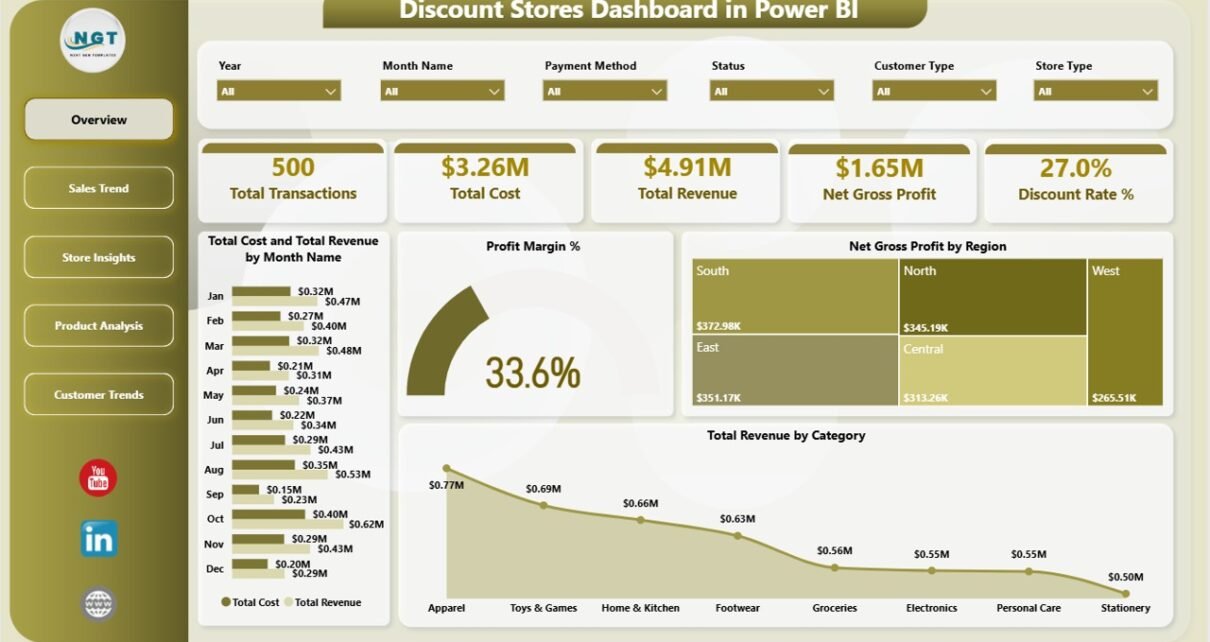
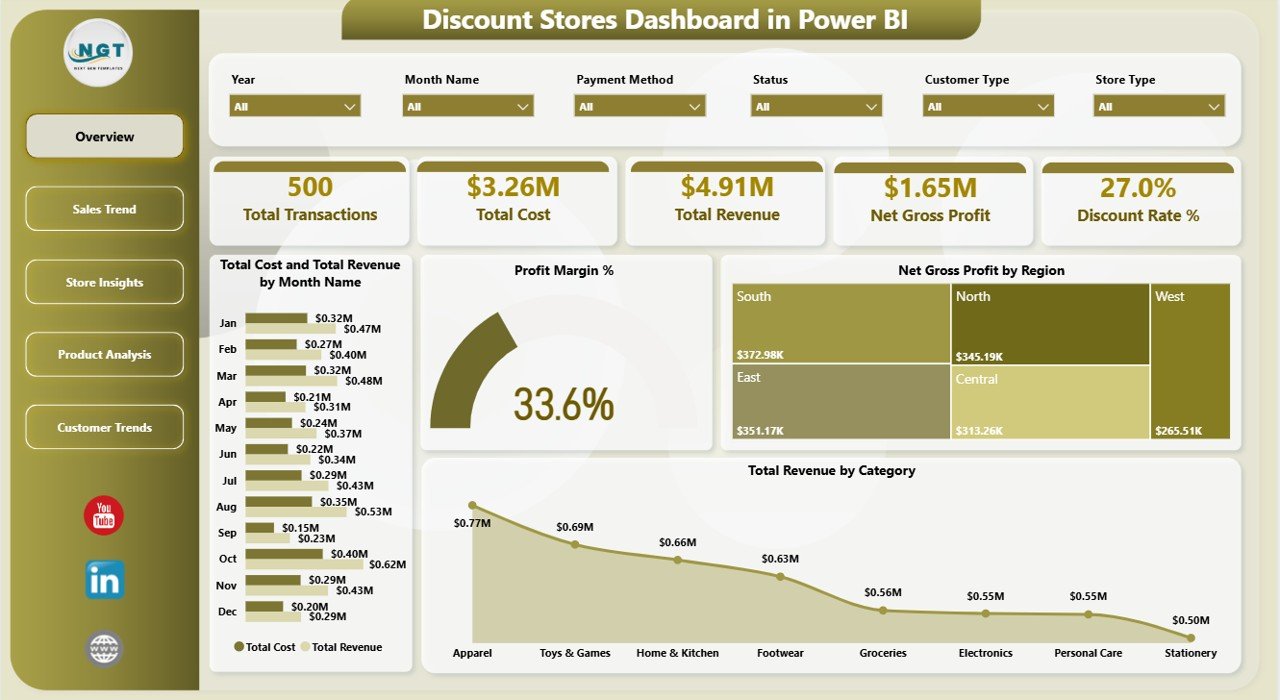
The Overview page works as the executive summary. At the top, the dashboard displays cards for Total Transactions, Total Cost, Total Revenue, Net Gross Profit, and Discount Rate %. These cards help managers understand the full retail picture before drilling into charts.
The page includes slicers for quick filtering, so users can move from all-store performance to a selected region, category, store type, or other available field. This is helpful when managers need to compare performance without rebuilding reports.
Total Cost and Total Revenue by Month Name compares monthly cost and sales movement. If cost rises faster than revenue, the business can investigate supplier cost, product mix, or pricing pressure.
Profit Margin % gives a quick profitability view after costs and discounts. Net Gross Profit by Region shows where profit is strongest, while Total Revenue by Category identifies the product categories driving sales.
Overview Page
2. Sales Trend
The Sales Trend page focuses on month-by-month performance. It helps teams understand whether sales campaigns and discounts are creating healthy profit or simply increasing activity without enough margin.
Net Gross Profit by Month Name shows how profit changes across the reporting period. Total Discount by Month Name reveals when promotion value rises or falls, which is important for discount-store planning.
Profit Margin % by Month Name adds the margin view. This helps finance and operations teams compare monthly profitability against the level of discounting used during that period.
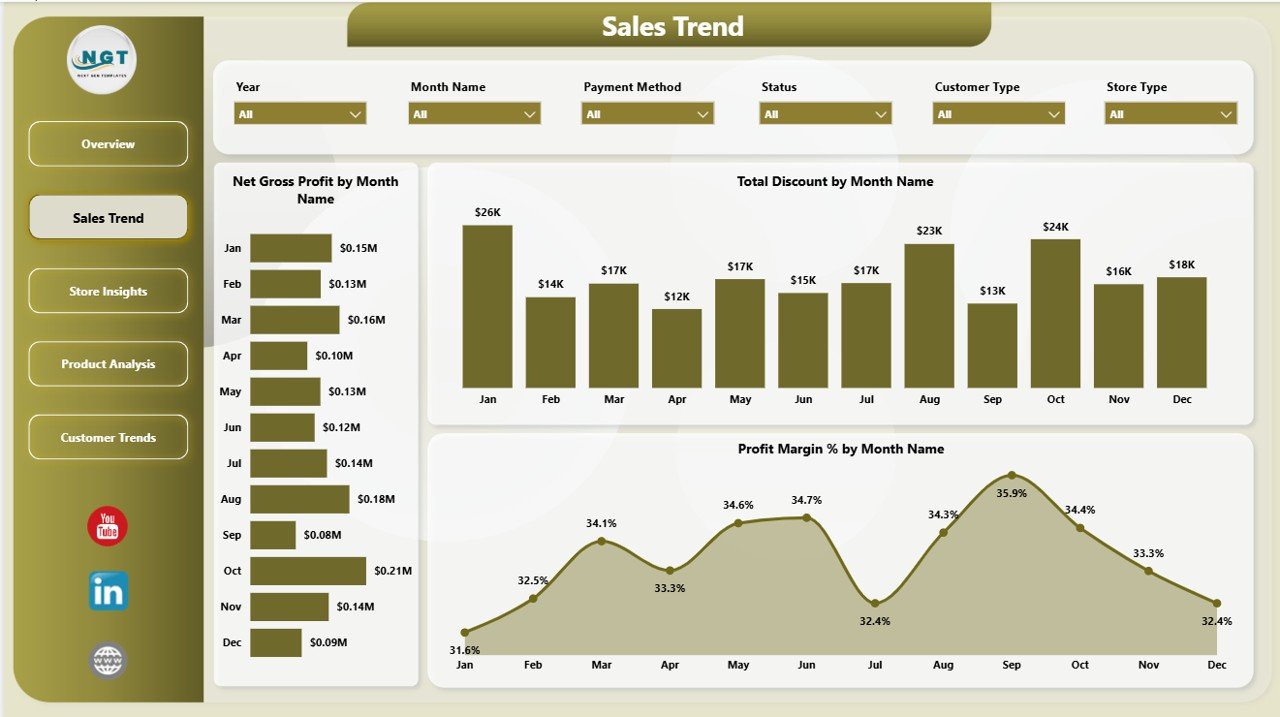
Sales Trend
3. Store Insights
The Store Insights page helps managers compare regions, store types, and store locations. This is useful for multi-location discount stores where each branch may have a different sales volume and margin pattern.
Total Quantity Sold by Region shows where unit movement is strongest. High quantity sold can indicate strong customer demand, but it should be reviewed alongside margin and cost.
Total Revenue by Store Type compares store formats and helps identify which type contributes more revenue. Profit Margin % by Store Location helps detect locations that may be selling more but protecting less profit.
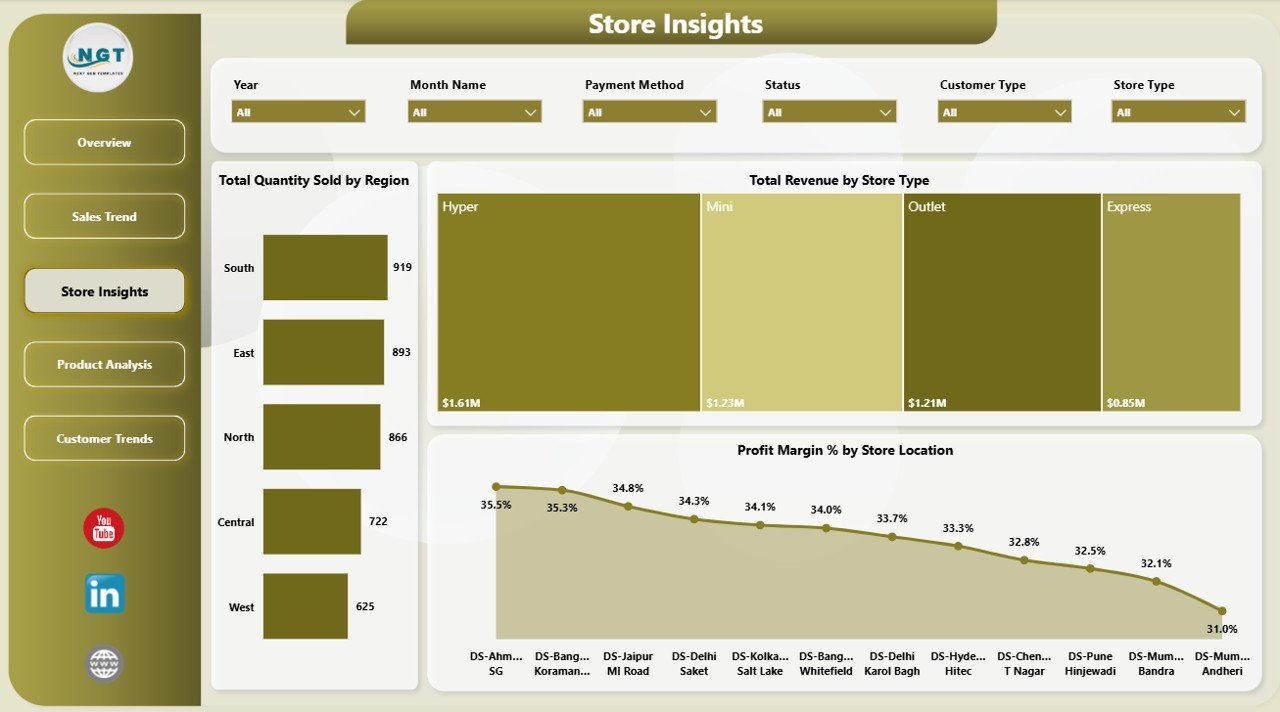
Store Insights
4. Product Analysis
The Product Analysis page focuses on brand, category, and customer-type profitability. It is useful for category managers and retail analysts who need to understand which parts of the assortment deserve pricing or sourcing attention.
Profit Margin % by Customer Type compares profitability across customer groups. This can show whether specific customer segments rely heavily on discounting or buy higher-margin items.
Total Cost by Brand identifies brands with the largest cost base. Profit Margin % by Category helps managers protect pricing in stronger categories and review weak-margin categories before planning the next campaign.
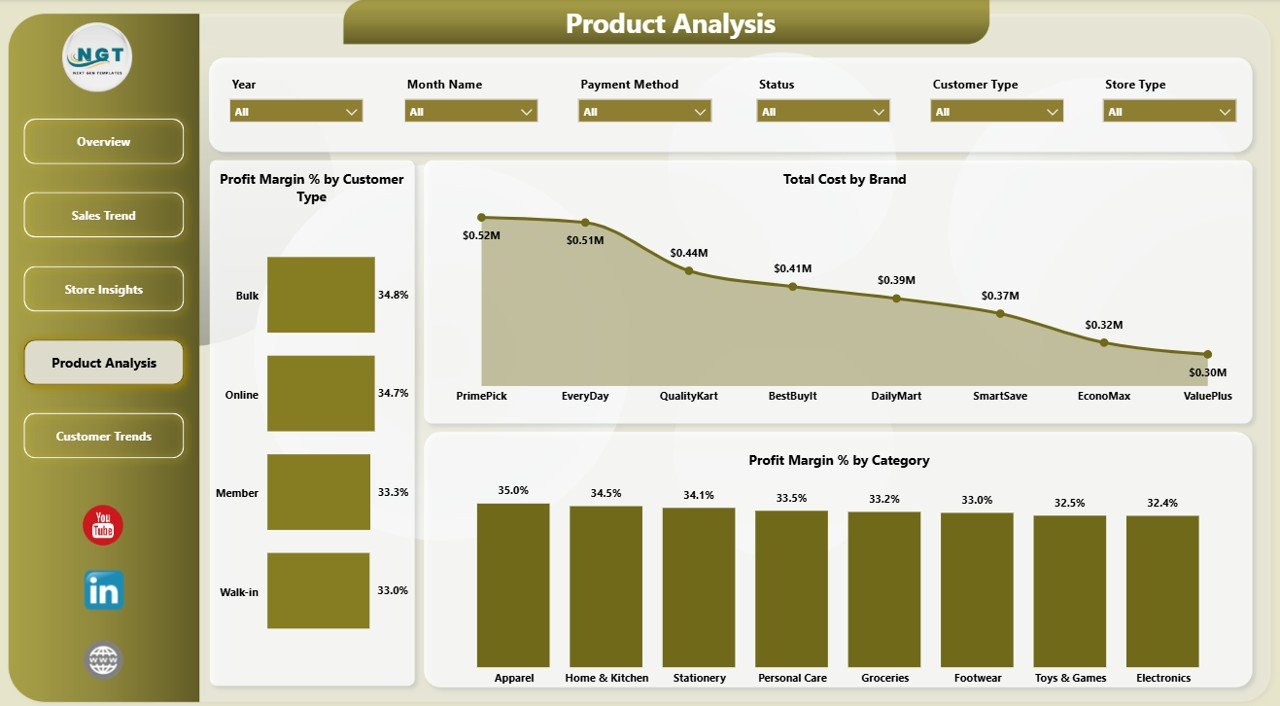
Product Analysis
5. Customer Trends
The Customer Trends page connects customer behavior, region performance, and salesperson contribution. It gives managers a practical view of how people buy and where revenue comes from.
Total Revenue by Payment Method shows the sales contribution from each payment option. This can help teams understand whether customers prefer cash, card, digital payments, or other methods tracked in the data.
Profit Margin % by Region gives a geographic margin view, while Total Revenue by Salesperson supports team performance review and sales contribution analysis.
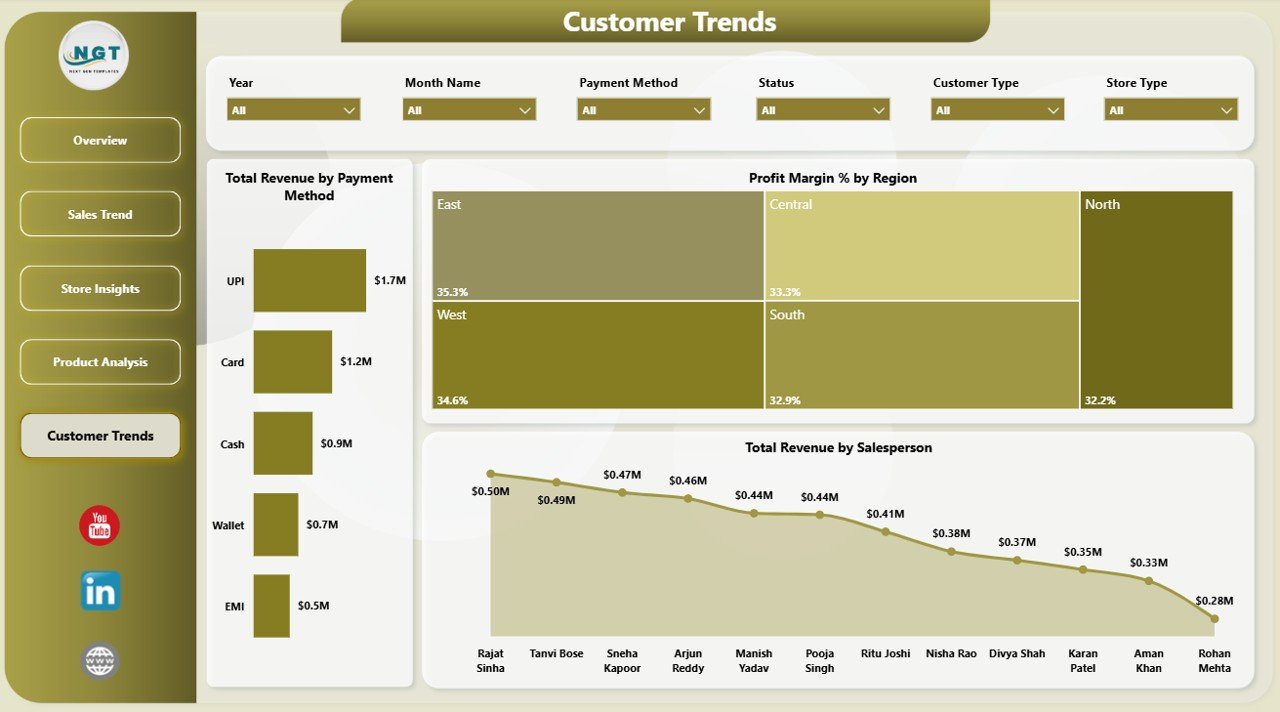
Customer Trends
Discount Stores Dashboard in Power BI vs. Tableau vs. Paid Retail SaaS – Feature Comparison
| Feature | Discount Stores Dashboard in Power BI | Tableau alternative | Paid retail SaaS |
|---|---|---|---|
| Cost | $17.99 one-time template purchase | Requires Tableau licensing | Usually subscription based |
| Platform | Power BI Desktop and Power BI Service | Tableau Desktop or Cloud | Vendor cloud platform |
| Setup time | Fast PBIX setup | Requires report rebuilding | Usually needs onboarding |
| Real-time team collaboration | Available when published to Power BI Service | Available with Tableau Cloud | Usually included by plan |
| Mobile access | Available through Power BI apps after publishing | Available through Tableau apps | Usually included |
| Customizable fields | Editable visuals and model | Editable if rebuilt | Limited by vendor settings |
| Share with link | Available through Power BI Service | Available after publishing | Usually available |
| Year-1 cost at 5 users | $17.99 plus any Microsoft licensing used | Often much higher | Often hundreds or thousands of dollars |
| Retail margin visuals | Pre-built | Requires custom build | Vendor-specific |
Who Should Use This Template
This dashboard is a good fit for discount-store owners, regional retail managers, finance analysts, category managers, store operations teams, and Power BI users who want a practical retail analytics report. It is especially useful when the business already exports sales, cost, product, region, customer, and salesperson data and needs a visual layer for weekly or monthly review.
It is not the best fit for teams that need live POS API sync, automated inventory replenishment, enterprise security architecture, or a completely custom Power BI deployment. For those needs, a larger BI project or retail SaaS platform may be more appropriate.
Real-World Use Cases
Regional manager use case: A regional manager reviews Net Gross Profit by Region and Profit Margin % by Store Location every Monday. If one store has strong revenue but weak margin, the team checks discounting and product mix.
Category analyst use case: A category analyst uses Total Revenue by Category, Total Cost by Brand, and Profit Margin % by Category before recommending seasonal pricing changes.
Finance analyst use case: A finance analyst compares Total Discount by Month Name with Net Gross Profit by Month Name to decide whether promotions are producing profitable growth.
Advantages of Discount Stores Dashboard in Power BI
- Fast reporting: managers can review important retail metrics without building a dashboard from scratch.
- Interactive analysis: slicers and visuals help users explore data instead of reading static summaries.
- Margin awareness: the dashboard combines cost, revenue, discount, and profit views.
- Retail-focused pages: each page answers a practical store, product, customer, or trend question.
- Power BI flexibility: users can edit the PBIX file, connect data, adjust measures, and publish if required.
Opportunities for Improvement
Like any template, this dashboard can be extended as the business grows. Users may add POS integration, automated refresh schedules, inventory availability, product return metrics, supplier analysis, or customer loyalty fields. Advanced Power BI users can also add drill-through pages, row-level security, or custom DAX measures for deeper retail analysis.
Best Practices
- Keep data field names and formats consistent before refreshing the report.
- Review discount metrics together with revenue and margin, not separately.
- Use slicers to compare regions, locations, and categories before making pricing decisions.
- Check store performance weekly and product/category performance before major promotions.
- Publish to Power BI Service only after checking permissions and data privacy rules.
For official guidance on Power BI Desktop, see Microsoft Learn: What is Power BI Desktop?.
Explore Relevant Templates
You can purchase the Discount Stores Dashboard in Power BI from NextGenTemplates. You may also want to compare it with the Discount Stores Dashboard in Excel if your team prefers spreadsheet reporting.
Frequently Asked Questions
What is the Discount Stores Dashboard in Power BI?
It is a Power BI dashboard template for tracking discount-store revenue, cost, transactions, profit, discounts, regions, stores, products, customers, and salesperson performance.
How many report pages are included?
The dashboard includes five report pages: Overview, Sales Trend, Store Insights, Product Analysis, and Customer Trends.
What cards are available on the Overview page?
The Overview page includes Total Transactions, Total Cost, Total Revenue, Net Gross Profit, and Discount Rate % cards.
Can I customize the dashboard?
Yes. Because it is a PBIX file, users can edit visuals, fields, relationships, measures, formatting, and data source connections in Power BI Desktop.
Do I need Power BI Desktop?
Yes. You need Power BI Desktop to open and edit the PBIX file. Power BI Desktop is available from Microsoft.
Can I publish it for my team?
Yes, if you use Power BI Service and have the required Microsoft licensing and permissions for your organization.
Is this a one-time purchase?
Yes. The template is sold as a one-time downloadable file. Microsoft licensing may still apply if you publish and share reports through Power BI Service.
About the Author
Built by PK – Microsoft Certified Professional with 15+ years of Excel, Google Sheets, and Power BI experience. Founder of NextGenTemplates, reaching 300K+ subscribers across YouTube channels. Every template is hand-built and tested before release.
Conclusion
The Discount Stores Dashboard in Power BI gives retail teams a clear way to review transactions, revenue, cost, profit, discounting, store performance, product profitability, customer behavior, and salesperson results. It is practical for discount-store reporting because it connects sales activity with margin impact across multiple pages.
Visit our YouTube channel to learn step-by-step tutorials: Youtube.com/@PKAnExcelExpert.
Click here to purchase Discount Stores Dashboard in Power BI