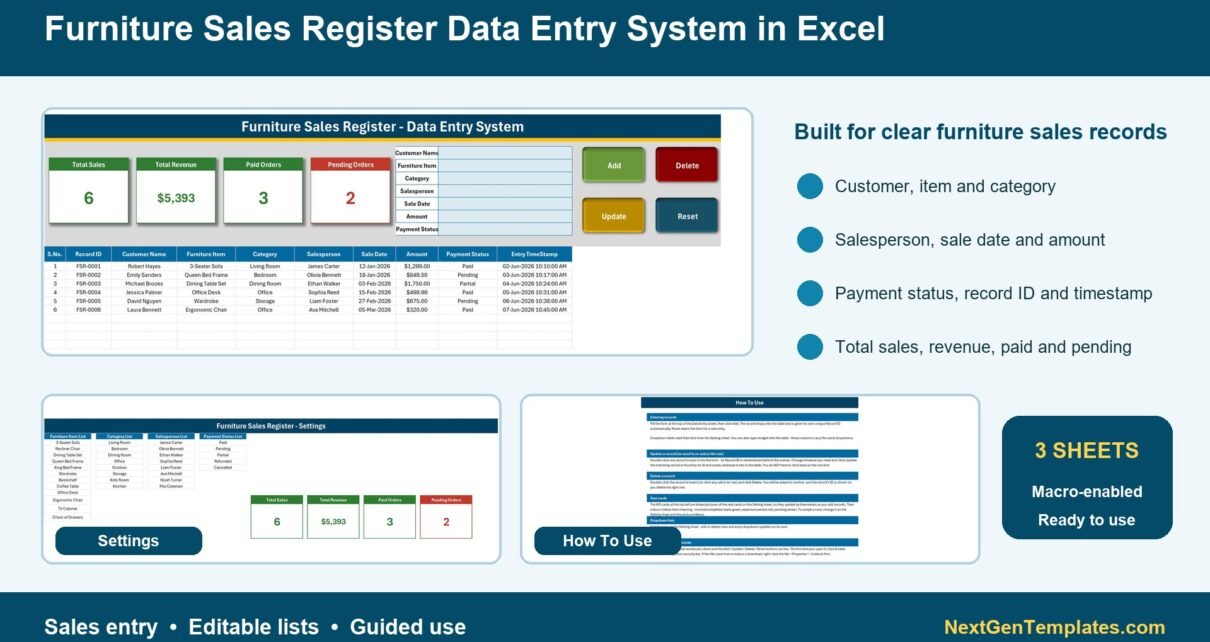
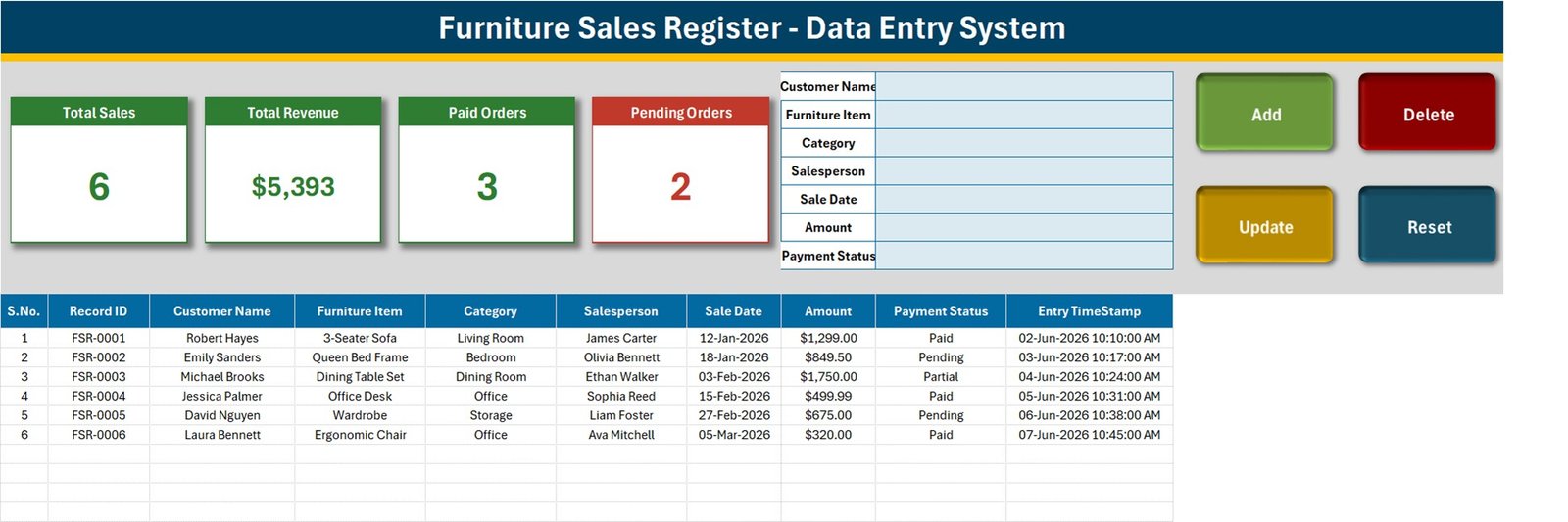
Furniture Sales Register Data Entry System in Excel gives furniture stores, showroom teams, sales assistants, and small-business managers a structured way to add, update, delete, and review furniture sales records in Microsoft Excel. The sample workbook shows 6 sales with customer, furniture item, category, salesperson, sale date, amount, and payment status and four summary cards for Total Sales, Total Revenue, Paid Orders, and Pending Orders. A guided VBA form reduces repetitive typing, while automatic Record IDs and timestamps make individual rows easier to identify. This is an operational entry tool, not an accounting, tax, point-of-sale, or enterprise inventory system.
Key Features of Furniture Sales Register Data Entry System in Excel
The main sheet combines a form, action buttons, KPI cards, and a searchable visual register. Users enter Customer Name, Furniture Item, Category, Salesperson, Sale Date, Amount, Payment Status. Add creates a new row, Update saves changes to the loaded record, Delete asks for confirmation, and Reset clears the form.
- Unique Record ID and entry timestamp
- Add, Update, Delete, and Reset controls
- Four auto-updating summary cards
- Settings-based dropdown lists
- Direct table editing when needed
- Three documented workbook sheets
- Macro-enabled .xlsm delivery
Workbook Sheets Explained
Data Entry Sheet
The first sheet is the operational workspace. The form limits routine entry to the prepared fields, and the table keeps saved records visible below. Double-clicking a record loads it into the form for editing. Summary cards are linked to source cells on Settings and update as records change.
Settings Sheet
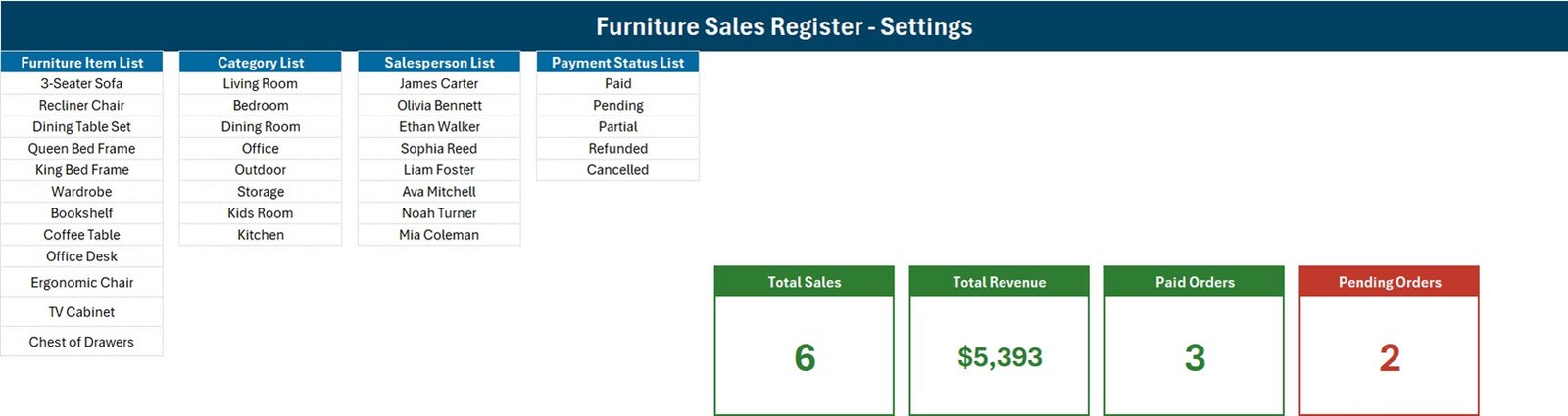
This sheet holds dropdown values and summary logic. Administrators can edit the supplied lists so categories, statuses, and other selections match the business.
How-to-Use Sheet
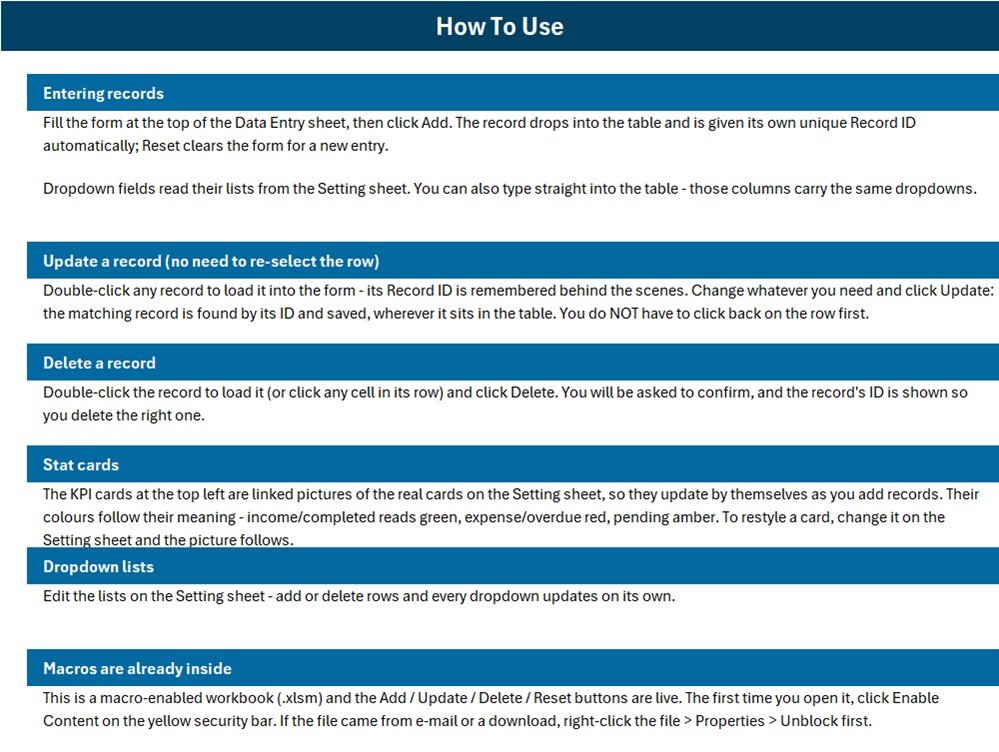
The guide documents record entry, record updates, confirmed deletion, card behavior, dropdown maintenance, and macro setup. It also explains that downloaded files may need to be unblocked in Windows before Enable Content appears.
Excel Data Entry System vs. Plain Spreadsheet vs. Paid Sales Software – Feature Comparison
| Feature | Excel system | Plain sheet | Paid software |
|---|---|---|---|
| Guided form | Included | Not included | Usually |
| Record actions | Four VBA buttons | Manual | Included |
| Custom lists | Editable | Manual setup | Plan-dependent |
| Offline use | Yes | Yes | Varies |
| Real-time collaboration | No | Limited | Often |
| POS/accounting integration | Not included | Not included | Vendor-dependent |
Who Should Use This Template
furniture stores, showroom teams, sales assistants, and small-business managers can use the workbook when a local, low-complexity register is appropriate. A store owner can review summary cards, an assistant can maintain verified entries, and a manager can review sales and payment-status cards before checking the source rows.
Organizations needing a point-of-sale system, payment processor, accounting ledger, delivery scheduler, tax tool, or multi-location enterprise application should use an approved specialist system.
Real-World Use Cases
Adding a new record
Complete the prepared form, validate the inputs, and click Add. The workbook assigns a Record ID and timestamp.
Updating existing details
Double-click the correct row, change the relevant values, and click Update. The stored ID is used to save the intended record.
Reviewing summary cards
Use the cards as prompts for investigation, then confirm the underlying rows and source documents before acting.
Advantages of This Excel Tool
The interface keeps common actions visible and reduces direct editing of formula or identifier columns. Editable lists let the workbook follow local terminology. Because the file is downloaded, the team controls its local backup process and can inspect the source table behind each summary.
Opportunities for Improvement
No cloud database, role-based permissions, barcode integration, automated purchase orders, invoice processing, or accounting sync is included. Those boundaries keep the workbook simple, but growing teams may eventually need specialized software.
Best Practices
- Keep an untouched master copy.
- Enable macros only for the trusted download.
- Protect formula and identifier columns.
- Use consistent dropdown values.
- Reconcile quantities, values, and statuses with source records.
- Save dated backups.
- Avoid simultaneous editing of separate copies.
Read Microsoft’s guidance on macro security in Microsoft 365 files.
Explore Relevant Templates
See more Excel templates, Excel VBA guidance, and practical Excel articles.
Frequently Asked Questions
Which Excel version should I use?
Use Microsoft Excel for Windows desktop because the workflow relies on VBA macros.
Can I change the prepared fields?
Dropdown values are editable on Settings; structural changes should be tested on a backup.
Can it be used by multiple people at once?
It is a local workbook, not a concurrent multi-user database.
Does it replace an inventory or accounting system?
No. Reconcile working records with approved operational and financial sources.
What is in the ZIP?
The macro-enabled .xlsm workbook, including its on-sheet instructions.
Can I delete a record?
Yes. Load the correct row and use Delete; the workbook asks for confirmation.
About the Author
Built by PK – Microsoft Certified Professional with 15+ years of Excel, Google Sheets, and Power BI experience. Founder of NextGenTemplates, reaching 300K+ subscribers across YouTube channels. Every template is hand-built and tested before release.
Conclusion
This workbook offers a focused entry process for furniture sales records, with repeatable actions, configurable lists, and visible summary cards. Use it for controlled operational work, preserve backups, and validate every important total against source documents. Review the product on NextGenTemplates and follow PK: An Excel Expert for tutorials.