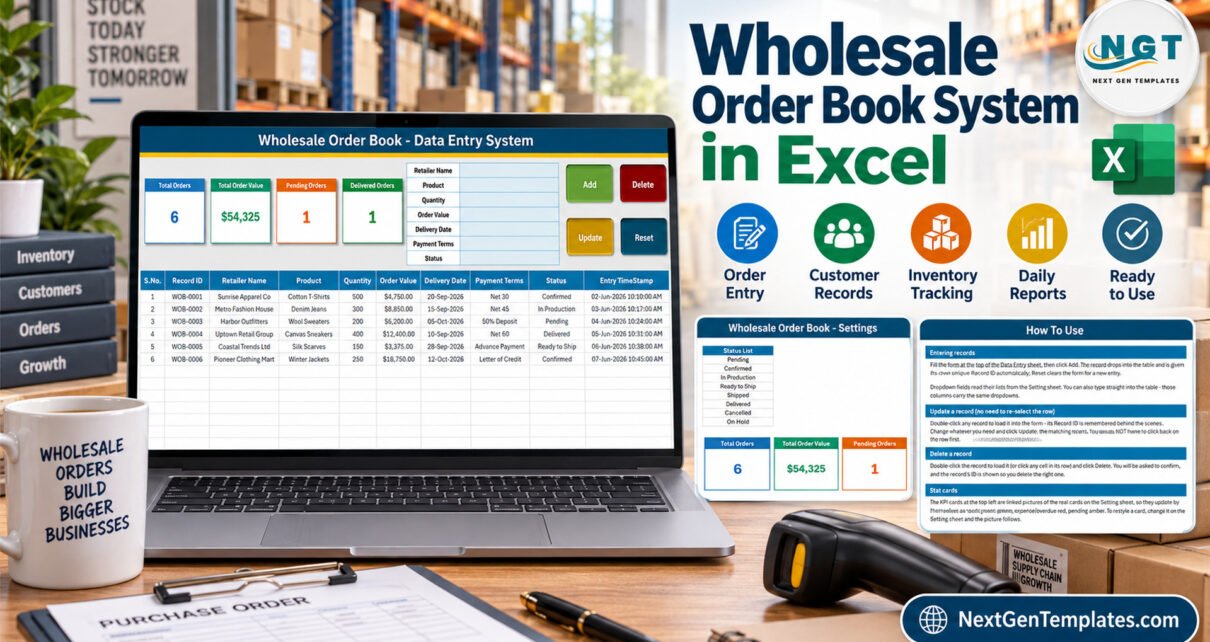
The Wholesale Order Book Data Entry System in Excel is a macro-enabled workbook with a 7-field order form, 4 VBA buttons, 4 live stat cards and 3 dropdown lists holding 30 values – 12 products, 10 payment terms and 8 order statuses. Every saved order gets an automatic Record ID in the WOB-0001 series and an Entry TimeStamp, and the order book has formatted, dropdown-ready rows for 200 orders.
Plenty of small wholesalers still keep retailer orders in an order pad, a WhatsApp thread or a loose spreadsheet. It works until someone asks what the open orders are worth, or which retailer’s order is still pending, and the answer means scrolling through messages. This walkthrough covers every sheet, exactly what each stat card counts, and the limits worth knowing before you set it up for your own wholesale business.
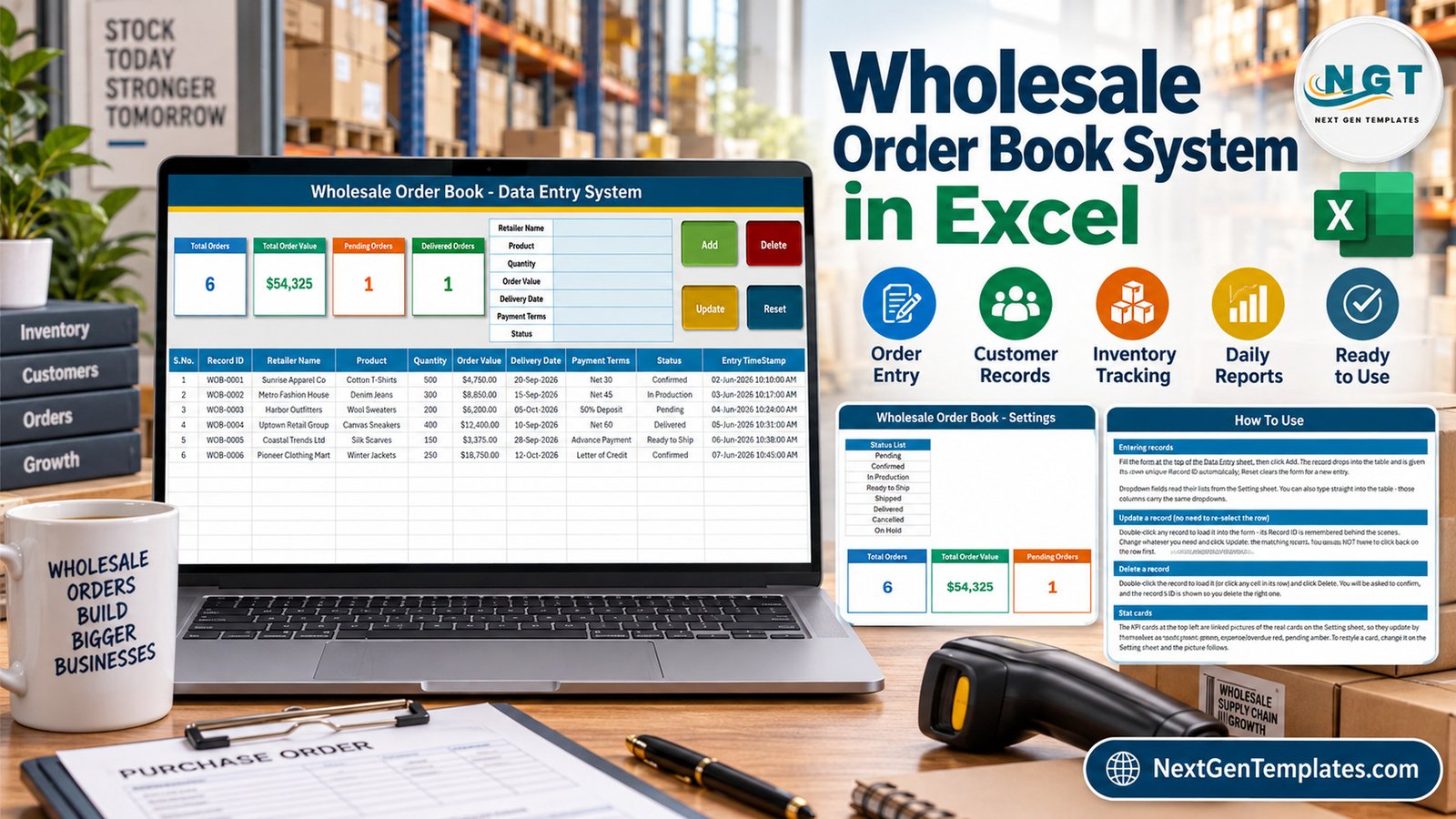
What the Wholesale Order Book Data Entry System in Excel Does
It is an .xlsm workbook with four sheets. You type a retailer order into a form, click Add, and the order drops into the order book with its Record ID and timestamp. There is nothing to install, nothing to sign into and no subscription. Four cards beside the form recount themselves as orders are added, updated or deleted.
It is deliberately small. It is not an ERP, not an invoicing or billing tool, not stock or inventory control and not accounts-receivable software. Payment Terms are stored as a label – the workbook does not calculate due dates or record payments received. The six sample retailers, products and figures are fictional.
Key Features
- Seven-field order form: Retailer Name, Product, Quantity, Order Value, Delivery Date, Payment Terms and Status.
- Four VBA buttons: Add, Update, Delete (with a confirmation that shows the Record ID) and Reset.
- Stable Record IDs: the next ID is one more than the highest in the table, so a deleted number is never reused.
- Double-click to edit: the row loads into the form and the macro remembers its ID, so Update finds it wherever it sits.
- Dropdowns in two places: on the form and on table rows 15-214, all reading the Setting sheet.
- Linked-picture stat cards: the cards on Data Entry are pictures of formula cards on Setting, so restyling one restyles both.
- Unlocked: no sheet protection and no VBA password.
Sheets Explanation
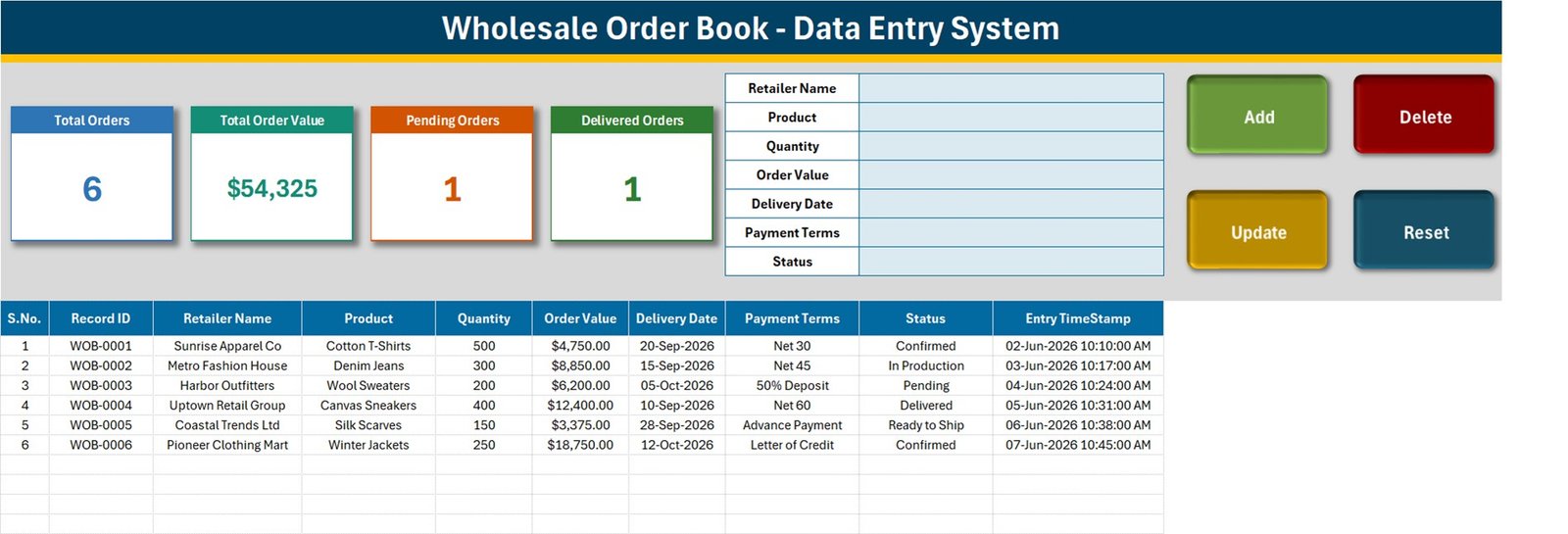
Data Entry sheet
The order form, the four buttons and the four stat cards sit across the top. Below them the table holds S.No., Record ID, Retailer Name, Product, Quantity, Order Value, Delivery Date, Payment Terms, Status and Entry TimeStamp. With the samples loaded the cards read 6 orders, $54,325 total order value, 1 pending order and 1 delivered order.
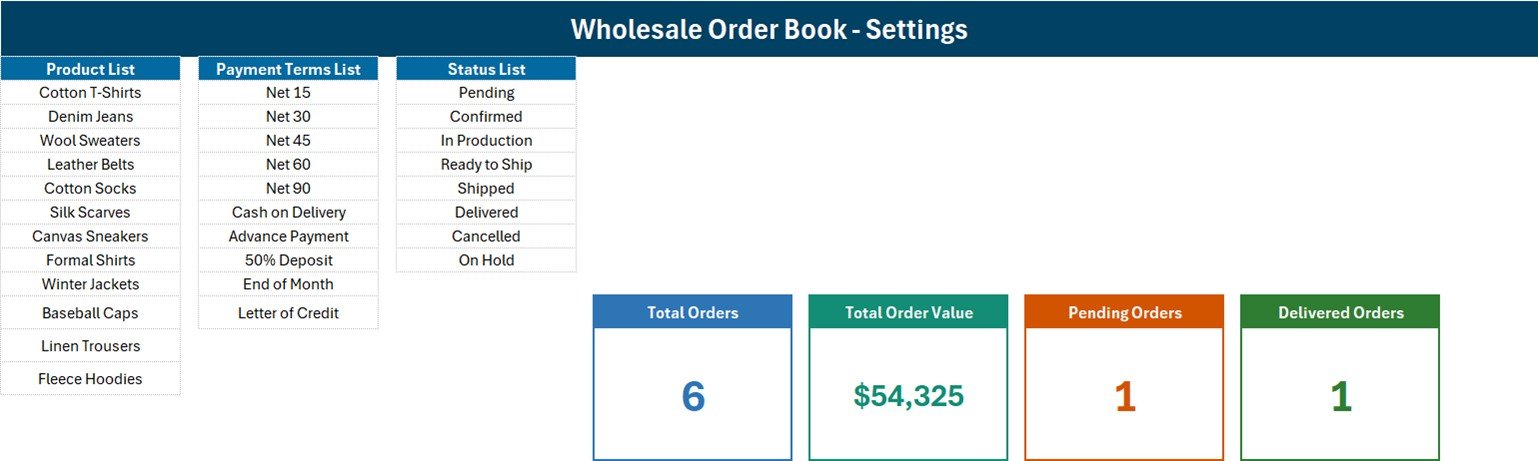
Setting sheet
Three lists drive every dropdown: Product List (Cotton T-Shirts, Denim Jeans, Wool Sweaters, Leather Belts, Cotton Socks, Silk Scarves, Canvas Sneakers, Formal Shirts, Winter Jackets, Baseball Caps, Linen Trousers, Fleece Hoodies), Payment Terms List (Net 15, Net 30, Net 45, Net 60, Net 90, Cash on Delivery, Advance Payment, 50% Deposit, End of Month, Letter of Credit) and Status List (Pending, Confirmed, In Production, Ready to Ship, Shipped, Delivered, Cancelled, On Hold). The four formula cards live here too.
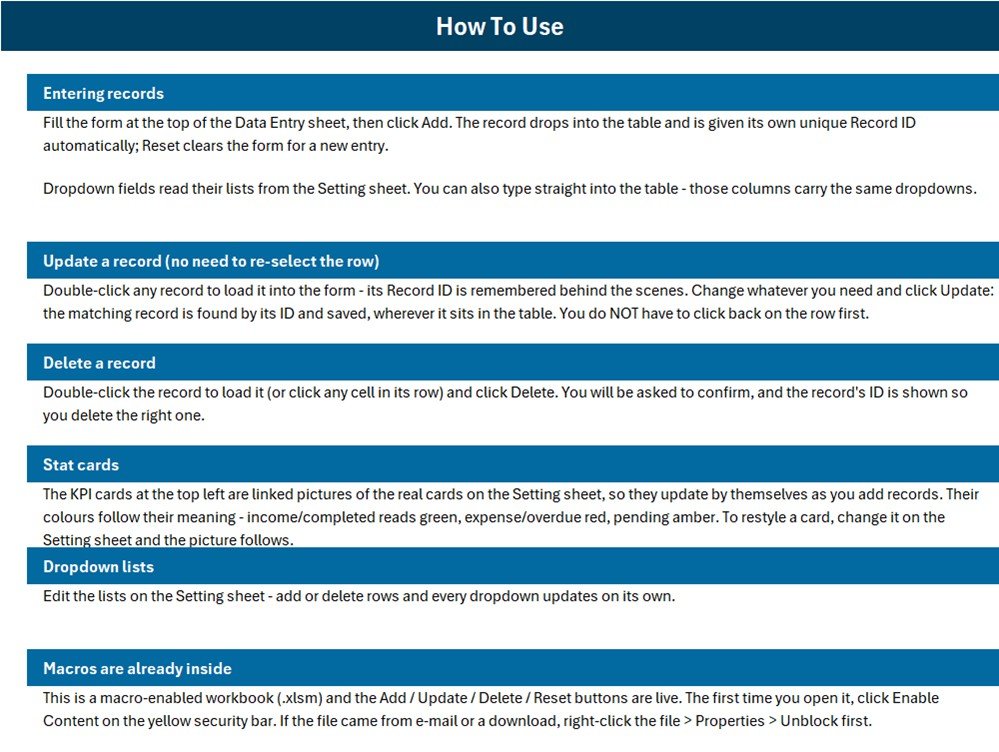
How To Use sheet
Short instructions for entering, updating and deleting orders, how the stat cards update, how to edit the lists and how to enable the macros on first open.
What the Four Stat Cards Count
These are the real formulas on the Setting sheet, read from the workbook itself:
| Card | Formula | What it means |
|---|---|---|
| Total Orders | COUNTA('Data Entry'!$C$15:$C$1048576) | Counts the Retailer Name column. Add refuses a blank Retailer Name, so this matches the orders added through the form. |
| Total Order Value | SUM('Data Entry'!$F$15:$F$1048576) | Every Order Value whatever the Status – Pending, Cancelled and On Hold included. |
| Pending Orders | COUNTIF('Data Entry'!$I$15:$I$1048576,"Pending") | Orders whose status is exactly Pending. |
| Delivered Orders | COUNTIF('Data Entry'!$I$15:$I$1048576,"Delivered") | Orders whose status is exactly Delivered. |
Total Order Value is booked, not delivered. The samples total $54,325, but only $12,400 comes from the delivered canvas sneakers order; the two confirmed orders ($23,500), the order in production ($8,850), the pending wool sweaters ($6,200) and the ready-to-ship silk scarves ($3,375) make up the rest. To keep cancelled orders out of the card, replace Setting!I13 with this SUMIFS formula:
=SUMIFS('Data Entry'!$F$15:$F$1048576,'Data Entry'!$I$15:$I$1048576,"<>Cancelled")Pending plus Delivered will not equal the order count. Only two of the eight statuses have a card, so on the samples 1 + 1 falls short of 6. Add =COUNTIF('Data Entry'!$I$15:$I$1048576,"Ready to Ship") as a fifth card if dispatch planning matters to you.
Order Value is typed. There is no unit-price column, and the macro copies the Order Value box straight into column F. Work out quantity x unit price before you type it, or add a price input to the form and change the Order Value line in Module1 to multiply Quantity by it.
A blank Delivery Date becomes today. If the Delivery Date box is empty or not a real date, the macro saves today’s date, so always type the agreed date.
The lists do not grow on their own. How To Use says every dropdown updates when you add rows, but the named ranges are fixed – ProductList is Setting!$A$3:$A$14, Payment_TermsList $C$3:$C$12, StatusList $E$3:$E$10 – and all three are full. Insert a row inside a list to add a value, or redefine the name as =OFFSET(Setting!$A$3,0,0,COUNTA(Setting!$A$3:$A$100),1).
Excel Workbook vs. Google Sheets Log vs. Wholesale Order Management Software – Feature Comparison
| Feature | Wholesale Order Book workbook (Excel) | Home-made Google Sheets log | Wholesale order management / B2B software |
|---|---|---|---|
| Cost | $6.99 one-time (regular $11.99) | Free, but you build it | Recurring monthly subscription |
| Platform | Excel for Windows desktop | Any browser | Vendor web app |
| Setup time | About 10 minutes | Hours of design work | Days of onboarding |
| Order form with Add / Update / Delete | Yes, VBA | No | Yes |
| Real-time team collaboration | No | Yes | Yes |
| Mobile access | No | Yes | Usually |
| Customizable lists and fields | Fully unlocked | Yes | Vendor settings only |
| Invoices, stock levels, retailer portal | No | No | Usually |
| Year-1 cost at 5 users | One purchase per user, no renewal | Free | Subscription x 12 months |
For a small wholesaler that wants a searchable order register without paying for B2B software it will not fully use, this workbook sits in the sweet spot.
Who Should Use This Template
Perfect for:
- Small wholesalers and distributors recording each retailer order, the product, quantity, value and agreed delivery date
- Apparel, footwear and accessories suppliers tracking orders through production and dispatch
- Sales coordinators comfortable in Excel who want a file they fully control
Not a fit if:
- You need invoices, stock levels, retailer-specific price lists or a retailer ordering portal
- You need credit control, due-date tracking or accounting ledgers
- Your team works on Mac, in a browser or in Google Sheets, or needs several people editing at once
Real-World Use Cases
Daniel runs a garment wholesale business. He logs every retailer order with the product, quantity and delivery date, moves each one from Confirmed to In Production to Ready to Ship, and filters the table by Status each morning to plan dispatch.
Aisha supplies accessories to boutiques. She keeps her best-selling lines at the top of the Product list, records Net 30 or Advance Payment against each order, and sorts by Delivery Date to see what is due this week.
A small footwear distributor adds Ready to Ship and Shipped cards and switches Total Order Value to exclude Cancelled orders, so the top of the sheet matches the orders it intends to fulfil.
Advantages
- One purchase, no subscription and no per-user fee.
- Ten minutes from download to the first real retailer order.
- Update and Delete work by Record ID, so sorting or filtering the order book does not break them.
- Everything is visible and editable – formulas, lists and macro.
Opportunities for Improvement
- A unit-price column with Order Value calculated as Quantity x unit price.
- A status-aware order value card, and cards for Confirmed, Ready to Ship and Shipped.
- Self-extending dropdown lists to match what How To Use promises.
- A due-date column derived from Payment Terms, and a warning instead of a silent today’s date when Delivery Date is blank.
Best Practices
- Always add orders through the form so every row gets a Record ID; rows typed straight into the table cannot be updated or deleted by the buttons.
- Rewrite the Product and Payment Terms lists before you enter real orders, inserting rows inside each block.
- Record Quantity in one consistent unit – cartons, dozens or pieces – or rename the column.
- Keep a dated backup copy on a secured PC; the in-table dropdowns cover rows 15-214 and Delete removes the whole worksheet row.
Macros and Compatibility
Macros must be enabled and Windows desktop Excel is required. On first open click Enable Content; Microsoft’s guide to enabling macros in Microsoft 365 files covers the security bar, and its note on macros from the internet being blocked explains the Unblock checkbox.
Explore Relevant Templates
For the buying side of the same business, the Purchase and GRN Data Entry System in Excel walkthrough covers purchase orders and goods received. The Furniture Sales Register Data Entry System in Excel and the Optical Shop Sales Data Entry System in Excel apply the same form-and-cards build to retail sales counters.
In the store, the Wholesale KPI Dashboard in Excel and Wholesale KPI Scorecard in Excel suit wholesalers who have outgrown a simple order register.
Frequently Asked Questions
What does the Wholesale Order Book Data Entry System in Excel record?
One row per retailer order: Retailer Name, Product, Quantity, Order Value, Delivery Date, Payment Terms and Status, plus an automatic Record ID and Entry TimeStamp. Four cards show total orders, total order value, pending orders and delivered orders.
How long does setup take?
About ten minutes. Enable macros, replace the sample products and payment terms on the Setting sheet, delete the six sample orders and start adding your own. Nothing needs installing.
Do I need to know VBA?
No. The Add, Update, Delete and Reset buttons are already wired. VBA only matters if you want to change what a button writes, such as calculating Order Value from a unit price.
Why is Total Order Value higher than what I have delivered?
The card adds every Order Value whatever the Status. On the samples it shows $54,325 against $12,400 from delivered orders. Swap in a SUMIFS formula to filter by status.
Does it track payments or due dates?
No. Payment Terms such as Net 30 or Letter of Credit are stored as a label. There is no due-date calculation, payment received column or invoice. Use accounting software for credit control and this workbook for the order book.
How does it compare to wholesale order management software?
B2B order platforms run retailer portals, invoices and stock for a monthly fee. This is a one-time $6.99 Excel file that records who ordered what, how much it is worth and where each order stands.
About the Author
Built by PK – Microsoft Certified Professional with 15+ years of Excel, Google Sheets and Power BI experience. Founder of NextGenTemplates, reaching 300K+ subscribers across YouTube channels. Every template is hand-built and tested before release.
Conclusion
This workbook turns an order pad into an order book you can sort and filter, with four numbers on top that keep themselves current. Know what those numbers count – booked rather than delivered value, a typed Order Value and two statuses out of eight – and it will not surprise you.
Click here to Purchase the Wholesale Order Book Data Entry System in Excel – $11.99, currently $6.99.
✅ Instant download · One-time payment · No subscription
Last updated: September 2026
Watch more Excel tutorials at Youtube.com/@PKAnExcelExpert