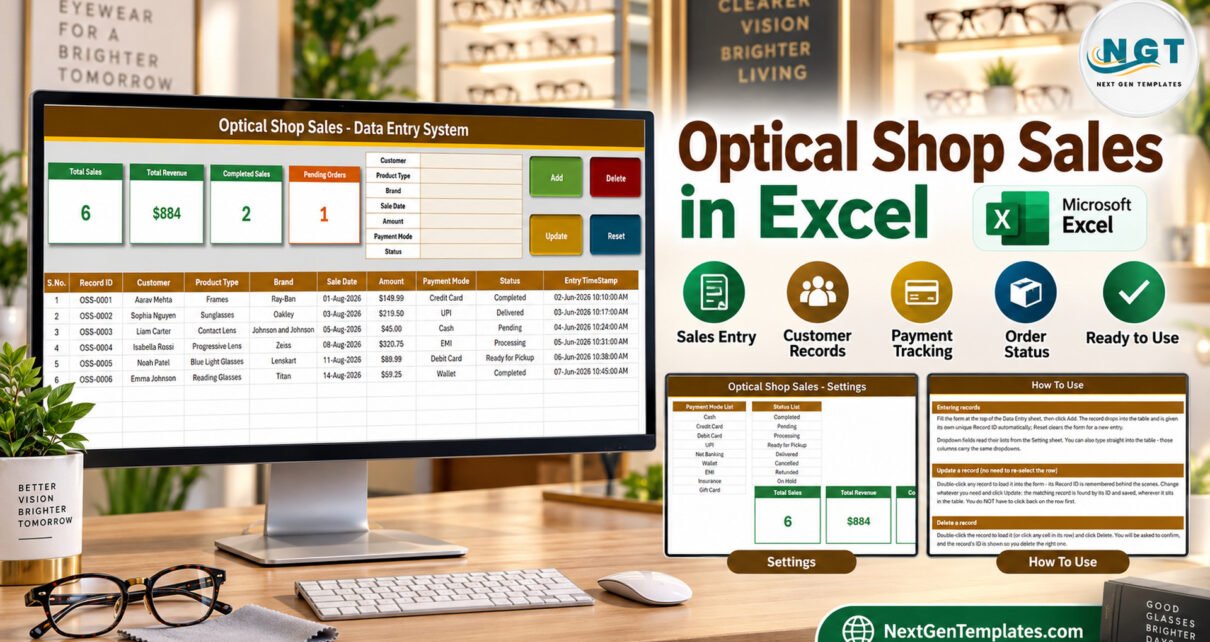
The Optical Shop Sales Data Entry System in Excel is a macro-enabled workbook with a 7-field entry form, 4 VBA buttons, 4 live stat cards and 4 dropdown lists holding 39 values – 10 product types, 12 brands, 9 payment modes and 8 order statuses. Every saved sale gets an automatic Record ID in the OSS-0001 series and an Entry TimeStamp.
Most optical shops start with a counter notebook. It works until someone asks how much the shop billed last week, or which customer’s progressive lenses are still pending, and the answer means flicking through pages of handwriting. This walkthrough covers every sheet, exactly what the four stat cards count, and the limits worth knowing before you set it up for your own eyewear counter.
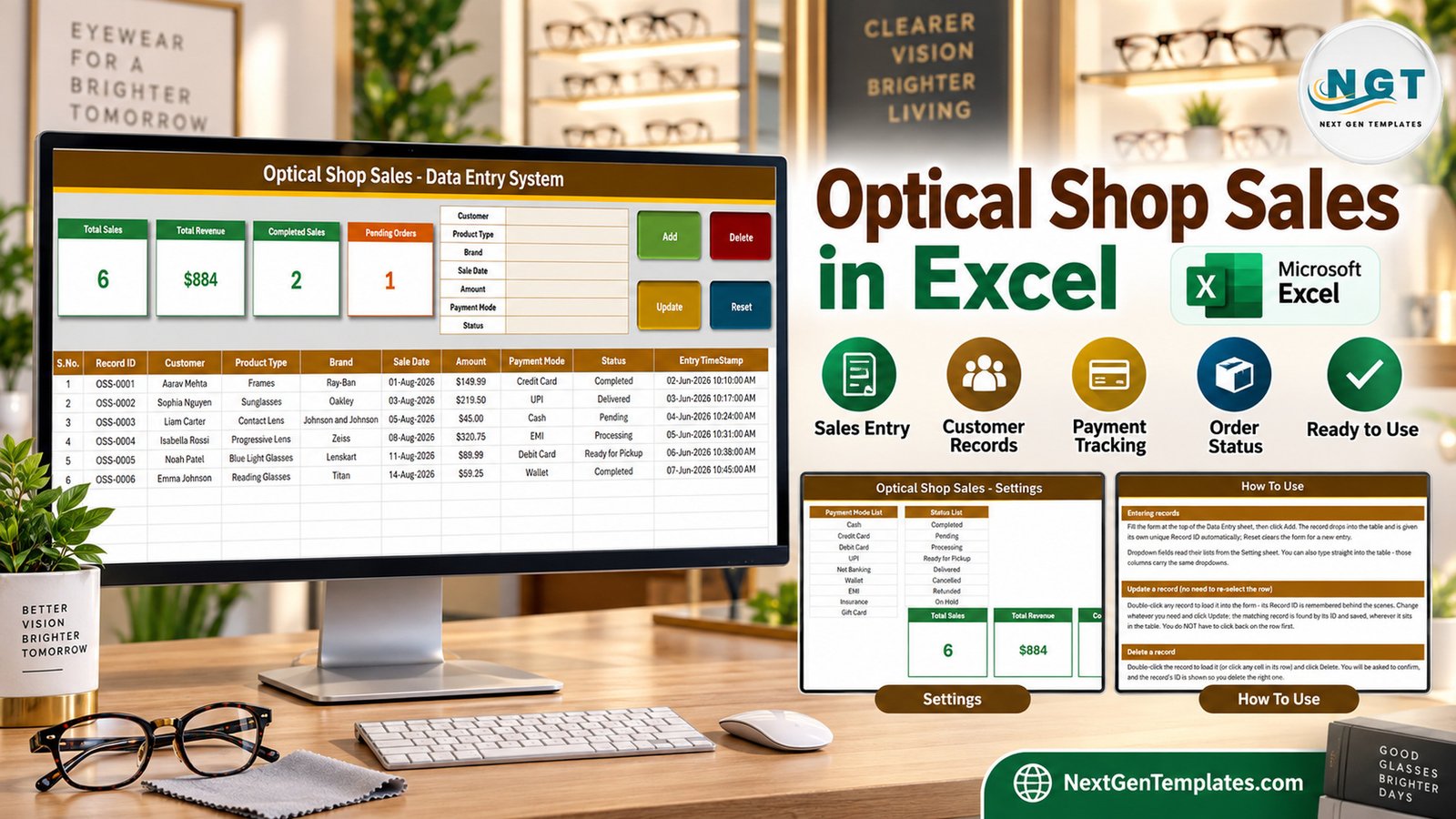
What the Optical Shop Sales Data Entry System in Excel Does
It is an .xlsm workbook with four sheets. You type a sale into a form, click Add, and the sale drops into a records table with its Record ID and timestamp. There is nothing to install, nothing to sign into and no subscription. Four cards above the table recount themselves as records are added, updated or deleted.
It is deliberately small. It is not a point-of-sale system, not accounting software and not a clinical record – it is the sales register a small optical store keeps so the weekly numbers are one glance away.
Key Features
- Seven form fields: Customer, Product Type, Brand, Sale Date, Amount, Payment Mode and Status.
- Four live buttons: Add, Update, Delete and Reset, all running VBA.
- Double-click editing: double-click a row to load it into the form; the workbook remembers its Record ID, so Update rewrites the right record even after you sort the table.
- Confirmed deletes: Delete asks first and shows the Record ID it is about to remove.
- Optical order statuses: Processing, Ready for Pickup and Delivered sit beside Completed, Pending, Cancelled, Refunded and On Hold.
- Four stat cards: Total Sales, Total Revenue, Completed Sales and Pending Orders.
- Six fictional sample sales so you can test every button before you start.
Sheets Explanation
The workbook has four sheets: Data Entry, Setting, Instructions and Get More Templates. The first three do the work.
Data Entry sheet
This is the working screen. The Total Sales, Total Revenue, Completed Sales and Pending Orders cards sit on the left, the seven-field form in the middle and the Add, Delete, Update and Reset buttons on the right. Below them is a ten-column records table: S.No., Record ID, Customer, Product Type, Brand, Sale Date, Amount, Payment Mode, Status and Entry TimeStamp. On the sample data the cards read 6, $884, 2 and 1.
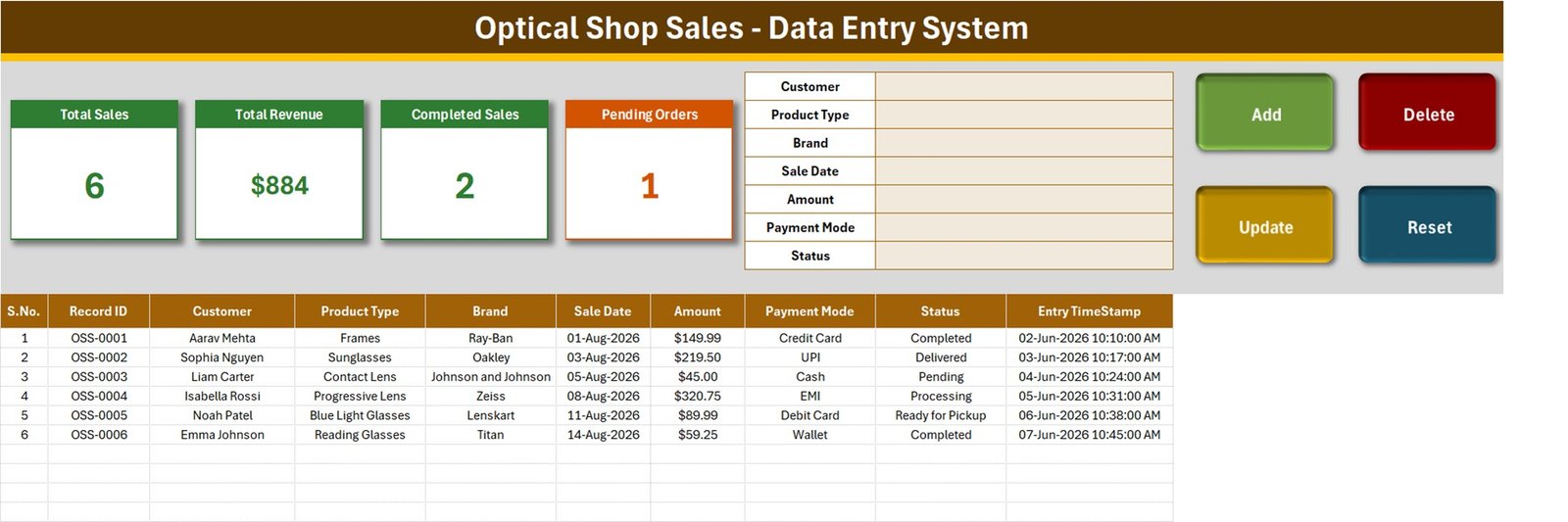
The S.No. column is a formula, =IF($B15="","",ROW()-14), so it numbers itself and stays blank on empty rows. The Product Type, Brand, Payment Mode and Status columns carry the same dropdowns as the form, so a backlog of sales can be typed straight down the grid.
Setting sheet
Everything the dropdowns offer lives here in plain cells you can rewrite, next to the original stat cards.
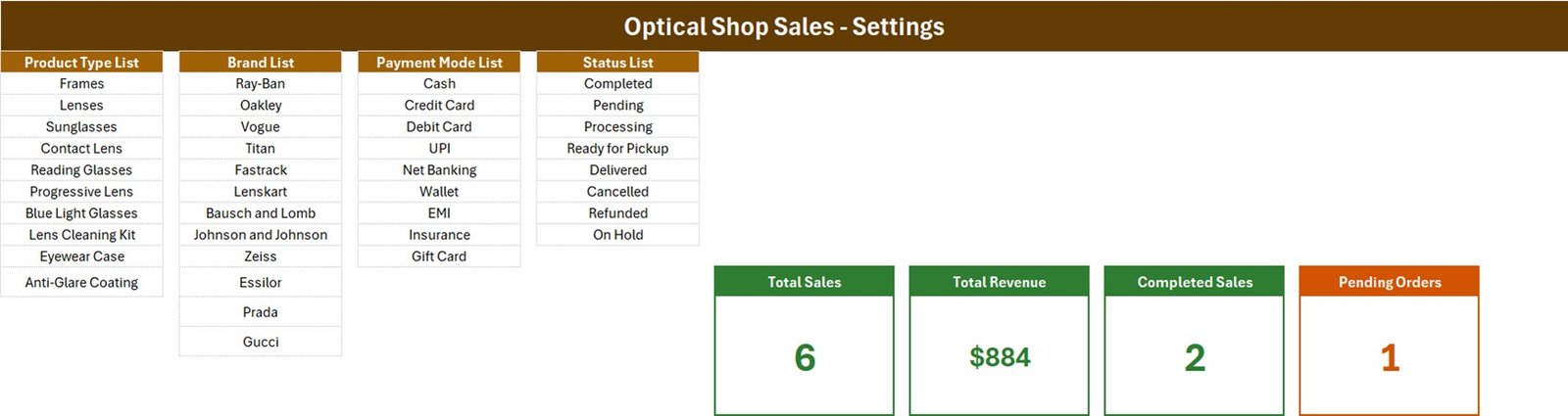
- Product Type (10): Frames, Lenses, Sunglasses, Contact Lens, Reading Glasses, Progressive Lens, Blue Light Glasses, Lens Cleaning Kit, Eyewear Case, Anti-Glare Coating.
- Brand (12): Ray-Ban, Oakley, Vogue, Titan, Fastrack, Lenskart, Bausch and Lomb, Johnson and Johnson, Zeiss, Essilor, Prada, Gucci.
- Payment Mode (9): Cash, Credit Card, Debit Card, UPI, Net Banking, Wallet, EMI, Insurance, Gift Card.
- Status (8): Completed, Pending, Processing, Ready for Pickup, Delivered, Cancelled, Refunded, On Hold.
The brands are sample entries for you to replace with the labels you stock; there is no affiliation with any of them. The cards on the Data Entry screen are linked pictures of the cards on this sheet, which is why restyling one here restyles it there.
How To Use sheet
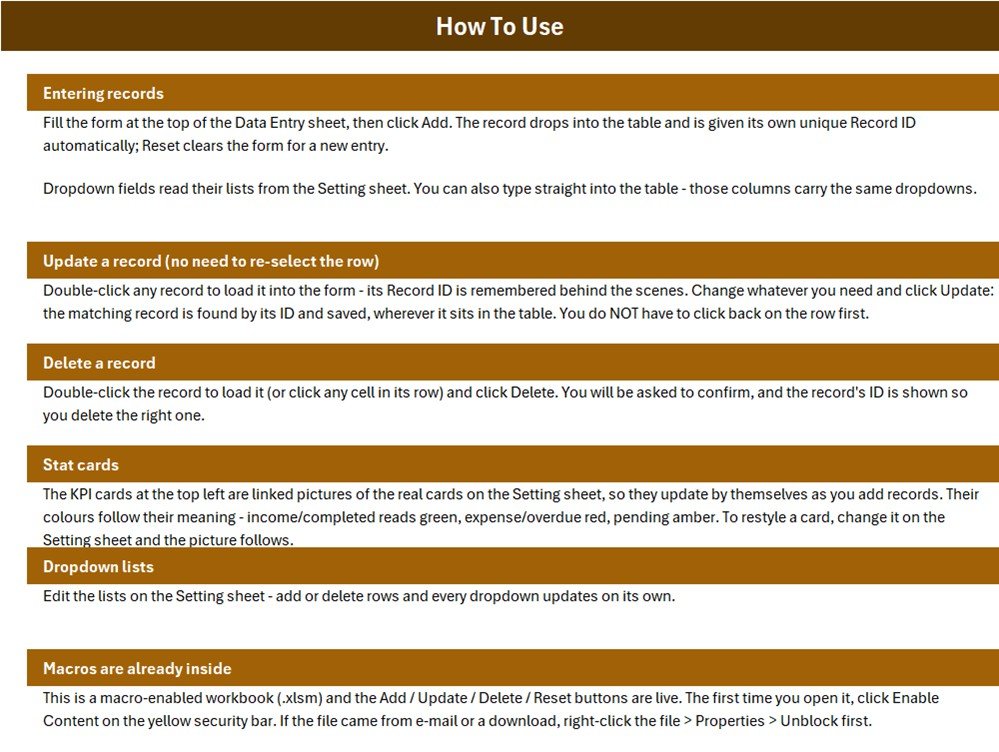
The Instructions tab explains entering, updating and deleting records, the stat cards, the dropdown lists and enabling macros.
What the Four Stat Cards Count
A card that means something slightly different from what you assumed is worse than no card. These are the formulas straight from the Setting sheet:
| Card | Formula | What it means |
|---|---|---|
| Total Sales | COUNTA('Data Entry'!$C$15:$C$1048576) | Counts the Customer column, not Record ID. A sale saved without a customer name is not counted. |
| Total Revenue | SUM('Data Entry'!$G$15:$G$1048576) | Every Amount whatever the status, Cancelled and Refunded included. Billed value, not cash collected. |
| Completed Sales | COUNTIF('Data Entry'!$I$15:$I$1048576,"Completed") | Rows whose Status is exactly Completed. |
| Pending Orders | COUNTIF('Data Entry'!$I$15:$I$1048576,"Pending") | Rows whose Status is exactly Pending. |
Completed plus Pending will not equal Total Sales. Only two of the eight statuses have a card. On the six samples that is 2 + 1 against 6, because Delivered, Processing and Ready for Pickup rows are not counted by either card.
Total Revenue is billed, not banked. The samples total 884.48, shown as $884. For revenue from finished sales only, add one cell on the Setting sheet:
=SUM(SUMIFS('Data Entry'!$G$15:$G$1048576,'Data Entry'!$I$15:$I$1048576,{"Completed","Delivered"}))Amount is also a typed value. There is no Quantity, Unit Price, discount or tax column, so enter the final billed amount for each sale.
Excel Workbook vs. Google Sheets Log vs. Optical POS Software – Feature Comparison
| Feature | Optical Shop Sales Data Entry System in Excel | Home-made Google Sheets log | Optical retail POS software |
|---|---|---|---|
| Cost | $6.99 one-time (regular $11.99) | Free, but you build it | Recurring monthly subscription |
| Platform | Excel for Windows desktop | Any browser | Vendor app or browser |
| Setup time | About 10 minutes | Hours of design work | Days of onboarding |
| Entry form with Add / Update / Delete | Yes, VBA | No | Yes |
| Real-time collaboration | No | Yes | Yes |
| Mobile access | No | Yes | Usually |
| Customizable lists | Fully unlocked | Yes | Vendor settings only |
| Prescriptions, inventory, invoices | No | No | Usually included |
For a small eyewear counter that wants a searchable sales register without paying for POS software it will not fully use, this workbook sits in the sweet spot.
Who Should Use This Template
Perfect for:
- Independent optical shops and eyewear boutiques keeping a daily sales register
- Sunglasses kiosks and mall counters tracking payment modes
- Owners who want pending and completed glasses orders visible at a glance
Not a fit if:
- You need prescription, eye-test or patient records – this is not a clinical system
- You need stock control, tax invoices or several people editing at once
- You work on a Mac, in Excel for the web or in Google Sheets
Real-World Use Cases
Ravi runs a two-counter optical store. He logs each frame and lens sale, marks lab orders Processing, switches them to Ready for Pickup when the glasses arrive, and checks the table every morning before calling customers whose orders are waiting.
Maria owns a small eyewear boutique. At month-end she filters the table by Brand to see which labels sell, then trims her Brand List to the ones worth reordering.
A mall sunglasses kiosk filters the Payment Mode column at closing time to split card, UPI and cash sales instead of adding them up on paper.
Advantages
- Consistent records: dropdowns stop the same brand being typed three different ways.
- Safe editing: Update and Delete work by Record ID, so sorting the table never breaks an edit.
- Low cost: $6.99 once instead of a monthly software fee.
- Fast training: a new counter assistant can learn the form in two minutes.
Opportunities for Improvement
- More status cards. Only Completed and Pending are carded; Processing and Ready for Pickup deserve their own COUNTIF cards on an optical counter.
- Status-aware revenue. Total Revenue includes Cancelled and Refunded rows. The SUMIFS above fixes that.
- Quantity and unit price. Amount is typed rather than calculated from a quantity and price.
- Self-extending lists. The four named ranges are fixed and already full –
Setting!$A$3:$A$12,$C$3:$C$14,$E$3:$E$11and$G$3:$G$10. The How To Use page says dropdowns update on their own, but a value typed below a list will not appear until you insert a row inside the list or widen the range in Formulas > Name Manager. - Dropdown depth. In-table validation covers rows 15 to 214, so drag it down past 200 records.
Best Practices
- Rewrite the four lists before your first real sale, and add values by inserting rows inside each list.
- Always fill Customer – use “Walk-in” if there is no name – so Total Sales counts the sale.
- Start a fresh copy each year to keep the file small and year-on-year comparison easy.
- Keep a backup copy, since the file lives on one machine.
Customer Data, Prescriptions and Macros
The six sample customers are fictional. The workbook stores a customer name on each sale but has no prescription, eye-test or health fields, and it is not a clinical or medical record system – keep prescriptions in your practice system. The file has no password, encryption or access log, so you are responsible for the customer data you enter and for following the privacy rules that apply to your shop.
On first open, click Enable Content. If the file came by download and Excel blocks it, right-click it, choose Properties and tick Unblock. Microsoft explains both steps in Enable or disable macros in Microsoft 365 files and Macros from the internet are blocked by default. Excel for the web and Excel for Mac are not supported.
Explore Relevant Templates
- Optical Retail Dashboard in Excel – charts and KPIs for analysing optical store sales.
- Optical Store Appointment Calendar in Excel – schedules fittings and pickups.
- Ophthalmology Services KPI Dashboard in Excel – KPI tracking for eye care services.
- Garment Shop Sales Data Entry System in Excel – the same form-and-cards build for a clothing counter.
- Electronics Sales Log Data Entry System in Excel and Furniture Sales Register Data Entry System in Excel – more retail sales registers.
Need more than one PC? The Eye Care Center Management System Web App is the multi-user step up.
Frequently Asked Questions
What does the Optical Shop Sales Data Entry System in Excel record?
One row per sale with Customer, Product Type, Brand, Sale Date, Amount, Payment Mode and Status, plus an automatic Record ID and Entry TimeStamp. Four cards summarise Total Sales, Total Revenue, Completed Sales and Pending Orders as records change.
How long does setup take?
About ten minutes. Enable macros, replace the four Setting lists with your own products, brands, payment modes and statuses, delete the six sample rows and start adding sales. No formula needs editing.
Do I need to know VBA?
No. The macros are already written and wired to the Add, Update, Delete and Reset buttons. You only enable macros once when you first open the workbook.
Can it store prescriptions?
No. There are no prescription or eye-test fields and it is not a clinical record system. It is a sales register, and the customer names you enter are personal data you are responsible for.
Why is Total Revenue higher than the cash I collected?
It sums every Amount whatever the status, including Pending, Processing, Cancelled and Refunded rows. Use the SUMIFS formula above for revenue from Completed and Delivered sales only.
How does it compare to optical POS software?
POS software adds inventory, invoicing, prescriptions and multi-user access for a monthly fee. This workbook costs $6.99 once and gives a single computer a clean sales register with live stat cards.
About the Author
Built by PK – Microsoft Certified Professional with 15+ years of Excel, Google Sheets and Power BI experience. Founder of NextGenTemplates, reaching 300K+ subscribers across YouTube channels. Every template is hand-built and tested before release.
Conclusion
This workbook turns an optical counter notebook into a table you can sort and filter, with four numbers on top that keep themselves current. Know what those numbers count – the Customer column, billed rather than collected revenue, and two statuses out of eight – and it will not surprise you.
Click here to Purchase the Optical Shop Sales Data Entry System in Excel – $11.99, currently $6.99.
✅ Instant download · One-time payment · No subscription
Last updated: September 2026
Watch more Excel tutorials at Youtube.com/@PKAnExcelExpert