The dealer says "low monthly payments", but what does the loan really cost? In this tutorial you build a loan amortization schedule in Excel and a loan EMI calculator with simple formulas, using one practical example: Rocky Mountain Landscaping in Denver, Colorado wants a $56,000 work truck, puts $7,500 down and borrows $48,500 at 7.25% APR, with a budget of $900 a month. You will use PMT, EDATE, NPER, ROUNDUP, INDEX, MATCH and MINIFS, and finish with a side-by-side comparison of four loan offers.
⬇️ Download the Free Practice File
Practice file + finished Solution file · Rocky Mountain Landscaping loan data · .zip · Microsoft Excel
Watch the Video Tutorial
Video Overview
The 10-minute video has three use cases and a bonus, all in the free practice file. Use case one is the EMI calculator with PMT: a 60-month loan is $966.09 a month and over budget, a 72-month loan fits at $832.71 but costs almost $2,000 more interest. Use case two is the full amortization schedule, month by month, with a fix for the classic opening-balance mistake. Use case three shows what extra payments do with NPER and ROUNDUP. The bonus compares four loan offers and picks the cheapest one that fits the budget.
What You Will Build
- An EMI calculator with PMT, summary cards and a Fits Budget / Over Budget status.
- A 72-month amortization schedule with payment date, opening balance, EMI, interest, principal and closing balance.
- An extra payment plan that shows the new term, months saved, interest saved and the debt-free date.
- A loan offer comparison that finds the cheapest offer that fits your budget.
The Practice File
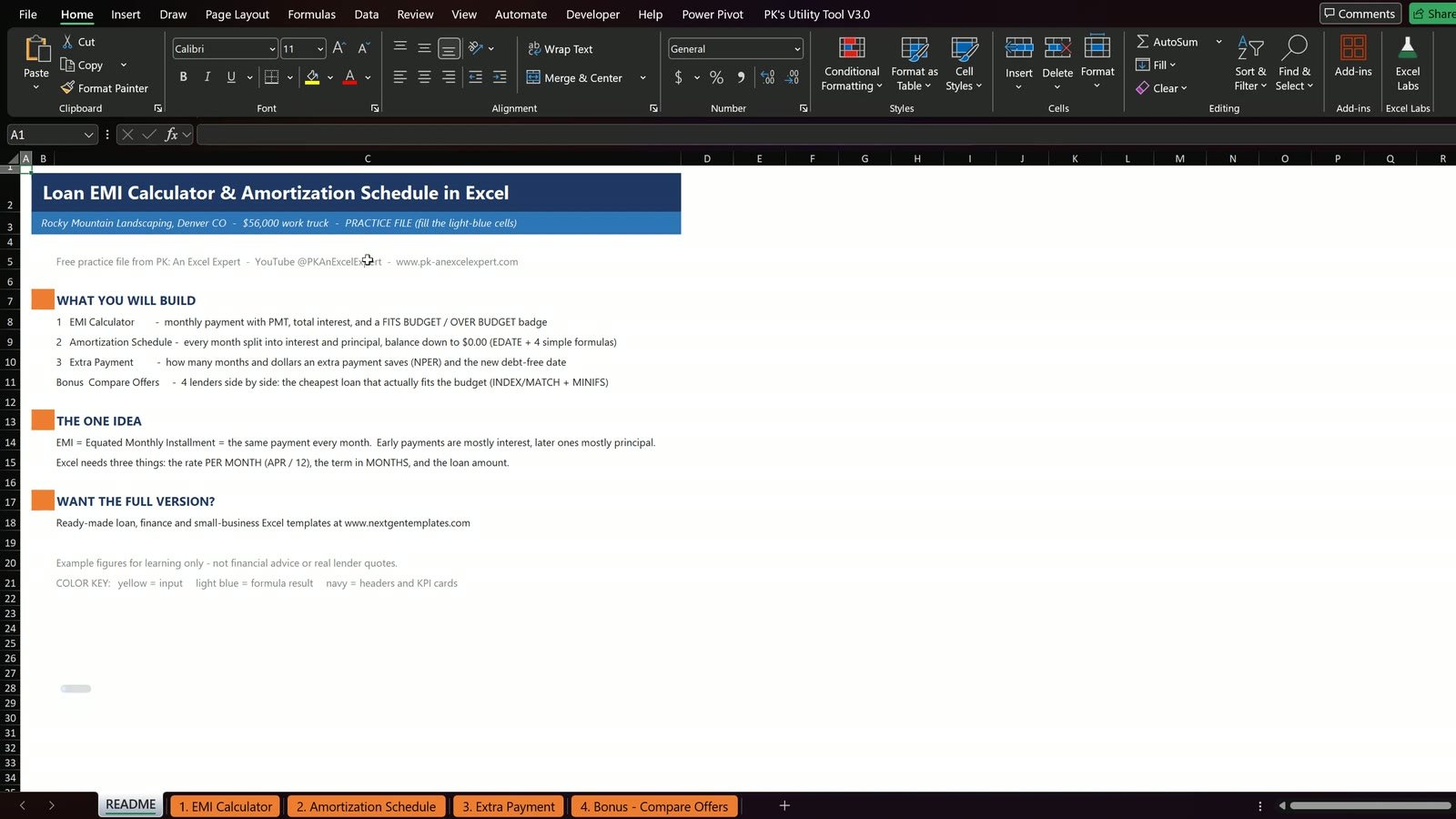
The workbook has five sheets: README, 1. EMI Calculator, 2. Amortization Schedule, 3. Extra Payment and 4. Bonus – Compare Offers. Yellow cells are inputs, and every result cell is empty so you type the formulas yourself. The Solution file has everything finished to compare with. The one idea behind every formula: Excel needs the rate per month, the term in months and the loan amount.
Use Case 1: Loan EMI Calculator with PMT
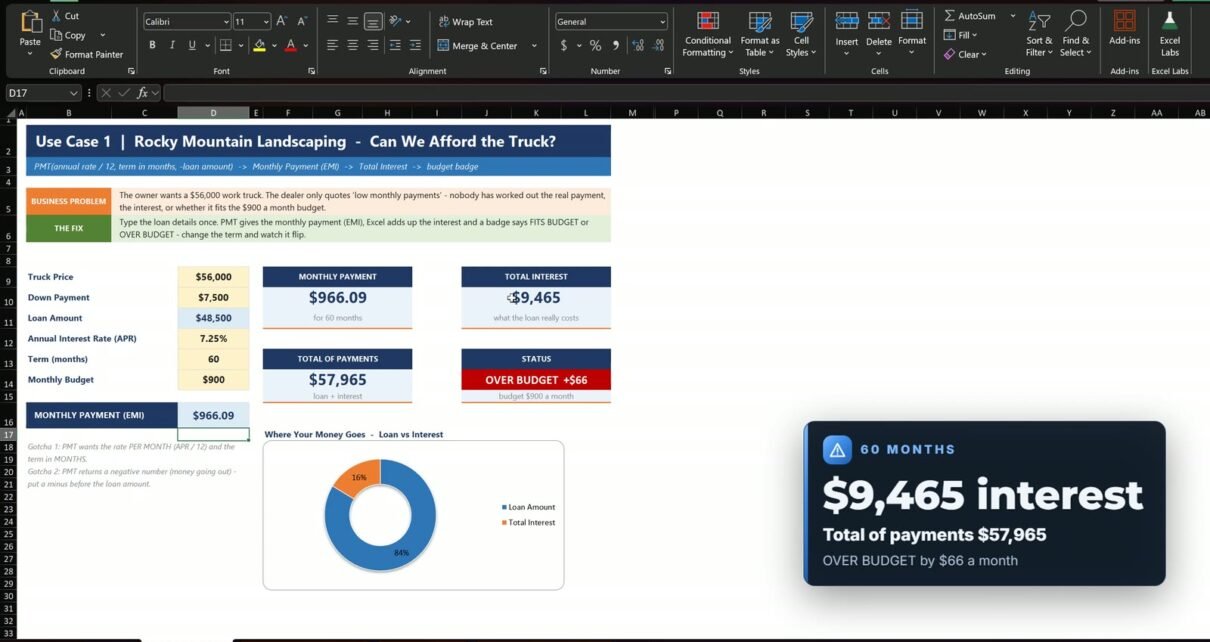
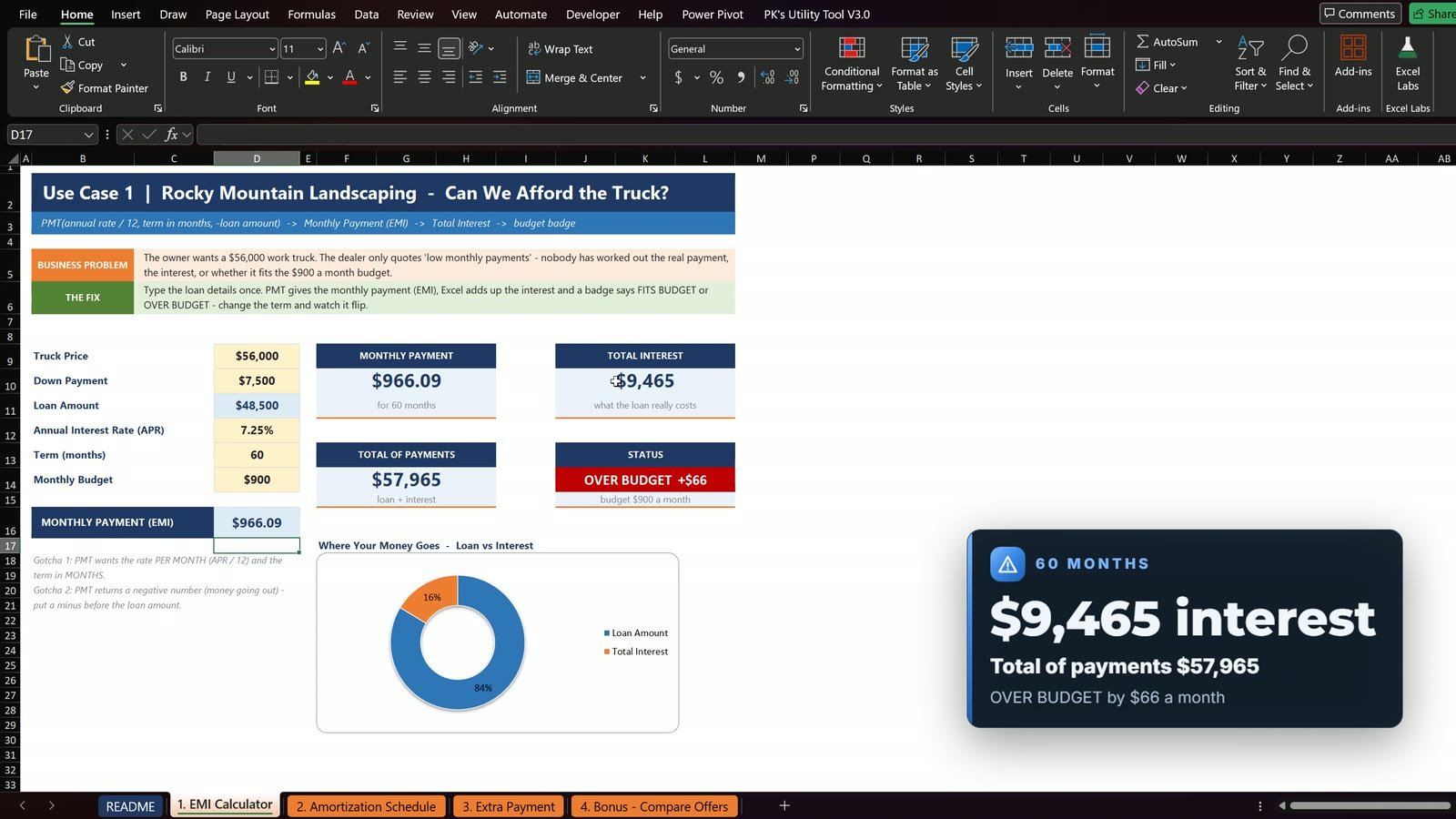
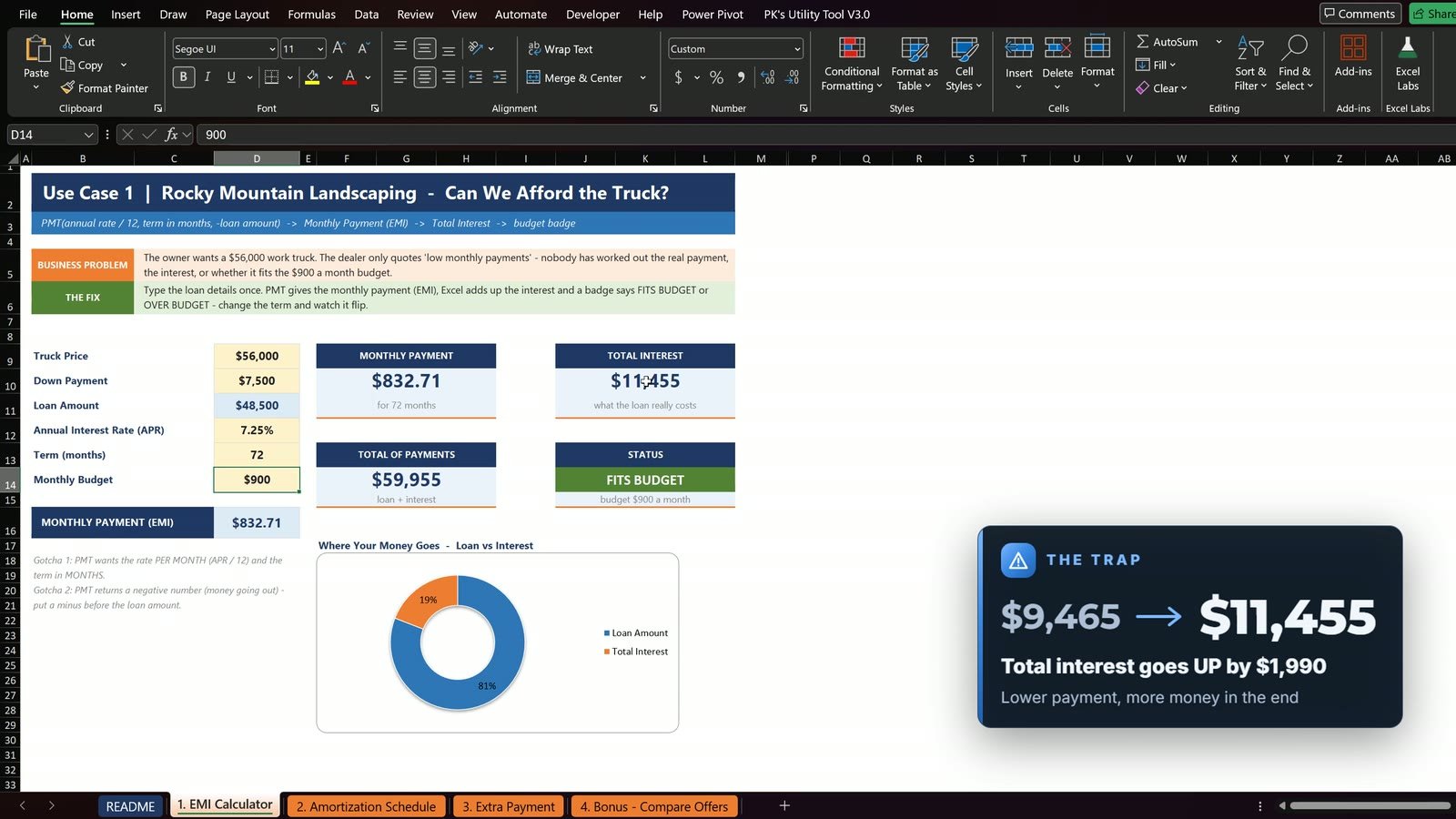
Loan = price $56,000 minus down payment $7,500 = $48,500, at 7.25% APR for 60 months, with a $900 monthly budget.
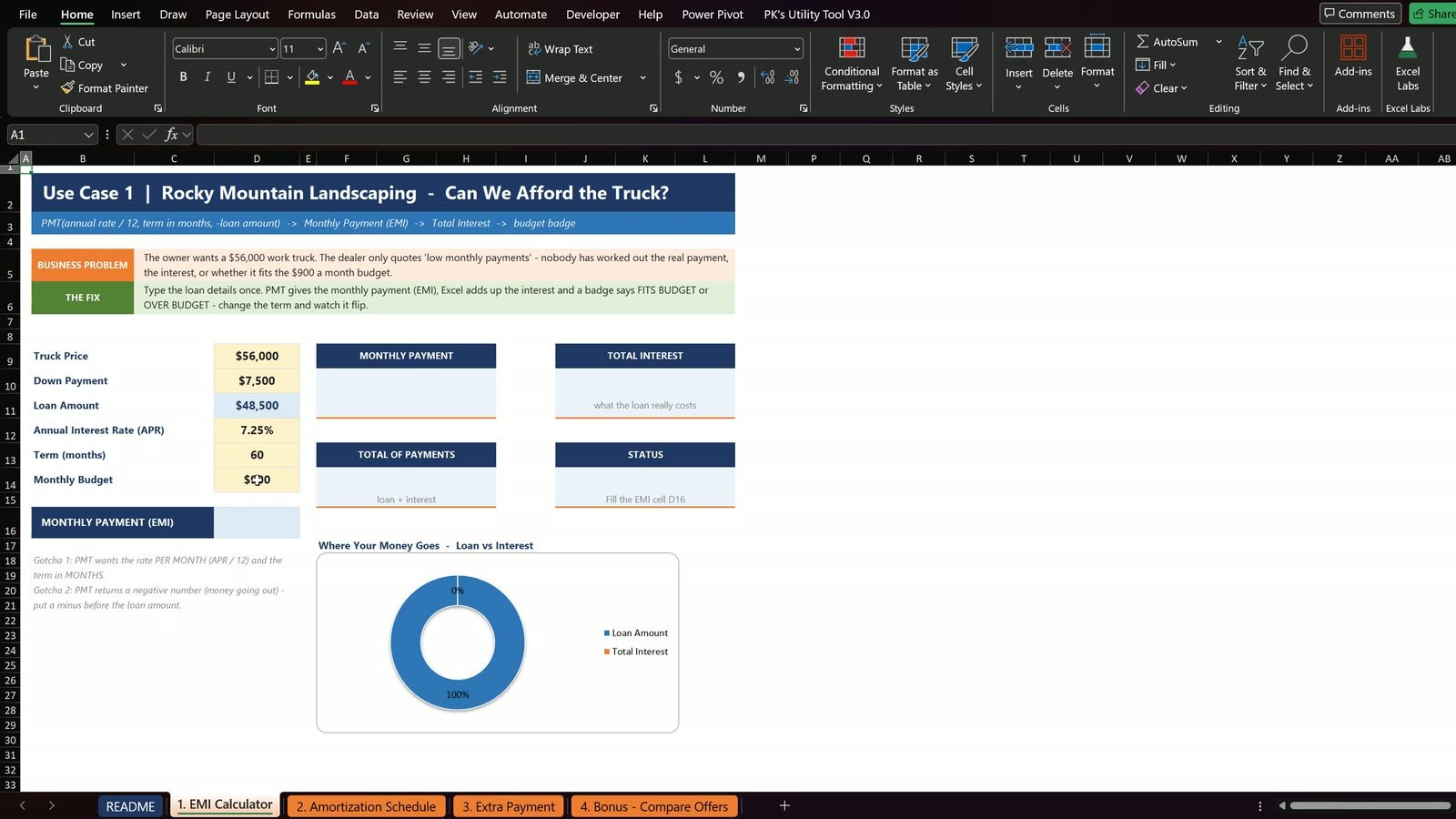
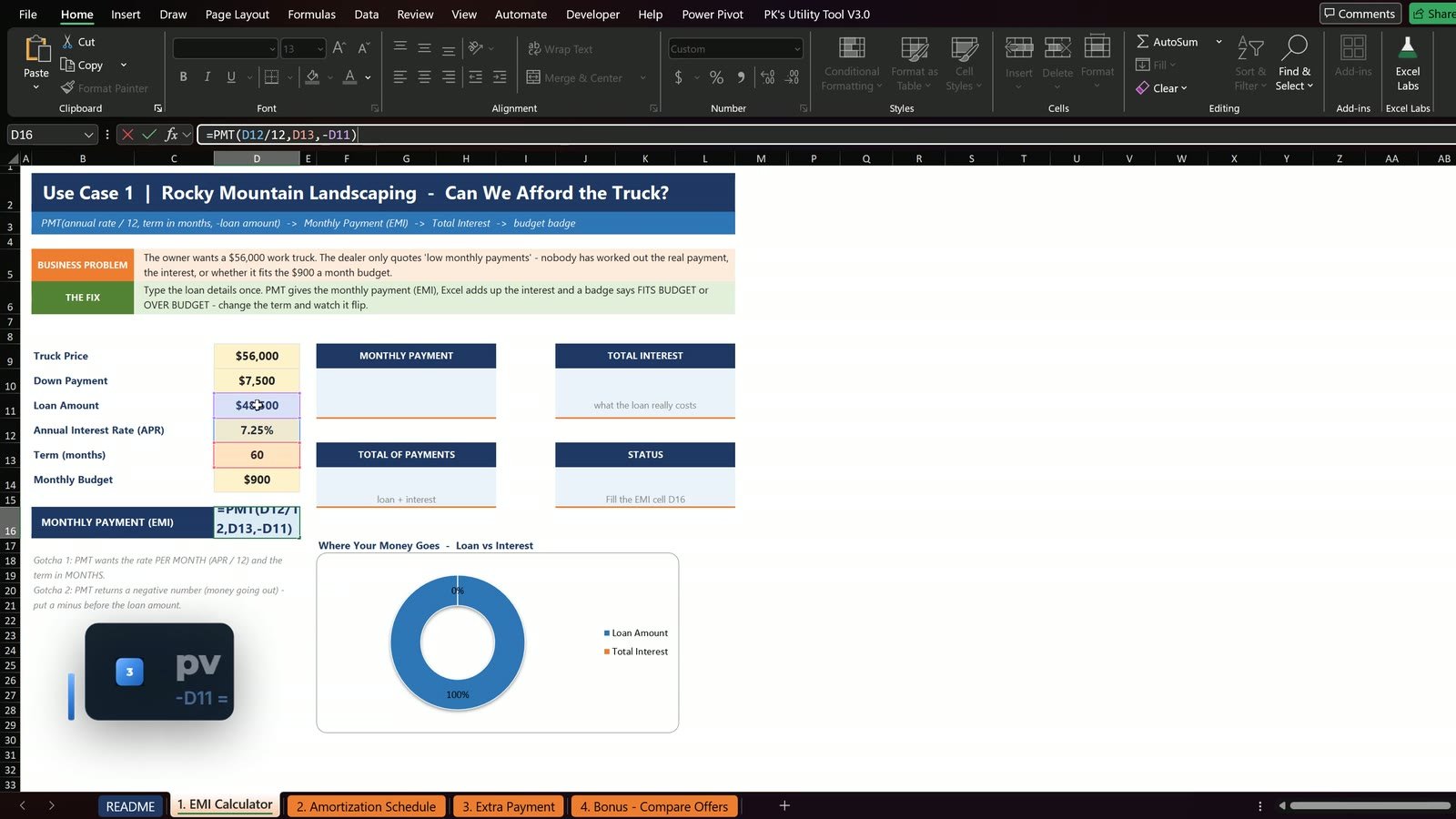
- Click D16, the monthly payment.
- Type
=PMT(D12/12,D13,-D11)and press Enter.
The result is $966.09 a month. The cards show total interest of $9,465, total payments of $57,965 and the status Over Budget by $66.
Two PMT gotchas
- PMT wants the rate per month, so the annual rate is always divided by 12 and the term is always in months.
- PMT returns a negative number because the money goes out. The minus before the loan amount makes the payment positive.
What if the loan runs 72 months?
Change D13 from 60 to 72. The payment falls to $832.71 and the badge turns green, Fits Budget.
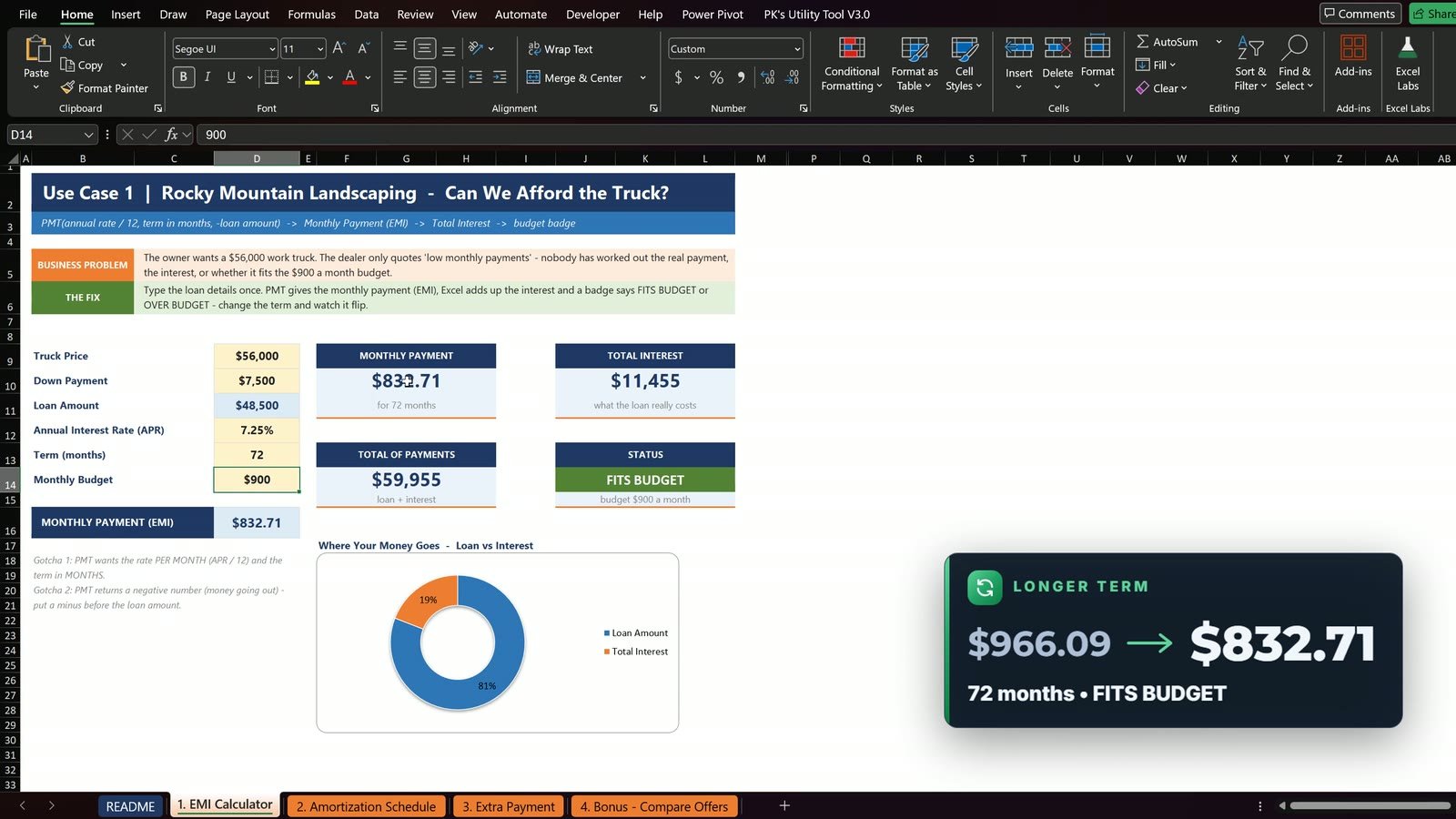
But look at the total interest: it rises from $9,465 to $11,455, almost $2,000 more. The lower payment costs more money in the end.
Use Case 2: Loan Amortization Schedule in Excel
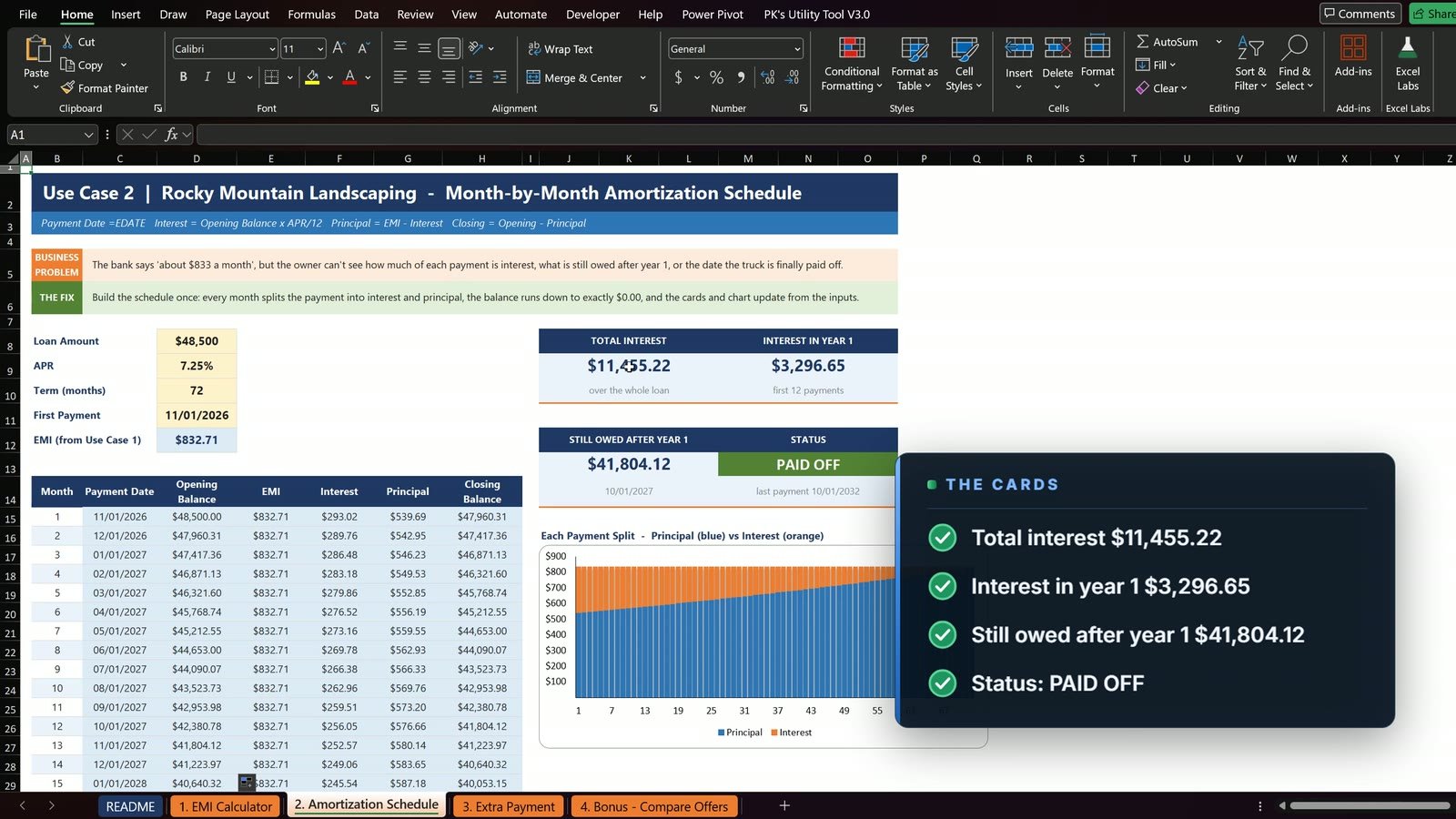
An amortization schedule shows how much of each payment is interest and how much is principal, and what is still owed at any time. Here the loan is $48,500 at 7.25% for 72 months, the first payment is 11/01/2026 and the EMI is in D12 ($832.71). The Month column is already filled; you build row 15 and fill it down.
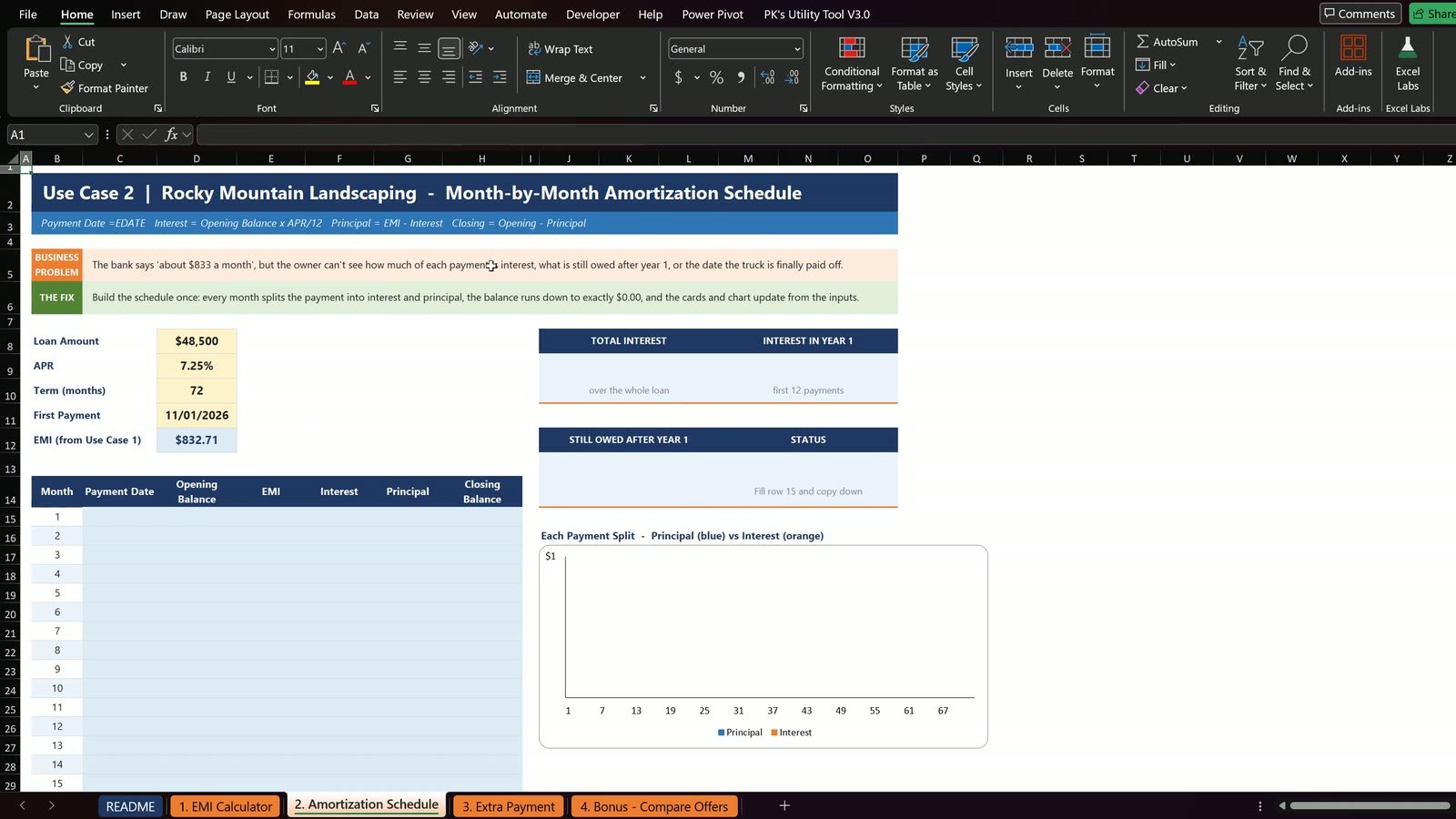
| Cell | Column | Formula |
|---|---|---|
| C15 | Payment date | =IF($B15="","",EDATE($D$11,B15-1)) |
| D15 | Opening balance | =IF($B15="","",$D$8) |
| E15 | EMI | =IF($B15="","",$D$12) |
| F15 | Interest | =IF($B15="","",D15*$D$9/12) |
| G15 | Principal | =IF($B15="","",E15-F15) |
| H15 | Closing balance | =IF($B15="","",D15-G15) |
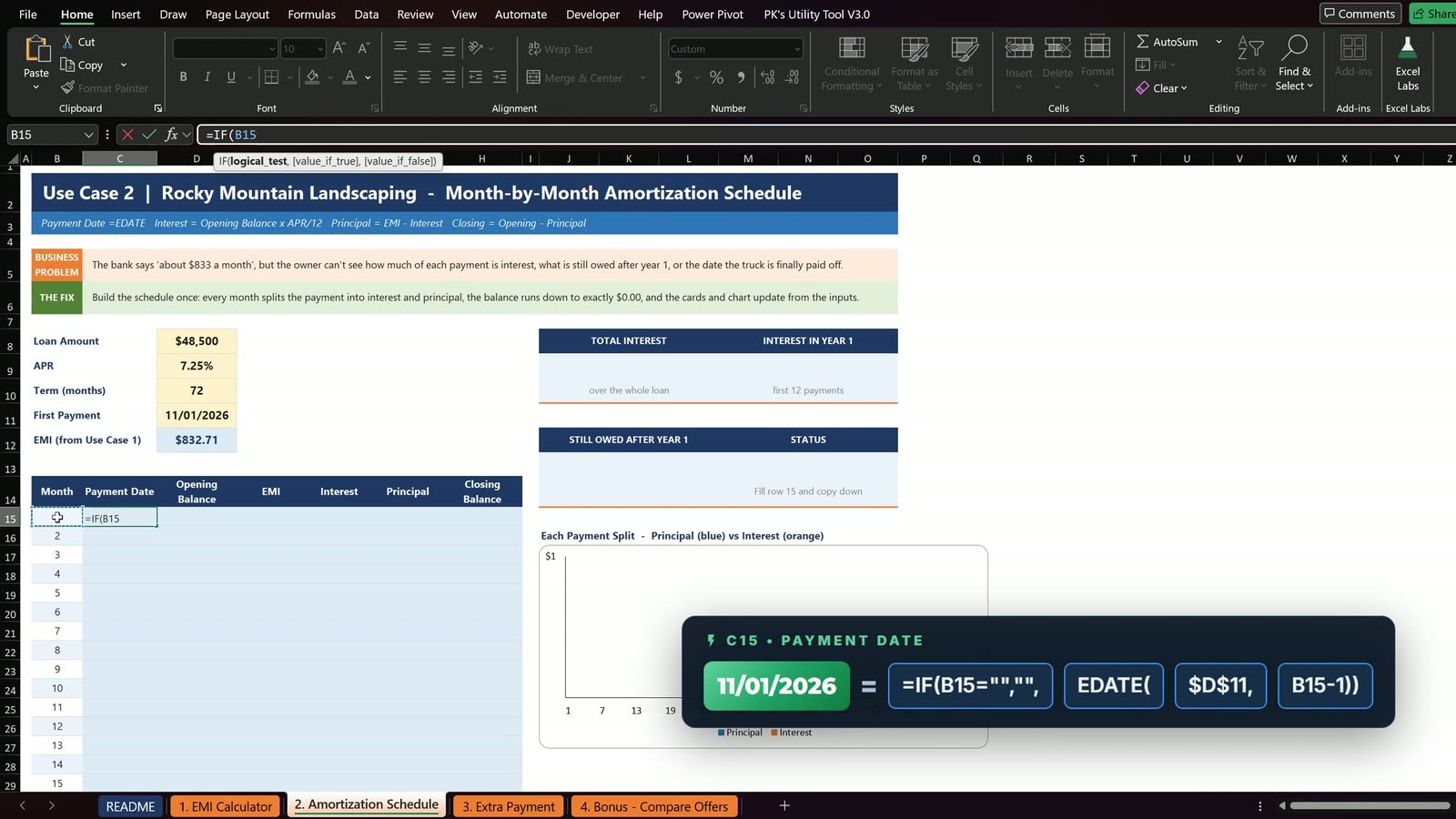
The IF check keeps the row empty when the Month cell is empty, so the schedule works for any term up to 84 months. Lock the loan amount, the EMI and the APR with F4 before you fill down.
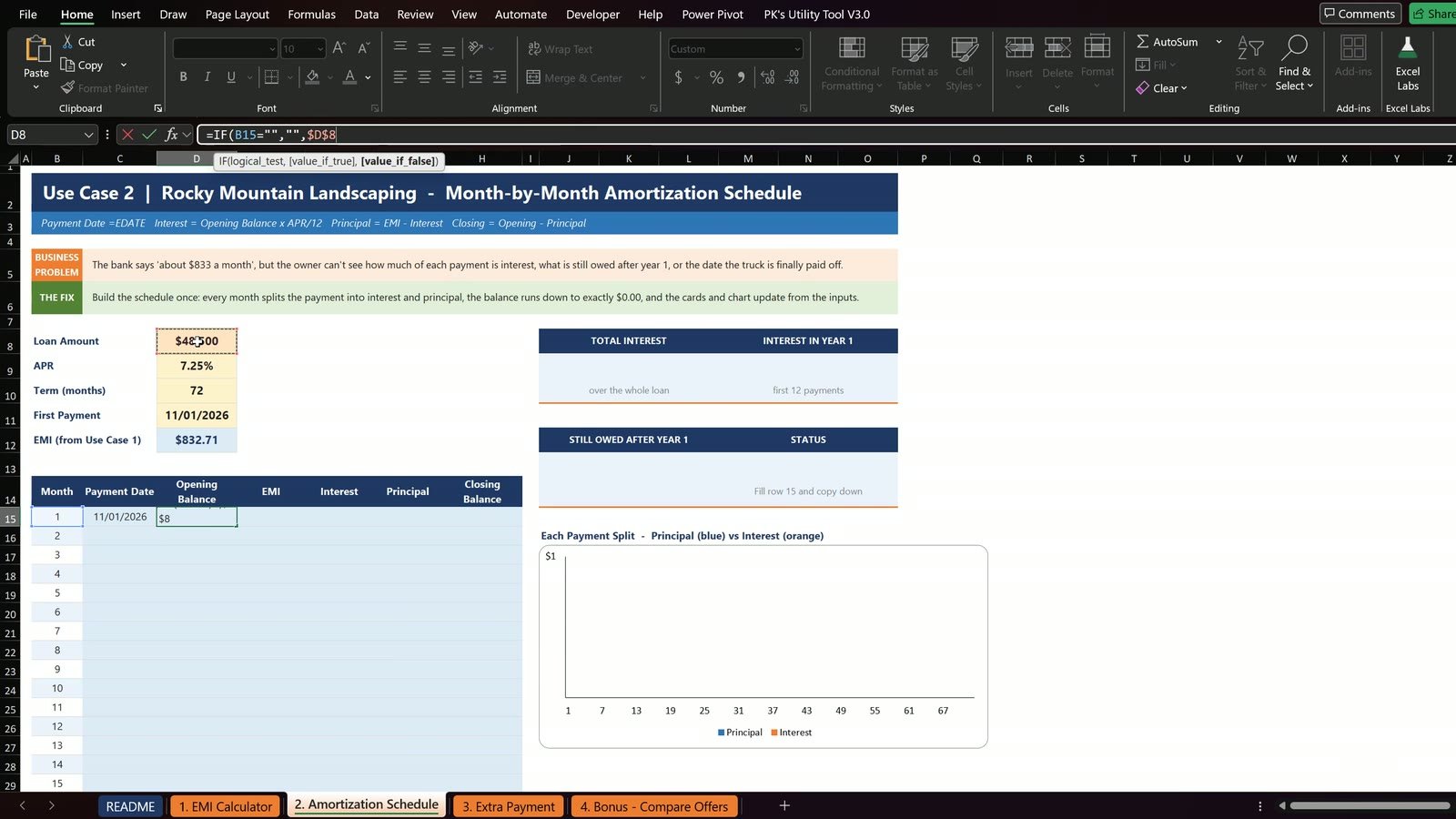
Month 1 interest is $48,500 x 7.25% / 12 = $293.02.
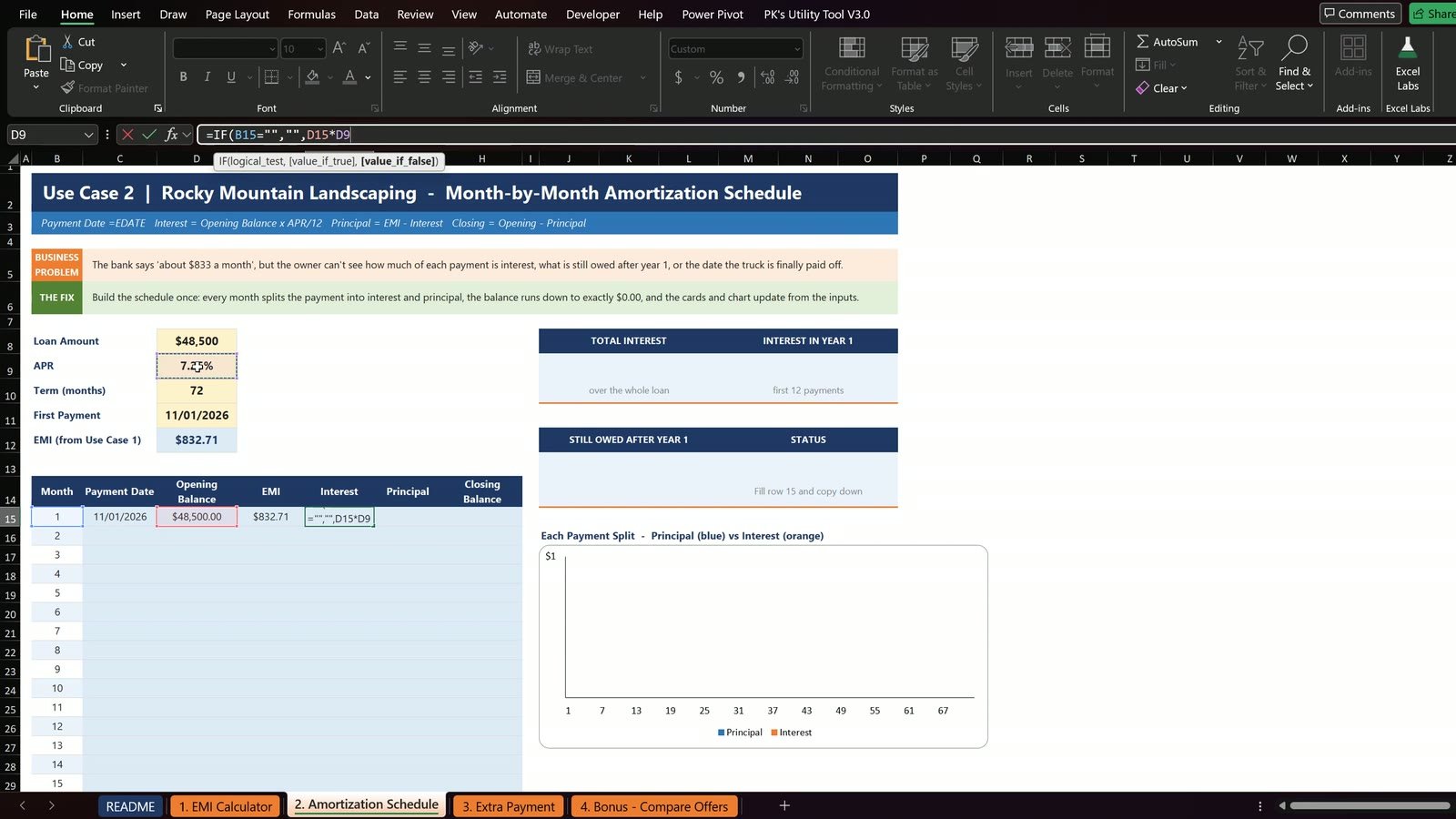
Principal is the EMI minus the interest ($539.69), and the closing balance is the opening balance minus the principal: after month 1 you still owe $47,960.31.
The classic mistake: every month opens with the full loan
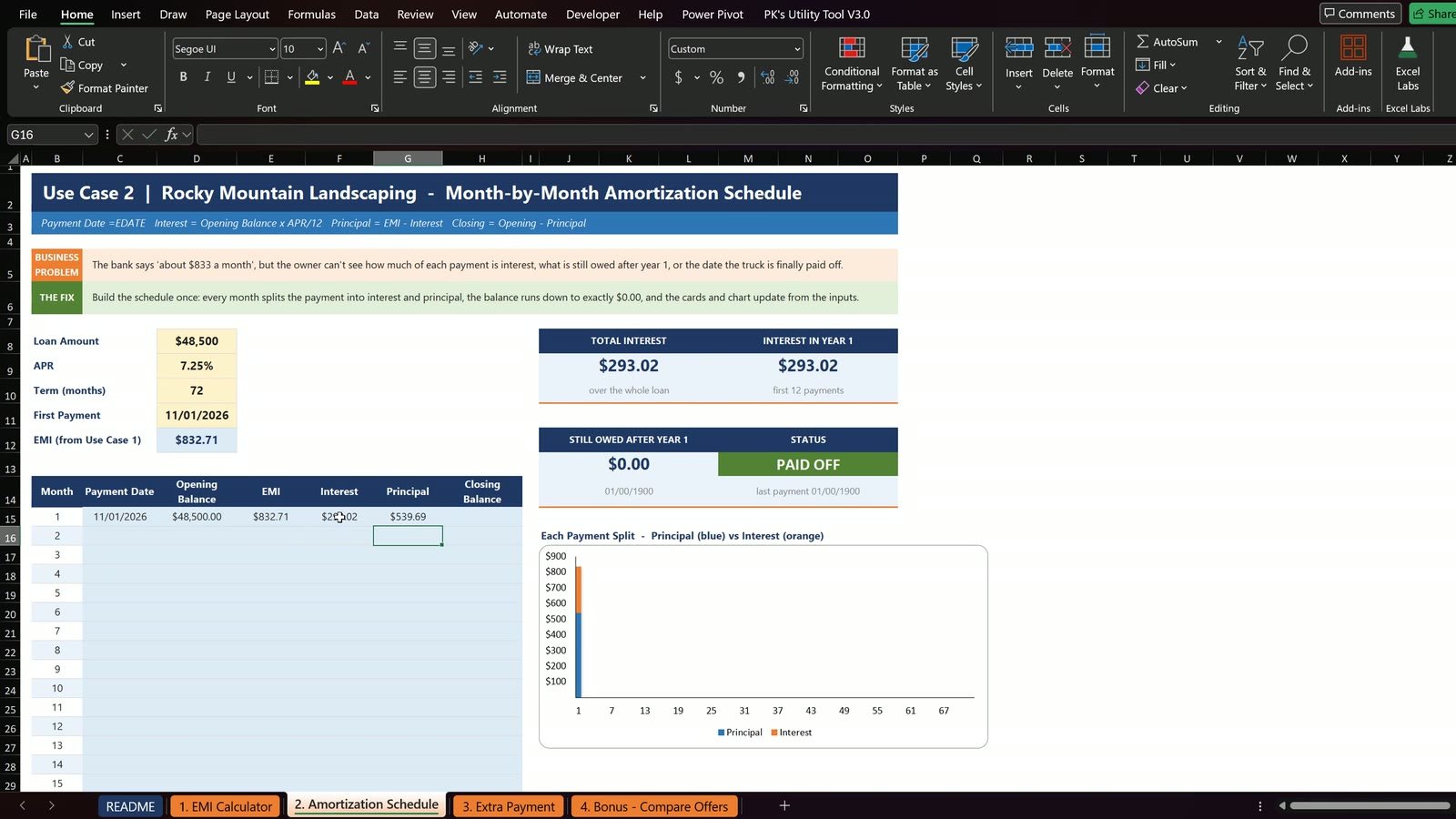
Select C15:H15 and double-click the fill handle. Look at the Opening Balance column: every month opens with $48,500. That is wrong, and the cards show Check Schedule.
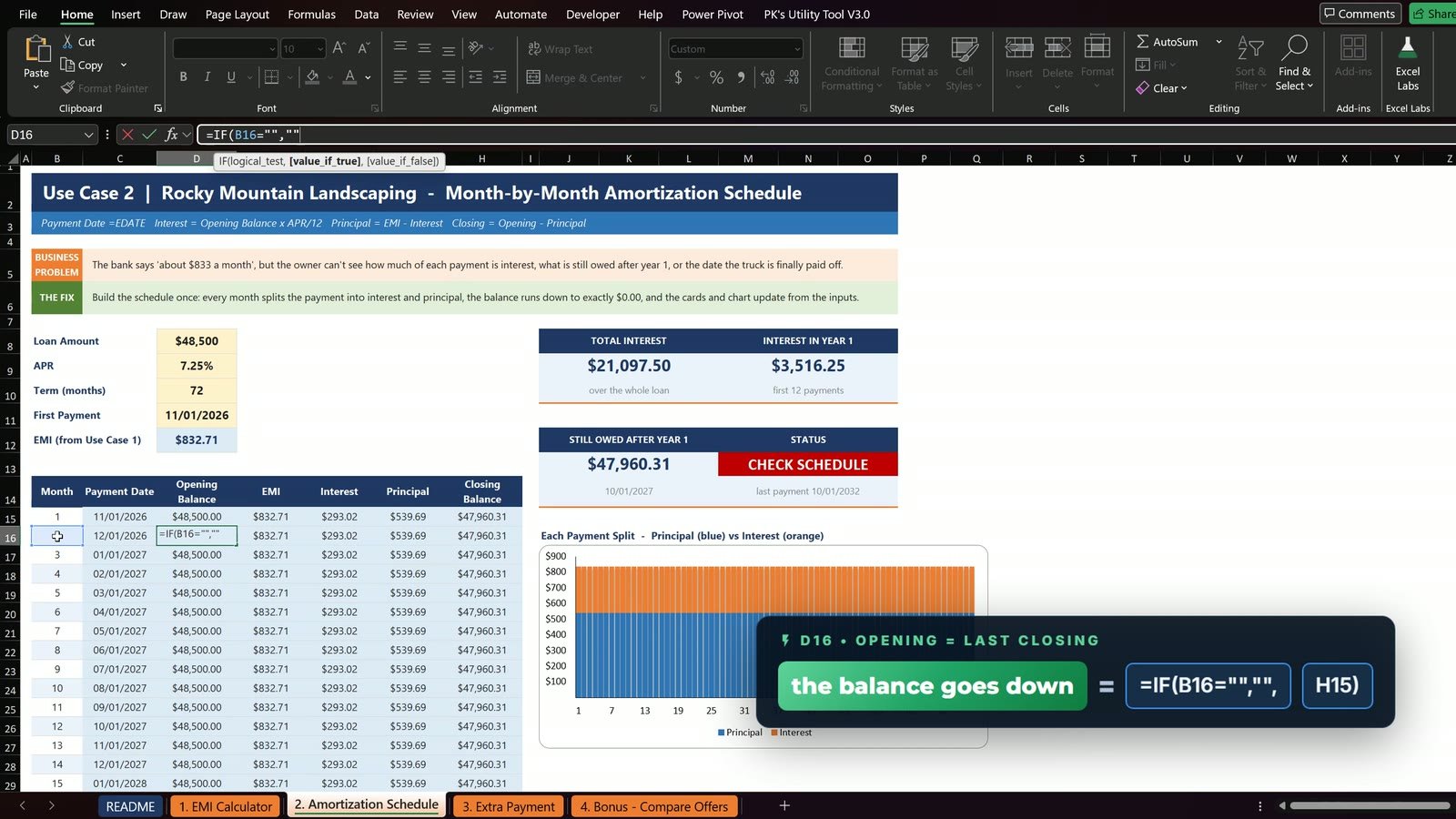
Month 2 must open with the closing balance of month 1. In D16 type =IF($B16="","",H15), press Enter and double-click the fill handle again. Now the balance goes down month after month.
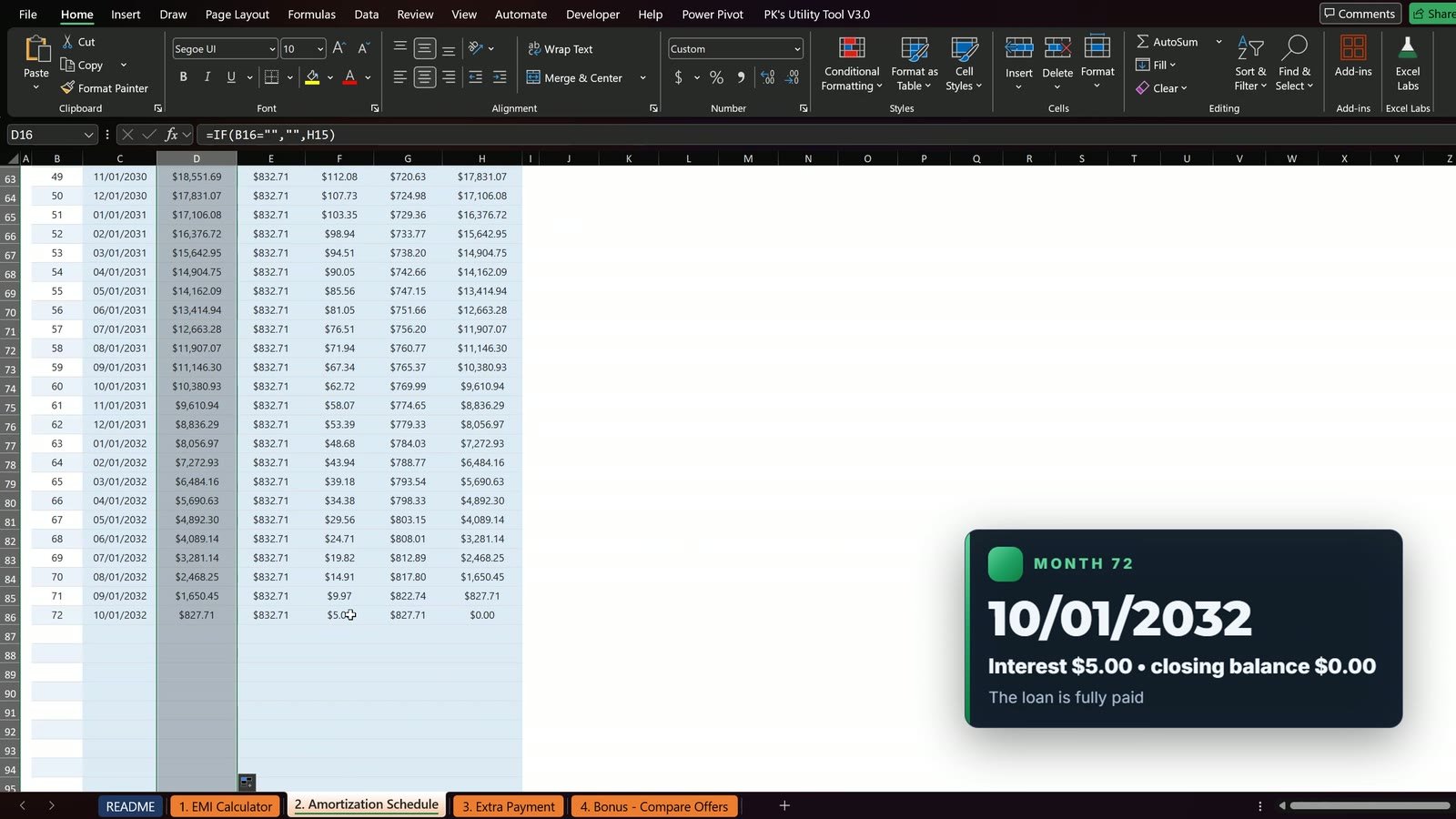
Scroll to month 72: 10/01/2032, interest just $5.00, closing balance $0.00. The loan is paid off.
The cards now show total interest of $11,455.22, interest in year one of $3,296.65, and $41,804.12 still owed after one year. In the chart, the orange interest part gets smaller every month while the blue principal part grows.
Use Case 3: Extra Payment Plan with NPER
The owner can add $100 a month. Is it worth it, and can the loan be paid off 12 months early? In D16 type:
=ROUNDUP(NPER(D9/12,-(D12+D13),D8),0)
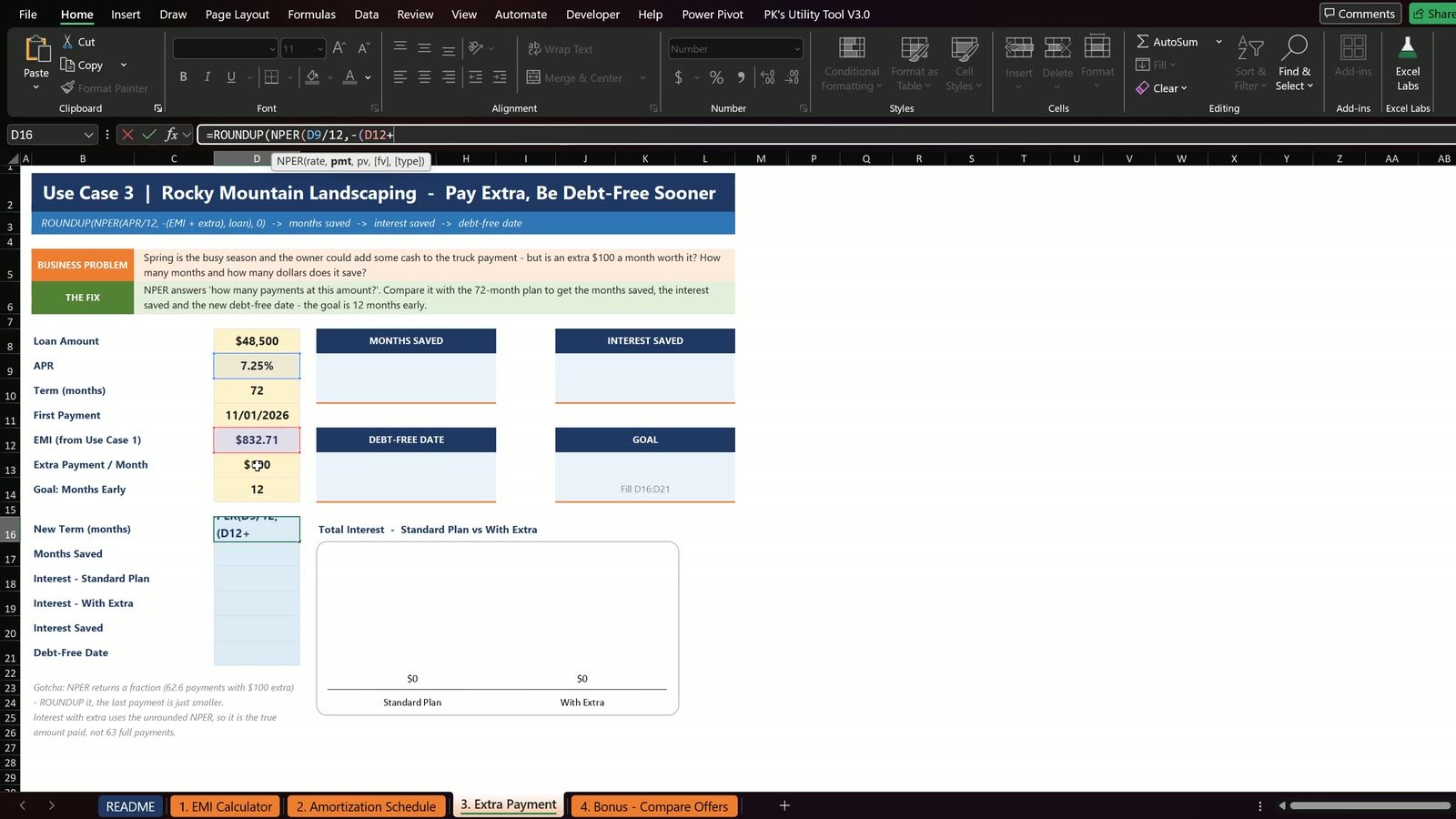
The result is 63 months instead of 72. NPER alone gives 62.6, so ROUNDUP makes it whole months; the last payment is a little smaller. The other results:
| Cell | Result | Formula | Value |
|---|---|---|---|
| D17 | Months saved | =D10-D16 |
9 |
| D18 | Interest, standard plan | =D12*D10-D8 |
$11,455.22 |
| D19 | Interest, with extra | =(D12+D13)*NPER(D9/12,-(D12+D13),D8)-D8 |
$9,894.06 |
| D20 | Interest saved | =D18-D19 |
$1,561.16 |
| D21 | Debt-free date | =EDATE(D11,D16-1) |
01/01/2032 |
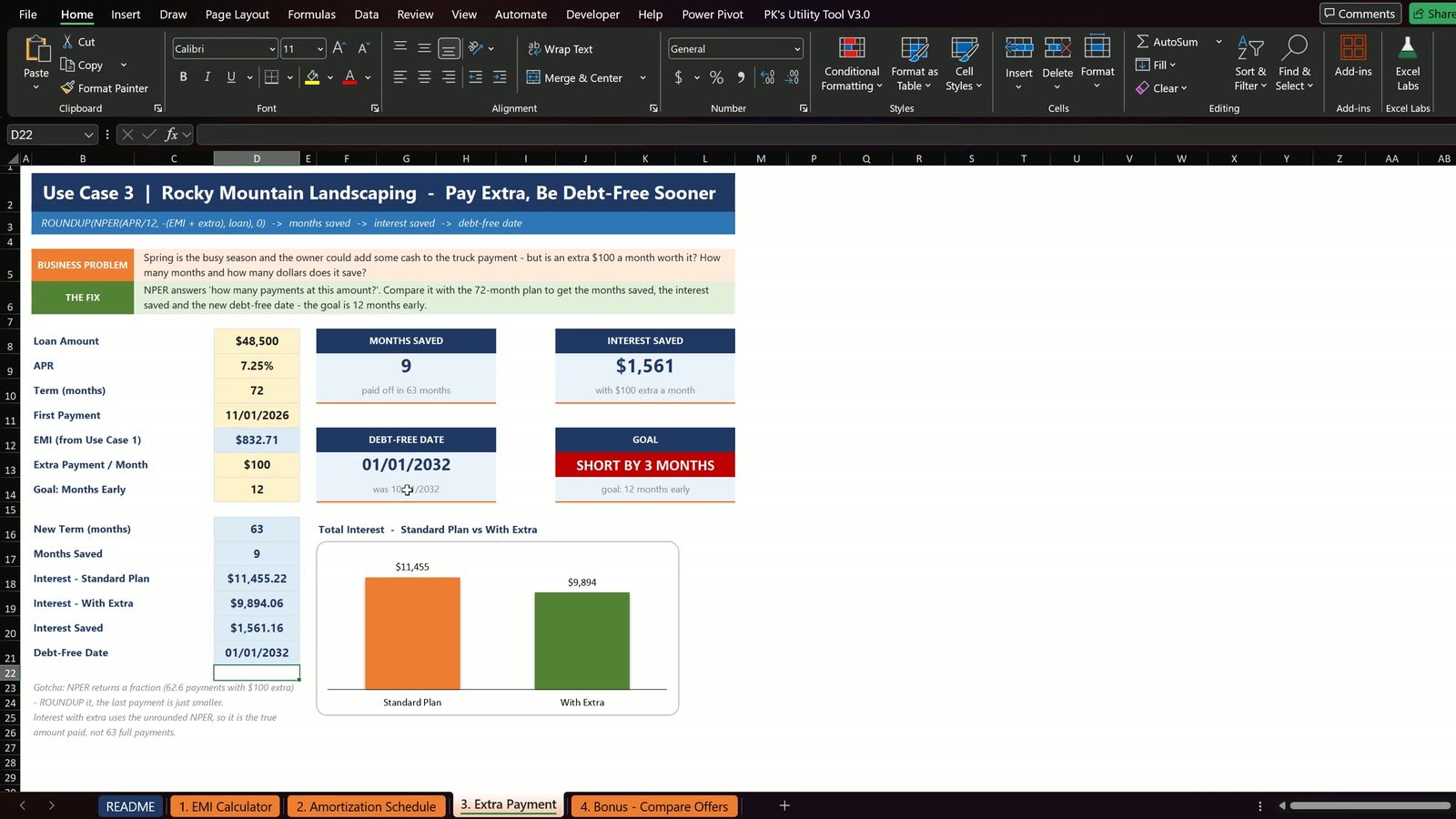
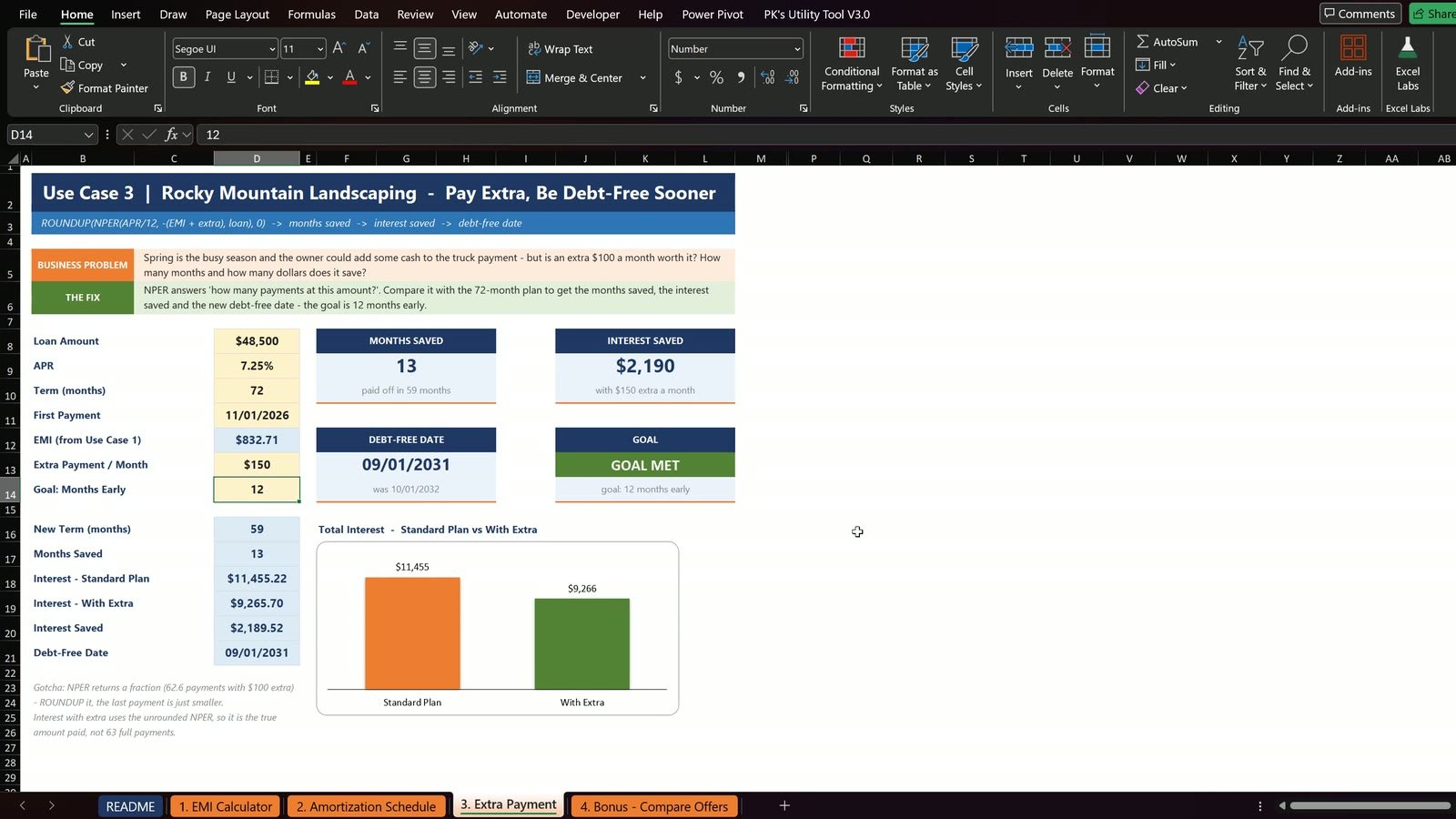
The goal card says Short by 3 months. Change the extra payment in D13 to $150: 59 months, 13 months saved, $2,189.52 of interest saved and debt-free on 09/01/2031. The goal card turns green.
Bonus: Compare 4 Loan Offers
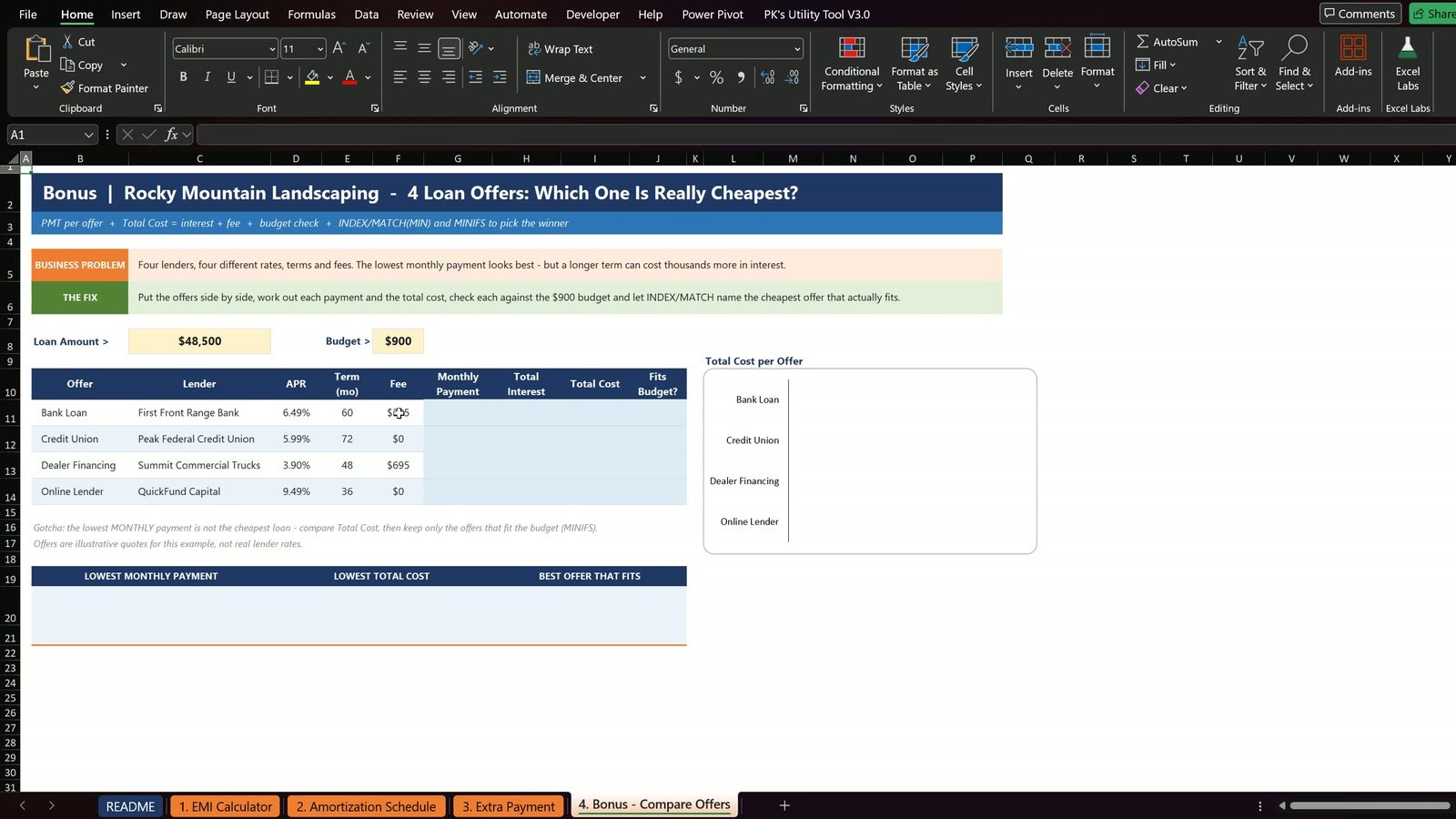
A bank, a credit union, the dealer and an online lender, with different rates, terms and fees. In row 11 type the formulas and fill down to row 14:
| Cell | Column | Formula |
|---|---|---|
| G11 | Monthly payment | =PMT(D11/12,E11,-$C$8) |
| H11 | Total interest | =G11*E11-$C$8 |
| I11 | Total cost | =H11+F11 |
| J11 | Fits budget? | =IF(G11<=$F$8,"YES","NO") |
| Offer | APR | Months | Monthly payment | Total cost | Fits $900? |
|---|---|---|---|---|---|
| Bank Loan | 6.49% | 60 | $948.73 | $8,819 | No |
| Credit Union | 5.99% | 72 | $803.56 | $9,356 | Yes |
| Dealer Financing | 3.90% | 48 | $1,092.92 | $4,655 | No |
| Online Lender | 9.49% | 36 | $1,553.37 | $7,421 | No |
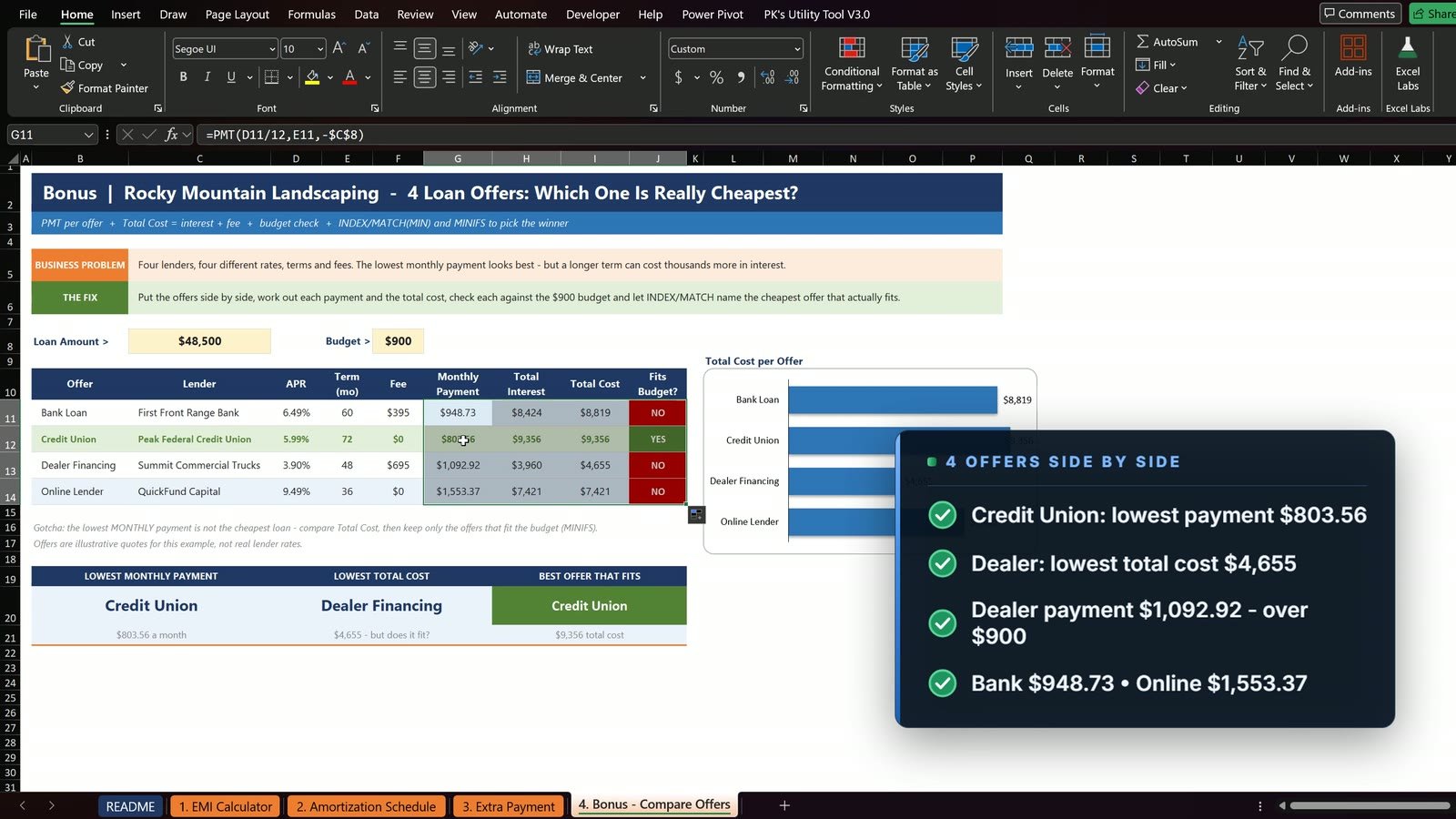
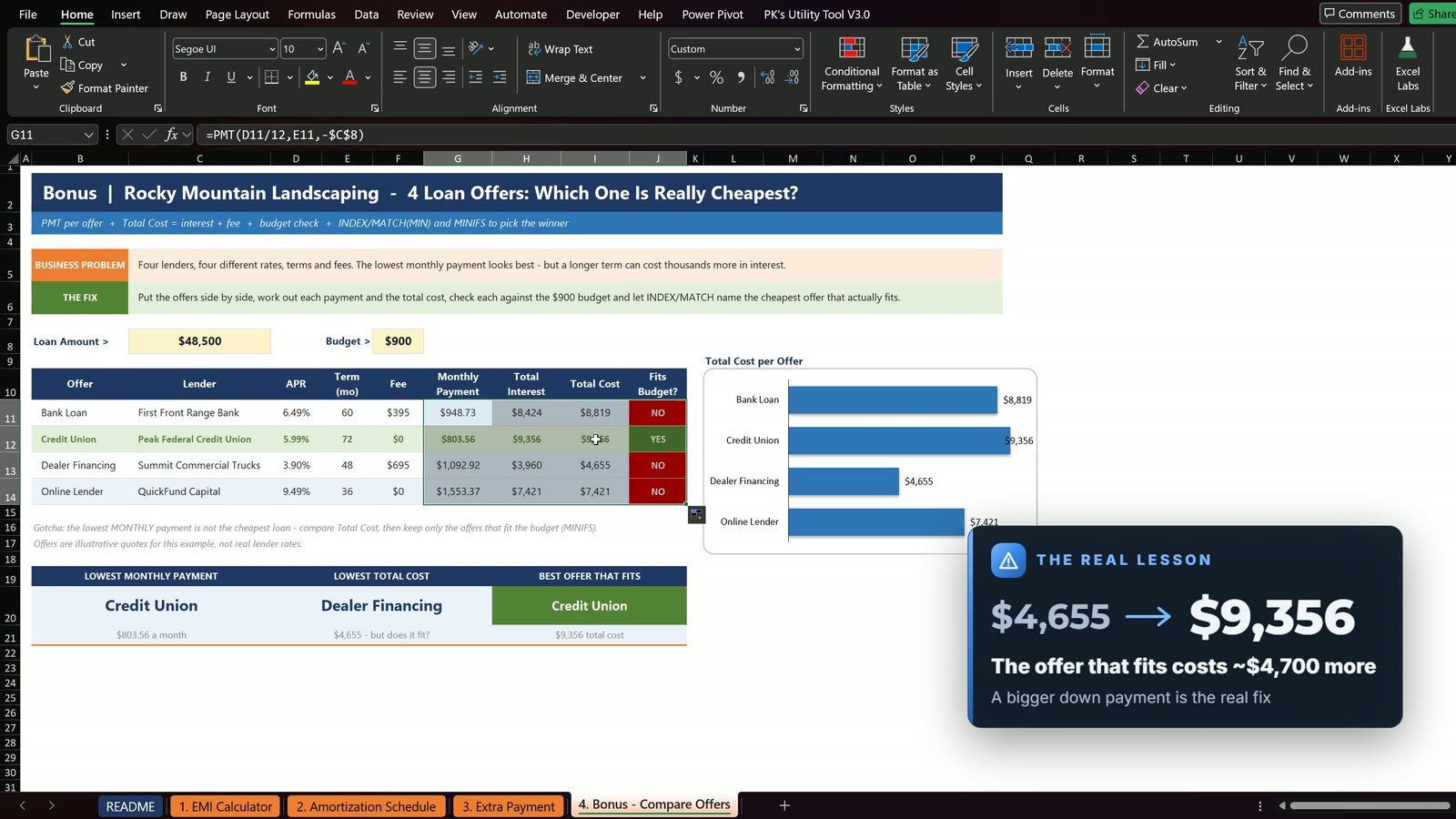
The cards at the bottom use INDEX and MATCH with MINIFS to pick the cheapest offer that fits: =INDEX($B$11:$B$14,MATCH(MINIFS($I$11:$I$14,$J$11:$J$14,"YES"),$I$11:$I$14,0)). It is the Credit Union at a total cost of $9,356. The cheapest loan does not fit the budget, and the one that fits costs about $4,700 more, so a bigger down payment is the real fix.
Tips for Loan Calculators in Excel
- Divide the annual rate by 12 and keep the term in months.
- Lock input cells with F4 before filling down, and let the next row’s opening balance point to the previous closing balance.
- Use ROUNDUP around NPER, but calculate interest from the unrounded NPER.
- Always compare total cost, not only the monthly payment.
Related tutorials and files: the Excel Loan EMI Calculator template, the Debt Payoff Calculator in Excel and the Home Affordability Calculator in Excel. For the PMT function, see Microsoft’s PMT function reference.
If you want a ready-made tool, see the Loan & EMI Management System Web App or the Loan and EMI Repayment Calendar in Excel on NextGenTemplates.com. We also build custom Excel dashboards and calculators on demand. To master formulas step by step, take the Excel + AI Mastery: 100 Essential Formulas course on Next Gen Templates Academy.
Frequently Asked Questions
How do I create a loan amortization schedule in Excel?
Work out the monthly payment with PMT, then build one row per month: payment date with EDATE, opening balance, the EMI, interest (opening balance x APR / 12), principal (EMI minus interest) and closing balance (opening minus principal). Month 2 must open with month 1's closing balance. Fill the row down until the closing balance reaches zero.
What is the PMT formula for a loan in Excel?
=PMT(rate/12, term_in_months, -loan_amount). The annual rate is divided by 12, the term is in months, and the loan amount carries a minus sign because PMT returns the payment as a negative number. For $48,500 at 7.25% over 60 months it returns $966.09.
What does EMI mean?
EMI stands for equated monthly installment: the same payment every month that covers the interest and a part of the principal. Early payments are mostly interest, late payments are mostly principal.
Why does a longer loan term cost more?
The monthly payment drops, but you pay interest for more months. In the example, moving from 60 to 72 months lowers the payment from $966.09 to $832.71 but raises the total interest from $9,465 to $11,455, almost $2,000 more.
How do I calculate the effect of extra payments in Excel?
Use NPER with the EMI plus the extra amount as the payment: =ROUNDUP(NPER(APR/12, -(EMI+Extra), Loan), 0). NPER returns a fraction, so ROUNDUP makes it whole months. Compare the interest of both plans to see the saving. With $100 extra the loan ends in 63 months instead of 72 and saves $1,561.16.
How do I compare several loan offers in Excel?
Put each offer in a row with its rate, term and fee. Use PMT for the payment, payment x term minus loan for the interest, interest plus fee for the total cost, and an IF against your budget for a Yes or No. INDEX, MATCH and MINIFS then pick the cheapest offer that fits the budget.
Is the practice file free?
Yes. The zip has the Practice file to build along with the video and the finished Solution file. The figures are examples for learning, not financial advice.
Download the Practice File
Get the Practice file and the finished Solution file in one zip – free.
⬇️ Download the Free Practice File
Practice file + finished Solution file · Rocky Mountain Landscaping loan data · .zip · Microsoft Excel
About the Author
PK (Priyendra Kumar) runs PK: An Excel Expert and NextGenTemplates.com and has been teaching Excel, VBA and Power BI on YouTube for years. Every step in this tutorial was recorded in real Microsoft Excel with the files you can download above. The figures are examples for learning, not financial advice.
Conclusion
With PMT, EDATE, NPER and a few IF checks you can build a loan amortization schedule in Excel that shows the real cost of any loan, what extra payments save and which offer is best. Download the free file, build it once and reuse it for your own loans.