Vehicle Reservation Tracker in Excel — Overview
Managing office vehicles sounds simple — until 5 different people request the same pool car for Tuesday morning, the field-staff van comes back with an empty fuel tank and no logbook entry, and your auditor asks for a complete record of who used which vehicle and when. The Vehicle Reservation Tracker in Excel turns that chaos into a clean, login-protected workflow with 8 worksheets, an interactive dashboard with 4 slicers and 5 charts, and a VBA UserForm for adding, updating, and deleting reservation records in seconds.
This Excel template is built for Admin, Facilities, HR, and Fleet teams that need a single audit-ready ledger of every car, van, or shuttle booking — without buying telematics hardware or paying $4–10 per vehicle per month for fleet SaaS platforms. Setup takes under 10 minutes, and the workbook scales from a 6-vehicle office pool to a 30-vehicle hospital fleet.
Key Features of Vehicle Reservation Tracker in Excel
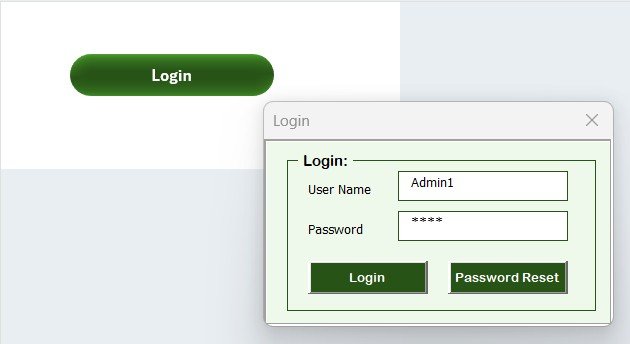
🔐 VBA Login Form: Every user signs in with their own credentials, so every booking, approval, and trip-return event is tied to a real identity. No more shared spreadsheets where “someone overwrote my booking” is the only audit trail.
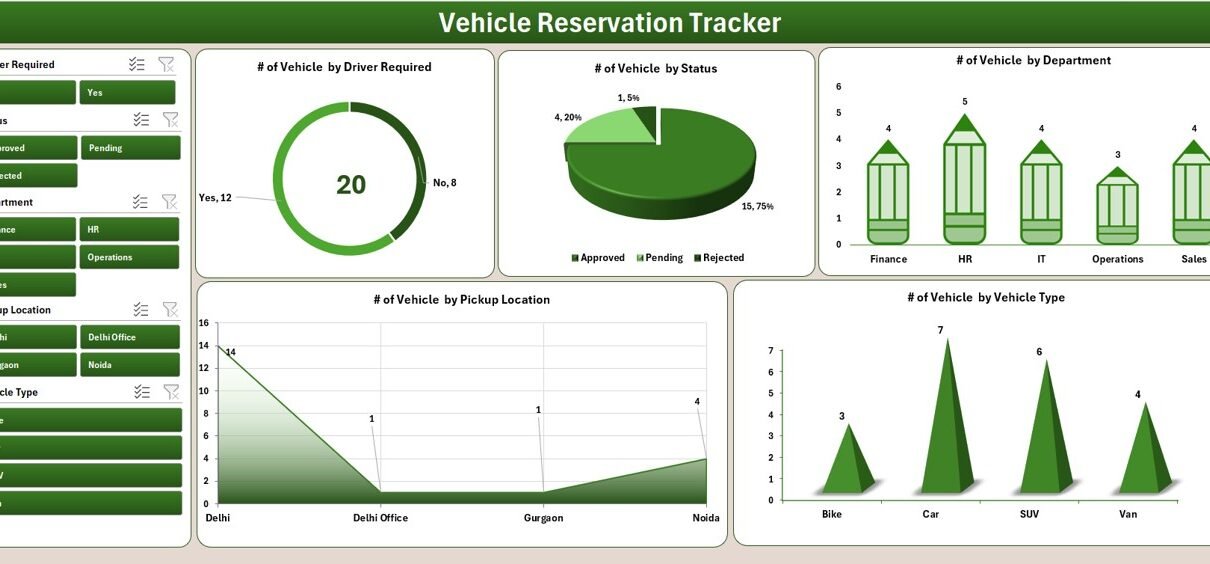
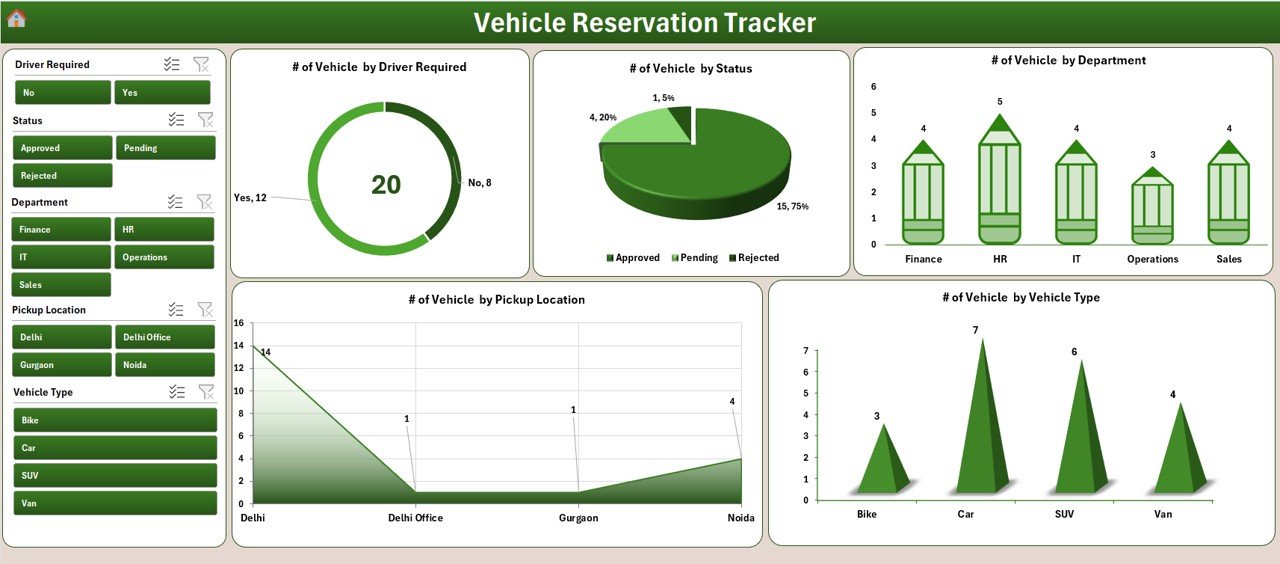
📊 Interactive Dashboard with 4 Slicers and 5 Charts: Filter by Vehicle, Department, Status, and Date Range. The 5 charts show Reservation Status, Department-wise Bookings, Vehicle Utilisation, Approver Breakdown, and Monthly Reservation Trends. Pivot tables on the Support Sheet drive every visual.
📝 Add / Update / Delete UserForm: Three buttons on the Data Sheet open a VBA-powered form with combo boxes, date pickers, and field validation. Submit refreshes the dashboard automatically — no manual pivot refresh, no broken charts.
👥 User Management with Role-Based Access: Admins create users and assign Admin or Standard roles. Admins see and edit every reservation; Standard users see only their own bookings. This is the “segregation of duties” auditors look for during ISO and internal-audit reviews.
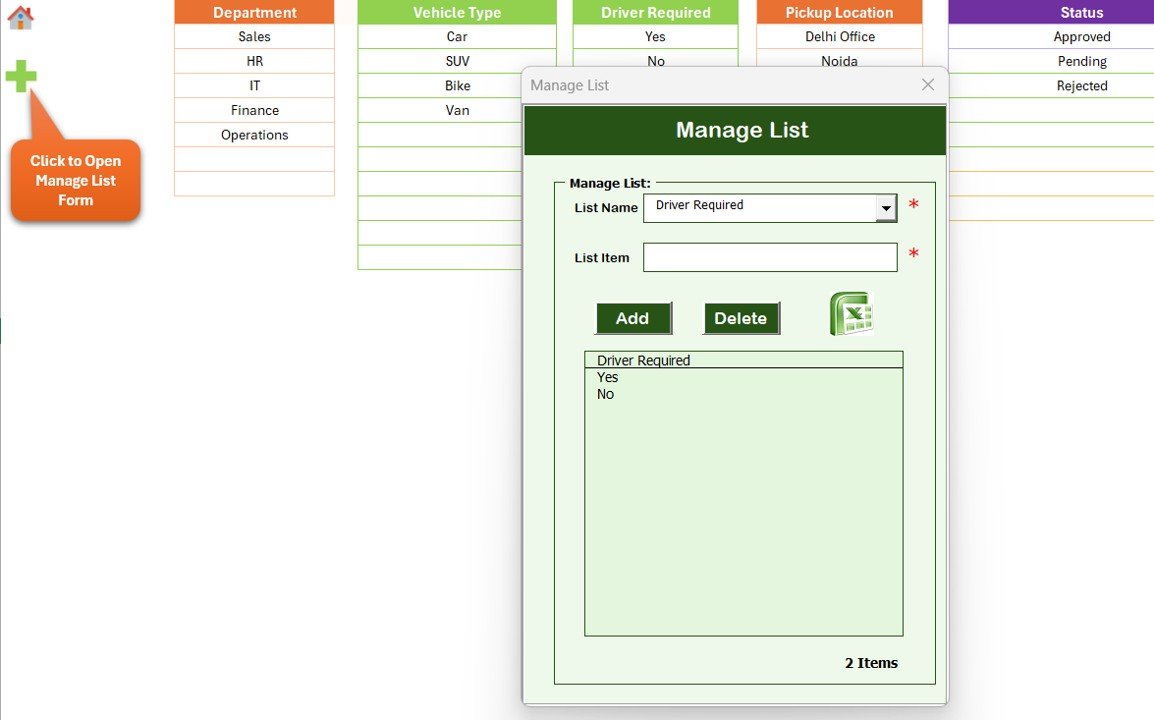
📋 Editable List Sheet: Update the master list of vehicles, departments, drivers, and approvers in one place. Every dropdown in the data-entry form refreshes from this sheet — no need to edit forms or formulas.
⚙️ Settings Sheet: Configure organisation name, audit fields, date formats, and visual themes from a single sheet. The Home Page gives one-click navigation across all 8 sheets.
Sheets Explanation
1. Login Form Sheet
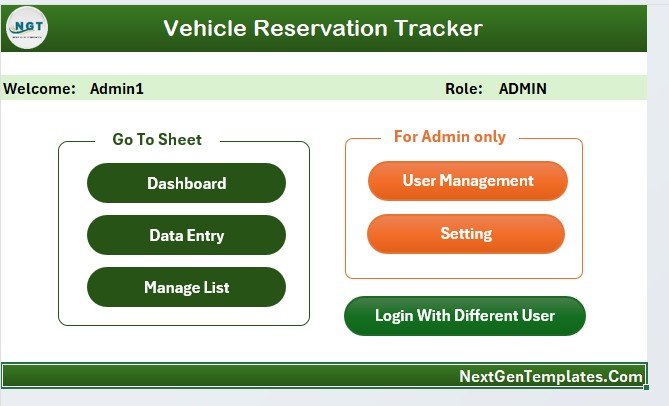
The first sheet you see when you open the workbook. Built entirely in VBA, the login form authenticates users against the User Management sheet before unlocking access to the rest of the workbook. Failed logins are blocked, and the form supports both Admin and Standard role flows.
2. Home Page
A central navigation hub with shape-based buttons that link to the Dashboard, Data Sheet, List Sheet, Settings, and User Management. New team members can find every section in one click instead of hunting through worksheet tabs.
3. Dashboard Sheet
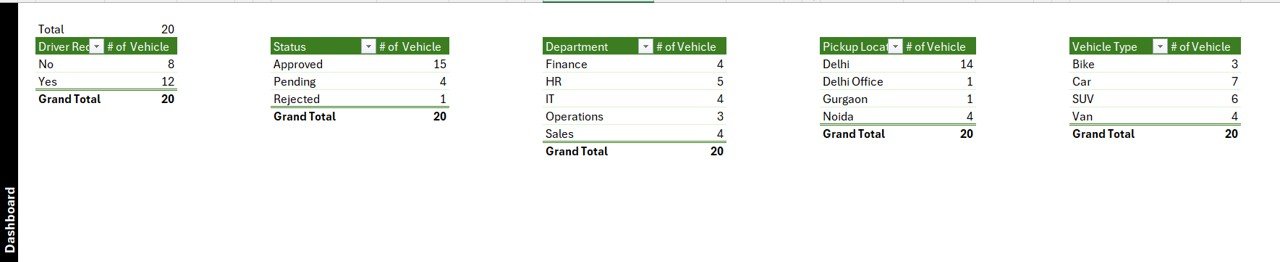
The dashboard is the analytical core of the tracker. Four slicers (Vehicle, Department, Status, Date Range) let you filter the entire view in one click. Five charts visualise the most important fleet-booking questions: which reservations are pending approval, which departments book vehicles most often, which vehicles have the highest utilisation, who is approving most requests, and how booking volumes trend month by month.
4. Data Sheet
The single source of truth. Every reservation lives here, with columns for Reservation ID, Requester Name, Department, Vehicle, Driver, Purpose, Approver, Status, Pickup Date, Return Date, and Remarks. Three buttons at the top — Add New Record, Update Record, and Delete Record — open the VBA UserForm.
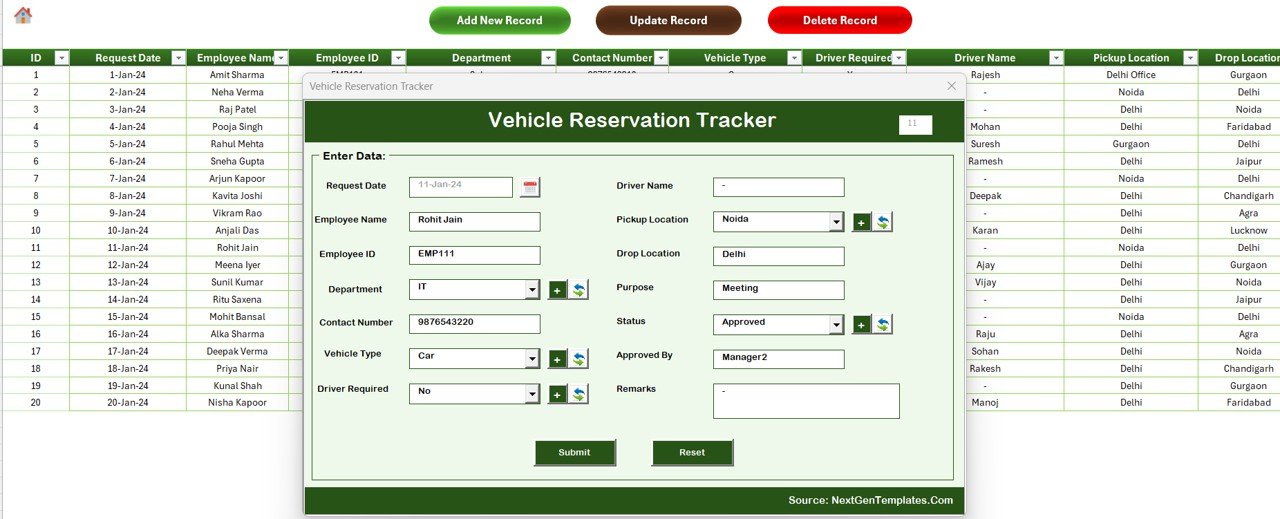
To add, click Add New Record, fill the form, and click Submit. To update, click the Reservation ID first, then click Update Record — the form opens pre-filled, and you only change what’s needed. To delete, click the Reservation ID and then Delete Record; a confirmation dialog prevents accidental removals.
5. List Sheet
This sheet stores the lookup values that drive every combo box in the data-entry form: vehicles (registration numbers, make/model), departments (HR, Sales, Operations, Field Staff, etc.), drivers, approvers, and status values (Submitted, Approved, In-Use, Returned, Rejected). Edit the list once, and the form picks up the changes immediately.
6. Support Sheet
The hidden engine room. Pivot tables on this sheet aggregate the Data Sheet rows and feed the 5 dashboard charts. You don’t need to touch this sheet during normal use — once the tracker is in production, hide it and the dashboard keeps working.
7. Settings Sheet
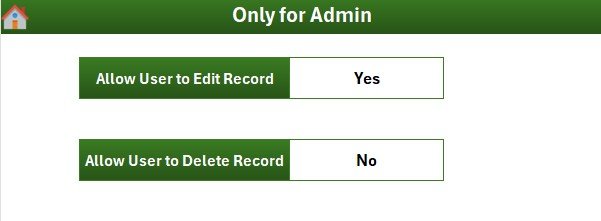
Configure the workbook for your organisation without writing formulas: organisation name, default date format, audit retention days, and visual theme colours. Changes take effect on next open.
8. User Management Sheet
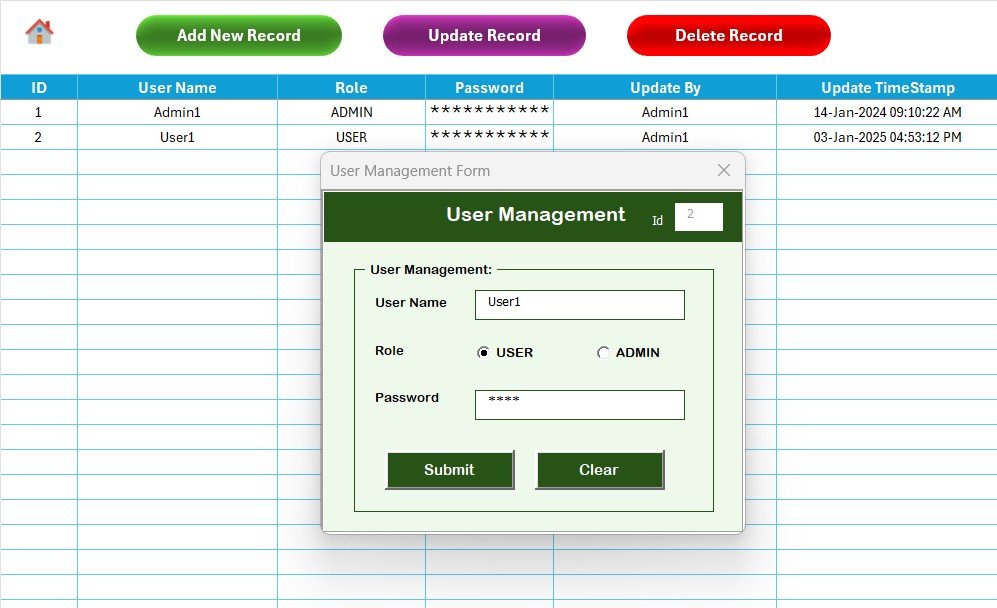
Admins manage the user list here. Each row holds a username, password, role (Admin / Standard), and active flag. Admins can add new staff, deactivate former employees, and reset passwords. The User Management sheet is itself protected so only Admin users can open it.
Vehicle Reservation Tracker in Excel vs. Google Sheets vs. Paid Fleet SaaS — Feature Comparison
| Feature | Vehicle Reservation Tracker (Excel) | Google Sheets Equivalent | Paid Fleet SaaS (Fleetio / Whip Around / TrackVia) |
|---|---|---|---|
| Cost | $6.99 one-time | $10–15 one-time | $4–10 per vehicle / month |
| Platform | Microsoft Excel (offline) | Google Sheets (cloud) | SaaS web + mobile app |
| Setup time | Under 10 minutes | 15 minutes | 2–4 weeks (data import + training) |
| VBA login + role-based access | ✅ Yes | Sharing only | ✅ Yes |
| Dashboard with slicers | ✅ 4 slicers + 5 charts | Charts only | Vendor reports |
| Customisable vehicle list | ✅ Edit list sheet | ✅ Edit list sheet | Limited / via vendor |
| Telematics / GPS hardware | ✅ None | ✅ None | Built-in (extra cost) |
| Year-1 cost at 10 vehicles | $6.99 total | ~$10 total | $480–1,200 + onboarding |
For teams that want a structured, audit-ready vehicle-booking workflow without buying telematics hardware, the Vehicle Reservation Tracker in Excel is the lowest-cost option that still gives proper user roles and a real dashboard.
Who Should Use This Template
Perfect for:
- Admin and Facilities managers at 10–500 person offices managing pool cars, vans, or shuttles
- HR teams handling executive car bookings, airport pick-ups, and field-staff transport
- Fleet coordinators at small logistics, pharma, or NGO operations
- Office managers in co-working spaces, hospitals, schools, hotels, manufacturing plants
- Internal audit teams that need evidence of vehicle-usage controls
Not a fit if:
- You run 50+ vehicles and already need GPS, fuel cards, and route optimisation
- You operate a ride-hailing or rental business needing customer-facing booking apps
- You need automatic vehicle-locator alerts or driver-behaviour scoring
- You only have macOS and don’t run Excel desktop (VBA forms need Windows / Mac Excel desktop)
Real-World Use Cases
Anjali manages Admin operations at a 180-person pharma company in Hyderabad. The office maintains 6 pool cars and 2 SUVs used by sales reps, lab couriers, and senior management. She uses the Vehicle Reservation Tracker in Excel to log every booking, route approvals through department heads, and produce a quarterly utilisation report for the COO. Before the tracker, she was spending half a day a week reconciling email approvals against the security-gate logbook. Now the report exports in 15 minutes.
Daniel is the Facilities Lead at a Berlin-based engineering consultancy with 4 client-visit cars. He runs the tracker on a shared OneDrive workbook so the front-desk team can log keys-out, keys-back, and fuel-receipt status using the VBA UserForm. Only he and the operations director have Admin rights via User Management — everyone else is a Standard user who can only see and edit their own bookings.
Reema is the Hospital Administrator at a 200-bed multi-speciality hospital. She replaced a paper logbook with this Excel tracker to manage 3 ambulances and 4 doctor pick-up cars. The Dashboard slicers help her spot vehicles with consistently late returns, plan maintenance windows, and document vehicle usage for the NABH accreditation audit. The workbook also gives her a clean record for the hospital’s annual transport-cost review.
Advantages of Vehicle Reservation Tracker in Excel
One-time cost, lifetime use. $6.99 covers unlimited vehicles, unlimited users, and unlimited bookings. A 10-vehicle office using even the cheapest paid fleet SaaS pays $480+ per year, every year. Over a 5-year horizon, the savings exceed $2,400.
Works with the vehicles you already have. No need to install GPS trackers, sign telematics contracts, or rewire dashcams. The tracker is the digital ledger; the physical vehicles stay exactly as they are.
Audit-ready out of the box. The Login Form ties every record to a user, the Data Sheet captures full reservation history with timestamps, and the User Management sheet gives auditors evidence of segregation of duties. ISO, NABH, and internal audit teams accept this kind of documentation.
Instantly customisable. Add a new vehicle or department? Update one cell in the List Sheet. Change the dashboard theme? Edit the Settings Sheet. Add a new field? Standard Excel — no consultant required. For a deeper Excel skill foundation, the official Microsoft Excel help center and VBA reference on Microsoft Learn are the best starting points.
Opportunities for Improvement
The Excel tracker is excellent at logging and reporting bookings, but it does not track real-time vehicle location, fuel level, or odometer reading. If you need GPS-based geofencing or live driver-behaviour scoring, you’ll need telematics hardware and a SaaS platform — that’s a different product category entirely.
The audit log is not cryptographically tamper-evident. A determined Admin with macro editing rights could alter historical records. For environments that require tamper-evident logs (regulated transport operators, defence contractors), pair the tracker with a secured file-sharing platform that captures every workbook version.
VBA UserForms are fully supported on Excel for Windows. Excel for Mac runs them but with occasional UI quirks. Excel Online doesn’t run macros at all — so the Add/Update/Delete buttons need the desktop application.
Best Practices
🔹 Change the default Admin password the first time you log in. Document the new password in your organisation’s password manager — not in the workbook.
🔹 Hide the Support Sheet once the tracker is live. Users only need the Dashboard, Data Sheet, and Home Page.
🔹 Set a calendar reminder to export a CSV backup of the Data Sheet every month. Excel files do corrupt occasionally, especially when stored on shared drives.
🔹 Standardise the Status values (Submitted, Approved, In-Use, Returned, Rejected). Free-text status entries break the dashboard charts.
🔹 For multi-site organisations, run one workbook per site. Cross-site reporting can be done in Power BI by combining the exported Data Sheets.
Explore Relevant Templates
🔹 Office Key Access Request Tracker in Excel — same VBA login + dashboard pattern for tracking office key issuance and returns.
🔹 Office Parking Permit Request Tracker in Excel — manage parking permit requests with the same form-driven workflow.
🔹 Resource Booking Tracker in Excel — book meeting rooms, equipment, and shared resources with VBA forms.
🔹 Fleet Management Dashboard in HTML — pair this tracker with a fleet-wide analytics dashboard for utilisation, fuel, and maintenance.
🔹 Driving School Dashboard in Excel — for teams that operate a driver-training fleet alongside reservations.
🔄 Also available as: Vehicle Reservation Tracker in Google Sheets — same workflow, cloud-native, no macros required. Browse the full Excel Tracker library for more workplace operations tools.
Frequently Asked Questions
What does the Vehicle Reservation Tracker in Excel include?
The Vehicle Reservation Tracker in Excel includes 8 worksheets: Login Form, Home Page, Dashboard with 4 slicers and 5 charts, Data Sheet with VBA Add / Update / Delete buttons, List Sheet, Support Sheet for pivot tables, Settings Sheet, and a User Management sheet for role-based access.
Does the tracker support multiple users with different permissions?
Yes. The User Management sheet lets Admins create users and assign Admin or Standard roles. Admins see every reservation and can edit anything; Standard users see only their own bookings. That role separation is the segregation-of-duties evidence auditors look for during ISO and internal-audit reviews.
How does this compare to paid fleet SaaS like Fleetio or Whip Around?
Fleetio, Whip Around, and TrackVia charge $4–10 per vehicle per month and require setup and data imports that take 2–4 weeks. The Vehicle Reservation Tracker in Excel is a $6.99 one-time purchase that covers unlimited vehicles and unlimited users — at the cost of not having GPS, fuel-card integration, or driver-behaviour scoring.
How long does setup take?
Under 10 minutes. Open the workbook, enable macros, log in with the default Admin credentials, replace the sample list values (vehicles, departments, drivers, approvers) on the List Sheet with your own, and you can log your first reservation immediately.
Can I customise the dashboard charts?
Yes. The 5 dashboard charts read from pivot tables on the Support Sheet. You can edit the pivots, add new fields, or change chart types using standard Excel features — no VBA editing required for visual changes.
Does it work in Excel for Mac and Excel Online?
The Vehicle Reservation Tracker in Excel works fully in Excel for Windows. Excel for Mac runs the workbook but VBA UserForm behaviour can be limited. Excel Online does not run macros, so the Add/Update/Delete buttons require the desktop app.
Can I track fuel, mileage, and maintenance with this template?
The Vehicle Reservation Tracker in Excel focuses on bookings and approvals, not fuel or mileage logging. Pair it with a Fleet Management Dashboard or Vehicle Maintenance Tracker for full lifecycle coverage. Both companion templates are available on NextGenTemplates.
About the Author
Built by PK — Microsoft Certified Professional with 15+ years of Excel, Google Sheets, and Power BI experience. Founder of NextGenTemplates, reaching 300K+ subscribers across YouTube channels. Every template is hand-built and tested before release.
Conclusion
The Vehicle Reservation Tracker in Excel turns a messy, paper-and-WhatsApp vehicle-booking process into an audit-ready Excel workflow with a real login, role-based access, an interactive dashboard, and form-driven data entry. For $6.99 one-time, your Admin, Facilities, HR, and Fleet teams get a tool that pays for itself the first month you skip a Fleetio invoice.
👉 Click here to Purchase the Vehicle Reservation Tracker in Excel
✅ Instant download · One-time payment · No subscription · No per-user fees · Lifetime access
🎥 Visit YouTube.com/@PK-AnExcelExpert for step-by-step Excel tutorials and template walk-throughs.
📅 Last updated: May 2026