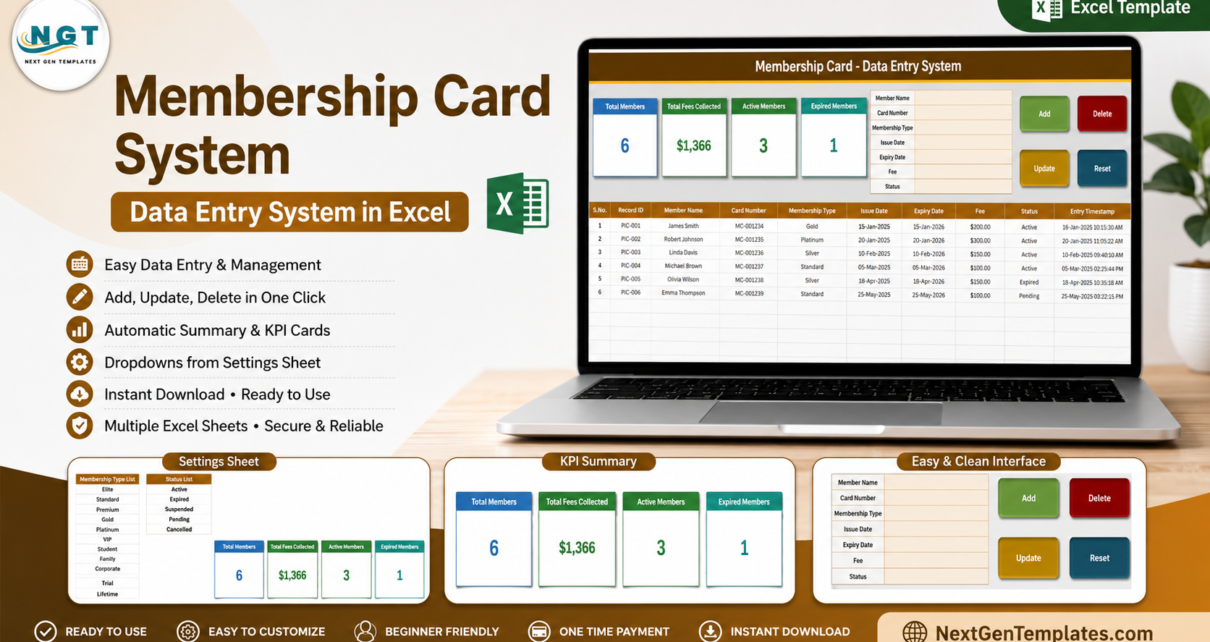
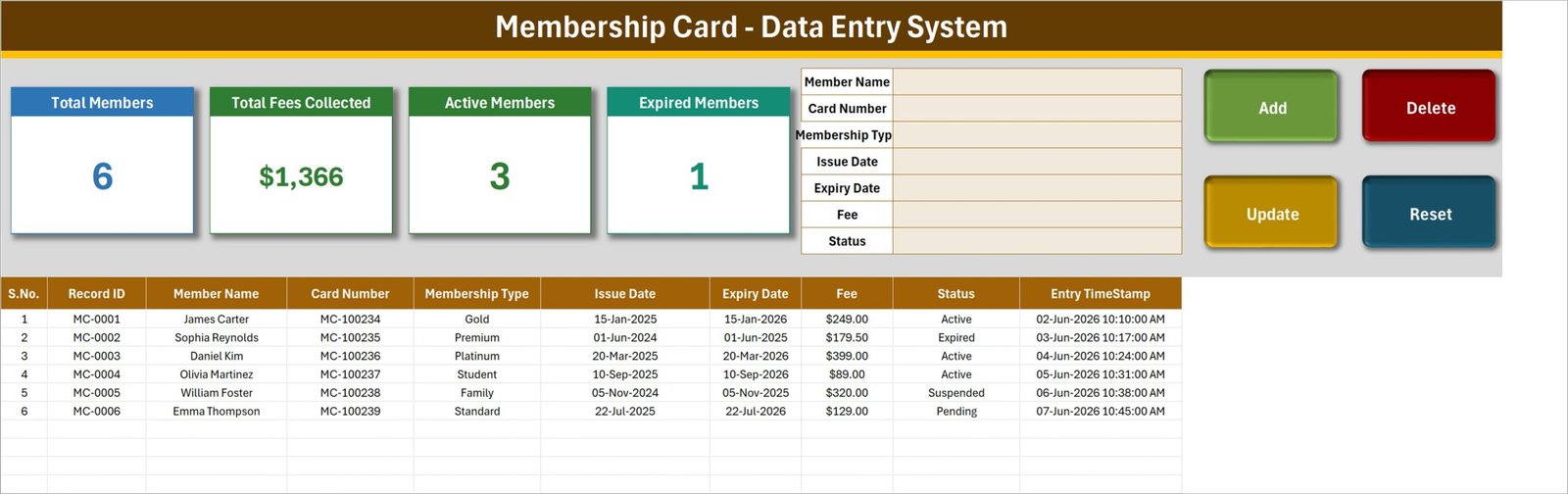
Membership records become surprisingly fragile when card numbers, plans, fees, and renewal dates are scattered across messages and unstructured worksheets. The Membership Card Data Entry System in Excel puts seven member fields behind one guided form, adds four VBA action buttons, and keeps four summary cards above a ten-column member table. The included sample demonstrates six records, $1,366 in fees, three active members, and one expired member, making the workflow clear before you replace the examples with your own data. Membership Card Data Entry System in Excel
This ready-to-use workbook is designed for one administrator using desktop Excel. It costs $6.99 once, has no subscription or per-user fee, and keeps the data in a file you control. It records card details; it does not create or print physical membership cards.
Key Features of the Membership Card Data Entry System in Excel
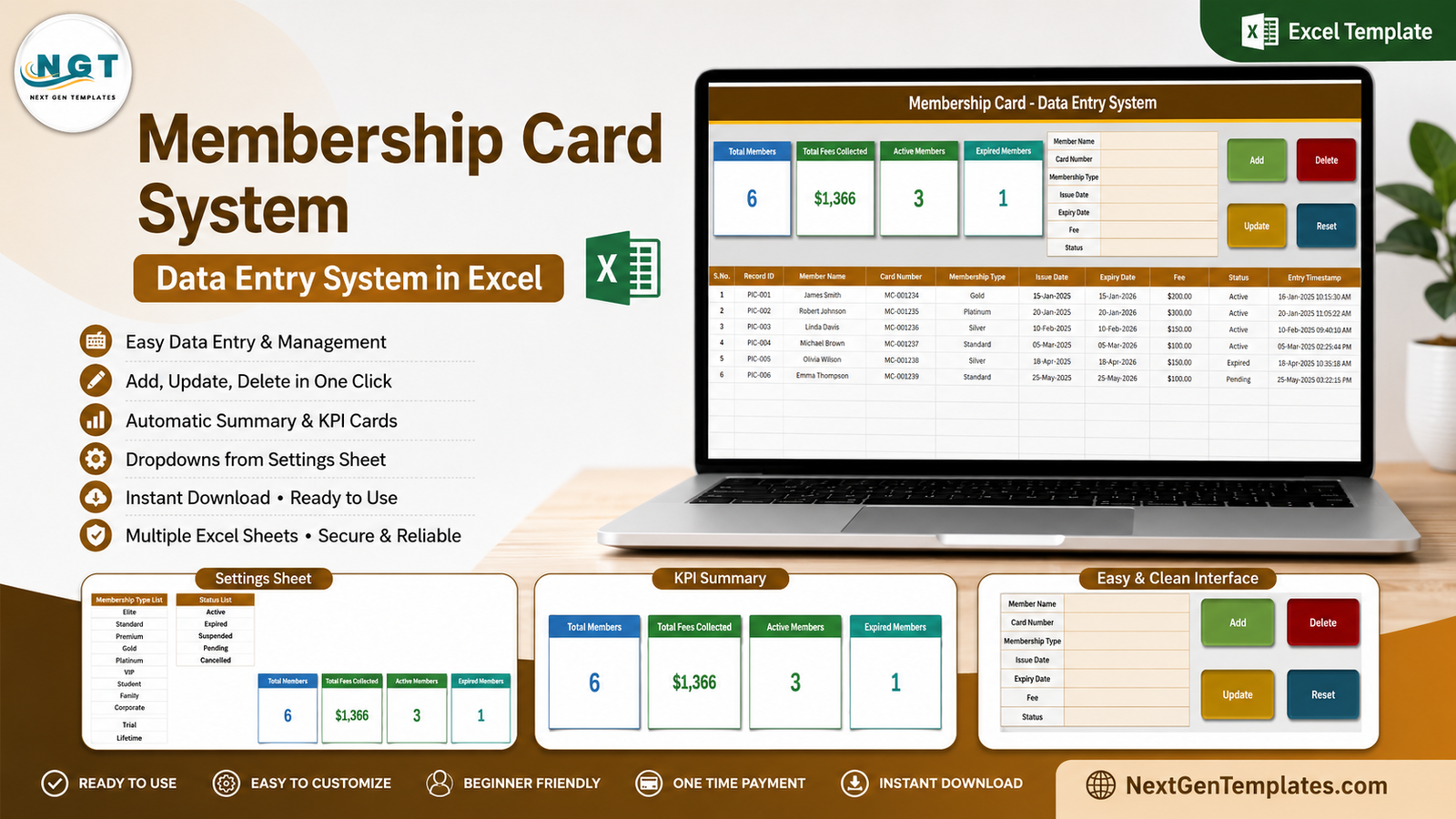
- Seven-field entry form: Member Name, Card Number, Membership Type, Issue Date, Expiry Date, Fee, and Status.
- Add, Update, Delete, and Reset: four VBA buttons handle the core record operations without requiring the user to edit formulas.
- Double-click editing: load an existing member into the form, adjust the values, and update the matching row by its remembered Record ID.
- Automatic Record IDs and timestamps: every new row gains a structured ID and Entry TimeStamp for easier tracing.
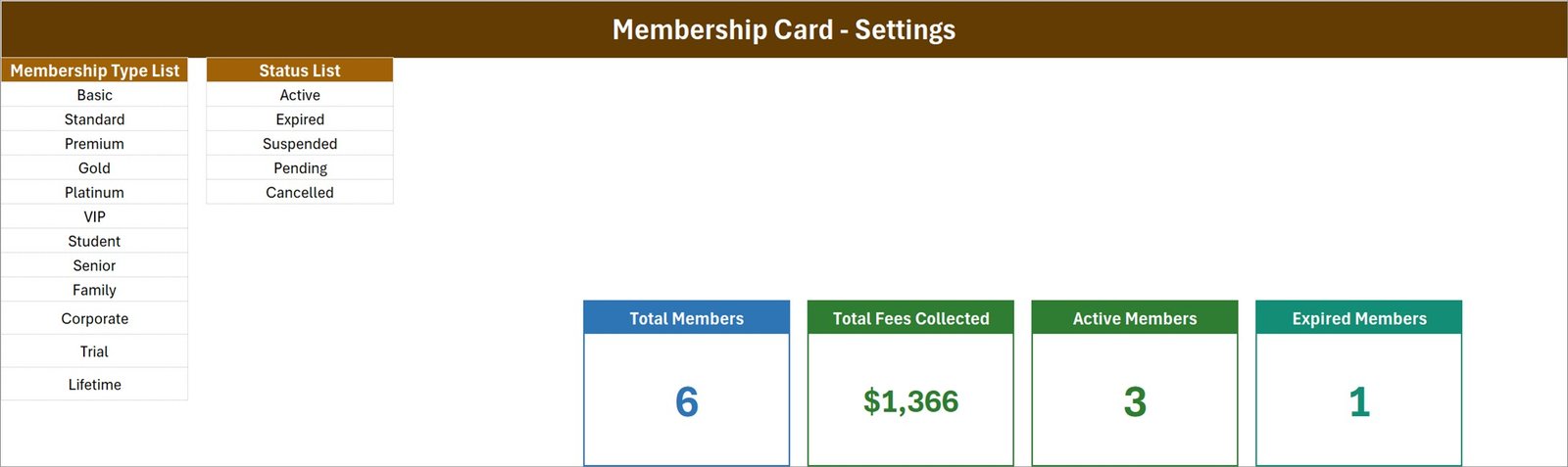
- Four live cards: Total Members, Total Fees Collected, Active Members, and Expired Members summarize the table.
- Editable validation lists: maintain membership plans and statuses from one Setting sheet.
- Filterable records table: sort expiry dates, isolate inactive accounts, or review fees with familiar Excel controls. Membership Card Data Entry System in Excel
Workbook Sheets Explained
Data Entry sheet
This is the operating screen. Four KPI cards sit beside the member form and the four action buttons. Below them, the table stores S.No., Record ID, Member Name, Card Number, Membership Type, Issue Date, Expiry Date, Fee, Status, and Entry TimeStamp. Because the form and table use the same dropdown sources, administrators can use the guided form or enter directly in the table when appropriate.
Setting sheet
The control sheet starts with eleven plan choices: Basic, Standard, Premium, Gold, Platinum, VIP, Student, Senior, Family, Corporate, Trial, and Lifetime. It also provides five statuses: Active, Expired, Suspended, Pending, and Cancelled. Add, remove, or rename values here and the dropdowns follow. The source KPI cards are placed on this sheet too, so their appearance can be adjusted centrally.
How To Use sheet
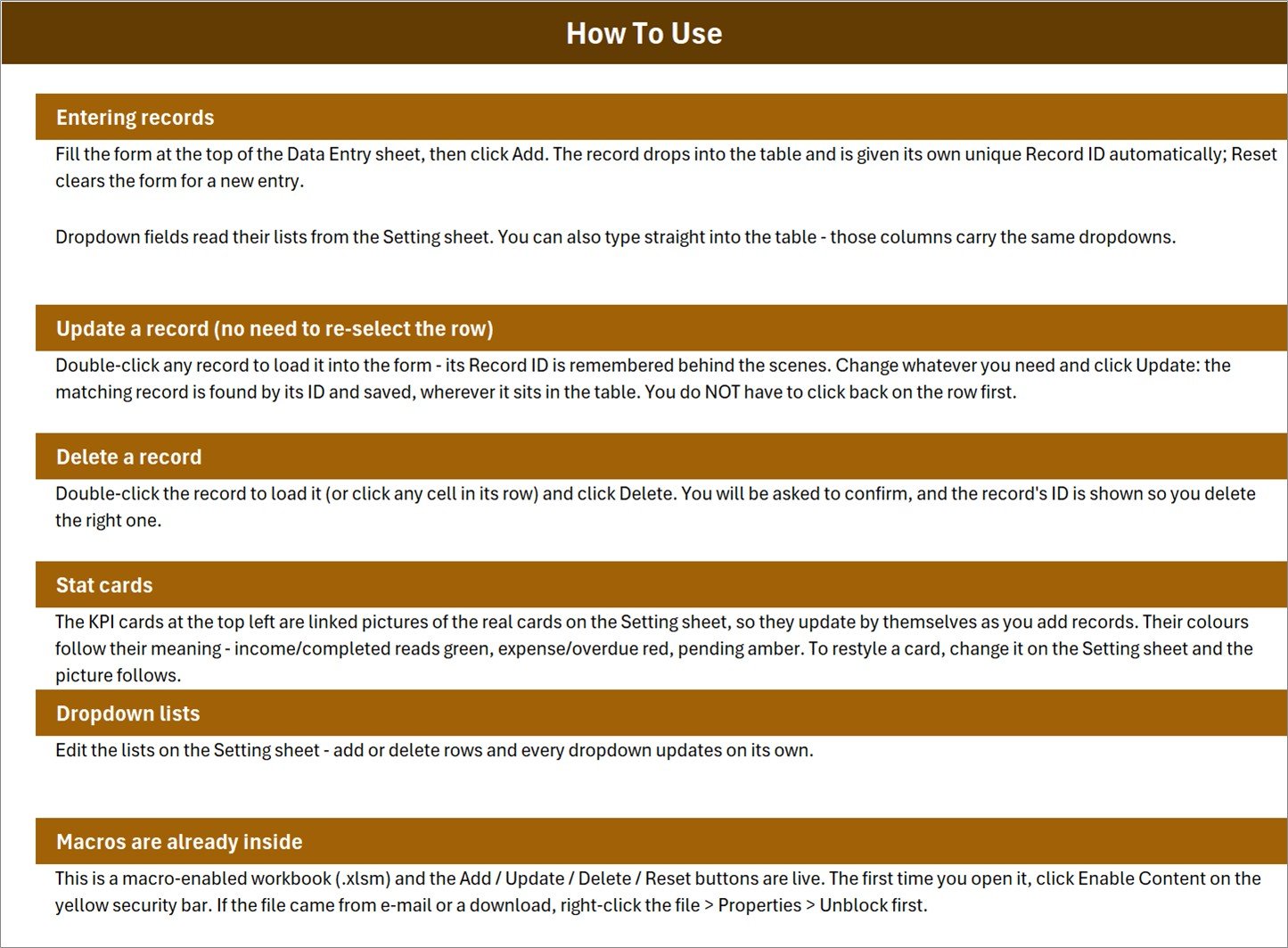
The instruction page remains inside the workbook. It explains how to add a member, edit without re-selecting a row, delete with confirmation, maintain the dropdown lists, understand the linked KPI cards, and enable macros on first use.
Membership Card Data Entry System in Excel vs. Google Sheets vs. Paid Membership SaaS – Feature Comparison
| Feature | Excel membership system | Google Sheets log | Paid membership SaaS |
|---|---|---|---|
| Purchase model | $6.99 one-time | Free to build | Recurring subscription |
| Platform | Desktop Excel with VBA | Web browser | Vendor cloud/app |
| Guided form | Built in | Needs a form or Apps Script | Usually built in |
| Safe record updates | ID-matched update button | Manual unless automated | Built in |
| Real-time collaboration | No; one desktop file | Yes | Yes, often plan-based |
| Mobile access | VBA actions not supported | Yes | Usually yes |
| Custom membership lists | Directly editable | Directly editable | Depends on plan |
| Payment processing | No | No | May be included |
| Data ownership | Local workbook | Google Drive | Vendor-hosted |
The template fits between a raw spreadsheet and full membership software. It gives a small organization repeatable entry controls without the price or administration of a cloud platform, but it intentionally leaves payment gateways, access control, automated messages, and concurrent user roles to specialist software.
Who Should Use This Template
Gym and studio administrators can track plan names, card references, payments, and renewal dates from one screen. Private clubs and coworking spaces can maintain Gold, Family, Corporate, Trial, or custom tiers without rebuilding the form. Associations, libraries, alumni groups, and nonprofits can keep a structured membership roster when one person owns the update process.
It is not intended for organizations that need several operators entering records simultaneously, a browser-only workflow, card printing, barcode scanning, door-access hardware, automatic invoicing, or renewal emails. Those requirements point toward a database or membership SaaS.
Real-World Use Cases
A yoga studio preparing renewal calls
Maya filters the Expiry Date column for the next 30 days, checks current Status, and contacts only the relevant members. After a renewal, she double-clicks the row, changes the expiry date and fee, and clicks Update.
A private club reviewing plan mix
Daniel uses Gold, Family, and Corporate values in the Membership Type field. At month end, he filters each plan to review membership composition and checks the Total Fees Collected card before reconciling the member table.
An association maintaining a clean roster
Aisha gives every member a card number while the workbook creates its own internal Record ID. The distinction helps preserve a stable row reference even if the organization’s visible card-number format changes.
Advantages of the Membership Card Data Entry System in Excel
The main advantage is consistency. Every record uses the same seven entry fields, and the dropdown lists keep plan and status spelling aligned. The four buttons make common operations explicit, while Record IDs reduce the risk of editing the wrong row. The file is portable, easy to back up, and familiar to anyone who already works in Excel. No account setup, server configuration, or recurring billing is required.
The summary cards also give immediate operational context without asking the administrator to build a pivot table. They answer four everyday questions: how many members exist, how much fee value is recorded, how many are active, and how many have expired.
Opportunities for Improvement
This version does not print card artwork, generate QR codes, send expiry reminders, collect online payments, or synchronize with access-control hardware. It also does not provide concurrent multi-user editing because the action buttons depend on VBA in a desktop workbook. If your process grows, the ten-column records table is a sensible source for a later dashboard or database migration, but the automation itself should remain in desktop Excel.
Best Practices
- Keep an untouched backup of the downloaded ZIP before editing the workbook.
- Use desktop Excel and enable only files from a source you trust. Review Microsoft’s guidance on enabling or disabling macros in Microsoft 365 files.
- Replace the sample membership and status lists before entering live data.
- Delete the six fictional sample rows after you understand the workflow.
- Use one consistent Card Number convention and avoid reusing numbers.
- Back up the workbook on a schedule, especially before bulk changes.
- Filter Expiry Date weekly and use Status consistently for reliable counts.
Explore Relevant Templates
- Gym Membership Tracker in Google Sheets – choose this when shared browser access matters more than VBA controls.
- Private Clubs Dashboard in Excel – analyze a larger membership history with dashboard views.
- Private Clubs Dashboard in Power BI – build interactive club reporting for decision makers.
- Supplement Sales Data Entry System in Excel – record retail activity alongside a gym or studio membership operation.
- Salon Appointment Data Entry System in Excel – a related four-button workflow for appointment-led businesses.
Browse the complete Excel template collection and Excel VBA tools for more options.
Frequently Asked Questions
Does this workbook print membership cards?
No. It stores a Card Number with the member record but does not design or print a physical card.
Do the buttons work in Excel Online?
No. Excel for the web does not run the VBA behind Add, Update, Delete, and Reset. Use desktop Microsoft Excel.
Can I add my own membership plans?
Yes. Edit the Membership Type List on the Setting sheet. The form and table dropdowns use that list.
How are existing records updated?
Double-click a record to load it into the form. Its Record ID is remembered behind the scenes, so clicking Update finds the correct row even if the table order changed.
Can the workbook send renewal reminders?
No. Filter the Expiry Date column to prepare follow-ups. Automated email or SMS reminders require additional software or customization.
Is the sample information real?
No. Names, card numbers, fees, and dates shown in the screenshots are demonstration data.
Can multiple staff members enter records at once?
No. Treat this as a single-user desktop workbook. Choose a shared cloud system for simultaneous entry.
About the Author
Built by PK – Microsoft Certified Professional with 15+ years of Excel, Google Sheets, and Power BI experience. Founder of NextGenTemplates, reaching 300K+ subscribers across YouTube channels. Every template is hand-built and tested before release.
Conclusion
The Membership Card Data Entry System in Excel gives a small membership organization the controls missing from an improvised list: consistent form fields, safe ID-based updates, editable plans and statuses, automatic timestamps, and four at-a-glance cards. It is deliberately focused, affordable, and local.
Get the Membership Card Data Entry System in Excel for $6.99, enable macros, customize the two lists, and turn your membership roster into a repeatable process. For more Excel tutorials, visit PK-AnExcelExpert on YouTube.