The Employee Health Declaration Tracker in Excel consolidates employee health submissions across 8 purpose-built worksheets, with a password-protected Login Form, a VBA-driven Data Entry form (Add / Update / Delete), and a Dashboard with 4 slicers and 5 auto-refresh charts. Replace the sample declarations and the entire dashboard updates in under 10 minutes — no manual formulas, no per-user SaaS bill, no internet required.
Workplace health monitoring used to mean printable forms, scattered email replies, and a half-finished spreadsheet that nobody trusted. With the Employee Health Declaration Tracker in Excel, HR managers, Safety Officers, and Admin teams capture daily, weekly, or periodic health-status declarations in a single auditable workbook — and get a real dashboard the moment the data lands. This guide walks through every sheet, the comparison against Google Sheets and paid health-and-safety SaaS, who it fits (and doesn’t), how to set it up, and the 6 most common questions buyers ask before downloading.
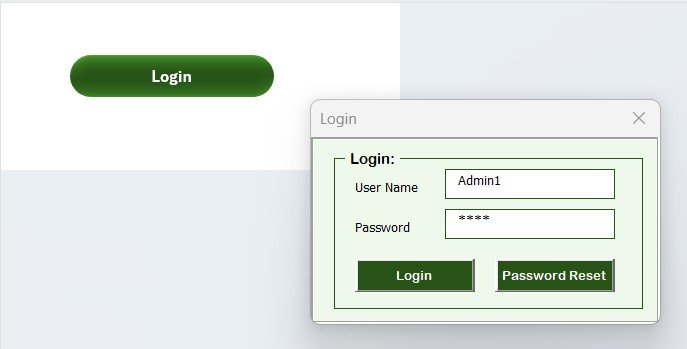
Login Form — password-protected entry point
Key Features of the Employee Health Declaration Tracker in Excel
The Employee Health Declaration Tracker in Excel is built on a tested 8-sheet VBA architecture. Every sheet has one job, and every record entered through the form flows to the dashboard charts automatically.
🔹 8 integrated worksheets — Login Form, Home Page, Dashboard, Data Sheet, List Sheet, Support Sheet, Settings Sheet, and User Management Sheet. The VBA backbone wires them together so a single click in the Add Record form updates every chart and slicer.
🔹 VBA Data Entry form (Add / Update / Delete) — three buttons on the Data Sheet open the same UserForm. Add inserts a new declaration; Update prefills the form when you click an existing Declaration ID; Delete confirms before removing the row. There is no manual sheet-cell editing.
🔹 Login + role-based access — the User Management sheet stores usernames, passwords, and roles (HR Admin, Safety Officer, Read-only Manager). The Login Form validates against this sheet before opening the workbook, keeping sensitive symptom and health-status data restricted.
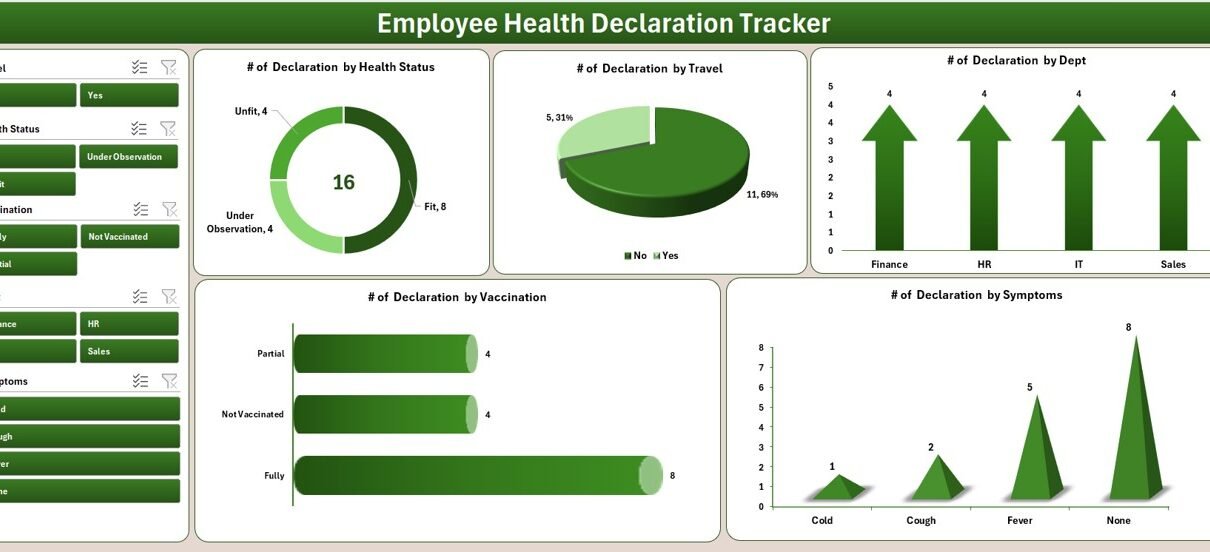
🔹 Slicer-driven Dashboard with 5 charts — slice by Department, Health Status, Submission Channel, and Employee. The 5 charts visualise total declarations, status distribution (Healthy / Symptoms Reported / Tested Positive / Recovered / Pending), department-wise health risk, submission channel mix, and employee compliance trend.
🔹 Dropdown-driven entry — every combo box in the form is fed by the List Sheet. To add a new department, health-status label, submission channel, or symptom category, you add a single row to the List Sheet — the form picks it up immediately.
🔹 Settings + Support sheets — the Settings Sheet stores branding, contact details, health-policy reference, and the reporting period (daily / weekly / periodic). The Support Sheet hosts hidden pivot tables that drive the dashboard charts; users never need to open it.
For more on building VBA UserForm-driven workbooks like this one, Microsoft’s official Excel VBA reference covers the underlying object model — see Microsoft Learn: Excel VBA reference.
Workbook Structure: The 8 Sheets Explained
Below is each sheet, in the order users move through them after logging in.
1. Login Form
The first screen users see. A simple username/password form validates against the User Management sheet. If credentials don’t match, the workbook stays locked. This is what makes the Employee Health Declaration Tracker in Excel safe to share with shift supervisors and admin staff without exposing every record to everyone.
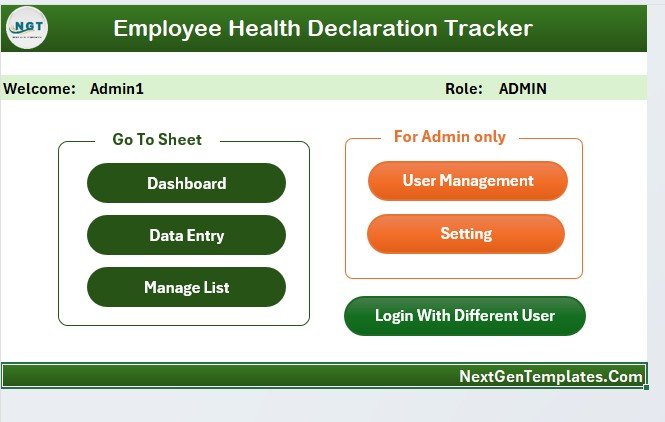
Home Page — central navigation hub
2. Home Page
Central navigation hub with one-click buttons to every sheet. After login, users land here and pick where to go — Dashboard, Data Sheet, List Sheet, etc. No hunting through tabs.
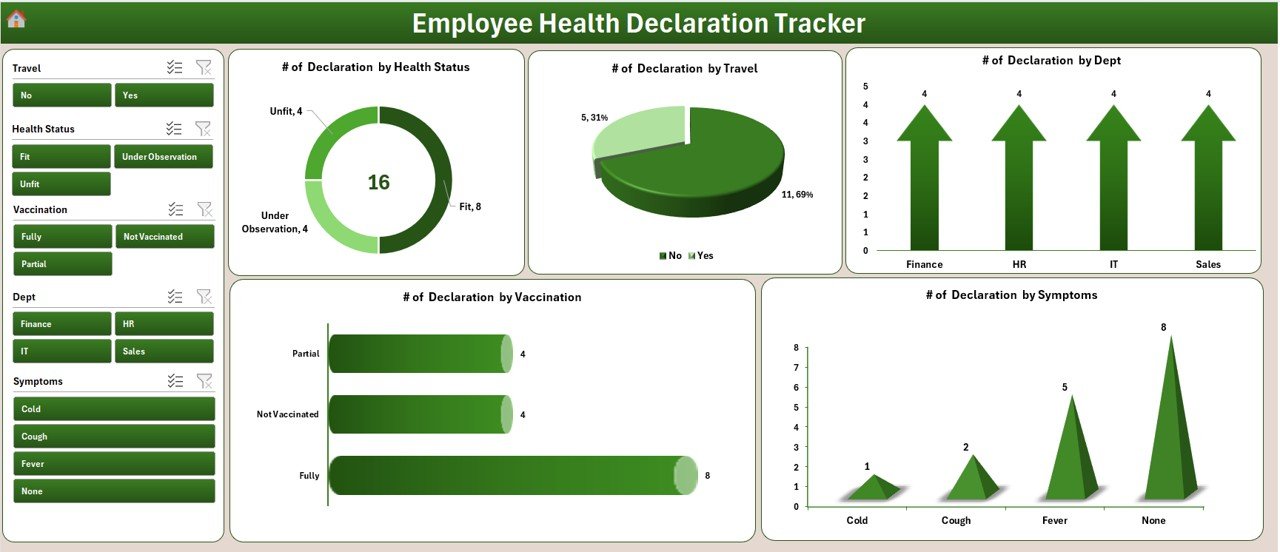
Dashboard — 4 slicers, 5 auto-refresh charts
3. Dashboard
The decision-making screen. KPI summary plus 4 slicers (Department, Health Status, Submission Channel, Employee) and 5 auto-refresh charts. Slicing by Department in the morning shows you which production floor or office has the highest “Symptoms Reported” count today; slicing by Submission Channel tells you whether email submissions are bottlenecking compliance reporting.
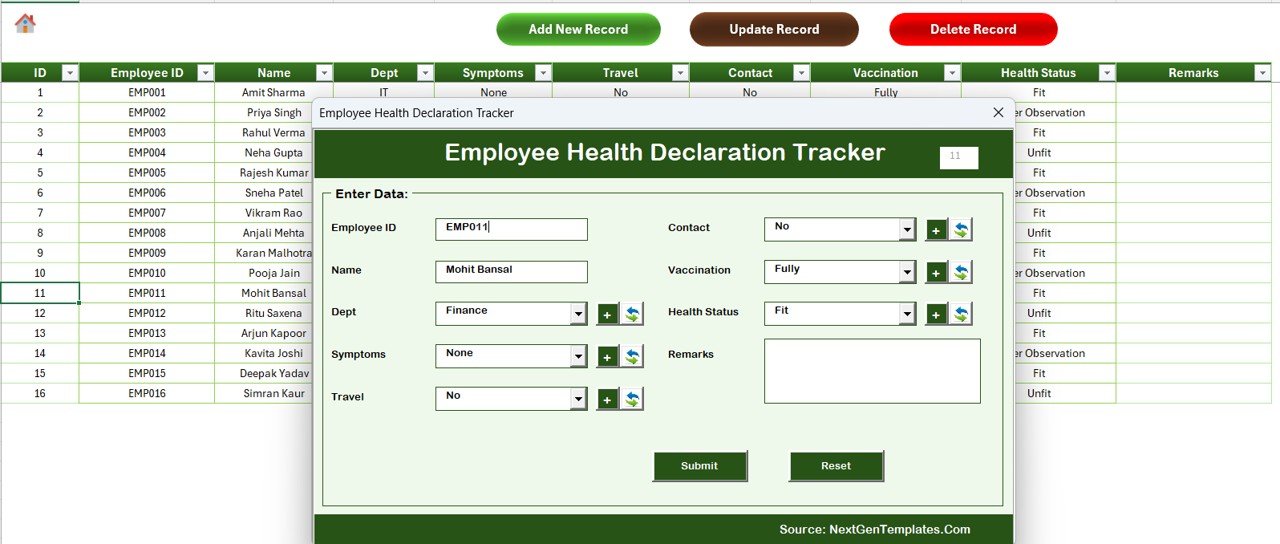
Data Sheet — Add / Update / Delete buttons drive the VBA UserForm
4. Data Sheet
The master record table. Every declaration lives here. The three buttons across the top — Add New Record, Update Record, Delete Record — launch the same UserForm with the right behaviour for each action. Click any Declaration ID and hit Update to edit; hit Delete to confirm and remove. The dashboard refreshes the moment you submit.
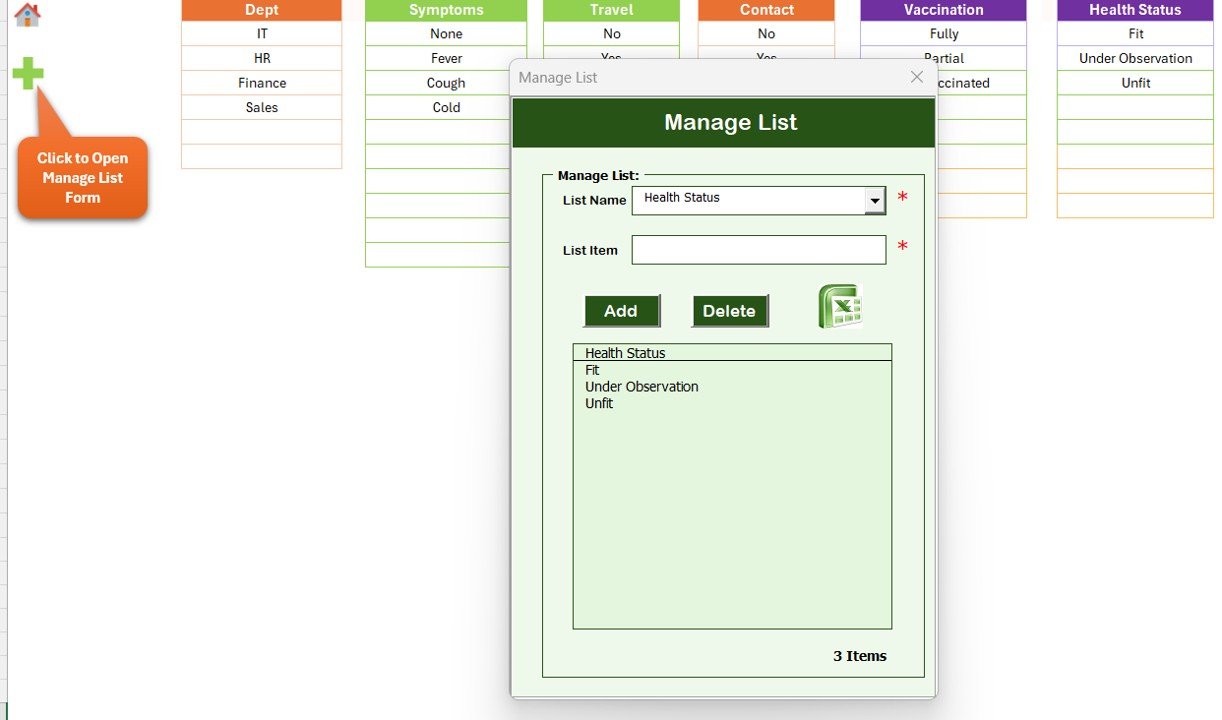
List Sheet — feeds every dropdown in the form
5. List Sheet
Single source of truth for every dropdown in the Data Entry form. Departments, Health Status options, Submission Channels, Symptom categories, Employee names — all live here. Add a new value once and it appears in every relevant combo box.
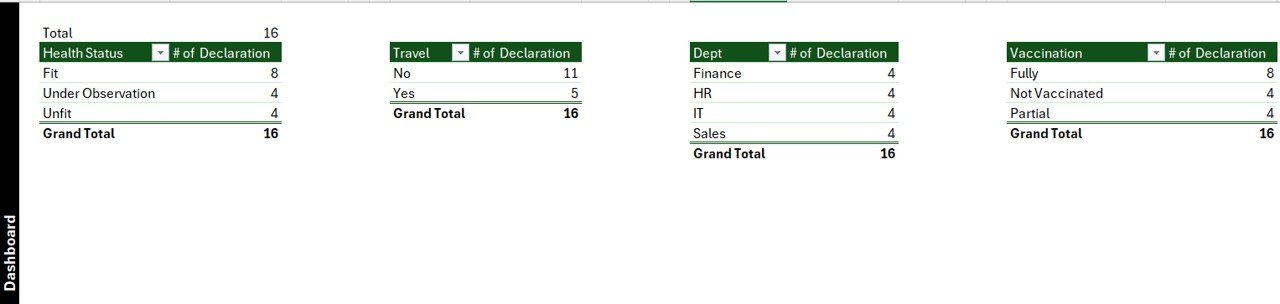
Support Sheet — hidden pivots that drive the dashboard
6. Support Sheet
Hidden pivot tables that power the dashboard charts. End users never need to open this sheet — hide it before distributing the workbook so the front-end stays clean.
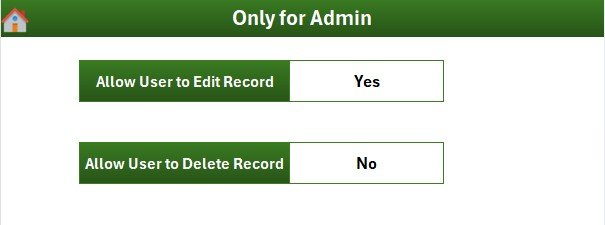
Settings Sheet — branding and policy configuration
7. Settings Sheet
Store the organisation logo, contact details, the relevant health-policy reference (e.g., the company’s HR-2024-Health policy ID), and the reporting period — daily for production-line factories, weekly for office workforces, periodic for return-to-work scenarios.
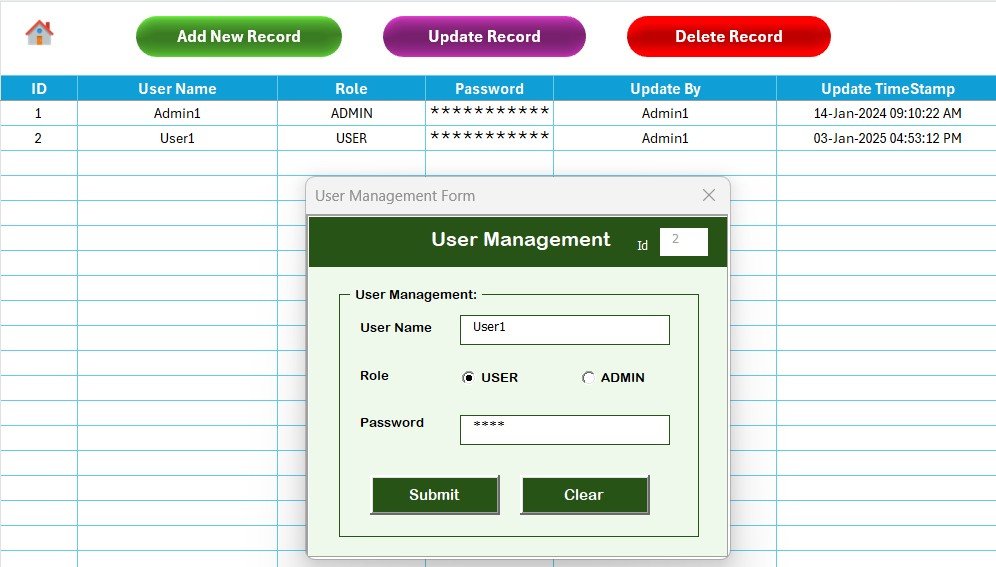
User Management Sheet — usernames, passwords, and roles
8. User Management Sheet
The access-control sheet. Define users, set passwords, and assign roles. Adding a new HR coordinator takes one row — no VBA editing needed.
Employee Health Declaration Tracker vs. Google Sheets Equivalent vs. Paid Health-and-Safety SaaS — Feature Comparison
| Feature | Employee Health Declaration Tracker in Excel | Google Sheets equivalent | Paid SaaS (Cority / VelocityEHS / SafetyCulture) |
|---|---|---|---|
| Cost | $6.99 one-time ✅ | $6.99 one-time | $25–$150 per user per month ($1,500–$9,000/yr at 5 admins) |
| Platform | Microsoft Excel (offline-capable) ✅ | Google Sheets (browser-only) | Cloud SaaS — vendor lock-in |
| Setup time | Under 10 minutes ✅ | Under 10 minutes | 3–8 weeks (vendor onboarding) |
| VBA Data Entry form (Add / Update / Delete) | Yes — built-in UserForm ✅ | Apps Script form simulation | Yes (web form) |
| Login + role-based access | Yes — User Management sheet ✅ | Sheet protection only | Yes (SSO / SOC 2) |
| Slicer-driven dashboard | 4 slicers, 5 charts, auto-refresh ✅ | Pivot filter views | Pre-built dashboards |
| Customisable health-status fields | Fully editable — own your code ✅ | Fully editable | Vendor-controlled question types |
| Year-1 cost at 5 admins | $6.99 ✅ | $6.99 | $1,500 – $9,000 |
| Mobile data entry | Excel mobile (limited) | Yes (browser + mobile app) ✅ | Yes (native app) |
For HR teams and Safety Officers who want a slicer-driven employee health-declaration workflow without a per-seat subscription, the Employee Health Declaration Tracker in Excel sits in the sweet spot.
Who Should Use This Template
Perfect for:
- HR managers at 10–500 person companies running daily or weekly health declarations
- Safety Officers and EHS leads tracking symptom reports and recovery trends across departments
- Admin and Facility teams managing on-site workforce safety in factories, offices, retail, or hospitality
- Founders and small-business owners replacing $1,500–$9,000/year EHS SaaS with a $6.99 spreadsheet
- Compliance teams in healthcare, manufacturing, education, and logistics with mandatory health-reporting policies
Not a fit if:
- You need SOC 2 / SSO / enterprise audit logs across 10,000+ daily declarations
- You require anonymous-only health reporting with cryptographic guarantees (passwords are stored in a sheet)
- You’re Mac-only — VBA UserForms don’t render reliably on Mac Excel; use the Google Sheets version instead
- You need a mobile-first experience for employees to self-submit from their phones in-app
Real-World Use Cases
Anjali, HR head at a 120-person manufacturing plant in Pune, uses the Employee Health Declaration Tracker in Excel to log daily morning health submissions from production-floor staff. She slices by Department to spot high-risk shifts before the noon safety review and presents the 5 dashboard charts to plant leadership every Friday — replacing a regional EHS SaaS quote of ₹3.5 lakh per year.
Marcus runs Workplace Safety at a 65-person logistics company in Rotterdam. He captures weekly health declarations from drivers and warehouse staff via the Add Record form, uses the User Management sheet to give shift supervisors edit rights, and stores the latest occupational-health policy version on the Settings sheet. The slicer-driven dashboard gives him an audit-ready snapshot during quarterly compliance reviews.
Priya, People Operations lead at a 40-person Bengaluru SaaS startup, uses the tracker for post-leave return-to-work declarations. The List Sheet maintains the dropdown of recognised symptoms; the Dashboard gives leadership a “team health snapshot” in under 30 seconds. The whole workflow used to take her 90 minutes a week across spreadsheets and Slack — now it’s a 10-minute Friday review.
Advantages of the Employee Health Declaration Tracker in Excel
The biggest commercial advantage is cost. Five admin seats on a paid EHS SaaS run $1,500–$9,000 per year; this template is a single $6.99 payment. For a 50-person company that’s roughly the difference between paying for one good cup of coffee and paying for a junior employee for a month.
Operationally, the VBA UserForm eliminates the most common error mode of free Excel templates — users editing cells directly and breaking formulas. Every declaration goes through the form, gets validated against the List Sheet dropdowns, and lands in a row that the dashboard can read. Setup is genuinely under 10 minutes once macros are enabled.
The login layer is what separates this tracker from a regular spreadsheet. Health data is sensitive — symptom reports, positive test history, recovery dates. The User Management sheet plus the Login Form means a casual click on a shared drive doesn’t expose every record.
Opportunities for Improvement
The Employee Health Declaration Tracker in Excel is intentionally a Windows-Excel VBA tool. Mac compatibility is partial because Mac Excel does not fully support UserForm controls. If you’re a Mac-first team, the Google Sheets version is the better fit.
The password layer in the User Management sheet is sufficient to stop casual viewing — it is not a substitute for enterprise-grade vaulting (Azure AD, Okta, or hardware-secured secrets). For SOC 2 environments, treat this template as a tactical tool layered behind an enterprise access policy, not as the access-control system itself.
Mobile data entry is limited. Excel for iOS/Android won’t run the UserForm. If employees need to self-declare from their phones, capture submissions through a Google Form or Microsoft Form and import the export into the Data Sheet.
Best Practices
Set up the List Sheet first — every dropdown in the form draws from it, so getting your departments, symptom categories, and submission channels right up front saves rework later. Use the Settings Sheet to record the relevant health-policy reference (e.g., HR-2024-Health-v3) so audit reviewers can match declarations to the policy in force at the time. Schedule a recurring 15-minute Monday review to check the dashboard’s “Pending” slice — anyone who hasn’t submitted last week’s declaration is flagged immediately.
Explore Relevant Templates
🔹 Also available as: Employee Health Declaration Tracker in Google Sheets — same workflow for Mac, mobile, and distributed teams.
🔹 Late Coming and Early Leaving Management System in Excel VBA — same VBA login + UserForm + slicer pattern, applied to attendance compliance.
🔹 Product Feedback Tracker in Excel — sister template with the same 8-sheet architecture for feedback management.
🔹 Payroll Calculator and Payslip Generator in Excel — companion HR tool for payroll and payslip processing.
🔹 💎 Save 18% — Get 10 HR templates in the HR & Workforce Analytics Bundle for $89.99.
Frequently Asked Questions
What sheets are included in the Employee Health Declaration Tracker in Excel?
The Employee Health Declaration Tracker in Excel includes 8 sheets — Login Form, Home Page, Dashboard, Data Sheet, List Sheet, Support Sheet, Settings Sheet, and User Management Sheet — all wired together through VBA so adding a new health declaration through the form updates the dashboard charts automatically.
How does the VBA Data Entry form work in this tracker?
Three buttons on the Data Sheet — Add, Update, Delete — open the same UserForm. Add inserts a new declaration; Update prefills the form when you click an existing Declaration ID; Delete confirms before removing the row. There is no direct sheet-cell editing in the Employee Health Declaration Tracker in Excel.
How long does setup take for the Employee Health Declaration Tracker?
Setup of the Employee Health Declaration Tracker in Excel takes under 10 minutes — open the file, enable macros, edit the List Sheet dropdowns for your departments and health statuses, configure users on the User Management sheet, and personalise the Settings sheet. The Dashboard works without further configuration.
How does this compare to paid health-and-safety SaaS like Cority or SafetyCulture?
Paid EHS SaaS typically costs $25–$150 per user per month — about $1,500 to $9,000 per year for five admins. The Employee Health Declaration Tracker in Excel is $6.99 one-time with no recurring fees, no per-user pricing, and full ownership of your code and health data.
Does the Employee Health Declaration Tracker work on Mac?
The Employee Health Declaration Tracker uses VBA UserForms which render reliably only in Excel for Windows (2016, 2019, 2021, Microsoft 365). Mac Excel does not fully support UserForm controls, so we recommend Windows. The Google Sheets equivalent works on any device including Mac.
Can I add custom health-status fields and symptom categories?
Yes. All combo-box values come from the List Sheet, so adding a new Department, Health Status option, Submission Channel, or Symptom takes one row in the Employee Health Declaration Tracker in Excel. For new form fields, edit the UserForm in the VBA editor — full source code is included and unprotected.
Is the Employee Health Declaration Tracker a one-time purchase?
Yes. The Employee Health Declaration Tracker in Excel is $6.99 one-time, instant download, no subscription, no per-user fees, and lifetime access. You also get free updates whenever the template is revised.
About the Author
Built by PK — Microsoft Certified Professional with 15+ years of Excel, Google Sheets, and Power BI experience. Founder of NextGenTemplates, reaching 300K+ subscribers across YouTube channels. Every template is hand-built and tested before release.
Conclusion
For HR, Admin, and Safety teams that need structured workplace health monitoring without committing to a $1,500–$9,000-a-year EHS subscription, the Employee Health Declaration Tracker in Excel does the job in 8 sheets and under 10 minutes of setup. It’s a tactical workbook, owned by the buyer, with no recurring billing and no vendor lock-in.
👉 Click here to Purchase the Employee Health Declaration Tracker in Excel
✅ Instant download · One-time payment · No subscription
🎥 Visit YouTube.com/@PK-AnExcelExpert for step-by-step video tutorials.
📅 Last updated: April 2026